


|
|

Navigating the Enterprise Documentation CD-ROM
After you install and start the Enterprise Documentation CD-ROM, you can look at the list of available documents and begin reading. Supported features, menu structures, options, and terminology are similar, but not identical, on all platforms.
Because the user interface differs slightly on each platform, this booklet does not include detailed instructions on how to navigate through the search and display environment. Rather, it provides an overview of the CD-ROM's features and functions. Use your online help for more information about the search and display features supported on your platform.
Help is available at any time by clicking on the Display Online Help button in the toolbar. (Refer to the section "Browser Toolbar" earlier in this booklet.) Before you get started with Cisco's online documentation, refer to the online help for a detailed explanation of the Enterprise Documentation CD-ROM features that are supported on your platform.
You can also use online help while you are reading online documents and searching through the array of information available on the CDs.
The Enterprise Documentation CD-ROM contains a series of interconnected documents that you navigate by clicking on hypertext links and using the navigation tools---the toolbar, the navigation bar, and the document button bar. In addition, the package offers a powerful search facility to allow you to jump directly to the information that interests you.
The CDs also provide several ways to return to documents that you have previously looked at. A history facility allows you to keep track of the documents that you have looked at in the last 60 days. You can also save the location of documents that you reference regularly by adding them to a hotlist.
Hypertext links are underlined words or entries in a document or table of contents. When you click on underlined text, the linked text will automatically be displayed.
For example, click on "About This Manual" to display that section.
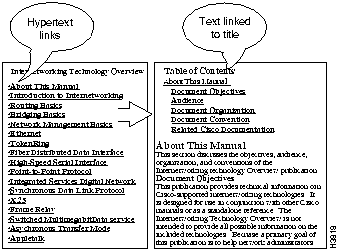
If you are viewing a document but the section you want is not displayed, select the Table of Contents button from the document button bar (located at the top and bottom of each document) to look at an outline of the document. Click on the title of interest, and jump to the information you need.
A small version of each illustration in documents is displayed within the text. If you have Adobe Acrobat Reader installed and configured (see the section "Viewing Portable Document Format Files"), you can click on the illustration to see a higher resolution, scalable version of the illustration in its own window.
Viewing Portable Document Format Files
Product documentation on the Enterprise Documentation CD-ROM is available in Adobe's portable document format (PDF) file format. With this feature you can print and view individual document pages using the provided Adobe Acrobat Reader application. PDF files that are printed and viewed using Acrobat will have the same high-quality appearance as the original printed documents.
Watch for the PDF icon shown below when you are browsing HTML documents on this CD. This icon indicates that the document you are viewing is available as a PDF file. Simply click on the icon to display the PDF version of the document you are viewing. The Adobe Acrobat Reader will launch automatically, and the PDF version of the document will appear in a window.

Configuring Adobe Acrobat Reader as a Helper Application
The Adobe Acrobat Reader installer, AcroRead, is provided as part of the Enterprise Documentation CD-ROM. Run the AcroRead installer, located in the CiscoCD folder, to install Adobe Acrobat Reader on your hard disk.
Each platform requires different information to configure helper applications. Some or all of the information in the following table may be needed to configure Verity Mosaic to use Adobe Acrobat Reader to read PDF files:
| Type of Information | Data |
|---|---|
| Description | PDF files |
| MIME type | application/pdf |
| Suffix | |
| Encoding | Binary |
| Helper application | Select the location of the Adobe Acrobat Reader application |
| Action | Use a helper application |
| Type |
To print the PDF file, choose Print... from the File menu and specify the range of pages you want to print.
For more instructions on configuring a helper application, refer to the Verity Mosaic help facility by clicking on the Help button in the toolbar.
You can search within a single document for a word or phrase, or you can search through multiple documents.
Searching Within a Single Document
Use the Find command to search within a single document for a specific word or phrase, as follows:
Searching Through Multiple Documents
You can also search for text through multiple documents.
You can use the hotlist to maintain a list of files you often refer to.
To add the file that you are currently looking at to the hotlist, select Add Current to Hotlist from the Navigate menu.
To open a file in the hotlist:
To remove a file from the hotlist:
To edit an entry in the hotlist:
You can use the history window to open files you have looked at during the past 60 days.
Using Verity Mosaic as a Web Browser
If you have access to the World Wide Web, you can use the provided Verity Mosaic browser to access Cisco's Web site, Cisco Connection Online (CCO). Included at this site is the most current version of Enterprise documentation.
Perform the following steps to access Enterprise documentation from CCO.

|
Copyright 1988-1996 © Cisco Systems Inc.