
Table of Contents
Installing the ISDN BRI U WAN Interface Card in a Cisco 1600 Series Router
Installing the ISDN BRI U WAN Interface Card in a Cisco 1600 Series Router
Cisco Product Numbers: WIC-1B-U=, CPA-WIC-U=
Text Part Number: 78-3806-01
The Cisco Integrated Services Digital Network (ISDN) Basic Rate Interface (BRI) U WAN interface card can be installed in a Cisco 1601 or Cisco 1602 and provides one additional WAN port on the router. This configuration note describes the ISDN BRI U WAN interface card and how to install the card in the router.
This document contains the following sections:
WAN Interface Card Overview
Table 1 lists the ISDN BRI U WAN interface card's features.
Table 1 : ISDN BRI U WAN Interface Card Features
| ISDN BRI port type
|
RJ-45
|
| Interfaces supported
|
ISDN BRI (two 64-kbps B channels, one 16-kbps D channel)
|
| LED
|
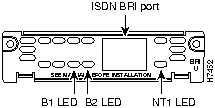
- B1---Indicates an ISDN connection on B-channel 1
- B2---Indicates an ISDN connection on B-channel 2
- NT1---Indicates that the card's internal NT1 has synchronized with the central office switch
|
| NT11
|
Integrated NT1
|
1 NT1 = Network Termination 1.
Figure 1 shows the front panel of the ISDN BRI U WAN interface card.
Figure 1 : ISDN BRI U WAN Interface Card---Front Panel
Safety Information
This section lists safety warnings that you should be aware of before installing a WAN interface card in the router.
 Warning Only trained and qualified personnel should be allowed to install or replace this equipment. (To see translated versions of this warning, refer to the Regulatory Compliance and Safety Information for Cisco 1600 Series Routers document that accompanied the router.)
 Warning Before working on equipment that is connected to power lines, remove jewelry (including rings, necklaces, and watches). Metal objects will heat up when connected to power and ground and can cause serious burns or weld the metal object to the terminals. (To see translated versions of this warning, refer to the Regulatory Compliance and Safety Information for Cisco 1600 Series Routers document that accompanied the router.)
 Warning Before opening the chassis, disconnect the telephone-network cables (from the card) to avoid contact with telephone-network voltages. (To see translated versions of this warning, refer to the Regulatory Compliance and Safety Information for Cisco 1600 Series Routers document that accompanied the router.)
 Warning Do not work on the system or connect or disconnect cables during periods of lightning activity. (To see translated versions of this warning, refer to the Regulatory Compliance and Safety Information for Cisco 1600 Series Routers document that accompanied the router.)
Installing the WAN Interface Card in the Router
The procedure in the chapter is an example of how to install the ISDN U WAN interface card in a Cisco 1601 or Cisco 1602 router. In the example, the card is installed in a Cisco 1601 router; however, the same procedure is used to install the card in a Cisco 1602 router.
Note The ISDN BRI U card cannot be installed in a Cisco 1603 or Cisco 1604.
Required Tools and Parts
In addition to the WAN interface card and the router, you will need the following tools and parts to install an ISDN U WAN interface card in a Cisco 1601 or Cisco 1602 router and to connect the card to the ISDN network:
- Number 1 Phillips screwdriver
- RJ-45-to-RJ-45 cable
Installing the Card in the Router
Take the following steps to install the card in the router:
Step 1 Turn the router OFF, and disconnect the cable from the power socket (labeled 14 VDC) on the rear panel of the router.
Step 2 Use the Phillips screwdriver to remove the screws that hold the metal WAN interface card slot cover in place on the rear panel of the router. (See Figure 2.) Put the screws in a safe place because you will need them later in this procedure.
Figure 2 : Removing the Slot Cover
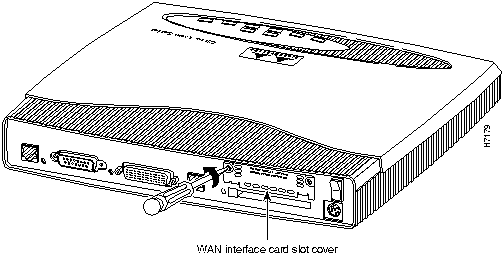
Step 3 Remove the metal plate that covers the WAN interface card slot (labeled WIC).
Step 4 Hold the card by the edges on either side the front panel, and line up the edges of the card with the guides. (See Figure 3.)
 Caution Do not connect a WAN cable to the card until you have completed the installation procedure.
Figure 3 : Installing the Card in the Router
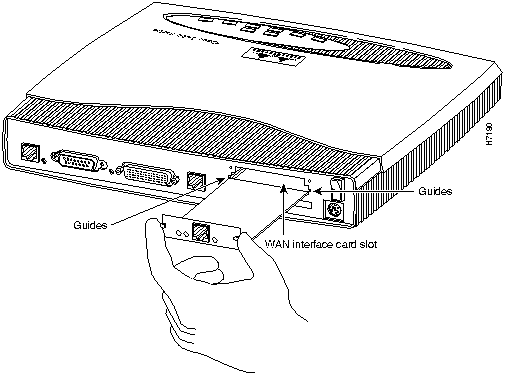
Step 5 Insert the card in the slot and push it towards the front of the router, until it is firmly seated in the connector (inside the router), and the front panel of the card is flush with the rear panel of the router.
Step 6 Use the Phillips screwdriver to replace the screws removed in Step 2 of this procedure.
Making WAN Interface Card Network Connections
After you install the WAN interface card in the router, you need to connect the card to the ISDN network. This section describes how to connect the ISDN cables.
Note The router should be turned off before making cable connections to the WAN interface card ISDN BRI U port.
Take the following steps to connect the ISDN cables:
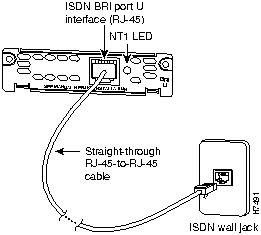
Step 1 Use an RJ-45-to-RJ-45 cable to connect the card's ISDN BRI U port to a the ISDN wall jack. (See Figure 4.)
Step 2 Connect the NT1 to the ISDN wall jack according to the documentation that came with the NT1.
Figure 4 : ISDN BRI U WAN Interface Card to ISDN Wall Jack Connection
Step 3 Turn ON power to the router by pressing the power switch to the on ( | ) position.
Step 4 Check that the LED labeled NT1 goes on, which indicates that the card's internal NT1 has synchronized with the central office switch.
Configuring WAN Interface Card Interfaces
After you connect the ISDN cable, you can configure the ISDN interface. Refer to the following documents for information on how to configure the card's ISDN interface:
- The chapter "Configuring Router Software" in the installation and configuration guide that came with your router.
- The Wide-Area Networking Configuration Guide publication.
Cisco documentation and additional literature are available in printed form and on the Cisco Connection Documentation CD-ROMs. You can also access product documentation on the World Wide Web at http://www.cisco.com.
Obtaining Service and Support
For service and support for a product purchased from a reseller, contact the reseller. Resellers offer a wide variety of Cisco service and support programs, which are described in the section "Service and Support" in the information packet that shipped with your chassis.
Note If you purchased your product from a reseller, you can access Cisco Connection Online (CCO) as a guest. CCO is Cisco Systems' primary, real-time support channel. Your reseller offers programs that include direct access to CCO's services.
For service and support for a product purchased directly from Cisco, use CCO.
Cisco Connection Online
CCO is Cisco Systems' primary, real-time support channel. SMARTnet customers and partners can self-register on CCO to obtain additional content and services.
Note If you purchased your product from a reseller, you can access CCO as a guest. Your reseller offers programs that include direct access to CCO's services.
Available 24 hours a day, 7 days a week, CCO provides a wealth of standard and value-added services to Cisco's customers and business partners. CCO services include product information, software updates, release notes, technical tips, the Bug Navigator, configuration notes, brochures, descriptions of service offerings, and download access to public and authorized files.
CCO serves a wide variety of users through two interfaces that are updated and enhanced simultaneously---a character-based version and a multimedia version that resides on the World Wide Web (WWW). The character-based CCO supports Zmodem, Kermit, Xmodem, FTP, and Internet e-mail, and is excellent for quick access to information over lower bandwidths. The WWW version of CCO provides richly formatted documents with photographs, figures, graphics, and video, as well as hyperlinks to related information.
You can access CCO in the following ways:
- WWW: http://www.cisco.com.
- WWW: http://www-europe.cisco.com.
- WWW: http://www-china.cisco.com.
- Telnet: cco.cisco.com.
- Modem: From North America, 408 526-8070; from Europe, 33 1 64 46 40 82. Use the following terminal settings: VT100 emulation; databits: 8; parity: none; stop bits: 1; and baud rates up to 14.4 kbps.
For a copy of CCO's Frequently Asked Questions (FAQ), contact ccohelp@cisco.com. For additional information, contact ccoteam@cisco.com.
Note If you need technical assistance with a Cisco product that is under warranty or covered by a Cisco maintenance contract, contact Cisco's Technical Assistance Center (TAC) at 800 553-2447, 408 526-7209, or tac@cisco.com.
Please use CCO to obtain general information about Cisco Systems, Cisco products, or upgrades. If CCO is not accessible, contact 800 553-6387, 408 526-7208, or csrep@cisco.com.
Copyright 1988-1996 © Cisco Systems Inc.



