
Table of Contents
Cisco 2518 Hub Maintenance
Cisco 2518 Hub Maintenance
This appendix describes maintenance procedures you may need to perform on the Cisco 2518 hub port card and management card. router card maintenance procedures are described in the appendix "Router Card Maintenance."
Maintenance procedures for the Cisco 2518 include the following:
- Changing the hub position in a segment
- Replacing the management card ROM chips
To change the hub port options, you must remove the front cover of the Cisco 2518 and hub port card, then set the switches. To change the management card ROM chips, you must remove the front cover, slide the management tray out of the Cisco 2518 chassis, then change the ROMs.

Warning Before working on the Cisco 2518, turn OFF the power and unplug the power cord. Do not touch the power supply when the power cord is connected. Line voltages are present within the power supply even when the power switch is OFF and the power cord is connected. Do not work on the system or connect or disconnect cables during periods of lightning activity. To see translated versions of this warning in multiple languages, see the appendix "Translated Safety Warnings."
Before you can remove the hub port card or management tray, you must remove the front cover of the Cisco 2518. Perform the following steps to remove the front cover:
- Step 1 Disconnect any cables attached to the Cisco 2518 hub port card, management card, or router card.
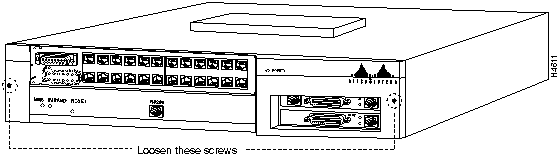
- Step 2 Loosen the two captive screws that secure the plastic cover to the front of the Cisco 2518. (See Figure B-1.)
Figure B-1 Removing the Front Cover from the Cisco 2518
- Step 3 Remove the front cover.
The hub port card DIP switches are used to set the position of the Cisco 2518 in an Ethernet segment. Jumper J3 is specific to the type of hub port card and must not be changed.
Jumper J7 is labeled RDY_DIS and RDY_ENA. This jumper is shipped from the factory in the RDY_DIS position, and must not be changed.
Figure B-2 shows the location of the switches and jumper on the hub port card. Table B-1 describes the switches.
Figure B-2 Hub Port Card DIP Switch and Jumper Locations
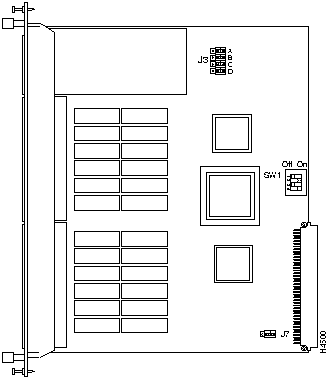
Table B-1 Hub Port Card DIP Switch Settings
| First |
On |
Off |
Off |
|
| Middle |
Off |
On |
Off |
|
| Last |
Off |
Off |
On |
|
| Normal |
|
|
|
On |
| Isolated |
|
|
|
Off |
Perform the following steps to remove the hub port card and change the DIP switch settings:
- Step 1 Remove the plastic cover as described in the section "Removing the Front Cover" earlier in this appendix.
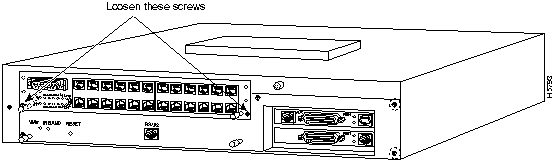
- Step 2 Remove the two screws that secure the hub port module to the Cisco 2518 chassis. (See Figure B-3.)
Figure B-3 Removing the Hub Port Card
- Step 3 Grasp the extraction posts located on the card and pull forward until the card releases.
- Step 4 Pull the card out and away from the chassis.
- Step 5 Locate the DIP switches on the hub card. See Figure B-2.
- Step 6 Set the switches for the desired options. See Table B-1.
- Step 7 Make sure jumper J3 is set to the "Else" side, and jumper J7 is in the RDY_DIS position. See Figure B-2.
- Step 8 Slide the hub card back into the Cisco 2518 chassis.
- Step 9 Secure the card with the screws you loosened in Step 2.
- Step 10 Reinstall the front cover.
Perform the following steps to remove the Cisco 2518 management card tray and upgrade the management card ROMs:
- Step 1 Remove the front cover of the chassis as described in the section "Removing the Front Cover" earlier in this chapter.
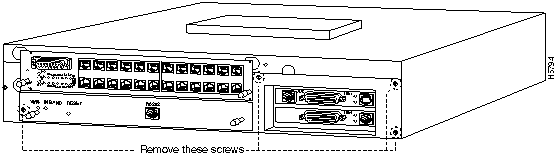
- Step 2 Remove the four screws that secure the management card tray to the Cisco 2518 chassis. (See Figure B-4.)
Figure B-4 Screw Locations
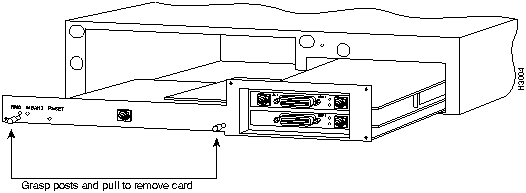
- Step 3 Grasp the extraction posts located on the card and pull forward until the card releases.
- Step 4 Gently pull the tray out along the card guides. (See Figure B-5.)
Figure B-5 Removing the Management Card Tray
- Step 5 Locate the ROM chips on the management card. (See Figure B-6.)
Figure B-6 Management Card ROMs
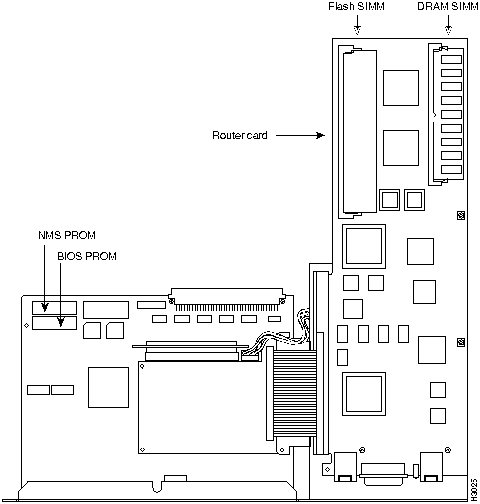
- Step 6 Use a screwdriver or chip extraction tool to remove the ROM chips.
- Step 7 Carefully replace the ROM chips with the new version.
- Step 8 Carefully slide the management card tray back into the chassis. Make sure the management card lines up with the card guides in the chassis.
- Step 9 Secure the management card tray to the chassis with the screws you removed in Step 2.
- Step 10 Replace the front cover.
Copyright 1988-1995
©
Cisco Systems Inc.



