


|
|
This chapter contains information on maintenance procedures you might do as your internetworking needs change.
This chapter contains the following sections:
This chapter also contains descriptions of system card jumper settings.
The following tools are required for the procedures described in this chapter:
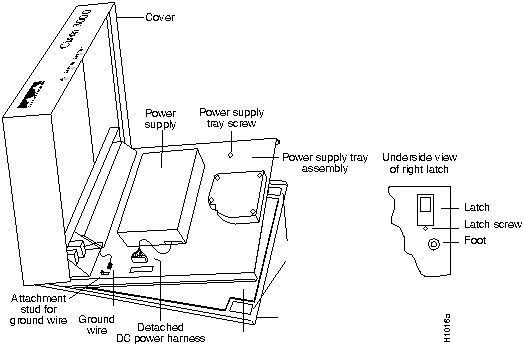
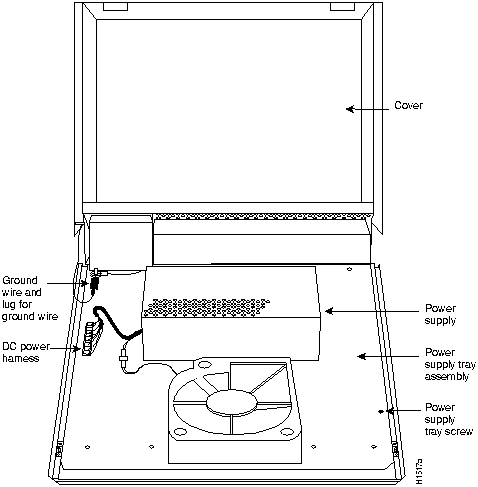
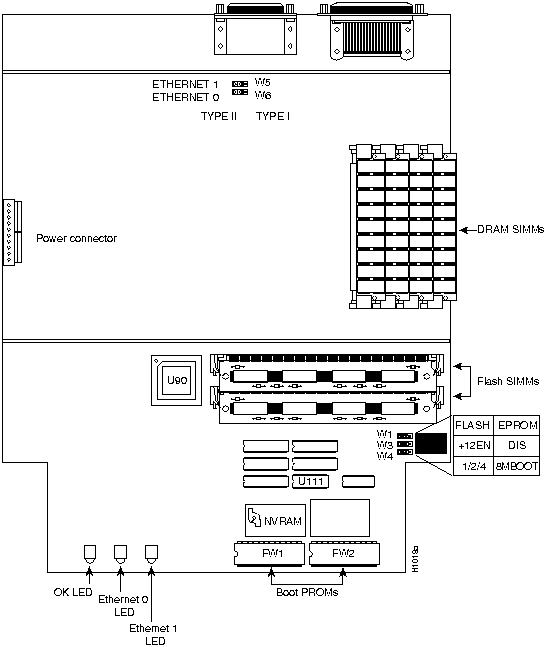
You must open the router chassis to gain access to its interior components: the system card, Flash SIMMs, Flash EPROMs, DRAM SIMMs, boot ROMs, and jumpers. This section outlines the steps required to open the router chassis. Figure 5-1 shows the internal components of the router. When performing the cover and the power-supply tray assembly removal procedures, have the router face you. (Use Figure 5-2 as a guide.)
After you take the necessary ESD precautions, you can proceed with opening the chassis.
Figure 5-1 : Internal View of the Router
To remove the chassis cover, follow these steps.
Figure 5-2 : Router Tray Assembly
To access the router system card, you must remove the router power- supply tray assembly as follows:
Table 5-1 lists the interface ports on the various router models.
Table 5-1 : Network Interface Options
Refer to the appropriate figure to determine your system's jumper locations.
Figure 5-3 shows the jumper locations at J11 and J12 on the model 3204 system card, and it shows the jumpers' labels. Jumper location J1 enables or disables the writing to Flash memory.
Jumper location J12 is set according to the size of the boot ROMs.
Figure 5-3 : Model 3204 System Card Layout
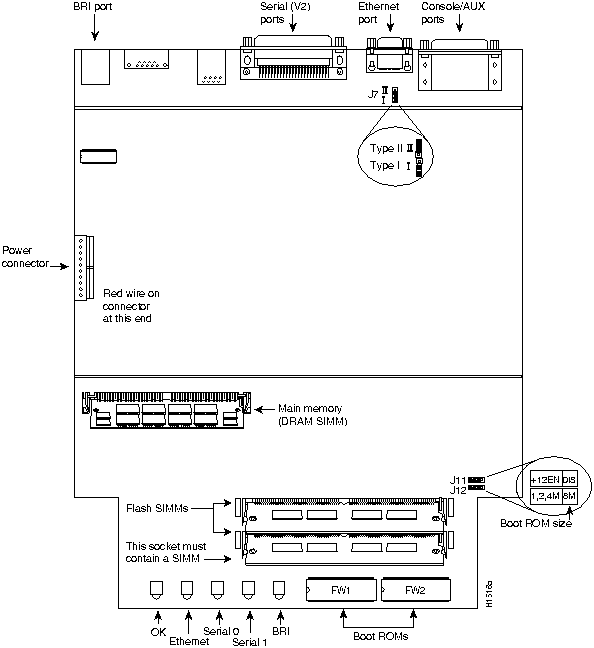
Figure 5-4 shows the jumper locations at J11 and J12 on the model 3104 system card, and it shows the jumpers' labels. Jumper location J11 enables or disables the writing to Flash memory.
Jumper location J12 is set according to the size of the boot ROMs.
Figure 5-4 : Model 3104 System Card Layout
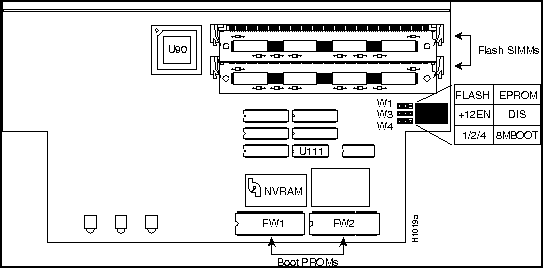
Figure 5-5 shows the jumper locations W1, W3, and W4 on the model 3101 system card, and it shows the labels of the jumpers.
Figure 5-5 : Model 3101 System Card Layout---Typical of Models 3101, 3102, and 3103
Using the orientation of Figure 5-6, jumper location W1 (see Figure 5-6) ships with its left two pins jumpered together. At location W3, jumper the two left pins to permit writing to Flash memory, or jumper the two right pins to disable writing to Flash memory. At location W4, the two pins are jumpered to the corresponding size of the boot ROM memory.
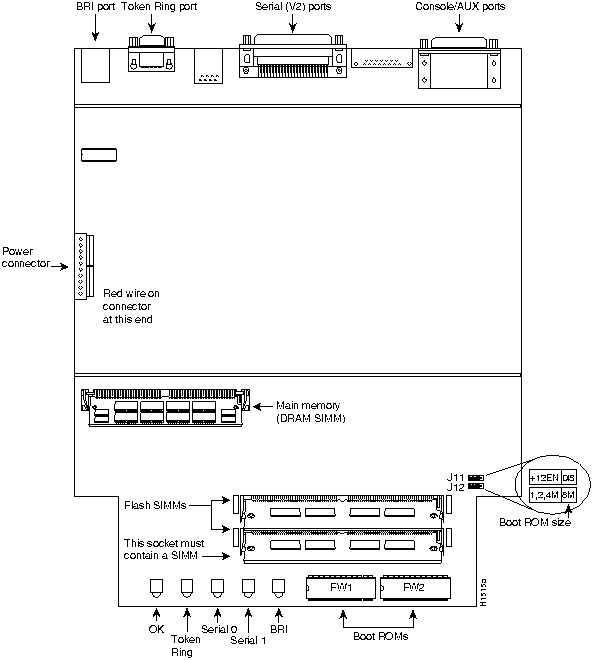
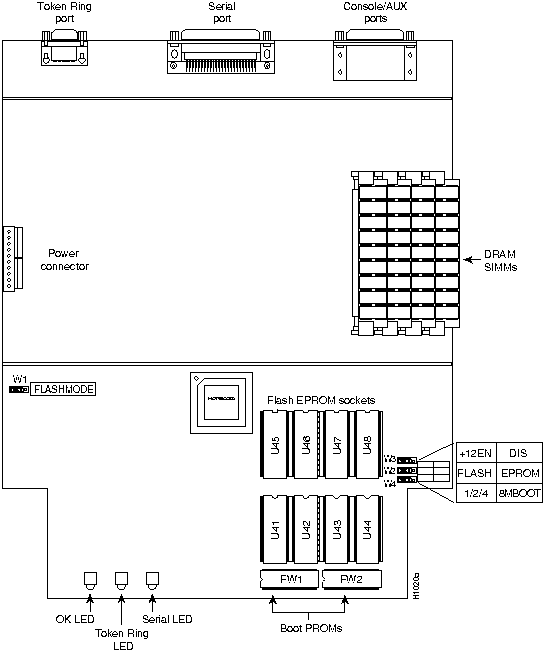
Figure 5-6 : Jumper Locations for Models 3101, 3102, and 3103 Figure 5-7 shows the jumper locations W1, W2, W3, and W4 on the model 3202 system card with Token Ring and serial interfaces, and it shows the labels of the jumpers.
Figure 5-7 : Model 3202 System Card Layout Using the orientation of Figure 5-7 for the model 3202 default jumper locations, note that W1 ships with its left two pins jumpered together. At location W3, the two left pins are jumpered to permit writing to Flash memory, or the two right pins are jumpered to disable writing to Flash memory. At location W4, the jumper corresponds to the size of boot ROM memory as shown on the ROM labels.
Figure 5-8 shows the correct jumper setting for jumper location W1 on the model 3202 when the system card is oriented as in Figure 5-7. There should be no normal conditions under which the jumper setting on W1 should be changed.
Figure 5-8 : Model 3202 Jumper Location W1 Default Setting For information on configuring your system's Flash memory, refer to the Router Products Configuration and Reference publication.
The router contains primary (main memory) and secondary (shared) memory. Both primary and secondary memory size, in kilobytes (KB), are shown in the system banner on the console screen. Primary memory is implemented with dynamic random-access memory (DRAM) single in-line memory modules (SIMMs). Secondary memory, used for packet buffering, consists of a fixed 512 KB (2 megabytes [MB] for models 3104 and 3204).
After booting up, your system will indicate in the system banner the amount of memory it has. The following example shows a system with 4096 KB (4 MB) of primary memory.
Primary memory may need to be expanded when you use very large routing tables or many protocols. This might be necessary with configurations in which the router is set up as a connection device between large external networks and your internal network.
The standard primary memory (main memory) configuration of the router models 3101, 3102, 3103, and 3202 are 4 MB of 32-bit-wide DRAM. Upgrade to 16 MB of 32-bit-wide DRAM by replacing the system's four 1 MB x 9 SIMMs. For 16-MB configurations, substitute four 4 MB x 9 DRAM SIMMs.
Memory upgrade kits for the router include four new 4 MB x 9 DRAM SIMMs.
Table 5-2 lists approved 4 MB x 9, 80-nanosecond DRAM SIMMs for models 3101, 3102, 3103, and 3202.
Table 5-2 : Approved 4 MB x 9, 8 0-Nanosecond DRAM SIMMs
After booting up, your system will indicate in the system banner the amount of primary and secondary memory it has. The following example shows a system with 4096 KB (4 MB) of primary memory and 512 KB (1/2 MB) of secondary memory:
The standard primary memory configuration of the router models 3204 and 3104 are 4 MB and
Table 5-3 : Approved 2 MB x 36, 80-Nanosecond DRAM SIMMs
You can upgrade your router, models 3204 and 3104, from the standard 4 MB of primary memory to 8 MB (see Table 5-3) using the memory upgrade kit as follows:
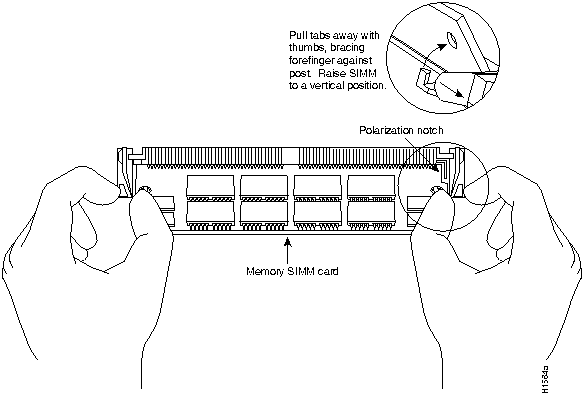
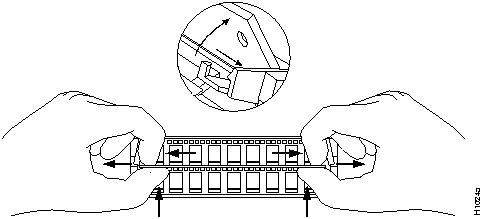
Figure 5-9 : Removing a SIMM from the SIMM Connector Socket
You can upgrade your router, models 3101, 3102, 3103, and 3202 from the standard 4 MB of primary memory to 16 MB using the memory upgrade kit as follows:
Figure 5-10 : Removing a SIMM from the SIMM Connector Socket
80-pin Flash memory SIMMs can be purchased from us or from other vendors.
If you are replacing Flash memory with SIMMs you purchase from other vendors, be sure to use 120-nanosecond memory Flash SIMMs from the vendor listed in Table 5-4.
Table 5-4 : Approved, 4-MB, 120 -Nanosecond Flash SIMMs
The procedures for replacing Flash Memory SIMMs require the tools and equipment following:
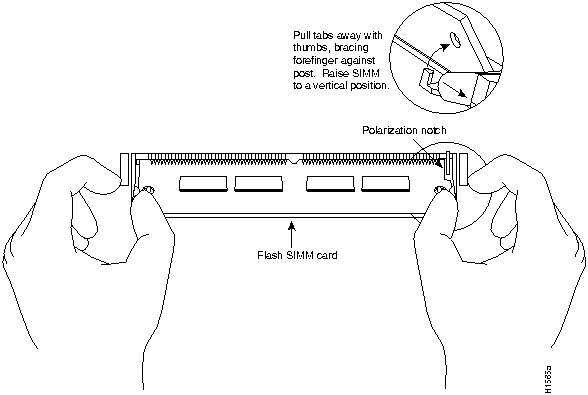
Follow these steps to upgrade the Flash memory on all models except 3202, which employs Flash EPROMs:
Figure 5-11 : Flash SIMM Card Removal
After opening the model 3202 chassis to access the system card, follow the procedures in this section to replace the Flash EPROMs.
After removing the old EPROMs, keep them separate from the new ones to avoid mixing the two sets.
In addition to the tools listed in the section "Tools and Equipment Required for Flash Memory SIMM Replacement," you need the following tools and equipment to install Flash EPROMs in the model 3202:
Figure 5-7 illustrates the model 3202 card layout. The card is oriented with the front panel LEDs at the bottom of the illustration. Refer to this figure to locate the EPROMs on the system card.
Follow these steps to install Flash memory EPROMs in the model 3202:
To replace the boot ROM software with a new software image, the existing boot ROMs must be replaced.
The following tools and equipment are required to replace the boot ROMs:
Follow this procedure to replace the boot ROMs:
After you perform the maintenance for your system, replace the cover and component tray by following these steps.
An overview to recovering a lost password follows:
To recover a lost password, follow this procedure:
Copyright 1988-1996 © Cisco Systems Inc.

Tools Required
Opening the Chassis
Removing the Chassis Cover


Removing the Power-Supply Tray Assembly

Jumper Settings
Model
Ethernet
Token Ring
Serial
BRI
3101 (See Figure 5-5)1
2
0
0
0
3102 (See Figure 5-5)
1
0
1
0
3103 (See Figure 5-5)
1
0
0
1
3202 (See Figure 5-7)
0
1
1
0
3104 (See Figure 5-4)
1
0
2
1
3204 (See Figure 5-3)
0
1
2
1
1 Figure 5-5 is indicative of the models 3101, 3102, and 3103.

Replacing DRAM SIMMs
System Bootstrap, Version 4.6(0.15), SOFTWARE
Copyright (c) 1986-1992 by cisco Systems
Cisco 3000/030 processor with 4096 Kbytes of memory
>
Tools and Equipment Required for DRAM SIMM Replacement
Primary Memory Configurations for Models 3101, 3102, 3103, and 3202
Approved DRAM SIMMs for Models 3101, 3102, 3103, and 3202
Manufacturer's Name
Manufacturer's Part Number
Motorola
MCM94000AS80
Micron
MT9D49M-8
Texas Instruments
TM100EAD9-80
System Bootstrap, Version 9.1 ROUTER SOFTWARE
Copyright (c) 1986-1992 cisco Systems, Inc.
Cisco 3000/030 processor with 4608 Kbytes of memory
>
Primary Memory Configurations for Models 3204 and 3104
8 MB. You can upgrade from 4 MB of DRAM (main memory) by replacing the 72-pin DRAM SIMM in the main memory socket on the system card. Memory upgrade kits for the router models 3204 and 3104 are obtainable from us. Table 5-3 lists approved 2 MB x 36, 80-nanosecond DRAM SIMMs for models for models 3204 and 3104.
Manufacturer's Name
Manufacturer's Part Number
Micron
MT18D236M-8
NEC
MC-422000A36B-80
Upgrading to 8 MB Primary Memory in Router Models 3204 and 3104
Upgrading to 16 MB of Primary Memory in Models 3101, 3102, 3103, and 3202
Flash Memory SIMMs
Manufacturer's Name
Manufacturer's Part Number
SMART Module
SM732C1024.12
Tools and Equipment Required for Flash Memory SIMM Replacement
Replacing Flash Memory SIMMs

Replacing Flash EPROMs in the Model 3202

Installing Flash Memory EPROMs
Replacing the Boot ROMs
Tools and Equipment Required for Replacing the Boot ROMs
Upgrading the Boot ROMs

Replacing the Chassis Cover and Tray
Recovering a Lost Password
>o/r
Initialize the router by entering the i command as follows:
>i
The router will power cycle, the configuration register will be set to 0x141, and the router will boot the boot ROM system image and prompt you with the system configuration dialog as in the follows:
--- System Configuration Dialog ---
Press RETURN to get started!
Router(boot)>
Enter the enable command to enter the EXEC mode in the boot ROM image. The prompt changes to the following:
Router(boot)#
Enter the show configuration EXEC command to display the enable password in the router's configuration file.
Router(boot)# conf
Configuring from terminal, memory, or network [terminal]? <Return>
Enter configuration commands, one per line.
Edit with DELETE, CTRL/W, and CTRL/U; end with CTRL/Z
Using the config-reg 0xvalue command, change the configuration register value back to its original value (from step 3) or change it to a value of 0x102, which in the absence of a boot system command in the configuration file, causes the router to boot from Flash memory.
