


|
|

This chapter describes the installation and configuration of the AS51 network application card (NAC), and the AS51 network interface card (NIC).
The AS51 NAC and NIC function together to form 16 asynchronous serial ports using the SCSI II-to-DB-50 breakout cable. The AS51 NAC software operates from Flash memory by default. The access server module interfaces include Ethernet 10BaseT, asynchronous serial, and synchronous serial. The AS51 NIC provides two 68-pin asynchronous ports that connect to the modem NICs in the Access Server 5100 chassis.
The AS51 NAC is shown in Figure 4-1. The NAC has three LEDs, a console port, an auxiliary port, a 10BaseT port, and a serial port.

There are three LEDs on the AS51 NAC. (See Figure 4-1.) Table 4-1 lists the LEDs and describes their meaning.
| LED | Description |
|---|---|
| WAN | When this LED is flashing, data is either being transmitted or received through the AS51 NAC synchronous port. |
| UTP | When on, this LED indicates that data is either being transmitted or being received through the AS51 NAC 10BaseT port. |
| SYS | When on, this LED indicates that the AS51 NAC is functioning normally. |
The AS51 NAC has two banks of DIP switches as shown in Figure 4-2. These switches specify the NAC clock frequency, various Ethernet settings, the microprocessor cache state, and the NIC asynchronous controller version. These DIP switches are preset at the factory and should not be changed. Table 4-2 and Table 4-3 list the default settings for the switches.
Figure 4-2 AS51 NAC DIP Switch Locations
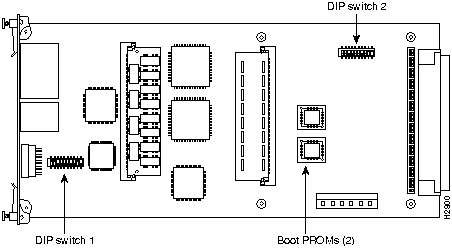
Table 4-2 AS51 NAC DIP Switch 1 Settings
| Switch | Default Setting |
Description |
|---|---|---|
| 1-11-2 | OnOn | Clock frequency setting. These switches specify the AS51 NIC clock frequency, and should be set as follows: 20 MHz: off, off25 MHz: off, on27 MHz: on, off30 MHz: on, on |
| 1-3 | Off | This switch is used to enable/disable the cache on the 68030 microprocessor. If SW1-3 is off, the cache is always enabled. If SW1-3 is on, the cache is always disabled. |
| 1-4 | Off | This switch configures the Ethernet transceiver interface if SW1-6 is on. If SW1-6 is on and SW1-4 is off, the 10BaseT interface is configured. |
| 1-5 | Off | This switch configures the 10BaseT receiver termination circuitry. It should be configured based on the type of twisted-pair cabling that is in use. If SW1-5 is off, the cable should be 100-ohm unshielded twisted-pair. If SW1-5 is on, the cable should be 150-ohm shielded twisted-pair. |
| 1-6 | Off | This switch is used to configure the Ethernet port on the Level One transceiver device. If SW1-6 is off, the transceiver automatically senses which port is active. The AS51 NAC only has a 10BaseT interface. |
| 1-7 | Off | This switch is used to enable/disable the link integrity test. If SW1-7 is off, link integrity testing is enabled. If SW1-7 is on, link integrity testing is disabled. Link integrity testing should only be disabled if the router is connected to prestandard 10BaseT devices that did not implement link integrity. |
| 1-8 | Off | This switch is used to adjust the 10BaseT receive squelch threshold. If SW1-8 is off, the normal squelch level is used. If SW1-8 is on, the receive squelch threshold is reduced by 4.5 dB allowing the use of longer cables. |
| 1-91-10 | OnOff | These two switches are configured by the factory depending on the type of Level One Ethernet transceiver on the NAC. The default configuration uses the LXT901. In this configuration SW1-9 should be on and SW1-10 should be off. If the LXT907 is used, the switch settings are reversed. These switches should not be changed from the factory settings under any circumstances. |
Table 4-3 AS51 NAC DIP Switch 2 Settings
| Switch | Default Setting |
Description |
|---|---|---|
| 2-1 | Off | Reserved |
| 2-2 | Off | This switch tells the system software that it is running on an AS51 NAC, and should always be set to off. On indicates a Cisco 2500 chassis. |
| 2-3 | Off | Reserved |
| 2-4 | Off | Reserved |
| 2-5 | Off | Reserved |
| 2-6 | Off | Reserved |
| 2-7 | Off | Reserved |
| 2-8 | Off | Reserved |
| 2-92-10 | OnOn | These two switches are used to notify the operating software of the version of asynchronous controller used on the AS51 NIC. |
Perform the following steps to install the AS51 NAC:
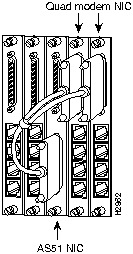
The AS51 NIC provides two 68-pin ports, each connecting to the serial port on a quad modem NIC. Figure 4-3 shows the AS51 NIC.

Perform the following steps to install the AS51 NIC:
Use one 68-pin-to-DB-50 breakout cable to connect each port on the AS51 NIC to the DB-50 connector on an adjacent quad modem NIC. In Figure 4-4, one AS51 NIC port is connected to the DB-50 connectors on two adjacent quad modem NICs. A second breakout cable connects the other AS51 NIC port to the two quad modem DB-50 ports on the left. An Access Server 5100 chassis supports up to 3 AS51s, and 12 quad modems, for a total of 48 modems. For breakout cable specifications, see the "Cable and Port Specifications" appendix.
Figure 4-4 Connecting the AS51 NIC to Quad Modem NICs with a Breakout Cable
After installing the AS51 NAC and NIC in your Access Server 5100 chassis, connect a terminal to the console port on the AS51 NAC. See Figure 4-1 for the location of the console port.
Console port configuration parameters are as follows:
After booting to the monitor prompt ( > ), you can prepare the AS51 NAC for connection to your network. There are three ways to configure the AS51 NAC:
If you have an ASCII configuration file already prepared, you can install the AS51 NAC manually without using the setup routine.
This section describes the following procedures:
You should follow the procedure that best fits the needs of your Access Server 5100 and network configuration.
The AutoInstall process is designed to configure the AS51 NAC automatically after connection to your network. In order for AutoInstall to work properly, a Transmission Control Protocol/Internet Protocol (TCP/IP) host on your network must be preconfigured to provide the required configuration files. This TCP/IP host is typically a UNIX-based system. The TCP/IP host may exist anywhere on the network as long as the following two conditions are maintained:
This functionality is coordinated by your system administrator at the site where the TCP/IP host is located. You should not attempt to use AutoInstall unless the required files have been provided on the TCP/IP host.
Follow these steps to prepare the AS51 NAC for the AutoInstall process:
The AS51 NAC will send a Serial Line Reverse Address Resolution Protocol (SLARP) packet over the serial line. When the packet reaches the opposite end of the network connection, the remote host will reply with the IP address of its serial interface. The AS51 NAC will increment the serial interface address by one and assign this address to its own serial interface. This process will take approximately one minute.
After the serial interface on the AS51 NAC has been assigned a valid serial interface IP address, it will resolve its host name. It will send a Trivial File Transfer Protocol (TFTP) request on the serial line for the configuration file called network-confg. If the TCP/IP host responds with this file, AutoInstall will search the file's contents for the host name associated with its IP address.
If the TCP/IP host does not respond with the network-confg file, AutoInstall will broadcast a reverse domain name server (DNS) request containing the IP address for the AS51 NAC serial port that it was assigned over the network. If the DNS services have been set up, AutoInstall will resolve the AS51 NAC's name from this file. After the IP address and host name have been found, AutoInstall will broadcast a TFTP request to the TCP/IP host for the file called hostname-confg. If this file has been set up by the system administrator, it will be downloaded automatically to the AS51 NAC's memory, completing the configuration.
If the AutoInstall feature is not set up, or if your AS51 NAC is unable to locate the appropriate files, you should use the manual configuration with or without the setup utility. (See the following sections "Configuring the AS51 NAC Manually Using the Setup Routine" and "Configuring the AS51 NAC Without Using the Setup Routine.")
If the AutoInstall completed successfully, you still need to write the configuration data to the AS51 NAC's nonvolatile random-access memory (NVRAM) and reset the configuration registers. Perform the following steps to complete these tasks:
Hostname> enable
Password:*******
Hostname# write memory
Hostname# show version
.
.
.
configuration register is 0x0 (will be 0x2102 at next reload)
If you do not plan to use AutoInstall, do not connect the AS51 NAC's serial cable to the CSU/DSU or the AS51 NAC itself. This will prevent the AS51 NAC from attempting to run the AutoInstall process. The AS51 NAC will attempt to run AutoInstall whenever you start it if the serial cable is connected on both ends and the AS51 NAC does not have a configuration stored in NVRAM. It can take several minutes for your AS51 NAC to determine that AutoInstall is not set up on a remote TCP/IP host. Once the AS51 NAC has determined that AutoInstall is not configured, it will default to the setup routine. If the serial cable is not connected, the AS51 NAC will boot from Flash memory and go into the setup routine.
System Bootstrap, Version 4.14(8), SOFTWARE
Copyright (c) 1986-1995 by cisco Systems
2500 processor with 4096 Kbytes of main memory

Loading master/igs-k-l.102-2 at 0x3000040, size = 4105084 bytes [OK]

F3: 3946068+158984+308596 at 0x3000060

              Restricted Rights Legend

Use, duplication, or disclosure by the Government is
subject to restrictions as set forth in subparagraph
(c) of the Commercial Computer Software - Restricted
Rights clause at FAR sec. 52.227-19 and subparagraph
(c) (1) (ii) of the Rights in Technical Data and Computer
Software clause at DFARS sec. 252.227-7013.

              Cisco Systems, Inc.
              170 West Tasman Drive
              San Jose, California 95134

Cisco Internetwork Operating System Software
IOS (tm) 3000 Software (IGS-K-L), Version 10.2(2), RELEASE SOFTWARE
Copyright (c) 1986-1995 by Cisco Systems, Inc.
Compiled Thu 15-Dec-94 15:00 by kmac
Image text-base: 0x03023478, data-base: 0x00001000

cisco 2500 (68030) processor (revision 0x00) with 4092K/2048K bytes
of memory.
Processor board serial number 00000000
X.25 software, Version 2.0, NET2, BFE and GOSIP compliant.
Bridging software.
SuperLAT software (copyright 1990 by Meridian Technology Corp).
Authorized for Enterprise software set.  (0x0)
1 Ethernet/IEEE 802.3 interface.
2 Serial network interfaces.
16 terminal lines.
32K bytes of non-volatile configuration memory.
4096K bytes of processor board System flash (Read ONLY)
         --- System Configuration Dialog ---

At any point you may enter a question mark '?' for help.
Refer to the 'Getting Started' Guide for additional help.
Use ctrl-c to abort configuration dialog at any prompt.
Default settings are in square brackets '[]'.

Would you like to enter the initial configuration dialog? [yes]:yes
Configuring global parameters:

  Enter host name [Router]: as5100
  Enter enable password: lab
  Enter virtual terminal password: lab
  Configure SNMP Network Management? [yes]: yes
    Community string [public]: public
  Configure DECnet? [no]:
  Configure IP? [yes]:
    Configure IGRP routing? [yes]:
      Your IGRP autonomous system number [1]:
  Configure IPX? [no]:
  Configure XNS? [no]:

  Configure AppleTalk? [no]:
  Configure Apollo? [no]:
  Configure CLNS? [no]:
  Configure Vines? [no]:
  Configure bridging? [no]:
  Configure Async lines? [yes]:
    Async line speed [9600]:
    Configure for HW flow control? [yes]:
    Configure for modems? [yes/no]: yes
      Configure for default chat script? [yes]: no
    Configure for Dial-in IP SLIP/PPP access? [no]: yes
      Configure for Dynamic IP addresses? [yes]: no
      Configure Default IP addresses? [no]: no
      Configure for TCP Header Compression? [yes]:
      Configure for routing updates on async links? [no]: yes
Configuring interface parameters:

Configuring interface Ethernet0:
  Is this interface in use? [yes]:yes
  Configure IP on this interface? [yes]: yes
    IP address for this interface: xxx.xxx.xxx.xxx
    Number of bits in subnet field [0]: 0
    Class B network is 128.1.0.0, 0 subnet bits; mask is 255.255.0.0
Configuring interface Serial0:
  Is this interface in use? [yes]: yes
  Configure IP on this interface? [yes]: yes
  Configure IP unnumbered on this interface? [no]: no
    IP address for this interface: xxx.xxx.xxx.xxx

    Number of bits in subnet field [0]: 0
    Class B network is 128.1.0.0, 0 subnet bits; mask is 255.255.0.0

Configuring interface Serial1:
  Is this interface in use? [yes]: yes
  Configure IP on this interface? [yes]: yes
  Configure IP unnumbered on this interface? [no]: no
    IP address for this interface: xxx.xxx.xxx.xxx
    Number of bits in subnet field [0]: 0
    Class B network is 128.1.0.0, 0 subnet bits; mask is 255.255.0.0
Configuring interface Async1:
Configuring interface Async2:
Configuring interface Async3:
Configuring interface Async4:
Configuring interface Async5:
Configuring interface Async6:
Configuring interface Async7:
Configuring interface Async8:
Configuring interface Async9:
Configuring interface Async10:
Configuring interface Async11:
Configuring interface Async12:
Configuring interface Async13:
Configuring interface Async14:
Configuring interface Async15:
Configuring interface Async16:
Use this configuration? [yes/no]: yes
#####
use the enabled mode 'configure' command to modify this
configuration.
The AS51 NAC and asynchronous serial ports are now configured.
You can check the value of the settings you have entered by using the show version command at the Hostname> or the Hostname# prompt:
as5100#         show version
.
.
.
configuration register is 0x0 (will be 0x2102 at next reload)
You can configure your AS51 NAC manually if you prefer not to use the setup routine or AutoInstall. Take the following steps to configure the AS51 NAC manually:
Would you like to enter the initial dialog? [yes]: no
as5100> enable
as5100(config)#
as5100(config)# config terminal
To see the currently operating configuration, enter the write terminal command at the enable prompt:
as5100(config)# write terminal
To see the configuration in NVRAM, enter the show config command at the enable prompt:
as5100(config)# show config
The results of the show config and write terminal commands will vary if you have made changes to the configuration in enable mode but have not yet written them to NVRAM.
Remember that to make your changes permanent you must enter the write memory command at the enable prompt:
as5100(config)# write memory
********
The AS51 NAC is now configured and will boot with the configuration each time it or the Access Server 5100 is booted.
When the AS51 NAC is configured, and cables connected from the 68-pin asynchronous serial ports on the AS51 NIC, use the AS51 NAC console to telnet to each modem. See the chapter "Quad Modems" for more information.
For more information on configuring the AS51 NAC software, refer to the following publications:
Configuration Builder Getting Started Guide
Router Products Getting Started Guide
Router Products Configuration Guide
Router Products Command Reference
Troubleshooting Internetworking Systems (as needed)
To order Cisco Connection Documentation CD-ROM, Cisco's online library of product information, or paper documentation, refer to Ordering Cisco Documentation, which is in the warranty pack that accompanied your Cisco Access Server 5100.
The remainder of this chapter provides additional information about the AS51 NAC, including the virtual configuration register, the bootstrap program, troubleshooting, upgrading the boot PROM and Flash memory, and replacing AS51 NAC single in-line memory modules.
For cable specifications, see the appendix "Cable and Port Specifications."
The AS51 NAC has a 16-bit virtual configuration register written into NVRAM. You might need to change the virtual configuration register settings for several reasons:
The following information is included in this section:
Table 4-4 lists the meaning of each of the virtual configuration register bits and Table 4-5 describes the boot field names.

Table 4-4 Virtual Configuration Register Bit Meanings
| Bit No.(1) | Hexadecimal | Meaning |
|---|---|---|
| 00 to 03 | 0x0000 to 0x000F | Boot field (see Table 4-5) |
| 06 | 0x0040 | Causes the system software to ignore NVRAM contents |
| 07 | 0x0080 | OEM bit is enabled |
| 08 | 0x0100 | Break is disabled |
| 10 | 0x0400 | IP broadcast with all zeros |
| 11 to 12 | 0x0800 to 0x1000 | Console line speed |
| 13 | 0x2000 | Boot from default ROM software if the network boot fails |
| 14 | 0x4000 | IP broadcasts do not have net numbers |
| 15 | 0x8000 | Enable diagnostic messages and ignore the contents of NVRAM |
Table 4-5 Explanation of Boot Field
| Boot Field | Meaning |
|---|---|
| 00 | Stays at the system bootstrap prompt |
| 01 | Boots the system image in system ROM |
| 02 to 0F | Specifies a default network boot filename. Enables boot system commands that override the default network boot filename |
You might need to modify the value of the virtual configuration register for several reasons:
The server creates a default boot filename as part of the automatic configuration processes. To form the boot filename, the server starts with cisco and links the octal equivalent of the boot field number, a dash, and the processor-type name. Table 4-6 lists the default boot filenames or actions for the processor.
Table 4-6 Default Boot Filenames
| Action/File Name | Bit 3 | Bit 2 | Bit 1 | Bit 0 |
|---|---|---|---|---|
| Bootstrap mode | 0 | 0 | 0 | 0 |
| ROM software | 0 | 0 | 0 | 1 |
| cisco2-igs | 0 | 0 | 1 | 0 |
| cisco3-igs | 0 | 0 | 1 | 1 |
| cisco4-igs | 0 | 1 | 0 | 0 |
| cisco5-igs | 0 | 1 | 0 | 1 |
| cisco6-igs | 0 | 1 | 1 | 0 |
| cisco7-igs | 0 | 1 | 1 | 1 |
| cisco10-igs | 1 | 0 | 0 | 0 |
| cisco11-igs | 1 | 0 | 0 | 1 |
| cisco12-igs | 1 | 0 | 1 | 0 |
| cisco13-igs | 1 | 0 | 1 | 1 |
| cisco14-igs | 1 | 1 | 0 | 0 |
| cisco15-igs | 1 | 1 | 0 | 1 |
| cisco16-igs | 1 | 1 | 1 | 0 |
| cisco17-igs | 1 | 1 | 1 | 1 |
To change the configuration register while running the system software, follow these steps:
router> enable
Password:
router#
router# conf term
Enter configuration commands, one per line.
Edit with DELETE, CTRL/W, and CTRL/U; end with CTRL/Z
config-register 0x value
Configuration register is 0x142 (will be 0x102 at next reload)
The lowest four bits of the virtual configuration register (bits 3, 2, 1, and 0) form the boot field. (See Table 4-5.) The boot field specifies a number in binary. If you set the boot field value to 0, you must boot the operating system manually by entering the b command at the bootstrap prompt as follows:
> b [tftp] flash filename
See the section "Available Bootstrap Commands" later in this chapter for b command options, or refer to the Router Products Configuration Guide. This publication is available on Cisco Connection Documentation CD-ROM or a printed copy can be ordered separately.
If you set the boot field value to 0x2 through 0xF, and a valid system boot command is stored in the configuration file, then the AS51 NAC boots the system software as directed by that value. If you set the boot field to any other bit pattern, the AS51 NAC uses the resulting number to form a default boot filename for netbooting. (See Table 4-6.)
In the following example, the virtual configuration register is set to boot the AS51 NAC from Flash memory and to ignore break at the next reboot of the AS51 NAC:
router# conf term
Enter configuration commands, one per line.
Edit with DELETE, CTRL/W, and CTRL/U; end with CTRL/Z
config-register 0x102
boot system flash [filename]
^Z
router#
Bit 8 controls the console break key. Setting bit 8 (the factory default) causes the processor to ignore the console break key. Clearing bit 8 causes the processor to interpret the break key as a command to force the system into the bootstrap monitor, thereby halting normal operation. A break can be sent in the first 60 seconds while the system reboots, regardless of the configuration settings.
Bit 10 controls the host portion of the IP broadcast address. Setting bit 10 causes the processor to use all zeros; clearing bit 10 (the factory default) causes the processor to use all ones. Bit 10 interacts with bit 14, which controls the network and subnet portions of the broadcast address. Table 4-7 shows the combined effect of bits 10 and 14.
Table 4-7 Configuration Register Settings for Broadcast Address Destination
| Bit 14 | Bit 10 | Net Address | Host Address |
|---|---|---|---|
| Off | Off | Ones | Ones |
| Off | On | Zeros | Zeros |
| On | On | Ones | Zeros |
| On | Off | Ones | Zeros |
Bits 11 and 12 in the configuration register determine the baud rate of the console terminal.
Table 4-8 shows the bit settings for the four available baud rates. (The factory-set default baud rate is 9600 bps.)
Table 4-8 System Console Terminal Baud Rate Settings
| Baud | Bit 12 | Bit 11 |
|---|---|---|
| 9600 | 0 | 0 |
| 4800 | 0 | 1 |
| 2400 | 1 | 0 |
| 1200 | 1 | 1 |
Bit 13 determines the server response to a bootload failure. Setting bit 13 causes the server to load operating software from ROM after five unsuccessful attempts to load a boot file from the network. Clearing bit 13 causes the server to continue attempting to load a boot file from the network indefinitely. By factory default, bit 13 is cleared to 0.
To enable booting from Flash memory, set configuration register bits 3, 2, 1, and 0 to a value between 2 and 15 in conjunction with the boot system flash [filename] configuration command.
To enter configuration mode while you are in the system software image, specify a Flash memory filename from which to boot. Then enter the configure terminal command at the enable prompt, as in the following example:
router# configure terminal
Enter configuration commands, one per line.
Edit with DELETE, CTRL/W, and CTRL/U; end with CTRL/Z
boot system flash [filename]
To disable break and enable the boot system flash command, enter the config-register command with the value shown in the following example:
router# config term
Enter configuration commands, one per line.
Edit with DELETE, CTRL/W, and CTRL/U; end with CTRL/Z
config-reg 0x2102
^Z
router#
You will need to copy a new image to Flash memory whenever a new image or maintenance release becomes available. To copy a new image into Flash memory, you must first reboot from ROM and then copy the new image into Flash memory. You cannot copy a new image into Flash memory while the system is running from Flash memory. Use the copy tftp flash command for the copy procedure.
Following is an example display of reloading the AS51 NAC and then copying a file called NEWFILE to Flash memory from a TFTP server called server1:
router# configure terminal
Enter configuration commands, one per line.
  Edit with DELETE, CTRL/W, and CTRL/U; end with CTRL/Z
config-reg 0x2101
^Z
The configuration register setting 0x2101 tells the AS51 NAC to boot from ROM, but does not reset the break disable or check for a default netboot filename.
router# reload
...
router(boot)# copy tftp flash
IP address or name of remote host [255.255.255.255]? server1
Name of tftp filename to copy into flash []? NEWFILE
copy NEWFILE from 131.131.101.101 into flash memory? [confirm] <Return>
Access Server 5100Access Server 5100 bytes available for writing without
erasure.
erase flash before writing? [confirm] <Return>
Clearing and initializing flash memory (please wait)####...
Loading from 101.2.13.110: !!!!!!!!!!!!!!!!!!!!!!!!!!!!!!!!!!!!
!!!!!!!!!!!!!... [OK - 324572/524212 bytes]
Verifying checksum...
VVVVVVVVVVVVVVVVVVVVVVVVVVVVVVVVVVVVVVVVVVVVVVVVVVVVVVVVVVVVVVVVVVVVVVVV
VVVVVVV...
Flash verification successful. Length = 1204637, checksum = 0x95D9
router(boot)# config term
Enter configuration commands, one per line.
  Edit with DELETE, CTRL/W, and CTRL/U; end with CTRL/Z
config-reg 0x2102
^Z
The configuration register setting 0x2102 tells the system to boot from ROM if netboot fails, disable break, and check for a default netboot filename.
router(boot)# reload
...
The system is now ready to be configured to boot from the new image you copied to Flash memory. For more information on the copy tftp flash command and other related commands, refer to the Router Products Configuration Guide.
The bootstrap program can help you to isolate or eliminate hardware problems encountered when installing your AS51 NAC. A summary of the bootstrap diagnostic tests and command options is provided in the section "Available Bootstrap Commands" later in this chapter.
The bootstrap diagnostics help initialize the processor hardware and boot the main operating system software. If you set the software configuration register boot field (bits 3, 2, 1, and 0) to zero, you can start the AS51 NAC in standalone bootstrap mode. The bootstrap mode prompt is an angle bracket (>).
To enable the break key, and to default to booting in bootstrap mode, at the bootstrap prompt (>) set the configuration register to 0x0 by entering the following command:
o/r 0x0
See Table 4-9 for an explanation of the o/r command.
| Monitor Command | Function |
|---|---|
| o | Displays the virtual configuration register currently in effect with a description of the bits |
| o/r | Resets the virtual configuration register as follows: · 9600 baud console port speed · Break/abort has no effect · Ignore the system configuration in NVRAM · Boot from ROM |
| o/r 0xvalue | Sets the virtual configuration register to the (hexadecimal) value, value |
While running the system software, you can reset the configuration register to 0x0 by entering configuration mode and then entering the config-register command:
config-register 0x0
The new configuration register value, 0x0, takes effect after the AS51 NAC is rebooted. If you set the configuration to 0x0, you must manually boot the system each time you reboot the AS51 NAC.

When you are in bootstrap mode, enter ? at the > prompt to display a list of available commands and options, as follows:
?
$ Toggle cache state
B [filename] [TFTP Server IP address | TFTP Server Name]
Load and execute system image from ROM or from TFTP server
C [address] Continue [optional address]
D /S M L V   Deposit value V of size S into location L with modifier M
E /S M L     Examine location L with size S with modifier M
G [address] Begin execution
H Help for commands
I Initialize
K Displays Stack trace
L [filename] [TFTP Server IP address | TFTP Server Name]
Load system image from ROM or from TFTP server, but do not
begin execution
O Show software configuration register option settings
P Set break point
S Single step next instruction
T function   Test device (? for help)
Deposit and Examine sizes may be B (byte), L (long) or S (short).
Modifiers may be R (register) or S (byte swap).
Register names are: D0-D7, A0-A7, SS, US, SR, and PC.
The following system bootstrap commands are especially useful:

Follow these steps to run the bootstrap diagnostic tests:
The Access Server 5100 was extensively tested before being shipped from the factory. However, if your AS51 NAC appears to have problems starting up, read this section to help identify the problem.
If you need to contact a customer service representative for information on how to proceed, have the following information ready before you call:
When problem solving, consider the following subsystems of the AS51 NAC:
How to troubleshoot these systems is described in the following subsections.
Check for the following symptoms to help isolate the problem:
Note the activity of the LEDs to judge the activity of the interfaces to which they correspond. If an LED is not on when the interface is active and the interface is correctly connected, a problem might be indicated. If an interface is extremely busy, its LED will always be on. The SYS LED will be on after the system initializes correctly. For LED locations, see Figure 4-1.
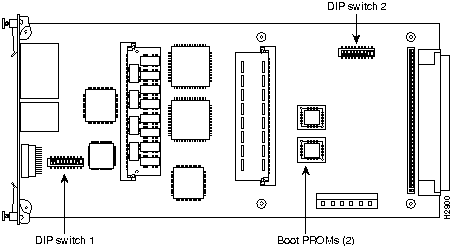
To replace the NAC's boot PROM software with a new software image, the existing boot PROMs must be replaced. Figure 4-5 shows the location of the boot PROMs on the AS51 NAC.
The following tools and equipment are required to replace the boot PROMs:
Figure 4-5 Replacing the AS51 NAC Boot PROMs
Take the following steps to replace the boot PROMs:

The AS51 NAC contains primary and shared (or packet) memory. Primary memory size, in kilobytes, is displayed in the system banner on the console screen. Primary and shared memory are 1 MB each of the dynamic random-access memory (DRAM) on the AS51 NAC.
After booting up, your system will indicate in the system banner the amount of primary memory it has. The following example shows a system with 4 MB (4096 KB) of primary memory. (The system does not display shared memory.)
System Bootstrap, Version (2.1), SOFTWARE
Copyright (c) 1986-1995 by cisco Systems
AS51 processor with 4096 Kbytes of main memory
>
If you use very large routing tables or many protocols, you might need to expand primary memory. This expansion might be necessary with configurations in which the Access Server 5100 is used as a connection device between large external networks and your internal network.
The following tools and equipment are required to install DRAM modules:
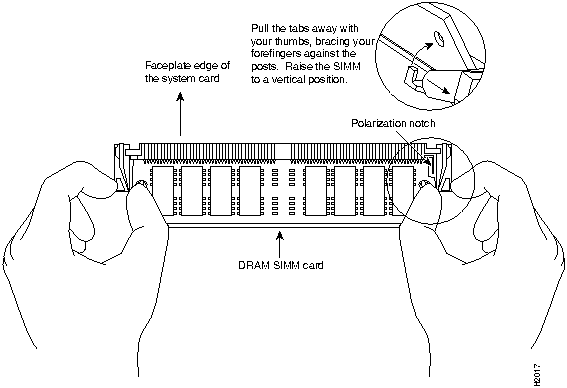
Take the following steps to install the DRAM SIMM:
Figure 4-6 Removing a DRAM SIMM

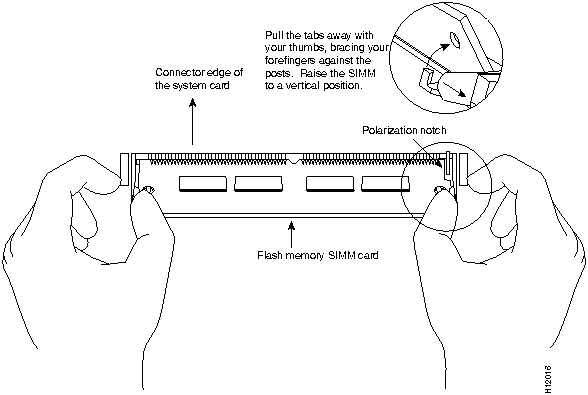
The system code (software) is stored on one Flash memory or PROM SIMM. The 80-pin SIMM must be purchased from Cisco Systems. Contact a customer service representative for more information.
The following tools and equipment are required to replace a system code SIMM:
Following is the procedure for upgrading the system-code Flash memory or PROM SIMM:
Figure 4-7 Removing and Replacing a System-Code SIMM



|
Copyright 1988-1995 © Cisco Systems Inc.