


|
|

Monitoring Port Activity with Application Software
This chapter explains how to monitor a port on the Catalyst 3000 using:
Follow these steps to use in-band management:
The following sections describe the SNMP set-up menus.
The IP Configuration menu sets the IP address, gateway address, subnet mask, and IP state.
The IP Address and Default Gateway must be in the same subnet address class---that is, Class A, Class B, or Class C. The system prevents you from entering values from different classes. If you do inadvertently enter an incorrect value, enter 0.0.0.0 in every field, then re-enter the correct values.
Refer to Chapter , "Console Configuration," for a complete description on how to configure the IP Configuration menu.
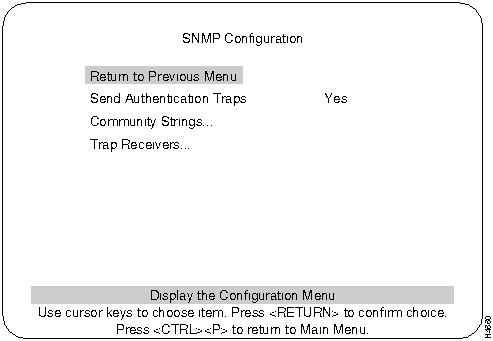
Use the SNMP Configuration Menu to configure specific attributes related to SNMP.
Indicates whether SNMP should issue an authentication trap to Trap Receivers whenever an unauthorized request is detected.
Default: Yes
Changes the community string table. The community string is the name associated with the Catalyst 3000 and a set of SNMP Managers. Entries in the table are saved across resets and power cycles.
Displays table of managers to which traps are sent. Entries in the table are saved across resets and power cycles.
Use the Community String menu to configure the community string for the Catalyst 3000. The community string is the name associated with the Catalyst 3000 and a set of SNMP managers allowed to manage it with the specified privilege level.
Entries are displayed in the order in which they are encountered. There is a limit of 10 community strings.
Community String Table entries are saved when you select Return to Previous Menu. Entries are preserved across resets and power cycles.
Sequential number of entries in the table.
The specified privilege level of the assigned community.
Specific access privileges of the community.
Adds community string.
Deletes community string.
Modifies community string and/or access mode.
Deletes all community strings.
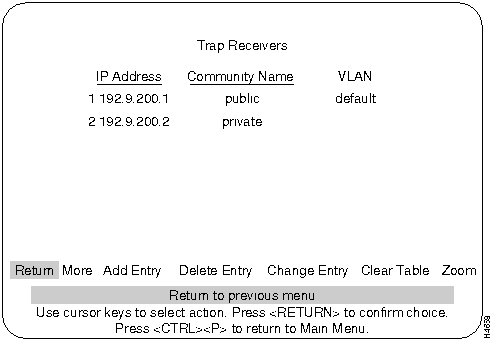
Trap Receiver Tables tell the Catalyst 3000 where to send traps. The table contains the IP address associated with an SNMP manager.
The Trap Receiver Table contains a maximum of 20 entries. It is displayed again each time the table changes.
Trap Receiver Table entries are saved when you select Return to Previous Menu. Entries are preserved across resets and power cycles.
The IP address associated with an SNMP manager.
The specified privilege level.
Specifies a list of VLANs in which the trap is sent out.
To view next page of table.
Adds a new entry to the trap receiver table.
Deletes an entry from the trap receiver table.
Modifies an entry in the trap receiver table.
Deletes all table entries.
To display a Trap receiver entry in detail.
The SwitchProbe port, located on the back panel of the Catalyst 3000, connects to probe devices such as protocol analyzers, RMON probes, and other Ethernet-compliant devices. This enables you to decode packet contents for troubleshooting or to analyze network characteristics. Using the SwitchProbe port, you can monitor any one of the 10BaseT ports on the Catalyst 3000.
The SwitchProbe port can not monitor the high-speed expansion module ports.
The SwitchProbe port is used for monitoring only; it cannot be used to transmit data. Therefore, monitoring the Catalyst 3000 with an RMON probe requires the use of two ports: one to listen through the SwitchProbe port and one to communicate with the SNMP station.
To monitor several Catalyst 3000 devices using a single monitoring device, connect each SwitchProbe port to a hub, then connect the monitoring device to the hub. Do not connect any ports other than SwitchProbe ports. Only one SwitchProbe port may be active at once; disable all other SwitchProbe ports by entering 0 in the SwitchProbe Port field of the SwitchProbe Configuration menu (see the section, Selecting the Port to Analyze, later in this chapter).
When traffic at a port that is being monitored by the SwitchProbe is very heavy (above 80 to 90%), the SwitchProbe (not the port) may drop some packets.
You can select which port you want to analyze using either the network management console connected to the EIA RS-232 console port of the Catalyst 3000, or using an SNMP network management application such as the Cisco SwitchVision application or a Telnet session.
SwitchProbe Configuration Screen
Follow these steps to select the port to analyze:
Use the RMON Configuration Menu to establish communications with an RMON application.
Use the following steps to start, stop, or configure an RMON application:
Ethernet Statistics (see the section on RMON Ethernet Statistics Counters).
History
Events
Alarms
The following lists the RMON requirements for a single Catalyst switch and a Stack of switches.
A single switch can run with 4MB of memory with some restrictions. Do not increase the number of history buckets beyond 50. The number of VLANS (in the VTP VLAN Configuration) should be no more than 100.
Interface numbers 1-28 in Table 9-1.
The IP Controller switch (lowest number box in the stack) must have 8MB of memory to run RMON on the stack. Full configuration of all features is allowed.
It is recommend that switches with only 4MB not be used in a stack. Otherwise, many restrictions apply. If the IP Controller switch has only 4MB, RMON statistics can be gathered only on that box. The number of VLANS (in the VTP VLAN Configuration) should be no more than 64, with ports assigned to no more than 14 VLANs. Do not increase the number of history buckets beyond 50. ISL trunks should not be installed in the IP Controller box.
Interface numbers 1-252. The interface numbers assigned to ports are listed in Table 9-1. They can also be calculated according to the following formula:
interface_number = (box_number - 1) * 32 + port_number
Table 9-1 : Interface Numbers For Stack Ports
Notes for Using TrafficDirector
These notes also apply to other RMON managers.
RMON Ethernet Statistics Counters
The following sections list the Statistics anomalies and the following table, Table 9-2, contains RMON Statistics definition differences.
When the packet count (etherStatsPkts) wraps around at 4,294,967,295, the agent will think that the port's statistics have been cleared and will reset all the etherStats counters. If a network segment averages 5,000 pkts/sec, this counter will wrap around every 10 days.
Differences from RMON counter definitions.
The ISL ports have hardware support for accurate RMON counters, with one exception, etherStatsOversizePkts on ISL trunk ports. However, the other port types do not have special RMON counters, so the information may not be exactly according to the RMON counter definitions. Differences in the RMON definitions are listed in Table 9-2.
Table 9-2 : RMON Definition Differences
Copyright 1988-1996 © Cisco Systems Inc.


Port #
Box 1
Box 2
Box 3
Box 4
Box 5
Box 6
Box 7
Box 8
1
1
33
65
97
129
161
193
225
2
2
34
66
98
130
162
194
226
3
3
35
67
99
131
163
195
227
4
4
36
68
100
132
164
196
228
5
5
37
69
101
133
165
197
229
6
6
38
70
102
134
166
198
230
7
7
39
71
103
135
167
199
231
8
8
40
72
104
136
168
200
232
9
9
41
73
105
137
169
201
233
10
10
42
74
106
138
170
202
234
11
11
43
75
107
139
171
203
235
12
12
44
76
108
140
172
204
236
13
13
45
77
109
141
173
205
237
14
14
46
78
110
142
174
206
238
15
15
47
79
111
143
175
207
239
16
16
48
80
112
144
176
208
240
17
17
49
81
113
145
177
209
241
18
18
50
82
114
146
178
210
242
19
19
51
83
115
147
179
211
243
20
20
52
84
116
148
180
212
244
21
21
53
85
117
149
181
213
245
22
22
54
86
118
150
182
214
246
23
23
55
87
119
151
183
215
247
24
24
56
88
120
152
184
216
248
25
25
57
89
121
153
185
217
249
26
26
58
90
122
154
186
218
250
27
27
59
91
123
155
187
219
251
28
28
60
92
124
156
188
220
252
Statistic Name
Definition
Differences
etherStatsDropEvents
Total number of packets dropped by the monitor due to lack of resources. This is not necessarily the number of packets dropped, just the number of times this condition has been detected.
For all ports, packets lost between the LMA and CPU buffers will not be counted. This can only happen under a long sustained, extremely heavy load of packets directed to the CPU.
etherStatsOctets
Total number of octets (including those in bad packets) received on the network (excluding framing bits but including FCS octets.)
ISL and100Mb ports are exact. 10Mb ports are missing octets from packets directed to the CPU, with errors, or dropped due to buffer overflows.
etherStatsPkts
Total number of packets received, including multicast, broadcast, and bad packets.
ISL ports are exact. All other ports include packets from other ports to this port that may have been dropped internally, a very infrequent event.
etherStatsBroadcastPkts
Total number of good packets received directed to the broadcast address. This does not include Multicast packets.
ISL ports are exact. All other ports are missing broadcast packets transmitted by this port and include broadcast packets with errors.
etherStatsMulticastPkts
Total number of good packets that are received directed to a multicast address (excluding broadcast addresses).
ISL ports are exact. All other ports are missing multicast packets transmitted by this port and include multicast packets with errors.
etherStatsCRCAlignErrors
Total number of packets received with valid size with checksum or alignment errors.
All ports are exact.
etherStatsUndersizePkts
Total number of packets received with fewer than 64 octets, otherwise well-formed.
ISL ports are exact. All other ports include short packets with errors, which are defined as etherStatsFragments.
etherStatsOversizePkts
Total number of packets longer than 1518 octets, otherwise well formed.
ISL ports are exact in non-ISL mode but are reported as 0 when port is in ISL trunk mode. All other ports include long packets with errors, which are defined as etherStatsJabbers.
etherStatsFragments
Total number of packets received with fewer than 64 octets, with checksum or alignment errors.
ISL ports are exact. All other ports include short packets without errors, which are defined as etherStatsUndersizePkts.
etherStatsJabbers
Total number of packets received longer than 1518 with checksum or alignment errors.
ISL ports include all packets larger than 1536 bytes. All other ports include long packets without errors, which are defined as etherStatsOversizePkts.
etherStatsCollisions
Best estimate of the total number of collisions on this ethernet segment.
ISL ports are exact. All other ports count all packets that have collided at least once on this network segment, rather than counting the separate collisions.
etherStatsPkts60Octets
etherStatsPkts65to127Octets
etherStatsPkts128to255Octets
etherStatsPkts256to511Octets
etherStatsPkts512to1023Octets
etherStatsPkts1024to1518Octets
Total number of packets (including bad packets) received in this size range.
ISL ports are exact. All other ports are 0. There is no way to get the packet size distribution without the appropriate hardware counters, because most packets are switched by the hardware.
