|
|

Release Note for Software Version 2.0
The 2.0 software release supports the existing Catalyst 3000 and CPW1601, and introduces and supports the following features:
Important. Read the first two pages of this document before upgrading to the 2.0 version of software.
Critical 2.0 Software Upgrading Instructions
RMON, Vlans, Spanning tree and ISL are all supportable in a Stack of 4MB boxes.
There are, however, some restrictions when you use switches with 4MB of memory.
For a single unit or a Stack:
For a Stack:
8MB of memory removes these limitations.
The following is a list of certain system configuration limitations when using 2.0 software.
Existing versions of CiscoView can not manage switches that are running software version 2.0. A new service package supporting the 2.0 release will be available on CCO by November 1, 1996. This release of CiscoView will not support new features in 2.0, but will provide the existing level of support for all platforms.
NMS applications may fail when accessing a large, very heavily loaded Stack. This is due to the system taking too long to respond to certain NMS applications.
The following are known conditions in this version of the software release. It is not known at this time whether these conditions will be fixed in the next release of software.
Detection of Error During Boot Process
In rare circumstances, the system may detect an error during the boot process. The system will switch to VTP transparent mode and reboot in this mode to preserve known VLAN information.
System May Lose VLAN Port Assignments
In rare circumstances, a Stack 's VLAN port assignments can be lost during the boot process. This only happens when the system is a) in a Stack , and b) either booting or having a new box join an existing Stack where the new box will become the IP controller (i.e. the lowest numbered box).
CDP packets are not sent out the ATM ELANs. CDP Packets from other Cisco devices will be received on the ATM port. This will be fixed in the 2.1 release.
CDP/VTP Interoperability with the Catalyst 5000
In order to ensure VTP and CDP interoperability with the Catalyst 5000 an IP address must be established on the default VLAN on the Catalyst 5000. If this is not done, VTP and CDP advertisements on an ISL trunk from the Catalyst 3000 will not be processed by the Catalyst 5000. Normal traffic is not affected.
After exiting the Port Statistics menu, the screen may still refresh itself when the switch is under heavy traffic. To solve this problem, re-enter the menu and exit it again.
SNMP Queries of VLAN Statistics
VLAN Statistics have not been implemented. SNMP queries on VLAN Statistics will return zero.
The term VLAN "domain" has in most cases been replaced by the term VLAN "name" for the 2.0 release. Some of the sections in version one (-01) of the Installation and Configuration Guide has not been updated to the new term. There are many instances (especially in the Configuration menu sections) that may still use the old term of (VLAN) domain. Be aware that in most cases the proper term is (VLAN) name. This will be corrected in the next version, version two (-02) of the Installation and Configuration Guides. Also Check CCO for the latest version of this document.
Preserving Existing VLAN/Domains in a VTP Configuration
If you are concerned with preserving your existing VLAN/Domain configuration in a VTP environment, review the section "Preserving a VTP Configuration" at the end of this document.
Downloading the 2.0 Image to an Existing System
If you download the 2.0 image to an existing system without first upgrading the bootcode, the system will fail to boot when you reset the box. All new boxes shipping with 2.0 will have the new bootcode; the problem applies only to boxes being upgraded in the field.
To avoid the problem, the bootcode on existing boxes must be upgraded before upgrading the main image to 2.0.
There is a hidden option in the tftp download menu which allows tftp download of the bootcode. This feature was added in the 1.1.3 and 9.1 versions; it is NOT in the 9.0 version of the code. If you are running something earlier than 9.1 or 1.1.3, this technique will not work. Upgrade to one of those versions first.
Make sure you have the following files from CCO or from the upgrade 3.5 disk:
Use the following steps to upgrade the bootcode:
You can now use the same menu to download the 2.0 main image in the normal way. Reset the box after both images are downloaded and the system will come up running 2.0.
Recovering from not Upgrading the bootcode First
You need to do a serial download of the new bootcode to recover. Serial download is a slow process, but it has the advantage of working even if the main image is not loadable (as in this case). Here are step by step instructions, starting from booting up and getting hung:
System Request Menu
-------------------
1. Xmodem download of boot image
2. Xmodem download of main image
3. Clear Non-Volatile RAM
4. Reset the system
0. Exit and Continue
Choice=>
System Request Menu
-------------------
1. Xmodem download of boot image
2. Xmodem download of main image
3. Clear Non-Volatile RAM
4. Reset the system
0. Exit and Continue
Choice=>
On PC's or other terminal emulator programs
System Request Menu
-------------------
1. Xmodem download of boot image
2. Xmodem download of main image
3. Clear Non-Volatile RAM
4. Reset the system
0. Exit and Continue
Choice=>
Sector xx xk
After all the boot image sectors have been downloaded, you should see the following:
System Request Menu
-------------------
1. Xmodem download of boot image
2. Xmodem download of main image
3. Clear Non-Volatile RAM
4. Reset the system
0. Exit and Continue
Choice=>
Cisco Catalyst Boot Firmware P/N 57-1327-02, Copyright 1995
System started on Xxx. Xxx x, xxxx xx:xx:xx
8 Megabytes System memory
2 Megabytes Network memory
- Initialization started
- File system initialized
- System temperature is within safe operating levels
- Checking file system integrity
- Warmboot initialization started
- LAN ports detected:
- 10Base-T: 1 2 3 4 5 6 7 8 9 10 11 12 13 14 15 16
- StkPort : 25
- CPU Network memory test...
- CPU Network memory test...Passed
- Initializing Ports: 1 2 3 4 5 6 7 8 9 10 11 12 13 14 15 16 25
- Initializing system address table
- System entering stand-alone mode
- System initialization complete
- Starting SNMPv1 agent task
- Enabling port: 1 2 3 4 5 6 7 8 9 10 11 12 13 14 15 16 25
Press RETURN key to activate console...
The new bootcode will support all previous versions of the main image, including 9.0, 9.1, 1.1.3, and 1.3. It is recommended that you upgrade the bootcode on all the systems, even if you are not planning to upgrade them to 2.0 immediately, since the problem with the existing version of the bootcode will continue to occur with all future releases (2.1, 2.2, etc.).
Preserving a VTP Configuration
The following sections explain how to preserve an existing VTP/VLAN configuration.
How to Integrate a Pre-2.0 Release Into An Existing VTP Environment
As dictated by the VTP specification, the configuration of ports onto old EtherSwitch domains is now constrained by VTP as long the switch is participating in VTP (that is, as long as it isn't in VTP Transparent mode). This means that a local port cannot be assigned to any VLAN which is not configured via VTP. Thus, what used to be called Domain Port Configuration is now essentially VTP VLAN Configuration and the selections available to the user now consist of those defined in VTP rather than the switch's constant 64 choices. When a VTP VLAN is deleted and removed from the database for the administrative domain, all local ports assigned to it automatically become unassigned. An unassigned port does not belong to any VLAN and does not forward packets.
Besides local ports, IP, SNMP, Spanning Tree, and TFTP choices which were previously dependent upon the old domain context are now dependent on the VTP VLAN context. For instance, an IP address configured for the switch is now defined in a VTP VLAN and only applies to IP packets received on that VLAN, whether over a trunk or a local port. When a VTP VLAN is deleted all such parameters are permanently lost. If you don't want to lose the old parameters, you have the option of using the following procedures to reconfigure your switch after you download the 2.0 switch Software Release
Examine the Local VTP Database Created by the Upgrade
In the 2.0 Release, the VTP and VLAN configuration replaces the current domain configuration. After the switch software reads the pre-2.0 configuration database, the 2.0 release code then modifies it to create a valid 2.0 configuration database. The result of this is a new VTP database which will be the one implemented locally after the initialization is complete.
This database places the local Stack in VTP Transparent mode in order to give you the opportunity to complete the necessary manual steps of the upgrade procedure. In Transparent mode, all VTP configuration propagation packets are transparently forwarded to other trunks and are not used for local configuration. Until the Stack leaves Transparent Mode, all VLAN configuration is entirely under local control.
The initial VTP database will contain 68 VLANs: 64 Ethernet VLANs which are created to represent the 64 pre-2.0 Virtual EtherSwitches (what were formerly called Domains in some places) and the four VTP-mandatory non-Ethernet default VLANs which exist in all VTP databases.
The first of the 64 Ethernet VLANs corresponds to the VTP-mandatory default Ethernet VLAN and also to the pre-2.0 default Virtual EtherSwitch. The names of the other Ethernet VTP VLANs should correspond to the names of the Virtual EtherSwitches they replaced. Ports should be assigned to VLANs corresponding to the Virtual EtherSwitch to which they had previously been assigned.
IP, Spanning Tree, SNMP, and TFTP configuration parameters which had previously specified a Virtual EtherSwitch(es) now specify the corresponding VLAN(s)
Analyze and Determine Local VLAN Modifications Needed for Integration
In order to integrate into a VTP-controlled VLAN database environment, it is necessary to leave Transparent Mode and allow the global VTP database to overwrite the local one.
Before you do this, it is important to understand the consequences of this so you can take the necessary steps to prepare the local configuration.
When a device receives a new VTP database which supersedes its existing one, it implements the new database locally as appropriate. If new VLANs (as identified by their VLAN id number) are defined in the new database, then they are created locally. This allows the assignment of local ports to these new VLANs.
Regardless of whether the local device has begun running VTP or not, the trunk mapping of VLANs will occur as specified in the VTP database using VLAN id for ISL trunks and VLAN name for LANE trunks. Whether or not this mapping is appropriate for your configuration depends on which ports on a local Stack need to be members of the same VLAN (with other local assigned ports that exist on remote devices across the trunk and beyond).
To insure that the local VLAN port and parameter assignments resolve correctly and do not get deleted (once they are controlled by VTP):
For example, after the upgrade procedure, Virtual EtherSwitch 5, named Engineering, with five ports and an IP address of 192.5.5.5, will be changed to VLAN Engineering VTP id number 5 with the same port/IP assignments.
If you need to move VLAN Engineering from VTP id number 5 to another global VLAN with different VTP id number, follow the instructions in the Moving Local VLAN Assignments section.
If, in the example in the previous section, the user determines that the ports and address in local VLAN 5 need to be assigned to global VLAN 281 (because this will allow desired connectivity to other ports in global VLAN 281) the VLAN will need to be moved.
First of all, VLAN 281 needs to exist in order to move ports and parameters there. (The VLANs corresponding to the pre-2.0 database created are assigned id numbers 1 through 64 and the mandatory non-ethernet default VLANs are assigned id numbers 1002 through 1005.)
After all local VLAN moves have been executed and the local VLAN configuration appears correct, integrate this information into the global VTP environment. This procedure must be performed carefully since it may have a drastic effect on local configuration. Use the following steps for this procedure:
Preferred VLANs as Destinations In The Reassign Ports in Local VLAN Menu
A preferred VLAN is a VLAN that contains configuration parameters such as IP/port assignments. A non-preferred VLAN does not have any local configuration parameters.
The source of a local VLAN move must be a preferred VLAN. This is because only preferred VLANs contain local port and (non-default) parameter assignments.
It is preferable to have the destination of a VLAN move be a non-preferred VLAN with no locally configured parameters.
However, if the destination VLAN of the move has configured values, you can perform one of the following actions:
A further selection on the VLAN and VTP Configuration menu will allow you to choose which of the two VLAN's local IP and Spanning Tree parameters are kept (assigned to the destination VLAN) and which are discarded.
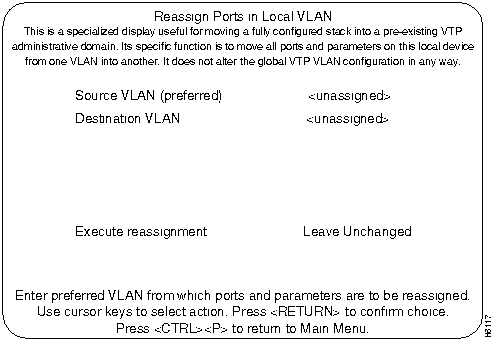
This display is used to move a fully configured Stack into a pre-existing VTP administrative domain.
Figure 1 : Reassign Ports in a Local VLAN Menu
An Example of How To Upgrade Into a VTP Environment
The following database (Table 1) assumes you would like to integrate the ports on the VLANs named local-(appropriate name) on the Stack being upgraded to 2.0, using VTP, into the correspond global VLANs name global-(appropriate name). For instance, it is desired that ports 2, 4, and 8 (which originally belonged to local-W on the local Stack will ultimately become members of the VLAN named global-W.
For service and support for a product purchased from a reseller, contact the reseller. Resellers offer a wide variety of Cisco service and support programs, which are described in the section "Service and Support" in the information packet that shipped with your chassis.
For service and support for a product purchased directly from Cisco, use CCO.
CCO is Cisco Systems' primary, real-time support channel. SMARTnet customers and partners can self-register on CCO to obtain additional content and services.
Available 24 hours a day, 7 days a week, CCO provides a wealth of standard and value-added services to Cisco's customers and business partners. CCO services include product information, software updates, release notes, technical tips, the Bug Navigator, configuration notes, brochures, descriptions of service offerings, and download access to public and authorized files.
CCO serves a wide variety of users through two interfaces that are updated and enhanced simultaneously---a character-based version and a multimedia version that resides on the World Wide Web (WWW). The character-based CCO supports Zmodem, Kermit, Xmodem, FTP, and Internet e-mail, and is excellent for quick access to information over lower bandwidths. The WWW version of CCO provides richly formatted documents with photographs, figures, graphics, and video, as well as hyperlinks to related information.
You can access CCO in the following ways:
For a copy of CCO's Frequently Asked Questions (FAQ), contact ccohelp@cisco.com. For additional information, contact ccoteam@cisco.com.
Please use CCO to obtain general information about Cisco Systems, Cisco products, or upgrades. If CCO is not accessible, contact 800 553-6387, 408 526-7208, or csrep@cisco.com.
Copyright 1988-1996 © Cisco Systems Inc.

UNIX
DOS
c3000-main-2_0_1.gz
C3K_201.GZ
c3000-boot-2_0_1.ima
C3K_BOOT.IMA
c3000-mib-2_0_1.mib
C3K_201.MIB
c3000-schema-2_0_1.schema
C3K_201.SCH
c3000-readme-2_0_1.txt
README.TXT
C3K_BOOT.IMA*boot
~C
SysReq: Waiting for binary file...
~CLocal command?
sx C3KBOOT.IMA (or whatever the file is called)
SysReq: Beginning Xmodem download of boot image.
SysReq: Waiting for binary file...
~CLocal command?
sx epsboot.ima
Sending C3KBOOT.IMA, 443 XMODEM blocks.
Give your local XMODEM receive command now.
SysReq: Beginning Xmodem download of boot image.
SysReq: Waiting for binary file...
~CLocal command?
sx epsboot.ima
Sending C3KBOOT.IMA, 443 XMODEM blocks.
Give your local XMODEM receive command now.
Sector 442 55k away for 31 seconds!
Done. (located at 30010000)
SysReq: Overlaying old boot image and rebooting...
- Initiating bootstrapping sequence.
- Boot image integrity check...Passed.
- Control transferred to boot process.
Boot Firmware (Phase II) v2.0
- Relocating main image to DRAM..................Done.
- Main image integrity check...succeeded.
- Control transferred to main process.
System Software Version 2.0 (1), Copyright 1994-1996.
Local VTP Database
Global VTP Database
VLAN ID #
VLAN Name
Ports
VLAN ID#
VLAN Name
1
default
1, 3, 15
1
default
2
local-w
2, 4, 8
2
global-A
3
local-x
5, 10, 16
3
global-B
4
local-y
6, 12, 14
4
global-C
5
local-z
7, 9, 11, 13
5
global-W
6
VLAN 5
6
global-D
7
VLAN 6
8
global-E
8
VLAN 7
12
global-X
9
VLAN 8
25
global-F
10
VLAN 9
67
global-Y
11
VLAN 10
281
global-Z
.
.
.
.
64
VLAN 63
As an alternative, you could swap VLANs 2 and 5 first, thus moving the ports and parameters of local-z to local-w and vice versa. (Note that the names do not move.) Then move VLAN 2 to VLAN 281.
After this has been done (and sufficient time has passed such the configuration has propagated from a neighboring device or Stack running VTP), the Local database should go away completely and the user will see the Global database implemented on the upgraded Stack . All the ports and parameters should have survived the move, however, and will be found in the VLANs they were assigned to by VLAN id number before the mode was changed.