|
|

Catalyst 5000 Series Supervisor Engine
(MMF and SMF) Configuration Note
Product Numbers: WS-X5005, WS-X5006
This document contains instructions for installing and configuring the Catalyst 5000 series supervisor engine for multimode fiber (MMF) and single-mode fiber (SMF) 100BaseFX applications. Configuration examples are also provided. For a complete description of commands used to configure and maintain the Catalyst 5000 series switch, refer to the Catalyst 5000 Series Configuration Guide and Command Reference. For complete hardware configuration and maintenance procedures, refer to the Catalyst 5000 Series Installation Guide. These documents are available on the Cisco Connection Documentation, Enterprise Series CD, or in print.
Sections in this document include the following:

What is the Catalyst 5000 Series Switch?
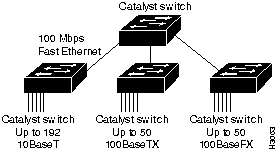
The Catalyst 5000 series switch provides high-density switched Ethernet and Fast Ethernet for both wiring closet and data center applications. The switch includes a single, integrated 1.2-Gbps switching backplane that supports switched Ethernet with repeater connections, and Fast Ethernet with backbone connections, Fiber Distributed Data Interface (FDDI), Copper Distributed Data Interface (CDDI), and Asynchronous Transfer Mode (ATM). The Catalyst 5000 provides switched connections to individual workstations, servers, LAN segments, backbones, or other Catalyst 5000 switches using shielded twisted-pair (STP), unshielded twisted-pair (UTP), and fiber-optic cable. Figure 1 is an example of a configuration using the Catalyst 5000 series switch.
Figure 1 : Cascaded Switches Using Fast Ethernet Interfaces
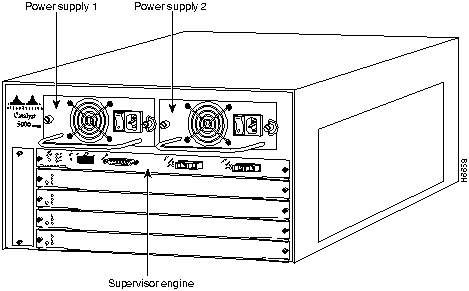
The Catalyst 5000 series switch chassis has five slots. Slot 1 is reserved for the supervisor engine, which provides Layer 2 switching, local and remote management, and dual Fast Ethernet interfaces. The remaining four slots are used for any combination of modules for additional Ethernet, Fast Ethernet, CDDI/FDDI, and ATM connections. Figure 2 shows the rear view of the Catalyst 5000 series switch, which provides access to the supervisor engine, all switching modules, power supplies, and fan assembly.
Figure 2 : Catalyst 5000 Series Switch Chassis Rear View
Supervisor Engine Multimode (MMF) and Single-Mode (SMF) Fiber Descriptions
The MMF (WS-X5006) and SMF (WS-X005) supervisor engines perform as the main system processor in the Catalyst 5000 series switch, providing dual, Fast Ethernet, fiber-optic interfaces.
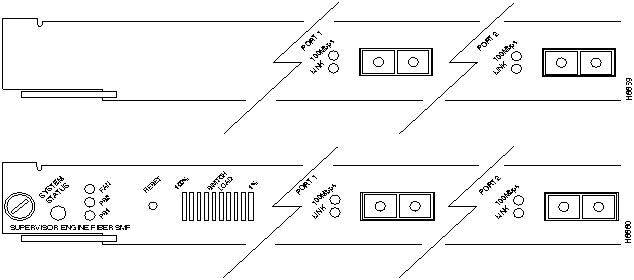
WS-X5006 provides two multimode interfaces; WS-X5005 provides two single-mode interfaces. (See Figure 3 and Figure 4.) They contain the Layer 2 switching engine and network management processor for the system software and most of the system memory components. They also maintain and execute management functions that control the system. Each supervisor engine stores all interface configurations in nonvolatile memory. Only one supervisor engine can be installed in the Catalyst 5000 series switch at one time.
Figure 3 : Supervisor Engine (MMF)

Figure 4 : Supervisor Engine (SMF)

The supervisor engine has the following features:
In addition to these features, the supervisor engine performs the following management functions:
The embedded Flash memory lets you remotely load and store the system software image. You can download a new software image over the network or from a local server, and add the new image to Flash memory or replace an existing file.
An electrically erasable programmable read-only memory (EEPROM) component on the supervisor engine stores board-specific information such as the serial number, part number, controller type, hardware revision, configuration information, and other details unique to each board. In addition to this standard information, the supervisor engine EEPROM also contains an address allocator---a bank of 1024 hardware or MAC addresses---one for each possible VLAN in the system. For an explanation of the hardware addressing function, refer to the section "MAC Address Allocation" later in this configuration note.
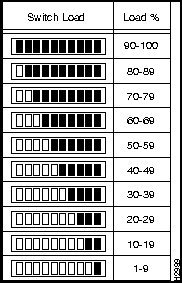
LEDs on the supervisor engine (shown in Figure 5) indicate the status of the system; they are described in the section "Supervisor Engine LEDs."
Figure 5 : Supervisor Engine (MMF and SMF) LEDs
Access to the reset switch, located behind the faceplate of the supervisor engine, is through a small hole approximately 1 1/2 inches to the right of the supervisor engine status LED. (See Figure 5.)
The switch load meter LEDs provide, as an approximate percentage, a visual indication of the current traffic load over the 1.2-Gbps switching backplane. (See Figure 6.)
The console port is the local, out-of-band, console terminal connection to the switch---a DB-25 female connector. To use the console port, connect an EIA/TIA-232 terminal (configured for 9600 baud, no parity, eight data bits, and one stop bit), modem or network management workstation. The console port lets you perform the following functions:
The supervisor engine, MMF (WS-X5006) and SMF (WS-X5006), provides two Fast Ethernet fiber-optic ports, operating in full- or half duplex mode. These ports use either multimode or single-mode fiber-optic cable between each port and your Fast Ethernet network.
Each Fast Ethernet port has two status LEDs---the 100-Mbps and Link LEDs---described in the section "Supervisor Engine LEDs."
Table 1 provides the supervisor engine specifications for both MMF and SMF models:
Table 1 : Supervisor Engine (MMF and SMF) Specifications
The five available interface slots on the Catalyst 5000 series switch support the supervisor engine and switching modules, providing a maximum port density of up to 50 switched Fast Ethernet interfaces. Slot 1 is reserved for the supervisor engine; slots 2 through 5 are used for any combination of Catalyst 5000 series switching modules:
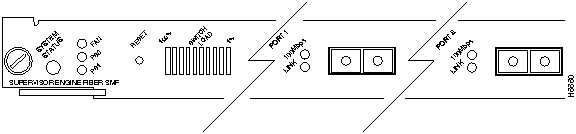
The PS1 and PS2 LEDs on the supervisor engine (see Figure 7) are green when the power supply is receiving AC source power and providing DC power to the internal system components. The power supply monitors its own temperature and internal voltages.
Figure 7 : Supervisor Engine (MMF and SMF) LEDs
The LEDs on the supervisor engine are described in Table 2 for both MMF and SMF models.
Table 2 : Supervisor Engine (MMF and SMF) LED Descriptions
When preparing your site for network connections to the switch, you need to consider a few factors related to each type of interface:
Before installing the switch, have all additional external equipment and cables on hand. If you intend to build your own cables, refer to the cable pinouts in the "Cabling Specifications" appendix in the Catalyst 5000 Series Installation Guide. For ordering information, contact a customer service representative.
Distance and rate limits discussed in this section are IEEE recommended maximum speeds and distances for signaling. If you understand the electrical problems that may arise and can compensate for them, you may get good results with rates and distances greater than those described here, but you do so at your own risk.
The maximum distances for fiber-optic connections depend on the type of fiber-optics you use. Table 3 gives the maximum transmission distances for both multimode and single-mode fiber-optic connections.
Table 3 : Multimode and Single-Mode Fiber Maximum Transmission Distances
As with all signaling systems, serial signals can travel a limited distance at any given baud rate. Generally, the slower the baud rate, the greater the distance. Table 4 shows the standard relationship between baud rate and distance for EIA/TIA-232 signals.
Table 4 : IEEE Standard EIA/TIA-232 Transmission Speed Versus Distance
Fast Ethernet Connection Equipment
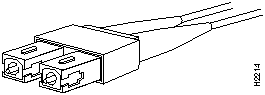
You will need a fiber-optic cable with SC connectors to connect each Fast Ethernet port to other network devices. (See Figure 8.)
Figure 8 : Fast Ethernet Fiber-Optic SC Interface Cable Connector
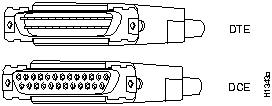
EIA/TIA-232, the most common interface standard in the U.S., supports unbalanced circuits at signal speeds up to 64 kbps. The supervisor engine console connection is a standard 25-pin, D-shell connector (known as a DB-25) commonly used for EIA/TIA-232 connections. Figure 9 shows the connector at the local end of the adapter cable. The system console port on the supervisor engine EIA/TIA-232 connection ports support only asynchronous connections. For further information on the console port, refer to the section "Console Port Connection Equipment."
When connecting serial devices, consider the adapter cables as an extension of the switch for external connections. Therefore, use data terminal equipment (DTE) cables to connect the switch to remote data communication equipment (DCE) devices such as modems or data service units (DSUs), and use DCE cables to connect the switch to remote DTE devices such as a host or PC. (See Figure 9.)
Figure 9 : EIA/TIA-232 Adapter Cable Connectors
Console Port Connection Equipment
The supervisor engine contains an EIA/TIA-232 asynchronous console port (DB-25 receptacle). Synchronous transmissions use precise timing to synchronize transmissions between the transmitter and receiver, and maintains separate clock and data signals. Asynchronous transmission uses control bits instead of a precise clock signal to indicate the beginning and end of characters.
You will need a terminal to configure the interfaces and bring up the system. You will also need an EIA/TIA-232 DCE console cable to connect the terminal to the console port on the supervisor engine. After you establish normal operation, you can disconnect the terminal. Both ends of the console cable should be EIA/TIA-232 plugs to enable you to connect to the supervisor engine DCE console port DB-25 receptacle and to the DB-25 receptacles used on the DTE ports on most terminals.
Before connecting a terminal to the console port, you must configure the terminal to match the switch console port, as follows:
Supervisor Engine (MMF and SMF) Connector Signals
The supervisor engine's Fast Ethernet ports use 100BaseFX, fiber-optic signaling to transmit and receive data across the network. The MMF model supports multimode, and the SMF model supports single-mode signaling.
Signaling to and from the switch and console is supported by an EIA/TIA-232 interface on both models of the supervisor engine.
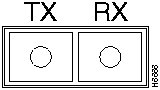
Figure 10 shows the supervisor engine's Fast Ethernet transmit (TX) and receive (RX) signals for both MMF and SMF models.
Figure 10 : Supervisor Engine (MMF and SMF) Fast Ethernet Port Signals
The supervisor engine's console port is an EIA/TIA-232, DCE, DB-25 receptacle. Table 5 lists the signals used on this port.
Table 5 : Supervisor Engine (MMF and SMF) DB-25 Console Port Signals
The following guidelines will help to ensure your safety and protect the equipment. This list is not inclusive of all potentially hazardous situations that you may be exposed to when installing the supervisor engine, so be alert.
The supervisor engine, switching modules, and redundant power supplies are designed to be removed and replaced while the system is operating without presenting an electrical hazard or damage to the system. Before removing a redundant power supply, ensure that the primary supply is powered on. However, you must shut down the system before removing or replacing any of the replaceable components inside the front panel; for example, the backplane. Never install equipment that appears damaged.
Follow these basic guidelines when working with any electrical equipment:
In addition, use the following guidelines when working with any equipment that is disconnected from a power source but still connected to telephone wiring or other network cabling.
Preventing Electrostatic Discharge Damage
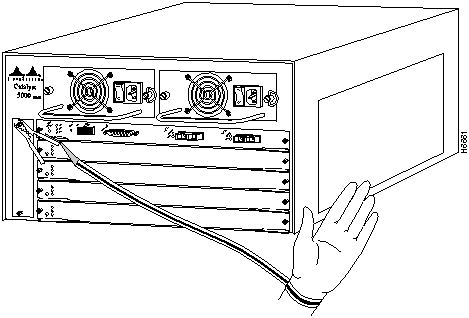
Electrostatic Discharge (ESD) damage occurs when electronic or components are improperly handled, resulting in complete or intermittent failures. The supervisor engine and switching modules each consist of a printed circuit board (PCB) fixed in a metal carrier. Electromagnetic interference (EMI) shielding, connectors, and a handle are integral components of the carrier. Although the metal carrier helps to protect modules from ESD, use a preventive antistatic strap whenever you handle the supervisor engine or switching modules. Handle the carriers by the handles and the carrier edges only, never touch the modules or connector pins.
Following are guidelines for preventing ESD damage:
Figure 11 : Placement of ESD Wrist Strap
Installing and Configuring the Supervisor Engine
The supervisor engine supports hot swapping, letting you install, remove, and replace it without powering off the system power. You do not need to notify the software or shut down the system power. However, hot swapping the supervisor engine will halt the system.
After the supervisor engine is reinstalled, the system automatically configures all network interfaces with the configuration last stored in the supervisor engine's nonvolatile memory. If the supervisor engine is new, the system uses the factory default configuration.
All Catalyst 5000 supervisor engines and switching modules support hot swapping. This section gives a brief overview of the switch's hot-swap feature.
The supervisor engine contains a bus-type connector that connects to the backplane. Each connector consists of a set of tiered pins in two lengths. The pins send specific signals to the system as they make contact with the backplane. The system assesses the signals it receives and the order in which it receives them to determine what event is occurring and what task it needs to perform, such as reinitializing new interfaces or shutting down removed ones.
For example, when inserting the supervisor engine, the longest pins make contact with the backplane first, and the shortest pins make contact last. The system recognizes the signals and the sequence in which it receives them. The system expects to receive signals from individual pins in this logical sequence.
When you insert the supervisor engine, the backplane pins send signals to notify the system, and performs as follows:
When you insert a new supervisor engine, the system runs a diagnostic test on all interfaces, and compares them to the existing configuration. If this initial diagnostic fails, the system remains off line for another 15 seconds while it performs a second set of diagnostic tests to determine whether or not the supervisor engine or a switching module is faulty and if normal system operation is possible.
If the second diagnostic test passes, indicating that the system is operating normally and a new switching module is faulty, the system resumes normal operation but leaves the new interfaces disabled.
If the second diagnostic test fails, the system crashes, which usually indicates that the new supervisor engine or a switching module created a problem in the bus and should be removed.
Avoiding Problems When Inserting and Removing the Supervisor Engine
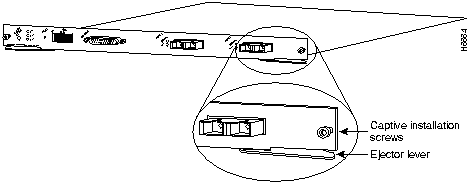
The function of the ejector levers (see Figure 12) on the supervisor engine is to align and seat the board connectors in the backplane. Failure to use the ejector levers and insert the supervisor engine properly can disrupt the order in which the pins make contact with the backplane. Follow the installation and removal instructions carefully, and review the following examples of incorrect insertion practices and results:
It is also important, when removing the supervisor engine, to use the ejector levers to ensure that the connector pins disconnect from the backplane in the logical sequence expected by the system. Detailed procedures for hot-swapping the supervisor engine correctly are included in the sections that follow.
Figure 12 : Ejector Levers and Captive Installation Screws (Supervisor Engine shown)
You need a flat-blade screwdriver to remove the supervisor engine, and to tighten the captive installation screws that secure the engine in its slot. Whenever you handle the supervisor engine, use a wrist strap or other grounding device to prevent ESD damage. See the section "Preventing Electrostatic Discharge Damage."
Removing the Supervisor Engine
Perform the following steps to remove the supervisor engine from the switch chassis:
Installing the Supervisor Engine
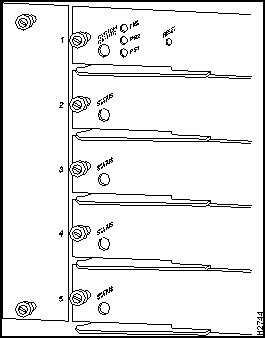
Always install the supervisor engine in slot 1. You can install any switching module in any of the four switching module slots, numbered 2 through 5. Figure 13. Switching module fillers---blank switching module carriers---are installed in slots without switching modules to maintain consistent airflow through the switching module compartment.
Figure 13 : Module Slot Numbers
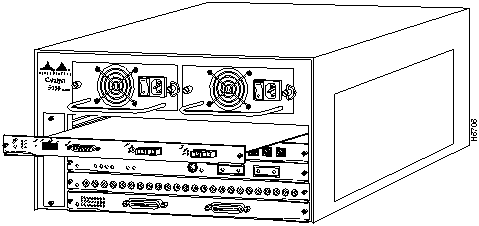
Following is the procedure for installing a switching module:
Figure 14 : Supervisor Engine MMF and SMF Installation
Bringing the Supervisor Engine On Line
Once installed, you need to bring the supervisor engine on line to configure the system interfaces. There are three ways to do this:
Refer to the Catalyst 5000 Series Configuration Guide and Command Reference for more information about the switch's configuration commands.
After you install the supervisor engine, use the following information to configure the systems interfaces. The section "Port Addresses" contains an overview of the module and port numbering scheme used to configure the Catalyst 5000 series switching modules. The section "Configuring the Fast Ethernet Ports" describes how to configure the ports on the supervisor engine and switching modules. The section "Checking the Configuration" describes the procedures you should use to confirm that the module is configured correctly.
Each interface in the Catalyst 5000 series switch is designated by several different types of addresses. The physical interface address is the actual slot and port of the interface connector within the chassis. The system software uses the physical addresses to control activity within the switch and to display status information. These physical slot/port addresses are not used by other devices in the network. They are specific to the individual switch and its internal components and software.
A second type of address is the MAC or hardware address---a standard data link address required for every port or device connected to a network. Other devices in the network use these addresses to locate specific ports in the network, and to create and update routing tables and data structures. The Catalyst 5000 series switch uses a unique method to assign and control the MAC addresses of its interfaces.
The following sections describe how the Catalyst 5000 series switch assigns and controls interfaces addresses within the chassis.
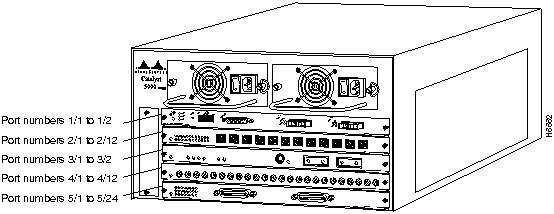
In the Catalyst 5000 series switch, physical port addresses specify the actual physical location of each port on the rear of the switch. (See Figure 15.) The address is composed of a two-part number in the format slot number/port number. The first number identifies the slot in which the supervisor engine or switching module is installed. Module slots are numbered 1 to 5, from top to bottom. The second number identifies the physical port number on the switching module. The port numbers always begin at 1 and are numbered from the left port to right port when facing the rear of the switch. The number of additional ports (/1, /2, and so on) depends on the number of ports available on the module.
Interface ports maintain the same address regardless of whether other switching modules are installed or removed. However, when you move a switching module to a different slot, the first number in the address changes to reflect the new slot number. For example, on a 12-port 10/100BaseTX switching module in slot 2, the address of the left port is 2/1 and the address of the right port is 2/12. If you remove the 12-port 10/100Base TX switching module from slot 2 and install it in slot 4, the addresses of those same ports become 4/1 and 4/12.
Figure 15 : Interface Port Address Examples
The supervisor engine is always n/1 to n/2, because it supports two interfaces---ports 1 and 2. Switching modules are always n/1 to n/12 because each switching module supports at least twelve interfaces. (Switching modules with more than 12 interfaces are addressed n/1 through n/n.)
You can identify supervisor engine and switching module interfaces by physically checking the slot/port location on the back of the switch. You can also use software commands to display information about a specific interface, or all interfaces, in the switch. To display information about every interface, use the show port command without parameters. To display information about a specific interface, use the show port command with the interface type and port address in the format show port [mod_num/port_num]. If you abbreviate the command (sho po) and do not include parameters, the system interprets the command as show port and displays the status of all interfaces.
Following is an example of how the show port command without parameters displays status information (including the physical slot and port address) for each interface in the switch. In this example, most of the status information for each interface is omitted.
For complete descriptions of the commands used to configure and maintain the Catalyst 5000 series switch, refer to the Catalyst 5000 Series Configuration Guide and Command Reference.
All network interface connections require a unique MAC address. The switch uses a MAC address allocator, stored in the supervisor engine's nonvolatile memory which identifies all system interface addresses. Each switch interface, configured or not, is allocated a MAC address. For instance, interface 2/10 is allocated a MAC address as a Fast Ethernet connection configured in slot 2,
Configuring the Fast Ethernet Ports
Once the supervisor engine is installed, it will use the default configuration to configure the system's Fast Ethernet ports. This section describes how to use the privileged interface to configure the Fast Ethernet ports on the supervisor engine.
A description of the system's defaults is in the section "Default Configuration." Refer to the chapter "Configuring the Software" in the Catalyst 5000 Series Installation Guide for more information about customizing interface configurations.
To configure Fast Ethernet ports, complete the tasks in the following sections:
The supervisor engine provides the following default configuration. The default values can be changed to suit your network requirements.
Use the enable command to activate the switch's privileged mode. Privileged mode lets you invoke privileged commands that set the switching module's interface features, such as enabling an interface and showing the current configuration. The designation, enable, indicates that the system is in privileged mode and privileged commands can be invoked from the console.
Example
The following example shows how to enter privileged mode:
Assign a name to each port. To set a port name, perform the following tasks in privileged mode:
Figure 16 : set port name Command Example
Figure 17 : Sample show port Command Display
Figure 18 : set port level Command Example
Set the transmission type to full- or half-duplex for the ports to be used. To set the transmission type, perform the following tasks in privileged mode:
Figure 19 : set port duplex Command Example
VLANs allow ports on the same or different switches to be grouped so that traffic is confined to members of that group only. This feature restricts unicast, broadcast, and multicast traffic (flooding) to ports included in the same VLAN.
The set vlan command groups ports. The default configuration for all switched Ethernet ports and Ethernet repeater ports in VLAN 1. You can enter groups of ports as individual entries, such as 2/1,3/3,3/4,3/5. You can also use a hyphenated format to indicate a range of ports, such as 2/1, 3/3-5.
To create a VLAN across a networking domain, perform the following steps in privileged mode:
Figure 20 : set vtp Command Example
Figure 21 : show vtp domain Command Example
Figure 22 : set vlan Command Example
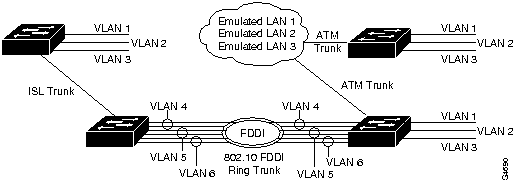
Figure 23 : VLAN Configuration Across a Management Domain
Figure 24 : show vlan Command Display Sample
To create a VLAN, perform the following tasks in privileged mode:
Figure 25 : set vlan Command Example
Figure 26 : VLAN Configuration
Figure 27 : Sample show vlan Command Display
Use the set trunk command to configure trunks on ports and to configure the mode for the trunk: on, off, desirable, or auto. To establish a trunk, the port on each Catalyst 5000 series switch must be configured as a trunk port. To establish trunks, perform the following steps in privileged mode:
Figure 28 : set trunk Command Example
Figure 29 : show trunk Command Display Sample
This section describes the procedures used to confirm that you have is installed and configured the supervisor engine correctly.
Use the ping command to send Internet Control Message Protocol (ICMP) echo request packets to another node on the network. Enter Ctrl-C to stop pinging.
Syntax Description
Following are sample results of the ping command:
Example
In the following example, a host with IP alias elvis is pinged a single time, then pinged once every second until you enter Ctrl C to stop pinging:
Use the show system command to display the power supply, fan, temperature alarm, system, and modem status; the number of days, hours, minutes, and seconds since the last system restart; the baud rate; the MAC address range; and the system name, location, and contact.
Example
In the following example, the system status and other information is displayed:
Displaying the System Configuration
Use the show config command to display the current port configuration:
Displaying the Port Configuration
Use the show port command to display the current system configuration:
Copyright 1988-1996 © Cisco Systems Inc.

Description
Specification
Dimensions (H x W x D)
1.2 x 14.4 x 16 in (3 x 35.6 x 40.6 cm)
Weight
3 lb (1.36 kg)
Environmental Conditions:
Operating Temperature
Nonoperating Temperature
Humidity
32 to 104°F (0 to 40°C)
-4 to 149°F (-20 to 65°C)
10 to 90%, noncondensing
Connectors
100BaseFX-SC multimode fiber
100BaseFX-SC single-mode fiber
1 DB-25 console port for an administration console
Memory
8 MB of Flash memory
4 MB of packet-buffer DRAM1
256 KB of NVRAM2
Maximum Station-to-Station Cabling distance
Multimode: 1.2 miles (2 km), full-duplex; 121 feet (400 meters), half-duplex
Single-mode: 9.3 miles (15 km), half- and full-duplex
Frame Processing
Transparent bridging (802.1d)
Network Management
SNMP3 agent
Agency Approvals:
Safety
EMI4
UL 1950, CSA-C22.2 No. 950-93, and EN60950
FCC Class A (Part 15), CE Mark, EN55022 Class B, and VCCI Class 2
1 DRAM = dynamic random-access memory
2 NVRAM = nonvolatile random-access memory
3 SNMP = Simple Network Management Protocol
4 EMI = electromagnetic interference

LED
Description
Status
The switch performs a series of self-tests and diagnostic tests.
If all the tests pass, the Status LED is green.
If any test fails, the Status LED is red.
During system boot or if the module is disabled, the Status LED is orange.
If the redundant power supply is installed but not powered on or receiving AC input, the Status LED is red.
If the fan module fails, the Status status is red.
Fan
Indicates whether or not the Fan is operational.
If the fan is operational, the Fan LED is green.
If the fan is not operational, the Fan LED is red.
PS1
If the left-bay power supply is operational, the PS1 LED is green.
If the left-bay power supply is not operational, powered off, or not receiving AC input, the PS1 LED is red.
If the left bay power supply is off or not installed, the PS1 LED is red.
PS2
If the right-bay power supply is operational, the PS2 LED is green.
If the left-bay power supply is not operational, powered off, or not receiving AC input, the PS2 LED is red.
If the right-bay power supply is off or not installed, the PS2 LED is red.
100 Mbps
If the port is operating at 100 Mbps, the LED is green.
Link
If the port is operational, the link LED is green.
If the link has been disabled by software, the link LED is orange.
If the link is bad and has been disabled due to a hardware failure, the link LED is flashing orange.
If no signal is detected, the link LED is off.
Transceiver Speed
Cable Type
Duplex Mode
Maximum Distance Between Stations
100 Mbps
Multimode fiber
Half
1312 feet (400 meters)
100 Mbps
Multimode fiber
Full
1.2 miles (2 km)
100 Mbps
Single-mode fiber
Full & Half
9.3 miles (15 km)
Rate (bps)
Distance (Feet)
Distance (Meters)
2400
200
60
4800
100
30
9600
50
15
19200
25
7.6
38400
12
3.7
56000
8.6
2.6
Pin
Signal
Direction
Description
1
GND
Ground
2
RxD
Input
Receive Data
3
TxD
Output
Transmit Data
4
CTS
Input
Clear-to-Send
5
RTS
Output
Request-to-Send
7
GND
Ground
8
DTR
Output
Data Terminal Ready
18
GND
Ground
20
DCD
Input
Data Carrier Detect




(part number 800-00292-01) to keep dust out of the chassis.

Console> (enable) show port
Port Name                  Status     Vlan       Level  Duplex Speed Type
---- --------------------  ---------- ---------- ------ ------ ----- -----------
1/1  100BaseFX Supervisor  connected  1          normal   half   100  100 BaseFX
1/2  100BaseFX Supervisor  connected  trunk      normal   half   100  100 BaseFX
2/1  10/100BaseTX Fast Eth connected  1          normal   half   auto 10/100 BaseTX
2/2  10/100BaseTX Fast Eth connected  1          normal   half   auto 10/100 BaseTX
2/3  10/100BaseTX Fast Eth connected  1          normal   half   auto 10/100 BaseTX
2/4  10/100BaseTX Fast Eth connected  1          normal   half   auto 10/100 BaseTX
2/5  10/100BaseTX Fast Eth connected  1          normal   half   auto 10/100 BaseTX
2/6  10/100BaseTX Fast Eth connected  1          normal   half   auto 10/100 BaseTX
.
.
.

Port Align-Err  FCS-Err    Xmit-Err   Rcv-Err
---- ---------- ---------- ---------- ----------
1/1           0          0          0          0
1/2           0          0          0          0
2/1           0          0          0          0
2/2           0          0          0          0
2/3           0          0          0          0
.
.
.
2/18          0          0          0          0
2/19          0          0          0          0
2/20          0          0          0          0
2/21          0          0          0          0
2/22          0          0          0          0
2/23          0          0          0          0
2/24          0          0          0          0TT


Port Auto-Parts Giants     Data-Rate  FCS-Err    Runts      Rcv-frms   Src-Addr
                           Mismatch                                    Changes
---- ---------- ---------- ---------- ---------- ---------- ---------- --------
4/1           0          0          0          0          0          0        0
4/2           0          0          0          0          0          0        0
4/3           0          0          0          0          0          0        0
4/4           0          0          0          0          0          0        0
4/5           0          0          0          0          0          0        0
4/6           0          0          0          0          0          0        0
.
.
.
4/43          0          0          0          0          0          0        0
4/44          0          0          0          0          0          0        0
4/45          0          0          0          0          0          0        0
4/46          0          0          0          0          0          0        0
4/47          0          0          0          0          0          0        0
4/48          0          0          0          0          0          0        0

Port Rcv-Multi  Rcv-Broad  Good-Bytes Align-Err  Short-Evnt Late-Coll Collision
---- ---------- ---------- ---------- ---------- ---------- --------- ---------
4/1           0          0          0          0          0         0         0
4/2           0          0          0          0          0         0         0
4/3           0          0          0          0          0         0         0
4/4           0          0          0          0          0         0         0
.
.
.
4/42          0          0          0          0          0         0         0
4/43          0          0          0          0          0         0         0
4/44          0          0          0          0          0         0         0
4/45          0          0          0          0          0         0         0
4/46          0          0          0          0          0         0         0
4/47          0          0          0          0          0         0         0
4/48          0          0          0          0          0         0         0

Last-Time-Cleared
--------------------------
Tue May 14 1996, 14:37:31
Console> (enable)
port 10; interface 2/11 is not configured but is also allocated an address. This addressing scheme is important, especially when hot-swapping modules, because it gives the switch the intelligence to identify the state---connected or notconnect---of each interface on the switch.
Console>
Console> enable
Enter password:
Console> (enable)
Task
Command
Configure a name for a port. Figure 16 shows an example
set port name command.
set port name mod_num/port_num [name_string]
Verify that the port name is correct. Figure 17 shows an example show port command. Port names are listed in the Name column.
show port mod_num/port_num
Console> (enable) set port name 1/1 Management Port
Port 1/1 name set.
Console> (enable) set port name 1/2 Interswitch Link
Port 1/2 name set.
Console> (enable)
Console> (enable) show port
Port Name                  Status     Vlan       Level  Duplex Speed Type
---- --------------------  ---------- ---------- ------ ------ ----- -----------
1/1  Management Port       connected  1          normal   half   100  100BaseFX
1/2  InterSwitch Link      connected  trunk      normal   half   100  100BaseFX
2/1  10/100BaseTX Fast Eth connected  1          normal   half   auto 10/100 BaseTX
2/2  10/100BaseTX Fast Eth connected  1          normal   half   auto 10/100 BaseTX
2/3  10/100BaseTX Fast Eth connected  1          normal   half   auto 10/100 BaseTX
2/4  10/100BaseTX Fast Eth connected  1          normal   half   auto 10/100 BaseTX
2/5  10/100BaseTX Fast Eth connected  1          normal   half   auto 10/100 BaseTX
.
.
.
2/23                       notconnect 1          normal   half    10 10BaseT
2/24                       notconnect 1          normal   half    10 10BaseT

Port Align-Err  FCS-Err    Xmit-Err   Rcv-Err
---- ---------- ---------- ---------- ----------
1/1           0          0          0          0

1/2           0          0          0          0
2/1           0          0          0          0
2/2           0          0          0          0
2/3           0          0          0          0
.
.
.
2/18          0          0          0          0
2/19          0          0          0          0
2/20          0          0          0          0
2/21          0          0          0          0
2/22          0          0          0          0
2/23          0          0          0          0
2/24          0          0          0          0TT


Port Auto-Parts Giants     Data-Rate  FCS-Err    Runts      Rcv-frms   Src-Addr
                           Mismatch                                    Changes
---- ---------- ---------- ---------- ---------- ---------- ---------- --------
4/1           0          0          0          0          0          0        0
4/2           0          0          0          0          0          0        0
4/3           0          0          0          0          0          0        0
4/4           0          0          0          0          0          0        0
4/5           0          0          0          0          0          0        0
4/6           0          0          0          0          0          0        0
.
.
.
4/43          0          0          0          0          0          0        0
4/44          0          0          0          0          0          0        0
4/45          0          0          0          0          0          0        0
4/46          0          0          0          0          0          0        0
4/47          0          0          0          0          0          0        0
4/48          0          0          0          0          0          0        0

Port Rcv-Multi  Rcv-Broad  Good-Bytes Align-Err  Short-Evnt Late-Coll Collision
---- ---------- ---------- ---------- ---------- ---------- --------- ---------
4/1           0          0          0          0          0         0         0
4/2           0          0          0          0          0         0         0
4/3           0          0          0          0          0         0         0
4/4           0          0          0          0          0         0         0
.
.
.
4/42          0          0          0          0          0         0         0
4/43          0          0          0          0          0         0         0
4/44          0          0          0          0          0         0         0
4/45          0          0          0          0          0         0         0
4/46          0          0          0          0          0         0         0
4/47          0          0          0          0          0         0         0
4/48          0          0          0          0          0         0         0

Last-Time-Cleared
--------------------------
Tue May 14 1996, 14:37:31
Console> (enable)
Task
Command
Configure the priority level for each port. Figure 18 shows an example set port level command.
set port level mod_num/port_num normal | high
Verify that the port priority level is correct. Figure 17 shows an example show port command. Port priority levels are listed in the Level column.
show port mod_num/port_num
Console> (enable) set port level 1/1-2 high
Port 1/1-2 level set to high.
Console> (enable)
Task
Command
Enter the module number, port number, and transmission type of each port to be used. Figure 19 shows an example set port duplex command.
set port duplex mod num/port num [full | half]
Verify that the transmission type is set correctly. Figure 17 shows an example
show port command. The transmission type is listed in the Duplex column.
show port mod_num/port_num
Console> (enable) set port duplex 1/1-2 half
Port 1/1-2 set to half-duplex.
Console> (enable)
Task
Command
Define the VLAN management domain, indicating the domain name, VLAN trunk protocol mode of operation, and password value. Figure 20 shows an example of the set vtp command.
set vtp [domain name] [mode mode]
[passwd passwd]
Verify that the VLAN management domain configuration is correct. Figure 21 shows a sample display of the show vtp domain command.
show vtp domain
Define the VLAN, indicating the parameters described above: VLAN number, name, type, maximum transmission unit, SAID, state, ring number, bridge identification number, and number to indicate whether source routing should be set to transparent or bridging. A maximum of 100000 VLANs can be active at any time. Figure 22 shows an example of the set vlan command. Figure 23 shows a diagram of the established VLANs, illustrating how VTP can traverse trunk connections using the ISL and 802.10 protocols and ATM LAN emulation (LANE). In Figure 23, Ethernet VLAN 1 is translated to FDDI VLAN 4 on the FDDI module, Ethernet VLAN 2 is translated to FDDI VLAN 5, and so on.
set vlan vlan_num [name name] [type type] [mtu mtu] [said said] [state state] [ring ring_number] [bridge bridge_number] [parent vlan_num] [stp stp_type] [translation vlan_num]
Verify that the VLAN configuration is correct. Figure 24 shows a sample display of the show vlan command.
show vlan
Console> (enable) set vtp domain engineering mode client interval 160
VTP: domain engineering modified
Console> (enable)
Console> (enable) show vtp domain
Domain Name                    Domain Index VTP Version Local Mode
------------------------------ ------------ ----------- -----------
engineering                    1            1           client

Last Updater    Vlan-count Max-vlan-storage Config Revision Notifications
--------------- ---------- ---------------- --------------- -------------
172.20.25.130   5          256              0               disabled
Console> (enable)
Console> (enable) set vlan 3 name engineering type ethernet
VTP: vlan addition successful
Console> (enable)
Console> (enable) show vlan
VLAN Name                             Status    Mod/Ports
---- -------------------------------- --------- ----------------------------
1    default                          active    1/1-2
2    VLAN0002                         active    2/1-24
3    VLAN0003                         active
5    VLAN0005                         active
1002 fddi-default                     active
1003 token-ring-default               active
1004 fddinet-default                  active
1005 trnet-default                    active


VLAN Type  SAID       MTU   Parent RingNo BridgeNo Stp  Trans1 Trans2
---- ----- ---------- ----- ------ ------ -------- ---- ------ ------
1    enet  10001      1500  -      -      -        -    1003   1002
2    enet  10002      1500  -      -      -        -    0      0
3    enet  100003     1500  -      -      -        -    0      0
5    enet  100005     1500  -      -      -        -    0      0
1002 fddi  1002       1500  0      0      -        -    1003   1
1003 tring 1003       1500  1005   4095   -        -    1      1002
1004 fdnet 33         1500  -      -      0        ieee 0      0
1005 trnet 1005       1500  -      -      15       ibm  0      0
Console> (enable)
Task
Command
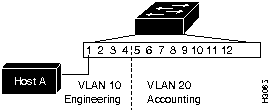
Define the VLAN and indicate the ports to be included. Figure 25 shows an example set vlan command. Figure 26 shows a diagram of the established VLANs. VLAN 10, in the engineering department, includes module 2, ports 1 through 4. VLAN 20, in the accounting department, includes module 2, ports 5 through 24. The accounting and engineering departments are isolated from each other in this configuration.
set vlan vlan mod/ports
Verify that the VLAN configuration is correct. Figure 27 shows an example show vlan command.
show vlan
Console> (enable) set vlan 10 2/1-4
VLAN 10 modified.
VLAN 1 modified.
VLAN    Mod/Ports
10      2/1-4
Console> (enable) set vlan 20 2/5-24
VLAN 20 modified.
VLAN 1 modified.
VLAN    Mod/Ports
20      2/5-24
Console> (enable)
Console> (enable) show vlan
VLAN    Mod/Ports
----    ------------------------------------------------------
1       1/1-2
10      2/1-4
20      2/5-24
Console> (enable)
Task
Command
Establish trunks on specific ports. Set the trunk to on to make it a trunk port, off to make it a non-trunk port, desirable to make it a trunk port if the port it is connected to allows trunking, or auto to make it a trunk port if the port it is connected to becomes set for trunking. Figure 28 shows an example of the set trunk command. Port 1 on module 1 is configured as a trunk.
set trunk mod_num/port_num
[ on | off | desirable | auto ] [vlans]
Verify that the trunk configuration is correct. Figure 29 shows a sample display of the
show trunk command.
show trunk
Console> (enable) set trunk 1/2 5
Port 1/2 allowed vlans modified to 1-5.
Console> (enable) set trunk 1/1 desirable
Port 1/1 mode set to desirable.
Port 1/1 has become a trunk.
Console> (enable)
Console> (enable) show trunk
Port     Mode       Status
-------  ---------  ------------
1/1      auto       trunking
1/2      auto       not-trunking

Port     Vlans allowed
-------  ---------------------------------------------------------------------
1/1      1-100000
1/2      1-100000

Port     Vlans active
-------  ---------------------------------------------------------------------
1/1      1-3,5
1/2      1
Console> (enable)
-s
Causes ping to send one datagram every second, printing one line of output for every response received. The ping command does not return any output when no response is received.
host
The IP address or IP alias of the host.
packet_size
(Optional) The number of bytes in a packet, from 1 to 2,000 bytes, with a default of 56 bytes. The actual packet size is eight bytes larger because the switch adds header information.
packet_count
(Optional) The number of packets to send.
Console> (enable) ping elvis
elvis is alive
Console> ping -s elvis
ping elvis: 56 data bytes
64 bytes from elvis: icmp_seq=0. time=11 ms
64 bytes from elvis: icmp_seq=1. time=8 ms
64 bytes from elvis: icmp_seq=2. time=8 ms
64 bytes from elvis: icmp_seq=3. time=7 ms
64 bytes from elvis: icmp_seq=4. time=11 ms
64 bytes from elvis: icmp_seq=5. time=7 ms
64 bytes from elvis: icmp_seq=6. time=7 ms
^C
----elvis PING Statistics----
7 packets transmitted, 7 packets received, 0% packet loss
round-trip (ms)  min/avg/max = 7/8/11
Console> (enable)
Console> (enable) show system
PS1-Status PS2-Status Fan-Status Temp-Alarm Sys-Status Uptime d,h:m:s Logout
---------- ---------- ---------- ---------- ---------- -------------- ---------
ok         none       ok         off        ok         0,18:31:53     none

PS1-Type   PS2-Type   Modem   Baud  Traffic Peak Peak-Time
---------- ---------- ------- ----- ------- ---- -------------------------
WS-C5006   none       disable  9600   0%      0% Tue May 14 1996, 14:37:31

System Name              System Location          System Contact
------------------------ ------------------------ ------------------------
Console> (enable)
Console> (enable) show config
begin
set password $1$FMFQ$HfZR5DUszVHIRhrz4h6V70
set enablepass $1$FMFQ$HfZR5DUszVHIRhrz4h6V70
set prompt Console>
set length 100 default
set logout 0
!
#system
set system baud  9600
set system modem disable
set system name
set system location
set system contact
!
#snmp
set snmp community read-only      public
set snmp community read-write     private
set snmp community read-write-all secret
set snmp rmon enable
set snmp trap disable module
set snmp trap disable chassis
set snmp trap disable bridge
set snmp trap disable repeater
set snmp trap disable vtp
set snmp trap disable auth
!
#ip
set interface sc0 1 172.20.25.130 255.255.0.0 172.20.255.255

set interface sl0 0.0.0.0 0.0.0.0
set arp agingtime 1200
set ip redirect   enable
set ip unreachable   disable
set ip fragmentation enable
set ip route 0.0.0.0         172.20.1.201    1
set ip alias default         0.0.0.0
set ip alias max             171.69.193.165
set ip alias atlas           172.20.1.201
set ip alias chia pet        172.20.25.130
set ip alias floater         172.20.25.132
set ip alias da_bears        172.20.22.7
set ip alias lnf             172.20.0.0
!
!
#vlan
set vlan 1    1/2,2/1-24,4/1,4/13,4/25,4/37
!
#trunks
set trunk 1/1  desirable 1-1000
set trunk 1/2  off 1-1000
.
.
.
#vlan 2
set spantree enable         2
set spantree fwddelay 15    2
set spantree hello    2     2
set spantree maxage   20    2
set spantree priority 32768 2end
!

#trunk
set spantree portcost     1/1  10
set spantree portpri      1/1  32
set spantree portvlanpri  1/1  0 100-102
set spantree portfast     1/1  disable
set spantree portcost     1/2  10
set spantree portpri      1/2  32
set spantree portvlanpri  1/2  0
set spantree portfast     1/2  disable
!
#module 1
set module name    1
set port enable    1/1-2
set port level     1/1-2  normal
set port duplex    1/1-2  half
set port trap      1/1-2  disable
set port name      1/1 Management Port
set port name      1/2 InterSwitch Link
!
#module 2
set module name    2
set module enable  2
set port enable    2/1-24
set port level     2/1-24  normal
set port duplex    2/1-24  half
set port trap      2/1-24  disable
set port name      2/1-24
!
#module 3 empty
!
#module 4
set module name    4
set module enable  4
set port enable    4/1-48
set port level     4/1,4/13,4/25,4/37  normal
set port trap      4/1-48  disable
set port name      4/1-48
!
#module 5 empty
!
#switch port analyzer
set span 1 1/1  both
set span disable
end
Console> (enable)
Console> (enable) show port
Port Name                  Status     Vlan       Level  Duplex Speed Type
---- --------------------  ---------- ---------- ------ ------ ----- -----------
1/1  Management Port       connected  1          normal   half   100  100BaseFX
1/2  InterSwitch Link      connected  trunk      normal   half   100  100BaseFX
2/1  10/100BaseTX Fast Eth connected  1          normal   half   auto 10/100 BaseTX
2/2  10/100BaseTX Fast Eth connected  1          normal   half   auto 10/100 BaseTX
2/3  10/100BaseTX Fast Eth connected  1          normal   half   auto 10/100 BaseTX
2/4  10/100BaseTX Fast Eth connected  1          normal   half   auto 10/100 BaseTX
2/5  10/100BaseTX Fast Eth connected  1          normal   half   auto 10/100 BaseTX
.
.
.

2/23                       notconnect 1          normal   half    10 10BaseT
2/24                       notconnect 1          normal   half    10 10BaseT

Port Align-Err  FCS-Err    Xmit-Err   Rcv-Err
---- ---------- ---------- ---------- ----------
1/1           0          0          0          0
1/2           0          0          0          0
2/1           0          0          0          0
2/2           0          0          0          0
2/3           0          0          0          0
.
.
.
2/18          0          0          0          0
2/19          0          0          0          0
2/20          0          0          0          0
2/21          0          0          0          0
2/22          0          0          0          0
2/23          0          0          0          0
2/24          0          0          0          0TT


Port Auto-Parts Giants     Data-Rate  FCS-Err    Runts      Rcv-frms   Src-Addr
                           Mismatch                                    Changes
---- ---------- ---------- ---------- ---------- ---------- ---------- --------
4/1           0          0          0          0          0          0        0
4/2           0          0          0          0          0          0        0
4/3           0          0          0          0          0          0        0
4/4           0          0          0          0          0          0        0
4/5           0          0          0          0          0          0        0
4/6           0          0          0          0          0          0        0
.
.
.
4/43          0          0          0          0          0          0        0
4/44          0          0          0          0          0          0        0
4/45          0          0          0          0          0          0        0
4/46          0          0          0          0          0          0        0
4/47          0          0          0          0          0          0        0
4/48          0          0          0          0          0          0        0

Port Rcv-Multi  Rcv-Broad  Good-Bytes Align-Err  Short-Evnt Late-Coll Collision
---- ---------- ---------- ---------- ---------- ---------- --------- ---------
4/1           0          0          0          0          0         0         0
4/2           0          0          0          0          0         0         0
4/3           0          0          0          0          0         0         0
4/4           0          0          0          0          0         0         0
.
.
.
4/42          0          0          0          0          0         0         0
4/43          0          0          0          0          0         0         0
4/44          0          0          0          0          0         0         0
4/45          0          0          0          0          0         0         0
4/46          0          0          0          0          0         0         0
4/47          0          0          0          0          0         0         0
4/48          0          0          0          0          0         0         0

Last-Time-Cleared
--------------------------
Tue May 14 1996, 14:37:31
Console> (enable)