Banner
HomeTOCPrevNextGlossSearchHelp

PDF

Table of Contents

Replacing the Chassis Interface (CI) Board in the Cisco 7500 Series Chassis

Replacing the Chassis Interface (CI) Board in the Cisco 7500 Series Chassis

Replacing the Chassis Interface (CI) Board in the Cisco 7500 Series Chassis

Product Number: MAS-7500CI=

This document contains instructions for replacing the chassis interface (CI) board in the Cisco 7500 series routers: Cisco 7505, Cisco 7507, and Cisco 7513. The CI mounts directly to the front side of the backplane inside each chassis and provides the environmental monitoring (ENVM) and power supply monitoring functions for the Cisco 7500 series routers. The CI isolates the CPU and system software from chassis-specific variations. The CI attaches directly to the system backplane and is considered to be a field-replaceable unit (FRU).

Following are the functions of the CI:

Warning Before working on a system that has an on/off switch, turn OFF the power and unplug the power cord. (For a translation of this safety warning, refer to the section "Translated Safety Warnings" on page 32.)

To prevent injury, you must turn off all system power before opening the chassis to access the CI. The system backplane, which is exposed when the front panels are removed, carries dangerous current levels. Opening the chassis exposes the power distribution wiring on the backplane. If the power is not shut down, the high current present on the backplane becomes a hazard. Also, removing the cover compromises the electromagnetic interference (EMI) integrity of the system. Before opening the chassis, read the section "Safety Guidelines" on page 2.


Note The CI is a FRU for the Cisco 7500 series chassis; therefore, we recommend that the following procedures be performed by Cisco-certified service personnel.


Document Contents and Structure

Following is the recommended order in which to use the information and procedures included in this publication:

  1. Before you begin the installation, review the information in the section "Installation Prerequisites," which follows.

  2. To install the CI in your chassis, refer to one of the following three sections for the specific replacement procedure(s) for your chassis type(s).
    --- Replacing the CI in the Cisco 7505, page 5
    --- Replacing the CI in the Cisco 7507, page 15
    --- Replacing the CI in the Cisco 7513, page 22

  3. To verify that the installation was successful, refer to the section "Checking the CI Installation" on page 29.

  4. The following two sections contain important safety warning and reference information respectively; refer to them as required and suggested:
    --- Translated Safety Warnings, page 32
    --- Cisco Connection Online, page 39


Installation Prerequisites

The following sections discuss important installation prerequisites.


Safety Guidelines

This section lists safety guidelines you should follow when working with any equipment that connects to electrical power or telephone wiring.

fig_20.gif Warning Read the installation instructions before you connect the system to its power source. (For a translation of this safety warning, refer to the section "Translated Safety Warnings" on page 32.)


Electrical Equipment Guidelines

Follow these basic guidelines when working with any electrical equipment:

Warning Before working on a system that has an on/off switch, turn OFF the power and unplug the power cord. (For a translation of this safety warning, refer to the section "Translated Safety Warnings" on page 32.)

fig_23.gif Warning Before working on a chassis or working near power supplies, unplug the power cord on AC units; disconnect the power at the circuit breaker on DC units. (For a translation of this safety warning, refer to the section "Translated Safety Warnings" on page 32.)

fig_28.gif Warning Do not touch the power supply when the power cord is connected. For systems with a power switch, line voltages are present within the power supply even when the power switch is off and the power cord is connected. For systems without a power switch, line voltages are present within the power supply when the power cord is connected. (For a translation of this safety warning, refer to the section "Translated Safety Warnings" on page 32.)

fig_10.gif Warning This unit might have more than one power cord. To reduce the risk of electric shock, disconnect the two power supply cords before servicing the unit. (For a translation of this safety warning, refer to the section "Translated Safety Warnings" on page 32.)


Note The following warning is for units with DC-input power supplies.

fig_11.gif Warning Before performing any of the following procedures, ensure that power is removed from the DC circuit. To ensure that all power is OFF, locate the circuit breaker on the panel board that services the DC circuit, switch the circuit breaker to the OFF position, and tape the switch handle of the circuit breaker in the OFF position. (For a translation of this safety warning, refer to the section "Translated Safety Warnings" on page 32.)

  • Do not work alone if potentially hazardous conditions exist.

  • Never assume that power is disconnected from a circuit; always check.

  • Do not perform any action that creates a potential hazard to people or makes the equipment unsafe.

  • Carefully examine your work area for possible hazards such as moist floors, ungrounded power extension cables, and missing safety grounds.


Telephone Wiring Guidelines

Use the following guidelines when working with any equipment that is connected to telephone wiring or to other network cabling:

  • Never install telephone wiring during a lightning storm.

    fig_21.gif

Warning Do not work on the system or connect or disconnect cables during periods of lightning activity. (For a translation of this safety warning, refer to the section "Translated Safety Warnings" on page 32.)

  • Never install telephone jacks in wet locations unless the jack is specifically designed for wet locations.

  • Never touch uninsulated telephone wires or terminals unless the telephone line has been disconnected at the network interface; use caution when installing or modifying telephone lines.

    fig_22.gif

Warning Before opening the chassis, disconnect the telephone-network cables to avoid contact with telephone-network voltages. (For a translation of this safety warning, refer to the section "Translated Safety Warnings" on page 32.)


Preventing Electrostatic Discharge Damage

Electrostatic discharge (ESD) damage, which can occur when electronic cards or components are improperly handled, results in complete or intermittent failures. Following are guidelines for preventing ESD damage:

  • Always use an ESD-preventive wrist or ankle strap and ensure that it makes good skin contact.

  • Connect the equipment end of the strap to a captive installation screw on an installed power supply.

  • Handle the CI by the edges only; avoid touching the board or connector.

  • Place a removed CI board-side-up on an antistatic surface or in a static shielding bag. If the component will be returned to the factory, immediately place it in a static shielding bag.

  • Avoid contact between the CI and clothing. The wrist strap only protects the board from ESD voltages on the body; ESD voltages on clothing can still cause damage.

    fig_29.gif

Caution For safety, periodically check the resistance value of the antistatic strap. The measurement should be between 1 and 10 megohms.


List of Parts and Tools

Following are the tools and equipment that you will need to complete the CI replacement:

  • ESD-preventive equipment (a disposable wrist strap is included with all spares and upgrade kits)

  • Antistatic mat, foam pad, or bag for the removed CI (immediately place a removed board into an antistatic bag if you will return it to the factory)

  • 3/16-inch, flat-blade screwdriver; Number 1 and Number 2 Phillips screwdrivers

  • CI board for your Cisco 7500 series chassis (MAS-7500CI=)


Replacing the CI in the Cisco 7505

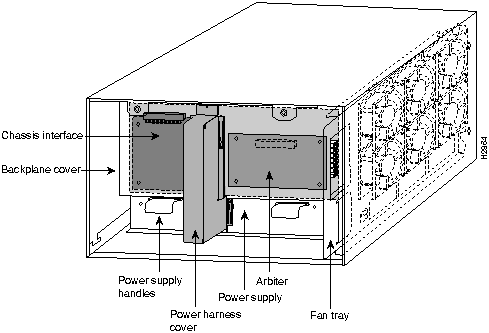
The following procedures describe how to replace the CI in the Cisco 7505. Depending on your installation, you might need to remove the Cisco 7505 from the rack in which it is installed. Figure 1 shows the interior of the Cisco 7505 at the front (noninterface processor end) of the chassis, with the front chassis panel removed to show the internal components.

Figure 1 : Internal Chassis Components

h2864.gif


Overview of the CI Replacement in the Cisco 7505

In the Cisco 7505, the CI mounts directly to the noninterface processor side of the backplane, behind the backplane cover. (See Figure 1.) A connector on the back of the CI plugs into a backplane socket, and the corners of the CI butt up against four standoffs. When the backplane cover is in place, four long Phillips screws extend through the cover, the CI, and standoffs to secure the cover and the CI to the backplane. To replace the CI, you must remove the chassis cover panel and remove the fan tray, power harness cover, and backplane cover.

You must remove the fan tray in order to remove the backplane cover. To remove the fan tray, you need only remove a single M4 pan-head screw that anchors the fan tray to the interior chassis frame. The fan tray slides into the right side of the chassis (when viewing the chassis from the noninterface processor end).

Because the power harness cover straddles both the power supply and backplane cover, you must remove it to access the CI. The power harness cover shields the wiring harness that delivers DC power from the power supply to the backplane. A tab at the bottom of the cover fits into a slot in the chassis floor; a single Phillips screw secures the top of the harness cover to the backplane cover.

The backplane cover shields the noninterface processor side of the backplane and the CI (the CI cover is integrated with the backplane cover). Fourteen Phillips screws secure the four flanged sides of the cover to the interior chassis frame and, near the center of the cover, two additional screws secure the cover to two standoffs mounted to the backplane (behind the cover).

The CI standoff screws secure the backplane cover and the CI to the four CI standoffs mounted to the backplane. Removing the backplane cover exposes the entire backplane, including the CI, which remains attached to the backplane by the 96-pin connector.


Removing and Replacing the Chassis Cover Panel

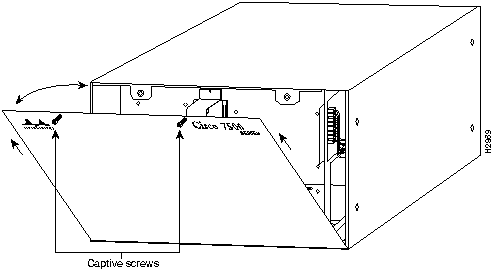
The two captive slotted screws are the only fasteners on the cover panel. Five shallow tabs at the bottom edge of the panel fit into slots at the base of the chassis opening. The tabs act as a pivot point for pulling the top of the panel away from the chassis opening, and as guides to align the panel when replacing it. If the chassis cover does not seal the end of the chassis, the flow of cooling air inside the chassis can be misrouted, which can result in an overtemperature condition.

fig_4.gif Warning Before working on a system that has an on/off switch, turn OFF the power and unplug the power cord. (For a translation of this safety warning, refer to the section "Translated Safety Warnings" on page 32.)

Follow these steps to remove and replace the chassis cover panel:

Step 1 Use a 3/16-inch flat-blade screwdriver to loosen the two captive screws on the front of the cover panel. (See Figure 2.)

Figure 2 : Removing and Replacing the Chassis Cover Panel

h2869.gif

Step 2 Pull the top of the panel out about three inches (see Figure 2), then grasp the sides of the panel and pull it upward and away from the chassis.

Step 3 To replace the cover panel, hold the sides of the panel with both hands and tilt the top of the panel back slightly (toward you).

Step 4 Slide the guide tabs into the slots into the bottom edge of the chassis.

Step 5 Using the guides as a pivot point, push the top half of the panel back toward the chassis opening until the panel is flush with the edges of the chassis.

Step 6 Hold the top front of the panel in place, if necessary, while you tighten the two captive slotted screws with a 3/16-inch flat-blade screwdriver.

This completes the chassis cover panel removal and replacement procedure.


Removing and Replacing the Fan Tray

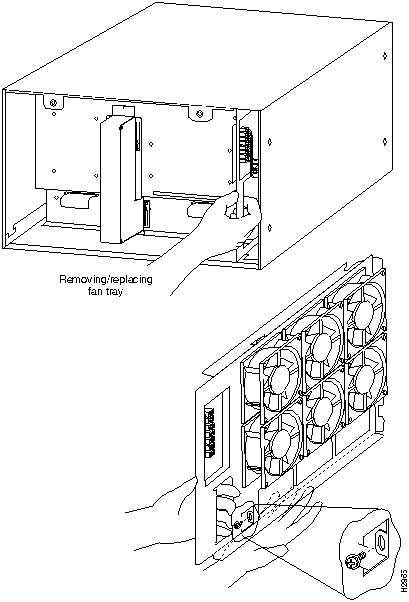
When viewing the chassis from the noninterface processor end, the fan tray is on the far right. (See Figure 3.) A cutout in the front of the tray provides a handle for pulling the tray out of the chassis. An M4 Phillips-head screw anchors a tab on the lower left side of the tray to the interior chassis frame, just below the right power supply ear. When the fan tray is fully inserted in the chassis, an edge connector on the fan control board snaps into the backplane electrical connector. The bottom of the tray is a metal runner that guides the tray along a metal track on the chassis floor. Also, a bracket on the chassis ceiling helps guide the tray into the chassis.

Follow these steps to replace the fan tray:

Step 1 Turn OFF the system power switch and unplug the power cable from the power source.

Step 2 To remove the chassis cover panel, follow Steps 1 and 2 in the section "Removing and Replacing the Chassis Cover Panel" on page 6.

Step 3 Attach an ESD-preventive strap between you and an unpainted surface on the chassis.

Step 4 Locate the fan tray, which is in the far right of the noninterface processor end of the chassis. (See Figure 3.) On the lower left side of the fan tray, locate the tab that is anchored to the chassis frame with an M4 Phillips screw.

Step 5 Use a number 2 Phillips screwdriver to remove the M4 Phillips screw from the tab on the fan tray. (See the cutaway view of this screw in Figure 3.)

Step 6 Grasp the cutout handle in the front of the tray and pull the fan tray straight out of the chassis. (See Figure 3.) After the fan control board connector frees the backplane socket, the fan tray will slide easily along the track and out of the chassis.

Step 7 Place the removed fan tray in an antistatic bag for storage or return to the factory.

Step 8 Hold the assembly in the position shown in Figure 3. You can hold the handle with either your right or left hand as long as you use both hands to handle the tray. However, when inserting the tray, there is little room between the tray and the right side of the chassis. Keep the tray as straight as possible, or you may have trouble inserting it into the chassis.

Figure 3 : Replacing the Fan Tray

h2865.gif


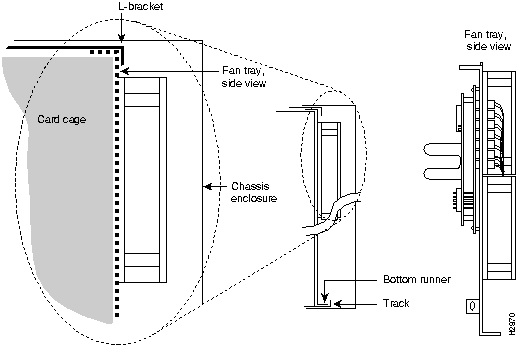
Note Before inserting the fan tray, compare the hardware inside the chassis to that shown in Figure 4. The runner on the bottom of the fan tray has to slide along in the track on the floor. At the same time, the runner on the top of the tray has to slide through the notch at the top of the chassis opening, then over the top of the card cage while staying to the left of the L-bracket on the chassis ceiling.

Step 9 Insert the top runner of the fan tray through the notch in the top of the chassis. Continue pushing the tray into the chassis, and ensure that the bottom runner slides into the track on the floor of the chassis. If the tray hangs up, pull it back out a few inches and try pushing it back in again. If the runners seem to be catching on the brackets, push the tray slightly toward the left when inserting it again.

Step 10 Slide the tray back into the chassis, pushing it all the way in until the circuit board snaps into the backplane socket.

Step 11 Replace the M4 screw in the tab and tighten it with a number 2 Phillips screwdriver. (See the cutaway view of this screw in Figure 3, on page 8.)

Step 12 To replace the cover panel, follow Steps 3 through 6 in the section "Removing and Replacing the Chassis Cover Panel" on page 6.

This completes the fan tray replacement.

Figure 4 : Fan Tray Tracks and Guides

h2870.gif


Removing and Replacing the Power Harness Cover and Power Harness

You must remove the power harness cover to access either the power supply or the CI. A single M-3 Phillips screw secures the power harness cover to the backplane cover.

fig_6.gif Warning Before working on a system that has an on/off switch, turn OFF the power and unplug the power cord. (For a translation of this safety warning, refer to the section "Translated Safety Warnings" on page 32.)

Follow these steps to remove and replace the power harness cover:

Step 1 Turn OFF the system power switch and unplug the power cable from the power source.

Step 2 To remove the chassis cover panel, follow Steps 1 and 2 in the section "Removing and Replacing the Chassis Cover Panel" on page 6.

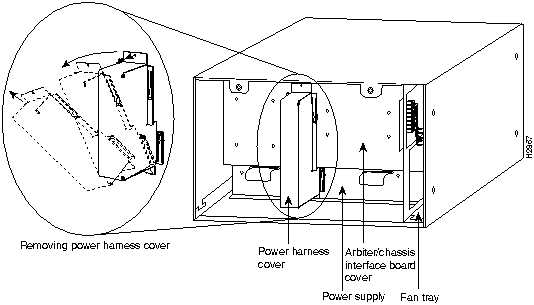
Step 3 Use a number 1 Phillips screwdriver to remove the M-3 screw that secures the top of the harness cover to the backplane. (See the cutaway in Figure 5.)

Figure 5 : Removing the Power Harness Cover

h2867.gif

Step 4 Holding the cover with one hand, tilt the top of the cover back toward you, then pull it upward slightly so that the tab clears the slot in the chassis floor.

Step 5 When the tab clears the slot, pull the cover straight back off the harness and out of the chassis.


Note Move on to the required procedure, depending on the work you need to do. Then to replace the power harness and power harness cover, proceed to Step 6, which follows.

Step 6 To replace the power harness cover, hold the cover with one hand, with the tab on the bottom and the open side facing away from you. Tilt the top of the panel back slightly (toward you).

Step 7 Insert the tab on the bottom of the cover into the slot in the chassis floor. (See Figure 5.)

Step 8 While pushing the cover downward slightly to keep the bottom tab in the slot, push the top of the cover back over the harness wires until the sides are flush against the backplane cover. Ensure that all of the harness wires are under the cover.

Step 9 Insert the M-3 screw through the top of the harness cover, and use a number 1 Phillips screwdriver to tighten it. (See the cutaway in Figure 5.)

Step 10 To replace the cover panel, follow Steps 3 through 6 in the section "Removing and Replacing the Chassis Cover Panel" on page 6.

This completes the power harness cover removal and replacement procedures.


Removing and Replacing the Backplane Cover

The backplane cover provides EMI and ground protection for the backplane, the arbiter, and the CI. To access these components, you must remove the backplane cover. You need number 1 and number 2 Phillips screwdrivers to remove the backplane cover screws. Following is the procedure for removing and replacing the backplane cover.


Note This procedure assumes that you have already removed the chassis cover panel, the fan tray, the power harness cover, and the power harness. If not, refer to the appropriate sections in this publication to remove these items.

Step 1 Attach an ESD-preventive strap between you and an unpainted chassis surface.

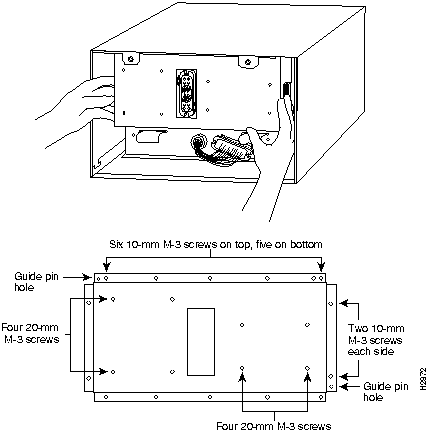
Step 2 With the fan tray removed, remove the eight, 20-mm M-3 standoff screws that secure the backplane cover to the arbiter and CI standoffs. These screws are located on the face of the backplane cover. (See Figure 6.)

Figure 6 : Removing and Replacing the Backplane Cover

h2872.gif

Step 3 Remove the fifteen, 10-mm M-3 Phillips that secure the backplane cover to the backplane. These screws are located around the flange of the backplane cover (two on each side, six along the top, and five along the bottom). (See Figure 6.)

fig_8.gif Caution To prevent loosening the backplane from the chassis, remove only those screws that secure the backplane cover to the backplane. Do not remove any adjacent screws.

Step 4 With all screws removed, carefully guide the backplane cover out and away from the backplane, arbiter, and CI. (See Figure 6.)


Note Depending on the replacement procedures you need to perform, refer to the appropriate sections, and then to replace the backplane cover, proceed to Step 5, which follows.

Step 5 To replace the backplane cover, carefully guide the cover into the chassis opening over the arbiter and CI, over the guide pins on the backplane (see Figure 6), and align the screw holes in the cover with the holes on the backplane and standoffs.

Step 6 Loosely install the fifteen screws around the flange of the backplane cover. (See Figure 6.) Do not tighten these screws.

Step 7 Loosely install the eight standoff screws in the face of the backplane cover. (See Figure 6.)

Step 8 Verify that the cover is aligned; then tighten all screws that secure the backplane cover.

Step 9 To replace the fan tray, follow Steps 8 through 12 in the section "Removing and Replacing the Fan Tray" on page 7.

Step 10 Reattach the power harness plug to the power harness receptacle. The harness plug and backplane receptacle are polarized with notches at the top of both guide tabs (top and bottom) on the plug. Ensure that the plug is fully seated in the receptacle.

Step 11 To replace the power harness cover, follow Steps 6 through 10 in the section "Removing and Replacing the Power Harness Cover and Power Harness" on page 10.

Step 12 To replace the cover panel, follow Steps 3 through 6 in the section "Removing and Replacing the Chassis Cover Panel" on page 6.

This completes the backplane cover removal and replacement procedure.


Removing and Replacing the CI

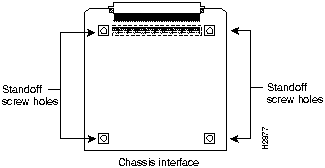
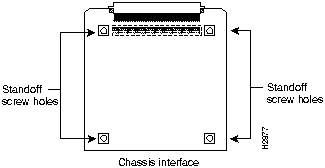
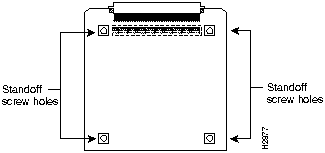
The CI (shown in Figure 7) is a printed circuit board mounted to the noninterface processor side of the backplane, behind the backplane cover. On the back (backplane side) of the chassis are four standoffs and a connector that plugs directly into the backplane. When the backplane cover is in place, four standoff screws extend through the backplane cover, through each corner of the CI and into the standoffs, to keep both the CI and backplane cover in place.

Figure 7 : Chassis Interface (MAS-7500CI=)

fig_9.gif


Note Replace the CI only if it fails. This procedure assumes that you have already removed the chassis cover panel, the fan tray, the power harness cover, the power harness, and the backplane cover. If not, refer to the appropriate procedures in this section to remove these items.


Removing the CI

Follow these steps to remove the CI:

Step 1 Turn OFF the system power switch and disconnect the power cable from the power source.

Step 2 Attach an ESD-preventive strap (your own or the one supplied with the FRU) between you and an unpainted chassis surface.

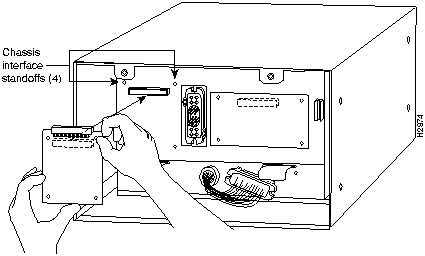
Step 3 Because you already had to remove the CI standoff screws to remove the backplane cover, the CI is held in place only by the connector that is connected to the backplane. Grasp the edges of the CI and pull it straight out at a 90-degree orientation to the backplane to disconnect the CI connector from the backplane socket. (See Figure 8.) If necessary, gently rock the CI from side to side very slightly to dislodge the pins from the backplane connector.

Step 4 Place the CI in an antistatic bag.

This completes the CI removal procedure.

Figure 8 : Removing and Replacing the CI

h2874.gif


Installing the New CI

When you replace the CI, hold it in the orientation shown in Figure 8, with the connector along the top and facing the backplane. Position the board over the backplane connector and align the four standoff holes in the corners of the board with the four standoffs.

Follow these steps to replace the CI:

Step 1 Attach an ESD-preventive strap (your own or the one supplied with the FRU) between you and an unpainted chassis surface.

Step 2 Place your fingers around the top and side edges of the CI and push it straight in toward the backplane until the connector is fully seated in the backplane socket and the standoff screw holes in the CI are aligned with the standoffs. (See Figure 8.) It might be necessary to gently rock the connectors into place.

Step 3 Reconnect the power harness plug to the backplane receptacle; the plug and receptacle are polarized with notches on the guide tabs. If you have trouble making the connection, ensure that the notch is at the top on both guide tabs (top and bottom) on the plug.

Step 4 To replace the backplane cover, follow Steps 5 through 12 in the section "Removing and Replacing the Backplane Cover" on page 11.

Step 5 To replace the power harness cover, follow Steps 6 through 10 in the section "Removing and Replacing the Power Harness Cover and Power Harness" on page 10.

Step 6 To replace the fan tray, follow Steps 8 through 12 in the section "Removing and Replacing the Fan Tray" on page 7.

Step 7 To replace the chassis cover panel, follow Steps 3 through 6 in the section "Removing and Replacing the Chassis Cover Panel" on page 6.

This completes the CI replacement procedure for the Cisco 7505.


Replacing the CI in the Cisco 7507

The following procedures describe how to replace the CI in the Cisco 7507. Depending on your installation, you might need to remove the Cisco 7507 from the rack in which it is installed. To replace the CI in the Cisco 7507, you must first remove the front chassis panels.


Removing the Front Chassis Panels

You must remove the top and bottom front chassis panels to access the chassis interior to replace the CI board.

fig_7.gif Warning Before working on a system that has an on/off switch, turn OFF the power and unplug the power cord. (For a translation of this safety warning, refer to the section "Translated Safety Warnings" on page 32.)

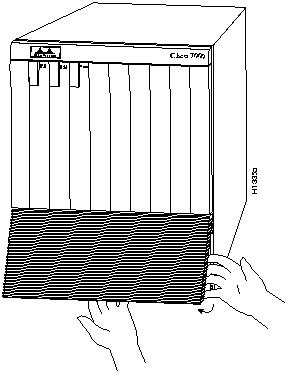
You must remove the bottom front panel before you can remove the top front panel. The plastic bottom front panel is attached to the chassis with ball studs. The top front panel is attached to the chassis with two captive screws. The EMI shielding around the outer edge of the top front panel acts as a spring, and compresses when you push the panel into the chassis to keep the panel fitted tightly into the chassis opening.

To remove the front panels, perform the following steps:

Step 1 Grasp the bottom edge of the bottom chassis panel.

Step 2 Pull the bottom of the panel out about one inch, then place your fingers behind the sides of the panel and pull it off the chassis. (See Figure 9.)

Figure 9 : Removing the Bottom Front Panel

h1335.gif

Step 3 On the top front panel, use a screwdriver to loosen the two captive screws at the bottom edge of the panel frame.

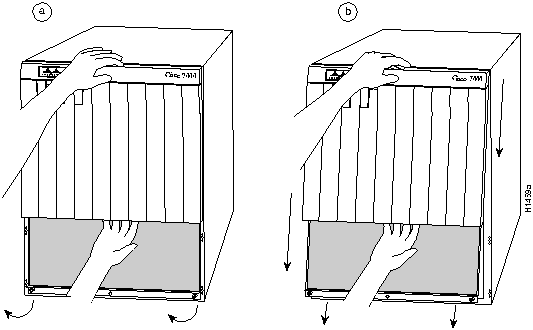
Step 4 Place one hand against the top front center of the panel to brace it. (See Figure 10a.) The top of the panel acts as a pivot point when you pull the bottom out and away from the chassis.

Figure 10 : Removing the Top Front Panel

h1459.gif

Step 5 With your other hand, grasp the front of the panel by inserting your fingers into the opening on the underside of the bezel. (See Figure 10a.)

Step 6 While pushing slightly against the top of the panel to constrain it, pivot the bottom edge of the frame outward about two inches. (See Figure 10a.) Because of the tightly compressed EMI shielding, you will have to use significant force to pull the bottom of the panel outward. However, be careful that you do not pull the panel more than two inches away from the chassis, or you can damage the inner bezel or LED board.

Step 7 When the bottom of the frame clears the chassis opening, keep your hands in the same positions and pull the panel downward and off the chassis. (See Figure 10b.)

With front chassis panels removed, the CI board is exposed to view.


Removing and Replacing the CI

The CI (shown in Figure 7) is a printed circuit board mounted to the noninterface processor side of the backplane. On the back (backplane side) of the chassis is a connector into which the CI plugs directly into the backplane.

Figure 11 : Chassis Interface (MAS-7500CI=)

h2877.gif


Note Replace the CI only if it fails. This procedure assumes that you have already removed the front chassis panels. If not, refer to the appropriate procedures in this section to remove these items.


Removing the CI

Follow these steps to remove the CI:

Step 1 Turn OFF the system power switch and disconnect the power cable from the power source.

Step 2 Attach an ESD-preventive strap (your own or the one supplied with the FRU) between you and an unpainted chassis surface.

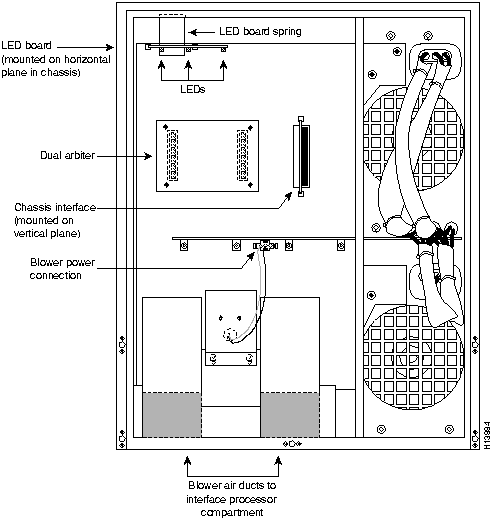
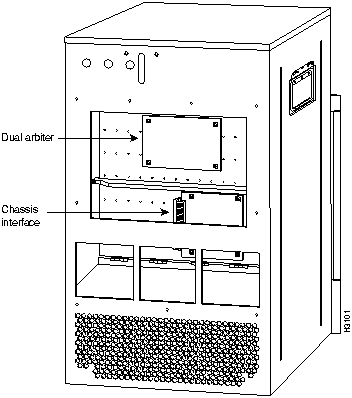
Step 3 Refer to Figure 12 and locate the CI board, which is mounted to the back of the backplane. The CI is oriented vertically, attached to the backplane via the edge connector, and is located to the right of the dual arbiter, as shown in Figure 12.

Figure 12 : Location of the CI on the Cisco 7507 Backplane

fig_25.gif

Step 4 Carefully remove the CI from its backplane connector.

Step 5 Place the CI in an antistatic bag.

This completes the CI removal procedure.


Installing the New CI

When you install the new CI, hold it in the vertical orientation shown in Figure 12, with the connector along the edge of the CI facing the CI backplane connector. Both CI connectors are keyed so you cannot install the CI incorrectly; however, to prevent damage to the connector pins, determine the correct connection orientation before you install the CI.

Follow these steps to replace the CI:

Step 1 Attach an ESD-preventive strap (your own or the one supplied with the FRU) between you and an unpainted chassis surface.

Step 2 Attach the CI's connector to the CI connector on the backplane via the edge connector on the CI board. If the edge connector's keys are aligned, the CI should attach to the backplane connector with a moderate amount of force. Do not force the CI into the CI connector onto the backplane connector.

This completes the CI replacement procedure for the Cisco 7507.


Replacing the Front Chassis Panels

To replace the front panels, perform the following steps:

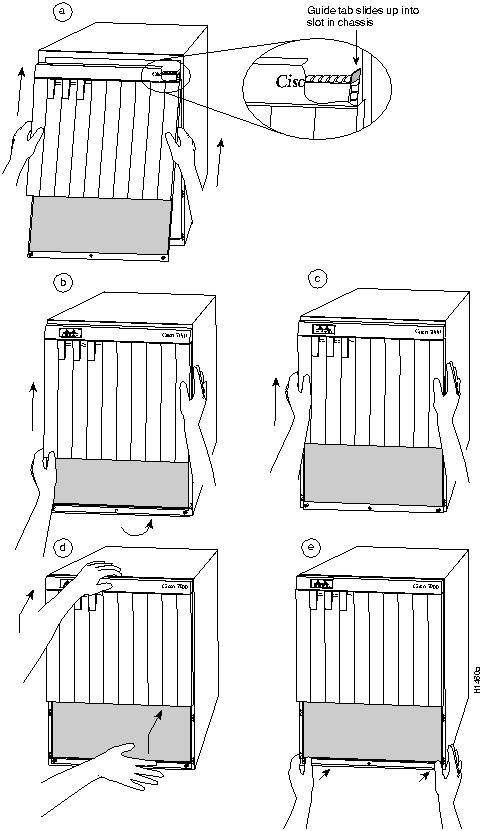
Step 1 Grasp the sides of the top panel with both hands. (See Figure 13a on page 21.)

Step 2 Two guide tabs at the top edges of the panel fit into two slots in the top edges of the chassis opening. Tilt the top of the panel back (away from you) about 30 degrees from vertical and slide the two guide tabs into the chassis slots. (See Figure 13a.)

Step 3 Check the top of the panel to make sure it is lined up with the top of the chassis opening. Failure to align the panel at this point can result in equipment damage when performing the next step.

Step 4 Push the panel upward to push the tabs into the slots (see Figure 13a) and pivot the bottom of the panel toward the chassis until the panel frame meets the chassis. (See Figure 13b.) Maintain a steady upward pressure to keep the guide tabs in the chassis slots.

Step 5 When the panel is flush against the front of the chassis, push the panel upward until the bottom of the panel is level with the bottom of the chassis opening. (See Figure 13c.)

Step 6 While holding the panel in place, place one palm against the top front center of the panel to brace it, and place the other against the lip near the bottom edge of the frame. (See Figure 13d.)

Step 7 Push the panel upward and back into the chassis opening until the tabs on the front sides of the panel are flush against the front of the chassis. (See Figure 13e.) You will have to use significant force to compress the EMI shielding enough to fit into the opening. If the panel resists, pull it slightly downward and make sure that the panel is lined up with the top and sides of the opening in the chassis.

Step 8 When the tabs on the front sides of the panel are flush against the sides of the chassis, tighten the two captive screws in the bottom edge of the frame.

Step 9 To replace the bottom front panel, place the ball studs on the back of the panel over the holes in the front lip of the chassis and push the panel onto the chassis until the ball studs snap into place.

This completes the CI replacement procedure for the Cisco 7507.

Figure 13 : Replacing the Top Front Panel

h1460.gif


Replacing the CI in the Cisco 7513

The following procedures describe how to replace the CI in the Cisco 7513. Depending on your installation, you might need to remove the Cisco 7513 from the rack in which it is installed. You must first remove the chassis covers, then remove the backplane maintenance cover, and then you can replace the CI.


Removing and Replacing the Chassis Cover Panels

Each cover panel has four fasteners that secure the panels to the front of the chassis. The following procedures describe how to remove and replace the front cover panels on the Cisco 7513 chassis.

fig_30.gif Warning Before working on a system that has an on/off switch, turn OFF the power and unplug the power cord. (For a translation of this safety warning, refer to the section "Translated Safety Warnings" on page 32.)

Follow these steps to remove and replace the chassis cover panel:

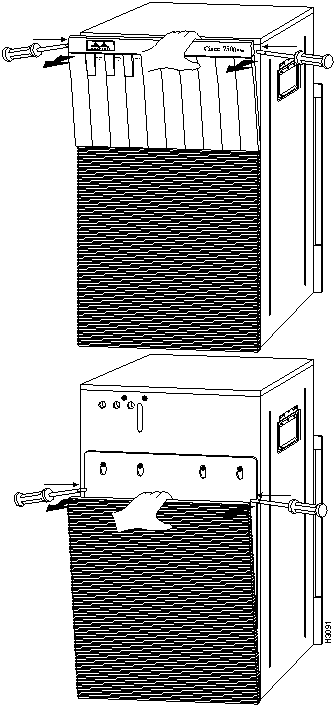
Step 1 Use a 3/16-inch flat-blade screwdriver and gently loosen the top of each cover panel. (See Figure 14.)

Figure 14 : Removing the Chassis Cover Panels

h3091.gif

Step 2 Pull the top of the upper panel out about two inches, then grasp the sides and carefully pull it outward, away from the chassis. Repeat this for the bottom panel. Proceed to the section "Removing and Replacing the Backplane Maintenance Cover" on page 25.

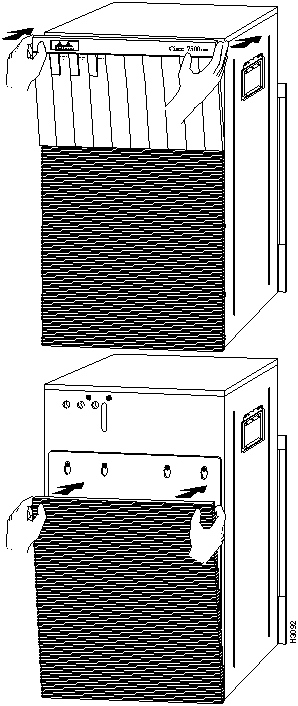
Step 3 To replace the cover panels, align the pins on the bottom panel with the holes in the chassis and push the panel against the chassis. (See Figure 15.) Repeat this for the top panel.

Figure 15 : Replacing the Chassis Cover Panels

h3092.gif


Removing and Replacing the Backplane Maintenance Cover

The backplane maintenance cover provides EMI and ground protection for the backplane, the dual arbiter, and the CI. To access these components, you must remove the backplane cover. You need a number 2 Phillips screwdriver to remove the cover screws. Following is the procedure for removing and replacing the backplane maintenance cover.


Note This procedure assumes you have already removed the front panels. If not, refer to the appropriate procedures in this section to remove these items.

Step 1 Attach an ESD-preventive strap between you and an unpainted chassis surface.

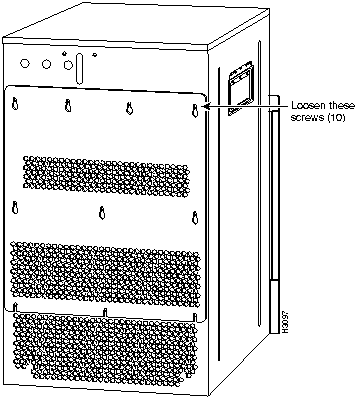
Step 2 Loosen the ten Phillips screws that secure the cover. (See Figure 16.)

Figure 16 : Removing the Backplane Maintenance Cover

h3097.gif

Step 3 Carefully guide the cover up and away from the chassis.


Note Depending on the replacement procedures you need to perform, refer to the appropriate sections, and then to replace the cover, proceed to Step 4, which follows.

Step 4 To replace the cover, carefully guide the cover over the ten screws. (See Figure 16.)

Step 5 Align the cover; then tighten all ten screws that secure it to the chassis.

This completes the backplane maintenance cover removal and replacement procedure.


Removing and Replacing the CI

The CI (shown in Figure 17) provides environmental monitoring and logic functions for the Cisco 7513.

Figure 17 : Chassis Interface (MAS-7500CI=)

fig_1.gif


Note Replace the CI only if it fails. This procedure assumes to have already removed the chassis cover panels and backplane maintenance cover. If not, refer to the appropriate procedures in this section to remove these items.

Figure 18 : Location of the CI with Cover Removed

h3101.gif

The CI is a printed circuit board mounted to the noninterface processor side of the backplane, behind the backplane maintenance cover. (See Figure 18.) On the back of the CI (backplane side) is a connector that plugs directly into the backplane. The edge connector is for diagnostics at the factory and is not used.


Removing the CI

Follow these steps to remove the CI:

Step 1 Turn OFF the power switch on each power supply and disconnect the power cable from each power source and power supply.

Step 2 Attach an ESD-preventive strap between you and an unpainted chassis surface.

Step 3 The CI is held in place by a connector, which is connected to the backplane, and four screws. Use a number 1 Phillips screwdriver to remove the four screws.

fig_2.gif Caution Access to the CI is partially blocked by a chassis panel. (See Figure 18.) Two of the screws are below this panel and two are above it. To avoid damaging CI components, do not hit the CI against the chassis panel.

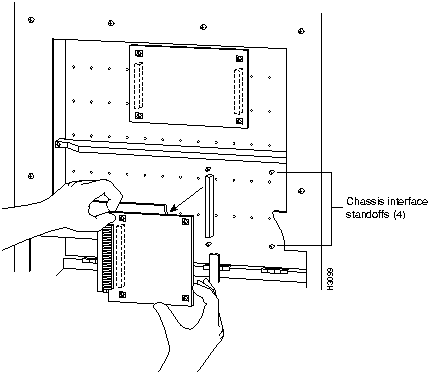
Step 4 Grasp the edges of the CI (as shown in Figure 19) and pull it away from the backplane, up and out from behind the chassis panel. If necessary, gently rock the CI from side to side very slightly to dislodge its connector pins from the backplane connector.

Step 5 Place the CI in an antistatic bag.

This completes the CI removal procedure.

Figure 19 : Removing and Replacing the CI---Cutaway View

h3099.gif


Replacing the CI

When you replace the CI, hold it in the orientation shown in Figure 19. Position the board over the backplane connector and align the four standoff holes in the corners of the board with the four standoffs.

Follow these steps to replace the CI:

Step 1 Attach an ESD-preventive strap between you and an unpainted chassis surface.

fig_3.gif Caution Access to the CI is partially blocked by a chassis panel. Two of the screws are below this panel and two are above it. To avoid damaging CI components when you remove the CI, do not hit the CI against the chassis panel.

Step 2 Place your fingers around the edges of the CI (as shown in Figure 19); carefully guide it over the chassis panel (shown cut away in Figure 19) and push it straight in toward the backplane until the CI connector is fully seated in the backplane socket and the standoff screw holes are aligned with the standoffs. It might be necessary to gently rock the connectors into place.

Step 3 Install the four Phillips screws that secure the CI and gently tighten them. Do not overtighten these screws.

Step 4 To replace the backplane maintenance cover, follow Steps 4 and 5 in the section "Removing and Replacing the Backplane Maintenance Cover" on page 25.

Step 5 To replace the chassis cover panels, refer to Step 3 in the section Removing and Replacing the Chassis Cover Panels" on page 22.

Step 6 Reconnect the power supplies and power sources and prepare to power up the system.

This completes the CI replacement procedure in the Cisco 7513.


Checking the CI Installation

After you reassemble the chassis and replace all covers, perform the following steps to verify that the new CI is installed correctly and functioning properly. These steps will also help you verify that all the components you removed or disconnected as part of this replacement procedure are returned to their previous state when all router components (except the failed CI) were operating properly.

Step 1 Turn the system power switch back ON. The DC OK LED should go on immediately. If it does, proceed to the next step. If it does not, do the following:

  • First ensure that the power switch is completely in the ON (|) position.

  • Check the power cable; ensure that the cord is fully inserted in the power supply receptacle and that it is properly connected to the power source.

  • If the LED still remains off and you are checking the CI installation on a Cisco 7505, turn the power switch OFF, remove the chassis cover and verify that the fan tray is installed correctly.

    Ensure that the edge connector is fully seated in the backplane receptacle and that the fan tray is pushed all the way back into the chassis so that the M4 pan-head screw is tightened and holding the tab flush against the chassis frame. If not, refer to the section "Removing and Replacing the Fan Tray" on page 7, to install the fan tray correctly; then repeat step 1.

  • If the LED still remains off, and you are checking the CI installation on a Cisco 7505, turn the power switch back OFF; then remove the chassis cover and power harness cover. Verify that the power harness connector is fully seated in the backplane receptacle. Replace the power harness cover and chassis cover; then repeat step 1.


Note If the LED still remains OFF, and you are checking the CI installation for a Cisco 7507 or Cisco 7513, contact a service representative for further instructions. (For the TAC phone number and e-mail address, refer to the note following the section "Cisco Connection Online" on page 39.)

Step 2 About 60 seconds after you turn the power ON, verify that the NORMAL LED on the RSP goes ON, which indicates that the system software booted successfully. If it does go ON, proceed to Step 3. If it does not go on, do the following:

  • Reseat the RSP(s) to ensure a good connection to the backplane.

  • Reseat the CI to ensure that it is connected to the backplane correctly. After you turn the power switch OFF, refer to the procedures for accessing the CI in the section appropriate to your chassis type.

  • When you reach the CI, pull it out of the backplane socket and examine the 96-pin connector (on the backplane side of the board) for bent pins or other obvious damage. If the CI appears damaged, contact a service representative; refer to the note following the section "Cisco Connection Online" on page 39. Otherwise, follow the CI installation instructions in the section appropriate to your chassis type.

  • After you ensure that the CI is installed correctly and have replaced all system components, repeat step 1 of this procedure. While the system starts up, observe the behavior of the LEDs on the RSP (so that you can report the behavior to a service representative if you need to call for technical assistance). If the NORMAL LED on the RSP still remains off, contact a service representative for further instructions; refer to the note following the section "Cisco Connection Online" on page 39.


Note If after several attempts, the CI does not appear to be functioning properly, or if you experience trouble with the installation (for instance, if the holes in the board do not align with the backplane holes, the connectors do not mate correctly, and so forth), contact a service representative for assistance; refer to the note following the section "Cisco Connection Online" on page 39.

Step 3 If the CI is installed correctly, the router should boot up normally and you should see a banner displayed on your console similar to the following:


Cisco Internetwork Operating System Software
IOS (tm) GS Software (RSP-JV-M), Released Version 11.1(1) [biff 100]
Copyright (c) 1986-1996 by cisco Systems, Inc.
Compiled Fri 10-May-96 06:48 by biff


Note The Cisco Internetwork Operating System (Cisco IOS) release displayed and the format of the display will vary depending on your system and the Cisco IOS release it is running.

Step 4 At the user-level EXEC prompt, enter the enable command. The EXEC prompts you for a privileged-level password, as follows:


Router> enable
Password:

Step 5 When you enter the correct password and press Return, the system displays the privileged-mode system prompt (#) as follows:


Router#

Step 6 Use the show environment all command to verify that the system is correctly interpreting the information it is receiving from the environmental sensors on the new CI, as follows:


Router# sh env all
Arbiter type 1, backplane type 7505 (id 1)
Power supply #1 is 600W AC (id 1)
Active fault conditions: none
Active trip points: Restart_Inhibit
15 of 15 soft shutdowns remaining before hard shutdown

01234
Dbus slots: XXXXX

card inlet hotpoint exhaust
RSP(4) 32C/89F 46C/114F 48C/118F

Shutdown temperature source is 'hotpoint' on RSP(4), requested RSP(4)

+12V measured at 12.21
+5V measured at 5.15
-12V measured at -12.03
+24V measured at 23.87
+2.5 reference is 2.49

Router#


Note The preceding example display is from a Cisco 7505; the displays from the Cisco 7507 and Cisco 7513 will vary in format, but will display the same essential information. If any other messages are presented on the console screen (error messages, and so forth), contact a service representative for assistance; refer to the note following the section "Cisco Connection Online" on page 39.

This completes the CI installation check for the Cisco 7500 series chassis.


Translated Safety Warnings

Following are translations of the safety warnings that appear throughout this publication.


Lightning Activity Warning

fig_13.gif Warning Do not work on the system or connect or disconnect cables during periods of lightning activity.

Waarschuwing Tijdens onweer dat gepaard gaat met bliksem, dient u niet aan het systeem te werken of kabels aan te sluiten of te ontkoppelen.

Varoitus Älä työskentele järjestelmän parissa äläkä yhdistä tai irrota kaapeleita ukkosilmalla.

Attention Ne pas travailler sur le système ni brancher ou débrancher les câbles pendant un orage.

Warnung Arbeiten Sie nicht am System und schließen Sie keine Kabel an bzw. trennen Sie keine ab, wenn es gewittert.

Avvertenza Non lavorare sul sistema o collegare oppure scollegare i cavi durante un temporale con fulmini.

Advarsel Utfør aldri arbeid på systemet, eller koble kabler til eller fra systemet når det tordner eller lyner.

Aviso Não trabalhe no sistema ou ligue e desligue cabos durante períodos de mau tempo (trovoada).

¡Advertencia! No operar el sistema ni conectar o desconectar cables durante el transcurso de descargas eléctricas en la atmósfera.

Varning! Vid åska skall du aldrig utföra arbete på systemet eller ansluta eller koppla loss kablar.


Chassis Warning---Disconnecting Telephone-Network Cables

fig_14.gif Warning Before opening the chassis, disconnect the telephone-network cables to avoid contact with telephone-network voltages.

Waarschuwing Voordat u het frame opent, dient u de verbinding met het telefoonnetwerk te verbreken door de kabels te ontkoppelen om zo contact met telefoonnetwerk-spanningen te vermijden.

Varoitus Vältä joutumista kosketuksiin puhelinverkostojännitteiden kanssa irrottamalla puhelinverkoston kaapelit ennen asennuspohjan aukaisemista.

Attention Avant d'ouvrir le châssis, débrancher les câbles du réseau téléphonique afin d'éviter tout contact avec les tensions d'alimentation du réseau téléphonique.

Warnung Bevor Sie das Chassis öffnen, ziehen Sie die Telefonnetzkabel aus der Verbindung, um Kontakt mit Telefonnetzspannungen zu vermeiden.

Avvertenza Prima di aprire il telaio, scollegare i cavi della rete telefonica per evitare di entrare in contatto con la tensione di rete.

Advarsel Før kabinettet åpnes, skal kablene for telenettet kobles fra for å unngå å komme i kontakt med spenningen i telenettet.

Aviso Antes de abrir o chassis, desligue os cabos da rede telefónica para evitar contacto com a tensão da respectiva rede.

¡Advertencia! Antes de abrir el chasis, desconectar el cableado dirigido a la red telefónica para evitar contacto con voltajes de la propia red.

Varning! Koppla loss ledningarna till telefonnätet innan du öppnar chassit så att kontakten med telefonnätsspänningen bryts.


Power Disconnection Warning

fig_26.gif Warning Before working on a system that has an on/off switch, turn OFF the power and unplug the power cord.

Waarschuwing Voordat u aan een systeem werkt dat een aan/uit schakelaar heeft, dient u de stroomvoorziening UIT te schakelen en de stekker van het netsnoer uit het stopcontact te halen.

Varoitus Ennen kuin teet mitään sellaiselle järjestelmälle, jossa on kaksiasentokytkin, katkaise siitä virta ja kytke virtajohto irti.

Attention Avant de travailler sur un système équipé d'un commutateur marche-arrêt, mettre l'appareil à l'arrêt (OFF) et débrancher le cordon d'alimentation.

Warnung Bevor Sie an einem System mit Ein/Aus-Schalter arbeiten, schalten Sie das System AUS und ziehen das Netzkabel aus der Steckdose.

Avvertenza Prima di lavorare su un sistema dotato di un interruttore on/off, spegnere (OFF) il sistema e staccare il cavo dell'alimentazione.

Advarsel Slå AV strømmen og trekk ut strømledningen før det utføres arbeid på et system som er utstyrt med en av/på-bryter.

Aviso Antes de começar a trabalhar num sistema que tem um interruptor on/off, DESLIGUE a corrente eléctrica e retire o cabo de alimentação da tomada.

¡Advertencia! Antes de utilizar cualquier sistema equipado con interruptor de Encendido/Apagado (ON/OFF), cortar la alimentación y desenchufar el cable de alimentación.

Varning! Slå AV strömmen och dra ur nätsladden innan du utför arbete på ett system med strömbrytare.


Power Supply Warning

fig_5.gif Warning Do not touch the power supply when the power cord is connected. For systems with a power switch, line voltages are present within the power supply even when the power switch is off and the power cord is connected. For systems without a power switch, line voltages are present within the power supply when the power cord is connected.

Waarschuwing U dient de voeding niet aan te raken zolang het netsnoer aangesloten is. Bij systemen met een stroomschakelaar zijn er lijnspanningen aanwezig in de voeding, zelfs wanneer de stroomschakelaar uitgeschakeld is en het netsnoer aangesloten is. Bij systemen zonder een stroomschakelaar zijn er lijnspanningen aanwezig in de voeding wanneer het netsnoer aangesloten is.

Varoitus Älä kosketa virtalähdettä virtajohdon ollessa kytkettynä. Virrankatkaisimella varustetuissa järjestelmissä on virtalähteen sisällä jäljellä verkkojännite, vaikka virrankatkaisin on katkaistu-asennossa virtajohdon ollessa kytkettynä. Järjestelmissä, joissa ei ole virrankatkaisinta, on virtalähteen sisällä verkkojännite, kun virtajohto on kytkettynä.

Attention Ne pas toucher le bloc d'alimentation quand le cordon d'alimentation est branché. Avec les systèmes munis d'un commutateur marche-arrêt, des tensions de ligne sont présentes dans l'alimentation quand le cordon est branché, même si le commutateur est à l'arrêt. Avec les systèmes sans commutateur marche-arrêt, l'alimentation est sous tension quand le cordon d'alimentation est branché.

Warnung Berühren Sie das Netzgerät nicht, wenn das Netzkabel angeschlossen ist. Bei Systemen mit Netzschalter liegen Leitungsspannungen im Netzgerät vor, wenn das Netzkabel angeschlossen ist, auch wenn das System ausgeschaltet ist. Bei Systemen ohne Netzschalter liegen Leitungsspannungen im Netzgerät vor, wenn das Netzkabel angeschlossen ist.

Avvertenza Non toccare l'alimentatore se il cavo dell'alimentazione è collegato. Per i sistemi con un interruttore di alimentazione, tensioni di linea sono presenti all'interno dell'alimentatore anche quando l'interruttore di alimentazione è en posizione di disattivazione (off), se il cavo dell'alimentazione è collegato. Per i sistemi senza un interruttore, tensioni di linea sono presenti all'interno dell'alimentatore quando il cavo di alimentazione è collegato.

Advarsel Berør ikke strømforsyningsenheten når strømledningen er tilkoblet. I systemer som har en strømbryter, er det spenning i strømforsyningsenheten selv om strømbryteren er slått av og strømledningen er tilkoblet. Når det gjelder systemer uten en strømbryter, er det spenning i strømforsyningsenheten når strømledingen er tilkoblet.

Aviso Não toque na unidade abastecedora de energia quando o cabo de alimentação estiver ligado. Em sistemas com interruptor, a corrente eléctrica estará presente na unidade abastecedora, sempre que o cabo de alimentação de energia estiver ligado, mesmo quando o interruptor se encontrar desligado. Para sistemas sem interruptor, a tensão eléctrica dentro da unidade abastecedora só estará presente quando o cabo de alimentação estiver ligado.

¡Advertencia! No tocar la fuente de alimentación mientras el cable esté enchufado. En sistemas con interruptor de alimentación, hay voltajes de línea dentro de la fuente, incluso cuando el interruptor esté en Apagado (OFF) y el cable de alimentación enchufado. En sistemas sin interruptor de alimentación, hay voltajes de línea en la fuente cuando el cable está enchufado.


Power Supply Disconnection Warning

fig_15.gif Warning Before working on a chassis or working near power supplies, unplug the power cord on AC units; disconnect the power at the circuit breaker on DC units.

Waarschuwing Voordat u aan een frame of in de nabijheid van voedingen werkt, dient u bij wisselstroom toestellen de stekker van het netsnoer uit het stopcontact te halen; voor gelijkstroom toestellen dient u de stroom uit te schakelen bij de stroomverbreker.

Varoitus Kytke irti vaihtovirtalaitteiden virtajohto ja katkaise tasavirtalaitteiden virta suojakytkimellä, ennen kuin teet mitään asennuspohjalle tai työskentelet virtalähteiden läheisyydessä.

Attention Avant de travailler sur un châssis ou à proximité d'une alimentation électrique, débrancher le cordon d'alimentation des unités en courant alternatif ; couper l'alimentation des unités en courant continu au niveau du disjoncteur.

Warnung Bevor Sie an einem Chassis oder in der Nähe von Netzgeräten arbeiten, ziehen Sie bei Wechselstromeinheiten das Netzkabel ab bzw. schalten Sie bei Gleichstromeinheiten den Strom am Unterbrecher ab.

Avvertenza Prima di lavorare su un telaio o intorno ad alimentatori, scollegare il cavo di alimentazione sulle unità CA; scollegare l'alimentazione all'interruttore automatico sulle unità CC.

Advarsel Før det utføres arbeid på kabinettet eller det arbeides i nærheten av str¿mforsyningsenheter, skal str¿mledningen trekkes ut pOE vekselstrømsenheter og strømmen kobles fra ved strømbryteren på likestrømsenheter.

Aviso Antes de trabalhar num chassis, ou antes de trabalhar perto de unidades de fornecimento de energia, desligue o cabo de alimentação nas unidades de corrente alternada; desligue a corrente no disjuntor nas unidades de corrente contínua.

¡Advertencia! Antes de manipular el chasis de un equipo o trabajar cerca de una fuente de alimentación, desenchufar el cable de alimentación en los equipos de corriente alterna (CA); cortar la alimentación desde el interruptor automático en los equipos de corriente continua (CC).

Varning! Innan du arbetar med ett chassi eller nära strömförsörjningsenheter skall du för växelströmsenheter dra ur nätsladden och för likströmsenheter bryta strömmen vid överspänningsskyddet.


Electric Shock Warning

fig_16.gif Warning This unit might have more than one power cord. To reduce the risk of electric shock, disconnect the two power supply cords before servicing the unit.

Waarschuwing Dit toestel kan meer dan één netsnoer hebben. Om het risico van een elektrische schok te verminderen, dient u de stekkers van de twee netsnoeren uit het stopcontact te halen voordat u het toestel een servicebeurt geeft.

Varoitus Tässä laitteessa saattaa olla useampi kuin yksi virtajohto. Irrota molemmat virtalähteestä tulevat johtimet ennen laitteen huoltamista, jotta vältät sähköiskun vaaran.

Attention Il est possible que cette unité soit munie de plusieurs cordons d'alimentation. Pour éviter les risques d'électrocution, débrancher les deux cordons d'alimentation avant de réparer l'unité.

Warnung Diese Einheit hat möglicherweise mehr als ein Netzkabel. Zur Verringerung der Stromschlaggefahr trennen Sie beide Netzgerätekabel ab, bevor Sie die Einheit warten.

Avvertenza Questa unità potrebbe essere dotata di più di un cavo di alimentazione. Per ridurre il rischio di scossa elettrica, scollegare i due cavi di alimentazione prima di procedere alla manutenzione dell'unità.

Advarsel Denne enheten kan være utstyrt med mer enn én strømledning. Koble fra de to strømledningene før det utføres reparasjonsarbeid på enheten for å redusere faren for elektriske støt.

Aviso Esta unidade poderá ter mais do que um cabo de alimentação. Para reduzir o risco de choque eléctrico, desligue os dois cabos de alimentação antes de efectuar reparações na unidade.

¡Advertencia! Puede ser que este equipo posea más de un cable de alimentación. Para reducir el riesgo de descarga eléctrica, desenchufar los dos cables antes de proceder al mantenimiento de la unidad.

Varning! Denna enhet kan vara försedd med mer än en nätsladd. För att minska risken för elektriska stötar skall båda nätsladdarna dras ur innan du utför underhållsarbete på enheten.


DC Power Disconnection Warning

fig_17.gif Warning Before performing any of the following procedures, ensure that power is removed from the DC circuit. To ensure that all power is OFF, locate the circuit breaker on the panel board that services the DC circuit, switch the circuit breaker to the OFF position, and tape the switch handle of the circuit breaker in the OFF position.

Waarschuwing Voordat u een van de onderstaande procedures uitvoert, dient u te controleren of de stroom naar het gelijkstroom circuit uitgeschakeld is. Om u ervan te verzekeren dat alle stroom UIT is geschakeld, kiest u op het schakelbord de stroomverbreker die het gelijkstroom circuit bedient, draait de stroomverbreker naar de UIT positie en plakt de schakelaarhendel van de stroomverbreker met plakband in de UIT positie vast.

Varoitus Varmista, että tasavirtapiirissä ei ole virtaa ennen seuraavien toimenpiteiden suorittamista. Varmistaaksesi, että virta on KATKAISTU täysin, paikanna tasavirrasta huolehtivassa kojetaulussa sijaitseva suojakytkin, käännä suojakytkin KATKAISTU-asentoon ja teippaa suojakytkimen varsi niin, että se pysyy KATKAISTU-asennossa.

Attention Avant de pratiquer l'une quelconque des procédures ci-dessous, vérifier que le circuit en courant continu n'est plus sous tension. Pour en être sûr, localiser le disjoncteur situé sur le panneau de service du circuit en courant continu, placer le disjoncteur en position fermée (OFF) et, à l'aide d'un ruban adhésif, bloquer la poignée du disjoncteur en position OFF.

Warnung Vor Ausführung der folgenden Vorgänge ist sicherzustellen, daß die Gleichstromschaltung keinen Strom erhält. Um sicherzustellen, daß sämtlicher Strom abgestellt ist, machen Sie auf der Schalttafel den Unterbrecher für die Gleichstromschaltung ausfindig, stellen Sie den Unterbrecher auf AUS, und kleben Sie den Schaltergriff des Unterbrechers mit Klebeband in der AUS-Stellung fest.

Avvertenza Prima di svolgere una qualsiasi delle procedure seguenti, verificare che il circuito CC non sia alimentato. Per verificare che tutta l'alimentazione sia scollegata (OFF), individuare l'interruttore automatico sul quadro strumenti che alimenta il circuito CC, mettere l'interruttore in posizione OFF e fissarlo con nastro adesivo in tale posizione.

Advarsel Før noen av disse prosedyrene utføres, kontroller at strømmen er frakoblet likestrømkretsen. Sørg for at all strøm er slått AV. Dette gjøres ved å lokalisere strømbryteren på brytertavlen som betjener likestrømkretsen, slå strømbryteren AV og teipe bryterhåndtaket på strømbryteren i AV-stilling.

Aviso Antes de executar um dos seguintes procedimentos, certifique-se que desligou a fonte de alimentação de energia do circuito de corrente contínua. Para se assegurar que toda a corrente foi DESLIGADA, localize o disjuntor no painel que serve o circuito de corrente contínua e coloque-o na posição OFF (Desligado), segurando nessa posição a manivela do interruptor do disjuntor com fita isoladora.

¡Advertencia! Antes de proceder con los siguientes pasos, comprobar que la alimentación del circuito de corriente continua (CC) esté cortada (OFF). Para asegurarse de que toda la alimentación esté cortada (OFF), localizar el interruptor automático en el panel que alimenta al circuito de corriente continua, cambiar el interruptor automático a la posición de Apagado (OFF), y sujetar con cinta la palanca del interruptor automático en posición de Apagado (OFF).

Varning! Innan du utför någon av följande procedurer måste du kontrollera att strömförsörjningen till likströmskretsen är bruten. Kontrollera att all strömförsörjning är BRUTEN genom att slå AV det överspänningsskydd som skyddar likströmskretsen och tejpa fast överspänningsskyddets omkopplare i FRÅN-läget.


DC Power Connection Warning

fig_18.gif Warning After wiring the DC power supply, remove the tape from the circuit breaker switch handle and reinstate power by moving the handle of the circuit breaker to the ON position.

Waarschuwing Nadat de bedrading van de gelijkstroom voeding aangebracht is, verwijdert u het plakband van de schakelaarhendel van de stroomverbreker en schakelt de stroom weer in door de hendel van de stroomverbreker naar de AAN positie te draaien.

Varoitus Yhdistettyäsi tasavirtalähteen johdon avulla poista teippi suojakytkimen varresta ja kytke virta uudestaan kääntämällä suojakytkimen varsi KYTKETTY-asentoon.

Attention Une fois l'alimentation connectée, retirer le ruban adhésif servant à bloquer la poignée du disjoncteur et rétablir l'alimentation en plaçant cette poignée en position de marche (ON).

Warnung Nach Verdrahtung des Gleichstrom-Netzgeräts entfernen Sie das Klebeband vom Schaltergriff des Unterbrechers und schalten den Strom erneut ein, indem Sie den Griff des Unterbrechers auf EIN stellen.

Avvertenza Dopo aver eseguito il cablaggio dell'alimentatore CC, togliere il nastro adesivo dall'interruttore automatico e ristabilire l'alimentazione spostando all'interruttore automatico in posizione ON.

Advarsel Etter at likestrømsenheten er tilkoblet, fjernes teipen fra håndtaket på strømbryteren, og deretter aktiveres strømmen ved å dreie håndtaket på strømbryteren til PÅ-stilling.

Aviso Depois de ligar o sistema de fornecimento de corrente contínua, retire a fita isoladora da manivela do disjuntor, e volte a ligar a corrente ao deslocar a manivela para a posição ON (Ligado).

¡Advertencia! Después de cablear la fuente de alimentación de corriente continua, retirar la cinta de la palanca del interruptor automático, y restablecer la alimentación cambiando la palanca a la posición de Encendido (ON).

Varning! När du har kopplat ledningarna till strömförsörjningsenheten för inmatad likström tar du bort tejpen från överspänningsskyddets omkopplare och slår på strömmen igen genom att ställa överspänningsskyddets omkopplare i TILL-läget.


Installation Warning

fig_19.gif Warning Read the installation instructions before you connect the system to its power source.

Waarschuwing Raadpleeg de installatie-aanwijzingen voordat u het systeem met de voeding verbindt.

Varoitus Lue asennusohjeet ennen järjestelmän yhdistämistä virtalähteeseen.

Attention Avant de brancher le système sur la source d'alimentation, consulter les directives d'installation.

Warnung Lesen Sie die Installationsanweisungen, bevor Sie das System an die Stromquelle anschließen.

Avvertenza Consultare le istruzioni di installazione prima di collegare il sistema all'alimentatore.

Advarsel Les installasjonsinstruksjonene før systemet kobles til strømkilden.

Aviso Leia as instruções de instalação antes de ligar o sistema à sua fonte de energia.

¡Advertencia! Ver las instrucciones de instalación antes de conectar el sistema a la red de alimentación.

Varning! Läs installationsanvisningarna innan du kopplar systemet till dess strömförsörjningsenhet.


Cisco Connection Online

Cisco Connection Online (CCO), formerly Cisco Information Online (CIO), is Cisco Systems' primary, real-time support channel. Maintenance customers and partners can self-register on CCO to obtain additional content and services.

Available 24 hours a day, 7 days a week, CCO provides a wealth of standard and value-added services to Cisco's customers and business partners. CCO services include product information, software updates, release notes, technical tips, the Bug Navigator, configuration notes, brochures, descriptions of service offerings, and download access to public and authorized files.

CCO serves a wide variety of users through two interfaces that are updated and enhanced simultaneously---a character-based version and a multimedia version that resides on the World Wide Web (WWW). The character-based CCO supports Zmodem, Kermit, Xmodem, FTP, Internet e-mail, and fax download options, and is excellent for quick access to information over lower bandwidths. The WWW version of CCO provides richly formatted documents with photographs, figures, graphics, and video, as well as hyperlinks to related information.

You can access CCO in the following ways:

  • WWW: http://www.cisco.com.

  • Telnet: cco.cisco.com.

  • Modem: From North America, 408 526-8070; from Europe, 33 1 64 46 40 82. Use the following terminal settings: VT100 emulation; databits: 8; parity: none; stop bits: 1; and baud rates up to 14.4 kbps.

For a copy of CCO's Frequently Asked Questions (FAQ), contact ccohelp@cisco.com. For additional information, contact ccoteam@cisco.com.


Note If you are a network administrator and need personal technical assistance with a Cisco product that is under warranty or covered by a maintenance contract, contact Cisco's Technical Assistance Center (TAC) at 800 553-2447, 408 526-7209, or tac@cisco.com. To obtain general information about Cisco Systems, Cisco products, or upgrades, contact 800 553-6387, 408 526-7208, or csrep@cisco.com.
fig_24.gif

HomeTOCPrevNextGlossSearchHelp
-

Copyright 1988-1996 © Cisco Systems Inc.