


|
|

600W AC-Input Power Supply and Fan Tray Replacement Instructions
Cisco 7010 Product Numbers: PWR-7010AC= and ACS-7010FAN=
Cisco 7505 Product Numbers: PWR/5-AC= and MAS/5-FAN=
This document contains instructions for replacing the 600W, AC-input power supply and the fan tray, both of which are available as spare parts for the Cisco 7010 and Cisco 7505 chassis.
The sections in this document include the following:
Following are brief descriptions of the Cisco 7010 and Cisco 7505 routers, the power supply, the fan tray, and the environmental monitoring functions. The power supply and fan tray exchange information with the environmental monitoring software, although each operates independently.
Cisco 7010 and Cisco 7505 Overview
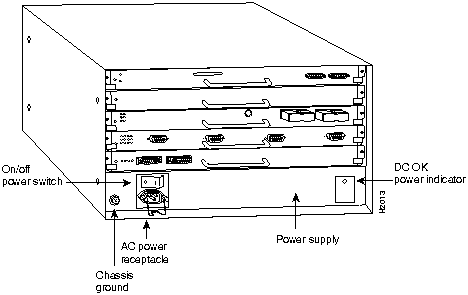
Figure 1 shows the interface processor end of the Cisco 7010 chassis.
In the Cisco 7010, the Route Processor (RP) and Switch Processor (SP) (or the Silicon Switch Processor [SSP]) are required system components and occupy the two top slots. In the Cisco 7505, the Route Switch Processor (RSP1) is a required system component and occupies the top slot.
In both chassis, the remaining interface slots (three in the Cisco 7010 and four in the Cisco 7505) support any combination of available interface types: Ethernet, Token Ring, FDDI, serial, HSSI, and so forth.
The interface processor end of the router also contains the AC power receptacle, the system power on/off switch, and the DC OK power status LED, all of which are part of the power supply but accessible through cutouts in the chassis frame. (See Figure 1.) To the left of the power switch and receptacle cutout is a ground screw that provides a chassis ground connection for ESD equipment or a grounding wire.
Figure 1 : Cisco 7010---Interface Processor End
The noninterface processor end of the chassis has a removable panel that provides access to the internal components discussed in this publication.Two captive slotted fasteners secure the panel.
Following are the power supply and fan tray product numbers:
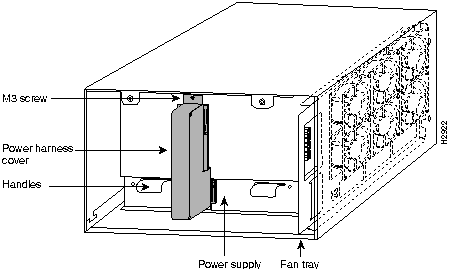
Figure 2 shows the noninterface processor end of the chassis with the cover removed and with the power supply and fan tray in their normal operating positions. The power supply, which rests on the interior chassis floor, operates on AC input and provides DC voltages to the system components. The six individual fans on the fan tray move cooling air through the chassis interior to prevent components from overheating. The backplane contains the data buses for information exchange and distributes power throughout the system.
Figure 2 : Chassis Internal Components---Noninterface Processor End (Chassis Cover Removed)
The Cisco 7010 and Cisco 7505 come equipped with one 600W, AC-input power supply. Table 1 lists the power specifications for the Cisco 7010 and Cisco 7505.
The following sections describe the 600W, AC-input power supply and the fan tray. For descriptions of other system components, refer to the Cisco 7010 Hardware Installation and Maintenance or Cisco 7505 Hardware Installation and Maintenance publications.
Table 1 : Cisco 7010 and Cisco 7505 AC-Input Power Specifications
| Power supply | 600W maximum |
| Power dissipation | 600W maximum configuration, 540W typical with maximum configuration |
| Heat dissipation | 715W (2440 Btu/hr) |
| Input voltage | 100 to 240 VAC, wide input with power factor corrector (PFC) |
| AC current rating | 9A maximum at 100 VAC, 4A maximum at 240 VAC at 600W |
| Frequency | 50 to 60 Hz |
| Power distribution | 70A maximum @ +5 VDC, 15A maximum @ +12 VDC, 3A maximum @ --12 VDC, and 5A maximum @ +24 VDC |
On the noninterface processor end of the power supply, two handles provide grip points for pulling the power supply out of the chassis. (See Figure 2.) Two Phillips screws secure the power supply to the chassis interior. Inside the power supply, two small fans draw cooling air through the power supply interior. The air flows in one side of the supply and out the other side, following the same direction as the chassis cooling air.
The power supply delivers DC power to the internal components through a wiring harness that plugs into a polarized receptacle to the noninterface processor side of the backplane. An aluminum cover shields the harness and power connection. The backplane then distributes the DC voltages to the fan tray, arbiter, and interface processor bus connectors.
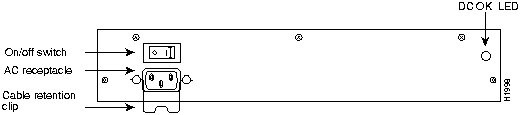
The AC power receptacle, power on/off switch, and DC OK status LED are on the opposite (interface processor) end of the power supply, and are accessible through cutouts in the chassis below the processor slots. (See Figure 1.) A modular power cable connects the power supply to the site power source. A cable retention clip on the power supply AC receptacle prevents the cable from being pulled out accidentally. The rocker-type on/off switch turns the power supply on and starts the system. Figure 3 shows a detail view of the interface processor end of the power supply.
Figure 3 : AC-Input Power Supply---Interface Processor End
The green DC OK LED indicates the status of the power supply and internal DC voltages. The DC OK LED stays on when all of the following conditions are met:
If the AC source power or any of the internal DC voltages exceeds allowable tolerances, the DC OK LED goes off and the system environmental monitor messages indicate the line that is out of tolerance. Because the RP (which uses +5, +12, -12 VDC), and the fan tray (which uses +24 VDC) are both required for operation, the system will probably shut down if any internal voltages reach an out-of-tolerance state.
In addition to the environmental monitoring performed by the system software, the power supply monitors its own temperature and internal voltages. If the supply detects an overvoltage or overtemperature condition, it shuts down to avoid damage to the power supply or other system components.
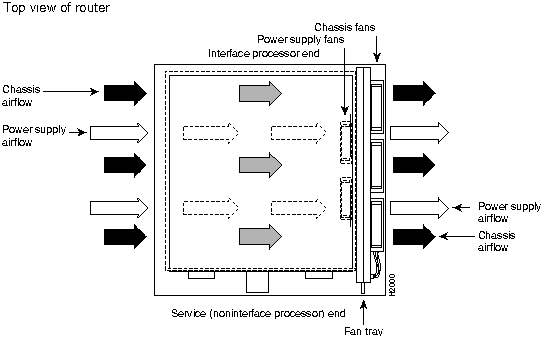
The fan tray comprises six individual axial fans and a printed circuit board (with the control circuits) mounted on a metal plate. (See Figure 2.) The fans draw cooling air through the chassis interior to maintain an acceptable operating temperature for the internal components. The fan tray slides into the right side of the chassis from the noninterface processor end of the router. The fans draw air in through the inlet vents on the opposite side of the chassis, across the processor modules and other internal components, and out through the exhaust vents adjacent to the fan tray. Figure 4 shows a top-down view of the chassis, with the fan tray on the far right, and the airflow path created by the fans. The sides of the chassis must remain unobstructed to ensure adequate airflow and prevent overheating inside the chassis.
Figure 4 : Internal Air Flow---Top-Down View of Chassis
A fan control board on the fan tray monitors and controls the operation of the variable-speed fans. The variable-speed feature enables quieter operation by allowing the fans to operate at less than maximum speed when doing so provides adequate cooling air to maintain an acceptable operating temperature for the internal components.
When the internal air temperature is within the normal operating range, the fans operate at the slowest speed, which is 55 percent of the maximum speed. If the temperature inside the chassis exceeds the normal range, the fan control board increases the fan speed to provide additional cooling air to the internal components. If the temperature continues to rise, the fan control board linearly increases the fan speed until the fans reach full speed (100 percent). If the internal temperature exceeds the specified threshold, the system environmental monitor shuts down all internal power to prevent equipment damage from excessive heat.
The fan control board also relays the status of the fans to the system software. All six fans in the array must be operational. If the system detects a failed or failing fan, it displays a warning message on the console screen. If the condition is not corrected within two minutes, the entire system will shut down to protect the internal components against damage from excessive heat. For an example of this display, refer to the following section, "Prerequisites."
Before you begin this installation, review the safety guidelines in this section to avoid injuring yourself or damaging the equipment. This section also provides a list of the tools that you need to perform this replacement.
When working with any electrical equipment, the following guidelines will help to ensure your safety and protect the equipment. This list is not inclusive of all potentially hazardous situations, so be alert.
In addition, use the guidelines that follow when working with any equipment that is connected to telephone wiring or other network cabling:
Opening the chassis and removing the power harness cover exposes the power distribution wiring on the backplane. If the power is not shut down, the high current present on the backplane becomes a hazard. Also, removing the cover compromises the electromagnetic interference (EMI) integrity of the system. Therefore, always make sure that the system power switch is turned off before removing the chassis cover panel or replacing any internal components.
This section lists the tools and equipment you will need to complete these replacement procedures.
Have the following tools on hand so that you can complete the replacement without interruption:
If the chassis is mounted in an equipment rack, ensure that there is at least 1 foot of clearance at the noninterface processor end to remove the power supply or fan tray, both of which you must pull straight out of the chassis.
If a power strip or other equipment obstructs access, you will have to remove the chassis from the rack before replacing the component. Refer to the Cisco 7010 Hardware Installation and Maintenance or Cisco 7505 Hardware Installation and Maintenance publications for the tools you will need and descriptions of the rack mounting hardware.
Preventing Electrostatic Discharge (ESD) Damage
Electrostatic discharge (ESD) damage, which can occur when electronic boards or components are handled improperly, can result in complete or intermittent failures. The RP, SP, and interface processors each comprise a printed circuit board that is fixed in a metal carrier. EMI shielding, connectors, and a handle are integral components of the carrier. However, the fan control board is a printed circuit board that is not intended to be handled and has no frame or shielding. Handle a processor module or fan tray by the metal frame or carrier only; avoid touching the board (particularly avoid touching any components, traces, or the metal fingers on the edge connector).
Following are guidelines for preventing ESD damage:

Figure 2 shows the location of each internal components inside the noninterface processor end of the chassis. To access the power supply and fan tray, you must remove the chassis cover panel and expose the chassis interior. Two captive slotted screws secure the cover panel to the chassis. The fan tray slides into the right side of the chassis (when viewing the chassis from the noninterface processor end). A single M4 Phillips panhead screw anchors a tab on the tray to the chassis frame. An edge connector on the fan control board also snaps into a socket connector on the backplane. To remove the fan tray, you need only remove the M4 screw that anchors the tray to the interior chassis frame. You cannot replace individual fans; if a fan fails, you must replace the whole fan tray assembly. The power supply rests on the floor of the chassis, under the card cage and backplane. Two M3 Phillips screws secure the power supply to the interior chassis frame. The power harness cover shields the power harness, which carries DC voltages from the power supply to a polarized connector on the backplane. Because the power harness cover straddles both the power supply and backplane cover, you must remove it to access the power supply. A tab at the bottom of the power harness cover fits into a slot in the chassis floor; a single Phillips screw secures the top of the power harness cover to the backplane cover. To remove the power supply, you need to disconnect the modular AC power cable, remove the power harness cover, disconnect the power harness from the backplane, and remove the two M4 Phillips screws. The noninterface processor end of the power supply has handles for pulling the supply out of the chassis.
Removing and Replacing the Chassis Cover Panel
The two captive slotted screws are the only fasteners on the cover panel. (See Figure 5.) Five shallow tabs at the bottom edge of the panel fit into slots at the base of the chassis opening. The tabs act as a pivot point for pulling the top of the panel away from the chassis opening, and as guides to align the panel when replacing it.
Figure 5 : Removing and Replacing the Chassis Cover Panel
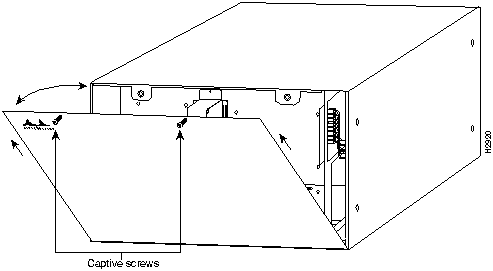
Follow these steps to remove and replace the chassis cover panel:
This completes the chassis cover panel removal and replacement procedure.
Removing and Replacing the Fan Tray
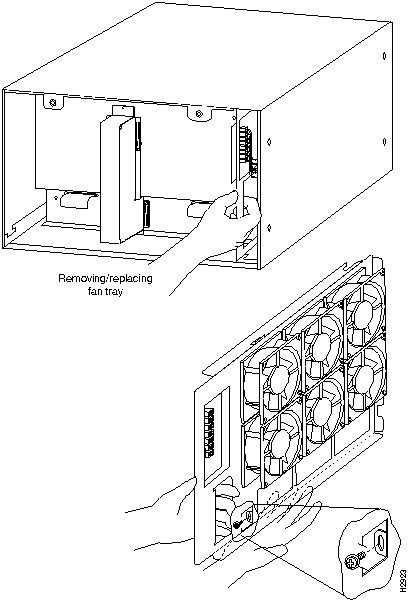
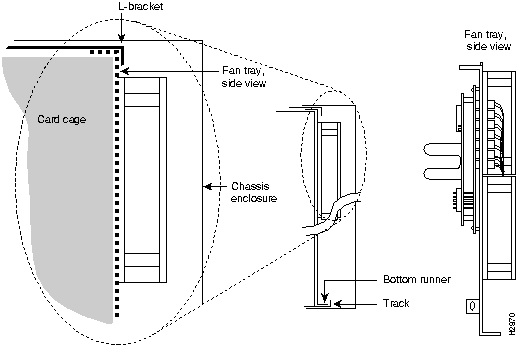
When viewing the chassis from the noninterface processor end, the fan tray is on the far right. (See Figure 2.) A cutout in the front of the tray provides a handle for pulling the tray out of the chassis. An M4 Phillips screw anchors a tab on the lower left side of the tray to the interior chassis frame, just below the right power supply ear. When the fan tray is fully inserted in the chassis, an edge connector on the fan control board snaps into the backplane electrical connector. The bottom of the tray is a metal runner that guides the tray along a metal track on the chassis floor. Also, a bracket on the chassis ceiling helps guide the tray into the chassis.
While referring to Figure 6, follow these steps to replace the fan tray.
Figure 6 : Replacing the Fan Tray
Figure 7 : Fan Tray Tracks and Guides
This completes the fan tray removal and replacement procedure.
Proceed to the section "Checking the Installation" on page 16 to restart the system and check the installation.
Removing and Replacing the Power Supply
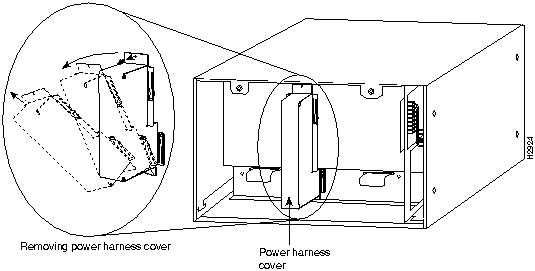
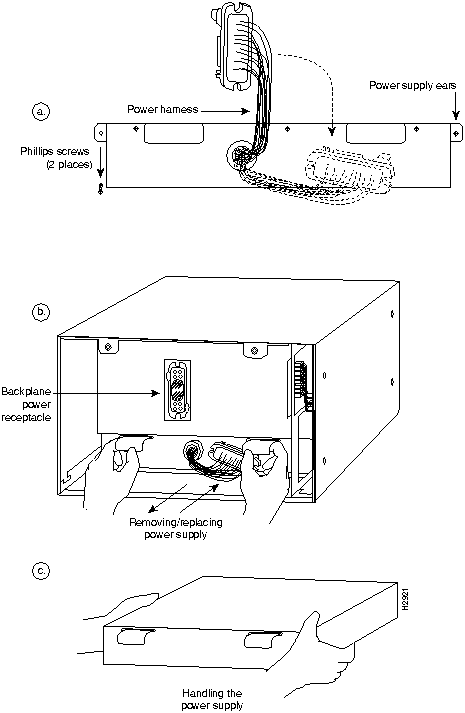
You must remove the power harness cover and disconnect the power harness from the backplane receptacle before you can remove the power supply. A single M3 Phillips screw secures the power harness cover to the backplane cover. To remove the power supply, you will remove the two M4 Phillips screws that secure the power supply ears to the chassis frame.
Removing the Power Harness Cover, Power Harness, and Power Supply
Follow these steps to remove the power harness cover, power harness, and power supply:
Figure 8 : Removing and Replacing the Power Harness Cover
This completes the power supply removal procedure.
Proceed to the next section to install the new power supply and replace the power harness cover.
Replacing the Power Supply, Power Harness, and Power Harness Cover
Follow these steps to remove the power harness cover and power supply:
This completes the new power supply installation.
Proceed to the section "Checking the Installation" on page 16 to restart the system and check the installation.
Figure 9 : Replacing the Power Supply
To complete the installation, perform the following steps to verify that the new component is installed correctly and functioning properly. These steps will also help you verify that all the active components that you removed or disconnected as part of this replacement procedure are returned to their previous state, when all router components (except the fan tray or power supply you replaced) were operating properly.
This completes the fan tray and power supply replacement procedures for the Cisco 7010 and Cisco 7505.
Cisco Information Online (CIO) is Cisco Systems' primary, real-time support channel. Maintenance customers and partners can self-register on CIO to obtain additional content and services.
Available 24 hours a day, 7 days a week, CIO provides a wealth of standard and value-added services to Cisco's customers and business partners. CIO services include product information, software updates, release notes, technical tips, the Bug Navigator, configuration notes, brochures, descriptions of service offerings, and download access to public and authorized files.
CIO serves a wide variety of users through two interfaces that are updated and enhanced simultaneously---a character-based version and a multimedia version that resides on the World Wide Web (WWW). The character-based CIO (called "CIO Classic") supports Zmodem, Kermit, Xmodem, FTP, Internet e-mail, and fax download options, and is excellent for quick access to information over lower bandwidths. The WWW version of CIO provides richly formatted documents with photographs, figures, graphics, and video, as well as hyperlinks to related information.
You can access CIO in the following ways:
For a copy of CIO's Frequently Asked Questions (FAQ), contact
Copyright 1988-1996 © Cisco Systems Inc.




http://www.cisco.com
cio.cisco.com
ciohelp@cisco.com.
For additional information, contact
cioteam@cisco.com.
tac@cisco.com.
To obtain general information about Cisco Systems, Cisco products, or upgrades, contact 800 553-6387, 408 526-7208, or
csrep@cisco.com.

