


|
|

Route Switch Processor (RSP1) Installation and Configuration
Product Numbers: RSP1=, MEM-RSP-8M=, MEM-RSP-16M, MEM-RSP-24M, MEM-RSP-32M(=), MEM-RSP-64M(=), and MEM-RSP-128M(=)
This document discusses the Route Switch Processor (RSP1), which is a main processor module for the Cisco 7505 router. The RSP1 combines all of the switched routing and high-speed switching functions required by the Cisco 7505 router. Refer to the section "What Is the RSP1?" on page 3.
Following are the sections in this document:
The Cisco 7505 is a five-slot router chassis, which uses the RSP1 and CxBus and CyBus interface processors. The Cisco 7505 provides up to four interface processor slots. Although the Cisco 7505 uses the high-speed, 1.067-gigabit-per-second (Gbps) CyBus, it can accommodate all CxBus-based interface processors.
Any combination of network interface types is supported: Ethernet, Token Ring, Fiber Distributed Data Interface (FDDI), channel attachment, multichannel, serial, and so forth. The RSP1 and interface processors are keyed with guides on the backplane to prevent them from being fully inserted in the wrong slot.
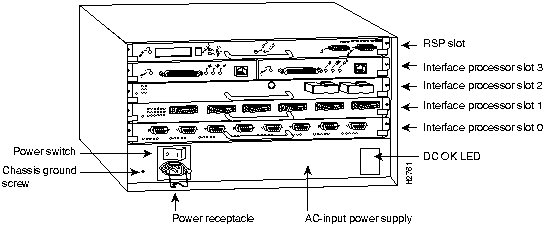
Figure 1 shows the interface processor end of the Cisco 7505, which provides access to the five slots, the power switch, the chassis ground screw, the power receptacle, and the DC OK LED. When facing the interface processor end of the chassis, the RSP1 slot is at the top. The four interface processor slots are numbered from slot 0 (the bottom slot) through slot 3 (second slot from the top).
Figure 1 Cisco 7505---Interface Processor End
The RSP1 is the main system processor module for the Cisco 7505. It combines all of the switched routing and high-speed switching functions of the separate Route Processor (RP) and Switch Processor (SP), which are used in the Cisco 7000 series routers. Because the RSP1 combines the RP and SP functions, four slots are available for interface processors, allowing greater port density. The RSP1 contains the central processing unit (CPU) and most of the memory components for the Cisco 7505.
The Cisco Internetwork Operating System (Cisco IOS) software images reside in Flash memory, which is located either on the RSP1, in the form of a single in-line memory module (SIMM), or on up to two Personal Computer Memory Card International Association (PCMCIA) cards (called Flash memory cards) that insert in the two PCMCIA slots (slot 0 and slot 1) on the front of the RSP1. (See Figure 9.)
Storing the Cisco IOS images in Flash memory enables you to download and boot from upgraded Cisco IOS images remotely or from software images resident in the RSP1 Flash memory, without having to remove and replace read-only memory (ROM) devices.
The RSP1 uses a software-controlled configuration register, so it is not necessary to remove the RSP1 to configure jumpers. There are no user-configurable jumpers on the RSP1.
The RSP1 contains the following components:
In addition to the system software, the RSP1 contains and executes the following management functions that control the system:
The high-speed switching section of the RSP1 communicates with and controls the interface processors on the high-speed CyBus. This section decides the destination of a packet and switches it based on that decision. The RSP1 uses a 16-million-instructions-per-second (mips) processor to provide high-speed, autonomous switching and routing.
Figure 2 shows the various types of memory components on the RSP1, and Table 1 lists the functions of each type.
Figure 2 Route Switch Processor (RSP1)
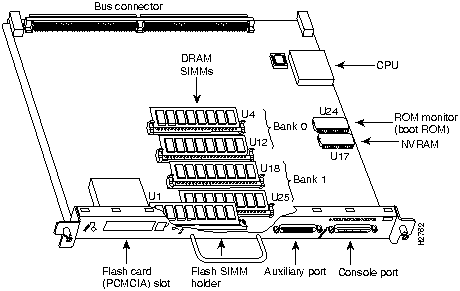
Table 1 RSP1 Memory Components
| Type | Size | Quantity | Description | Location |
| DRAM | 16 to 128 MB | 2 to 4 | 8, 16, or 32-MB SIMMs (based on maximum DRAM required) | Bank 0: U4 and U12Bank 1: U18 and U25 |
| NVRAM | 128 KB | 1 | Nonvolatile EPROM for the system configuration file.(1) | U17 |
| Flash SIMMFlash Card | 8 MB8, 16, and 20 MB (2) | 1Up to 2 | Contains the Cisco IOS images on the RSP1 (standard)Contains the Cisco IOS images on up to two PCMCIA cards | U1Slot 0, slot 1 |
| Boot ROM | 256 KB | 1 | EPROM for the ROM monitor program | U24 |
The Cisco 7505 router supports downloadable system software and microcode for most Cisco IOS and microcode upgrades, which enables you to remotely download, store, and boot from a new image. The publication Upgrading Software and Microcode in Cisco 7XXX Series Routers (Document Number 78-1144-xx), which accompanies all Cisco IOS upgrade kits, provides instructions for upgrading over the network or from floppy disks. Flash memory contains the default system software. An erasable programmable read-only memory (EPROM) device contains the latest microcode version, in compressed form, for each interface processor. At system startup, an internal system utility scans for compatibility problems between the installed interface processor types and the bundled microcode images, then decompresses the images into running dynamic random-access memory (DRAM). The bundled microcode images then function the same as the EPROM images.
DRAM stores routing tables, protocols, and network accounting applications. The standard RSP1 configuration is 16 megabytes (MB) of DRAM, with up to 128 MB available through single in-line memory module (SIMM) upgrades.
The system configuration, software configuration register settings, and environmental monitoring logs are contained in the 128-kilobyte (KB), nonvolatile random-access memory (NVRAM), which is backed up with built-in lithium batteries that retain the contents for a minimum of five years. When replacing an RSP1, be sure to back up your configuration to a remote server so you can retrieve it later.

The imbedded or PCMCIA card-based Flash memory allows you to remotely load and store multiple Cisco IOS software and microcode images. You can download a new image over the network or from a local server and then add the new image to Flash or replace the existing files. You can then boot routers either manually or automatically from any of the stored images. Flash memory also functions as a TFTP server to allow other servers to remotely boot from stored images or to copy them into their own Flash memory.
Before you can use a Flash memory card that was previously used on a Route Processor (RP) in a Cisco 7000 series router, you must reformat the Flash memory card. Flash memory cards formatted on RP-based (Cisco 7000 series) routers will not work properly in RSP-based (Cisco 7500 series) routers.
There are no user-configurable jumpers on the RSP1.
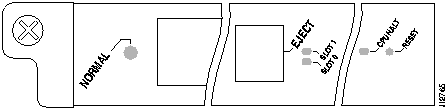
The two LEDs on the RSP1 indicate the system and RSP1 status. The normal LED is on when the system is operational. During normal operation, the CPU halt LED should be off. The CPU halt LED goes on only if the system detects a processor hardware failure. The RSP1 controls both LEDs and turns both on in parallel to indicate that the system is operational.
Two asynchronous serial ports on the RSP1, the console and auxiliary ports, allow you to connect external devices to monitor and manage the system. The console port is an Electronics Industries Association/Telecommunications Industry Association (EIA/TIA)-232 receptacle (female) that provides a data circuit-terminating equipment (DCE) interface for connecting a console terminal.
The auxiliary port is an EIA/TIA-232 plug (male) that provides a data terminal equipment (DTE) interface; the auxiliary port supports flow control and is often used to connect a modem, a channel service unit (CSU), or other optional equipment for Telnet management.
Before beginning any of these procedures, review the following sections to ensure that your equipment configuration meets the minimum requirements for the upgrade or replacement you will perform, and that you have all the parts and tools you will need. Also, review safety and ESD-prevention guidelines to help you to avoid injury or damage to the equipment.
If you are replacing the existing RSP1, upload your current configuration file to a remote server before you remove the RSP1 to avoid having to reenter all your current configuration information manually. To upload the file, you need access to a remote server. Refer to the section "Saving and Retrieving the Configuration File" on page 9, for instructions for uploading the file and retrieving it after the new RSP1 is installed.
This section lists safety guidelines you should follow when working with any equipment that connects to electrical power or telephone wiring.
Follow these basic guidelines when working with any electrical equipment:
Use the following guidelines when working with any equipment that is connected to telephone wiring or to other network cabling:
ESD damage, which can occur when electronic cards or components are improperly handled, results in complete or intermittent failures. Each processor module contains a printed circuit card that is fixed in a metal carrier. Electromagnetic interference (EMI) shielding, connectors, and a handle are integral components of the carrier. Although the metal carrier helps to protect the board from ESD, use an ESD-preventive wrist or ankle strap whenever you handle any electronic system component.
Following are guidelines for preventing ESD damage:

You must install the RSP1 in the top slot (slot 4) of the Cisco 7505. (See the section "What Is the Cisco 7505?" on page 2.) You must obtain the replacement SIMMs from an approved vendor. To ensure that you obtain the latest available product and vendor information, obtain the list from one of the following sources:
tac@cisco.com
.
to
cs-rep@cisco.com
.
Although the PCMCIA card and SIMM specifications are defined in the manufacturers' part numbers, they must meet the following requirements:
The RSP1 is compatible with Cisco IOS Release 10.3(3) or later. The show version and show hardware commands display the current hardware configuration of the router, including the system software version that is currently loaded and running. The show microcode command lists the bundled microcode (target hardware) version for each processor type. The show controller cybus or show controller cbus commands show the microcode version you are running. (For complete descriptions of show commands, refer to the Configuration Fundamentals Configuration Guide and Configuration Fundamentals Command Reference publications.)
You can determine the current version of software or microcode stored in ROM either by removing the processor module and checking the ROM labels or by configuring the system to boot the system software or microcode from ROM, reloading the system, and using show commands to check the version that is loaded and running. Refer to the appropriate software documentation for complete configuration instructions and examples.
Microcode is a set of processor-specific software instructions that enables and manages the features and functions of a specific processor type. At system startup or reload, the system loads the microcode for each processor type present in the system. The latest available microcode image for each processor type is bundled and distributed with the system software image.
New microcode is released to enable new features, improve performance, or fix bugs in earlier versions. The Cisco routers feature downloadable software and microcode for most upgrades. These features enable you to download new (upgraded) images remotely, store the images in router memory, and load the new images at system startup without having to physically access the router.
You can store multiple versions for a specific processor type in Flash memory and use configuration commands to specify which version the system should load at startup. All interfaces of the same type (for example, all CIPs) use the same microcode image. Although most upgrades can be downloaded, some exceptions require ROM replacement to ensure proper startup and operation. Microcode images that are bundled with the system image load automatically along with the new software image.
You need some or all of the following tools and parts to remove and replace an RSP1. If you need additional equipment, contact a customer service representative for ordering information.
This section describes the procedures for saving and retrieving the system configuration. Configuration information resides in two places when the router is operating: the default (permanent) configuration in NVRAM, and the running (temporary) memory in RAM. The default configuration always remains available; NVRAM retains the information even when the power is shut down. The current information is lost when if the system power is shut down. The current configuration contains all nondefault configuration information that you added with the configure command, the setup command facility, or by editing the configuration file.
The copy running-config startup-config command adds the current configuration to the default configuration in NVRAM, so that it will also be saved when power is shut down. Whenever you make changes to the system configuration, issue the copy running-config startup-config command to ensure that the new configuration is saved.
If you replace the RSP1, you will also replace the entire configuration (NVRAM resides in socket U17 on the RSP1). If you upload (copy) the configuration file to a remote server before removing the RSP1, you can retrieve it later and write it into NVRAM on the new RSP1. If you do not upload the configuration file, you will have to use the configure command or the setup command facility to reenter the configuration information after you install the new RSP1. For complete descriptions of these commands and instructions for using them, refer to the appropriate software documentation.
This procedure is not necessary if you are temporarily removing an RSP1 that you will reinstall; the lithium batteries will retain the configuration in memory until you replace the RSP1 in the system. This procedure requires privileged-level access to the EXEC command interpreter, which usually requires a password. Refer to the description that follows and contact your system administrator if necessary, to obtain access.
Before you use the configure command, you must enter the privileged level of the EXEC command interpreter with the enable command. The system will prompt you for a password if one has been set.
The system prompt for the privileged level ends with a pound sign (#) instead of an angle bracket (>). At the console terminal, enter the privileged level as follows:
Router> enable
Password:
Router#
The pound sign (#) at the system prompt indicates that you are at the privileged level of the EXEC command interpreter; you can now execute the EXEC-level commands that are described in the following sections.
Before you attempt to upload or retrieve a file from a remote host, ensure that the connection is good between the router and the remote server. The packet internet groper (ping) program sends a series of echo request packets to the remote device and waits for a reply. If the connection is good, the remote device echoes them back to the local device.
The console terminal displays the results of each message sent: an exclamation point (!) indicates that the local device received an echo, and a period (.) indicates that the server timed out while awaiting the reply. If the connection between the two devices is good, the system will display a series of exclamation points (! ! !) or [ok]. If the connection fails, the system will display a series of periods ( . . . ) or [timed out] or [failed].
To verify the connection between the router and a remote host, issue the ping command followed by the name or Internet Protocol (IP) address of the remote server, then press Return. Although the ping command supports configurable options, the defaults, including interface processor as the protocol, are enabled when you enter a host name or address on the same line as the ping command. For a description of the configurable options, refer to the appropriate software documentation.
The following example shows a successful ping:
Router# ping 1.1.1.1
Type escape sequence to abort.
Sending 5, 100-byte ICMP Echos to 1.1.1.1, timeout is 2 seconds:
!!!!!
Success rate is 100 percent (5/5), round-trip min/avg/max = 12/12/12 ms
Router#
The following example shows the results of a failed ping:
Sending 5, 100-byte ICMP Echos to 1.1.1.1, timeout is 2 seconds:
.....
Success rate is 0 percent (0/5)
Router#
If the connection fails, check the physical connection to the remote file server and verify that you are using the correct address or name, then ping the server again. If you are unable to establish a good connection, contact your network administrator or refer to the end of this document for instructions on contacting technical assistance.
Before you upload (copy) the running configuration to the TFTP file server, ensure the following:
To store information on a remote host, enter the privileged EXEC command write network. The command will prompt you for the destination host's address and a filename, then display the instructions for confirmation. When you confirm the instructions, the router sends a copy of the currently running configuration to the remote host. The system default is to store the configuration in a file called by the name of the router with -confg appended. You can either accept the default filename by pressing Return at the prompt, or enter a different name before pressing Return.
Follow these steps to upload (copy) the currently running configuration to a remote host:
Router# write net
Remote host []?
Router# write net
Remote host []? servername
Translating "servername"...domain server (1.1.1.1) [OK]
Name of configuration file to write [Router-confg]?
Write file Router-confg on host 1.1.1.1? [confirm]
Writing Router-confg .....
Write file Router-confg on host 1.1.1.1? [confirm]
Writing Router-confg: !!!! [ok]
Writing Router-confg .....
After you upload the configuration file, proceed to "Removing the RSP1" on page 16. If you are unable to copy the configuration to a remote host successfully, contact your network administrator or refer to the end of this document for instructions on contacting technical assistance.
After you install the new RSP1, you can retrieve the saved configuration and copy it to NVRAM. To retrieve the configuration, enter configuration mode and specify that you will configure the router from the network. The system will prompt you for a host name and address, the name of the configuration file stored on the host, and confirmation to reboot using the remote file.
You can access the router through a console terminal attached directly to the RSP1 console port, or you can configure an interface port and Telnet to the router from a remote terminal.
Follow these steps to download (retrieve) the currently running configuration from a remote host:
Router# configure network
Host or network configuration file [host]?
IP address of remote host [255.255.255.255]? 1.1.1.1
Name of configuration file [router-confg]?
Configure using router-confg from 1.1.1.1? [confirm]
Booting router-confg from 1.1.1.1: ! ! [OK - 874/16000 bytes]
Booting Router-confg ..... [timed out]
The following sections provide a functional overview of online insertion and removal (OIR), and describe the procedures for installing or replacing processor modules. Before installing any new interfaces, ensure that your system meets the minimum software and microcode requirements described in the sections "Software Prerequisites" and "Microcode Prerequisites" on page 8.
The OIR feature allows you to remove and install interface processors without turning off system power. However, you must shut down the system before removing or installing the RSP1, which is a required system component.

Following the OIR overview, proceed to the section "Removing the RSP1" on page 16 for instructions on removing the RSP1, and then to the section "Replacing the RSP1" for the installation instructions. After the new RSP1 is secure, follow the procedures in the section "Troubleshooting the Installation" on page 19 to verify that it is installed and functioning properly.
OIR allows you to remove and replace CyBus interface processors while the system is operating; you do not need to notify the software or shut down the system power. This section describes the mechanical functions of the system components and stresses the importance of following the correct procedures to avoid unnecessary restarts or card failures. This section is for background information only. Subsequent sections provide specific procedures for removing and installing an RSP1.

Each RSP1 and interface processor contains a bus connector with which it connects to the system backplane. The bus connector is a set of tiered pins, in three lengths. The pins send specific signals to the system as they make contact with the backplane.
The system assesses the signals it receives and the order in which it receives them to determine what event is occurring and what task it needs to perform, such as reinitializing new interfaces or shutting down removed ones. For example, when you insert an interface processor, the longest pins make contact with the backplane first, and the shortest pins make contact last. The system recognizes the signals and the sequence in which it receives them. The system expects to receive signals from the individual pins in this logical sequence, and the ejector levers help to ensure that the pins mate in this sequence.
When you remove or insert an interface processor, the backplane pins send signals to notify the system, which then performs as follows:
OIR functionality enables you to add, remove, or replace interface processors with the system online, which provides a method that is seamless to end users on the network, maintains all routing information, and ensures session preservation.
When you insert a new interface processor, the system runs a diagnostic test on the new interfaces and compares them to the existing configuration.
If this initial diagnostic test fails, the system remains off line for another 15 seconds while it performs a second set of diagnostic tests to determine whether or not the interface processor is faulty and if normal system operation is possible.
If the second diagnostic test passes, which indicates that the system is operating normally and the new interface processor is faulty, the system resumes normal operation but leaves the new interfaces disabled. If the second diagnostic test fails, the system crashes, which usually indicates that the new interface processor has created a problem on the bus and should be removed.
The system brings online only interfaces that match the current configuration and were previously configured as up; all other interfaces require that you configure them with the configure command. On interface processors with multiple interfaces, only the interfaces that have already been configured are brought online.
For example, if you replace a single-PCA CIP with a dual-PCA CIP, only the previously configured interface is brought online automatically; the new interface remains in the administratively shutdown state until you configure it and bring it online.

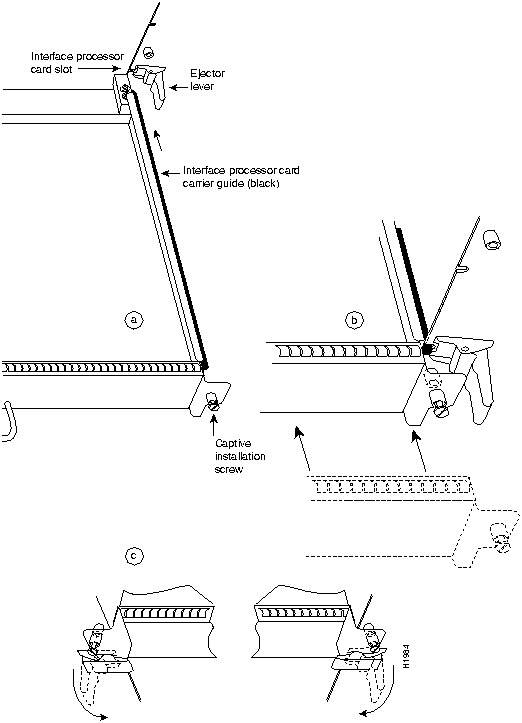
When you remove or install the RSP1, be sure to use the ejector levers, which help to ensure that the RSP1 is fully inserted in the backplane or fully dislodged from it. Any RSP1 or interface processor that is only partially connected to the backplane can halt the system. Figure 3 on page 17 shows a detail of the ejector lever mechanism in a horizontal position that is appropriate for the Cisco 7505. When you simultaneously push the ejector levers inward (toward the carrier handle), the levers push the RSP1 into the slot and ensure that the board connectors are fully seated in the backplane.

Follow these steps to remove the RSP1:
This completes the removal procedure.
If you removed the RSP1 to replace SIMMs, proceed to the appropriate section.
If you are replacing the RSP1, proceed to the next section to install the new RSP1.
Ensure that all system power is turned off before installing the RSP1 in the chassis. The RSP1 is keyed for installation only in the RSP1 slot. (See Figures 1 and 2.)
Follow these steps to install an RSP1:
Figure 3 Ejector Levers and Captive Installation Screw

When you turn the system power back on, verify that the system boots and resumes normal operation. If you are restarting the system after upgrading the DRAM expect that it will take the system longer to complete the memory initialization portion of the boot sequence with more DRAM. (See the section "System Startup Sequence" on page 20.)
Follow these steps to verify that the RSP1 is installed and functioning properly:
GS Software (GS7), Version 10.3(3), SOFTWARE
Copyright (c) 1986-1995 by cisco Systems, Inc.
Compiled Wed 10-May-95
System Bootstrap, Version 4.6(7.3)
Current date and time is Sat 5-13-1995 21:38:35
Boot date and time is Thur 5-11-1995 15:32:28
[displayed text omitted from this example]
When you have verified all the conditions in Steps 2 through 5, the installation is complete.
If you replaced the RSP1 and saved your configuration file to a remote server before doing so, proceed to the section "Downloading (Retrieving) the Configuration File" on page 12. If you replaced the RSP1 and did not save the configuration, use the configure command or the setup command facility to reenter the configuration information. Refer to the appropriate software documentation for command descriptions and instructions for using them.
An error condition exists if no LEDs go on at power up or after initialization, or if the boot error or CPU halt LEDs go on and remain on. If this happens, proceed to the following section, "Troubleshooting the Installation," to try to isolate the problem.
This section contains procedures to follow if the system does not restart and boot as expected. Review the descriptions that follow so you can anticipate the expected system startup sequence. Then restart the system and try to isolate the problem by observing the LEDs as the system attempts to boot the software and initialize the RSP1 and each interface processor.
Following are functional descriptions of the LEDs on the power supplies and processor modules, and the behavior you should observe at system startup.
On the Cisco 7505, the DC OK LED is located on the lower right of the interface processor end of the chassis and is labeled DC OK. (See Figure 1 on page 2.) If the DC OK LED does not go on or stay on, there is most likely a problem with the input power or one of the internal DC lines.
The DC OK LED will not go on or will go off if the power supply reaches an out-of-tolerance temperature or voltage condition. It is unlikely that the power supply will shut down during startup because of an overtemperature condition; however, it can shut down if it detects an over or undervoltage condition during startup. For descriptions of environmental monitoring functions, refer to the Cisco 7505 Hardware Installation and Maintenance publication.
Figure 4 shows the LEDs and reset switch on the RSP1 faceplate. The LEDs on the RSP1 indicate the system and RSP1 status and which Flash memory card slot is active. The CPU halt LED, which goes on only if the system detects a processor hardware failure, should remain off. A successful boot is indicated when the normal LED goes on; however, this does not necessarily mean that the system has reached normal operation. During normal operation, the CPU halt LED should be off, and the normal LED should be on.
The slot 0 and slot 1 LEDs indicate which PCMCIA (Flash memory) card slot is in use, and each LED blinks when the card is accessed by the system.
Figure 4 Route Switch Processor LEDs

Each interface processor contains an enabled LED. The enabled LED goes on to indicate that the interface processor is operational and that it is powered up. It does not necessarily mean that the interface ports on the interface processors are functional or enabled. When the boot sequence is complete, all of the enabled LEDs should go on. If any do not, one of the following errors is indicated:
By checking the state of the LEDs, you can determine when and where the system failed in the startup sequence. Because you turn on the system power with the on/off switches on each power supply, it is easiest to observe the startup behavior from the rear of the chassis. Use the following descriptions of the normal startup sequence to isolate the problem, then use the troubleshooting procedures wherever the system fails to operate as expected. If you are able to isolate the problem to a faulty hardware component, or if you are unable to successfully restart the system, refer to the end of this document for instructions on contacting a service representative.
During the boot sequence, the system banner display pauses while it initializes the memory. If your router has more than 16 MB of DRAM, you may notice an increase in the amount of time required to initialize the memory. The pause in the banner display occurs after the copyright line, and before the system displays the list of installed hardware, as shown in the following display:
%SYS-5-RELOAD: Reload requested
System Bootstrap, Version 4.6(7.3)
Copyright (c) 1986-1995 by cisco Systems, Inc.
[System initializes memory at this point in the display]
Use the following startup sequences and troubleshooting procedures to isolate system problems:
        GS Software (GS7), Version 10.3(3)
Copyright (c) 1986-1995 by Cisco Systems, Inc.
Compiled Wed 10-May-95 11:06
If the system still fails to start up or operate properly, or if you isolate the cause of the problem to a failed component, contact a service representative for further assistance. This completes the RSP1 installation and replacement procedure. For complete command descriptions and examples, refer to the appropriate software documentation.
Following is reference information for replacing SIMMs, configuring the software configuration register, recovering a lost password, and using the front-panel PCMCIA slots for additional Flash memory.
The console port on the RSP1 is an EIA/TIA-232, DCE, DB-25 receptacle. Both DSR and DCD are active when the system is running. The RTS signal tracks the state of the CTS input. The console port does not support modem control or hardware flow control. The console port requires a straight-through EIA/TIA-232 cable. Table 2 lists the signals used on this port.
| Pin | Signal | Direction | Description |
|---|---|---|---|
| 1 | GND | -- | Ground |
| 2 | TxD | <--- | Transmit Data |
| 3 | RxD | ---> | Receive Data |
| 6 | DSR | ---> | Data Set Ready (always on) |
| 7 | GND | -- | Ground |
| 8 | DCD | ---> | Data Carrier Detect (always on) |
The auxiliary port on the RSP1 is an EIA/TIA-232 DTE, DB-25 plug to which you can attach a CSU/DSU or other equipment in order to access the router from the network. Table 3 lists the EIA/TIA-232 signals used on this port.
The asynchronous auxiliary port supports hardware flow control and modem control.
Table 3 Auxiliary Port Signals
| Pin | Signal | Direction | Description |
|---|---|---|---|
| 2 | TxD | ---> | Transmit Data |
| 3 | RxD | <--- | Receive Data |
| 4 | RTS | ---> | Request To Send (used for hardware flow control) |
| 5 | CTS | <--- | Clear To Send (used for hardware flow control) |
| 6 | DSR | <--- | Data Set Ready |
| 7 | Signal Ground | -- | Signal Ground |
| 8 | CD | <--- | Carrier Detect (used for modem control) |
| 20 | DTR | ---> | Data Terminal Ready (used for modem control only) |
The system DRAM resides on up to four SIMMs on the RSP1. The DRAM SIMM sockets are U4 and U12 for bank 0, and U18 and U25 for bank 1. The default DRAM configuration is 16 MB (two 8-MB SIMMs in bank 0). (See Figure 5.)
This section describes the steps for increasing the amount of DRAM by replacing up to four SIMMs that you obtain from an approved vendor.
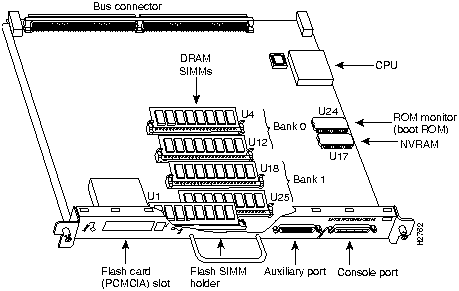
The SIMM sockets use the thumb tabs that are often used in PCs and other computer equipment. Each RSP1 SIMM socket has two metal retaining springs, one at each end. (See Figure 6 on page 26.) When a SIMM is fully seated in the socket, the retaining springs snap over the ends of the SIMM to lock it in the socket.
Before proceeding, ensure that you have the proper ESD-prevention equipment available. To upgrade DRAM, install SIMMs in one or two banks. Table 4 lists the various configurations of DRAM SIMMs that are available. Note which banks are used given the combinations of available SIMM sizes and the maximum DRAM you require. SIMMs must be 60 ns or faster and no taller than one inch.
Table 4 DRAM SIMM Configurations
| DRAM Bank 0 | Quantity | DRAM Bank 1 | Quantity | Total DRAM | Product Numbers |
| U4 and U12 | 2 8-MB SIMMs | U18 and U25 | -- | 16 MB | MEM-RSP-16M |
| U4 and U12 | 2 8-MB SIMMs | U18 and U25 | 2 4-MB SIMMs | 24 MB(1) | MEM-RSP-24M |
| U4 and U12 | 2 16-MB SIMMs | U18 and U25 | -- | 32 MB | MEM-RSP-32M(=) |
| U4 and U12 | 2 32-MB SIMMs | U18 and U25 | -- | 64 MB | MEM-RSP-64M(=) |
| U4 and U12 | 2 32-MB SIMMs | U18 and U25 | 2 2-MB SIMMs | 128 MB | MEM-RSP-128M(=) |

Place removed SIMMs on an antistatic mat and store them in an antistatic bag. You can use the SIMMs that you remove in compatible equipment.

Follow these steps to remove the existing SIMMs:
Figure 6 Releasing the SIMM Spring Clips
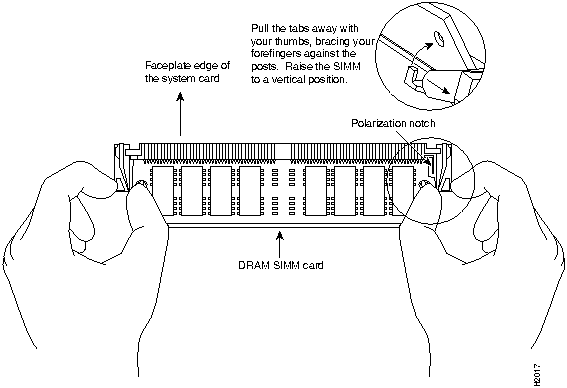
This completes the SIMM removal procedure. Proceed to the next section to install the new SIMMs.
Following is the procedure for installing new SIMMs.


Follow these steps to install the new SIMMs:

If the system fails to boot properly, or if the console terminal displays a checksum or memory error, check the following:
If after several attempts the system fails to restart properly, contact a service representative for assistance. Before you call, make note of any error messages, unusual LED states, or any other indications that might help solve the problem.
This completes the SIMM replacement procedure.
To replace the RSP1 in the chassis, proceed to the section "Replacing the RSP1" on page 16, and then restart the system for an installation check.
Settings for the 16-bit software configuration register are written into the NVRAM. Following are some reasons for changing the software configuration register settings:
Table 5 on page 29 lists the meaning of each of the software configuration memory bits, and Table 6 on page 29 defines the boot field.

Table 5 Software Configuration Register Bit Meanings
| Bit Number(1) | Hexadecimal | Meaning |
|---|---|---|
| 00 to 03 | 0x0000 to 0x000F | Boot field (see Table 6) |
| 06 | 0x0040 | Causes system software to ignore NVRAM contents |
| 07 | 0x0080 | OEM(2) bit enabled |
| 08 | 0x0100 | Break disabled |
| 09 | 0x0200 | Use secondary bootstrap |
| 10 | 0x0400 | Internet Protocol (IP) broadcast with all zeros |
| 11 to 12 | 0x0800 to 0x1000 | Console line speed (default is 9600 baud) |
| 13 | 0x2000 | Boot default Flash software if network boot fails |
| 14 | 0x4000 | IP broadcasts do not have network numbers |
| 15 | 0x8000 | Enable diagnostic messages and ignore NVRAM contents |
Table 6 Explanation of Boot Field (Software Configuration Register Bits 00 to 03)
| Boot Field | Meaning |
|---|---|
| 00 | Stays at the system bootstrap prompt |
| 01 | Boots the first system image in onboard Flash memory |
| 02 to 0F | Specifies a default netboot filename Enables boot system commands that override the default netboot filename |
To change the configuration register while running the system software, follow these steps:
Router> enable
Password:
router#
Router# conf t
Enter configuration commands, one per line.  End with CNTL/Z.
Router(config)#
Router(config)# config-register 0xvalue
Configuration register is 0x141 (will be 0x101 at next reload)
The lowest four bits of the software configuration register (bits 3, 2, 1, and 0) form the boot field. (See Table 6.) The boot field specifies a number in binary form. If you set the boot field value to 0, you must boot the operating system manually by entering the b command at the bootstrap prompt as follows:
> b [tftp] flash filename
Definitions of the various b command options follow:
For more information about the b [tftp] flash [filename] command, refer to the set of configuration fundamentals configuration and reference publications.
If you set the boot field value to 0x2 through 0xF and there is a valid boot system command stored in the configuration file, then the router boots the system software as directed by that value. If you set the boot field to any other bit pattern, the router uses the resulting number to form a default boot filename for netbooting. (See Table 7.)
In the following example, the software configuration register is set to boot the router from onboard Flash memory and to ignore Break at the next reboot of the router:
Router# conf term
Enter configuration commands, one per line.  End with CNTL/Z.
Router(config)# config-register 0x102
Router(config)# boot system flash [filename]
Crtl-z
Router#
The server creates a default boot filename as part of the automatic configuration processes. To form the boot filename, the server starts with the name cisco and adds the octal equivalent of the boot field number, a hyphen, and the processor-type name. Table 7 lists the default boot filenames or actions for the processor.
Table 7 Default Boot Filenames
| Action/File Name | Bit 3 | Bit 2 | Bit 1 | Bit 0 |
|---|---|---|---|---|
| Bootstrap mode | 0 | 0 | 0 | 0 |
| Default software | 0 | 0 | 0 | 1 |
| cisco2-RSP | 0 | 0 | 1 | 0 |
| cisco3-RSP | 0 | 0 | 1 | 1 |
| cisco4-RSP | 0 | 1 | 0 | 0 |
| cisco5-RSP | 0 | 1 | 0 | 1 |
| cisco6-RSP | 0 | 1 | 1 | 0 |
| cisco7-RSP | 0 | 1 | 1 | 1 |
| cisco10-RSP | 1 | 0 | 0 | 0 |
| cisco11-RSP | 1 | 0 | 0 | 1 |
| cisco12-RSP | 1 | 0 | 1 | 0 |
| cisco13-RSP | 1 | 0 | 1 | 1 |
| cisco14-RSP | 1 | 1 | 0 | 0 |
| cisco15-RSP | 1 | 1 | 0 | 1 |
| cisco16-RSP | 1 | 1 | 1 | 0 |
| cisco17-RSP | 1 | 1 | 1 | 1 |
Bit 8 controls the console Break key. Setting bit 8 (the factory default) causes the processor to ignore the console Break key. Clearing bit 8 causes the processor to interpret the Break key as a command to force the system into the bootstrap monitor, thereby halting normal operation. A break can be sent in the first 60 seconds while the system reboots, regardless of the configuration settings.
Bit 9 controls the secondary bootstrap program function. Setting bit 9 causes the system to use the secondary bootstrap; clearing bit 9 causes the system to ignore the secondary bootstrap. The secondary bootstrap program is used for system debugging and diagnostics.
Bit 10 controls the host portion of the IP broadcast address. Setting bit 10 causes the processor to use all zeros; clearing bit 10 (the factory default) causes the processor to use all ones. Bit 10 interacts with bit 14, which controls the network and subnet portions of the broadcast address.
Table 8 shows the combined effect of bits 10 and 14.
Table 8 Configuration Register Settings for Broadcast Address Destination
| Bit 14 | Bit 10 | Address (<net> <host>) |
|---|---|---|
| Off | Off | <ones> <ones> |
| Off | On | <zeros> <zeros> |
| On | On | <net> <zeros> |
| On | Off | <net> <ones> |
Bits 11 and 12 in the configuration register determine the baud rate of the console terminal. Table 9 shows the bit settings for the four available baud rates. (The factory-set default baud rate is 9600.)
Table 9 System Console Terminal Baud Rate Settings
| Baud | Bit 12 | Bit 11 |
|---|---|---|
| 9600 | 0 | 0 |
| 4800 | 0 | 1 |
| 1200 | 1 | 0 |
| 2400 | 1 | 1 |
Bit 13 determines the server response to a bootload failure. Setting bit 13 causes the server to load operating software from Flash memory after five unsuccessful attempts to load a boot file from the network. Clearing bit 13 causes the server to continue attempting to load a boot file from the network indefinitely. By factory default, bit 13 is cleared to 0.
To enable booting from Flash memory, set configuration register bits 3, 2, 1, and 0 to a value between 2 and 15 in conjunction with the boot system flash [filename] configuration command.
To enter configuration mode while in the system software image and specify a Flash filename from which to boot, enter the configure terminal command at the enable prompt, as follows:
Router# configure terminal
Enter configuration commands, one per line.  End with CNTL/Z.
Router(config)# boot system flash [filename]
To disable Break and enable the boot system flash command, enter the config-register command with the value shown in the following example:
Router(config)# config-reg 0x0102
Crtl-z
Router#
Copying a new image to Flash memory might be required whenever a new image or maintenance release becomes available. You cannot copy a new image into Flash memory while the system is running from Flash memory.
Use the command copy tftp:filename [ bootflash | slot0 | slot1 ]:filename for the copy procedure. Where tftp:filename is the source of the file and [ bootflash | slot0 | slot1 ]:filename is the destination in onboard Flash memory or on either of the Flash memory cards.
An example of the copy tftp:filename command follows:
Router# copy tftp:myfile1 slot0:myfile1
20575008 bytes available on device slot0, proceed? [confirm]
Address or name of remote host [1.1.1.1]?
Loading new.image from 1.1.1.1 (via Ethernet1/0): !!!!!!!!!!!!!!!!!!!!!!!!!!!!!!
!!!!!!!!!!!!!!!!!!!!!!!!!!!!!!!!!!!!!!!!!!!!!!!!!!!!!!!!!!!!!!!!!!!!!!!!!!!!!!!!
!!!!!!!!!!!!!!!!!!!!!!!!!!!!!!!!!!!!!!!!!!!!!!!!!!!!!!!!!!!!!!!!!!!!!!!!!!!!!!!!
!!!!!!!!!!!!!!!!!!!!!!!!!!!!!!!!!!!!!!!!!!!!!!!!!!!!!!!!!!!!!!!!!!!!!!!!!!!!!!!!
!!!!!!!!!!!!!!!!!!!!!!!!!!!!!!!!!!!!!!!!!!!!!!!!!!!!!!!!!!!!!!!!!!!!!!!!!!!!!!!!
!!!!!!!!!!!!!!!!!!!!!!!!!!!!!!!!!!!!!!!!!!!!!!![OK - 7799951/15599616 bytes]
CCCCCCCCCCCCCCCCCCCCCCCCCCCCCCCCCCCCCCCCCCCCCCCCCCCCCCCCCCCCCCCCCCCCCCCCCCCCCCCC
CCCCCCCCCCCCCCCCCCCCCCCCCCCCCCCCCCCCCCCCCCCCCCCCCCCCCCCCCCCCCCCCCCCCCCCCCCCCCCCC
CCCCCCCCCCCCCCCCCCCCCCCCCCCCCCCCCCCCCCCCCCCCCCCCCCCCCCCCCCCCCCCCCCCCCCCCCC
Router#
Following are additional commands related to the Flash memory on the RSP1 and the Flash memory cards. You can determine which memory media you are accessing using the pwd command as follows:
Router# pwd
slot1
You can move between Flash memory media using the cd [bootflash | slot0 | slot1 ] command as follows:
Router# cd slot0
slot0
Router# cd slot1
Router# pwd
slot1
You can list the directory of Flash memory media using the dir [bootflash | slot0 | slot1 ] command as follows:
Router# dir
-#- -length- -----date/time------ name
1   4601977  May 19 1994 09:42:19 myfile1
6   679      May 19 1994 05:43:56 todays--config
7   1        May 19 1994 09:54:53 fun1
You can delete a file from any Flash memory media using the delete command as follows:
Router# delete slot0:fun1
Router# dir
-#- -length- -----date/time------ name
1   4601977  May 19 1994 09:42:19 myfile1
6   679      May 19 1994 05:43:56 todays--config
Files that are deleted are simply marked as deleted, but still occupy space in Flash memory. The squeeze command removes them permanently, and pushes all other undeleted files together to eliminate spaces between them. Following is the syntax of the squeeze command:
Router# squeeze slot0:
All deleted files will be removed, proceed? [confirm]
Squeeze operation may take a while, proceed? [confirm]
ebESZ
To prevent loss of data due to sudden power loss, the "squeezed" data is temporarily saved to another location of Flash memory, which is specially used by the system.
In the previous command display output, the character "e" means this special location has been erased (which must be performed before any write operation). The character "b" means that the data that is about to be written to this special location has been temporarily copied. The character "E" signifies that the sector which was temporarily occupied by the data has been erased. The character "S" signifies that the data was written to its permanent location in Flash memory.
The squeeze command operation keeps a log of which of these functions has been performed so upon sudden power failure, it can come back to the right place and continue with the process. The character "Z" means this log was erased after the successful squeeze command operation.
The configuration register setting 0x0101 tells the system to boot the default image (the first image) from onboard Flash memory, but does not reset the Break disable or checking for a default netboot filename. The configuration register setting 0x0102 tells the system to boot from Flash memory if netboot fails, disable Break, and check for a default netboot filename. For more information on the copy tftp:filename [ bootflash | slot0 | slot1 ]:filename command, and other related commands, refer to the set of configuration fundamentals configuration and reference publications.
An overview of recovering a lost password follows:
To recover a lost password, follow these procedures.
rommon 1 >
rommon 1 > confreg
  Configuration Summary
enabled are:
console baud: 9600
boot: image specified by the boot system command
  or default to: cisco2-RSP
do you wish to change the configuration? y/n [n]: y
enable "diagnostic mode"? y/n [n]:
enable "use net in IP bcast address"? y/n [n]:
enable "load rom after netbootfails"? y/n [n]:
enable "use all zero broadcast"? y/n [n]:
enable "break/abort has effect?" y/n [n]:
enable "ignore system config info?" [n]: y
change console baud rate? y/n [n]:
change boot characteristics? y/n [n]
  Configuration Summary
enabled are:
console baud: 9600
boot: image specified by the boot system command
  or default to: cisco2-RSP
do you wish to change the configuration? y/n [n]
You must reset or power cycle for the new config to take effect
rommon 1 > i
--- System Configuration Dialog ---
Press RETURN to get started!
Router>
Router#
Router# configure terminal
Enter configuration commands, one per line.  End with CNTL/Z.
Router(config)#
The Flash memory (PCMCIA) card slots on the front panel of the RSP1 are for additional PCMCIA-based Flash memory for your system. You can use this Flash memory to store and run Cisco IOS images, or as a file server for other routers to access as clients. Occasionally, it might be necessary to remove and replace Flash memory cards; however, removing Flash memory cards is not required and is not recommended after the cards are installed in the slots.
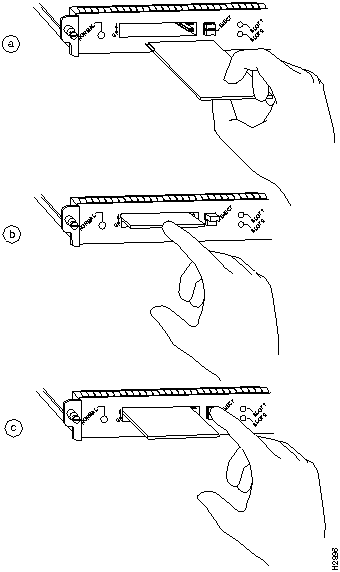
It might become necessary for you to replace or install a Flash memory card in your RSP1. The RSP1 has two PCMCIA slots: slot 0 (bottom) and slot 1 (top). (See Figure 9.) The following procedure is generic and can be used for a Flash memory card in either slot position.
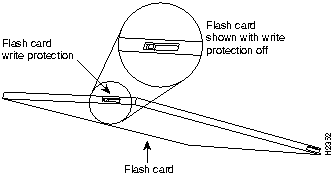
Before you install a card, verify that the Flash memory card is set with write protection off. The write protect switch is located on the front edge of the card when oriented with the printing right side up and the edge connector end away from you. (See Figure 8.)
Figure 8 Locating the Flash Memory Card Write Protection Switch
Following is the procedure for installing and removing a Flash memory card:
Figure 9 Installing and Removing a Flash Memory Card
The Flash memory (PCMCIA) card that shipped with your Cisco 7505 contains the Cisco IOS software image. In some cases, you might need to insert a new Flash memory card and copy images or backup configuration files onto it. Before you can use a new Flash memory card, you must format it. Before you can use a Flash memory card that was previously used on a Route Processor (RP) in a Cisco 7000 series router, you must reformat the Flash memory card. Flash memory cards formatted on RP-based (Cisco 7000 series) routers will not work properly in RSP-based (Cisco 7500 series) routers.

Use the following procedure to format a new Flash memory card:
Router# format slot0:
All sectors will be erased, proceed? [confirm]
Enter volume id (up to 30 characters): MyNewCard
Formatting sector 1
Format device slot0 completed
Router#
The new Flash memory card is now formatted and ready to use.
Use the following series of commands to make the image (the file named new.image) bootable. Note that, since the configuration register must be set to 0x2102, the config-register command is part of the sequence.
Router# config terminal
Router(config)# no boot system
Router(config)# boot system flash slot0:new.image
Router(config)# config-register 0x2102
Crtl-z
Router# copy running-config startup-config
Router# reload
When the system reloads, it will boot the image new.image from the Flash memory card in slot 0.
With the Flash memory card formatted, you can now copy a bootable image into it. To copy an image, use the following procedure, which assumes the following:
Following is the procedure for copying a bootable file (called new.image) into the Flash memory card:
Router> en
Password:
Router# copy tftp:new.image slot0:new.image
20575008 bytes available on device slot0, proceed? [confirm]
Address or name of remote host [1.1.1.1]?
Loading new.image from 1.1.1.1 (via Ethernet1/0): !!!!!!!!!!!!!!!!!!!!!!!!!!!!!!
!!!!!!!!!!!!!!!!!!!!!!!!!!!!!!!!!!!!!!!!!!!!!!!!!!!!!!!!!!!!!!!!!!!!!!!!!!!!!!!!
!!!!!!!!!!!!!!!!!!!!!!!!!!!!!!!!!!!!!!!!!!!!!!!!!!!!!!!!!!!!!!!!!!!!!!!!!!!!!!!!
!!!!!!!!!!!!!!!!!!!!!!!!!!!!!!!!!!!!!!!!!!!!!!!!!!!!!!!!!!!!!!!!!!!!!!!!!!!!!!!!
!!!!!!!!!!!!!!!!!!!!!!!!!!!!!!!!!!!!!!!!!!!!!!!!!!!!!!!!!!!!!!!!!!!!!!!!!!!!!!!!
!!!!!!!!!!!!!!!!!!!!!!!!!!!!!!!!!!!!!!!!!!!!!!!!!!!!!!!!!!!!!!!!!!!!!!!!!!!!!!!!
!!!!!!!!!!!!!!!!!!!!!!!!!!!!!!!!!!!!!!!!!!!!!!!!!!!!!!!!!!!!!!!!!!!!!!!!!!!!!!!!
!!!!!!!!!!!!!!!!!!!!!!!!!!!!!!!!!!!!!!!!!!!!!!!!!!!!!!!!!!!!!!!!!!!!!!!!!!!!!!!!
!!!!!!!!!!!!!!!!!!!!!!!!!!!!!!!!!!!!!!!!!!!!!!!!!!!!!!!!!!!!!!!!!!!!!!!!!!!!!!!!
!!!!!!!!!!!!!!!!!!!!!!!!!!!!!!!!!!!!!!!!!!!!!!!!!!!!!!!!!!!!!!!!!!!!!!!!!!!!!!!!
!!!!!!!!!!!!!!!!!!!!!!!!!!!!!!!!!!!!!!!!!!!!!!!!!!!!!!!!!!!!!!!!!!!!!!!!!!!!!!!!
!!!!!!!!!!!!!!!!!!!!!!!!!!!!!!!!!!!!!!!!!!!!!!!!!!!!!!!!!!!!!!!!!!!!!!!!!!!!!!!!
!!!!!!!!!!!!!!!!!!!!!!!!!!!!!!!!!!!!!!!!!!!!!!!!!!!!!!!!!!!!!!!!!!!!!!!!!!!!!!!!
!!!!!!!!!!!!!!!!!!!!!!!!!!!!!!!!!!!!!!!!!!!!!!!!!!!!!!!!!!!!!!!!!!!!!!!!!!!!!!!!
!!!!!!!!!!!!!!!!!!!!!!!!!!!!!!!!!!!!!!!!!!!!!!!!!!!!!!!!!!!!!!!!!!!!!!!!!!!!!!!!
!!!!!!!!!!!!!!!!!!!!!!!!!!!!!!!!!!!!!!!!!!!!!!!!!!!!!!!!!!!!!!!!!!!!!!!!!!!!!!!!
!!!!!!!!!!!!!!!!!!!!!!!!!!!!!!!!!!!!!!!!!!!!!!!!!!!!!!!!!!!!!!!!!!!!!!!!!!!!!!!!
!!!!!!!!!!!!!!!!!!!!!!!!!!!!!!!!!!!!!!!!!!!!!!!!!!!!!!!!!!!!!!!!!!!!!!!!!!!!!!!!
!!!!!!!!!!!!!!!!!!!!!!!!!!!!!!!!!!!!!!!!!!!!!!!!!!!!!!!!!!!
[OK - 7799951/15599616 bytes]
CCCCCCCCCCCCCCCCCCCCCCCCCCCCCCCCCCCCCCCCCCCCCCCCCCCCCCCCCCCCCCCCCCCCCCCCCCCCCCCC
CCCCCCCCCCCCCCCCCCCCCCCCCCCCCCCCCCCCCCCCCCCCCCCCCCCCCCCCCCCCCCCCCCCCCCCCCCCCCCCC
CCCCCCCCCCCCCCCCCCCCCCCCCCCCCCCCCCCCCCCCCCCCCCCCCCCCCCCCCCCCCCCCCCCCCCCCCC
Router#
Router# config terminal
Router(config)# no boot system
Router(config)# boot system flash slot0:new.image
Crtl-z
Router# copy running-config startup-config
Router# reload
When the system reloads, it will boot the image new.image from the Flash memory card in slot 0.
As future releases of Cisco IOS images become available, you will receive these images either as a netbooted file, a file on floppy disk, or a file on a Flash memory card.
The following scenario describes how to use a newly released image on a Flash memory card in a system that has an older image on a Flash memory card in slot 0 (and a default boot image in the onboard Flash SIMM).
For this scenario, the filenames are as follows:
You will copy the new image from the new Flash memory card onto the Flash memory card that contains the old image.
Router> en
Password:
Router#
Router# copy slot1:image.new slot0:image.new
Router# config t
Router(config)# no boot system
Router(config)# boot system flash slot0:image.new
Crtl-z
Router# copy running-config startup-config
Router# reload
When the system reloads, it will boot the file image.new from the Flash memory card in slot 0.
A locked block of Flash memory occurs when power is lost or a Flash memory card is unplugged during a write or erase operation. When a block of Flash memory is locked, it cannot be written to or erased, and the operation will consistently fail at a particular block location. The only way to recover from locked blocks is by reformatting the Flash memory card with the format command.

Cisco Connection Online (CCO), formerly Cisco Connection Online (CCO), is Cisco Systems' primary, real-time support channel. Maintenance customers and partners can self-register on CCO to obtain additional content and services.
Available 24 hours a day, 7 days a week, CCO provides a wealth of standard and value-added services to Cisco's customers and business partners. CCO services include product information, software updates, release notes, technical tips, the Bug Navigator, configuration notes, brochures, descriptions of service offerings, and download access to public and authorized files.
CCO serves a wide variety of users through two interfaces that are updated and enhanced simultaneously---a character-based version and a multimedia version that resides on the World Wide Web (WWW). The character-based CCO supports Zmodem, Kermit, Xmodem, FTP, Internet e-mail, and fax download options, and is excellent for quick access to information over lower bandwidths. The WWW version of CCO provides richly formatted documents with photographs, figures, graphics, and video, as well as hyperlinks to related information.
You can access CCO in the following ways:
http://www.cisco.com.
cco.cisco.com.
For a copy of CCO's Frequently Asked Questions (FAQ), contact
ccohelp@cisco.com.
For additional information, contact
ccoteam@cisco.com.
tac@cisco.com.
To obtain general information about Cisco Systems, Cisco products, or upgrades, contact 800 553-6387, 408 526-7208, or
csrep@cisco.com.

|
Copyright 1988-1996 © Cisco Systems Inc.