


|
|

Catalyst 2820 and Catalyst 1900
Installation and Configuration Notes
October 29, 1996
This document describes the caveats and product enhancements you should consider when installing and configuring the Catalyst 2820 or Catalyst 1900. The complete product documentation for these products is as follows:
Changing the Switch Configuration with the Management Console
When you change switch configuration parameters with the management console, the changes take effect immediately. However, changed parameters might not be written to permanent storage for up to 30 seconds. If you turn off the switch before the new parameters are written to permanent storage, the change does not take effect.
Utilization LEDs show the current and peak bandwidth utilization of the switch. The peak utilization is recorded in the bandwidth-capture interval. The default setting for this interval is 24 hours; it is recorded each night at midnight.
Invoke the utilization mode by pressing the Mode button and releasing it when UTL is highlighted. Current bandwidth is shown with a series of lit LEDs topped by a rapidly blinking one. Peak bandwidth is indicated by the right-most solidly lit LED.
Change the bandwidth-capture interval with the Bandwidth Usage Report described in the "Out of Band Management" chapter of the Catalyst 2820 and Catalyst 1900 User Guide. Table 1 shows the bandwidth utilization scale.
Note that LED 1 is indicates any traffic from 0 to 0.2 Mbps.
Table 1 : Bandwidth Utilization Scale
| Port LEDs | Mbps |
|---|---|
| 1 to 8 | 0.1 to 5 |
| 9 to 16 | 6 to 100 |
| 12 to 24 | 120 to 280 |
While the switch firmware is being upgraded, the switch might not respond to commands for as long as one minute. This is normal and correct. If you turn the switch off and on, you interrupt the transfer and the firmware could be corrupted. If this happens, restart your switch following the procedure described in "Using the Diagnostic Console" in the chapter "Troubleshooting" of the Catalyst 2820 and Catalyst 1900 User Guide. The complete procedure for upgrading firmware is in the "Out-of-Band Management" chapter.
The first time you assign an IP address, the IP address takes effect immediately. When you change the IP address, however, the switch has to be reset for the IP address to take effect. To reset the switch, select R (Reset) from the System Menu described in the "Out-of-Band Management" chapter of the Catalyst 2820 and Catalyst 1900 User Guide.
The serial connector is a male 9-pin D-Sub connector, as shown in Figure 1.
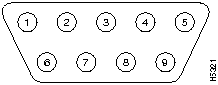
The pinouts are shown in Table 2.
Table 2 : Serial Connector Pinout
| 1 | DCD |
|---|---|
| 2 | RD |
| 3 | TD |
| 4 | DTR |
| 5 | GND |
| 6 | DSR |
| 7 | RTS |
| 8 | CTS |
| 9 | RI |
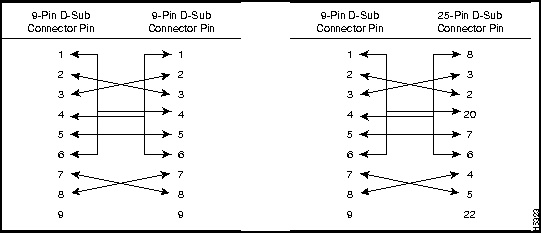
The shell is connected to the chassis ground. Use a standard modem cable to connect to a modem.Use a null-modem cable to connect to a terminal.
Either piece of equipment can come with either 9- or 25-pin connectors, as shown in Figure 2 and Figure 3.
Figure 2 : Modem Cable Schematic with 9- and 25-Pin Devices
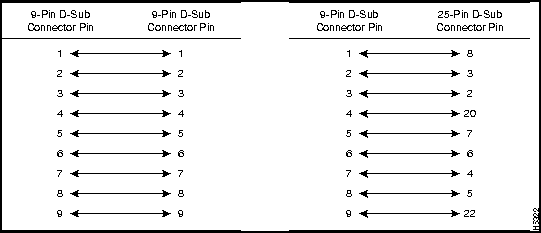
Figure 3 : Null-Modem Cable Schematic with 9- and 25-Pin Devices
Using the Rack-Mounted Cable Guide
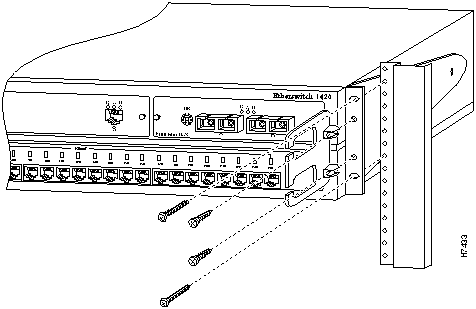
One cable guide is included with the switch. Attach this cable guide after you rack-mount the switch. Figure 4 shows the location of the cable-guide screws.
Figure 4 : Installing the Cable Guides
Cisco Information Online (CIO) is Cisco Systems' primary, real-time support channel. Maintenance customers and partners can self-register on CIO to obtain additional content and services.
Available 24 hours a day, 7 days a week, CIO provides a wealth of standard and value-added services to Cisco's customers and business partners. CIO services include product information, software updates, release notes, technical tips, the Bug Navigator, configuration notes, brochures, descriptions of service offerings, and download access to public and authorized files.
CIO serves a wide variety of users through two interfaces that are updated and enhanced simultaneously---a character-based version and a multimedia version that resides on the World Wide Web (WWW). The character-based CIO (called "CIO Classic") supports Zmodem, Kermit, Xmodem, FTP, Internet e-mail, and fax download options, and is excellent for quick access to information over lower bandwidths. The WWW version of CIO provides richly formatted documents with photographs, figures, graphics, and video, as well as hyperlinks to related information.
You can access CIO in the following ways:
http://www.cisco.com.
cio.cisco.com.
For a copy of CIO's Frequently Asked Questions (FAQ), contact
ciohelp@cisco.com.
For additional information, contact
cioteam@cisco.com.
tac@cisco.com.
To obtain general information about Cisco Systems, Cisco products, or upgrades, contact 800 553-6387, 408 526-7208, or
csrep@cisco.com.


|
Copyright 1988-1996 © Cisco Systems Inc.