


|
|

Connecting a Network Management Console
Console interfacing can be established by connecting to the CONSOLE serial port on the "Supervisor Engine" module in the front the Catalyst 3200. Use this connection to set up In-band management, which is the management of the Catalyst 3200 "through" the network, or Out-of-band management, which is management "outside" of the network:
NMS application (in-band management) is discussed in Chapter 9, "Monitoring Port Activity with Application Software." For more detailed information, see the guide that accompanies the application software.
The following topics in this chapter describe how to use the console for configuring and monitoring the Catalyst 3200:
The following steps explain connecting a console to the Catalyst 3200:
See Figure 6-1 for a view of the cable connection to the "Supervisor Engine" module in the front of the Catalyst 3200. The console cable connector is marked CONSOLE.
Figure 6-1 : Catalyst 3200 Supervisor Engine Module
The next step is for configuring the console settings for communication with the Catalyst 3200.
Table 6-1 : Console Configuration Default Settings
Encountering Communication Problem
The three main types of communications problems you may encounter are, no communication, garbled communication, or dropped characters. This section explains how to resolve these problems.
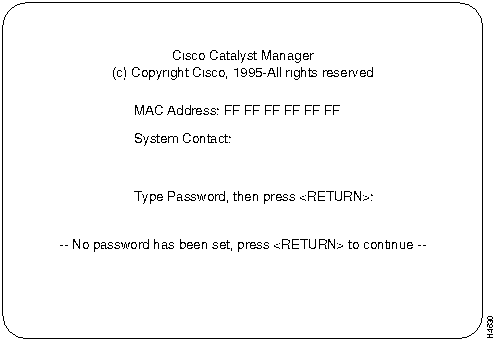
The diagnostic self-test displays two different screens (lists of information), depending on whether you perform a cold boot (power on cycle with full diagnostics), or a warm boot (a reset without full diagnostics).
During a cold boot, the following comprehensive list of messages appear on the console screen in sequence, as the tests are performed. The warm boot contains portions of this list.
Verify that all diagnostics have passed and that the FAULT LED is off. If the FAULT LED is on, read the screen to determine which test has failed. Power cycle the Catalyst 3200 to re-run the diagnostics to see if that will clear the error. If the error does not clear, see Chapter 10, "Troubleshooting," to help find the cause.
To work within the console menus, follow these guidelines:
Use the ARROW keys (also referred to as cursor keys) to move the highlight over a selection. If the selection is a menu, pressing the RETURN key displays a new screen of information; if the selection is a command, such as Reset, pressing the RETURN key initiates that function.
A heading with three dots after it means that when that heading is selected more information about that heading is displayed.
Unless specified differently, all the screens or menus are accessed in the same way.
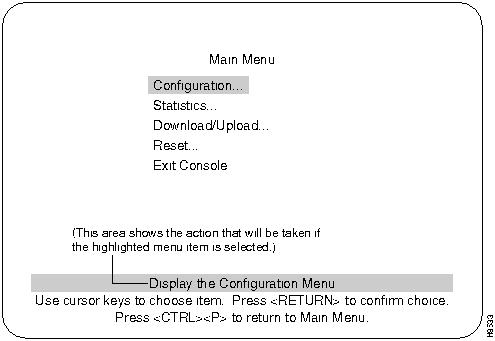
The following lists the headings for the Main menu screen and a description of those headings.
Displays the Configuration menu, which enables you to view and set the Catalyst 3200 configuration parameters. The Configuration section and its sub-menus are described in Chapter 7, "Console Configuration."
Displays Statistics menu for the Catalyst 3200. Explanations of screens in the Statistics Menu are in Chapter 8, "Monitoring the Network With Out-of-Band Management."
Explained in this chapter immediately after the sections describing the Configuration menu.
Explained in this chapter after the sections describing the Download menu.
Highlighting this selection and pressing the RETURN key return the console to the Greeting screen (on a Telnet session, this causes the session to close).
Information within the menus and sub-menus are described in subsequent chapters. These chapters include configuring, monitoring, and viewing statistics on the Catalyst 3200 or the Catalyst Stack.
Password Menu from the Configuration Menu
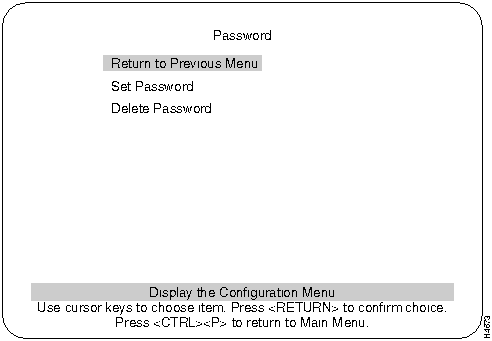
Use the Password menu to add, change, or delete a password. If you establish a password, users must enter it to access the Console menus. If there is no password, just press RETURN at the password prompt.
Establishes or changes the password.
Deletes the password.
The system prompts you to enter the present password before it allows you to change or delete the password. If you are establishing a new password, press RETURN at the Set Password prompt.
The password is saved across warm boots and power cycles.
This section describes how to establish a console or Telnet session.
This menu has the selections for configuring console and Telnet sessions.
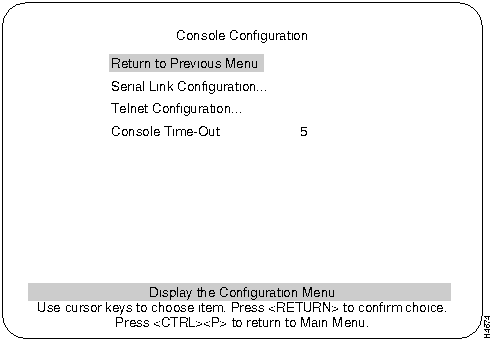
There are three selections in the Console Configuration menu:
An example of that screen and an explanation of its contents follows.
An example of that screen and an explanation of its contents follows.
A value that can be set to determine when the console session will timeout and return to the Greeting menu. If the value is set to zero, the console will never time out.
Serial Link Configuration Menu
Use the Serial Link Configuration Menu to configure the Catalyst 3200 to communicate with the console via modem. The default baud is 9600.
Enables or disables RTS/CTS handshaking.
Default: Disabled
Enables the XON and XOFF characters, which are 11 and 13 hex, respectively.
Default: Disabled
Enables the Autobaud feature. When a BREAK key is sent or received the baud rate is reset when you press the RETURN key rapidly for five seconds. It is recommended that this feature is not disabled.
Default: Enabled
Default: 9600
Creating a Console Session Using a Modem
Use the Serial Link Configuration Menu to configure the Catalyst 3200 in order to communicate with a console via a modem.
Use the following steps to set up a modem:
Start the console by pressing RETURN. If a Telnet session is active, press RETURN at the console to terminate the Telnet session and press RETURN again to start the console session.
Pressing Ctrl-P returns the console session to the Main Menu and pressing Ctrl-B returns to the Greeting Menu.
A Telnet session can be terminated abnormally in a UNIX environment, especially by being killed by another process. If the user environment seems to have locked after termination of the Telnet session, try typing <CTRL><J>stty sane<CTRL><J>. Because the Telnet Server is doing the echoing for the user, the user's terminal capabilities are modified for the duration of the Telnet Session due to the Telnet option negotiation. If the user's Telnet process or task is abruptly terminated, the user's terminal may be left in a no-echo, raw mode.
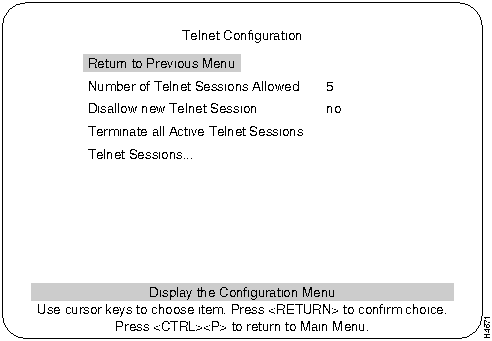
The following menu and functions describe Telnet configurations.
Returns to Console Configuration menu.
Number of Telnet Sessions Allowed
Limits the number of Telnet sessions. Numbers allowed are from 1 to 5. Highlight this selection and press RETURN and enter the number.
Choice of Yes or No to allow or disallow a new Telnet session. Press RETURN at this selection and use arrow keys to highlight Yes or No and press RETURN.
Terminate All Active Telnet Sessions
If this selection is highlighted and RETURN is pressed any Telnet sessions will be terminated.
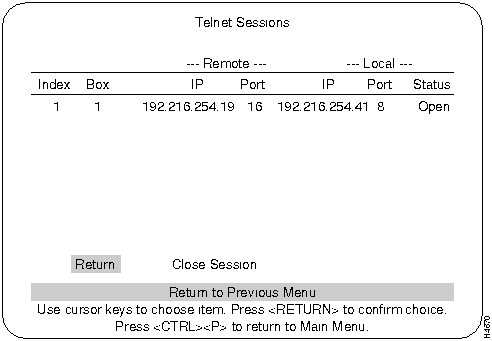
Shows status of Remote and Local Telnet sessions.
Telnet Session screen:
Numerical order of entries.
The number ID of the Catalyst 3200 in a Stack.
Lists the IP address and the port number of the Remote Telnet session.
Lists the IP address and the port number of the Local Telnet session.
The observe the following when starting a Telnet session to the Catalyst 3200.
The Telnet session can be terminated by pressing Ctrl-B or any other means available through the user's Telnet application.
Involuntary Termination of the Telnet Session
The following can terminate a Telnet session:
Download Menu From the Main Menu
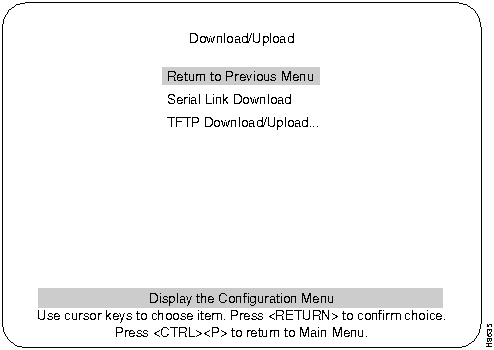
The Download menu is accessed from the Main Menu.
Downloading is used to load the Flash Memory within the Catalyst 3200. The Download menu displays two download choices. The two choices are TFTP (Trivial File Transfer Protocol) download and the Serial Link download (console).
Serial Link download is for downloading via the console. Selecting the Serial Link download displays a prompt requesting to "confirm new code download via serial port (Y or N)." Selecting Yes starts the Serial Link downloading. Follow the prompts as they are displayed.
The next section describes TFTP, and the TFTP downloading.
TFTP is not invoked automatically on the Catalyst 3200 as it is on certain other network devices such as a diskless workstation. This is because there should normally be a functional software image in Flash memory and, therefore, TFTP is not a standard part of the Catalyst 3200 bootup procedure. TFTP is intended for use during software upgrades and, once a new image is installed, there should be no need for TFTP until the next software upgrade is installed.
In view of this, the TFTP function in the Catalyst 3200 is designed as an explicitly requested operation with operator-settable parameters. Note that changes to these parameters may be altered and are used when starting a download in the display. However they are not recorded until the display is exited normally.
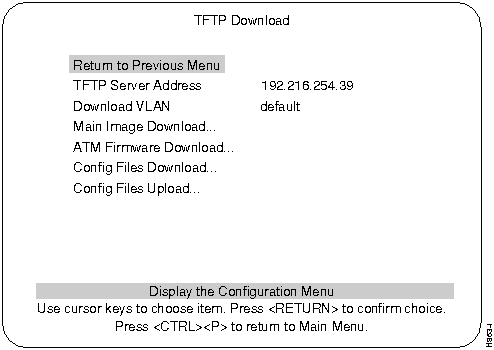
The TFTP Download menu is accessed through the Main Menu. From the Main Menu select the Download Menu and then select the TFTP Download Menu.
The address of the host serving as the TFTP server.
The VLAN name through which the download is attempted.
NVRAM TFTP Upload and Download
TFTP Upload/Download allows you to copy the whole image of NVRAM to a file on a UNIX server and to retrieve the NVRAM image from the server to the switch. The purpose for this is to store a current copy of the NVRAM as a backup or to be able to store the contents of NVRAM in a temporary place while changes are made on the switch. You will need to go to three menus, as describe in the following sections, before you can begin the actual upload and download procedures.
Do not download NVRAM images from different software versions (for instance,
Before uploading the whole NVRAM image to a UNIX server, make sure the upload file names have been created on the UNIX server and that the following default values are entered correctly in the Config Files TFTP Upload menu:
Use the following single switch or Stack console menu examples to TFTP upload the file.
Figure 6-2 : Config Files TFTP Upload Menu in a Single Switch Configuration
Figure 6-3 : Config Files TFTP Upload Menu for a Stack Configuration
In a Stack configuration, there are options to upload the NVRAM image from an individual switch as well as from all the switches in the Stack. The heading Execute Config File Switch Network Upload in the Config Files TFTP Upload menu uploads individual boxes and the heading Execute Config File Stack Network Upload uploads for the entire Stack.
You do not need the filename suffix (.xx box number) to download the software to the switch. This is automatically done from the switch from which you want to download the software.
The switch or Stack should be reset after a successful download of the NVRAM image.
As with uploading you should enter the following information into the Config Files TFTP Download menu (see Figure 6-4):
Use the following menu to TFTP download the NVRAM file for a single switch.
Figure 6-4 : Config files TFTP Download Menu for a Single Switch
You can either upgrade the NVRAM on one switch of your choice or upgrade the software for the entire Stack.
In a Stack configuration, there are options to download the NVRAM image from an individual switch as well as from all of the switches in a Stack. The heading Execute Config File Switch Network Download in the Config Files TFTP Download menu downloads individual boxes and the heading Execute Config File Stack Network Download downloads the entire Stack.
If you choose Execute Config File Stack Network Download to download a Stack of boxes, the files with the suffix names (.xx) that correspond to the same box number will download the image in that file to that box number. For example, mystack.0 will download its image to box 0, mystack.4 will download to box 4 and mystack.7 would download to box7.
Use the following menu (Figure 6-5) to TFTP download the NVRAM file for a Stack.
Figure 6-5 : Config files TFTP Download Menu for a Stack
The Reset menu is accessed from the Main Menu.
The Reset screen, as shown below, displays the reset options available with the
Number of Resets Since Diagnostics
Number of times the switch has been reset since the switch was powered on or ran power-on diagnostics. This is an informational heading. The data cannot be changed.
This number is not reset to 0 when Non-volatile RAM is cleared.
The following four headings within the Reset menu are command functions that can be selected and initiated by moving the highlight over the heading and pressing RETURN.
A reset function is initiated with this selection. It resets the switch hardware; runs diagnostic tests; clears all counters, including address tables; and restarts the Catalyst 3200. When the Catalyst 3200 reboots, administrative parameters from nonvolatile memory are used to initialize the operational parameters. This takes approximately 4 to 5 minutes.
Reset Switch Without Diagnostics
This command resets the switch hardware; clears all counters, including address tables; and starts the Catalyst 3200. When the Catalyst 3200 reboots, administrative parameters from nonvolatile memory are used to initialize the operational parameters. This takes approximately 40 seconds.
Selecting this command clears all address table entries for a specified port (user is queried for which port to reset), sets port traffic counters to zero, and sets Time Since Last Reset for this port to zero.
Deletes all user-configured parameters; baud rate, IP address information, EtherChannel, VLAN, Spanning Tree, and then resets the switch.
If you must clear NVRAM, use the following guidelines:
This is a selectable option that determines whether diagnostics are, or are not, initiated during power-on. To change the selection, highlight the heading and press RETURN, then select Enabled or Disabled, and press RETURN.
Copyright 1988-1996 © Cisco Systems Inc.

Mode
Setting
Baud rate
2400, 4800, 9600, 19.2K, 38.4K, 57.6K (default: 9600)
Parity
None
Data bits
8
Stop bits
1
Mode
Setting
Handshaking
None
Terminal emulation
VT100
Duplex
Full
Soft flow control (XON/XOFF)
Off (input and output)
Hard flow control (RTS/CTS)
Off
Autobaud upon break
On
Line wrap
On
Screen scroll
On
CR translation
CR
Backspace (BS) translation
Destructive
Break length (milliseconds)
350
Enquiry (ENQ)
Off
EGA/VGA true underline
Off
Terminal width
890
ANSI 7 or 8 bit commands
7
Microsoft Windows`, terminal emulation
Disable the "Use Function, Arrow, and Ctrl Keys for Windows" option, located in the Terminal Preference menu

8 Data Bits
0 Parity
1 Stop Bit

Cisco Catalyst Boot Firmware P/N 57-1327-02, Copyright 1995
- Initiating bootstrapping sequence.
- Boot image integrity check...Passed.
- Control transferred to boot process.

- Relocating main image to DRAM.......Done.
- Main image integrity check...succeeded.
- Control transferred to main process.

Cisco Catalyst 3200 System Software Version 1.1.1-B7, Copyright 1994,
1995.
System started on Fri. November 17, 1995  13:02:46
4 Megabytes System memory
2 Megabytes Network memory
- Initialization started
- File system initialized
- System temperature is within safe operating levels
- Warmboot initialization started
- Checking file system integrity
- LAN ports detected:
  - 10Base-T  : 1 2 3 4 5 6 7 8 9 10 11 12 13 14 15 16
  - StkPort   : 25
- Initializing Ports: 1 2 3 4 5 6 7 8 9 10 11 12 13 14 15 16 25
- Initializing system address table
- No existing diagnostic information, forcing diagnostic mode
- Starting Power Up Diagnostics test
  - UART loopback test on diagnostic port...Passed
  - UART loopback test on console port...Passed
  - RTC memory test...Passed
  - Real Time Clock test...Passed
  - CPU loopback test..............Passed
  - Ethernet Port loopback test...................Passed
  - Ethernet Port fast transmit loopback test...................Passed
  - Ethernet Port fast receive loopback test...................Passed
  - Ethernet Port cross port loopback test...................Passed
  - Ethernet Port broadcast test...................Passed

  - Catalyst Stack Port loopback test...Passed
  - Catalyst Stack Port cross port loopback test...Passed
  - Catalyst Stack Port broadcast test...Passed
  - CPU broadcast test...Passed
- Completed Power Up Diagnostics test
- System entering stand-alone mode
- Catalyst  initiating bootp requests on one or more VLANs
- System initialization complete
- Enabling port: 1 2 3 4 5 6 7 8 9 10 11 12 13 14 15 16 25

Press RETURN key to activate console...

NVRAM from version 1.3 is not compatible with version 2.0) and from different platform configurations (for instance, NVRAM from a Catalyst 3200 is not compatible with NVRAM from a Catalyst 3000).

Catalyst 3200.

