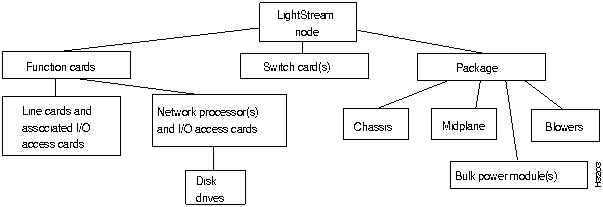
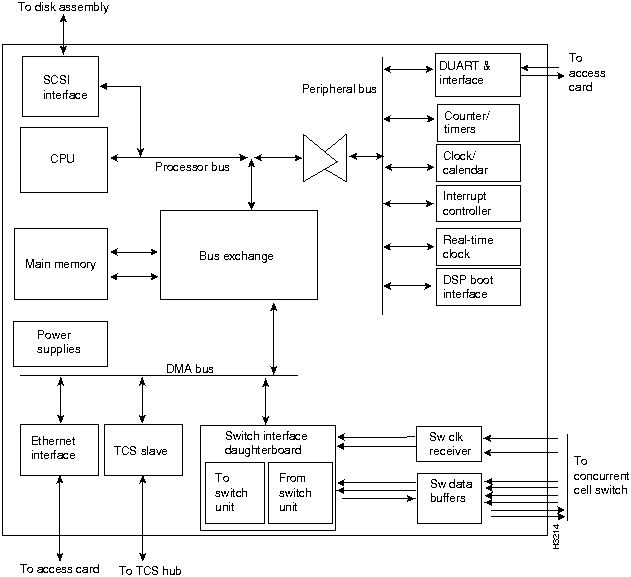
The hard disk stores the node's system and application software, hardware diagnostics, and local configuration files.
The lower disk assembly is connected to the NP in slot 1; the upper disk assembly, if present, is connected to the NP in slot 2.
For communicating with other systems, the LightStream 2020 uses four types of line cards:
Each line card is an FRU.
Line cards allow LightStream systems to connect to various other networks and systems, including local area networks (LANs), wide area networks (WANs), metropolitan area networks (MANs), directly connected hosts, and other LightStream systems.
In Release 2.0, packet line cards support only edge interfaces. Otherwise, you can configure any line card to be either a trunk or an edge card.
A line card reformats each incoming unit of data as needed, makes the necessary low level routing and congestion avoidance decisions, and forwards the data toward its destination. For each outgoing unit of data, a line card checks for errors, queues the data for transmission through the appropriate interface port, supplies the buffering needed to match the rate between the concurrent cell switch and the interface port, and handles congestion events. Edge cards that handle packets or continuous data streams must also segment incoming data into cells and reassemble outgoing cells into the format required by the external interface.
Since line cards must be capable of handling high data rates and the processing requirements are relatively simple, all routine packet and cell forwarding operations are handled by hardware and firmware. Each line card also includes a line card control processor that handles the more complex tasks that must be executed in a few tens of milliseconds or less. The line card control processor acts as an agent for the NP when an NP needs to query or change the state of a line card. To gather statistics from a line card, for example, an NP sends a message to the line card control processor, and the line card control processor reads the appropriate hardware registers and returns a result to the NP.
Low-speed and packet edge cards accept packets from up to eight lines, chop them into cells, and inject the resulting stream of cells into the switch. In addition, they receive cells from the switch, repackage the data as packets, and send them out of the network. Edge LSCs and edge PLCs also enforce LightStream's backward congestion control scheme by discarding traffic on channels that send faster than their committed and excess rates allow. The cards smooth all datagram traffic that is injected into the switch. Isochronous traffic is injected into the switch on a fixed schedule, to avoid statistical effects that result in unpredictable delays.
Medium-speed edge cards accept ATM cells from up to two T3 or E3 lines, update the cell headers, and forward them to the switch. They send cells received from the switch out of the network. MS cards do not enforce traffic shaping.
Cell edge cards accept ATM cells from up to two OC-3c lines, update the cell headers, and forward them to the switch. They send cells received from the switch out of the network.
Trunk cards of all types accept LightStream cells from one to 15 trunk lines and replace their headers with new values for the next hop. The cells are then injected into the switch. Trunk cards also receive cells from the switch and send them on to the lines with no ATM header field replacement.
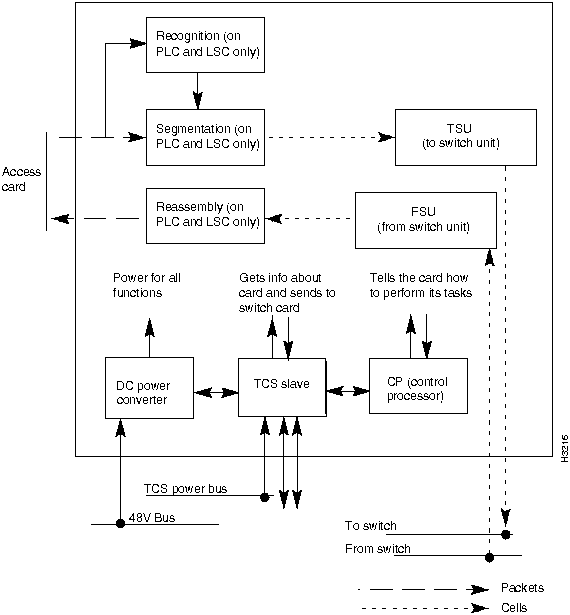
A LightStream line card has two major logical portions: a line- specific portion and a generic portion. See Figure 2-13.
The line-specific portion attaches to the external media or system and performs the functions required by that system.
The generic portions of line-card logic perform functions that occur regardless of the line type. These are the functions that pertain to transferring packets through the LightStream network. These functions are summarized below.
Note Because MSCs and CLCs deal only with ATM cells, they do not contain the Segmentation and Reassembly blocks. MSCs also lack Recognition blocks, while CLCs have simple Recognition logic for parsing cell headers.
Each line card also has a TCS slave, which provides initialization and bootstrap for the line card. It performs local monitoring and power control functions required to support the mission critical features of the LightStream node. The TCS slave communicates with the TCS hub through the midplane.
Physical Description
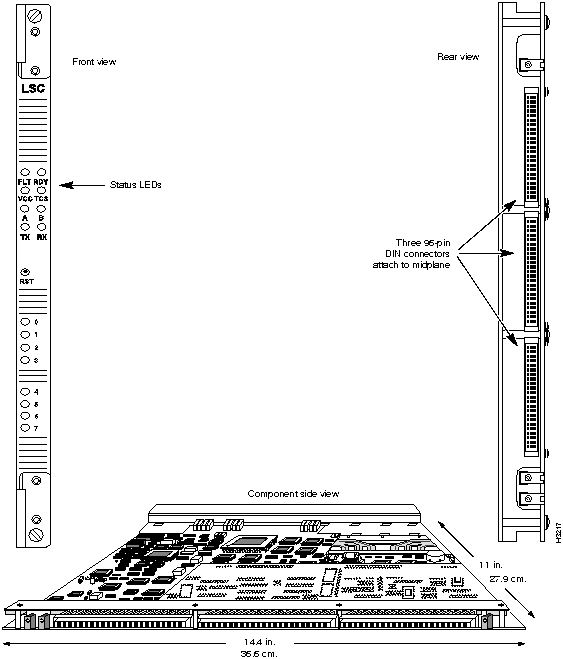
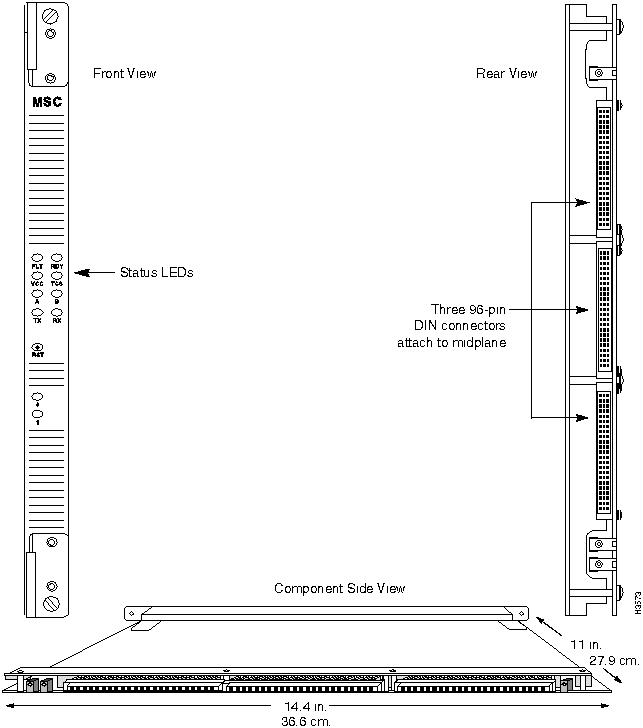
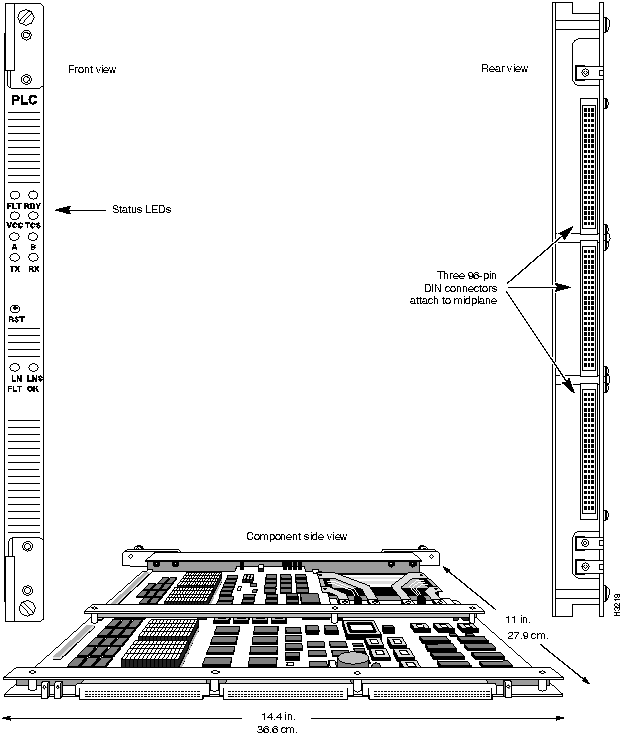
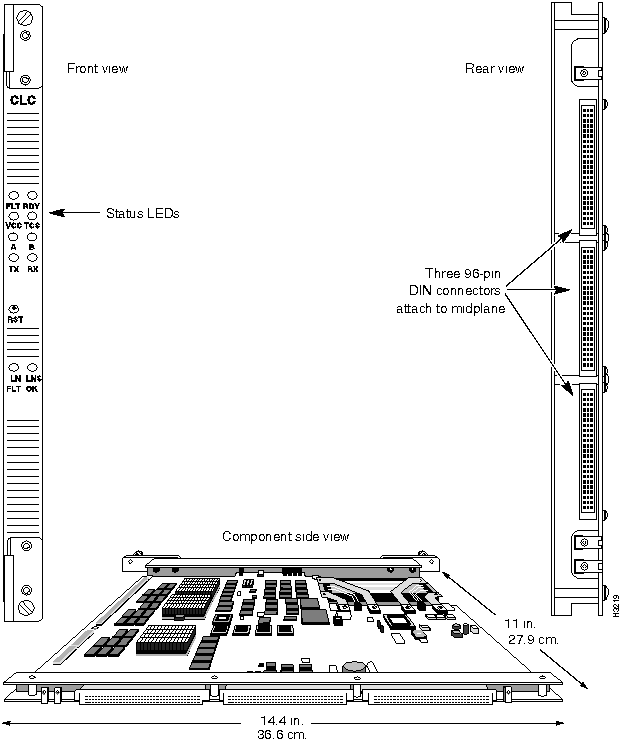
All line cards measure 14.4 in. (36.6 cm.) high by 11 in. (27.9 cm.) deep. (See Figure 2-14 and Figure 2-15.)
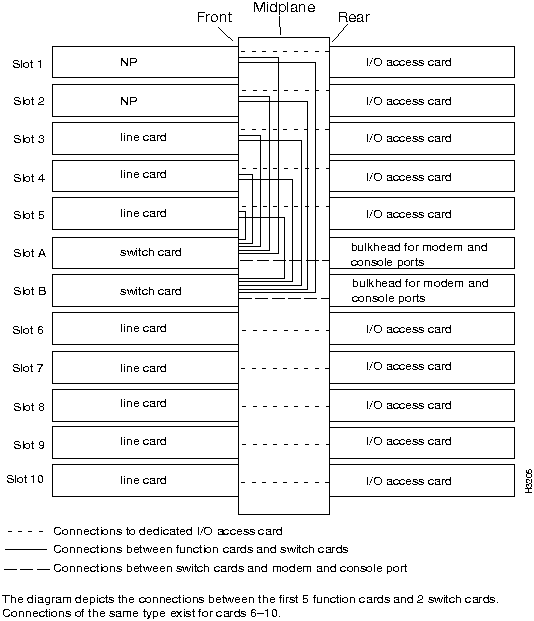
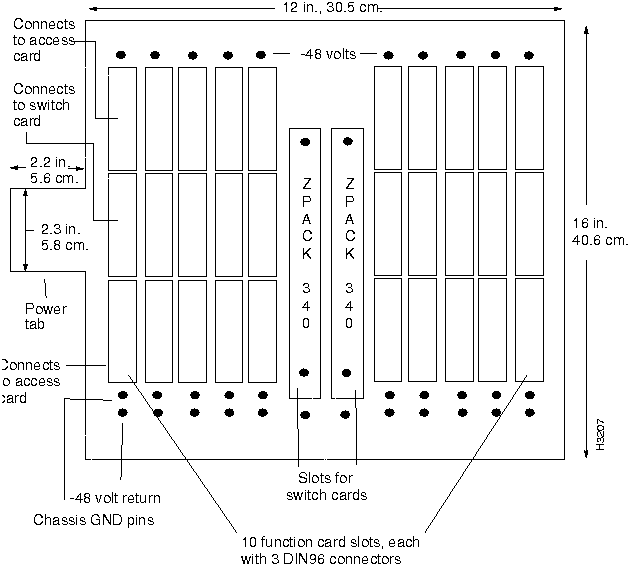
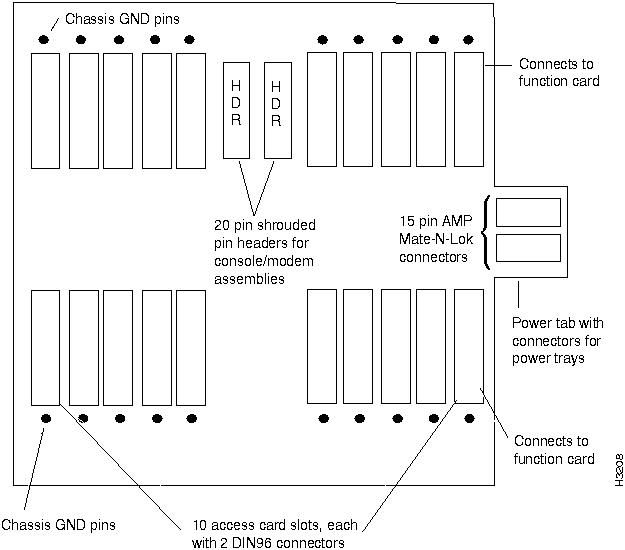
Signals are carried from the line cards to both the switch card and the access cards for the NP by three 96-pin DIN connectors on the midplane, the line card, and the access card. The center connector connects the line card to the switch card and the upper and lower connectors connect the line card to the access card.
Refer to Table 2-6 and Table 2-7 for descriptions of the LEDs on the line cards.
There is a recessed reset push-button on each line card's front bulkhead. Pressing it causes the TCS to reset the line card.
Low-Speed Line Card
This section describes low-speed line cards. See Figure 2-14 for an illustration.
LS Edge Card
A low-speed line card configured as an edge card provides eight full-duplex serial lines. The card supports frame forwarding and frame relay interfaces, and a single card can have any mix of frame relay and frame forwarding ports. Physical line interfaces include V.35, X.21 and RS-449. Each port on a low-speed card can operate at speeds up to 3.584 Mbps, although the ports are limited to a maximum aggregate speed of 6 Mbps per line card (regardless of where clock is sourced).
The LS edge card is capable of providing clock in DCE mode. The card can source clock at the following speeds: 56K, 64K, 128K, 192K, 256K, 384K, 448K, 512K, 768K, 896K, 1.344M, 1.536M, 1.792M, 2.688M, 3.584M, 4.000M, and 5.376M.
Each LS edge card requires a low-speed access card. Separate fantails provide V.35, RS-449, or X.21 interfaces.
Figure 2-14 : Low-speed line card.
External DSU/CSU for the LS Line Card
Access to T1 (DS1) or E1 lines is accomplished through the use of external data service units and channel service units (DSU/CSUs) connected to LightStream fantails over V.35, RS-449 or X.21 serial interfaces. DSU/CSUs are used primarily for long-distance connections with leased lines. A DSU/CSU is not generally necessary for connection to a device in the same building. It is the responsibility of the customer to provide DSU/CSUs; they are not available from LightStream Corp.
Support of fractional T1/E1 services is provided by allowing line speed settings in selected increments of 56 Kbps and 64 Kbps up to a maximum of T1 and E1 rates supported by the external DSU/CSU.
Each line on the LS line card includes a separate interface to control the external DSU/CSU. The interface allows setting loopbacks and carrier channel access configuration in the case of fractional T1. In addition, the interface is used to query traffic and error statistics as well as alarm conditions for local and remote carrier equipment. The control interface is supported by 9-pin male connectors for each port on the V.35 and RS-449 fantails. (X.21 lines do not require DSU/CSU control ports.)
LS Trunk Card
The LSC configured as a trunk card uses the same hardware as the LS edge card, but different software. The number of ports, physical interfaces, line speeds, external DSU/CSU control ports, and access cards are identical to those for the LS edge card. Instead of handling frame relay and frame forwarding traffic, the LS trunk card carries ATM cells embedded in HDLC frames.
Medium-Speed Line Card
This section describes medium-speed line cards. See Figure 2-15 for an illustration.
Figure 2-15 : Medium-speed line card.
MS Trunk Card
The MSC configured as a trunk card provides two full duplex lines, each of which can operate at DS3/T3 (45 Mbps) or E3 (34 Mbps) speeds in each direction. ATM cells are carried over these lines.
A single access card for each MS trunk card supports two ports. (No fantails are needed for MS trunk ports.) Three MS access cards are available; one supports DS3/T3 lines and the other two support E3 lines.
MS Edge Card
The MSC configured as an edge card uses the same hardware as the MS trunk card, described above, but uses different software. The number of ports, physical interfaces, VCCs, line speeds, and access cards are identical to those for the MS trunk card. Instead of handling ATM cell traffic between LightStream nodes, the MS edge card handles ATM UNI traffic between the LightStream network and other ATM devices.
Packet Line Card
The packet line card (PLC) supports up to 8 full duplex ports with over 100 Mbps of continuous aggregate packet bandwidth. (For future expansion, the card is designed to support up to 15 ports.)
The PLC supports the following access cards:
- Ethernet access card (EAC)---up to 8 ports
- FDDI access card (FAC)---up to 2 ports
In Release 2.0, the PLC supports only edge interfaces.
The PLC's control processor is a 25 MHz Motorola 68EC030 microprocessor. Associated with the control processor are 4 Mbytes of DRAM and 1 Mbyte of Flash EPROM that stores bootstrap and POST code.
The PLC supports internetworking functions on the LightStream switch. An important mechanism in this area is the PLC's ability to set up virtual circuits (VCs) on the fly when it encounters streams of traffic not associated with previously known VCs. The PLC's from-line unit (FLU) attempts to recognize incoming traffic as belonging to an established VC. When no match is detected, it buffers the incoming packets of unrecognized traffic and sends the NP the information it needs to set up the VC. Once the setup is complete, the FLU will recognize any subsequent packets for this flow and packet processing proceeds as usual.
The packet line card is shown in Figure 2-16.
Figure 2-16 : Packet line card.
Cell Line Card
The cell line card (CLC) supports up to 2 full duplex ports with over 357K cells per second aggregate bandwidth and can handle bursts up to 893K cells per second. (For future expansion, the card is designed to support up to 15 ports.)
The CLC supports the OC-3c access cards. It supports both trunk and edge interfaces; it can support either one trunk port or two edge ports.
The CLC's control processor is a 25 MHz Motorola 68EC030 microprocessor. Associated with the control processor are 4 Mbytes of DRAM and 1 Mbyte of Flash EPROM that stores bootstrap and POST code.
The cell line card is shown in Figure 2-17.
Figure 2-17 : Cell line card.
Access Cards
A LightStream chassis contains one access card per function card. The access cards, which are FRUs, provide the physical interface to which other devices can be connected. Access cards are accessible from the rear of the chassis. Each access card connects to its function card through the midplane.
If you remove or power down an access card, service is disrupted on the associated function card.
Table 2-1 lists the access cards and shows which function card is required for each one.
Table 2-1 : Access Cards and Corresponding Function Cards
| LSAC (V.35/RS-449/X.21)
|
LSC
|
| MSAC T3
|
MSC
|
| MSAC E3 G.804
|
MSC
|
| MSAC E3 PLCP
|
MSC
|
| Ethernet
|
PLC
|
| FDDI
|
PLC
|
| OC-3c (single mode & multimode versions)
|
CLC
|
| NPAC
|
NP
|
(In addition, console/modem cable assemblies provide connectors for each switch card.)
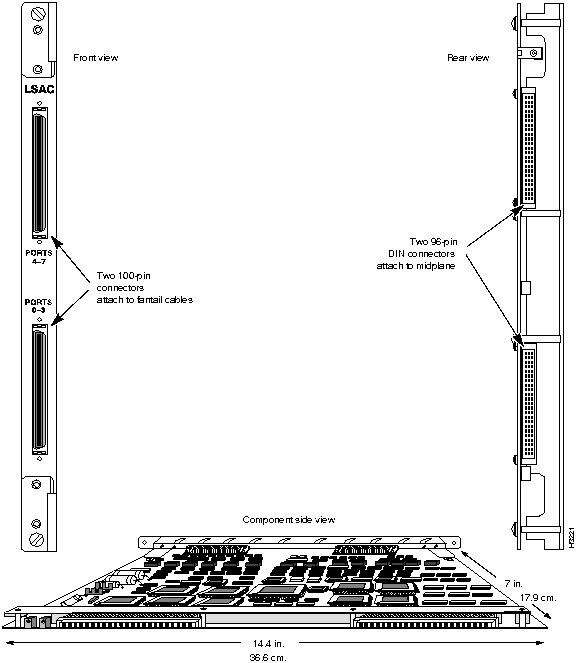
Each access card measures 14.4 in. (36.6 cm.) high by 7 in. (17.9 cm.) deep.
Low-Speed Access Card
The V.35/RS-449/X.21 low-speed access card (LSAC) operates in conjunction with the low-speed line card. It can support up to eight I/O ports. To accommodate those ports, the card has two 100-pin connectors. These connectors can be attached to interface-specific fantails (V.35, RS-449, or X.21) that hold the connectors for the I/O ports. (See "Fantails" section for more information on fantails.)
In conjunction with external DSU/CSUs, low-speed access card ports can be connected to DS1 (T1) or E1 lines.
The low-speed access card has a group of user-settable jumpers that allow you to select the card's interface type (V.35 or RS-449/X.21). For instructions on setting the interface jumpers, see "Setting Interface Jumpers on the LS Access Card" section.
Figure 2-18 shows front, rear and component side views of the low-speed access card.
Figure 2-18 : LS access card.
T3 Access Card
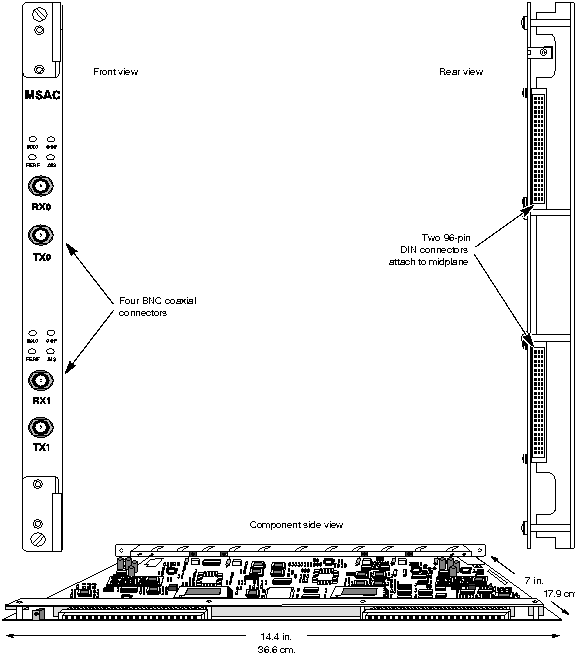
T3 medium-speed access cards (which are labeled MSAC) operate in conjunction with medium-speed line cards. T3 access cards support up to two ports each. Each T3 access card has four 75-ohm BNC coaxial jacks that provide DS3-compliant connections. Each port consists of two connectors: one for the receive channel and one for the transmit channel.
The LEDs on the T3 access card are described on Table 2-10.
Each access card contains internal DSU/CSUs that can connect directly to a leased T3 line. T3 access card ports can also connect LightStream nodes directly at distances up to 900 feet (274 meters).
Figure 2-19 shows front, rear and component side views of the T3 access card.
Figure 2-19 : MS T3 access card.
E3 Access Cards
E3 medium-speed access cards (which are labeled MSAC) operate in conjunction with medium-speed line cards. E3 access cards support up to two ports each. Each E3 access card has four 75-ohm BNC coaxial jacks that provide G.703-compliant connections. Each port consists of two connectors: one for the receive channel and one for the transmit channel. The LEDs on the E3 access card are described in Table 2-10.
Each access card contains internal DSU/CSUs that can connect directly to an E3 line. E3 access card ports can also connect LightStream nodes directly at distances up to 1900 feet (579 meters).
Two versions of the E3 access card are offered to support different methods of framing:
Figure 2-20 shows front, rear and component side views of the E3 access card.
Figure 2-20 : MS E3 access card.

Ethernet Access Card
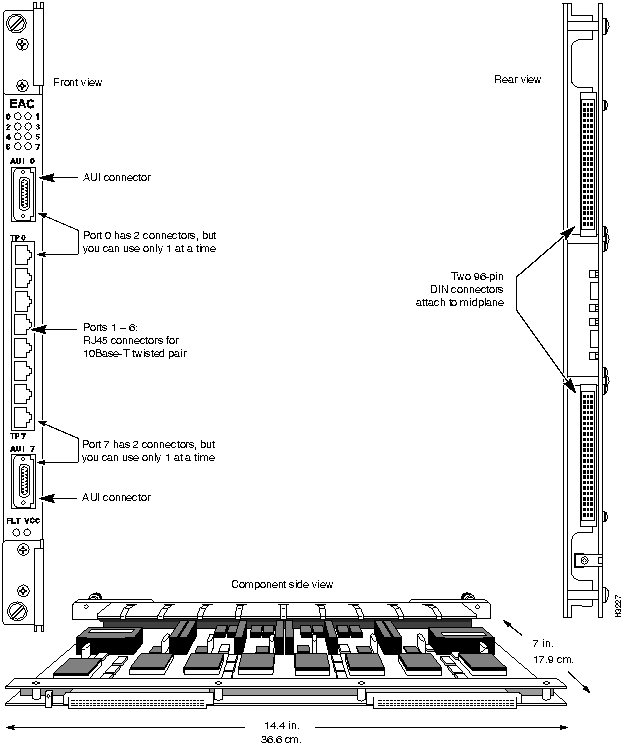
The Ethernet access card (EAC) operates in conjunction with a packet line card. Each Ethernet access card supports up to eight IEEE 802.3 Ethernet ports. The ports are of two types:
- Six ports support 10Base-T twisted pair Ethernet.
- Two ports support any of the following:
- 10Base-T twisted pair Ethernet (via RJ-45 sockets)
- 10Base5 (thick wire) Ethernet (via DB-15 AUI ports)
- 10Base2 (thin wire) Ethernet (via DB-15 AUI ports)
Although it supports eight ports, the access card has 10 I/O connectors. Ports 1 through 6 are female RJ-45 connectors that support twisted pair only. Ports 0 and 7 each have two connectors: one female RJ-45 for twisted pair connections and one female DB-15 for AUI (attachment unit interface) connections. Only one of the two connectors for each port may be used at a time.
A line attached to a twisted pair port on the EAC must be connected to a 10Base-T hub or concentrator. As shown in Figure 2-21, a line attached to an AUI port must be connected to a 10Base2 or 10Base5 transceiver, or medium attachment unit (MAU). The EAC's LEDs are described in Table 2-11. Figure 2-22 shows front, rear and component side views of the card.
Figure 2-21 : 10Base-T cables connect directly to the EAC, while 10Base5 and 10Base2 connect via transceivers.
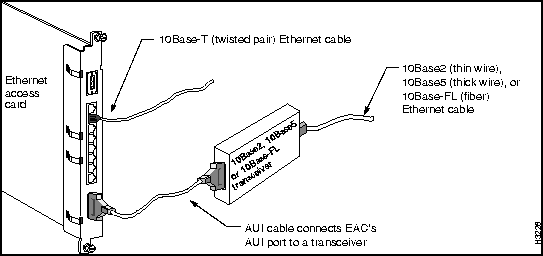
Figure 2-22 : Ethernet access card.
FDDI Access Card
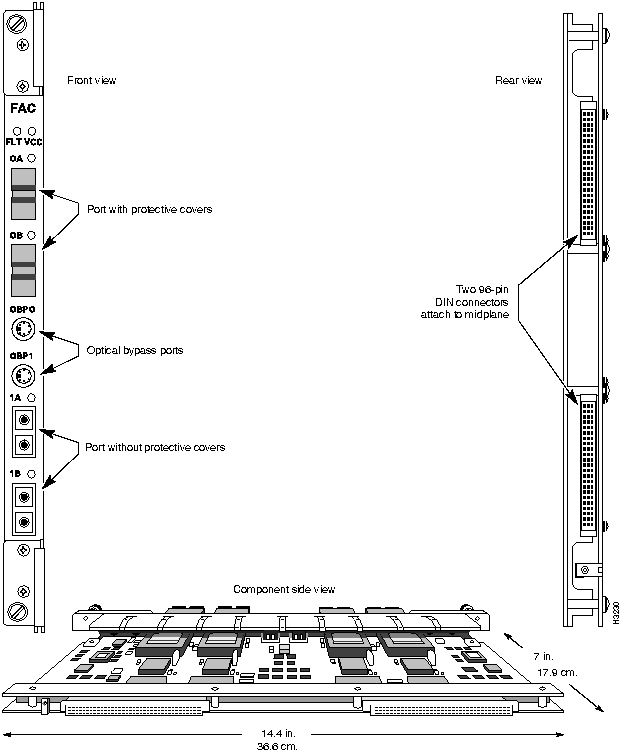
The FDDI access card (FAC) operates in conjunction with a packet line card. It allows the LightStream 2020 to connect to any network compliant with the ANSI standards for FDDI.
Figure 2-23 shows front, rear and component side views of the FDDI access card. The LEDs on the FDDI access card are described in Table 2-12.
Ports
Each FDDI access card supports two multimode FDDI ports. Each port supports a single-MAC station that can function in either dual-attached mode or dual-homed mode. The station management task (SMT) facility adheres to SMT version 7.3 as defined in ANSI X3T9.5.
Each port consists of two media interface connectors (MIC), keyed and labelled as MIC A and MIC B. In addition, one 6-pin DIN connector per port is provided for an optional optical bypass cable. This connector lets you attach an external optical bypass relay to provide additional fault tolerance in the dual ring. The FAC senses the presence of the optical bypass relay and switches it in or out at the appropriate times.
Signal Attenuation
The power loss budget for LightStream FDDI connections is 11 dB. Higher loss, which could result from passing the signal through overly long cables or through too many connectors, may cause signal attenuation and data loss.
Port Covers
We recommend that you attach a protective cover to any FDDI port that will be unconnected for more than a brief period. (Covers are shipped with each FDDI card.) The cover protects the optical media from dust and damage, which can cause signal attenuation and data errors.
Content-Addressable Memory
The FAC has two CAM (content-addressable memory) chips that filter out incoming packets that are addressed to stations on the same FDDI ring as the LightStream FDDI interface (and hence do not need to be bridged). The CAMs relieve the packet line card of much of the filtering load.
Figure 2-23 : FDDI access card.
OC-3c Access Cards
OC-3c access cards operate in conjunction with cell line cards. Four versions of the OC-3c access card are available, with the options shown in Table 2-2. The cards are labelled OC3AC MM (for multimode) or OC3AC SM (for single mode). All versions of the card operate at a wavelength of 1300 nanometers.
Table 2-2 : OC-3c Access Card Options
| 2
|
Single mode
|
ST
|
-15/-8 dBm
|
-34/-7 dBm
|
| 2
|
Multimode
|
Duplex SC
|
-20/-14 dBm
|
-30/-14 dBm
|
| 1
|
Single mode
|
ST
|
-15/-8 dBm
|
-34/-7 dBm
|
| 1
|
Multimode
|
Duplex SC
|
-20/-14 dBm
|
-30/-14 dBm
|
A one-port OC-3c access card can run at full duplex at full line speed. A two-port card handles cells as fast as the switch card can deliver and receive them. The maximum sustained rate is about 1.1 OC-3c's total. Both ports can simultaneously receive bursts at full OC-3c speed, but the TSU cell buffers eventually fill, and TSU flow control forces the card to drop cells at the receive ports.
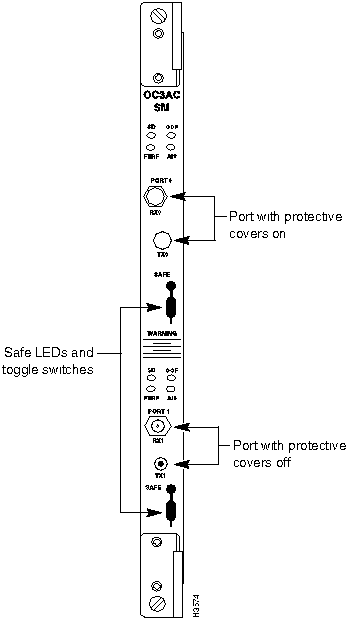
Figure 2-24 and Figure 2-25 show 2-port multimode and single mode OC-3c access cards, respectively. The LEDs on OC-3c access cards are described on Table 2-13.
Signal Attenuation
The power loss budgets for OC-3c connections are as follows:
- Single mode: 0 - 12 dB, with a margin of 7 dB
- Multimode: 0 - 9 dB, with a margin of 1 dB
Higher loss, which could result from passing the signal through overly long cables or through too many connectors, may cause signal attenuation and data loss.
Figure 2-24 : OC-3c multimode access card.
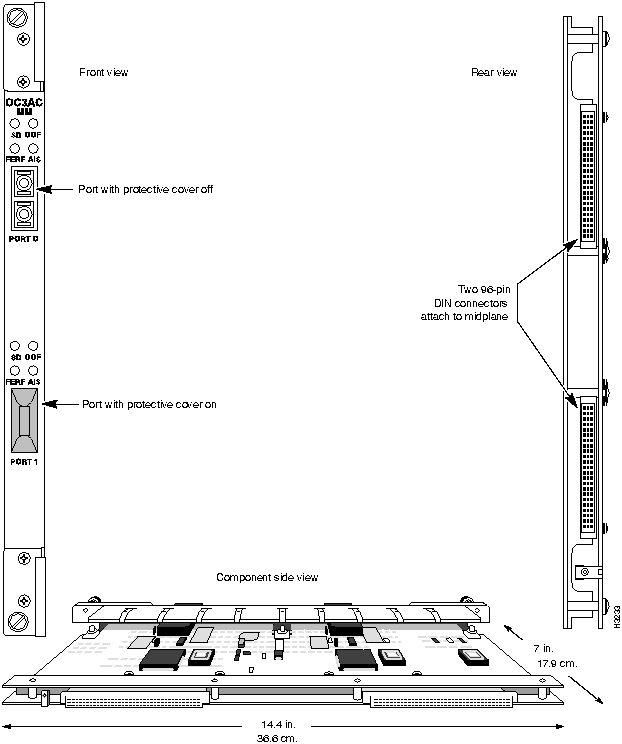
Figure 2-25 : OC-3c single mode access card front bulkhead.
Single-Mode Transmit Lasers
Each port on the single mode version of the OC-3c access card has a toggle switch and a green LED labelled Safe. The switch enables and disables the port's transmit laser, which can cause eye damage if left enabled when the port is unconnected. See "Turning Off the Transmit Laser on the OC-3c Access Card" section if you need instructions on turning the transmit laser on or off.
 Warning Do not look directly into the connectors on a single mode OC-3c access card whose Safe LED is turned off. The transmit laser can damage your eyes.
(Multimode ports are not dangerous, and therefore do not have disable switches.)
Port Covers
We recommend that you attach a protective cover to any OC-3c port that will be unconnected for more than a brief period. (Covers are shipped with each OC-3c card.) The cover protects the optical media from dust and damage, which can cause signal attenuation and data errors.
NP Access Card
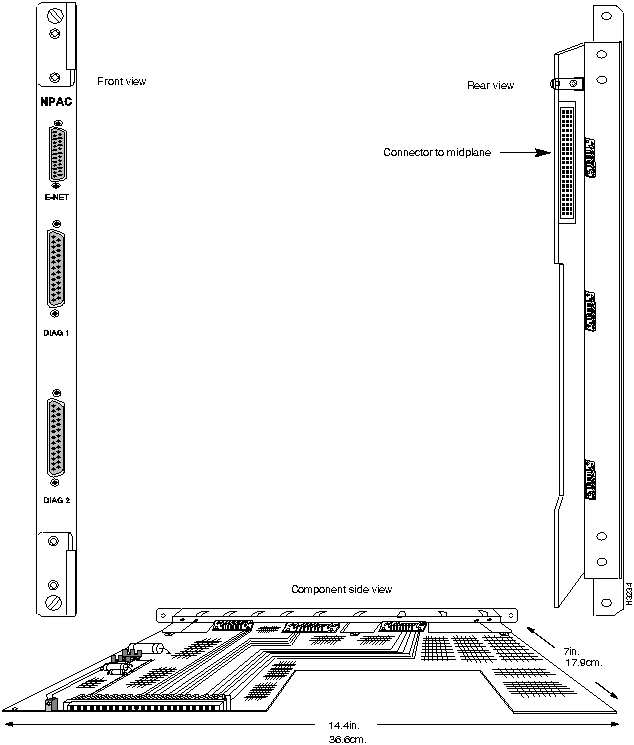
The NP access card supports one Ethernet port and a pair of serial ports. The Ethernet port can be used to connect the NP to an Ethernet for purposes of managing the LightStream system. The two serial ports are used for module testing and debugging.
Figure 2-26 shows front, rear and component side views of the NP access card.
Figure 2-26 : NP access card.
Fantails
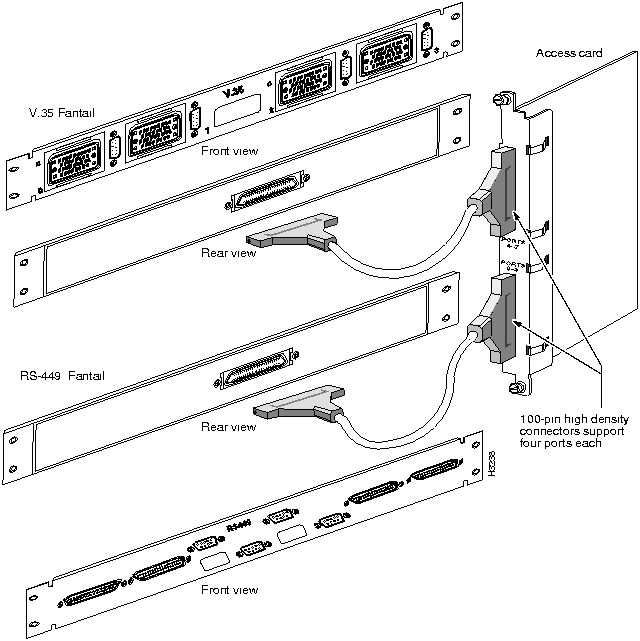
Each low-speed interface module (line card/access card pair) supports up to eight ports. The necessary connectors are provided by fantail devices, shown in Figure 2-27. Fantails, which are FRUs, provide connectors for four to eight ports each. Up to two fantails per low-speed interface module may be required.
Three types of fantail are available:
- The V.35 fantail has four V.35 DTE ports.
- The RS-449 fantail has four RS-449 DTE ports.
- The X.21 fantail has eight X.21 ports. Switches on the fantail can set each port to either DTE or DCE.
LightStream fantails measure 1.75 in. (1 rack unit, or 4.5 cm.) high by 19 in. (48.3 cm.) wide, and weigh 2 lb. (0.9 kg.). They are designed to fit standard 19-inch equipment racks.
Fantail Cables
Special 100-pin cables, supplied by LightStream Corp., are used to connect fantails to low-speed access cards (LSACs). To connect a V.35 or RS-449 fantail to its access card, one cable is required. To connect an X.21 fantail to its LSAC, you can use one or two cables, depending on the number of ports you wish to use. Each of the connectors on the back of the X.21 fantail (see Figure 2-27) serves four ports on the front of the fantail. (The connector on the left serves ports 0 - 3; the connector on the right serves ports 4 - 7.) If you wish to use up to four ports on the X.21 fantail, you can connect it to the LSAC with a single cable. If you wish to use 5 or more ports, you must use two cables.
DSU/CSU Control Ports
In addition to the four port connectors, each V.35 and RS-449 fantail has four 9-pin male D-type RS-232 connectors for DSU/CSU control ports (also known as craft ports). (X.21 fantails do not have DSU/CSU connectors.) If a port's DSU/CSU control port is connected to an external DSU/CSU device, you can use the csumon utility to set up and monitor the DSU/CSU from the LightStream 2020. See the LightStream 2020 Operations Guide for more information on csumon.
X.21 Ports
Using switches on the X.21 fantail, each X.21 port can be set to either DTE or DCE. The connectors on the fantail are female, the standard for DCE. If you set an X.21 port to be a DTE, you must attach a 15-pin male-to-male gender converter to change the connector on the fantail from female to male.
The X.21 cable available from LightStream can be used for both DTE and DCE X.21 ports. See the LightStream 2020 Site Planning and Cabling Guide for information on cables.
Figure 2-27 : LightStream fantails.
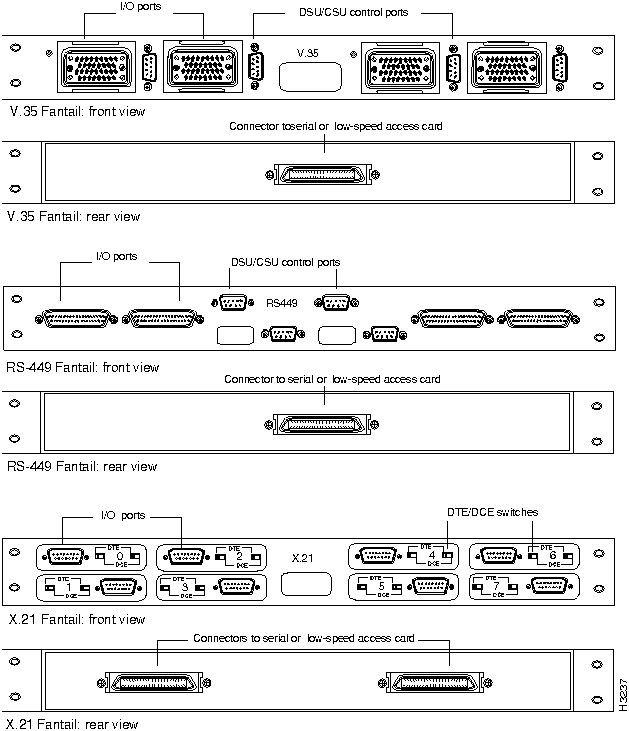
Figure 2-28 shows how fantails connect to the LS access card.
Figure 2-28 : Connections from the LS access card to a V.35 fantail and an RS-449 fantail. For X.21 (not shown), two cables connect a single 8-port fantail to the LSAC.
Card LEDs
There are a number of LEDs on the bulkheads of many cards in a LightStream switch. They serve several purposes:
- LEDs indicate that basic power is available to the card.
- LEDs guide you to a broken card, or to one that has failed its diagnostics.
- LEDs give an informal indication that some traffic is flowing through the node.
- LEDs indicate the status of parts of the TCS that cannot be obtained via the TCS itself. For example, LEDs indicate which TCS hub is primary. (Problems with TCS hub switchover cannot be diagnosed from the TCS itself.)
The switch card, NP and line card LEDs are visible from the front of the LightStream chassis. The LEDs on the access cards are visible from the rear of the chassis.
Fault LEDs
The fault (FLT) LED on a line card, NP, or switch card may turn on for several reasons, which are described in the Table 2-3 below.
Table 2-3 : Causes of Lit Fault LEDs
| Card's POST failed
|
Use show tcs <slot#> command in CLI. If POST field says Failed, see column at right.
|
See "Hardware Troubleshooting" section for instructions on running diagnostics on the card. (You may want to bring up the rest of the system first.)
|
| Card's temperature is out of normal range
|
Use show tcs <slot#> command in CLI. Current temperature readings and maximums are listed in Slot State section of display, near bottom. If temp reading exceeds warning or shutdown temp, see column at right.
|
Check blowers (see "Troubleshooting Blowers" section) and make sure air flow into, through and away from chassis is unrestricted. Note that leaving chassis open can cause temp problems. To ensure proper air flow, make sure all components, cards, and bulkhead filler panels are firmly screwed in place.
|
| Card's voltage is out of normal range
|
Use show tcs <slot#> command in CLI. Voltage readings are listed in Slot Voltage section of display, near bottom. If any voltage is outside the listed normal range, see column at right.
|
Call your support representative for instructions on margining the voltage.
|
| Card's application is disabled
|
Use show tcs <slot#> command in CLI. If Application field says Disabled, see column at right.
|
Use the CLI command set card <slot#> active to enable the card.
|
| Function card and access card in this slot are not compatible
|
Check cards in slot at front and rear for mismatches. (Mismatched cards also fail to power up.)
|
Ensure that function card and access card in each slot are compatible. Refer to Table 2-1 for compatibility.
|
| Function card's flash EEPROM is being loaded
|
|
Wait 7 to 8 minutes. When flash load is complete, FLT LED goes off.
|
LED Descriptions
This section describes the LEDs on all LightStream cards.
Table 2-4 : LEDs on the Switch Card
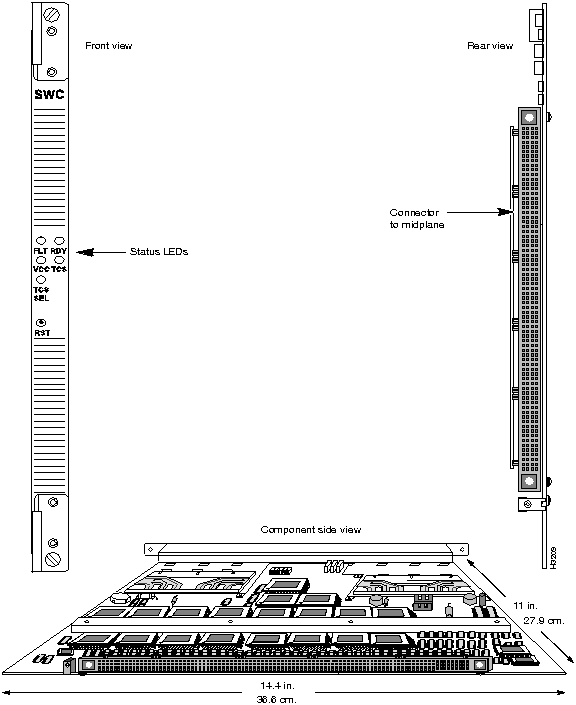
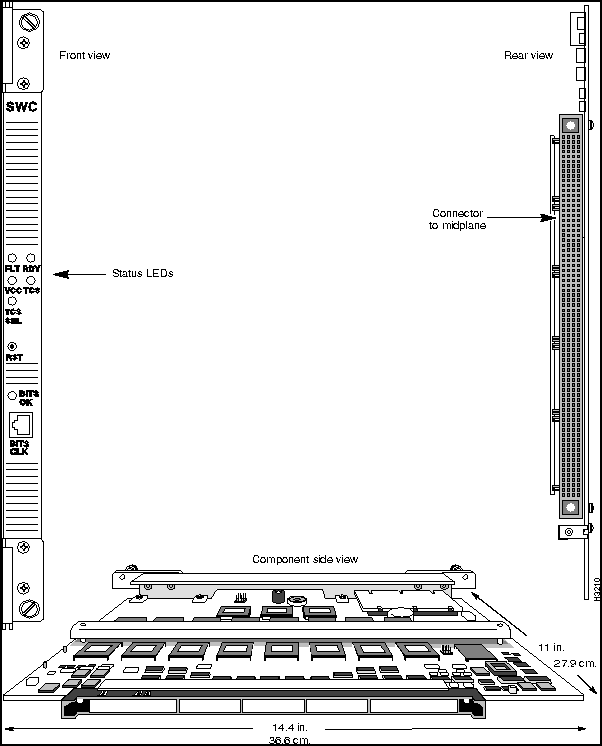
FLT
(fault)
|
Yellow
|
Blinks to indicate that POST is running. Turned on by power-on reset, turned off when POST passes. Shines steadily to signal a problem.
|
RDY
(ready)
|
Green
|
Controlled by the TCS hub. Blinks while POST runs. When tests complete and are passed, light stays on continuously. LED is turned off by power-on reset. The READY light indicates that TCS is ready to use either hub as the primary hub, or to take over from the primary in case of failure. This LED remains lit if one port is having a problem, as long as the overall functionality of the board is intact.
|
| TCS
|
Green
|
Illuminates when TCS hub has power.
|
| VCC (power)
|
Green
|
Illuminates when the board has power.
|
| TCS SEL
|
Green
|
Indicates that the TCS hub on this card is primary. Console output is directed to the SWC with this LED lit.
|
| BITS OK
|
Green
|
To be implemented in a future release.
|
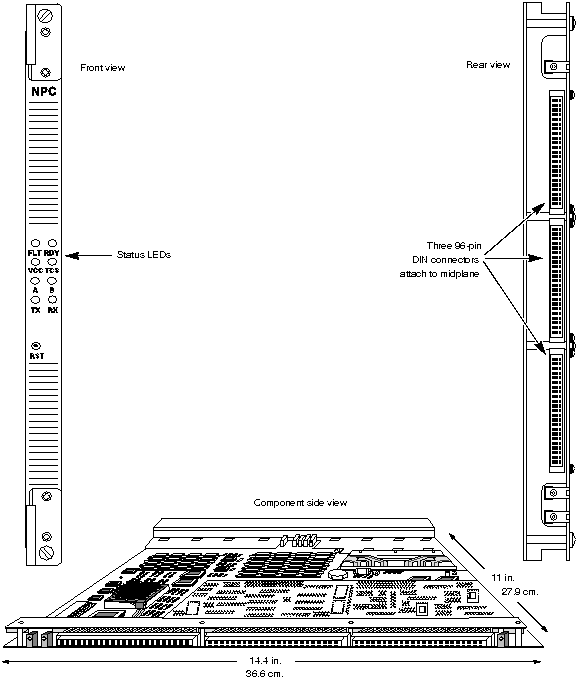
Table 2-5 : LEDs on the NP
FLT
(fault)
|
Yellow
|
Blinks to indicate that POST is running. Turned on by power-on reset, turned off when POST passes. Shines steadily to signal a problem.
|
RDY
(ready)
|
Green
|
Controlled by the TCS slave. Blinks while POST runs. When tests complete and are passed, the light stays on continuously. Turned off by power-on reset.
|
| VCC (power)
|
Green
|
Illuminates when main 5 volt supply on the card is turned on.
|
| TCS
|
Green
|
Illuminates when the 5 volt TCS power supply on the card is active. Should be lit whenever the bulk power supply is turned on.
|
| A
|
Green
|
Illuminates when the active TCS hub is on the switch card in slot A.
|
| B
|
Green
|
Illuminates when the active TCS hub is on the switch card in slot B.
|
| TX
|
Green
|
Illuminates when the TSU is sending a non-null cell.
|
| RX
|
Green
|
Illuminates when the FSU is receiving a non-null cell.
|
Table 2-6 : LEDs on the Low-Speed Line Card
FLT
(fault)
|
Yellow
|
Blinks to indicate that POST is running. Turned on by power-on reset, turned off when POST passes. Shines steadily to signal a problem.
|
RDY
(ready)
|
Green
|
Blinks while POST runs and illuminates continuously when POST completes and passes. Turned off by power-on reset.
|
VCC
(power)
|
Green
|
Illuminates when the card's main 5V supply is within normal levels.
|
| TCS
|
Green
|
Illuminates when the 5V TCS supply is within normal levels.
|
| A
|
Green
|
Illuminates when the active TCS hub is on the switch card in slot A.
|
| B
|
Green
|
Illuminates when the active TCS hub is on the switch card in slot B.
|
| TX
|
Green
|
Illuminates when the TSU is sending a non-null cell.
|
| RX
|
Green
|
Illuminates when the FSU is receiving a non-null cell.
|
| 0 - 7
|
Green
|
Indicates that the port indicated is active.
|
Table 2-7 : LEDs on the Medium-Speed Line Card
FLT
(fault)
|
Yellow
|
Blinks to indicate that POST is running. Turned on by power-on reset, turned off when POST passes. Shines steadily to signal a problem.
|
RDY
(ready)
|
Green
|
Blinks while POST runs and illuminates continuously when POST completes and passes. Turned off by power-on reset.
|
VCC
(power)
|
Green
|
Illuminates when the card's main 5V supply is within normal levels.
|
| TCS
|
Green
|
Illuminates when the 5V TCS supply is within normal levels.
|
| A
|
Green
|
Illuminates when the active TCS hub is on the switch card in slot A.
|
| B
|
Green
|
Illuminates when the active TCS hub is on the switch card in slot B.
|
| TX
|
Green
|
Illuminates when the TSU is sending a non-null cell.
|
| RX
|
Green
|
Illuminates when the FSU is receiving a non-null cell.
|
| 0, 1
|
Green
|
Indicates that the port indicated is active.
|
Table 2-8 : LEDs on the Packet Line Card
FLT
(fault)
|
Yellow
|
Blinks to indicate that POST is running. Turned on by power-on reset, turned off when POST passes. Shines steadily to signal a problem.
|
RDY
(ready)
|
Green
|
Blinks while POST runs and illuminates continuously when POST completes and passes. Turned off by power-on reset.
|
VCC
(power)
|
Green
|
Illuminates when the card's main 5V supply is within normal levels.
|
| TCS
|
Green
|
Illuminates when the 5V TCS supply is within normal levels.
|
| A
|
Green
|
Illuminates when the active TCS hub is on the switch card in slot A.
|
| B
|
Green
|
Illuminates when the active TCS hub is on the switch card in slot B.
|
| TX
|
Green
|
Illuminates when the TSU is sending a non-null cell.
|
| RX
|
Green
|
Illuminates when the FSU is receiving a non-null cell.
|
LN FLT
(line fault)
|
Yellow
|
Illuminates when at least one configured port is not functioning properly. If a port's administrative and operational status is up, but no cable is connected, this LED goes on.
|
LNS OK
(lines OK)
|
Green
|
Illuminates when at least one configured port is functioning properly. Goes off if all ports' administrative/operational statuses are down, or if all active ports have errors or missing cables.
|
Table 2-9 : LEDs on the Cell Line Card
FLT
(fault)
|
Yellow
|
Blinks to indicate that POST is running. Turned on by power-on reset, turned off when POST passes. Shines steadily to signal a problem.
|
RDY
(ready)
|
Green
|
Blinks while POST runs and illuminates continuously when POST completes and passes. Turned off by power-on reset.
|
VCC
(power)
|
Green
|
Illuminates when the card's main 5V supply is within normal levels.
|
| TCS
|
Green
|
Illuminates when the 5V TCS supply is within normal levels.
|
| A
|
Green
|
Illuminates when the active TCS hub is on the switch card in slot A.
|
| B
|
Green
|
Illuminates when the active TCS hub is on the switch card in slot B.
|
| TX
|
Green
|
Illuminates when the TSU is sending a non-null cell.
|
| RX
|
Green
|
Illuminates when the FSU is receiving a non-null cell.
|
LN FLT
(line fault)
|
Yellow
|
Illuminates when at least one configured port is not functioning properly. If a port's administrative and operational status is up, but no cable is connected, this LED goes on.
|
LNS OK
(lines OK)
|
Green
|
Illuminates when at least one configured port is functioning properly. Goes off if all ports' administrative/operational statuses are down, or if all active ports have errors or missing cables.
|
Table 2-10 : LEDs on the Medium-Speed Access Cards (T3 and E3)
RXC
(receive clock)
|
Green
|
Illuminates when a DS3 transmitter is present at the other end of the connection. Goes out to indicate that clock is not being received.
|
OOF
(out of frame)
|
Yellow
|
Illuminates when the DS3 transmitter at the other end of the connection is not sending framing pulses.
|
FERF
(far end receive failure)
|
Yellow
|
Illuminates when the DS3 transmitter at the other end of the connection is not receiving framing pulses from this port.
|
AIS
(alarm indication signal)
|
Yellow
|
Illuminates when a device between this port and the remote end of the connection is not receiving framing pulses from the remote end.
|
Table 2-11 : LEDs on the Ethernet Access Card
0 - 7
(port LEDs)
|
Green
|
Illuminates when the port indicated is receiving or transmitting packets.
|
FLT
(fault)
|
Yellow
|
This LED echoes the behavior of the LN FLT (line fault) LED on the PLC in the same slot.
|
VCC
(power)
|
Green
|
Illuminates when the card's main 5V supply is within normal levels.
|
Table 2-12 : LEDs on the FDDI Access Card
FLT
(fault)
|
Yellow
|
This LED echoes the behavior of the LN FLT (line fault) LED on the PLC in the same slot.
|
VCC
(power)
|
Green
|
Illuminates when the card's main 5V supply is within normal levels.
|
0A, 0B, 1A, 1B
(port LEDs)
|
Green
|
Illuminates when the port indicated is ready to transmit or receive data.
|
Table 2-13 : LEDs on the OC-3C Access Cards (SM and MM)
SD
(signal detect)
|
Green
|
Illuminates when an incoming signal is detected on the port indicated. If this LED goes out, it may indicate either a loose cable or a fault in the remote device.
|
OOF
(out of frame)
|
Yellow
|
Illuminates when the device at the other end of the connection is not sending framing pulses.
|
FERF
(far end receive failure)
|
Yellow
|
Illuminates when the device at the other end of the connection is not receiving framing pulses from this port.
|
AIS
(alarm indication signal)
|
Yellow
|
Illuminates when a device between this port and the remote end of the connection is not receiving framing pulses from the remote end.
|
Safe
(Single mode cards only)
|
Green
|
Illuminates when the transmit laser on the port is shut off, so there is no danger in looking at the connectors.
|
Test and Control System
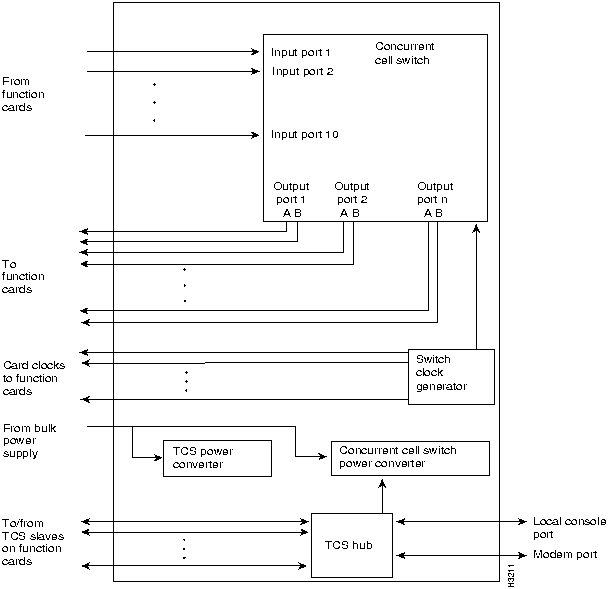
Most communications between components (cards) within a LightStream node involve the passing of messages through the concurrent cell switch. However, there are some LightStream functions that cannot be performed through the switch, including initialization, low-level control, and nondisruptive servicing (diagnostics and maintenance). LightStream has an integrated Test and Control System (TCS) to perform these functions.
The TCS provides diagnostic and control functions that
- Are resilient to system and network failures
- Are non-disruptive to system operation
- Can be available even if other parts of the LightStream node are down
To meet these needs, the TCS consists of a single-chip microcomputer on every line card, NP, and switch card in the LightStream node. The microcomputer on line cards and NPs is called a TCS slave: the microcomputer on the switch card is called a TCS hub. Each slave is connected to one hub (or in systems with redundant switch cards, two hubs) by a point-to-point serial link. Messages can flow from slave to hub, from hub to slave, or from slave to slave (using the hub as an intermediary).
Each TCS microcomputer (hub or slaves) stores a copy of its card's vital statistics (for example, serial number, card type), and data needed to initialize and run the card. The job of each TCS chip is to manage the low-level functionality of its card. It supervises such functions as power supply sequencing, logic reset, soft logic loading, loading and monitoring of power-on self tests, and application program loading and startup. It also provides on/off control and voltage margining of the on-card DC-DC converters, handles updates to the card's EEPROM memory, and monitors air temperature.
The TCS provides access to each card in the system for diagnostics and maintenance operations via a local or remote console connection. When a card has been newly installed, for example, you can load and run diagnostics on the card without disturbing the rest of the system.
Cooling
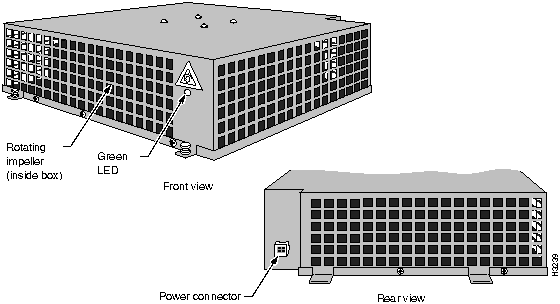
The LightStream chassis takes in cooling air from the front. The air is drawn up through the chassis and is exhausted from the back and the right side by blower units like the one shown in Figure 2-29.
There are two blowers in each LightStream system, located at the top of the chassis. One blower is accessible from the front and the other is accessible from the rear. Each blower is an FRU. During normal operation, both blowers should be running. If one blower fails, the system can continue to operate; however, the failed blower should be replaced as soon as possible.
Each blower has a green LED that illuminates to indicate that the impeller is spinning at a rate of at least 1500 rotations per minute. On the rear blower, the LED is visible through the blower cover. You must remove the blower cover to see the LED on the front blower.
The blowers have two speeds, and normally run at low speed. They run at high speed for 90 seconds after the system is first powered on, and then slow down. The decrease in speed is audible to anyone standing near the chassis.
Figure 2-29 : Front and rear views of a LightStream blower.
In addition to the main air flow through the LightStream chassis, each bulk power tray in an AC-powered system contains its own fans.
The cooling system operates properly only when all cards, bulkheads, filler panels, covers, and components are in place. Removing these items disrupts the flow of air through the chassis. As a result, components may be shut down due to overheating.
Power Options
In a LightStream switch, a bulk power tray unit converts power from an external source to bulk DC voltage before distributing DC power to the individual function and switch cards. The nominal voltage of the bulk power unit is 48 volts.
There can be one or two power trays in each LightStream chassis; each power tray is an FRU. If there are two power trays, both are connected to a 48-volt rail so that either tray can drive the entire system.
LightStream systems are available with two power options:
- AC-powered systems for sites with alternating current (100 to 240 VAC, 50/60 Hz)
- DC-powered systems for sites with direct current (-48 VDC)
Power trays are accessible from the rear of the chassis; they are located to the right of the access cards. The power tray slots are designated A (on top) and B (on the bottom).
Each card in a LightStream switch converts bulk power to its point-of-use voltages. The power converters on each card are controlled separately by the associated on-card TCS slaves. Each TCS slave can turn its converter on and off and voltage-margin the converter. This arrangement allows for a non-disruptive hot-swap capability and aids in fault diagnosis.
The TCS is powered independently from the rest of the system so that it can control power and run margining tests without impairing its own operation. TCS power is distributed from the switch card to all other cards in the chassis.
AC-Powered Systems
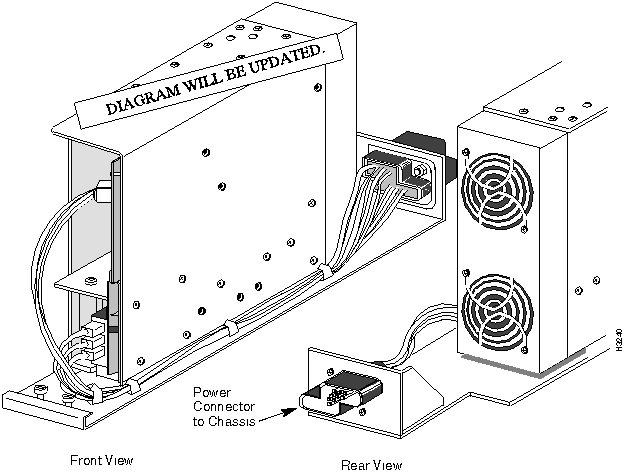
AC power supplies accept input power over a continuous range from 100VAC to 240VAC and from 50 Hz to 60 Hz. No adjustment or configuration is required. An AC power supply is shown in Figure 2-30.
Each power supply has a green LED, visible through the cover from the rear of the chassis, that comes on when the system is powered up.
Each AC-powered LightStream system has a recessed male power inlet that conforms to IEC standard 320 C20; it requires a power cord with an IEC 320 C19 connector. See the LightStream 2020 Site Planning and Cabling Guide for more information on power cords.
Figure 2-30 : Power supply tray for AC-powered systems.
DC-Powered Systems
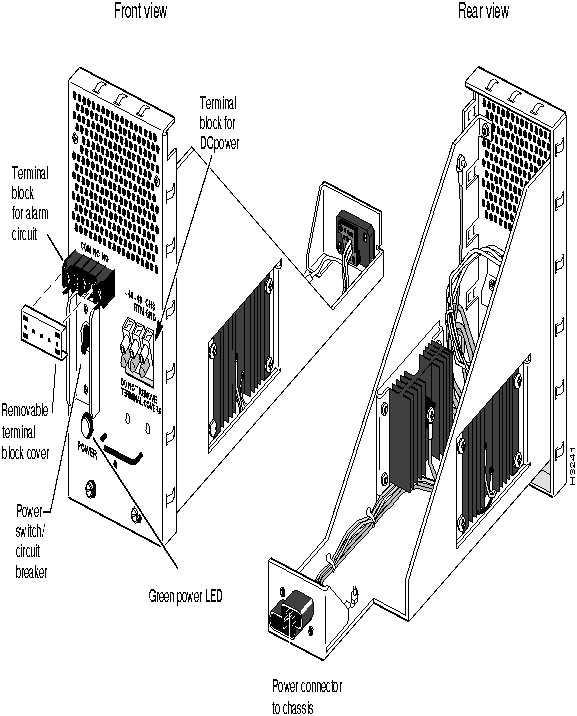
DC-powered LightStream systems accept power over a continuous range from -43VDC to -60VDC. No adjustment or configuration is required. Power from an external -48VDC source is brought into the system by the DC power tray. A DC power tray is shown in Figure 2-31.
The green LED on each DC power tray illuminates to indicate the presence of DC power. The LED, which is mounted on the power tray and is visible from the rear of the chassis, is connected after the circuit breaker and before the isolation diodes. This allows the LED to indicate the presence or absence of power individually for each tray, prior to the or-ing of the power feeds.
DC-powered LightStream systems do not use detachable power cords; they must be permanently wired to a DC power source by qualified service personnel. Systems with the optional second power tray can be wired from a dual power feed. (For more information, refer to the procedure Wiring a DC-Powered System on "Wiring a DC-Powered System" section.)
Figure 2-31 : Power input tray for DC-powered systems.
The Circuit Breaker and Circuit Breaker Alarm
Each DC power tray has a circuit breaker that turns system power on and off; it can be tripped by an electrical event or operated manually.
 Warning To turn off power in a DC system with two power trays, you must set the circuit breakers on both trays to off.
The DC power tray is equipped with a circuit breaker alarm that can optionally be connected to an external device such as a light panel. When the circuit breaker is tripped, the alarm is triggered, notifying you that the system is no longer receiving power through that power tray.
The COM (common), NO (normally open), and NC (normally closed) contacts on the DC power tray provide the alarm signal by indicating whether the circuit breaker is open (off/tripped) or closed (on). Table 2-14 summarizes the possible positions of the contacts.
Table 2-14 : Circuit Breaker Alarm Conditions
| Off (tripped)
|
Closed
|
Open
|
| On
|
Open
|
Closed
|
Installing a LightStream Switch
Safety Instructions · Installing the Switch in a Rack · Wiring a DC-Powered System · Installing Fantails · Attaching Data Cables · Closing the Chassis · Powering Up · Basic Configuration · Installing Management Software on a Sun
This chapter provides procedures for unpacking a LightStream 2020 enterprise ATM switch, installing it in an equipment rack, installing fantails and cables, powering up the system, and performing basic configuration. It also tells you how to install LightStream management software on a Sun workstation.
Before starting the procedures in this chapter, do the following:
- Prepare the system area according to the instructions provided in the LightStream 2020 Site Planning and Cabling Guide.
- Read the LightStream 2020 Release Notes, which contain important information on installation and operational considerations.
Note For information on installing redundant components in an existing system, see "Installing Redundant Components" section.
Safety Instructions
 Warning LightStream switches are designed and manufactured to meet accepted safety standards. However, improper use can result in electrical shock, fire hazards, and personal injury. Read all of the following instructions carefully before installation and use. Note and adhere to all Cautions and Warnings.
Electrostatic Discharge (ESD) Protection
Static electricity can damage or degrade electronic components. To avoid damage, observe the following precautions when you touch hardware.
Grounding Procedure
Before you expose circuitry, you, the rack, and the circuit boards must be at the same ground potential to prevent damaging ESD. To connect yourself to ground, use a wrist strap connected to one of the system's grounding jacks, or to the bare metal surface of the system frame.
Card Protection
All spare cards are shipped in reusable antistatic shielding bags. When cards are not installed in the machine, keep them in antistatic bags. Do not remove cards from their bags unless you are grounded. Do not place these bags on exposed electrical contacts, where they can cause short circuits.
Unpacking and Inspecting the Hardware
If you haven't done so already, unpack the LightStream switch following the steps below.
Step 1 Before moving the shipping container from your loading dock, inspect it for any signs of in-transit damage.
Step 2 Transfer the container to the systems area.
Step 3 Cut the straps and lift the cardboard box off the chassis. Remove the packing material.
Step 4 Inspect all external surfaces for signs of damage. Pay special attention to any areas where you noticed damage to the shipping container.
Step 5 Document any damage noted during the inspections and notify your LightStream vendor.
Installing the Switch in a Rack
This section explains how to rack mount a LightStream chassis.
Note For physical stability, when a LightStream chassis is installed in a rack, the combination should comply with UL Standard 1950, Par. 4.1.1, and IEC 950, 4.1.1.
Cooling Air and Hardware Placement
A LightStream chassis takes in cooling air through the bottom of the front panel and exhausts it at the top rear and the right side. (The air vents on the right side can safely be covered by the rack side panels, but should not be otherwise blocked.) To minimize thermal problems, position the chassis such that:
- The LightStream unit's air intake panel is not near other equipment's exhaust.
- The LightStream unit's exhaust is not near other equipment's air intake.
Required Tools
Have the following items on hand before you begin rack installation:
- A no. 2 Phillips screwdriver for mounting the chassis in the rack
- A 5/16-inch slotted-tip screwdriver for removing blowers, power supplies, and boards from the chassis
- An ESD wrist strap for grounding yourself to the system
- Antistatic shielding bags or antistatic mats for protecting components removed from the chassis
- Appropriate material-handling equipment for lifting the LightStream switch into the rack
- For AC-powered systems: A LightStream Country Power Kit, including a power cord and mounting hardware for the chassis
- For DC-powered systems: A DC Mounting Kit containing mounting hardware for the chassis, plus equipment needed by the electrician who wires the system (see "Wiring a DC-Powered System" section.)
Rack Installation Procedure
Follow these steps to rack-mount the LightStream chassis:
Step 1 Ensure that the power cord to the system is disconnected (AC-powered systems only).
Step 2 Put on the ESD wrist strap and connect it to a grounding jack. (There are jacks on LightStream's front and rear panels.)
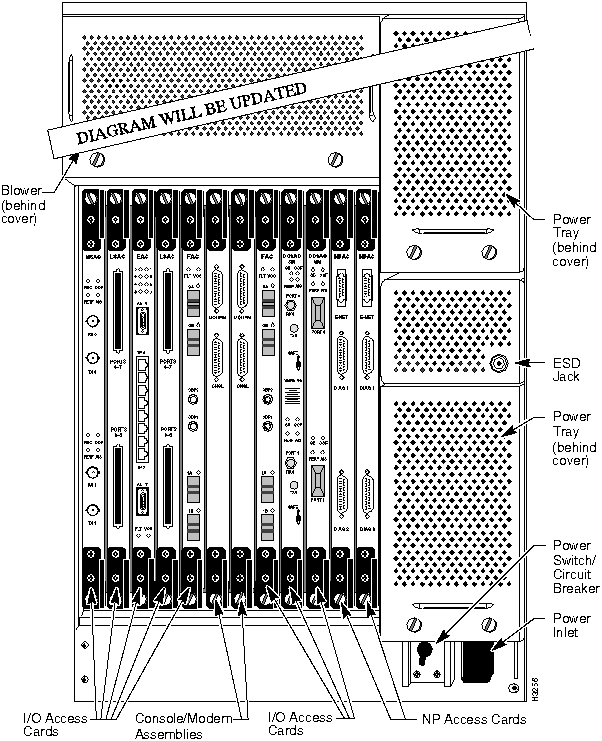
Step 3 To make the chassis lighter, remove the blowers (top front and rear) and power supplies (right rear). Blowers and power supplies are located behind removable covers, shown in Figure 3-1 and Figure 3-2. If your system is fully configured with line cards, you may also want to remove some or all of these cards. Place all removed components in antistatic shielding bags or on antistatic mats.
Note Do not remove disk assemblies to lighten the chassis.
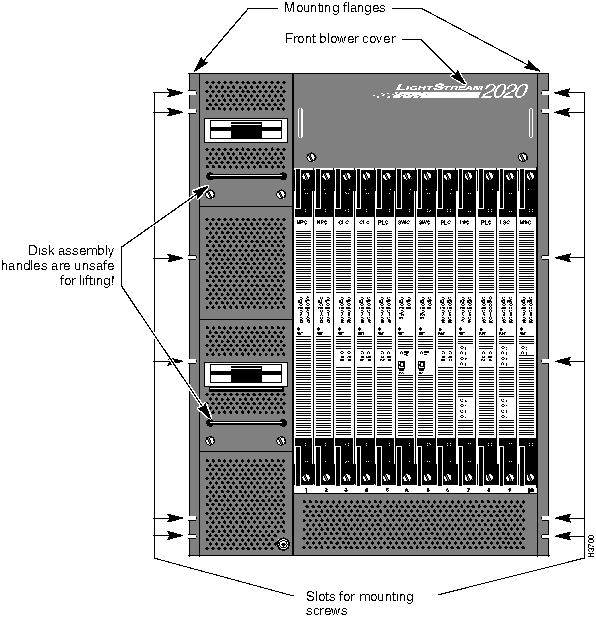
Step 4 Determine the position in the rack that the LightStream switch will occupy. Then attach the clip nuts from your country kit or rack mounting kit to appropriate places on the rack rails. See Figure 3-1 for screw positions. (If your rack has metric-threaded or nonstandard rails, you may need to provide your own mounting hardware.)
Figure 3-1 : Front view of LightStream chassis.
Step 5 Lift the LightStream chassis into the rack.
 Warning A LightStream system is quite heavy, particularly if it's fully loaded with function cards. (System weights range from 94 to 147 pounds, depending on configuration.) Do not attempt to move the system by yourself. Be careful to avoid harming yourself or the hardware by using unsafe lifting techniques.
 Caution Do not use the handles on the disk assemblies to lift the chassis. These handles, shown in Figure 3-1, are not designed to support the system's weight; they will break off under stress.
Step 6 Using the mounting screws and washers included in your country kit or rack mounting kit, attach the flanges on the front of the chassis to the rack.
Step 7 Replace the blowers, power supplies, boards, and covers that you removed before you lifted the chassis into the rack.
Figure 3-2 : Rear view of an AC-powered LightStream chassis.
Wiring a DC-Powered System
The procedure in this section explains how to wire a DC-powered LightStream switch to a DC power source. This task should be performed by qualified service personnel or a licensed electrician.
This section applies only to systems with the DC power option. If you have a standard AC-powered system, skip to "Installing Fantails" section.
For more information on DC-powered LightStream systems, see "DC-Powered Systems" section and the LightStream 2020 Site Planning and Cabling Guide.
Preparation
The person who wires the system should have several items on hand:
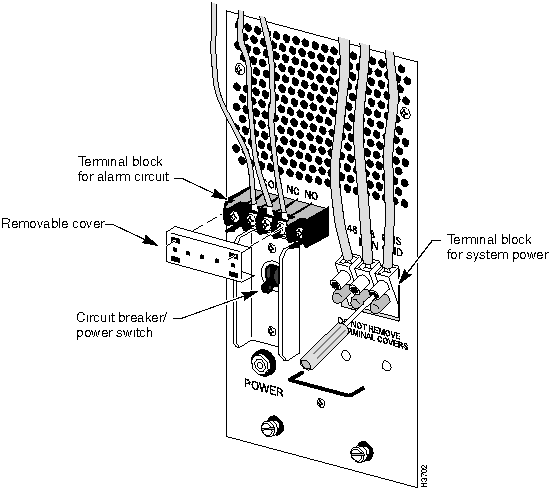
- The power connection on the DC power tray is provided by a three-position terminal block, shown in Figure 3-3. The -48, -48RTN, and CHS GND connections that provide -48VDC power to the system require a minimum of #10AWG wire for the 24A-rated load. The terminal block is rated to accept up to #8AWG solid wire. LightStream Corp. recommends the use of ferrules to terminate these wires.
- The circuit breaker alarm's connection to the DC power tray is provided by a smaller three-position terminal block, also shown in Figure 3-3. The COM, NO, and NC connections that provide the circuit breaker alarm indication should be wired with #22AWG or larger wire. LightStream Corp. recommends the use of #6 spade or ring lug terminals for these connections.
- In addition to the wires, you need a slot-tip screwdriver for the power terminals and a Phillips screwdriver for the alarm terminals.
Figure 3-3 : Connecting wires to a DC-powered system.
Wiring Procedure
 Warning This wiring task should be performed only by a licensed electrician or by qualified service personnel. It may expose untrained personnel to hazardous voltages.
Step 1 Ensure that the circuit breaker/power switch on each DC power tray is set to off.
Step 2 Ensure that power to the circuit you will connect to the LightStream system is off.
Step 3 Connect the power wires, using the slot-tipped screwdriver to adjust the terminals. Do not remove the terminal covers at the base of the terminal block.
Step 4 If you plan to connect the alarm circuit, first remove the plastic terminal block cover (see Figure 3-3) and save it.
Step 5 Connect the alarm wires, using the Phillips screwdriver to adjust the terminals.
Step 6 Replace the terminal block cover you removed in step.
Step 7 If the LightStream system has two power trays, repeat this procedure for the second tray.
Step 8 When you turn on the power, check the green power LED on the front of each power tray. If the LED does not light up, check for misconnected wires or problems in your power circuit.
Installing Fantails
This section explains how to mount and connect LightStream fantails (Figure 3-4), which provide connectors for data cables on low-speed (V.35, X.21 and RS-449) lines.
If your system has no low-speed line cards, skip this section and proceed to "Attaching Data Cables."
Required Tools and Equipment
- Fantails to be installed (provided by LightStream Corp.)
- If you're installing X.21 fantails and plan to configure the ports as DTEs, you must obtain and install a 15-pin male-to-male gender converter on each port to change the female connector to male. (Gender converters are not required for X.21 ports configured as DCEs.)
- Fantail cables (provided by LightStream Corp.)
- Fantail mounting screws, clip nuts, and washers (These are provided by LightStream Corp. with the fantails. However, if your rack has metric-threaded rails, you must provide your own metric screws.)
- A 5/16-inch slotted-tip screwdriver (provided by you)
- Adhesive labels for each fantail (provided by you)
- A grounding wrist strap for ESD protection (provided by you)
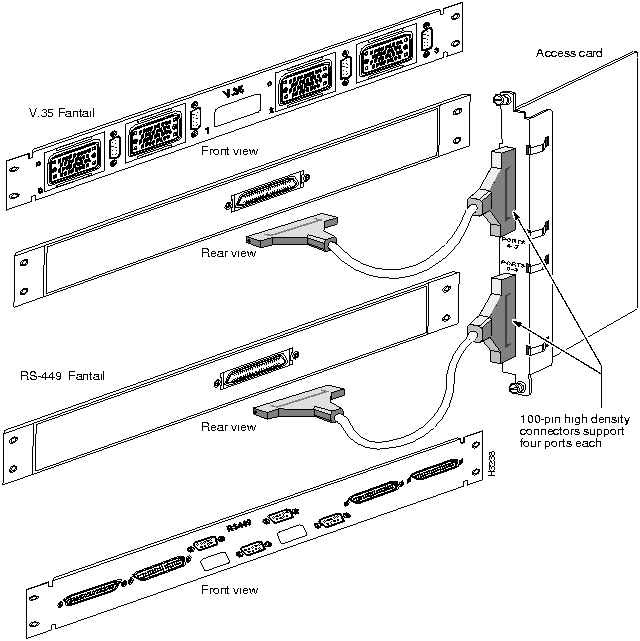
Figure 3-4 : Fantails provide external V.35, RS-449 or X.21 interfaces for low-speed lines. A fantail cable connects a low-speed access card in the chassis to the connector on the rear of the fantail.
Fantail Installation Procedure
Follow the steps below to install LightStream fantails.
Note Before installing fantails, check the interface jumpers on the low-speed access cards. The jumpers on each card must be set to the interface displayed on the fantail(s) for that card. For instructions on setting interface jumpers, see "Setting Interface Jumpers on the LS Access Card" section.
Step 1 Select a spot on the rack to mount the fantail. Attach the four clip nuts provided with the fantail to the appropriate holes in the rack rails.
Step 2 Put on the ESD wrist strap and connect it to the grounding jack on the rear of the chassis.
Step 3 Attach the fantail cable (or cables, if you're installing an X.21 fantail) to the back of the fantail and to the corresponding access card in the chassis. (It's easiest to do this now; if you install the fantail first, you have to reach behind it and attach the cable to a connector you can't see.) The cable is reversible; you can connect either end to the fantail. Don't rest the weight of the fantail on the cable.
Step 4 Using a slot-tip screwdriver and the mounting screws and washers provided, attach the fantail to the equipment rack.
Step 5 Label the fantail with the slot number or name of the interface module it's connected to.
Step 6 If you are mounting an X.21 fantail, set the DTE/DCE switches for each port to the desired mode. (See "Configuring X.21 Ports as DTE or DCE" section for complete instructions on configuring X.21 ports as DTEs or DCEs.) If you select a DTE interface, note that you must install a gender converter on each DTE port to change the female connector to male.
Step 7 Repeat this procedure to install additional fantails.
Attaching Data Cables
This section tells you how to attach data cables to your LightStream switch.
Step 1 If you have any FDDI cards, install connector keys provided by the cable vendor onto your FDDI cables. The keys make it impossible to attach a cable to the wrong kind of connector on the card.
Step 2 If you have any OC-3c or FDDI cards, remove and save the protective covers on the ports that will be used. Leave any unused ports covered.
Step 3 Connect any available external data cables. (Refer to the LightStream 2020 Site Planning and Cabling Guide for details on data cables and connectors.) If you have any Ethernet cards, note that although there are 10 physical connectors, each card supports only eight ports.
Note For ease of maintenance, arrange your data cables so that only those cables connected to a given access card must be disconnected in order to remove the access card. (In other words, route cables at the back of the chassis in a way that will enable you later to remove any access card without disconnecting cables attached to other access cards or fantails.)
Closing the Chassis
Before powering up, check the front and back of the system to see that all boards, disks, blowers, bulkheads, filler panels, and covers are in place and firmly screwed to the chassis frame. When all these items are in place, they form an enclosure that serves three important functions:
- It limits access to hazardous voltages and currents inside the chassis.
- It contains electro-magnetic interference (EMI) within the chassis, which is a requirement for meeting EMI standards. Emissions from a LightStream switch that isn't fully enclosed may interfere with other equipment.
- It helps maintain the flow of cooling air through the chassis. Air flow disturbances can result in thermal problems such as component failures.
Powering Up
Use the procedure below to turn on a LightStream switch.
Step 1 If you have a DC-powered system, skip to step. If you have an AC-powered system, plug the power cord into the power inlet at the lower right corner of the rear panel and into a dedicated power socket. The power inlet has a wire clip called a bail latch that you can use to secure the power cord to the chassis.
Step 2 For AC-powered systems: Flip the power switch located on the rear of the system next to the power inlet.
For DC-powered systems: Flip the power switch located on the power tray panel. If your system has two power trays, you must flip the switches on both trays to turn the system on or off.
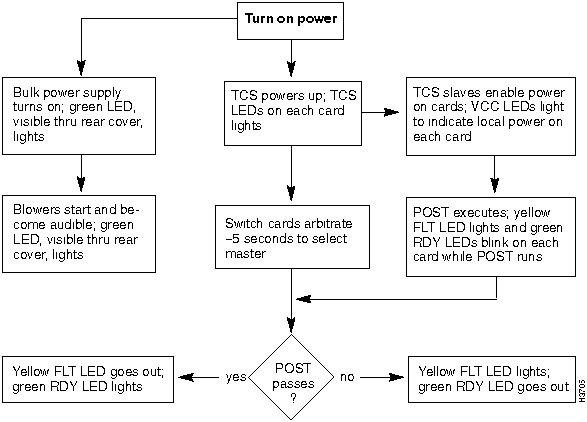
When the system powers up, the blowers start running, then TCS powers up the cards and starts the power-on self tests (POST). LEDs indicate the status of the cards and other components, as described in the flow chart in Figure 3-5. The power-up sequence including POST takes 1 minute or less.
Step 3 If the green ready (RDY) LED on each card comes on, proceed to the next section, "Install Modems." If a yellow fault (FLT) LED stays lit on any card (indicating a problem), do one of the following:
- Refer to the Table 2-3 for information that will help you determine why the FLT LED is on and how to fix the problem.
- Temporarily remove the faulty card from the configuration and bring up the rest of the system.
Figure 3-5 : Power-up sequence.
Basic Configuration
This section explains how to attach a terminal to a newly-installed LightStream switch and enter basic configuration information in response to prompts from LightStream software. You must perform basic configuration for each NP in your system.
Note If you have a problem such as a hung system while you're performing basic configuration, you may need to shut the system down and start over. Refer to "Performing an Orderly Shutdown" section for instructions on performing an orderly shutdown.
Required Information
Before you start the procedures, collect the following information:
- Passwords for the four default login accounts on the switch--- root, oper, npadmin and fldsup.
- A host name for this LightStream network node
- The IP address and subnet mask for the primary NP, and for the secondary NP if there is one
- The IP address and subnet mask for the NP's Ethernet interface, if it has one
- The IP address of the default router for the Ethernet interface, if a router is present (If you don't supply a default router address, outgoing Ethernet traffic is forwarded to the node's switch card.)
- Information needed to configure one or more trunk ports on this node. For nodes that are not directly connected to the management system, the trunk port will be used to load a full configuration from the management system, which runs the configurator.
Details on the required information are presented in the subsections that follow.
Passwords
You must create a password for each of the four default login accounts on the switch---root, oper, npadmin and fldsup. (See the LightStream 2020 Administration Guide for more information on the default login accounts.)
A password must be at least six characters long. It can be as long as you wish, but only the first eight characters are used. Any combination of characters is acceptable, including spaces.
Host Name
You must assign a host name to each LightStream network node. Typically, the host name might be chosen to remind you of the node's location, either geographically (e.g. Tokyo2) or within the functional structure of the enterprise (e.g. mfg3 for a manufacturing function).
The name can be made up of any combination of letters and numbers, up to 32 characters long, but it must not begin with a number. Thus, Pensacola23 is a valid host name, but 23Pensacola is not a valid name (it begins with a number) and Pensacola.23 is not a valid name (it contains a character that is neither a letter nor a number).
IP Addresses and Masks
For each node, you must provide from one to four IP addresses and the associated network masks, as follows:
- Primary NP address and mask (every LightStream node)
- Nodes in a LightStream network use their primary NP addresses to communicate network management traffic to one another.
Note All NP addresses within the same LightStream network must have the same network number, and each must have a unique host ID.
- Subnet mask for the primary NP address
- The subnet mask specifies which portion of the IP address is the network number and which portion is the host ID. This mask is the same for all nodes on a given LightStream network.
- Secondary NP address (only if there is a redundant NP)
- If a node has a backup NP, then it uses its primary and secondary NP addresses to pass network management traffic between the two NPs within the node. The primary NP address is used by whichever NP is active. All NP addresses within the same LightStream network must have the same network number, and each must have a unique host ID.
- NP's Ethernet address and mask (only if an Ethernet LAN is connected to the NP(s))
- An Ethernet LAN may be attached to the NP for communicating management traffic between the node and a network management system (NMS). If an Ethernet LAN is connected to the NP, then the NP's Ethernet IP address must be configured. If there is a backup NP, then both NPs must be attached to the same Ethernet segment. The NP's Ethernet IP address is used by whichever NP is primary.
Note This IP address has the network number for the attached Ethernet LAN (which must be different from the network number of the LightStream network) plus a host number that is assigned by the network administrator of the Ethernet LAN.
- Subnet mask for the NP's Ethernet address
- The subnet mask for the NP's Ethernet address specifies which portion of the IP address is the network number and which portion is the host ID. This mask is the same for all nodes on the Ethernet that is attached to the primary NP. You obtain it from the administrator of that Ethernet LAN.
- Default router (only if needed to reach the NMS)
- If an Ethernet LAN is attached to the primary NP, but the NMS is not directly connected to that LAN, a router on the Ethernet LAN may be configured as the default router. The default router on a LightStream node provides a route from the node to the network management system (NMS). This IP address has the network number for the attached Ethernet LAN (which must be different from the network number of the LightStream network) plus a host number that is assigned by the network administrator of the Ethernet LAN.
- If you plan to handle just one physical LightStream network under your network ID number, and the LightStream network is a class C network, then record 255.255.255.0 as the subnet mask. (The mask is 255.255.0.0 for a class B network with no subnetting, and 255.0.0.0 for a class A network with no subnetting.)
Note Network management can also be done via an Ethernet LAN that is connected to an ordinary Ethernet data port on the LightStream node (that is, an Ethernet access card port). The NMS must be directly attached to that Ethernet LAN. In this case, do not configure the NP's Ethernet address or default router address.
For more information on management addresses, see the LightStream 2020 Configuration Guide. If you do not understand IP addresses, if you do not understand subnetting, or if you do not know what the class of your LightStream network is, refer to Appendix B.
Trunk Port Information
For each trunk port you configure, you need to know:
- Trunk card type: low speed (T1/E1 rate), T3, E3, or OC-3c
- The number of the slot in the chassis where the trunk card is located
- The port number (except on OC-3c cards, which have only 1 trunk port)
- Beyond this point, the information you need varies depending on the type of port you choose to configure:
- For a low-speed trunk port you need to specify the DTE/DCE type and DTE or DCE bit rates
- For a T3 trunk port you need to specify line type (C-bit parity or clear channel), cable length (0 - 450 feet or 450 - 900 feet), and PLCP scrambling mode (enabled or disabled)
- For an E3 trunk port you need to specify cable length (0 - 400 feet, 300 - 1000 feet, 800 - 1300 feet, or 1100 - 1900 feet) and PLCP scrambling mode (enabled or disabled)
- For an OC-3c trunk port you need to specify the clocking mode (internal or external) and the cell scrambling mode (enabled or disabled)
If you need more information on trunk port configuration, refer to the LightStream 2020 Configuration Guide.
Command Glossary
The procedures in this section use the following commands:
- reset <slot#> TCS command that resets the card in the specified slot.
- connect <slot#> TCS command that establishes a connection to the card in the specified slot.
Attaching a Terminal and Connecting to an NP
Required Tools
- VT100 terminal or equivalent
- Terminal cable
Connecting a Terminal
Follow this procedure to connect a terminal to your switch. Go on to the procedure that follows to establish a connection to the network processor (NP).
Step 1 Connect a VT100-compatible terminal to LightStream's console port.
Note If your system has two switch cards, you must connect to the console port of the one that holds the primary TCS hub. To determine which card has the primary hub, look for a green LED labelled TCS SEL on the front bulkhead of each switch card. The TCS SEL LED is lit on the switch card with the primary hub.
Switch card slots on the front of the chassis are labeled A and B, as are the slots that hold the console and modem ports on the back of the chassis. If the primary TCS hub is on the switch card in slot A, connect to the console port in rear slot A. If the primary hub is on switch card B, connect to console port B.
Step 2 Set up the terminal as described in Table 3-1 below.
Table 3-1 : Terminal Settings
| Character Size
|
8 bits
|
| Parity
|
none
|
| Stop Bits
|
1
|
| Xoff
|
at 64
|
| New Line
|
No (do not send CR-LF)
|
Step 3 If you can connect at 9600 baud, skip the rest of this procedure and go on to Connecting to an NP, below. If you don't have 9600 baud but you do have 1200 baud, 2400 baud, or 19,200 baud, press [Break] three times as soon as you connect. This activates the baud rate selection mechanism.
Step 4 Once baud rate selection is activated, the port's baud rate changes every time you press [Break] again. Press [Break] slowly until you can read "OK" on your screen. (At each new baud rate, the system attempts to display "OK" on your screen. Your display becomes legible when the terminal and port baud rates match.)
Connecting to an NP
Follow this procedure to establish a terminal connection to the network processor (NP) in you LightStream switch. (This procedure assumes that you have already connected a terminal to the switch, as described the previous procedure.)
Step 1 Power up the LightStream node or use the reset <slot#> command at the TCS hub prompt to reset the NP in a running node. (The NPs reside in slots 1 and 2.)
Step 2 Use the connect <slot#> command to connect to the NP that you want to configure. This example assumes that you're connecting to the NP in slot 1:
TCS hub<<A>> connect 1
Step 3 When you connect, part or all of the following countdown appears on your screen. Do not press [Return]; allow the system to boot.
System will boot in 5 seconds: hit <RETURN> to interrupt.

System will boot in 4 seconds: hit <RETURN> to interrupt.

System will boot in 3 seconds: hit <RETURN> to interrupt.

System will boot in 2 seconds: hit <RETURN> to interrupt.

System will boot in 1 seconds: hit <RETURN> to interrupt.
The screen displays for the boot sequence are shown in "Entering Configuration Data" section.
Aside: Running Scripts Separately
In the procedure that follows, Entering Configuration Data, two scripts that prompt you for basic configuration information are automatically invoked. If you make a mistake in entering any of the information for which the scripts prompt you, you can run them again separately. Just type the name of the script you want to run (see below) at the bash# or single-user$ prompt. Note that these scripts are intended for use only during installation.
- /bin/settimezoneinfo---Sets time, date, daylight savings method and time zone.
- /usr/app/base/bin/setsnmpconfig---Sets host name; IP, Ethernet, and default router addresses; and sets up trunk ports so that the full configuration can be downloaded from the management system.
When you run them from the command line, the scripts behave very much as they do in the procedure. One difference is that setsnmpconfig checks for the presence of configuration files (these files will not be present during a typical installation of a new switch). If the system finds configuration files, it asks if you want to delete them:
Configuration information already exists. If you continue, the configuration information
on this network node will be destroyed by overwriting the following files:
  /usr/app/base/config/configure.netdb
  /usr/app/base/config/mma.db.dir
  /usr/app/base/config/mma.db.pag
Continue? (y/n) [n]
 Caution If you answer y (yes) to this query, the system overwrites the existing configuration files for this node; their contents are lost.
If configuration files are present and you choose not to delete them, the setsnmpconfig script cannot continue; it exits and returns you to the command line.
If no configuration files are present, or if they are present and you choose to delete them, the script prompts you for network management information, as shown in the procedure below.
Entering Configuration Data
In this procedure, you are prompted to enter basic configuration information such as IP addresses and login passwords. (The information you must enter is listed in "Required Information" section.) This procedure assumes that you have already started booting, as previously described. The boot initiates the scripts that prompt you for configuration information.
Note If there's a problem with your system's hard disk or with the software loaded on it, you'll see an error message instead of the display shown below in step.
Step 1 Observe the system's boot display:
**** LynxOS is down ****
***booting: drive:0, partition:0, kernel:"lynx.os", flags:0x4308
Resetting SCSI bus
Kernel linked for 0xea010000
LOAD AT 0x10000
471040+40960+136260[ 61824+50608]
TOTAL SIZE: 745080 at 0x1001c
START AT 0x10020
NP memory size: 32 MB
ILACC: EEPROM enet addr:8:0:8:0:14:25, Silicon Rev:0x5, IB:0xea146620
virtual console: IB: 0xea139d20
NCR 53C710: Chip Revision: 0x2, IB: 0xec13d000

LynxOS/68040-MVME167 Version 2.1.0
Copyright 1992 Lynx Real-Time Systems Inc.
All rights reserved.

LynxOS release 2.1.0, level 1: NP-LynxOS #57: compiled Oct 05 1993 12:38:19


LynxOS Startup: ma

fsck /dev/sd0a
(all sizes and block numbers in decimal)
(file system creation time is Tue May  4 20:07:12 1993)
checking used files
recovering orphaned files
making free block list
making free inode list
43967 free blocks 3343 free inodes

fsck /dev/sd0b
(all sizes and block numbers in decimal)
(file system creation time is Tue May  4 20:07:33 1993)
checking used files
recovering orphaned files
making free block list
making free inode list
54194 free blocks 3633 free inodes

fsck /dev/sd0c
(all sizes and block numbers in decimal)
(file system creation time is Tue May  4 20:07:53 1993)
checking used files
recovering orphaned files
making free block list
making free inode list
49658 free blocks 3698 free inodes

fsck /dev/sd0d
(all sizes and block numbers in decimal)
(file system creation time is Tue May  4 20:08:11 1993)
checking used files
recovering orphaned files
making free block list
making free inode list
69884 free blocks 4434 free inodes

mounting all filesystems
30
Step 2 The system prompts you to enter time and date information:
The timezone information for this system has not been configured!
Set the daylight savings and time zone information? (y/n) [y] y

Set the daylight savings method to one of the following values:
0 (no daylight savings)
1 (USA)
2 (Australia)
3 (East Europe)
4 (Central Europe)
5 (Western Europe)
Daylight savings method: 1
Set the timezone by specifying the number of minutes west of Greenwich

  Examples:
300 (US Eastern Time)
360 (US Central Time)
420 (US Mountain Time)
480 (US Pacific Time)
Minutes west of Greenwich, England: 300

At the prompt, enter a new date or press <RETURN> to continue.


The date is set to Tue May 4 16:04:57 EDT 1993
Enter date (yymmddhhmm[.ss]: 9305041607

At the prompt, enter a new date or press <RETURN> to continue.
The date is set to Tue May 4 16:07:00 EDT 1993
Enter date (yymmddhhmm[.ss]: [Return]
(The second Enter date prompt is for confirmation.)
Note If your switch contains two NPs, ensure that their clocks agree to within one minute. You can do this by using a single reliable source (e.g. a wristwatch) to set the time for both NPs. (If the clocks differ by more than a minute, the software that synchronizes files between the two NPs may have problems.)
Step 3 You are prompted to enter passwords for the switch's four default login accounts, as shown below. For each account, enter y, then enter the password twice as prompted.
The following accounts do not have passwords:
root fldsup npadmin oper

Install a password on the root account? (y/n) [y] y
Enter new password:
Retype new password:

Install a password on the fldsup account? (y/n) [y] y
Enter new password:
Retype new password:

Install a password on the npadmin account? (y/n) [y] y
Enter new password:
Retype new password:

Install a password on the oper account? (y/n) [y] y
Enter new password:
Retype new password:
Step 4 Next, the system prompts you for network management information. Enter the host name for this switch, the IP address and the subnet mask for the active NP in the chassis, as shown in the example below. Note that the IP address and subnet mask shown here are samples; you must supply actual addresses.
Note In a redundant system, you will perform this procedure twice---once for each NP. Make sure you enter exactly the same information for both NPs. Do not reverse the active and secondary IP addresses on the second NP. These addresses are assigned to the entire chassis, and not to individual NPs. If you do not enter the same addresses on both NPs, your system will not function.
The minimum network management information has not been configured!
Create a minimal network management configuration? (y/n) [y] y

Specify the host name for this network node.
Host name: LightStream1

You must allocate a subnetwork address for the internal network that connects all network
processors in your network. Configure the IP address of this network processor within
that subnet.

Chassis Active IP Address [a.b.c.d]: 192.1.1.11

Configure the IP subnet mask for the internal network that connects all network processors
in your network.
Chassis Network Mask [a.b.c.d]: 255.255.255.0
Step 5 The system asks if this switch has a backup NP:
Is there a backup network processor in the chassis (Y/N)? [N]
If you answer n at this point, go on to the next step. If you answer y, you are prompted to enter an address for your backup NP. Note that the IP address shown here is a sample; you must supply the actual address.
Configure the IP address for the backup network processor within the subnetwork connecting
all network processors in your network.
Chassis Secondary IP Address [a.b.c.d]: 192.1.1.12
Step 6 The following questions are about the NP's Ethernet connection and default router. If you answer n to any question shown below, skip from there to the next step. Note that the Ethernet and default router addresses shown here are samples; you must supply actual addresses.
Is the network processor attached to an Ethernet LAN (Y/N)? [N] y

Configure the IP address for the network processor's Ethernet interface.
Chassis Ethernet IP Address [a.b.c.d]: 192.1.11.13

Configure the IP subnet mask for the network processor's Ethernet interface.
Chassis Ethernet IP Mask [a.b.c.d]: 255.255.255.0

Is there an IP router on the attached Ethernet LAN (Y/N)? [N] y

Configure the Default IP router for the network processor's Ethernet interface.
Chassis Default IP Router [a.b.c.d]: 192.1.11.14
Step 7 The system displays a summary of the information you have just entered. If the information is correct, answer y at the prompt and skip to the next step. If you want to change something, answer n and return to step; you will be prompted to re-enter all the information from that point.
CHASSIS INFORMATION
Host Name:                    Lightstream1
Chassis Active IP Address:    192.1.1.11
Chassis Secondary IP Address: 192.1.11.12
Chassis Network Mask:         255.255.255.0
Chassis Ethernet IP Address:  192.1.11.13
Chassis Ethernet IP Mask:     255.255.255.0
Chassis Default IP Router:    192.1.1.14

Is the chassis information correct? (Y/N) [Y]
Step 8 When you confirm that the chassis information you've entered is correct, the system prompts you to configure a trunk port, as shown in the example below. (The trunk port will be used to load a full configuration over the network.)
Configure trunk port information (Y/N) [N] y

Trunk Card Type:
1)  Low Speed
2)  T3
3)  E3
4)  OC3
Choose the trunk card type (1-4): 1


Enter the trunk card slot number (1-10): 3

Enter the port number (0-7): 0

DCE/DTE Type:
1) DCE
2) DTE
Choose the DCE/DTE type (1-2): 1

DCE Bit Rate:
1) 128 Kb    5) 448 Kb     9) 1344 Kb    13) 3584 Kb
2) 192 Kb    6) 512 Kb    10) 1536 Kb    14) 4000 Kb
3) 256 Kb    7) 768 Kb    11) 1792 Kb    15) 5376 Kb
4) 384 Kb    8) 896 Kb    12) 2688 Kb

Choose the DCE Bit Rate (1-15): 10

TRUNK INFORMATION
Type: Low Speed Trunk    Slot: 3   Port: 0
DCE/DTE Type:            DCE
DCE Bit Rate:            1536 (kbps)

Is the port information correct? (Y/N) [Y]
- As with the chassis information, if you answer n to the confirmation prompt, you will be prompted to enter all the trunk information over again. If you answer y, you will be prompted to configure another trunk:
Configure additional trunk port information (Y/N) [N]
Step 9 When you have configured all the trunks you need to load full configurations throughout the network, answer n to the prompt about configuring additional trunks. The system now reports that it is creating a minimum configuration, loading the line cards, starting the switch software, and starting the neighborhood discovery process. Then the login prompt appears.
Step 10 You have completed basic configuration for this NP. If you're installing a new switch with two NPs, go back to "Connecting to an NP" section. Repeat the procedures from that point to configure the second NP.
- When you've completed basic configuration for each NP in your system, read How to Proceed, below.
How to Proceed
This section lists things you should do or consider doing after you finish installing a new LightStream switch.
Run Diagnostics or test_node
To ensure that the newly installed system is in good working order, you may wish to do one of the following:
- Use the test_node utility to perform an acceptance test. The test_node command is described in the LightStream 2020 Command and Attribute Reference Guide. test_node does not test packet line cards and their associated access cards (Ethernet or FDDI). If your configuration includes PLCs, you may wish to test them using the diagnostics.
- Run the hardware diagnostics as described in "Hardware Troubleshooting" section.
Start a Maintenance Log
Keep a maintenance log for each LightStream switch. At a minimum, the log should list the following information:
- the node's name and IP address(es)
- the date and description of every maintenance or repair procedure performed on the system (for example, replacement of a faulty line card, power tray, etc.)
- the chassis ID, modem init string, and modem password, which are stored in EEPROMs on the midplane. If the EEPROMs or the midplane ever need replacing, you'll need to enter the chassis ID and modem information into the EEPROMs on the new midplane. See "Finding the Chassis ID" section for instructions on finding the chassis ID and modem information.
You may also want to record unusual behavior. The maintenance log is an essential tool in identifying and correcting chronic or hard-to-diagnose problems.
Install Modems
We recommend that you obtain and install a modem for each switch card in the chassis. In the event that a problem isolates a LightStream node from the rest of the network, the modem may be your only means of communicating with the node. The modem connects to the modem port on the console/modem assembly at the back of the LightStream chassis, using the modem cable described in the LightStream 2020 Site Planning and Cabling Guide. Modems attached to LightStream nodes must be Hayes-compatible and capable of operating at 2400 baud. For information on LightStream's default modem settings and how to change them, see the LightStream 2020 Administration Guide.
Install LightStream Management Software
You must install LightStream's CLI, monitor, configuration and private MIB software on the Sun workstation you will use to manage your LightStream network. The installation procedure is in "Installing Management Software on A Sun" section.
Set Up the Network Environment
The LightStream 2020 Administration Guide contains procedures and information about options that let you tailor your network environment in various ways. (You can enable the security mechanism that prevents unauthorized network access, change the default SNMP community names, and change the default trap delivery addresses, among other things.) In the LightStream 2020 Administration Guide, read the "Set-Up Procedures" section before you start operating your LightStream network.
Configure the Network
Use LightStream's configuration program to create a configuration database for your network and load a configuration onto each node, as described in the LightStream 2020 Configuration Guide.
Installing Management Software on A Sun
You can monitor, control and configure your LightStream network from a Sun SPARCstation running StreamView` configuration, CLI, and monitor software, and the LightStream enterprise-specific MIB. The procedures in this section tell you the following:
- How to load the software onto your workstation from the quarter-inch tape provided by LightStream.
- How to set up the LightStream environment on your workstation.
Two installation procedures are given, as follows:
- Installing Management Software Under HP OpenView
- Installing Management Software Without HP OpenView
When you complete the appropriate installation procedure, you will be able to run the StreamView management software on your Sun workstation.
| Running the configuration program
|
LightStream 2020 Configuration Guide
|
| Running the CLI and the monitor
|
LightStream 2020 Operations Guide
|
| CLI commands, the MIB, and LynxOS commands
|
LightStream 2020 Command and Attribute Reference Guide
|
Note Refer to the LightStream 2020 Site Planning and Cabling Guide for a list of hardware and software requirements the network management workstation must meet.
Installing Management Software Under HP OpenView
Follow all the procedures in this subsection if you are installing LightStream management software on a Sun SPARCstation running HP OpenView. In these procedures, we assume that HP OpenView is installed and functioning properly.
Note The LightStream management software requires the following HP software versions:
- HP OpenView version 3.3
- HP OVIC version 1.4 or higher
Loading the Software
This portion of the LightStream software is provided in two pieces called LS-Configure and LS-Monitor. HP OpenView documentation refers to software packages of this kind as "products." Note that the CLI and the LightStream enterprise-specific MIB are packaged with LS-Configure and LS-Monitor.
In this procedure, you use the ovinstall command. The ovinstall programs do the following things:
- Create the directory /usr/OV/bin/ls_bin
- Update several HP OpenView directories with LightStream registration and bit map files
- Load the LightStream enterprise-specific MIB into the directory /usr/OV/snmp_mibs, and install it under HP OpenView
- Create /usr/OV/databases/ls, the directory for the configuration database
The configurator and monitor tools will create log files in the /usr/OV/log directory.
Note This directory and the log files in it must be writeable by everyone who will use the LightStream software on the management station.
Step 1 Log in to the Sun as root.
Step 2 Create a user account called npadmin. The CLI uses the password for this account as the password for its protected mode. (If no npadmin account is present on the workstation, the CLI uses the root password as the CLI protected mode password.)
Step 3 Ensure that /usr/OV/bin is in your path. The installation procedure uses this directory. To display your path, use the command echo $PATH at the SunOS prompt. To set your path in a Bourne shell or a bash shell, use the following command:
% PATH=$PATH:/usr/OV/bin
To set your path in a csh shell, use the following command:
% setenv PATH ${PATH}:/usr/OV/bin
Step 4 To stop any running OpenView processes, enter the following command (where the initial % represents the prompt):
% ovstop
Step 5 Insert the tape of LightStream software into the Sun's quarter-inch tape drive.
Step 6 In any directory, use the HP OpenView ovinstall command to extract the LS-Configure software from the tape. Here, <tape-drive> may be /dev/rst0, /dev/rst1, or /dev/rst2, depending on which port your tape drive uses. The command takes 5 to 15 minutes to run. It installs the configuration utilities and associated files. For example, you might type:
% ovinstall -p LS-CONFIGURE -- -d <tape-drive>
Note Note: The command above is for a first-time installation of LightStream software. If you are re-installing the software, use this command instead:
% ovinstall -r -p LS-CONFIGURE -- -d <tape-drive>
Step 7 In any directory, use the HP OpenView ovinstall command to extract the LS-Monitor software from the tape. Here, <tape-drive> may be /dev/rst0, /dev/rst1, or /dev/rst2, depending on which port your tape drive uses. The command takes 5 to 15 minutes to run. It installs the monitor utility and associated files. For example, you might type:
% ovinstall -p LS-MONITOR -- -d <tape-drive>
Note Note: The command above is for a first-time installation of LightStream software. If you are re-installing the software, use this command instead:
% ovinstall -r -p LS-MONITOR -- -d <tape-drive>
Setting Up Your Environment
Note Before starting this procedure, you or someone at your site must load the configurator, the monitor, and the CLI, as described in the procedure in "Installing Management Software Under HP OpenView" section.
This procedure tells you how to set up the environment to run the LightStream management tools on a Sun SPARCstation running HP OpenView.
Note Steps 2 through 5 in this procedure must be completed for each user who will run the LightStream management tools with HP OpenView.
Step 1 Verify that the /etc/services file contains the following entry:
snmp-traps 162/udp
If the entry isn't present, add it.
Step 2 Determine what type of shell each user is using. In an NFS environment using the yellowpages facility, type the following command:
ypmatch <username> passwd
In an environment that does not use the yellowpages facility, type the following command:
egrep <username> /etc/passwd
The last field of the password entry identifies the shell, as in the following example entry:
jjones:o@elQMkzZv7oF:10563:312:Jon Jones:/home/jjones:/bin/bash
Note Note: Steps are given here for the Bourne shell (sh) and the GNU Bourne-Again shell (bash), and for the C shell (csh). Other shells may differ in their details; consult the documentation for the shell.
Step 3 For each user who will run the LightStream management tools, several environment variables must be defined. In each user's home directory, edit the file that the shell reads on login, as shown in the appropriate subprocedure below.
Note Note: To determine the value <pathname> for the XKEYSYMDB variable shown in the following Bourne shell and C shell subprocedures, consult your local Sun system administrator. The file XKeysymDB should be in the subdirectory lib or lib/X11 under the directory containing your X Windows executables. You can use the command find / -name XKeysymDB -print to search for it, but this could take a long time, and could disclose multiple copies. The distinction between upper- and lower-case letters is critical.
For Bourne shells and their derivatives:
You must first determine whether a UIDPATH variable is already set in your login environment. To do so, type the following command:
% echo $UIDPATH
If the system displays UIDPATH: unbound variable or no message, skip to next step. If the system displays a path, add the following to the .profile or the .bash_profile:
PATH=$PATH:/usr/OV/bin/ls_bin
UIDPATH=$UIDPATH:/usr/OV/bin/ls_bin/%U
LSC_DATABASE=/usr/OV/databases/ls/configure.netdb
LSC_CFGLOGPATH=/usr/OV/log
LSC_CFGTCPPORT=6789

XKEYSYMDB=
<pathname>
export UIDPATH LSC_DATABASE LSC_CFGLOGPATH
export LSC_CFGTCPPORT XKEYSYMDB
If the system displays UIDPATH: unbound variable or no message in response to echo $UIDPATH, edit the .profile file or the .bash_profile file. Add the following lines to the file:
PATH=$PATH:/usr/OV/bin/ls_bin
UIDPATH=/usr/OV/bin/ls_bin/%U
LSC_DATABASE=/usr/OV/databases/ls/configure.netdb
LSC_CFGLOGPATH=/usr/OV/log
LSC_CFGTCPPORT=6789
XKEYSYMDB=
<pathname>
export UIDPATH LSC_DATABASE LSC_CFGLOGPATH
export LSC_CFGTCPPORT XKEYSYMDB
You have completed this subprocedure. The main procedure continues with Step 4 below.
For C shells and their derivatives:
You must first determine whether a UIDPATH variable is already set in your login environment. To do so, type the following command:
% echo $UIDPATH
If the system displays the message UIDPATH: Undefined variable, skip to the next step. If the system displays some other message (usually a path), add the following to the .cshrc file:
setenv PATH ${PATH}:/usr/OV/bin/ls_bin
setenv UIDPATH ${UIDPATH}:/usr/OV/bin/ls_bin/%U
setenv LSC_DATABASE /usr/OV/databases/ls/configure.netdb
setenv LSC_CFGLOGPATH /usr/OV/log
setenv LSC_CFGTCPPORT 6789
setenv XKEYSYMDB <pathname>
If the system displays the message UIDPATH: Undefined variable, add this to the .cshrc file:
setenv PATH ${PATH}:/usr/OV/bin/ls_bin
setenv UIDPATH /usr/OV/bin/ls_bin/%U
setenv LSC_DATABASE /usr/OV/databases/ls/configure.netdb
setenv LSC_CFGLOGPATH /usr/OV/log
setenv LSC_CFGTCPPORT 6789
setenv XKEYSYMDB <pathname>
Step 4 Any user who is logged in during the installation process should exit and log in again. Alternatively, a user can use the command . (dot) or its alias source to activate the new variables in the current execution environment. As an argument, this command requires the name of the file in which you entered the variables. For example, you might type one of the following:
sh: . .profile
bash: . .bash_profile or source .bash_profile
csh: source .cshrc
Note Note: In the Bourne shell, only the command . (dot) is available; in the csh, only the command source is available.
Step 5 To the .Xdefaults file in each user's home directory, append the contents of the file /usr/OV/newconfig/xdefaults. (This step gives the LightStream tools access to the screen fonts they need to display properly.) In each user's home directory, type
%
mv .Xdefaults Xdef.sav
% cat Xdef.sav /usr/OV/newconfig/xdefaults > .Xdefaults
If you need to revert to the old .Xdefaults file, you'll find the contents in the backup file Xdef.sav.
Step 6 To ensure that the LightStream applications have been installed correctly, type
%
ovw -verify
This program takes less than a minute to run and prints the names of the objects it verifies. (If the verification fails, you'll see a message on the screen. Call your service representative for assistance.)
Step 7 To start OV daemons, enter the following command:
% ovstart
Step 8 To restart HP OpenView, enter the following command:
% ovw
Note Note: If you wish to put the OpenView process in the background and keep using the window you're currently in, you can instead type:
% ovw&
If you need help, refer to the HP OpenView documentation.
Note Note: LightStream applications inherit the privileges of the user account from which HP OpenView is started. For example, the access permissions for the database file created by the LightStream configurator correspond to the access rights of the user who started HP OpenView with the ovw command.
Step 9 To update variables associated with the SNMP community, do only one of the following:
- In the Root window, select the Options menu and then the SNMP Configuration menu item. Or,
- Execute the xnmsnmpconf command at the shell prompt.
Use the following field values:
You may also consider setting the polling interval to 1 minute. The default is 5 minutes. The polling interval determines how long it will be before the display indicates changes in the network.
By default, LightStream nodes require the use of the "write" community for SNMP set operations. You may choose to use another name for the community that has read/write privileges, or you may choose to allow SNMP sets from any community. You must configure this in the HP OpenView environment using the xnmsnmpconf tool, or change the files at the LightStream nodes to conform to HP OpenView's behavior. (See the LightStream 2020 Administration Guide for information on setting up SNMP communities in a LightStream network.)
Step 10 LightStream utilities are now available. Select the LightStream menu from the Root window.
Installing Management Software Without HP OpenView
Follow the procedures in this subsection to install LightStream management software on a Sun workstation that is not running HP OpenView.
Loading the Software
Step 1 Log in to the Sun as root.
Step 2 Create a user account called npadmin. The CLI uses the password for this account as the password for its protected mode. (If no npadmin account is present on the workstation, the CLI uses the root password as the CLI protected mode password.)
Step 3 Use the following command to change to the root directory:
% cd /
Step 4 Insert the tape of LightStream software into the Sun's quarter-inch tape drive.
Step 5 Type the following commands in the order shown to extract the files from the tape. The process takes 10 to 20 minutes to complete.
%  mt -f <tape-drive> rew
%  mt -f <tape-drive> fsf 4
%  tar xvf <tape-drive>
Here, <tape-drive> is, for example, /dev/nrst0, /dev/nrst1, or /dev/nrst2, depending on which port your tape drive uses.
Note It is important to include the letter n before the tape drive designation (i.e. nrst0 for device rst0). The n means "no rewind;" if you omit the n, you will not be able to read from the tape.
This procedure creates the following directory structure:
/usr/LightStream-2.0
/usr/LightStream-2.0/bin

/usr/LightStream-2.0/db
/usr/LightStream-2.0/log
/usr/LightStream-2.0/mib
/usr/LightStream-2.0/templates
Setting Up Your Environment
Note Before starting this procedure, you or someone at your site must load the LightStream software, as described in the procedure in "Installing Management Software Without HP OpenView" section.
This procedure tells you how to set up the environment to run the LightStream management tools on a Sun SPARCstation that is not running HP OpenView.
Note Steps 2 through 5 in this procedure must be completed for each user who will run the LightStream management tools.
Step 1 Verify that the /etc/services file contains the following entry:
snmp-traps 162/udp
- If the entry isn't present, add it.
Step 2 Determine what type of shell each user is using. In an NFS environment using the yellowpages facility, type the following command:
ypmatch <username> passwd
- In an environment that does not use the yellowpages facility, type the following command:
egrep <username> /etc/passwd
- The last field of the password entry identifies the shell, as in the following example entry:
jjones:o@elQMkzZv7oF:10563:312:Jon Jones:/home/jjones:/bin/bash
Note Note: Steps are given here for the Bourne shell (sh) and the GNU Bourne-Again shell (bash), and for the C shell (csh). Other shells may differ in their details; consult the documentation for the shell.
Step 3 For each user who will run the LightStream management tools, several environment variables must be defined. In each user's home directory, edit the file that the shell reads on login, as shown in the appropriate subprocedure below.
Note Note: To determine the value <pathname> for the XKEYSYMDB variable shown in the following Bourne shell and C shell subprocedures, consult your local Sun system administrator. The file XKeysymDB should be in the subdirectory lib or lib/X11 under the directory containing your X Windows executables. You can use the command find / -name XKeysymDB -print to search for it, but this could take a long time, and could disclose multiple copies.
Note The distinction between upper- and lower-case letters is critical.
For Bourne shells and their derivatives:
You must first determine whether a UIDPATH variable is already set in your login environment. To do so, type the following command:
% echo $UIDPATH
If the system displays UIDPATH: unbound variable or no message, skip to the next step. If the system displays a path, add the following to the .profile or the .bash_profile:
PATH=$PATH:/usr/LightStream-2.0/bin
UIDPATH=$UIDPATH:/usr/LightStream-2.0/bin/%U
LSC_DATABASE=/usr/LightStream-2.0/db/configure.netdb
LSC_CFGLOGPATH=/usr/LightStream-2.0/log
LSC_CFGTCPPORT=6789
OVSNMP_CONF_FILE=/usr/LightStream-2.0/templates/ovsnmp.conf
XKEYSYMDB=
<pathname>
export UIDPATH LSC_DATABASE LSC_CFGLOGPATH
export LSC_CFGTCPPORT OVSNMP_CONF_FILE XKEYSYMDB
If the system displays UIDPATH: unbound variable or no message in response to echo $UIDPATH, edit the .profile file or the .bash_profile file. Add the following lines to the file:
PATH=$PATH:/usr/LightStream-2.0/bin
UIDPATH=/usr/LightStream-2.0/bin/%U
LSC_DATABASE=/usr/LightStream-2.0/db/configure.netdb LSC_CFGLOGPATH=/usr/LightStream-2.0/log
LSC_CFGTCPPORT=6789
OVSNMP_CONF_FILE=/usr/LightStream-2.0/templates/ovsnmp.conf
XKEYSYMDB=
<pathname>
export UIDPATH LSC_DATABASE LSC_CFGLOGPATH
export LSC_CFGTCPPORT OVSNMP_CONF_FILE XKEYSYMDB
You have completed this subprocedure. The main procedure continues with Step 4 below.
For C shells and their derivatives:
You must determine whether a UIDPATH variable is already set in your login environment. To do so, type the following command (where the initial % represents the prompt):
% echo $UIDPATH
If the system displays the message UIDPATH: Undefined variable, skip to the next step. If the system displays some other message (usually a path), add this to the .cshrc file:
setenv PATH ${PATH}:/usr/LightStream-2.0/bin
setenv UIDPATH ${UIDPATH}:/usr/LightStream-2.0/bin/%U
setenv LSC_DATABASE /usr/LightStream-2.0/db/configure.netdb
setenv LSC_CFGLOGPATH /usr/LightStream-2.0/log
setenv LSC_CFGTCPPORT 6789
setenv OVSNMP_CONF_FILE /usr/LightStream-2.0/templates/ovsnmp.conf
setenv XKEYSYMDB <
pathname
>
- If the system displays the message UIDPATH: Undefined variable, add this to the .cshrc file:
setenv PATH ${PATH}:/usr/LightStream-2.0/bin
setenv UIDPATH /usr/LightStream-2.0/bin/%U
setenv LSC_DATABASE /usr/LightStream-2.0/db/configure.netdb
setenv LSC_CFGLOGPATH /usr/LightStream-2.0/log
setenv LSC_CFGTCPPORT 6789
setenv OVSNMP_CONF_FILE /usr/LightStream-2.0/templates/ovsnmp.conf
setenv XKEYSYMDB <
pathname
>
Step 4 Any user who is logged in during the installation process should exit and log in again. Alternatively, a user can use the command . (dot) or its alias source to activate the new variables in the current execution environment. (In the Bourne shell, only the command . (dot) is available; in the csh, only the command source is available.) As an argument, this command requires the name of the file in which you entered the variables. For example, you might enter any of the following commands:
sh: .
.profile
bash: .
.bash_profile or
source .bash_profile
csh:
source .cshrc
Step 5 To the .Xdefaults file in each user's home directory, append the contents of the file /usr/LightStream-2.0/templates/xdefaults. (This step gives the LightStream tools access to the screen fonts they need to display properly.) In each user's home directory, type
%
mv .Xdefaults Xdef.sav
% cat Xdef.sav /usr/LightStream-2.0/templates/xdefaults > .Xdefaults
- If you need to revert to the old .Xdefaults file, you'll find the contents in the backup file Xdef.sav.
Step 6 To remove a directory that is created when the LightStream applications run, type the following while logged in as root:
%
rm -r /usr/LightStream-2.0/templates/ovsnmp.conf_db
- After you modify your environment, the LightStream applications recreate this directory with new information.
Step 7 By default, LightStream nodes require the use of the "write" community for SNMP set operations. You may choose to use another name for your community with read/write privileges, or you may choose to allow SNMP sets from any community.
- To configure this in your Sun environment, edit the file /usr/LightStream-2.0/templates/ovsnmp.conf, or change the files at each LightStream node to conform to your Sun's behavior. (See the LightStream 2020 Administration Guide for information on setting up SNMP communities in a LightStream network.) Use a text editor such as emacs or vi to modify the file ovsnmp.conf. The file contains instructions on how to format each entry.
Hardware Configuration
Configuring X.21 Ports as DTE or DCE · Setting Interface Jumpers on the LS Access Card · Turning Off the Transmit Laser on the OC-3c Access Card · Component Configuration
This chapter shows how to set jumpers and switches in LightStream hardware, and explains how many of each major hardware component---NPs, switch cards, line cards, and power supplies---can coexist in a LightStream 2020 enterprise ATM switch.
 Caution Before removing any components from the chassis, read the safety instructions in "Electrostatic Discharge (ESD) Protection" section. If you handle components without taking proper ESD precautions, you can damage the system.
Configuring X.21 Ports as DTE or DCE
The X.21 fantail has eight ports, and each can be set to function either as DTE or as DCE. Next to each connector is a pair of slider switches with settings labelled DTE and DCE (see Figure 4-1). The two switches in each pair are linked, so it's impossible to set them to different modes.
Note Changing a port's DTE/DCE setting while it is operating halts the flow of traffic through the port.
To change a port's DTE/DCE setting, do the following:
Step 1 Slide one of the port's switches to the desired position. The other switch will move at the same time.
Step 2 If you're setting the port to DTE, attach a male-to-male gender converter to change the female connector on the fantail to a male connector.
Step 3 Use the LightStream configurator to change the port's configuration to reflect the new DTE/DCE mode. Refer to the LightStream 2020 Configuration Guide for details.
Figure 4-1 : Detail of X.21 fantail shows ports and DTE/DCE switch pairs. The switches are set to DTE.
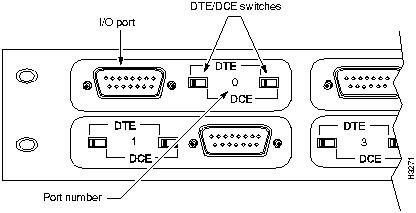
Setting Interface Jumpers on the LS Access Card
This section describes the user-settable jumpers on LightStream's low-speed access card (LSAC) and shows how to set them. The jumpers allow you to select one of two interface types:
- V.35
- RS-449/X.21
- (If you select this option, the fantail determines whether the ports are RS-449 or X.21.)
These jumpers are set for you in the factory based on the configuration specified in your system order, so you should not have to change the jumpers unless you change your configuration.
Figure 4-2 shows the location of the 16 sets of interface jumpers on the card, and illustrates how to set them. For V.35, put jumpers on the left and center pins. For RS-449 and X.21, put jumpers on the right and center pins. (The settings are indicated on the card, as shown.)
Each LSAC serves up to eight I/O ports. If you want all eight ports to use the same interface, set all the jumpers the same way. If you prefer, you can set the LSAC to give you four ports of one type and four of another (four V.35 and four X.21, for example). You'll need one fantail of each type.
The interface jumpers are labelled E1 through E8 and E11 through E18. (E9 and E10 are not interface jumpers and are not located near the interface jumpers on the card.) The interface jumpers can be divided functionally into two groups:
- The top eight jumpers, E1 through E8, affect ports 4 through 7, which are served by the top connector on the rear edge of the card.
- The bottom eight jumpers, E11 through E18, affect ports 0 through 3, which are served by the bottom connector on the rear edge of the card.
(The two connectors on the rear edge of the card are labelled with the numbers of the ports they serve. Each connector can be attached to a fantail that provides four I/O ports.)
Figure 4-2 : Interface jumpers on the LS access card. The card shown is configured to provide RS-449/X.21 interfaces for ports 4 - 7 and V.35 interfaces for ports 0 - 3.
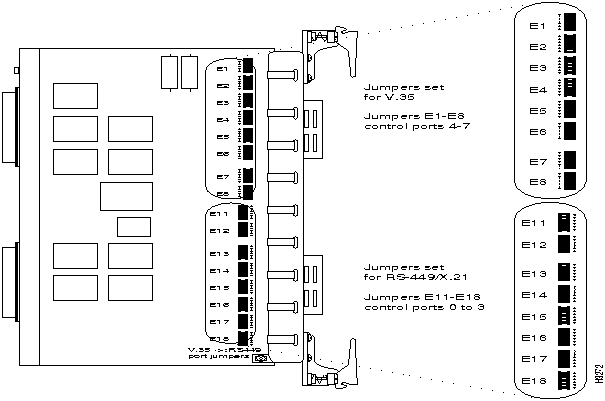
Turning Off the Transmit Laser on the OC-3c Access Card
Single-mode ports on the OC-3c access card have transmit lasers whose emissions can be dangerous to the eye. When a single-mode port is not being used, we recommend that you turn off its transmit laser. Turning off the laser turns on the port's green Safe LED. (When the LED is on, you know that it's safe to look at the connector for that port.)
 Warning Do not look directly into the connectors on a single mode OC-3c access card whose Safe LED is turned off. The transmit laser can damage your eyes.
The toggle switch has two positions:
- One switch position turns the port's transmit laser off and turns the green Safe LED on.
- The other switch position turns the port's transmit laser on and turns the Safe LED off.
To turn off the laser, move the toggle switch, shown in Figure 4-3. The green Safe LED comes on to tell you the laser is off.
 Caution If you turn off the transmit laser while the port is passing traffic, the flow of traffic will halt.
Figure 4-3 : Detail of single mode OC-3c card's bulkhead showing Safe LED and transmit laser's toggle switch.
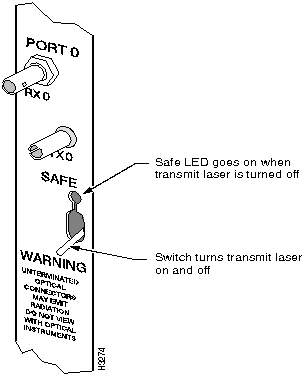
Component Configuration
Guidelines in this section help you determine how many of each major component (NPs, switch cards, line cards, power supplies) can be installed in a single LightStream chassis. You'll find this information useful if you're considering adding line cards or redundancy to your system, or if you want to rearrange the cards in a chassis.
NPs, Switch Cards, Line Cards, Disks, and Power Trays
The number of NPs, switch cards, and bulk power trays installed in a LightStream chassis depends on whether redundancy is desired. A fully redundant system has two NPs (each with its own disk assembly, including a hard disk and floppy drive), two switch cards, and two power trays.
Some LightStream switches are partially redundant; they have redundancy in some subsystems, and not in others. For example, a partially redundant system might have two power trays and two NPs, but only one switch card.
A nonredundant system has only one NP, one switch card, and one power tray.
The two power trays in a redundant system load-share, and if either one fails, the other can power the entire switch. NPs and switch cards do not load-share; only one card of each type is active at any given time. The second NP and switch card serve as hot spares. If an active NP or switch card fails, its backup takes over automatically.
Figure 4-4 : Detail of front of LightStream chassis showing slot numbers.
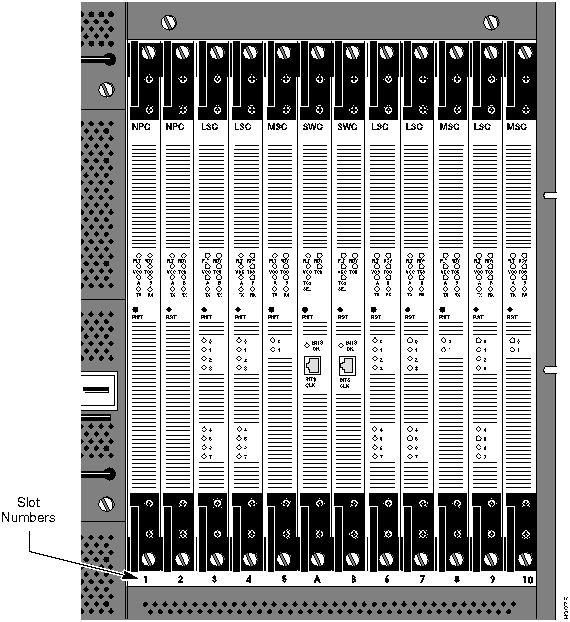
The list below outlines the types of cards that can be installed in each slot in the front of a LightStream chassis. Figure 4-4 shows the slot numbers.
- Slot 1---NP only.
- Slot 2 ---NP in a redundant configuration; any line
card in a nonredundant configuration.
- Slots 3 through 10---Line cards only.
- Slots A & B---Switch cards only.
Filler panels are provided to cover empty slots.
 Caution Although function cards (NPs and line cards) and switch cards are the same size, their midplane connectors are completely different. Do not attempt to place a function card in a switch card slot or vice versa. Attempts to do so may result in damage to the connectors on the midplane or on the cards.
Access Cards and Console/Modem Assemblies
Up to 10 I/O access cards and two console/modem assemblies can be installed in the back of a LightStream chassis. The type and placement of cards in the back of the chassis is determined by the cards installed in the front. Behind each NP and line card, an access card of the correct type must be installed. (See Table 2-1 matching access cards to function cards.) If there is a mismatch between the function card and access card in the same slot, the cards will not power up. A console/modem assembly must be installed behind each switch card.
Blowers
Every LightStream switch has two blowers. (Blowers are located at the top of the chassis; one is accessible from the front, one from the rear.) If one fails, a single blower can, under normal conditions, cool the entire chassis. However, a failed blower should be replaced as soon as possible.
Installing Redundant Components
This section outlines the requirements for installing redundant components (switch cards, NP modules, and power trays) in an existing system.
- Switch card
- To install a second switch card, insert the new card into the unoccupied switch card slot (A or B) in the center of the chassis. To install the switch card's console/modem assembly, attach the connector on the ribbon cable to the mating connector on the midplane, then screw the bulkhead into the chassis. This procedure does not disrupt the operation of the system.
- NP module
- To install a second NP module (consisting of an NP card, an NP access card, and a disk assembly), follow the steps below. This procedure does not disrupt the operation of the system.
Step 1 Install the NP, the NP access card, and the disk assembly as described in their respective replacement procedures in "Replacing FRUs" section.
Step 2 Follow the instructions in "Software Installation" section to load software for the new NP.
Step 3 Follow the instructions in "Installing a LightStream Switch" section to perform basic configuration for the new NP.
Step 4 Use the LightStream configurator to add the new NP to the configuration, then load the updated configuration into the node.
- To install a second AC power tray, simply insert the new tray into the unoccupied slot at the rear of the chassis. This procedure does not disrupt the operation of the system.
- To install a second DC power tray, insert the tray into the unoccupied slot at the rear of the chassis, then follow the DC wiring procedure starting in "Wiring a DC-Powered System" section. This procedure requires you to turn off the system's power. For instructions on shutting down the system, see "Performing an Orderly Shutdown" section.
Software Installation
Overview · Installing Software on a LightStream Switch
This chapter explains how to install LightStream software onto the hard disk(s) of a LightStream 2020 enterprise ATM switch.
Note If you are upgrading the software on an operational system, do not use the instructions in this chapter. See the release notes you received with the upgrade.
Overview
Each LightStream switch is shipped with all system and application software installed on its hard disk(s). A copy of the software is included on a set of floppy diskettes accompanying the hardware. Installing software from floppies is not part of a routine system installation. It is necessary only when a problem or the installation or replacement of new hardware occurs. For example, you must install software:
- when the hard disk is blank---because you have installed a new network processor (NP) and disk assembly, for example, or because you had to replace a failed disk assembly
- when you are installing a second NP module (NP, NP access card, and disk assembly) in a system that already has an operating NP (See "Installing Redundant Components" section for an outline of this task.)
- when a software problem or operator error has corrupted or destroyed files on the hard disk(s)
Each system is shipped with several sets of software diskettes, each set containing one or more diskettes. In addition, software for the management workstation is provided on a quarter-inch tape. (The procedure for installing management software is outlined in"Installing Management Software on A Sun" section.) The diskette sets are described below.
- The boot diskette set contains a minimal file system, the Lynx operating system kernel, and a subset of Lynx utilities.
- The system diskette set contains the LynxOS operating system and a larger set of utilities.
- The application diskette set contains LightStream application software, comprised of executable files, log files, and configuration files.
- The firmware diskette set contains microcode programs that are downloaded to the NP and Flash EEPROM images for the NP and line cards.
- The diagnostic diskette set contains stand-alone diagnostics for LightStream hardware.
You may also receive:
- One or more update diskettes. If present, they contain software released since the last major software revision.
Before installing the software, ensure that the write protection switch on each diskette is set to "protect" or "read only."
Installing Software on a LightStream Switch
Follow the procedures in this section to transfer LightStream software from floppy diskettes to the hard disk(s) in your LightStream switch. If your system has two NPs, you must install the software on each NP's hard disk. (It's important for the active and backup NPs in the same node to have the same software.)
During the installation process, the system prompts you for basic configuration information such as the date, IP and Ethernet IP addresses. The information you must enter is listed in "Basic Configuration" section.
The installation takes about 25 minutes per NP.
About Wiping the Hard Disk
To ensure a clean installation, this section includes a procedure for reformatting the hard disk. Reformatting destroys all existing files on the disk.
Upgrading Software on a Running System
If you are upgrading an operating LightStream system to a new software release, follow the instructions in the release notes you received with the software. Those instructions will preserve site-specific information on your system, such as configuration files. The procedures in this chapter tell you how to clear the hard disk and perform a full software installation; they are not designed for upgrades.
Command Glossary
The procedures in this section use the following commands:
- `. single open quote, period) Breaks a terminal connection to an NP and returns the TCS hub prompt.
- reset <slot#>TCS command that resets the card in the specified slot.
- connect <slot#> CS command that establishes a connection to the card in the specified slot.
- freshdisk Reformats the hard disk, divides it into four partitions, builds file systems, and copies files from the boot diskette to the hard disk.
- reboot -n Sends the NP into a boot sequence with instructions to prompt you for information about the device, executable and options to use for the boot procedure.
- swinstall Copies files from software distribution diskettes to the hard disk.
- swchgver Activates newly installed application software, reboots the NP, and starts a basic configuration script that prompts you for IP addresses and other information.
Note Procedures in this section assume that you have already connected a terminal or established a modem connection to the LightStream switch (as described in "Attaching a Terminal and Connecting to an NP" section). A telnet connection will not work for this purpose.
Connecting to an NP
Follow this procedure to establish a connection to the NP you want to load, and reboot it in preparation for loading the software.
Step 1 If your prompt says TCS hub<<A>> or TCS hub<<B>>, or if the system is powered down, skip to step. If your prompt says bash# or single-user$, type
`
. to get to the TCS hub.
Step 2 Power up the system or use the reset <slot#> command at the TCS hub prompt to reset the NP in a running node. (The NPs reside in slots 1 and 2.) This example assumes that you're resetting the NP in slot 1:
TCS hub<<A>> reset 1
Step 3 Quickly use the connect <slot#> command to connect to the NP where you want to install the software. This example assumes that you're connecting to the NP in slot 1:
TCS hub<<A>> connect 1
Step 4 When you connect, the NP may still be running POST. Then the following countdown appears on your screen. Press [Return] immediately.
System will boot in 5 seconds: hit <RETURN> to interrupt.
System will boot in 4 seconds: hit <RETURN> to interrupt.
System will boot in 3 seconds: hit <RETURN> to interrupt.
System will boot in 2 seconds: hit <RETURN> to interrupt.
System will boot in 1 seconds: hit <RETURN> to interrupt.
Note Note: If the system is already booting, type
`
. to get to the TCS hub again, then use the reset <slot#> command as described in step. Repeat steps and.
Step 5 Insert the boot diskette into the disk drive of the active NP. (Hold the disk with the label facing up and insert the edge with the metal slider first.)
Step 6 The following menu appears on the screen:
Network Processor bootstrap (version 1.3: Sep 13 1993)
1-Boot ATM switch application
2-Begin full installation with boot from floppy disk