


|
|

This appendix tells you how to access the test and control system (TCS) interface and how to use TCS commands to manage your network of LightStream 2020 enterprise ATM switches. TCS hub commands allow you to communicate directly to the TCS and they allow you to perform some functions when you do not have access to the command line interface (CLI). You can use the TCS hub commands to do the following:
Each of these tasks is described in this appendix. The commands discussed here are a subset of the TCS hub commands. The remaining TCS hub commands are not described here because you can use CLI commands to perform the same functions more easily. Refer to the LightStream 2020 System Overview for a further discussion of the TCS.
Access to the TCS Hub Interface
You access the TCS hub interface by connecting a VT100-compatible terminal (or modem) to the console (or modem) port on the back of the LightStream 2020 switch. Press the [Return] key to obtain a TCS prompt.
When you access the TCS, you see one of a variety of prompts. Table B-1 explains each of the possible prompts.
Table B-1 : TCS Prompt Descriptions
| Prompt | Character | Case |
| TCS HUB<A>
tcs hub<a> TCS HUB<<A>> tcs hub<<a>> |
The character A or a indicates you are connected to the TCS hub on switch card A. | A prompt shown in uppercase characters (TCS HUB<A>) indicates that the TCS hub is the primary TCS hub. A prompt in lowercase characters indicates the TCS hub is the secondary TCS hub. |
| TCS HUB<B>
tcs hub<b> TCS HUB<<B>> tcs hub<<b>>1 |
The character B or b indicates you are connected to the TCS hub on switch card B. | A prompt shown in uppercase characters (TCS HUB<B>) indicates that the TCS hub is the primary TCS hub. A prompt in lowercase characters indicates the TCS hub is the secondary TCS hub. |
| 1The significance of the single or double brackets in the prompt is not relevant to this discussion. | ||
User Interface for TCS Hub Commands
The TCS interface is similar to the CLI. Each CLI command includes the object identifier of the component to which the command is directed (chassis, card, port, etc.). A TCS hub command is always directed to a card, so it includes the slot number rather than the object identifier.
Like the CLI, the TCS interface has an online help facility. It provides a help command, and it also allows you to enter a question mark (?) to list options for a command. Unlike CLI, the TCS does not provide a command completion feature using the [Tab] key.
The TCS provides a number of line editing keys. Some of these keys are different from those used in the CLI. Table B-2 lists the TCS line editing keys.
Table B-2 : TCS Command Line Editing Keys
| Control Keys | Function |
| ^P | Yank previous command. |
| ^N | Yank next command. |
| ^A | Go to start of line. |
| ^E | Go to end of line. |
| ^B | Go back one character. |
| ^F | Go forward one character. |
| ^U | Kill entire line. |
| ^D | Delete character under cursor. |
| [Esc] B | Go back one word. |
| [Esc] F | Go forward one word. |
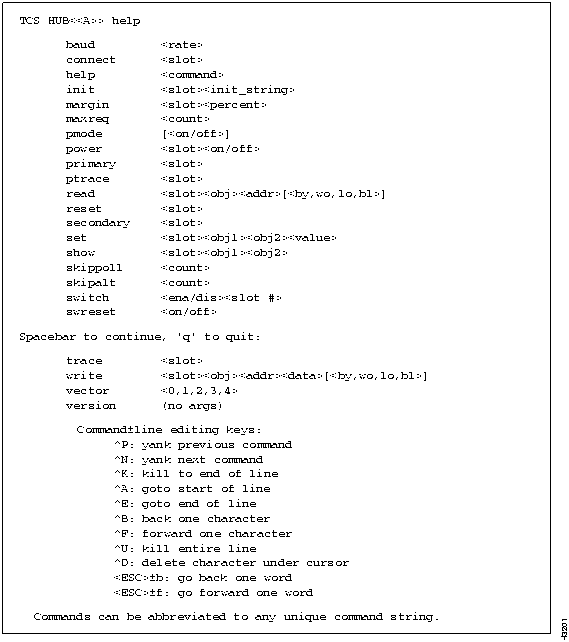
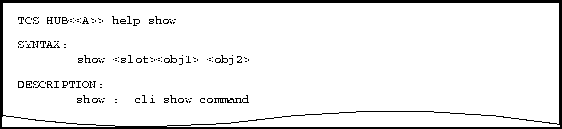
This procedure tells you how to access online help on any TCS hub command. When you enter the help command, the TCS displays a list of all commands available as shown in Figure B-1. When you enter the help command followed by a command name, the system displays information on that command as shown in Figure B-2.
At any TCS prompt, enter:
TCS HUB<<A>> help [<command>]
where
When you enter the help show command with no argument, a screen similar to Figure B-2 is displayed.
Figure B-2 : TCS help show screen.
This section describes tasks performed from the TCS hub interface:
This procedure describes how to logically connect from a terminal attached to the console or modem ports to a given slot within a LightStream 2020 switch. You can connect to a switch card, an NP, or a line card. You can also connect to an NP to access the CLI from the console or modem ports.
where
<slot#> = 1 - 10, SA, or SB
Examples of the connect command:
The information displayed when you connect to a card varies depending on the software running in that card at the time the connection is made.
If you get no response to a connect command, you may need to reset the card before you connect to it or download software into it.
Forcing a TCS Hub to Become Primary or Secondary
The TCS hub residing on a switch card controls the switch card itself and acts as a communications hub for the system-wide TCS. In a LightStream 2020 with two switch cards (SA and SB), the TCS hub on one switch card is the primary TCS hub, and the TCS hub on the other switch card is the secondary TCS hub. The procedure below forces the TCS hub on one switch card to become the primary (or secondary) TCS hub. As you force one TCS hub to be come the primary, the other becomes the secondary and vice versa.
Use this procedure before removing the switch card with the primary hub from the chassis. This procedure does not disrupt the flow of traffic through the switch; it only specifies the card that is to be used as the TCS hub.
The TCS hub you specified is set as the primary (or secondary) TCS hub. It takes the TCS approximately 4 seconds to switch the primary and secondary TCS hubs. This process delays only temporarily the servicing of pending TCS slave requests.
Changing Baud Rates on Console and Modem Ports
Follow this procedure to change the baud rate on the console or modem port associated with a switch card. Console ports can be set to the following baud rates:
Modem ports can be set to the following baud rates:
Copyright 1988-1996 © Cisco Systems Inc.
`.
TCS HUB<<A>> connect <slot#>
TCS HUB<<A>> connect 1    (connects to an NP in slot 1)


TCS HUB<<A>> connect 7    (connects to a line card in slot 7)
`.
`.
TCS HUB<<A>>
primary <slot #>
TCS HUB<<A>>
secondary <slot #>
`.
show <sa | sb> <console | modem> baudrate
<sa | sb>
specifies either the switch card in slot A or the one in slot B
<console | modem>
specifies either the console port or the modem port
set <sa | sb> <console | modem> baudrate <rate>
<sa | sb>
specifies either the switch card in slot A or the one in slot B
<console | modem>
specifies either the console port or the modem port
<rate>
is one of the baud rates listed at the beginning of this procedure
reset <sa | sb>
init <sa | sb> modem
