|
|

Statistics and Data Collection
Statistics are counters collected by a LightStream 2020 (LS2020) enterprise ATM switch. This chapter tells you how to monitor and evaluate the state and performance of your LightStream switch by reviewing and sometimes processing the statistics.
Viewing Lightstream 2020 Statistics
LS2020 statistics are stored in MIB objects. Examples of statistics include the following MIB objects:
Many statistics of interest for the LS2020 switch are defined in some of the standard MIBs and the LS2020 private MIB. For a list of standard MIBs and information on the LS2020 private MIB, see the LightStream 2020 CLI Reference Manual.
All statistics in an LS2020 switch are initialized at system startup. When they reach their maximum value (or if you do another startup), they are reset to 0. You can use the collector to collect statistics at regular intervals.
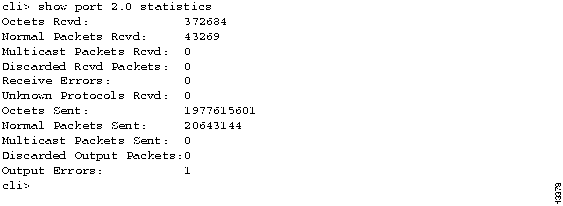
To view port statistics, use the show command. All of the information displayed for port interfaces is generic and applies to all interfaces, regardless of the interface type.
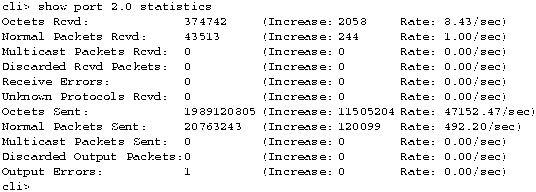
Figure 7-1 : Sample Port Statistics Display The first time you request statistics for a particular port, you see a display like the one shown in Figure 7-1. However, if you request statistics on that port again, the current value of each statistic displays with additional information. The additional information shows the amount that each statistic increased since your last request and the rate at which the statistic is changing. Figure 7-2 shows an example of the statistics display that you receive when you enter show port 2.0 statistics anytime after the first time.
Figure 7-2 : Sample Subsequent port statistics Display The LS2020 switch provides a data collection facility called the collector. The collector allows you to define a set of MIB objects, collect their values at regular intervals, and save the information in a file. The set of MIB objects and their collected values is a collection.
The collector maintains a table called collectTable in the private section of the LS2020 MIB. It uses the information in this table to control the operations of its collections. Table 7-1 shows a sample collection table. Each row defines a collection.
Table 7-1 : Sample Collection Table
You can use the begintime and endtime arguments to control the collection duration and the filesize argument to control the collection size. If you do not specify the begintime and endtime arguments, the collection runs continually.
The collector can run up to 25 collections simultaneously on a particular switch. If you attempt to start more than 25 collections, any additional collections have an operational status of waiting. When the number of running collections falls below 25, the next waiting collection begins running.
You can collect any set of MIB objects you want at various time intervals. For example, you can define a collection of ifInErrors and ifOutErrors objects for a particular set of ports to be collected once an hour or once a day. Once the collection starts, the specified information is collected at the correct interval and appended to the collection file.
The collector automatically generates the file and file name for every collection that you create. The file name is of the form collect.<collection number>. All collection files are placed in the /usr/tmp/collector directory. Sample names are /usr/tmp/collector/collect.6 and /usr/tmp/collector/collect.128.
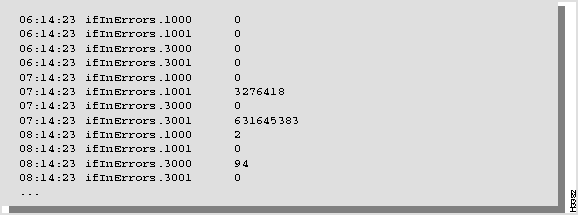
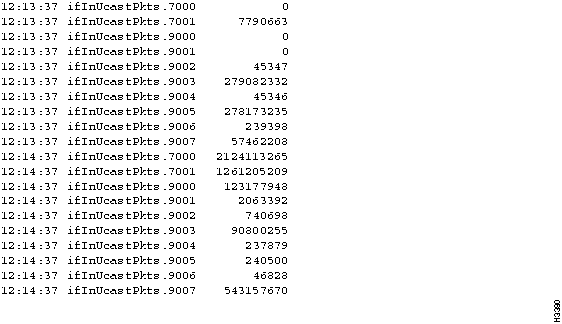
Collection files are circular ASCII files containing the time each object was collected, the object name, and the object value. Figure 7-3 shows a sample collection file. When the circular file is full, the oldest data (including start date) is overwritten by newer data. Files are displayed in chronological order from the oldest entries to the newest. The default for the maximum file size is 100 Kbytes.
Figure 7-3 : Sample Collection File
You can view and use the collection files as they are or you can process the data. (You may want to sort the data or make calculations to determine when changes in performance or state occur.)
You may want to perform these functions on your collections.
To begin a new collection, follow these procedures in the order listed below.
Each of these procedures is explained in the sections that follow.
These steps tell you how to create a collection. They set up a row in the collectTable object for a collection with the number you specify.
Setting the Collection Interval
These steps show you how to set the time interval for collecting data for a particular collection.
Table 7-2 : Collection Interval Details
Adding or Deleting Collection Objects
This procedure explains how to specify a MIB object and add or delete it from a collection. Each MIB object is added or deleted individually.
Adding Objects to a Collection
Deleting Objects from a Collection
Starting the collector causes the LightStream switch to collect the specified MIB objects (at the defined times) and store the data in the collection file. To start a collection, follow these steps.
Specifying Collection Start and End Times
This optional procedure tells you how to specify a start and end time for a collection.
You can view the collection file from the command line interface (CLI) or you can copy it to a third-party network management system (NMS) or workstation where you can view it or process it.
Two procedures can be used to view the collection from CLI. The first is used if you are running CLI on the network processor (NP) of the LightStream switch on which the collection is being run and the second is used if you are running CLI on a remote NP or Sun SPARCstation.
Procedure 1: Viewing a Collection
Enter the following at the *cli> prompt:
For more information on the circular buffer print (cbufpr) command, see the chapter entitled "The Command Line Interface."
Procedure 2: Copying a Collection File for Viewing or Processing
The following steps tell you how to delete the definition of a collection.The procedure deletes the definition of the collection from the collecTable, but it does not delete the collection file itself. Once a collection is deleted, you can no longer restart it because its definition no longer exists.
The following shows a list of commands used to create, define, and then start a collection. This sample collection is defined to collect the ifInErrors MIB object for two ports on card 1 and two ports on card 3 of the target LightStream switch. It is placed in /usr/tmp/collector/collect.2. The data is collected every hour starting when you issue the set collection start command and continuing until you stop it. (No end time has been defined.)
You can view the collection file by following the instructions in the section "Procedure 1: Viewing a Collection." Figure 7-4 is a sample display of the collection file:
Figure 7-4 : Sample Display of a Collection File
Copyright 1988-1996 © Cisco Systems Inc.
cli>
show snmp
cli>
show port <port#> statistics
Collection
Number
Collection Status
Operational
Status
Begin Time
End Time
Interval
File Name
File Size
1
Valid
Running
10:00:00 1/4/95
11:00:00 1/4/95
60
collect.1
100
2
Under
creation
Waiting
12:30:15 1/14/95
12:00
1/28/95
360
collect.2
100
75
Valid
Running
00:01:00
4/2/95
00:01:00
4/3/95
3600
collect.75
50
cli>
set snmp community <community name>
cli>
set collection <collection number> create
cli>
show collection <collection number>
cli>
set snmp community <community name>
cli>
set collection <collection number> frequency <interval>
Typical Time Interval
No. of Seconds in Interval
1 second
1 second
10 seconds
10 seconds
30 seconds
30 seconds
1 minute
60 seconds
5 minutes
300 seconds
10 minutes
600 seconds
15 minutes
900 seconds
30 minutes
1800 seconds
1 hour
3600 seconds
2 hours
7200 seconds
12 hours
43200 seconds
24 hours
86400 seconds
1 week
604800 seconds
cli>
show collection <collection number>
cli>
set snmp community <community name>
cli>
set collection <collection number> addvar <MIB address>
cli>
set collection 10 addvar ifInOctets.3001
cli>
set collection 10 addvar ifInOctets.3002
cli>
show collection <collection number>
cli>
set snmp community <community name>
cli>
set collection <collection number> delvar <MIB address>
cli>
show collection <collection number>
cli>
set snmp community <community name>
cli>
set collection <collection number> filesize <size>
cli>
show collection <collection number>
cli>
set snmp community <community name>
set collection <collection number> start
cli>
show collection <collection number>
cli>
set snmp community <community name>
cli>
set collection <collection number> begintime <time>
cli>
show collection <collection number>
cli>
set snmp community <community name>
cli>
set collection <collection number> endtime <time>
*cli> shell "cbufpr /usr/tmp/collector/collect.<collection#>"
cli>
protected
Enter password:
*
cli>
shell "ftp <name or address of workstation or host to which you want to move the collection file>"
Connection to 127.1.41.22.

220 NMS1 FTP server (version 4.162 Tue Nov 1 10:50:37 PST 1988) ready.
Name (127.1.41.22:<user name>):
Password:
230 User <user name> logged in.
ftp>
ftp>
put /usr/tmp/mma/collectIndex.8 [<new name>]
cli>
show collection [<collection number>]
cli>
show collection [<collection number>]
cli>
show collection 10

Collection Record 10:

Collection Status:  Under Creation

Begin Time:  Mon Aug 2 15:43 1995

Ending Time:  Thu Dec 31 23:59:59 2037

Collection Interval:  30 sec

Collection File:  /usr/tmp/collector/collect.10

Collection File Size:  100 KB


Collection Items:


Name: collectDBObjectID.10.1    Value: ifInOctets.3000

Name: collectDBObjectID.10.2    Value: ifInOctets.3001

Name: collectDBObjectID.10.2    Value: ifInOctets.3005

cli>
cli>
set snmp community <community name>
cli>
set collection <collection number> halt
cli>
show collection <collection number>
cli>
set snmp community <community name>
cli>
set collection <collection number> del
cli>
walksnmp collectIndex
cli> set collection 2 create


cli> set collection 2 frequency 3600


cli> set collection 2 addvar ifInErrors.1000


cli> set collection 2 addvar ifInErrors.1001


cli> set collection 2 addvar ifInErrors.3000


cli> set collection 2 addvar ifInErrors.3001


cli> set collection 2 start