


|
|

This chapter introduces the command line interface (CLI) that you use to operate and manage LightStream 2020 multiservice ATM switches (LS2020 switches). It lists CLI commands, procedures to start the CLI, and instructions to perform basic CLI functions.
The CLI is a simple line-oriented interface that you use to perform network operations from any node in the network. The CLI can also be loaded and run on a Sun SPARCstation. It allows you to operate your LS2020 network with or without a network management system (NMS).
The CLI lets you issue commands to only one node at a time. This means that you cannot view the status of several switches by entering a single command. You must issue a separate command to each switch.
From the CLI, you can access any LS2020 switch in the network and perform network operations on that switch. To issue a CLI command, type the command, then press Return. Output is displayed on the screen. Error messages or traps may be displayed on a separate terminal or window, or they may be interleaved with the CLI commands and their output. Figure 2-1 shows a sample CLI session with traps interleaved with the commands and output.
Figure 2-1 : Sample Session of the CLI
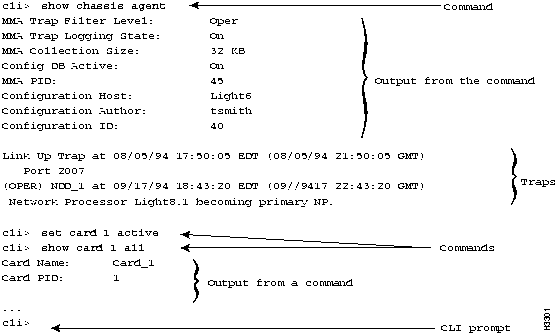
If you are running the CLI on an NP, any command you issue is executed on the switch you are logged in to. However, you have the option of executing any of the commands listed in Table 2-2 from another switch. To do this, you must first specify the name of the other switch. This is called setting the target switch. (Refer to the section "Setting the Target Switch for CLI Commands" later in this chapter.)
If you run the CLI on a Sun SPARCstation, you must set the target switch before executing any commands.
When you install your switch, the system automatically creates the four accounts shown in Table 2-1 for your network node. None of these accounts has default passwords. Passwords for the accounts are usually set when the LS2020 switch is installed. If you do not know the password for these accounts, see your network administrator.
Table 2-1 : System Accounts, Purposes, and Prompts
|
Account Name |
Purpose |
Default Prompt |
| Operator (oper) | Used to access the CLI in the normal mode | cli> |
| NP Administration
(npadmin)1 |
Used primarily for protected mode. Can also be used to access the CLI in the normal mode. | *cli> |
| Field Support (fldsup) | Used primarily by field support personnel to perform advanced troubleshooting and maintenance using the LynxOS bash shell. | LSnode:2$ 2 |
| root | Used for installation and for certain administration tasks using the LynxOS bash shell. | LSnode:2# |
When you access either the operator or the NP administration account, the switch automatically runs the CLI so you can start operations immediately. If you access either of the other accounts, the switch runs the bash shell and displays the bash (UNIX) prompt. The bash shell prompt includes the name of the chassis and the slot number of the NP. For example, LSnode:2$ means that the primary NP is on LSnode in slot 2. The dollar sign ($) indicates that you are logged in as field support. If the bash shell prompt has a pound (#) sign instead of a $, you are logged in as root (see Table 2-1).
All users can access shared accounts to operate and manage the network from the CLI. If you prefer, additional accounts can be created so that each user has his or her own account. For more information, see your network administrator.
The CLI supports the following types of command:
For descriptions of the syntax and functions of all CLI commands, see the LightStream 2020 CLI Reference Guide.
The CLI has two modes: normal and protected. Normal mode allows you to perform most routine operations. Protected mode provides access to additional commands for running hardware diagnostics and performing advanced troubleshooting.
Table 2-2 lists the protected commands and their functions.
Table 2-2 : Protected Commands and Their Functions
This section shows you some sample CLI commands and describes their syntax. All CLI commands start with the command name. Some commands require no further information; others require arguments such as file names, component names, or values. For a description of the CLI command syntax, see the LightStream 2020 CLI Reference Manual or the LightStream 2020 Command Line Interface (CLI) Reference Card.
Table 2-3 lists sample CLI syntax and command examples. In the syntax examples, optional arguments are surrounded by square brackets ([ ]); placeholders that you must replace with meaningful arguments are surrounded by angle brackets (< >).
Table 2-3 : CLI Syntax and Command Examples
Several CLI commands require port numbers. The port number must be entered in the card.port format. The card number is between 1 and 10 for line cards. The port number is between 0 and 7 for line cards. For example, to issue a show port command to port 4 on card 3 in card.port format, you would enter the following command:
It is not always necessary to enter the full name of a CLI command or its argument. In most cases, if you enter enough letters to make the command or argument unambiguous, the CLI accepts the abbreviated name in most cases, not all. Once you type enough letters of a command name or command argument to make it unambiguous, you can usually use the Tab key to complete the name unless the argument is at the end of a very long command. For example, if you the type br[Tab], the CLI completes the command browse.
If you type,
the CLI cannot interpret the command because the component name (port) is not fully spelled out. However, the CLI does recognize Any of the following commands would work:
The CLI uses a set of line editing keys that is a subset of those found in the Emacs editor. In general you can use these line editing keys for any terminal type except a hardcopy terminal. Table 2-4 lists the line editing keys that are available in the CLI.
Table 2-4 : CLI Line Editing Keys
This section describes how to start the CLI and how to perform basic CLI functions. The method you use to log in varies depending on the network management option you select. For a description of different network operation and management possibilities, see Table 1-1. If you choose an option that requires you to run the CLI on a Sun SPARCstation, see the LightStream 2020 Installation Guide for installation instructions.
You can access the CLI by
If you use Telnet to reach the NP, check with your network administrator to be sure a basic configuration to define the IP address of that NP was entered during installation. If you access the CLI through one of the console ports, it is not necessary to have the IP addresses defined for the NP.
Accessing the CLI Running on a Sun SPARCstation
To access the CLI running on a Sun SPARCstation, follow these steps:
The following text appears on the screen when you have successfully logged in to the CLI:
If you are unable to start the CLI, you might see messages that indicate the shell cannot find the program, permission was denied because the CLI is not an executable file, or this user is not allowed to access the CLI. (See your network administrator if you need assistance.)
Accessing the CLI by Connecting a Terminal to the Console Port
To access the CLI by connecting a terminal to the console port, follow these steps:
Accessing the CLI by Using Telnet to Reach the NP
To access the CLI using Telnet to reach the NP, follow these steps:
To travel down through the MIB tree and obtain the value of any MIB object you see, follow these steps:
The highest level object of the MIB tree is the iso object and the only subtree below it is the org subtree.
The following text shows an example of how you can use the browser to travel through the MIB and look at the values of the chassisId and chassisActiveIpAddr objects. (Bold type indicates user input.)
The following example shows how you can access information quickly by entering the name of the subtree you want to look at. For example, instead of going through all of the steps to get to the chassisId as shown in the previous displayF, you can enter the command browse chassisInfo and immediately access the chassisId object.
This section includes steps on how to perform these frequently used CLI functions:
To display a list of all CLI commands, enter help or a question mark [?] at the
To display detailed help on a particular topic, enter the following at the
where
[<topic>] is an optional argument that allows you to enter the name of a command on which you want help.
The following example shows the output of the help command with the argument quit:
To display the options available for a particular command, enter a question mark [?] in a command to display a list of the options.
The CLI displays a list of the objects that you can show for card 5. This command also redisplays the command that you typed, so that you do not have to retype it; just enter the name of the object you want to show as shown in the following example:
The show command is redisplayed after the help text.
You can continue to use the question mark to complete your show command as shown in the following example:
The CLI indicates that you must enter the card number. If you enter show card 5 ? at this point, the CLI displays a list of the options you can enter for card 5. It automatically redisplays show card 5. Then, you enter the option you want to view (name, for example).
To clear the screen, enter the clear command at the You use the set cli command to set the attributes listed here. These attributes determine how the CLI operates. You use the show cli command to view the current settings of the attributes.
For example, to set the line edit attribute (the default is on), follow these steps:
A screen similar to the following displays:
For more information about these attributes, see the LightStream 2020 CLI Reference Manual. It provides more information about the set and show commands, including command attributes, syntax, and arguments.
Your network administrator can provide you with the protected mode password, if you need access.
Once you enter protected mode, you remain in that mode until you take explicit action to return to normal mode. To prevent unauthorized access, always return to normal mode when you are finished or before you leave your terminal. It is also good practice to log out whenever you leave your terminal to prevent unauthorized access.
To exit from protected mode, enter exit or quit at the Forcing a Switch Card to Become Active or Backup
In an LS2020 switch with two switch cards (SA and SB), one card is the active switch card and the other card is the backup switch card. In case of a problem with the active switch card, the backup switch card automatically becomes the active switch card.
In addition, you can force either of the switch cards to become the active or backup switch card. This is called a planned cutover. You would do this, for example, if you planned to swap out the active switch card. When you force the backup switch card to become the (new) active switch card, the process forces the (original) active switch card to become the (new) backup switch card.
To force a switch card to become active or backup, follow these steps:
Setting the Target Switch for CLI Commands
You set the target switch by issuing the set snmp hostname command.
These steps tell you how to display a list of all LS2020 switches in the network and then describe how to set the target switch:
When you issue commands that affect the operation of a particular switch, be sure to check that the target is set to the correct switch.
To display a circular file from the LynxOS shell using the cbufpr command, enter the following at the bash (UNIX) prompt:
To display a circular file from the CLI, enter the following at the where
-h displays this help message.
-v displays cbufpr version information.
-tail reads the last 20 lines of the trap log file.
-<number> is the number of lines to display. This switch can be used with the -tail switch to specify the number of lines from the bottom of the file to display.
-f continues reading from the end of the file rather than exiting. The switch allows you to display traps that accumulate during the time you are viewing other parts of a circular file.
-level <file> defines the level of traps to be displayed (SNMP, oper, info, trace, or debug). The <file> argument is the name of the log file to be printed, for example, /usr/tmp/mma/mma.traplog.
| more displays one page of the file at a time. Press the space bar to display the next page. If you do not use | more, the file scrolls across the screen.
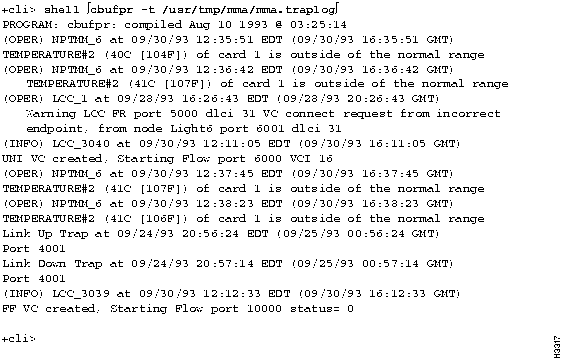
Depending on the switches and file you select, the results displayed using cbufpr vary. A screen similar to the one in Figure 2-2 is displayed if you enter shell "cbufpr -tail /usr/tmp/mma/mma.traplog" at the Figure 2-2 : Typical cbufpr Command By using the CLI show chassis cards command, you can quickly differentiate between edge cards and trunk cards and see how the physical configuration is set up. The display differs depending on your system configuration. A sample screen output looks similar to the following:
Once you see the cards that populate the system, you can display the port status for any ports. The LS2020 switch supports several interfaces to connect LS2020 systems to one another or to other devices.
Table 2-5 lists the supported port types, their configuration (edge or trunk port), and the line module necessary to configure a specific type of port.
Table 2-5 : Supported Port Types
The following is an example of a port status display for an Ethernet port. This example includes additional statistical data. The additional data is contained in parentheses and is preceded by the term Delta. To get this extra data, you must re-enter the show port command.
Copyright 1988-1996 © Cisco Systems Inc.

Name
Function
connect
Connects the CLI to a card as a console.
loadcard
Loads diagnostics.
password
Changes the password for protected mode.
set
Sets the values of certain CLI attributes in the runtime environment. Not all set commands are protected. Protected commands include set modem, set trap, and set tcs.
setsnmp
Sets the value of a MIB object.
shell
Executes a shell command and gives the user access to the LynxOS shell.
write
Writes to TCS/board memory. For Cisco customer support only.
Syntax
Command Example
exit
exit
protected
protected
help [<topic>]
help
help setsnmp
show <object type> [<component name>] <parameter>
show card 1 status
show chassis cards
set <object type> [<component name>] <parameter> [<value>]
set chassis traplevel debug
set port 3.4 loop internal
getsnmp <MIB-address> [<MIB-address>]
getsnmp cardName.4 pidName.23
show port 3.4
cli> show por 4.2 statistics
por
followed by a [Tab].
cli> show port 4.2 statistics
cli> sho port 4.2 stati
cli> sho[TAB] por[TAB] 4.2 stati[TAB]
Key
Sequence
Result
^A
Moves cursor to beginning of line.
^B
Moves cursor back one space.
^C
Interrupts command being executed.
^D
Deletes character at cursor position.
^E
Moves cursor to end of line.
^F
Moves cursor forward one character.
^K
Deletes all characters from cursor position to end of line.
^L
Redisplays current line.
^N
Scrolls forward through all commands that have been entered. (You must scroll backwards using ^P before this command provides any results.)
^O
Toggles between overwrite mode and insert mode.
^P
Scrolls backward through all commands, beginning with the most recent command.
^R
Searches backward through all commands for a particular word that you specify at the question mark prompt.
^S
Searches forward through all commands for a particular word that you specify at the question mark prompt. (You must scroll backward using ^P before this command provides any results.)
^T
Transposes the character at the cursor position with the previous character.
^U
Deletes all characters on line, regardless of cursor position.
Backspace
Deletes character to left of cursor.
Rubout
Deletes character to left of cursor.
Return
Executes command.
Line feed
Executes command.
Tab
Completes command entry.
cli>
prompt:
cli>
set snmp hostname {name|IPaddress}
CLI (Version 2.100 of June 16 1995)
Copyright 1995. Cisco systems, Inc. All Rights Reserved.
TCS HUB<<A>>
connect <slot #>
`.
user name:
password:
telnet <IP address of the NP>
or
telnet <name>
Trying <IP address or host name>

Connected to <IP address or host name>

Escape character is '^]'.


 Lynx OS (<host name>)
user name:
password:
cli
cli>
prompt:
cli>
browse [<mib-address>]
browse>
1
cli>
browse
1) org
Enter line number to go down, 'q' or 'e' to quit browse.
cli> browse

iso:
        1) org
Enter line number to go down, 'q' or 'e' to quit browse.
browse> 1

iso.org:
        1) dod
Enter line number to go down, 'u' to go up, 'q' or 'e' to quit browse.
browse> 1
iso.org.dod:
        1) internet
Enter line number to go down, 'u' to go up, 'q' or 'e' to quit browse.
browse> 1

iso.org.dod.internet:
        1) mgmt
        2) experimental
        3) private
Enter line number to go down, 'u' to go up, 'q' or 'e' to quit browse.
browse> 3

iso.org.dod.internet.private:
        1) enterprises
Enter line number to go down, 'u' to go up, 'q' or 'e' to quit browse.
browse> 1

iso.org.dod.internet.private.enterprises:
        1) LightStream
Enter line number to go down, 'u' to go up, 'q' or 'e' to quit browse.
browse> 1

iso.org.dod.internet.private.enterprises.LightStream:
        1) lightStreamOIDs
        2) lightStreamProducts
        3) lightStreamInternet
        4) lightStreamVli
        5) lightStreamCbr
        6) lightStreamEOM
        7) lightStreamDebug
Enter line number to go down, 'u' to go up, 'q' or 'e' to quit browse.
browse>
cli> browse chassisInfo
chassisInfo:
1) chassisId
2) chassisActiveIpAddr
3) chassisSecondaryIpAddr
.

.

.
Enter line number to go down, 'u' to go up, 'q' or 'e' to quit browse.
cli>
prompt. In the resulting display, commands preceded by an asterisk can be used only in protected mode. All other commands are available in normal mode and protected mode. The following example shows the output of the help command when you execute it without an argument.
cli> help
browse         Browse the MIB tree
clear          Clear the screen
*connect        Connect to card in slot
define         Define filter, multicast group, traffic profile
delete         Delete filter, multicast group/member, traffic profile
exit           Exit program
getsnmp        Print MIB value
getnextsnmp    Print next MIB value
help [topic]   Print this message and more
*loadcard       Load line card software
*password       Change protected mode password
ping           Send ICMP echo packets to host
protected      Enter protected mode
quit           Exit program
read           Read board memory
*setsnmp        Set a MIB value
set            Change the state of an object
*shell          Execute a shell command
show           Display the state of an object
source         Run shell script
*test           Run diagnostic programs
walksnmp       Walk MIB starting at mib-address
*write          Write to TCS/board memory
 '*' indicates command requires protected mode.
cli>
cli>
prompt:
cli> help [<topic>]
cli> help quit
NAME

        quit or exit - halt program

SYNTAX

        quit

DESCRIPTION

        If in protected mode return to normal mode. If in normal mode,
        Leave the program immediately

cli>
cli> show card 5 ?
cli> show card 5 ?
all
name
processid
status
version
hardware
peak-cell-rate
ports
cli> show card 5
cli> show card ?
Card number required
cli> show card 5 ?
all
name
processid
status
version
hardware
ports
cli> show card 5 name
Card Name: ls-card-5
cli>
cli>
prompt. The screen clears and the
cli>
prompt reappears at the top of the screen.
cli>
prompt:
cli>
set cli lineedit on
cli>
show cli lineedit
*cli>
show cli lineedit
Line Edit: on
*cli>

cli>
prompt.
Enter password:
cli>
prompt changes to *
cli>
. You can now execute protected mode commands in addition to normal mode commands.
Sorry
Command requires 'protected' mode.
*
cli>
prompt. The
*
cli>
prompt reverts to
cli>
.
cli>
prompt.
cli>
show snmp
Community: public
HostName: localhost
cli>
cli>
prompt:
cli>
show chassis primaryswitch
cli>
show chassis primaryswitch
Switch: Switch A
cli>
cli>
prompt, enter:
cli>
set chassis primaryswitch <slot #>
*cli>
prompt:
*cli>
show gid ip
IP Addresses Managed by GID:
----------------------------
IP Address Age Seq# Advertising-NP Net-Mask Port
---------- --- ---- -------------- -------- ----
198.113.178.13 372 4268788858 node-a.1 255.255.255.0 node-a.0.11
198.113.178.14 1199 4268769131 node-b.1 255.255.255.0 node-b.0.11
198.113.178.15 1480 4270435812 node-c.1 255.255.255.0 node-c.0.11
198.113.178.16 421 4271717639 node-d.1 255.255.255.0 node-d.0.11
.

.

.
cli>
*
cli>
prompt:
*
cli>
set snmp hostname {name|IPaddress}
*
cli>
prompt:
*
cli>
set snmp hostname {localhost|128.0.0.1}
*
cli>
prompt:
LSnode:2# cbufpr [-h] [-v] [-all] [-tail] -<number> [-f] [-trap] <file> |more
*
cli>
prompt:
*cli> shell "cbufpr [-h] [-v] [-all] [-tail] -<number> [-f] [-level] <file> |more"
*
cli>
prompt.
cli> show chassis cards

Slot 1:   NP

Slot 2:   LS Trunk

Slot 3:   LS Edge

Slot 4:   MS Trunk

Slot 5:   OC3 Trunk

Slot 6:   T3 Trunk

Slot 7:   Cemac

Slot 8:   Ethernet

Slot 9:   FDDI

Slot 10:  Cemac

Slot SA:  Switch2

Slot SB:  Empty
Unknown
displays beside the slot number if a card is down. You can also type show card <slot #> to see if a card is down.
Port Type
Configuration
Line Module
OC3 ATM UNI
Edge
Cell line card with OC3 access card (single mode or multimode)
OC3 trunk
Trunk
Cell line card with OC3 access card (single mode or multimode)
T3 ATM UNI1
Edge
Cell line card with 8T3 access card or medium speed card with T3 medium-speed access card (2 port)
T3 trunk
Trunk
Cell line card with 8T3 access card or medium speed card with T3 medium-speed access card (2 port)
E3 ATM UNI1
Edge
Cell line card with 8E3 access card or medium speed card with E3 medium-speed access card (2 port)
E3 trunk1
Trunk
Cell line card with 8E3 access card or medium speed card with E3 medium-speed access card (2 port)
Ethernet
Edge
Packet line card with Ethernet access card
Fiber Ethernet
Edge
Packet line card with fiber Ethernet access card
FDDI
Edge
Packet line card with FDDI access card
CEMAC
Edge
Packet line card with circuit emulation access card
Frame Relay1
Edge
Packet line card with serial access card or low-speed card with low-speed access card
Frame forwarding1
Edge
Packet line card with serial access card or low-speed card with low-speed access card
LightStream trunk1
Trunk
Packet line card with serial access card or low-speed card with low-speed access card
1 The line module you choose when you configure a port type depends on the external media or system you select.
cli> show port 8.0

Description:              Ethernet CSMACD

Port Name:                ECC Port 0

Port Type:                Ethernet

MIB2 Type:                ethernet-csmacd

Interface address:        8:0:8:0:28:78


Ethernet Medium Type:     AUI

Port MTU:                 1500 Octets

Port Speed:               10000000 bps


Admin Status:             Up

Oper Status:              Down

Last Oper Change:         2 Hr 18 Min 44 Sec ago


Octets Rcvd:              0    (Delta: 0    Rate: 0.00/sec)

Normal Packets Rcvd:      0    (Delta: 0    Rate: 0.00/sec)

MOctets Sent:             384  (Delta: 0    Rate: 0.00/sec)

Normal Packets Sent:      0    (Delta: 0    Rate: 0.00/sec)

.

.

.


                   WorkGroup List:

                   ---------------

Card         Port          WgrpId          Mode

----         ----          ------          ----

8            0             1               Include


Default Bridge Filter action is FORWARD

Default IP Filter action is FORWARD

Default IPX Filter action is FORWARD

NP Deliver:          block

Port STB data:

Port State:               disable

Priority:                 128

Path Cost:                100
