The instructions in this document describe how to remove the PIX Firewall access panel and install an upgrade or spare circuit board.
Note Cisco documentation and additional literature are available on a CD-ROM called Cisco Connection Documentation. The CD is updated and shipped monthly so it might be more current than printed documentation. To order the documentation CD, contact your local sales representative or call Customer Service. The CD is available both as a single CD and as an annual subscription. You can also access Cisco technical documentation on the World Wide Web URL http://www.cisco.com.
This warning symbol means danger. You are in a situation that could cause bodily injury. Before you work on any equipment, be aware of the hazards involved with electrical circuitry and be familiar with standard practices for preventing accidents.

Warning Before working on a system that has an on/off switch, turn OFF the power and unplug the power cord.

Warning Do not work on the system or connect or disconnect cables during periods of lightning activity.

 Warning Do not touch the power supply when the power cord is connected. For systems with a power switch, line voltages are present within the power supply even when the power switch is off and the power cord is connected. For systems without a power switch, line voltages are present within the power supply when the power cord is connected.
Warning Before working on equipment that is connected to power lines, remove jewelry (including rings, necklaces, and watches). Metal objects will heat up when connected to power and ground and can cause serious burns or weld the metal object to the terminals.

Refer to the Regulatory Compliance and Safety Information for the Cisco PIX Firewall (Document Number 78-3733-02) for more information and translated warnings in European languages.
To install a circuit board in a PIX Firewall:
Step 1 Read the Regulatory Compliance and Safety Information for the Cisco PIX Firewall (Document Number 78-3733-02) for important safety information.
Step 2 Save the existing configuration to flash memory. For version 2, use the save command; for version 3, use the write flash command.
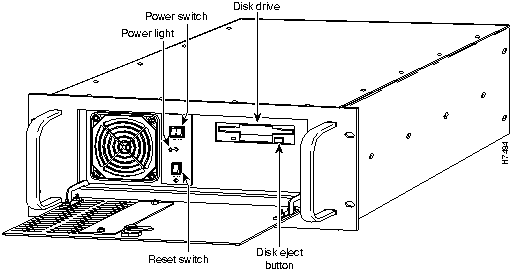
Step 3 Open the front access panel and power-off the unit as shown in Figure 1:
Figure 1 : Opening the Front Panel Provides Access to the Power Switch
Step 4 At the back of the PIX Firewall unit, remove the power cord and any cabling related to the board you are installing.
Step 5 Remove the unit from the equipment rack and place on a stable work surface.
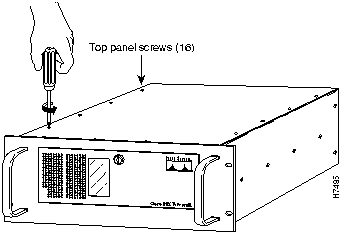
Step 6 Detach the top access panel by using a Phillips-head screwdriver to remove the 16 screws securing the top panel (12 on top and 4 on the rear cover flange) as shown in Figure 2:
Figure 2 : Detach the Access Panel by Removing its 16 Screws
Step 7 Remove the top access panel.
Step 8 Remove the new circuit board from its bag.
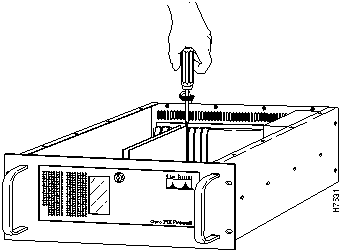
Step 9 If you are replacing an existing circuit board, remove the screw that secures the board to the rear of the chassis for each board you are replacing as shown in Figure 3:
Figure 3 : Remove the Screw Holding the Board to the Rear of Chassis
Step 10 If you are replacing an existing board, remove each board and set it aside.
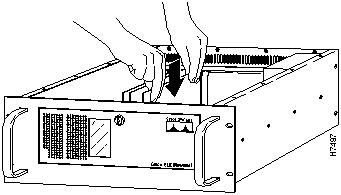
Step 11 Insert each new board in the appropriate slot so that the mounting bracket faces the rear of the unit as shown in Figure 4:
- If you are installing Ethernet boards, place them in the identical PCI slots (see Figure 5 in the next section) from which you removed the previous boards. Note that an empty slot is left between the two boards. Ensure that the Inside and Outside labels on the outside rear of the chassis correspond to the slots in which you install the boards.
- If you are installing Token-Ring boards, place them in the PCI slots (see Figure 5 in the next section) previously occupied by the Ethernet boards. (Token-Ring support will be provided in PIX Firewall version 3.) Note that an empty slot is left between the two boards. Ensure that the Inside and Outside labels on the outside rear of the chassis correspond to the slots in which you install the boards.
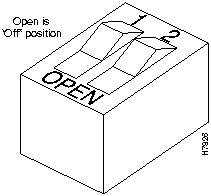
- If you are installing the Private Link encryption board, ensure both dip switches are in the off position and then insert the board in the leftmost ISA slot (see Figure 5 in the next section).
Figure 4 : Insert the Circuit Board Into the Chassis
Step 12 Attach the screw to the mounting bracket.
Step 13 Attach the top access panel and its securing screws.
Step 14 Put the unit back on the equipment rack and plug in the cables and the power cord.
Step 15 Power-on the unit from the front access panel.
For configuration information, if you are using PIX Firewall version 2, refer to the Private Internet Exchange Reference Guide (Document Number 78-3362-02). If you are using version 3, refer to the Cisco PIX Firewall User Guide (Document Number 78-3728-01). Refer to the index in each guide to find information about the product you are installing.
Identifying Slot Types
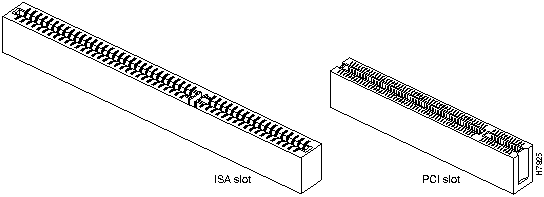
Use the ISA slot to install the Private Link encryption board and the PCI slots to install either Ethernet or Token-Ring boards as shown in Figure 5:
Figure 5 : Find ISA and PCI Slots
Identifying Dip Switches
The Private Link encryption board dip switches are shown in Figure 6:
Figure 6 : Note That Dip Switch is Off When in "Open" Position
Obtaining Service and Support
For service and support for a product purchased from a reseller, contact the reseller. Resellers offer a wide variety of Cisco service and support programs, which are described in the section "Service and Support" in the information packet that shipped with your chassis.
Note If you purchased your product from a reseller, you can access Cisco Connection Online (CCO) as a guest. CCO is Cisco Systems' primary, real-time support channel.Your reseller offers programs that include direct access to CCO's services.
For service and support for a product purchased directly from Cisco, use CCO.
Cisco Connection Online
CCO is Cisco Systems' primary, real-time support channel. SMARTnet customers and partners can self-register on CCO to obtain additional content and services.
Note If you purchased your product from a reseller, you can access CCO as a guest. Your reseller offers programs that include direct access to CCO's services.
Available 24 hours a day, 7 days a week, CCO provides a wealth of standard and value-added services to Cisco's customers and business partners. CCO services include product information, software updates, release notes, technical tips, the Bug Navigator, configuration notes, brochures, descriptions of service offerings, and download access to public and authorized files.
CCO serves a wide variety of users through two interfaces that are updated and enhanced simultaneously---a character-based version and a multimedia version that resides on the World Wide Web (WWW). The character-based CCO supports Zmodem, Kermit, Xmodem, FTP, and Internet e-mail, and is excellent for quick access to information over lower bandwidths. The WWW version of CCO provides richly formatted documents with photographs, figures, graphics, and video, as well as hyperlinks to related information.
You can access CCO in the following ways:
- WWW: http://www.cisco.com.
- WWW: http://www-europe.cisco.com.
- WWW: http://www-china.cisco.com.
- Telnet: cco.cisco.com.
- Modem: From North America, 408 526-8070; from Europe, 33 1 64 46 40 82. Use the following terminal settings: VT100 emulation; databits: 8; parity: none; stop bits: 1; and baud rates up to 14.4 kbps.
For a copy of CCO's Frequently Asked Questions (FAQ), contact ccohelp@cisco.com. For additional information, contact ccoteam@cisco.com.
Note If you need technical assistance with a Cisco product that is under warranty or covered by a Cisco maintenance contract, contact Cisco's Technical Assistance Center (TAC) at 800 553-2447, 408 526-7209, or tac@cisco.com.
Please use CCO to obtain general information about Cisco Systems, Cisco products, or upgrades. If CCO is not accessible, contact 800 553-6387, 408 526-7208, or csrep@cisco.com.
Copyright 1988-1996 © Cisco Systems Inc.



