|
|

Validating CiscoWorks Installation
To validate the CiscoWorks installation and configuration, you must edit the .cshrc file on your system. Follow the procedures in this chapter to complete the validation of your CiscoWorks installation.
This section briefly summarizes the steps you should follow to complete the CiscoWorks installation and configuration and to validate the installation. These steps are explained in detail following:
Defining Environment Variables and Search Paths
To use HP OpenView, CiscoWorks, and Sybase, you must define the appropriate environment variables and paths in your .cshrc file.
Environment variables define how your particular system is set up, such as directory paths that specify the location of files (either manual pages or software). The environment variables and paths are explained in Table 4-1.
Table 4-1 : Environment Variables and Directory Paths
| Environment
Variable or Path |
Explanation |
|---|---|
| NMSROOT | Refers to the directory /usr/nms or /nms where the CiscoWorks software was installed. If the software was installed in a different directory, substitute the appropriate directory path to ensure a correct definition of the NMSROOT environment variable. |
| SYBASE | Refers to the directory path where Sybase is located. The default is $NSMROOT/sybase. If you selected the default, the Sybase software was installed in the /usr/nms/sybase or /nms/sybase directory. The SYBASE variable refers to the NMSROOT variable and the sybase directory following it. |
| PATH | Refers to the directory path for /usr/OV/bin, $NMSROOT/bin, $NMSROOT/etc, and $SYBASE/bin. The path should be specified for HP OpenView, CiscoWorks, and Sybase. |
| MANPATH | Refers to the directory path for finding manual pages. It should include include $NMSROOT/man |
| DISPLAY | Refers to the X11 display with which CiscoWorks operates. The default is :0 or hostname:0 |
The addition of environment variables and path names to your .cshrc file will be applicable only to your login account. If you have other system administrators or network managers who need access to CiscoWorks, edit their .cshrc files and add the information specified in the following procedure.
The following steps describe how to add the appropriate environment variables and path names to the .cshrc file or the .login file. If you installed HP OpenView, CiscoWorks, and Sybase software in directories other than the default directories, substitute the correct directory paths.
Verifying Changes to the .cshrc File
After you edit the .cshrc file, verify that the changes you made are active. Enter the following command at the UNIX prompt to display the edited .cshrc file:
Note that the environment variables for NMSROOT and SYBASE are displayed. In addition, the paths are defined for CiscoWorks and Sybase executables, and the CiscoWorks manual pages, as well as other system variables.
Displaying CiscoWorks Applications
To verify the CiscoWorks installation and configuration, access HP OpenView and display the CiscoWorks applications. CiscoWorks applications are integrated conveniently into the network management menu structure of HP OpenView.
For detailed information on how to start the HP OpenView Console, refer to the HP OpenView Windows User's Guide.
Perform the following steps to view CiscoWorks applications:
Table 4-2 : CiscoWorks Applications Under HP OpenView
If no CiscoWorks applications are visible under the HP OpenView menus, the installation may have been unsuccessful; if this happens, try reinstalling CiscoWorks.
With HP OpenView, an Internet Protocol (IP) map is created automatically to show you the devices that are connected directly to your HP OpenView workstation. The IP map communicates directly with the topology database. Consequently, if a new node is added to the topology database, the IP map will automatically create or modify a submap to recognize the new device.
Submaps are created automatically only for devices running Internet Protocols (IP). If your network is running non-IP protocols such as AppleTalk or Novell, you need to manually create maps to recognize these devices. To learn how to use the New Map command, refer to your HP OpenView Windows User's Guide.
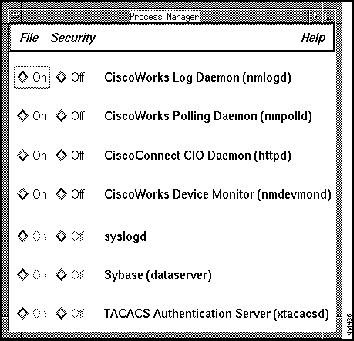
To verify that the appropriate CiscoWorks processes are running, you must access the Process Manager window. Use the CiscoWorks Process Manager application to select different types of CiscoWorks processes or daemons. A daemon is a process that performs a specific function for the system. Each CiscoWorks process performs specific functions.
The Process Manager monitors the following six CiscoWorks daemon processes: Log daemon, Polling daemon, Event Logger daemon, Syslog daemon, TACACS Authentication Server, and Sybase Server daemon. Figure 4-1 shows the Process Manager window on the Sun OS platform.
Figure 4-1 : Process Manager Window By default, the first four CiscoWorks processes in the Process Manager window are running whenever you reboot your system. These processes can run continuously, even if HP OpenView is not running on your system.
To start the Process Manager application, perform the following steps:
After validating the CiscoWorks installation as described in this chapter, proceed to the CiscoWorks User Guide to learn how to perform network management with CiscoWorks.
Copyright 1988-1996 © Cisco Systems Inc.
#Set environment variables for ovw, CiscoWorks, and Sybase
setenv NMSROOT /usr/nms
setenv SYBASE directory location of Sybase
#Set path for CiscoWorks and Sybase executables
set path = ($path $NMSROOT/bin $NMSROOT/etc $SYBASE/bin /usr/OV)
#Set path for CiscoWorks man pages
if (!($?MANPATH)) then
setenv MANPATH /usr/man
else
setenv MANPATH "$MANPATH": $NMSROOT/man
endif
hostname%
source $NMSROOT/etc/install.cshrc
hostname% printenv | more
hostname%
ovw
HP OpenView Menu
CiscoWorks Application
CiscoWorks Application Enabled When
Monitor
Monitor>Description
Health Monitor...
Environmental Monitor...
Real-Time Graphs...
CW - Device Polling...
CW - Polling Summary...
Contacts
One Cisco device is selected in your network map.
In your network map, one Cisco device is selected that contains an Environmental Monitor Card.
One Cisco device is selected in your network map.
Always Enabled.
Always Enabled.
One Cisco device is selected in your network map.
Administer>CiscoWorks System
Administer>CiscoWorks Devices
Administer>CiscoWorks Software Images
Administer>CiscoWorks Security
Process Mgr...
Global Command Mgr...
Global Command Scheduler...
Device Mgmt...
Configuration Mgr...
Configuration Snap-In Mgr...
AutoInstall Mgr...
Software Library Mgr...
Software Inventory Mgr...
Device Software Mgr...
SA Password...
Security Mgr...
Domain Mgr...
TACACS Mgr...
Always Enabled.
Always Enabled.
Always Enabled.
Always Enabled.
Always Enabled.
Always Enabled.
Always Enabled.
In your network map, one Cisco device is selected that contains flash memory.
Always Enabled.
In your network map, one Cisco device is selected that contains flash memory.
Always Enabled.
Always Enabled.
Always Enabled.
Always Enabled.
Diagnose
Show Commands...
Log Mgr...
One Cisco device is selected in your network map.
Always Enabled.
Network Connectivity
Path Tool...
Always Enabled.
Misc
Sync w/Sybase...
CW - Login...
CW - Logout...
Sybase DWB...
Always Enabled.
Always Enabled.
Always Enabled.
One Cisco device is selected in your network map.