|
|
Managing Cisco Device Configurations
The following sections specifically address NetView on AIX issues.
The following sections discuss how to manage the Cisco Systems software and microcode upgrades with CiscoWorks on NetView for AIX.
The Software Library Manager application does not support the import by diskette method. On NetView on AIX, the Software Library Manager imports images using the following methods:
For further details on importing images, refer to the CiscoWorks User Guide.
The Device Software Manager application uses two separate methods to upgrade Cisco devices. The method CiscoWorks uses depends on what Cisco device you are upgrading.
For run-from-Flash devices, such as the Cisco 2500 and Cisco 3000, the Device Software Manager takes you through an upgrade procedure. The run-from-Flash upgrade is supported on the Sun and HP platforms. For run-from-RAM devices, the application allows you to select the software or microcode you wish to upgrade and takes you to the Software Image Update window to complete the upgrade.
To complete your Cisco device upgrades, refer to the following section in this document "Upgrading Cisco Run-From-Flash Devices" or "Upgrading Cisco Run-From-RAM Devices" in the CiscoWorks User Guide.
The Flash Image Manager application upgrades Cisco run-from-Flash devices using the Flash Image Manager window.
Figure 3-1 illustrates the Flash Image Manager window. Table 3-1 describes its components.
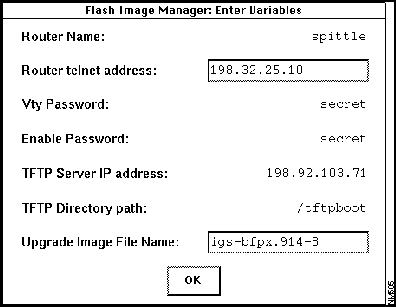
Figure 3-1 : Flash Image Manager Window
Table 3-1 : Flash Image Manager Window
| Component | Description |
|---|---|
| Router Name | Run-from-Flash device to be upgraded. Enter the hostname without the domain name extension. |
| Router Telnet Address | Run-from-Flash device IP address. |
| Vty Password | Run-from-Flash device line password. |
| Enable Password | Run-from-Flash device enable password. |
| TFTP Server IP Address | Boot file server IP address. This is the workstation on which the rxbmgr command runs. |
| TFTP Directory Path | Boot file directory location. The program uses the default of /tftpboot. |
| Upgrade Image File Name | Cisco Internetworking Operating System (IOS) image name for Cisco 2500 or 4000 devices. |
| OK button | Backs up the existing router configuration and software image to the TFTP server and starts the upgrade process. |
After the Software Inventory Manager invokes the Flash Image Manager window, perform the following steps to upgrade your run-from-Flash device:
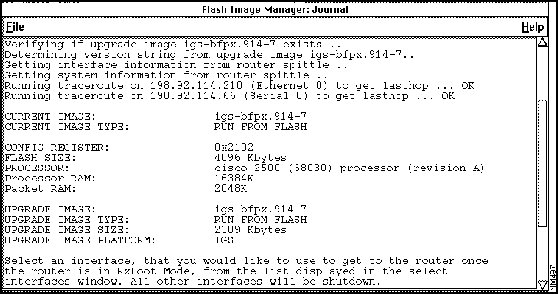
Figure 3-2 : Flash Image Manager Journal Window
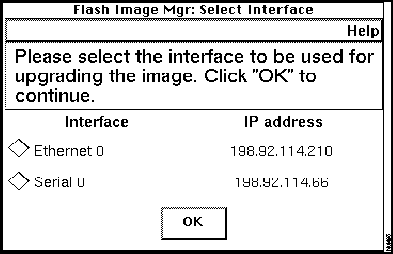
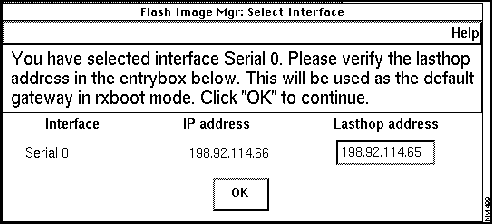
Figure 3-3 : Flash Image Manager:Select Interface Window Figure 3-4 : Flash Image Manager:Select Interface Window Part Two
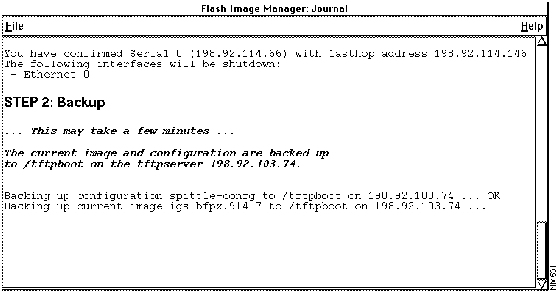
Figure 3-5 : Flash Image Manager Journal Backup Output
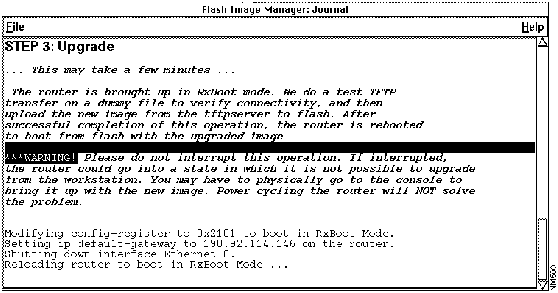
Figure 3-6 : Flash Image Manager Journal Upgrade Output
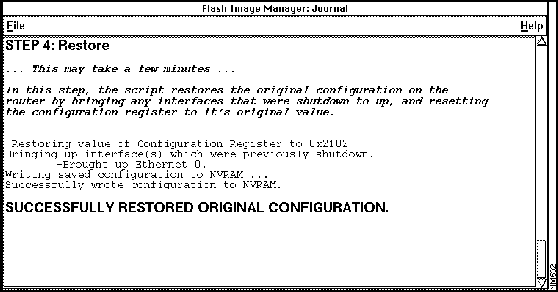
Figure 3-7 : Flash Image Manager Journal Restore Output
Copyright 1988-1996 © Cisco Systems Inc.