
Table of Contents
Quick Start
Quick Start
This chapter describes how to quickly install and configure your CiscoWorks network management software.
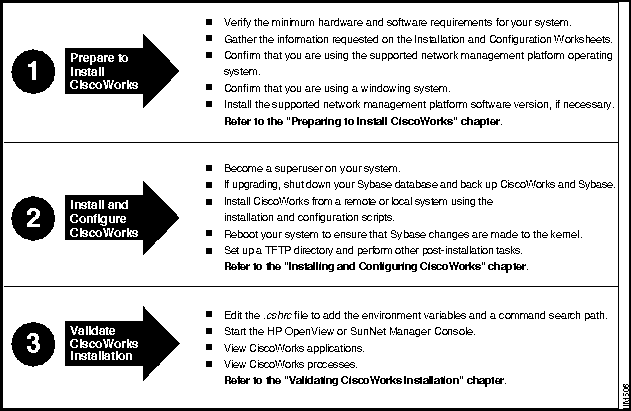
Figure 2-1 is an overview of the installation process, including preparation, installation, configuration, and validation. After reviewing Figure 2-1, you may prefer to perform a quick installation, without completing the installation and configuration worksheets. If so, continue with this chapter and refer to the following section, "Quick Installation." If not, continue with the next chapter, "Preparing to Install CiscoWorks."
Figure 2-1 Installation Roadmap
If you are installing CiscoWorks for the first time from a local CD-ROM drive, and if you are an experienced network administrator or operator, you may wish to perform a quick installation using the steps described in this section.
If you are installing from a remote CD-ROM drive, upgrading the CiscoWorks software, are unfamiliar with UNIX commands or with your system, or if you want to use values other than the defaults given by the installation and configuration scripts, follow the instructions in the "Preparing to Install CiscoWorks" chapter and the "Installing and Configuring CiscoWorks" chapter.
If you are upgrading CiscoWorks, you must back up your Sybase database before continuing with your installation. Refer to the detailed installation instructions on saving your database in the "Installing and Configuring CiscoWorks" chapter.

Caution Be sure your system has the required software installed and meets the disk and swap space requirements before proceeding with the installation. For detailed information on system requirements, refer to the "Preparing to Install CiscoWorks" chapter.
To install CiscoWorks on a Sun workstation, perform the following steps:

- Step 1 Place the CD-ROM in its caddy. Insert the caddy into the CD-ROM drive.
- Step 2 Log in as the superuser.
- For information on how to become the superuser, refer to the "Becoming the Superuser" section in "Installing and Configuring CiscoWorks" chapter.
- Step 3 Create a /cdrom directory, if one does not exist, by entering the following command:
# mkdir /cdrom
- If the /cdrom directory already exists, proceed to the next step.
- Step 4 Mount the CD-ROM by entering the following command:
# mount -rt hsfs /dev/device_filename /cdrom
- For example, enter your
device_filename
as
sr0
.
 Caution If you are already using Sybase, refer to the detailed installation instructions on saving your database in the section "Upgrading from a Previous Version of CiscoWorks" in the "Installing and Configuring CiscoWorks" chapter before continuing with the installation. Failure to back up your Sybase database may result in a loss of data should your installation or NFS server fail.
- Step 5 Enter the following commands to extract the files from the CD-ROM:
# cd /cdrom

        # ./extract_unbundled
- Make sure you include the . / in the extract_unbundled command to run the correct version of the command.
- Step 6 Answer the system prompt questions. For detailed installation information, refer to the "Preparing to Install CiscoWorks" chapter.
- Step 7 If this is a new installation, enter the following to reboot your system to ensure that the new kernel is used:
# reboot
- If you answered no to the automatic kernel modification during the installation, you must manually update the kernel by performing the steps in the "Manually Entered Sybase Modifications to the Kernel Configuration File" section in the "Installing and Configuring CiscoWorks" chapter.
- Step 8 Log into your system as the superuser after your computer reboots.
- Step 9 Enter the following commands to configure CiscoWorks:
# /usr/tmp/unbundled/cwconfigure
- Step 10 Answer the system prompt questions. To accept the default values, press Return.
- Step 11 Enter the following command to unmount and eject the CD-ROM from your local machine:
# cd /

        # umount /cdrom

# eject device_filename
- Substitute your device filename, for example,
sr0. The CD-ROM caddy ejects from the drive. Remove it from the caddy and store it in a safe place.
- Step 12 Reboot your machine if you configured your UNIX kernel for Sybase.
This completes the quick installation process. You are now ready to verify your installation according to the instructions in the "Validating CiscoWorks Installation" chapter.
To install CiscoWorks from an HP-UX system, perform the following steps:

- Step 1 Place the CD-ROM in its caddy and insert the caddy into the CD-ROM drive.
- Step 2 Log in as the superuser.
- For information on how to become the superuser, refer to "Becoming the Superuser" section in the "Installing and Configuring CiscoWorks" chapter.
- Step 3 Create a /cdrom directory, if one does not exist, by entering the following command:
# mkdir /cdrom
- If the /cdrom directory already exists, proceed to the next step.
- Step 4 Check to see if /dev/cdrom exists. If it does, proceed to the next step, but use /dev/cdrom/cdrom as the device name. If it does not, perform step 5 as written.
- Step 5 Mount the CD-ROM by entering the following command:
# /etc/mount -o ro -t cdfs /dev/device_filename /cdrom
- For example, enter your
device_filename
as
/dsk/c201d2s0
. If this device name does not work, run the ioscan program to determine the disk number.
- Step 6 Create a directory for the CiscoWorks and Sybase files by entering the following command:
# mkdir /usr/nms
- If you already have a directory named /usr/nms, you can specify another directory for installing CiscoWorks. The installation process overwrites the contents of the existing /usr/nms directory.
- Step 7 Copy the installation and configuration scripts to the new CiscoWorks directory by entering the following command:
# /etc/update -s /cdrom/cw.tar -d /usr/nms CWIC
- -s specifies where the CiscoWorks software is located on the CD-ROM. -d indicates the destination where the CiscoWorks product is downloaded.
- Step 8 Install the CiscoWorks software by entering the following command:
# /usr/nms/install/bin/cwinstall -s /cdrom/cw.tar -d /usr/nms
- If you do not use any command options, the cwinstall script prompts you for a response. While the cwinstall script runs, answer the questions it displays, or press Return to accept the default options.
- The command options you can use are defined as follows:
-s
Source
-d
Destination
-help
Print the usage
-f
filesets
CiscoWorks software to install
- Step 9 Use the configuration script to configure CiscoWorks by entering the following command:
# /usr/nms/install/bin/cwconfigure
- While the cwconfigure script runs, answer the questions it displays, or press Return to accept the default options.
- Step 10 To remove the installation log files after configuring CiscoWorks, follow the instructions in the "Removing Log Files" section in the "Installing and Configuring CiscoWorks" chapter.
- Step 11 Unmount the CD-ROM by entering the following commands:
# cd /

        # umount /cdrom
- Step 12 Eject and remove the CD-ROM and store it in a safe place.
You are now ready to verify your installation according to the instructions in the "Validating CiscoWorks Installation" chapter.
Copyright 1988-1995
©
Cisco Systems Inc.



