


|
|

Preparing to Install CiscoWorks
This chapter describes preparatory information for installing and configuring CiscoWorks. Included are worksheets to help you gather the necessary information.
Figure 2-1 provides an overview of the installation process, including preparation, installation, configuration, and validation.
Figure 2-1 : Installation Roadmap
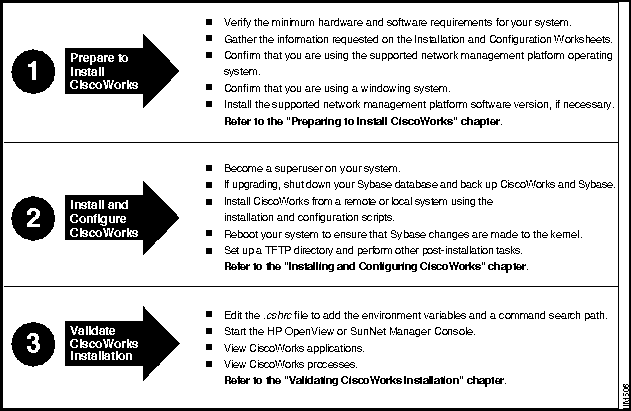
Before you install the CiscoWorks network management software, confirm that your computer system meets the related hardware and software-version requirements. In addition, you should note any special requirements about how you want CiscoWorks installed. For example, CiscoWorks prompts you during installation to supply information such as where you want CiscoWorks installed and whether you are performing an upgrade or new installation.
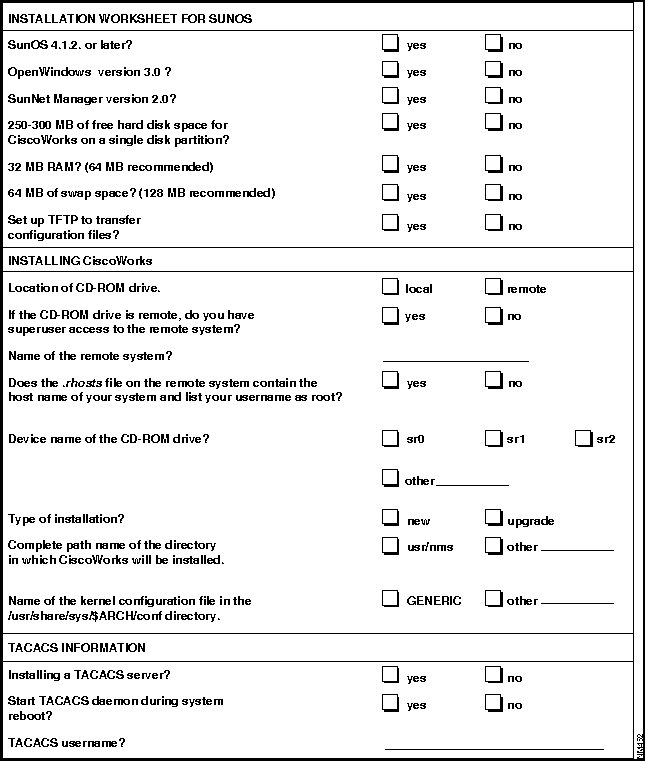
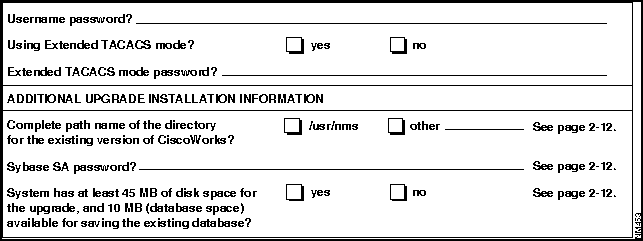
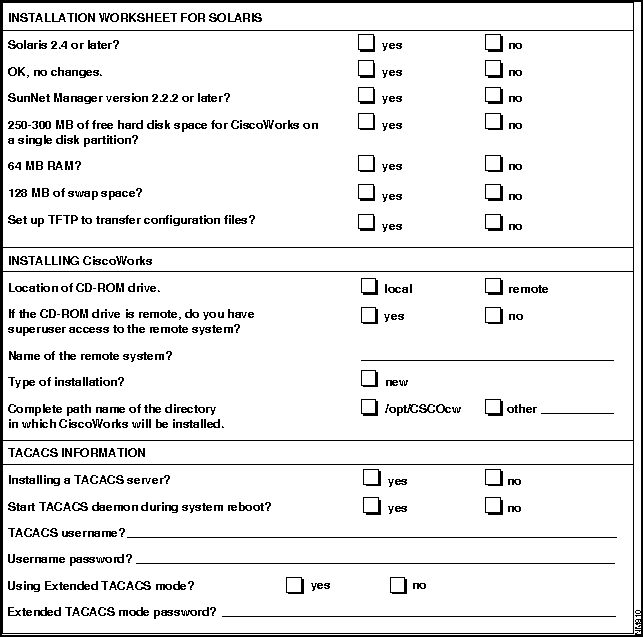
To gather all the information you need to install CiscoWorks, first complete the Installation Worksheet. You can then refer to the worksheet, if necessary, as you proceed with the installation.
Process Overview for Preparing to Install or Upgrade
Follow these basic steps to prepare to upgrade from a previous release of CiscoWorks, or to install and configure CiscoWorks for the first time.
You are now ready to install and configure CiscoWorks on your system.
For SunOS, the following upgrade paths to Sybase 10 and CiscoWorks 3.0 are supported for this release:
You must use the UNIX backup commands to back up the following directory and files: /usr/nms, /etc/passwd, /etc/tacpasswd, /etc/group, and /var/log/nmslog. Other files you may want to back up include any of the following types of files you created to support CiscoWorks: cron files, specific UNIX commands, and scheduled UNIX commands. If these files are not backed up, they will automatically be lost during the upgrade. You can reinstall these files from your backup disk after installation.
Verifying Your System Requirements
Table 2-1 lists the hardware and software requirements for your system. You need one of the following systems to run CiscoWorks:
Table 2-1 : General System Requirements for CiscoWorks
The minimum swap space requirement (128 MB) is suitable for managing small networks. For managing more than 75 to 100 devices, Cisco recommends more RAM and swap space.
The memory and swap space requirements depend on such factors as which applications you run, the number of applications you run concurrently, and the number of network devices that you manage with CiscoWorks. You may need to increase the swap space beyond the general minimum requirements, depending on your particular network management needs.
Table 2-2 provides additional information on your system requirements for CiscoWorks and other software.
Table 2-2 : Hard Disk Space Requirements
Table 2-3 lists the random access memory (RAM) requirements for your system.
Additional Hardware Requirements
In addition to the general system requirements, CiscoWorks requires the following hardware:
Additional Software Requirements to Use CiscoWorks Applications
In addition to the general operating system requirements, CiscoWorks applications have specific Cisco Systems system software requirements. Table 2-4 lists the CiscoWorks application requirements. For more up-to-date information, refer to the CiscoWorks Release Notes shipped with the product or on UniverCD.
Table 2-4 : CiscoWorks Application Software or Hardware Requirements
CiscoConnect Software Requirements
CiscoConnect software requirements are described below. If you plan to use CiscoConnect, follow these instructions to configure it.
Gathering Information for Installation and Configuration
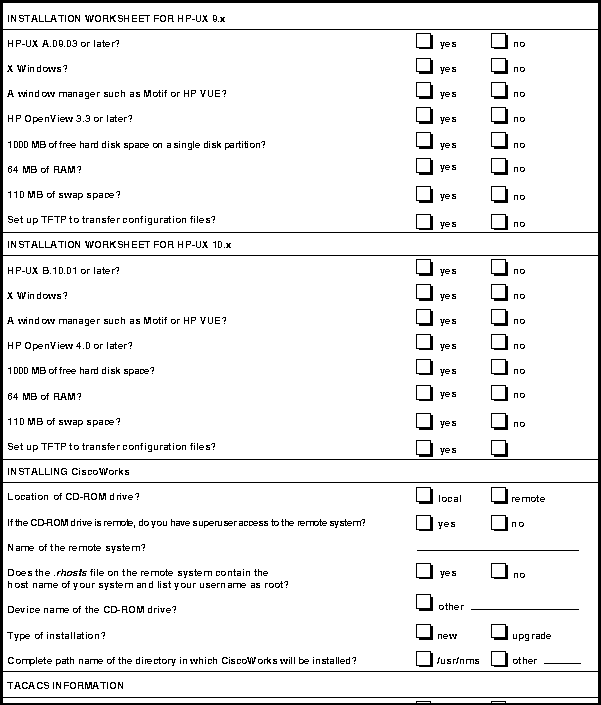
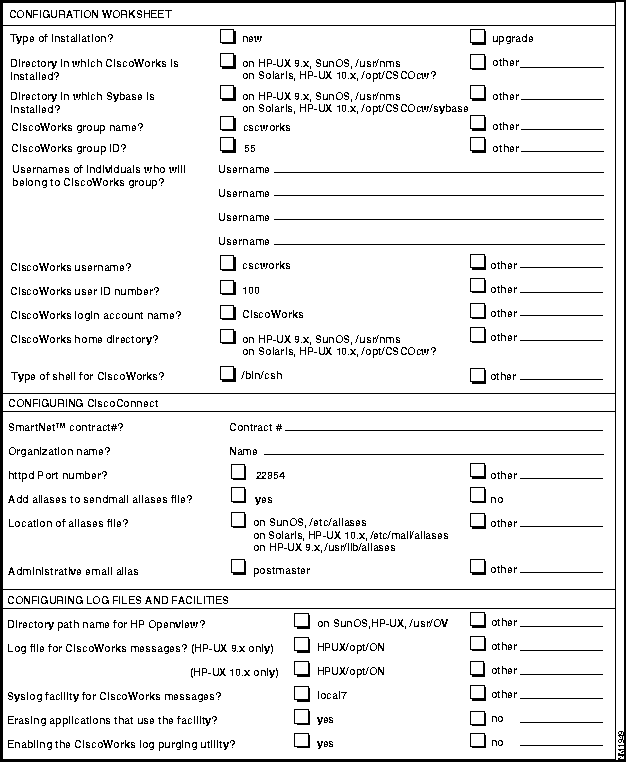
Before you install and configure CiscoWorks, complete the CiscoWorks Installation and Configuration Worksheets to identify installation requirements and gather the information required for running the installation and configuration scripts.
Refer to the worksheets when installing and configuring your CiscoWorks software.
CiscoWorks Installation Worksheet
Complete the Installation Worksheet. Refer to Table 2-5 for an explanation of the worksheet questions.
Table 2-5 explains each question on the Installation Worksheet. This information is required to install CiscoWorks. During installation, prompts appear requesting information for the items listed in the installation option column of the table. The order of the list is the sequence in which the installation script prompts you for an answer. To obtain and verify system information for some items on the worksheet, you must log in as the superuser. Logging in as the superuser is described in the "Becoming the Superuser" section in the "Installing and Configuring CiscoWorks" chapter.
Table 2-5 : Installation Descriptions for SunOS, Solaris, and HP-UX Systems
CiscoWorks Configuration Worksheet
Complete the Configuration Worksheet. The same worksheet applies to SunOS, Solaris, and HP-UX installations. Refer to Table 2-6 for an explanation of the worksheet questions.
Table 2-6 explains each item on the Configuration Worksheet. This information is required to configure CiscoWorks. For detailed information on the /etc/passwd and /etc/group files, usernames, user IDs, group names, and group IDs, refer to the HP-UX or Solaris 2.4 system manuals.
Table 2-6 : Configuration Descriptions for SunOS, Solaris, and HP-UX Systems
Copyright 1988-1996 © Cisco Systems Inc.

For HPUX 10.x, refer to the section "Migration from HPUX 9.x to HPUX 10.x" in the "Installing and Configuring CiscoWorks" chapter.
Operating SystemFree HardDisk Space
RAMSwap Space
Free Root PartitionSun OS 4.1.3 (Solaris 1.X) or 4.1.4
1,000 MB (recommended)
64 MB
128 MB (minimum)
5 MB
HP-UX A.09.03 or HP-UX A.09.04 orHP-UX A.09.05 or HP-UX B.10.01
1,000 MB (recommended)
64 MB
128 MB (minimum)
5 MB
Solaris 2.4(SunOS 5.4)
1,000 MB (recommended)
64 MB
128 MB (minimum)
5 MB
Software
Minimum Hard Disk Space Requirements
CiscoWorks, Version 3.0
150 MB
Sybase (provided with CiscoWorks), Version 10.0.2
37 MB for Sun 56 MB for HP-UX
SunNet Manager, Version 2.2.2
10 MB
HP OpenView, Version 3.3 or later
(HP Open View, Version 4.0 only for HPUX 10.x)65 MB
Sybase tables storage
85 MB total (nmsdb, 25 MB; polldb, 60 MB)
Total disk space (values are rounded up for improved performance)
250 MB1 (minimum)
300 MB or more (recommended)
1 CiscoWorks software must be installed in a single disk partition that contains at least 250 MB.
CiscoWorks Software and Applications
RAM Requirements
CiscoWorks1 software
18 MB
CiscoWorks applications2
14 MB
Total RAM for CiscoWorks software and all CiscoWorks applications
32 MB (minimum)3
64 MB (recommended)Total swap space
128 MB (recommended)
1 Includes the RAM requirements for HP OpenView or SNM, nmpolld processes in CiscoWorks, Sybase dataserver, and shared libraries.
2 Approximately 14 MB of RAM enables you to simultaneously run a minimum of seven CiscoWorks applications. If you plan to run more than seven applications at the same time, you may need to increase the RAM, depending on the application and the activity performed.
3 The value of 32 MB is the bare minimum. Cisco recommends upgrading RAM to 64 MB.
CiscoWorks Application
Hardware or Software Requirement
Cisco Devices Supported
AutoInstall Manager
Neighbor router running 8.3 or later
New router running Cisco IOS Release 9.1 (7) or later Any Cisco device running Cisco IOS Release 9.1 (7) or later.
CiscoConnect
Sendmail daemon. For more information, refer to the section "CiscoConnect Software Requirements."
CiscoView
Cisco 4000/4500 with 9.21 or laterCisco 2505 and 2507 with 10.0(6) or laterCisco 25xx (2501, 2502, 2503, 2504, 2509, 2511, 2512, 2513, 2514, and 2515) with 10.2(1.3) or laterCisco 7000 and 7010 with 9.21 or laterCisco A100 Hyperswitch with 1.2(0) or later
Cisco 4000, 4500Cisco 25xxCisco 7000, 7010Cisco A100 Hyperswitch
Configuration Management
Cisco IOS Release 8.2 through 10.0
Device Polling
Supports MIB I and II and Cisco MIB variables up through Cisco IOS Release 10.3
Environmental Monitor
Cisco IOS Release 9.0 and 10.0
Revision 4 Environmental Monitor (ENVM) Card (Microcode version 2.0 or later)Cisco 7000, AGS+
Software Management suite (Software Library Manager, Software Inventory Manager, and Device Software Manager)
Cisco 3000: Software Release 9.1(7.5) or later, or 9.1(8) or later
Cisco AGS+: Software Release 9.1(7.5) or later, or 9.1(8) or later
Cisco 4000: Software Release 9.14(3.4) or later, or 9.14(4) or later
Cisco 7000: Software Release 9.17(5.2) or later, or 9.17(6) or later
All routers (collection of Cisco 3000, 4000, and 7000, or AGS+ routers)
Software Release 9.21(0.26) or later, 9.21(1) or later, or 9.1(8) or laterDevice types with Flash memory: Cisco 3000, Cisco 4000, Cisco 7000, Cisco AGS+, and Cisco CGS and MGS
Device types with Run-from-Flash images: Cisco 2500 and Cisco 3000
You may assign any mail alias or username(s) to the cw-admin alias, but the other two aliases should not be changed. The installation script prompts you for a value for cw-admin. The default for cw-admin is postmaster. It is recommended that you change this value to specify the e-mail address of the person responsible for administering CiscoConnect or e-mail.
If you are not running sendmail, it is likely that you do not have the configuration file for sendmail. If this is the case, you need to create this file as described below. On SunOS, this file is /etc/mail/sendmail.cf; on Solaris or HP-UX 10.x, it is /etc/mail/sendmail.cf; on HP-UX 9.x, it is /usr/lib/sendmail.cf.
On HP-UX:
To enable the sendmail daemon, you need to use System Administration Manager (SAM). From the Networking/Communications menu, open the Services: Enable/Disable window. Set the status of Sendmail to Enabled. This will enable the sendmail daemon and create the sendmail configuration files /usr/lib/sendmail.cf and /usr/lib/aliases for HP-UX 9.x and /usr/lib/sendmail.cf and /usr/lib/aliases for HP-UX 10.x.
Edit your /usr/lib/aliases file to make sure it contains the following two aliases:
        MAILER-DAEMON: postmaster
postmaster: root
On SunOS:
The directory /usr/lib contains two sample sendmail.cf files called sendmail.main.cf and sendmail.subsidiary.cf. Generally, you will use sendmail.subsidiary.cf. Copy the file to /etc/sendmail.cf and edit it to change the word "mailhost" to the name of your site's mail server in the lines beginning with "DR" and "CR." For example, if your mail server is called "hubbub," change the lines:
        DRmailhost
CRmailhost
to:
DRhubbub
CRhubbub
Do not add any spaces to the "mailhost" lines. Also, do not make any other changes to the file.
HP-UX 9.x only:
After setting up the configuration file for sendmail, you need to select the sendmail program to use. There are two binaries in /usr/lib called sendmail.mx and sendmail.nomx. If your site has a connection to the Internet, it is recommended you use sendmail.mx. Link the file to sendmail; it is likely that sendmail.mx is already linked to sendmail. To identify the file you are using, enter the following command and compare the inode numbers:
ls -i /usr/lib/sendmail*
The file that has the same number as the sendmail file is the one that is currently installed. To change it (for example from mx to nomx), enter the following commands:
cd /usr/lib
rm sendmail
ln sendmail.nomx sendmail
The file sendmail.nomx must exist before you enter this command.
To run the sendmail daemon, ensure that the following lines exist in the /etc/rc.local file:
        if [ -f /usr/lib/sendmail -a -f /etc/sendmail.cf ]; then
 (cd /var/spool/mqueue; rm -f nf* lf*)
 /usr/lib/sendmail -bd -q1h; echo -n ' sendmail'
fi
The next time you reboot your machine, the sendmail daemon should be running. To verify that the sendmail daemon is running, enter the following command:
HP-UX:
ps -ef | grep sendmail
Look for the following line:
/usr/lib/sendmail -bd -q1h
. You can also start the sendmail daemon without rebooting your system by entering the following command:
HP-UX 9.x:
/usr/lib/sendmail -bd -q1h
HP-UX 10.x:
/usr/sbin/sendmail -bd -q1h
On Solaris:
The directory /etc/mail contains two sample sendmail.cf files called main.cf and subsidiary.cf. Generally, you will use subsidiary.cf. Copy the file to /etc/mail/sendmail.cf and edit it to change the word "mailhost" to the name of your site's mail server in the lines beginning with "DR" and "CR." For example, if your mail server is called "hubbub," change the lines:
        DRmailhost
CRmailhost
to:
DRhubbub
CRhubbub
Do not add any spaces to the "mailhost" lines. Also, do not make any other changes to the file.
After setting up the configuration file for sendmail, you need to select the sendmail program to use. There are two binaries in /usr/lib called sendmail.mx and sendmail.nomx. If your site has a connection to the Internet, it is recommended you use sendmail.mx. Link the file to sendmail; it is likely that sendmail.mx is already linked to sendmail. To identify the file you are using, enter the following command and compare the inode numbers:
ls -i /usr/lib/sendmail*
The file that has the same number as the sendmail file is the one currently installed. To change it (for example from mx to nomx), enter the following commands:
cd /usr/lib
rm sendmail
ln sendmail.nomx sendmail
The file sendmail.nomx must exist before you enter this command.
To run the sendmail daemon, ensure that the following lines exist in the /etc/rc2.d/SXXsendmail file:
        if [ -f /usr/lib/sendmail -a -f /etc/sendmail.cf ]; then
 (cd /var/spool/mqueue; rm -f nf* lf*)
 /usr/lib/sendmail -bd -q1h; echo 'sendmail'
fi
The next time you reboot your machine, the sendmail daemon should be running. To verify that the sendmail daemon is running, enter the following command:
ps -ef | grep sendmail
Look for the following line:
/usr/lib/sendmail -bd -q1h
. You can also start the sendmail daemon without rebooting your system by entering the following command:
HP-UX 9.x:
/usr/lib/sendmail -bd -q1h
HP-UX 10.x:
/usr/sbin/sendmail -bd -q1h
The sendmail configuration at most sites uses a configuration option known as "host hiding," so that outgoing mail from host.company.com appears to be coming directly from company.com, with no mention of the particular host that sent the message. However, for the CiscoConnect server to send messages to the CiscoConnect client running on your workstation, this feature needs to be disabled, since with it enabled you cannot find which workstation sent the message.
If you are running sendmail 8, the most common way of disabling this feature is by changing the following line in /etc/sendmail.cf or /etc/mail/sendmail.cf:
        # who I masquerade as (null for no masquerading)
DMcompany.com
to:
        # who I masquerade as (null for no masquerading)
DM
If you are running sendmail 5, the original vendor supplied sendmail.cf file should have host hiding disabled by default.
For HP-UX 9.x only, the vendor-supplied sendmail.cf file has a macro Y for host hiding. If you have a line that reads something like the following, comment it out to run CiscoConnect:
DYcompany.com
To transmit messages to the CiscoConnect server, your machine must be able to reach the mail server for cisco.com. If you are running Domain Name System (DNS) or an MX mailer, or have any form of working email configuration to reach the Internet, your machine should be able to find cisco.com without any modifications. In the unlikely event that you are directly connected to the Internet and rely on a host table exclusively, you can add the following entry for cisco.com:
198.92.30.32 cisco cisco.com cisco.cisco.com
Check to see if sendmail syslog messages are being logged somewhere. Examine the file /etc/syslog.conf for a line containing "mail.debug" to determine the destination of these messages. (The default on Sun systems is /var/log/syslog if the workstation is also the loghost.) If sendmail syslog messages do not appear to be logged anywhere, you should modify your /etc/syslog.conf file to contain the following entry:
On SunOS or Solaris:
mail.debug /var/log/syslog
On HP-UX 9.x:
mail.debug /usr/spool/mqueue/syslog
On HP-UX 10.x:
mail.debug /var/adm/syslog/mail.log
You can now monitor incoming and outgoing e-mail messages by running the following command:
tail -f file
where file is the filename appropriate for your machine.
Installation Option
SunOS Systems
Solaris Systems
HP-UX Systems
System operating system
Use uname -r to display SunOS Version 4.1.3 or 4.1.3_U1 (Solaris 1.X) or 4.1.4.
Use uname -r to display Solaris Version 2.4 (SunOS 5.4).
Use uname -r to display HP-UX Version 10.x or later.
Windowing system
OpenWindows (Motif)OpenLook.
OpenWindows (Motif)OpenLook.
X Windows as well as Motif or HP Visual User Environment (VUE).
Network Management Station (NMS) platform software
Use $SNMHOME/bin/snm_version to display the SunNet Manager version.
Use $SNMHOME/bin/snm_version to display the SunNet Manager version.
Use /usr/OV/bin/ovlicense (HP-UX 9.x) or /opt/ifor/ls/bin/i4stat d(HP-UX 10.x) to display the HP OpenView license information.
Hard disk space
Use df to display the amount of disk space available in each file system.
Use df -lk to display the amount of disk space available in each file system.
Use bdf to display the amount of disk space available in each file system.
Random-access memory (RAM)
As the superuser, use dmesg | grep mem to display available RAM on your system.
As the superuser, use dmesg | grep mem to display available RAM on your system.
As the superuser, use /etc/dmesg | grep Kbytes (HP-UX 9.x) or /etc/sbin/dmesg | grep Kbytes (HP-UX 10.x) to display available RAM on your system.
Swap space
As the superuser, use pstat -s to display system swap space.
As the superuser, use swap -s to display system swap space.
As the superuser, use swapinfo to display system swap space.
Configuring Trivial File Transfer Protocol (TFTP)
Edit the /etc/inetd.conf file on your system as described in the section "Removing Log Files" in the "Installing and Configuring CiscoWorks" chapter. You can perform this task either before or after CiscoWorks installation and configuration.
Answer yes to installation setup of TFTP.
Answer yes to installation setup of TFTP.
Type of installation
If you are installing CiscoWorks for the first time, check "new" on your worksheet.
If you are moving from an installed version of CiscoWorks (Version 2.0 or later) to Version 3.0, check "upgrade." If you are upgrading, complete the additional "Additional Upgrade Installation Information" section at the end of the worksheet.If you are installing CiscoWorks for the first time, check "new" on your worksheet.
If you are installing CiscoWorks for the first time, check "new" on your worksheet.
If you are moving from an installed version of CiscoWorks (Version 2.1 or later) to Version 3.0, check "upgrade." If you are upgrading, complete the additional "Additional Upgrade Installation Information" section at the end of the worksheet.Directory path name for CiscoWorks
Default directory path name is /usr/nms.
Default directory path name is /opt/CSCOcw.
Default directory path name is /usr/nms (HP-UX 9.x) or /opt/CSCOcwh (HP-UX 10.x).
Sybase 10.0 installation1
Directory path and kernel modifications options.
Directory path and kernel modifications options.
Directory path.
CD-ROM drive location
Local or remote installation.
Local or remote installation.
Local or remote installation.
Remote installation
Make sure you have superuser login account privileges (in other words, root) on the Sun system and that the complete host name of the remote system is listed in the /etc/hosts file on your system.
Make sure you have superuser login account privileges (in other words, root) on the Sun system and that the complete host name of the remote system is listed in the /etc/hosts file on your system.
Make sure you have superuser login account privileges (in other words, root) on the HP system and that the complete host name of the remote system is listed in the /etc/hosts file on your system.
.rhosts file
If you install CiscoWorks from a remote CD-ROM drive, the .rhosts file on that system must contain the host name of your local system and your username specified as a superuser. To verify the local host name and your superuser privileges, view the .rhosts file with a text editor such as vi or vuepad.
Not necessary to edit the .rhosts file on Solaris.
If you install CiscoWorks from a remote CD-ROM drive, the .rhosts file on that system must contain the host name of your local system and your username specified as a superuser. To verify the local host name and your superuser privileges, view the .rhosts file with a text editor such as vi or vuepad.
CD-ROM device type and name
To display all the devices in the /dev directory, use ls /dev | more. CD-ROM drives usually have device names similar to sr0.
To display all the devices in the /dev/rdsk directory, use ls /dev/rdsk | more. CD-ROM drives usually have device names similar to c*s2.
To display all the devices in the /etc/ioscan directory, use ls /dev/dsk | more. CD-ROM drives usually have device names similar to c201d1s0 (HP-UX 9.x) or c0t1d0 (HP-UX 10.x).
Sybase databases and log devices
Decide where to place your Sybase databases and log devices---on raw partition or UNIX file systems.
Decide where to place your Sybase databases and log devices---on raw partition or UNIX file systems.
Decide where to place your Sybase databases and log devices---on raw partition or UNIX file systems.
Terminal Access Controller Access System (TACACS)2
Select options for configuring a TACACS server and supplying username and password information for TACACS and extended TACACS modes.
Select options for configuring a TACACS server and supplying username and password information for TACACS and extended TACACS modes.
Select options for configuring a TACACS server and supplying username and password information for TACACS and extended TACACS modes.
Upgrade Installation Options3
Pathname for CiscoWorks directory
Specify /usr/nms or appropriate directory.
Not applicable.
Specify /usr/nms (HP-UX 9.x only) or appropriate directory. This is not applicable for HPUX 10.x.
Sybase password
Enter current Sybase password during upgrade.
Not applicable.
Enter current Sybase password during upgrade. This is not applicable for HPUX 10.x.
Disk space for saving existing Sybase database
Make sure you have 100 MB disk space for Sybase and 50 MB free space for upgrade procedure.
Not applicable.
Make sure you have 100 MB disk space for Sybase and 50 MB free space for upgrade procedure. This is not applicable for HPUX 10.x.
1 Sybase installation requires the database to be located on the same system as CiscoWorks. If you are a knowledgable Sybase user, you can perform a manual Sybase installation in order to take advantage of Sybase's client/server capabilities. This option is not supported by Cisco.
2 If you do not configure TACACS, you may be unable to use several CiscoWorks applications.
3 If you are upgrading from an existing version of CiscoWorks (in which users may have belonged to more than one group), the installation script alerts you that any existing user-to-multiple-group associations will be disconnected. If you proceed with the upgrade, you must use the Security Manager application to reconnect each user to only one group; then add the group to a domain. Any existing one-user-to-one-group associations are preserved during the upgrade.
Configuration Option
SunOS, Solaris, and HP-UX Systems
Installation type
New or upgrade. On Solaris or HPUX 10.x, you can only do a new installation.
CiscoWorks directory
On SunOS and HP-UX 9.x, select /usr/nms or other appropriate directory. On Solaris and HP-UX 10.x, select /opt/CSCOcwh or other appropriate directory.
CiscoWorks group name1
On SunOS and HP-UX 9.x, the CiscoWorks group name is added to /etc/group and /etc/logingroup files during configuration. On Solaris or HP-UX 10.x, the CiscoWorks group name is added to /etc/group file during configuration. The default on all systems is cscworks.
CiscoWorks group ID2
Select default ID of 55, or check the /etc/group file to ensure new ID number.
CiscoWorks group usernames
Make sure the users have a login account on the system and that you add the account information to the /etc/group and /etc/logingroup files on SunOS and HP-UX. On Solaris, use the admintool to add user accounts on the system. On HP-UX 10.x, use the System Administrator Manager (SAM) to add user accounts on the system.
CiscoWorks username
Use the default name of cscworks. This name is added to the /etc/passwd and /etc/group files. On Solaris, it is also added to the /etc/shadow file.
CiscoWorks user ID number
Use unique number default of 100. This number is added to the /etc/passwd file.
CiscoWorks login account name
Use the default name of CiscoWorks. This name is added to the /etc/passwd file.
CiscoWorks home directory
CiscoWorks is seen as a user on your system and has a default directory of /usr/nms on SunOS and HP-UX 9.x and /opt/CSCOcwh on Solaris and HP-UX 10.x.
MIB operations
Install new MIB files or use existing MIB files.
Sybase directory3
On SunOS and HP-UX 9.x, select /usr/nms or other appropriate directory. On Solaris and HP-UX 10.x, select /opt/CSCOsyb or other appropriate directory. The default Sybase directory is /usr/nms on SunOS and HP-UX 9.x, and /opt/CSCOsyb on Solaris and HP-UX 10.x. The default Sybase directory is also known as $SYBASE.
Sybase user name
Use the default name of sybase. This name is added to the /etc/passwd and /etc/group files. On Solaris, it is also added to the /etc/shadow file.
Sybase backup server name
On SunOS and HP-UX, use the default name of CW_SYB_BACKUP. On Solaris, use the default name of CW_BACKUP_SERVER.
Sybase SA password
The default password is sybasesa. You cannot change the default during installation.
Sybase full name
Use the default name of Sybase. This name is added to the /etc/passwd file.
Master device path
Use the default of $SYBASE/data.
Master device physical file name
Use the default of master.dat.
Sybase system procedures database location
Use the default sybsysproc in $SYBASE/data. You may also select a raw partition, for example /dev/sr1 on SunOS, /dev/rdsk/c0t3d0s2 on Solaris, or /dev/rdsk/c201d5s2 on HP-UX 9.x and /dev/rdsk/c0t1d0 on HP-UX 10.x systems.
CiscoWorks NMS database name
On SunOS and HP-UX 9.x, the default is nms. On Solaris or HP-UX 10.x, the default is cw_datadevice_nms.
CiscoWorks polling database name
On SunOS and HP-UX 9.x, the default is polldb.On Solaris or HP-UX 10.x, the default is cw_datadevice_polldb.
CiscoWorks NMS database size
Use the default of 20 MB. This is where the Sybase database stores device inventory information.
CiscoWorks NMS log device size
Use the default of 5 MB. This is where the Sybase database stores transaction log space.
CiscoWorks polling database size
Use the default of 40 MB or more. This is where the Sybase database stores polling information.
CiscoWorks polling database log device size
Use the default of 20 MB. This is where the Sybase database stores polling messages.
TFTP configuration
Directory path name for NMS
Default directories are /usr/snm and /usr/ov on SunOS, /opt/SUNWconn/snm on Solaris, /usr/OV on HP-UX 9.x, and /opt/OV on HP-UX 10.x.
SmartNet contract number
Enter your SmartNet contract number.
Organization name
Enter the name of your organization or company.
Port number
The default is 22854. This is the TCP port used by CiscoConnect.
Sendmail aliases file
The default is to specify "Yes" to add aliases to the file.
Location of aliases file
Default location is /etc/aliases on SunOS, /etc/mail/aliases on Solaris or HP-UX 10.x, and /usr/lib/aliases on HP-UX 9.x.
Administrative email alias
The default is postmaster. It is recommended that you change the default to the name of the person who is responsible for administering CiscoConnect or email. This value is assigned to the "cw-admin" alias.
CiscoWorks message log file
Default centralized log files are /var/log/nmslog on SunOS and Solaris, and /usr/OV/log/nmslog (HP-UX 9.x) or /var/opt/OV/log (HP-UX 10.x).
System Log (syslog) facility for CiscoWorks messages
To log both CiscoWorks messages and Cisco device messages, use the default facility local7. Cisco devices use the local7 facility. If you specify a facility in the range of local0 through local6, only CiscoWorks messages are logged.
Information about the facility you choose is stored in the $NMSROOT/etc/nms.rc file. Erasing applications that use the syslog facility
Specify Yes if you want the CiscoWorks log utility to use the syslog facility to transfer or exchange information such as error messages or receive extraneous messages in the database message logger.
Modification of /etc/rc.local or /etc/rc2.d/SxxCiscoWorks file
The Sybase dataserver and other CiscoWorks daemons must run as background processes for correct operation of CiscoWorks. This section of the configuration modifies /etc/rc.local (on SunOS and HP-UX 9.x), /etc/rc2.d/SxxCiscoWorks (on Solaris) or /sbin/init.d/CiscoWorksRC (on HP-UX 10.x) to include nmstartup (which starts the Sybase dataserver and CiscoWorks daemons during system reboot).
Enabling the CiscoWorks log purging utility
Enables daily purging and backing up of the CiscoWorks centralized log, nmslog, via a UNIX scheduling daemon.
1 While you are configuring CiscoWorks, you can add users to the /etc/group and the /etc/logingroup files (on SunOS and HP-UX 9.x) or /etc/group only (on Solaris or HP-UX 10.x) by responding to the configuration script questions. However, if you are running Network Information Services (NIS), you must update the files manually.
2 In most cases, the configuration script adds the CiscoWorks group number to the /etc/group file during configuration. However, if you are running Network Information Services, you must update the /etc/group file manually.
3 Sybase installation requires that the database be located on the same system as CiscoWorks. If you are a knowledgeable Sybase user, you can perform a manual Sybase installation to take advantage of Sybase's client/server capabilities. This option is not supported by Cisco.
