|
|

Validating CiscoWorks Installation
To validate CiscoWorks installation and configuration, you must edit the .cshrc file on your system. This chapter describes how to complete the validation of your CiscoWorks installation.
Follow these main steps to validate CiscoWorks installation:
Verifying Environment Variables and Search Paths
To use your network management platform software, CiscoWorks and Sybase, you must verify that the appropriate environment variables and paths are set in your install.cshrc or .cshrc file.
Environment variables define how your particular system is set up, such as how directory paths locate specific files. Table 4-1 explains the environment variables and paths.
Table 4-1 : Environment Variables and Directory Paths
| Environment Variable or Path | Explanation |
|---|---|
| NMSROOT | On SunOS and HP-UX 9.x, CiscoWorks is installed in the directory /usr/nms. On Solaris, CiscoWorks is installed in the directory /opt/CSCOcws. On HP-UX 10.x, CiscoWorks is installed in the directory /opt/CSCOcwh. If the software was installed in a different directory, substitute the appropriate directory path to ensure a correct definition of the NMSROOT environment variable. |
| SYBASE | Directory path where Sybase is located. The SunOS and HPUX 9.x default is $NMSROOT/ sybase. If you select the default on SunOS or HP-UX 9.x, the Sybase software is installed in the directory /usr/nms/sybase. If you select the default on Solaris or HP-UX 10.x, the Sybase software is installed in the directory /opt/CSCOsyb. The SYBASE variable refers to the NMSROOT variable and the Sybase directory following it. |
| CW_NMSDB | Name of nms database. Default for the database is nms. |
| CW_POLLDB | Name of the poll database. Default for the database is polldb. |
| PATH | Directory path for your NMS software and various CiscoWorks directories (including $NMSROOT/bin, $NMSROOT/etc, and $SYBASE/bin). The path should be specified to include SunNet Manager or HP OpenView, CiscoWorks, and Sybase. |
| MANPATH | Directory path for the CiscoWorks manual pages. |
| DISPLAY | Environment variable for the monitor on which CiscoWorks displays. The default is :0 or hostname:0. |
| HHHOME | Home directory where the CiscoWorks online help system is located. |
| HHPATH | Directory path for the CiscoWorks online help system files. |
| XLIBI18N_PATH | Library path for HyperHelp. The default is $HHHOME/lib. |
| TCL_LIBRARY | Directory path for the TCL libraries. |
| TK_LIBRARY | Directory path for the TK libraries. |
| MIBLIB | Directory path for the MIB libraries. |
| DSQUERY | Sybase server name. The default is $CW-SYBASE. |
| NMS_CC_WWW | Name of the Mosaic browser to use to override the use of SpyGlass (must be either the full pathname or in their path). |
| ESQRDIR | Directory path for starting ESQR.The default is $NMSROOT/bin. |
| VVTERMCAP | Used by ESQR to handle the terminal I/O mappings. The default is $NMSROOT/bin/vvtermcap. |
| NMS_CC_HTTPD | Exception when the CiscoConnect server is not on the local workstation. Set this variable to the hostname of the CiscoConnect server. |
| NMS_CC_PORT | TCP/IP port of the CiscoConnect server to override the default. |
Verifying Changes to the .cshrc File
The installation and configuration scripts make the following changes to the $NMSROOT/etc/install.cshrc file:
Different steps are required to verify the .cshrc file changes depending on which shell you use. If you use a C shell, refer to the instructions in the ".cshrc File Changes Using the C Shell" section. If you are using a Bourne shell, refer to the instructions in the ".profile File Changes Using the Bourne Shell" section.
.cshrc File Changes Using the C Shell
Verify that the correct changes were made to the install.cshrc file by performing the following steps:
.profile File Changes Using the Bourne Shell
If you are using the Bourne shell, you cannot use the source command to run the install.cshrc file. You must manually change the .profile file to set the appropriate options.
To make the correct changes to the install.cshrc file or add those changes to your existing .profile file, perform the following steps:
To run CiscoConnect, the Hypertext Transfer Protocol Daemon (HTTPD) background process must be running. This process does not run by default. You need to activate it when you run CiscoConnect for the first time. To activate the httpd process, perform the following steps:
Alternatively, you can log in as the CiscoWorks user (normally cscworks) and run the script $NMSROOT/etc/start_httpd.
Starting CiscoWorks Applications
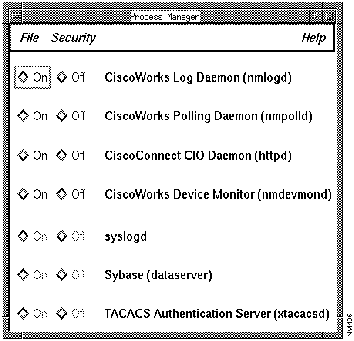
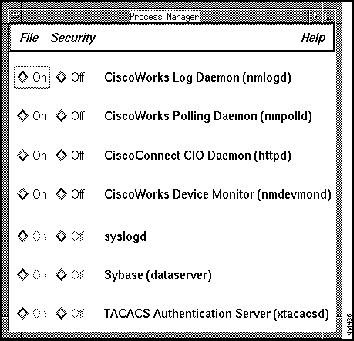
Once you install and configure CiscoWorks and verify the install.cshrc file, you can start your network management platform software and display CiscoWorks applications. After you start CiscoWorks, you can verify that the appropriate CiscoWorks processes are running by opening the Process Manager window.
The Process Manager window tracks several different types of CiscoWorks processes or daemons. A daemon is a process that performs a specific function for the system.
Refer to your platform-specific instructions to start the CiscoWorks applications.
Displaying CiscoWorks Applications on SunNet Manager
This section briefly discusses how to start the SunNet Manager (SNM) Console to run CiscoWorks. For a more detailed description and options, refer to the SunNet Manager 2.2 User's Guide.
You can use any of several commands to start the SNM Console. However, you must be running an X Window Manager session.
To access SNM and CiscoWorks, perform the following steps:
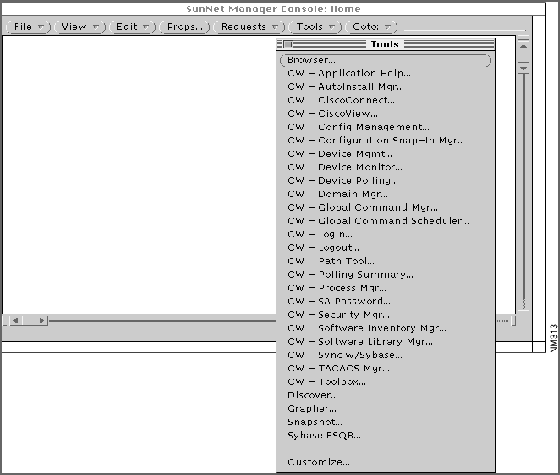
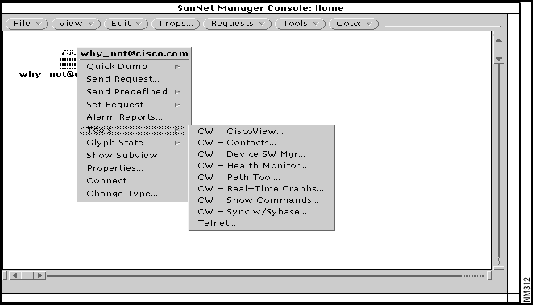
Figure 4-1 : CiscoWorks Applications on the SunNet Manager Tools Menu Figure 4-2 : CiscoWorks Applications on the Glyph Menu Figure 4-3 : Process Manager Window After validating CiscoWorks installation as described in this chapter, proceed to the section "Learning to Use CiscoWorks," in the "CiscoWorks Getting Started" chapter to learn some simple tasks associated with CiscoWorks.
Displaying CiscoWorks Applications on HP OpenView
To start HP OpenView and CiscoWorks, perform the following steps:
HP-UX 9.x and HPOV 3.3:
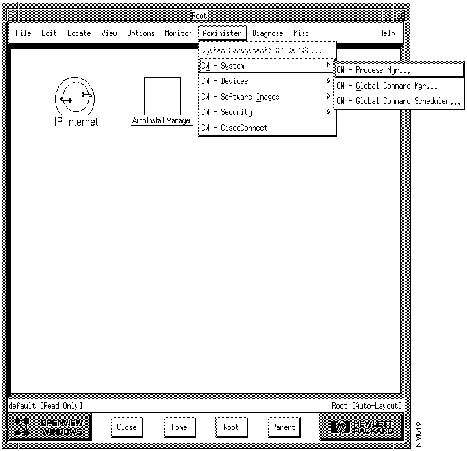
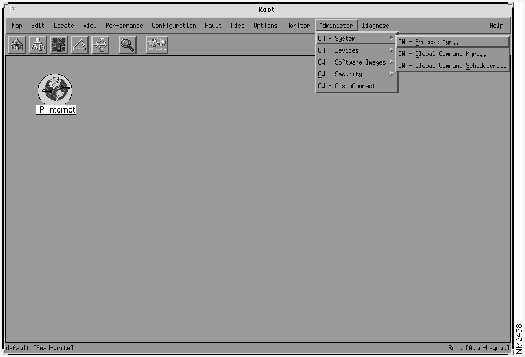
Figure 4-4 : CiscoWorks Menu Options within HP OpenView 3.0 Figure 4-5 : CiscoWorks Menu Options within HP OpenView 4.0 Figure 4-6 : Process Manager Window After validating CiscoWorks installation as described in this chapter, proceed to the section "Learning to Use CiscoWorks," in the "CiscoWorks Getting Started" chapter to learn some simple tasks associated with CiscoWorks.
Copyright 1988-1996 © Cisco Systems Inc.
% source /usr/nms/etc/install.cshrc
% printenv | more
NMSROOT  /usr/nms

SYBASE  /usr/nms/sybase

CW_NMSDB  nms
CW_POLLDB polldb
MANPATH  /usr/man

HHHOME  /usr/nms/hyperhelp

HHPATH  /usr/nms/hyperhelp /bin

XLIBI18N_PATH  /usr/nms/hyperhelp /lib

TCL_LIBRARY  /usr/nms/tcl

TK_LIBRARY  /usr/nms/tk

MIBLIB  /usr/nms/etc/mib

DSQUERY  CW_SYBASE

ESQRDIR  /usr/nms/bin
NMSROOT  /opt/CSCOcwh

SYBASE  /opt/CSCOsyb

ESQRDIR  /opt/CSCOcwh/bin

VVTERMCAP  /opt/CSCOcwh/bin/vvtermcap

TCL_LIBRARY  /opt/CSCOcwh/contrib/tcltk/lib/tcl

TK_LIBRARY  /opt/CSCOcwh/contrib/tcltk/lib/tk

MIBFILE  /opt/CSCOcwh/etc/cview/mib.text

HHHOME  /opt/CSCOcwh/hyperhelp

HHPATH  /opt/CSCOcwh/hyperhelp/bin

XLIBI18N_PATH  /opt/CSCOcwh/hyperhelp /lib

MANPATH  /usr/man:/opt/CSCOcwh/man

BACKUP_SERVER_HOME  /opt/CSCOcwh/sybase

BACKUP_SERVER_NAME  CW_BACKUP_SERVER

CW_NMSDB  nms

CW_POLLDB  polldb

DSQUERY  CW_SYBASE
The values on your screen will be different from those displayed above if you specify path names other than the defaults during installation and configuration.

chsh
username
/bin/sh
or simply type:
/bin/sh
setenv NMSROOT /usr/nms
Bourne shell:
NMSROOT=/usr/nms
export NMSROOT
On Solaris or HP-UX 10.x:
setenv NMSROOT /opt/CSCOcwh
Bourne shell:
NMSROOT=/opt/CSCOcwh
export NMSROOT
Save the file when finished.
% snm
If problems occur, your PATH environment variable may not include a path to SNM executables. You can enter a fully qualified path. In the following example, /usr/snm/bin is the path to the executables:
% /usr/snm/bin/snm
If you installed SNM on Solaris 2.4, the SNM executables are in the directory /opt/SUNWconn/snm/bin/snm. Enter the following command:
% /opt/SUNWconn/snm/bin/snm
Load a database map file (in ASCII format) into the SNM Console by selecting File>Load.
%
snm -i

%
snm map_name
For more information on starting the SNM Console or troubleshooting startup problems, refer to the SunNet Manager 2.2 User's Guide.
% ovw

% /usr/OV/bin/ovw
HP-UX 9.x/10.x and HPOV4.0:
% ovw

% /opt/OV/bin/ovw