
Table of Contents
Installing and Configuring SNA View on AIX
Installing and Configuring SNA View on AIX
You use the System Management Interface Tool (SMIT), an IBM AIX system administration facility, to install and configure CiscoWorks Blue SNA View from a local or remote CD-ROM drive. The example installation and configuration process described in this chapter uses the graphical user interface (GUI) version of SMIT; you can use the ASCII version called SMITTY, if you prefer. Refer to your IBM documentation for more information about SMIT and SMITTY.
In the process of installing and configuring CiscoWorks Blue SNA View for NetView for AIX, you do the following:
- Use SMIT to mount the CiscoWorks Blue SNA View CD-ROM on the local file system from a local or remote CD-ROM drive
- Use SMIT to install CiscoWorks Blue SNA View from CD-ROM
- Use SMIT to specify the names of the mainframe domain(s) with which SNA View is to operate
- Use SMIT to specify a set of parameters for each SNA Domain
- Clean up (unmount the CD-ROM and remove log files)
This chapter also contains instructions for deinstalling CiscoWorks Blue SNA View software.
Note Refer to CiscoWorks Blue SNA View Release Note for cautionary statements about the installation and configuration process.
The user named root can perform functions restricted from normal users. To install and configure CiscoWorks Blue SNA View, you must know the root user's password and log in to your system as the root user or become the root user by use of the su command.

Caution If you are a relatively inexperienced AIX user, limit your activities as the root user to the tasks described in this publication. As the root user, you can adversely affect your operating environment if you are unaware of the effects of the commands you use.
If you are not logged in, enter the following commands to log in as the root user:
login: root
Password: rootpassword

hostname#
If you are already logged in, but not as the root user, enter the following to change your login to root:
hostname% su
Password: rootpassword
hostname#
The AIX prompt changes to a pound sign (#)when you are logged in as the root user.
You can install CiscoWorks Blue SNA View from a CD-ROM drive attached to your system or from a drive connected to a remote system. You must first use SMIT to mount the local or remote device on the local AIX system.

Caution Avoid exposing the CiscoWorks Blue SNA View CD-ROM to direct sunlight because it could harm the contents.
To mount the CD-ROM on the file system from a local CD-ROM drive, use SMIT to perform the following steps:
- Step 1 Place the CD-ROM into its caddy and insert it into the CD-ROM drive.
- Step 2 Log in as the root user. For details, see "Becoming the Root User."
- Step 3 Start SMIT by entering the following at the command prompt:
hostname# smit
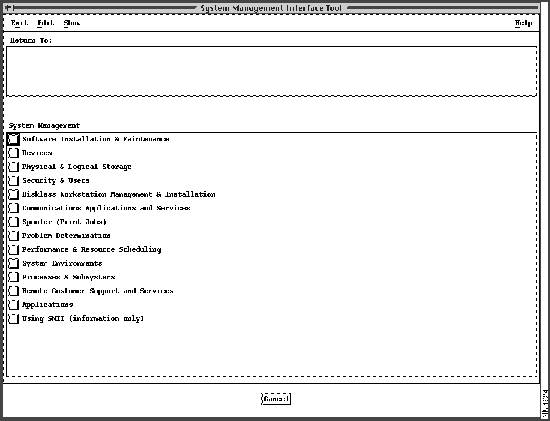
- The main SMIT menu appears, as shown in Figure 2-1.
Figure 2-1 Main SMIT Menu
- Step 4 From the System Management menu, click Physical & Logical Storage.
- Step 5 Click File Systems.
- Step 6 Click Add / Change / Show / Delete File Systems.
- Step 7 Click CDROM File Systems.
- Step 8 Click Add a CDROM File System.
- Step 9 Click the "DEVICE name" List button and select the device name (such as /dev/cd0) from the list that appears.
- Step 10 Enter the name of a mount point directory (such as /cdrom) in the "Mount point" field.
- Step 11 Click Do and read the output.
Note If you have already performed this procedure, or if another device is already mounted on the mount point, the process will fail.
- Step 12 Click Done.
- Step 13 Terminate SMIT by pressing F12 or by selecting Exit SMIT on the Exit menu.
- Step 14 Enter the following at the command prompt:
hostname# smit mountfs
- Step 15 Click the "FILE SYSTEM name" List button and select a device name (such as /dev/cd0) from the list that appears.
- Step 16 In the "DIRECTORY over which to mount" field, enter the name of a mount point directory (such as /cdrom).
- Step 17 Click the "TYPE of file system" List button and select cdrfs as the file system type.
- Step 18 Set the "Mount as Read-Only System" field to yes.
- Step 19 Click Do and read the output, and then click Done.
- Step 20 Terminate SMIT by pressing F12 or by selecting Exit SMIT on the Exit menu.
To install software from a device on a remote system, you must have remote access rights to that system. Specifically, the .rhosts file (in the root directory) on the remote system must contain the local host name and your username to access the remote system. For more information, refer to the manual (man) page for .rhosts
Installation of CiscoWorks Blue SNA View does not require any disk space on the remote system. The software is copied across the network to the local workstation.
To mount the CD-ROM on the local file system from a remote CD-ROM drive, perform the following steps on the remote system:
- Step 1 Place the CD-ROM into its caddy and insert it into the CD-ROM drive.
- Step 2 Log in as the root user. For details, see "Becoming the Root User."
- Step 3 Start SMIT by entering the following at the command prompt:
hostname# smit
- The main SMIT menu appears, as shown in Figure 2-1.
- Step 4 From the System Management list, click Physical & Logical Storage.
- Step 5 Click File Systems.
- Step 6 Click Add/Change/Show Delete File Systems.
- Step 7 Click CDROM File Systems.
- Step 8 Click Add a CDROM File System.
- Step 9 Click the "DEVICE name" List button and select the device name (such as /dev/cd0) from the list that appears.
- Step 10 Enter the name of a mount point directory (such as/cdrom) in the "Mount point" field.
- Step 11 Click Do and read the output.
- If you have already performed this procedure, or if another device is already mounted on the mount point, the process will fail.
- Step 12 Click Done.
- Step 13 Terminate SMIT by pressing F12 or by selecting Exit SMIT on the Exit menu.
- Step 14 Enter the following at the command prompt:
hostname# smit mountfs
- Step 15 Click the "FILE SYSTEM name" List button and select a device name (such as /dev/cd0) from the list that appears.
- Step 16 In the "DIRECTORY over which to mount" field, enter the name of a mount point directory (such as /cdrom).
- Step 17 Click the "TYPE of file system" List button and select cdrfs as the file system type.
- Step 18 Set the Mount as Read-Only System field to yes.
- Step 19 Click Do and read the output, and then click Done.
- Step 20 Terminate SMIT by pressing F12 or by selecting Exit SMIT on the Exit menu.
- Step 21 Enter the following at the command prompt
hostname# smit mknfsexp
- Step 22 Enter the "PATHNAME of directory to export" (such as /cdrom).
- Step 23 Use the arrow keys to change the "Mode to Export Directory" field to read-only.
- Step 24 Enter the appropriate information, if necessary, into any of the other fields.
- Step 25 Click Do, read the output, then click Done.
- Step 26 Terminate SMIT by pressing F12 or by selecting Exit SMIT on the Exit menu.
Perform the following steps on the local system:
- Step 1 Log in as the root user. For details, see "Becoming the Root User."
- Step 2 Enter the following at the command prompt:
hostname# mount         remote_hostname:remote_exported_filesystem_name
local_mount_point
- For example, to mount a remote file system named zen, enter the following at the prompt:
hostname# mount zen:/cdrom /cdrom
- The CD-ROM is ready for installation of software.
Installation is the transfer of software from the distribution medium to the AIX system.
Note Before performing these procedures, you must have mounted a local or remote CD-ROM as described earlier.
 Caution CiscoWorks Blue SNA View can be installed only in the /usr/cw-blue directory. If you create a file system, its mount point must be /usr/cw-blue.
To install CiscoWorks Blue SNA View from a mounted CD-ROM drive, perform the following steps:
- Step 1 Place the CD-ROM into its caddy and insert it into the local or remote CD-ROM drive.
- Step 2 Log in as the root user. For details, see "Becoming the Root User."
- Step 3 Set the CWBROOT environment variable to /usr/cw-blue, the NMSROOT environment variable to /usr/nms, and the SVHOME variable to $CWBROOT/snaview
- If you are using the K shell, type the following on the command line:
hostname# export CWBROOT=/usr/cw-blue
hostname# export NMSROOT=/usr/nms
hostname# export SVHOME=$CWBROOT/snaview
- If you are using the C shell, type the following on the command line:
hostname# setenv CWBROOT /usr/cw-blue
hostname# export CWBROOT
hostname# setenv NMSROOT /usr/nms
hostname# export NMSROOT
hostname# setenv SVHOME $CWBROOT/snaview
hostname# export SVHOME
- Step 4 Start SMIT by entering the following at the command prompt:
hostname# smit
- Step 5 On the System Management menu, click Software Installation & Maintenance.
- Step 6 On the next menu, click Install / Update Software.
- Step 7 On the next menu, click Install / Update Selectable Software (Custom Install).
- Step 8 On the next menu, click Install Software Products at Latest Available Level.
- Step 9 In the Install Software Products at Latest Available Level dialog box, click the List button, then click the name of the CD-ROM device on which you loaded the CD-ROM in Step 1.
- Step 10 Click Do.
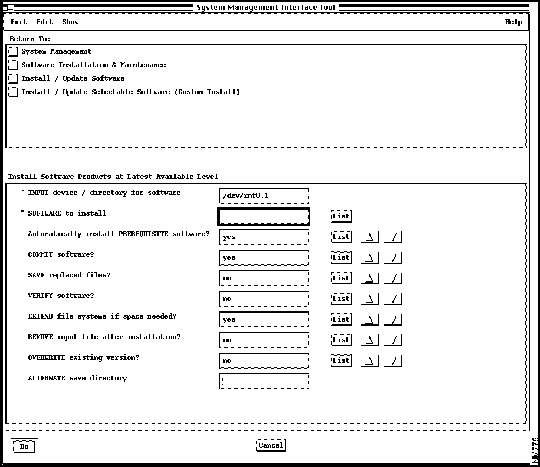
- The Install Software Products at Latest Available Level dialog box displays additional fields as shown in Figure 2-2.
Figure 2-2 Install Software Products at Latest Available Level Dialog Box
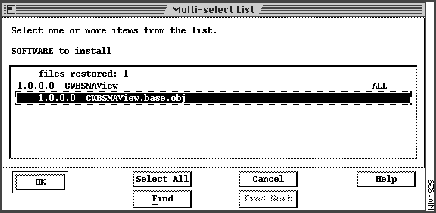
- Step 11 Click the List button next to the "SOFTWARE to install" field. After a brief delay, the Multi-Select List dialog box appears, as shown in Figure 2-3.
Figure 2-3 Multi-Select List Dialog Box
- Step 12 Click the CWBSNAView.base.obj module.
- Step 13 Click OK and then click Do.
- Step 14 In response to the "ARE YOU SURE?" prompt, click OK when you are sure you want to install the modules you just highlighted. An animated man is displayed on the screen.
- While the animated man is running, SMIT installs the selected modules in the /usr/cw-blue directory, and CiscoWorks Blue SNA View modifies SMIT to allow subsequent configuration and deinstallation of CiscoWorks Blue SNA View.
- If the man raises his hands and SMIT displays OK, the process has succeeded.
- If the man falls, installation has failed. If the reason is not apparent, read the installation log file $HOME/smit.log or /usr/cw-blue/install/cwb_install.log and supply it to a Cisco Technical Assistance Center (TAC) representative.
- Step 15 Click Done.
- Step 16 If Step 14 indicated success, click the Return to System Management button and go to the following section, "Configuring CiscoWorks Blue SNA View."
- In the event of failure, terminate SMIT by pressing F12 or by selecting Exit SMIT on the Exit menu.
Configuring CiscoWorks Blue SNA View on AIX consists of specifying the mainframe domains with which SNA View is to operate, plus a set of parameters for each domain.
Note Before performing these procedures, you must have completed the installation process.
To configure the CiscoWorks Blue SNA View product, perform the following steps:
- Step 1 Start SMIT if you have not already done so:
hostname# smit
- Step 2 On the initial SMIT menu, click Communications Applications and Services.
- Step 3 On the next menu, click Cisco Network Management Applications for AIX.
- Step 4 On the next menu, click CiscoWorksBlue SNA View.
- Step 5 On the CiscoWorks Blue SNA View 3.0 menu, click Configure.
- Step 6 On the Configure menu, click SNA View.
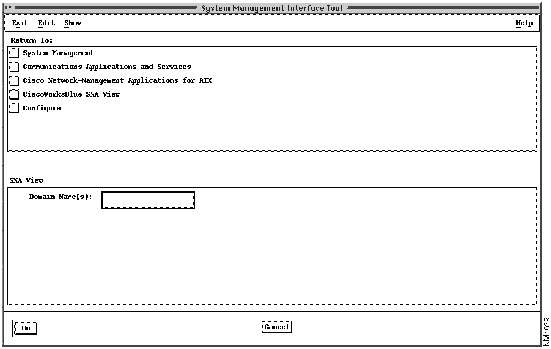
- The SNA View dialog appears, as shown in Figure 2-4.
Figure 2-4 SNA View Dialog Box
- Step 7 Type one or more new domain names into the SNA Domain(s) field, separated by spaces.
Note If you are reconfiguring an existing domain, leave the SNA Domain(s) field blank.
- Step 8 Click Do. SMIT presents a window with the name of each domain you specified, plus the name of each pre-existing domain. (When the Domain Selection menu is active, the SMIT man continues to run.)
- Step 9 In the Domain Selection menu, click once on a domain name, then click the Select button at the bottom of the window.
- SMIT presents a parameter configuration screen for the selected domain.
- Step 10 See "Configuring Domain-Specific Parameters" and configure the selected domain. To put the cursor in a field where you want to make a change, point and click with the mouse. Press the TAB key to move down the list, or press Shift TAB to move the cursor up the list. Click the scroll bar to scroll the form up and down.
- Step 11 When your are finished with the parameters of a given domain, click Save, then Quit.
- Step 12 Repeat Step 9 through Step 11 for each SNA domain.
- Step 13 When you have configured each domain, click Close on the Domain Selection menu. The SMIT man should raise his hands to indicate success.
- Step 14 Click Done, and then Cancel.
- Step 15 Terminate SMIT by pressing F12 or by selecting Exit SMIT on the Exit menu.
For each SNA Domain listed on the Domain Selection menu, you must set a group of operational parameters.
Note The parameters for a particular domain are stored in a file named /etc/sv_config_domainname, such as /etc/sv_config_texas. You can edit this file directly, if necessary.
Table 2-1 lists the parameters that you must set, and Table 2-2 lists additional parameters that you may choose to customize. Detailed descriptions of each parameter follow the tables.
Table 2-1 Required CiscoWorks Blue SNA View Configuration Parameters
| SVPATH |
none |
SNA View home directory |
| SVMF_CONNECT |
TCP |
LU62 or TCP |
| SVVTAM_AGENT_ADDR |
machine.name.com |
Machine name running the VTAM Server |
| SVMVS_AGENT_ADDR |
machine.name.com |
Machine name running the MVS Server |
| SVALERT_AGENT_ADDR |
machine.name.com |
Machine name running the Alert Server |
| SVCMDS_AGENT_ADDR |
machine.name.com |
Machine name running the Command Server |
| SVHCI_AGENT_ADDR |
machine.name.com |
Machine name running the Host Connection Interface |
| SVMF_AGENT_ADDR |
machine.name.com |
Machine name of the mainframe where the mainframe component is installed |
| SVSTATUS_SOURCE |
VTAM |
VTAM |
| SVHOST_NAME |
NET1 |
An alphanumeric string consisting of up to 6 characters |
| SVSOCKET_MODE |
TCP |
TCP |
| SVBUILD_MAP_TYPE |
ACTIVE |
ACTIVE or PASSIVE |
Table 2-2 Optional CiscoWorks Blue SNA View Configuration Parameters
| UPDATE_DB_W_ NEWNODES |
yes |
yes or no |
| MONITOR_SWITCHED_PUS |
no |
yes or no |
| REFRESH_TYPE |
PASSIVE |
ACTIVE or PASSIVE |
| INCLUDE_LUS |
no |
yes or no |
| KEEP_DISCOVER_INPUT_FILES |
yes |
yes or no |
| KEEP_DISCOVER_STDOUT_FILES |
yes |
yes or no |
| SVVTAM_AGENT_PORT |
6100 |
Any unused PORT value |
| SVALERT_AGENT_PORT |
6101 |
Any unused PORT value |
| SVCMDS_AGENT_PORT |
6102 |
Any unused PORT value |
| SVHCI_VTAM_PORT |
6103 |
Any unused PORT value |
| SVHCI_ALERT_PORT |
6104 |
Any unused PORT value |
| SVHCI_STATUS_PORT |
6105 |
Any unused PORT value |
| SVMF_HCI_AGENT_PORT |
6106 |
Any unused PORT value |
| SVMF_CMDS_AGENT_PORT |
6107 |
Any unused PORT value |
| SVMVS_AGENT_PORT |
6108 |
Any unused PORT value |
| SVHCI_MVS_PORT |
6109 |
Any unused PORT value |
| SVCMD_TIMEOUT |
30 |
Any number of seconds |
| SVCMD_OPERATOR |
SVAUTO1 |
Valid NetView for MVS operator task |
| SVCMD_DEFDIS |
yes |
yes or no |
| SVWORK_AREA |
/tmp |
Any valid directory |
The following information describes each parameter in detail.
You must set the following parameters for each domain:
- SVPATH (path parameter)---The home directory of SNA View software (such as /usr/sv).
- SVMF_CONNECT (mainframe connectivity parameter)---Specifies the method of connectivity to the mainframe.
- TCP specifies that the Task Manager will not only display the status of the HCI and Command servers, but it will allow the operator to select and activate them.
- LU62 specifies that the Task Manager will only display the status of the HCI and Command servers because they will be activated remotely when the mainframe component is started.
Note In most cases, the first five agent address parameters (but not SVMF_AGENT_ADDR) will be identical to the same-named parameter in the configuration of each domain.
- SVVTAM_AGENT_ADDR (VTAM agent address parameter)---The machine name of the workstation where the VTAM Server is installed.
- SVMVS_AGENT_ADDR (MVS agent address parameter)---The machine name of the workstation where the MVS Server is installed.
- SVALERT_AGENT_ADDR (alert agent address parameter)---The machine name of the workstation where the Alert Server is installed.
- SVCMDS_AGENT_ADDR (commands agent address parameter)---The machine name of the workstation where the Command Server is installed.
- SVHCI_AGENT_ADDR (HCI agent address parameter)---The machine name of the workstation where the HCI Server is installed.
- SVMF_AGENT_ADDR (mainframe agent address parameter)---The machine name or IP address of the mainframe where the mainframe component is installed. The value is only used when the SVMF_CONNECT value is TCP.
- SVSTATUS_SOURCE (status source parameter)---Specifies where SNA View obtains SNA configuration and status data. This parameter must be set to VTAM.
- VTAM. This value indicates that SNA View gathers configuration data from VTAM display commands and status information from VTAM status messages.
- SVHOST_NAME (host name parameter)---Refers to the domain name of the mainframe host. (example: NET1). Keeping this parameter value of NET1 will have no adverse effect on SNA View operation or performance.
- SVSOCKET_MODE (socket mode parameter)---Specifies the type of socket communications between the HCI, Alert, MVS, and VTAM servers. This parameter must be set to TCP.
- TCP. This value indicates the HCI, Alert, MVS, and VTAM servers may be run on the same or different machines.
- SVBUILD_MAP_TYPE (build maps method parameter)---Specifies the method used by SNA View to build the NetView/6000 SNA maps.
- passive. SNA View builds maps as it receives status changes for SNA resources. New SNA resources will be added to the management database as their status changes are received. Note that UPDATE_DB_W_NEWNODES must be yes with passive map building.
- active. SNA View builds maps by issuing VTAM display commands to the mainframe and receiving configuration data for all SNA resources discovered.
- The configuration data produced by the VTAM display commands may be saved for troubleshooting SNA configuration problems on the workstation. To save this data, set KEEP_DISCOVER_INPUT_FILES to yes. Additionally, the output generated by the map building process can be saved by setting KEEP_DISCOVER_STDOUT_FILES to yes.
You may choose to override the default values of the following parameters:
- UPDATE_DB_W_NEWNODES (updating new nodes parameter)---Specifies whether SNA View adds new resources to the management database as they are encountered. To effectively monitor switched PUs, set this parameter to yes.
- yes. As SNA View encounters new SNA resources, they are added to the management database.
- no. SNA resources encountered after the initial SNA map build are not added to the management database.
- MONITOR_SWITCHED_PUS (monitor switched physical units parameter)---Specifies whether SNA View will monitor the addition and deletion of switched physical units. This parameters is applicable only when the UPDATE_DB_W_NEWNODES parameter is yes. Monitoring of switched PUs is CPU intensive, so if your CPU speed or installed RAM are minimal and your rate of PU connection and disconnection is high, set this parameter to no.
- yes. SNA View monitors connection and disconnection of switched physical units.
- no. SNA View does not monitor switched physical units.
- REFRESH_TYPE (refresh type parameter)---Specifies the type of SNA status refresh action used by SNA View. The refresh function of SNA View will change all of the SNA resources in the management database to an unknown state and update their status in an ACTIVE or a PASSIVE manner.
- active. SNA View issues the mainframe commands to determine the status of all SNA resources and update the SNA maps accordingly.
- passive. SNA View modifies the status of managed resources as VTAM statuses are received.
- INCLUDE_LUS (include logical units parameter)---Specifies whether SNA View adds logical units to the management database. If your SNA network contains a large number of LUs, you may choose not to monitor them to conserve workstation resources.
- yes. SNA View adds logical units and monitors their status.
- no. SNA View does not add logical units and monitor their status.
- KEEP_DISCOVER_INPUT_FILES (keep discovery input files parameter)---Specifies whether SNA View saves or deletes the configuration data received from the mainframe during discovery of the SNA network. This parameter is applicable only when the SVBUILD_MAP_TYPE parameter is set to ACTIVE.
- yes. SNA View saves configuration data received from the mainframe. This data will be saved in files prefixed by SV in the directory specified by the SVWORK_AREA parameter.
- no. SNA View deletes the configuration data received from the mainframe.
- KEEP_DISCOVER_STDOUT_FILES (keep discovery output files parameter)---Specifies whether SNA View saves or deletes the output files produced from adding SNA resources during a discovery of the SNA network. This parameter is applicable only when the SVBUILD_MAP_TYPE parameter is set to ACTIVE.
- yes. SNA View saves the output files produced from the adding of SNA resources. This data will be saved in files prefixed by SV in the directory specified by the SVWORK_AREA parameter.
- no. SNA View deletes the output files produced from the adding of SNA resources.
- Port Values---The port values that SNA View specifies as default values can be changed if any of these ports are already in use at your site. It is recommended that the port values be greater than 6000 and not exceed 9999.
- When you are managing more than one domain with SNA View, the SNA View install program will automatically increment the port values for each specified domain by 10. For example, if a port number in Domain A is 6100, CiscoWorks Blue SNA View will automatically make the value for the same configuration parameter in Domain B 6110. If the port numbers are already in use, please modify them to fit your site's requirements.
- SVCMD_TIMEOUT (command timeout parameter)---Specifies the number of seconds SNA View waits for a response from the mainframe before timing out.
- SVCMD_OPERATOR (command operator parameter)---Specifies the name of the mainframe NetView operator task. This value is used by CiscoWorks Blue SNA View to issue and receive NetView and MVS commands. This parameter is applicable when NetView is present on the mainframe, and must match the value established during the NetView updates for the mainframe installation (refer to the CiscoWorks Blue SNA View Mainframe Installation Guide).
- SVCMD_DEFDIS (default display parameter)---Specifies whether the PU_STATUS_MANAGER process will issue a VTAM display command in the default form of:
d net,id=pu_none
- or to issue the display command in the form:
d net,id=pu_name, max=*
- yes. SNA View issues the default VTAM display command. Specify yes if you are using VTAM 4.2 or earlier.
- no. SNA View issues the non-default VTAM display command. Specify no if you are using VTAM 4.3.
- See your system administrator for more information about the appropriate form of the command for your environment.
- SVWORK_AREA (work area directory parameter)---Specifies where SNA View places temporary work files. The default is /tmp, but it can be changed to meet your site's requirements.
Perform these tasks after installation and configuration of CiscoWorks Blue SNA View 3.0.
- Unmount the CD-ROM.
- Remove the log files created during installation.
Note You should now be able to access CiscoWorks Blue SNA View applications through the CiscoWorks Blue Maps menus.
Unmount the CD by logging in as the root user and entering the following at the local or remote workstation where it is mounted:
hostname# cd /
hostname# umount /cdrom
AIX unmounts the CD-ROM device from the /cdrom directory. Remove the CD-ROM caddy from the drive.
During installation and configuration, log files are created to track the installation process and provide diagnostic information if a problem arises. When you are satisfied that CiscoWorks Blue SNA View is properly installed and operating, you can remove these files. To remove these files from your system, log in as the root user and enter the following command:
hostname# rm /tmp/cwb_install.log cwb_config.log $CWBROOT/INSTALL
Unless an error message appears, the log files are removed.
After installing and configuring CiscoWorks Blue SNA View, proceed to the chapter "CiscoWorks Blue SNA View Features."
Application default files for each of the SNA View Motif windows are copied from $SVHOME/app-defaults to /usr/lib/X11/app_defaults by the installation program. The defaults consist of:
- Font size, type, and color
- Window border color
- Window background color
These defaults may be modified to suit each individual user's preferences.
If you must deinstall all files related to CiscoWorks Blue SNA View, perform these steps:
- Step 1 Log in as the root user. For details, see "Becoming the Root User."
- Step 2 Start SMIT by entering the following at the command prompt:
hostname# smit
- Step 3 On the System Management menu, click Communications Applications and Services.
- Step 4 On the next menu, click Cisco Network-Management Applications for AIX.
- Step 5 On the next menu, click CiscoWorks Blue SNA View.
- Step 6 On the next menu, click Maintain.
- Step 7 On the next menu, click De-Install CiscoWorks Blue SNA View.
- Step 8 In the Deinstall dialog box, click the "De-install" List button.
- Step 9 In the Multi-select List dialog box, select all object names so that all are highlighted simultaneously, then click OK.
- Step 10 In response to the "ARE YOU SURE?" prompt, click OK. An animated man appears on the screen.
- While the animated man is running, SMIT deinstalls all files related to CiscoWorks Blue SNA View.
- If the man raises his hands and SMIT displays OK, the deinstallation process has succeeded.
- If the man falls, deinstallation has failed. Contact a TAC representative.
- Step 11 Terminate SMIT by pressing F12 or by selecting Exit SMIT on the Exit menu.
Copyright 1988-1996 © Cisco Systems Inc.



