|
|
Installing Cisco Hub/Ring Manager for Windows
This chapter contains the following sections:
If you are familiar with installing network software, you can perform the following steps to install the components needed to run Cisco Hub/Ring Manager:
If you are not familiar with installing network software, proceed with the step-by-step installation information.
Unless you specify alternative directories during installation, Cisco Hub/Ring Manager uses the following default directories:
Before proceeding, confirm that you have installed the following software components in this order:
Installing Cisco Hub/Ring Manager
To intall Cisco Hub/Ring Manager for Windows, perform the following steps:
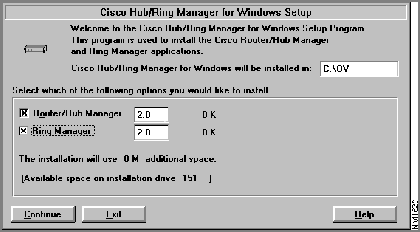
Figure 2-1 : Cisco Hub/Ring Manager Installation Dialog Box
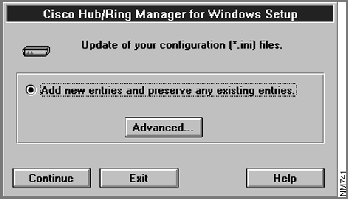
Figure 2-2 : Update Configuration Files Dialog Box
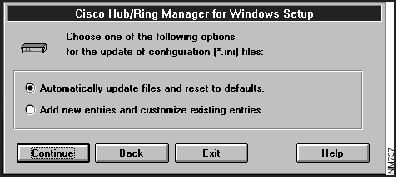
Figure 2-3 : Options for Updating Configuration Files Dialog Box
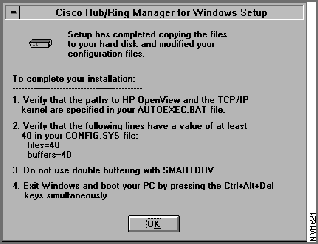
Figure 2-4 : Setup Successful Dialog Box
This completes the installation of Cisco Hub/Ring Manager for Windows. After you reboot your PC and restart Windows and HP OpenView, the HP OpenView Control menu lists menu items for Ring Manager, Hub/Ring Trap Manager, Hub Manager, Asset Management, Attachment, Identify, Sync. Attachment, Ethernet Manager, and SNMP Manager.
Reinstalling Cisco Hub/Ring Manager
You can skip this section unless you replace or reformat your hard disk or need to reinstall Cisco Hub/Ring Manager for some other reason.
If you have full backups, follow the instructions for your backup program to restore all files.
If you have backups of the customized SYSTEM.INI and OVWIN.INI files, use them to overwrite the default files installed by Microsoft Windows and HP OpenView. Otherwise, follow the procedure in the previous section, "Installing Cisco Hub/Ring Manager," to restore the network management station to operating condition.
Learning to Use Cisco Hub/Ring Manager
This section is for network administrators using Cisco Hub/Ring Manager for the first time. It provides a practice scenario that helps you understand how to set up your network management station.
Before Beginning This Exercise
To benefit the most from this tutorial, make sure that:
To apply this exercise to your own network, fill in Table 2-1. Use addresses that are appropriate for your Internet Protocol (IP) environment. The exercise assumes that you have one router/hub and one network management PC.
Media Access Control (MAC) addresses are optional. The MAC address consists of 12 hexadecimal characters, for example, 7A4A82542722.
Table 2-1 : Your Router/Hub and Network Management PC Information
After you record the information that identifies the router/hub and the network management PC, you can begin the tutorial, as described in the next section.
Starting Cisco Hub/Ring Manager
To start Cisco Hub/Ring Manager, perform the following steps:
A map is a graphical representation of your network, made up of interconnected hubs, PCs, printers, routers, and other objects. (For additional information, see the HP OpenView Windows User's Guide.)
To insert a router/hub object, perform the following steps:
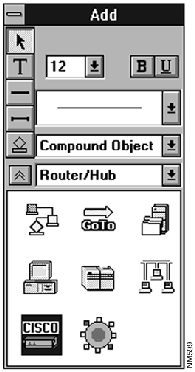
Figure 2-5 : Add Object Palette
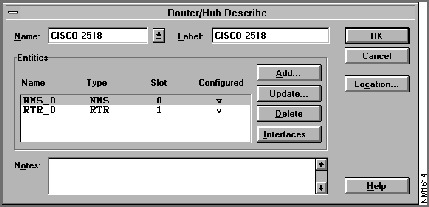
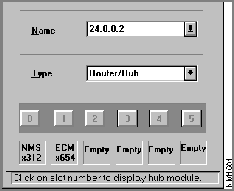
Figure 2-6 : Router/Hub Describe Dialog Box
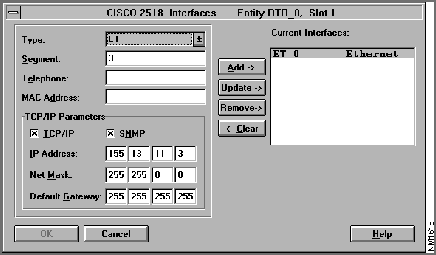
Figure 2-7 : Router/Hub Interfaces Dialog Box
The router/hub symbol with the name you specified is now part of your network map. If the router/hub is physically connected to the network management PC and communicating with it, the router/hub symbol should soon change from blue to green. (If the router/hub is not operating normally, the symbol changes to another color . See the section "Color-Coding of Map Objects," later in this chapter.)
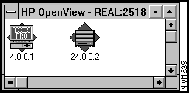
When you exit the Router/Hub Describe dialog box, Cisco Hub/Ring Manage automatically creates a new submap containing both a router object and a hub object. Double-clicking on the router/hub object displays these router and hub objects individually. (See Figure 2-8.)
Figure 2-8 : Separate Router and Hub Objects
The router object represents the router integrated into the router/hub. It is identified by the IP address of the RTR entity, or by a name if you define one in a domain name server in your PC/TCP stack or with the Configure Preferred Name command under Layout in the HP OpenView Autodisovery menu. You must use this router object, not the original router/hub object, to access Cisco Configuration Builder and CiscoWorks.
The hub object represents the hub portion of the Router/Hub. It is identified by the IP address of the NMS entity, or by a name if you define one in a domain name server in your PC/TCP stack or with the Configure Preferred Name command. You cannot edit Describe information for the hub object. Use the original router/hub object instead.
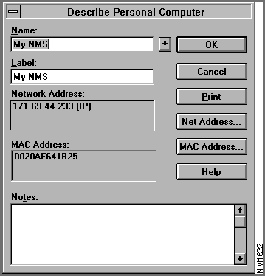
To add your network management PC to the network map, perform the following steps:
Figure 2-9 : Describe Personal Computer Dialog Box
Graphically Connecting the PC to the Router/Hub
To connect the PC to the router/hub, perform the following steps:
Figure 2-10 : Hub Attachment Dialog Box
For large networks, you may want to divide the map into submaps. A home map contains a submap symbol so that you can glance at the overall network status from the home map. For an explanation of propagation in submaps, refer to the HP OpenView Windows User's Guide. To insert a submap symbol, perform the following steps:
To save your network map, perform the following steps:
The default map is displayed when you start Cisco Hub/Ring Manager. To change the default map, perform the following steps:
The default submap is displayed when you start Cisco Hub/Ring Manager. To change the default submap, perform the following steps:
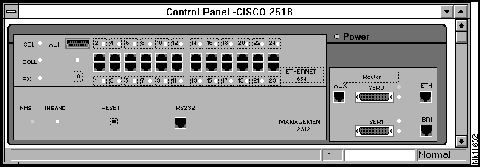
The router/hub Control Panel provides a color-coded graphical representation of the router/hub, its current status, and the status of each module in it. The screen is periodically updated to reflect any changes in a port LED or module. To access the Control Panel, perform the following steps:
From the Control Panel, you can display a popup menu by clicking on any of the areas shown in dotted boxes. The popup menu commands vary depending on the router/hub, the modules installed in it, and the area where you click.
For example, to disconnect a port, perform the following steps:
Figure 2-11 : Router/Hub Control Panel
From the Control Panel, you can also reset the NMS or router portions of the router/hub:
If Configuration Builder is installed on your HP OpenView PC, you can start it by clicking the area around the word Router and selecting Configuration.
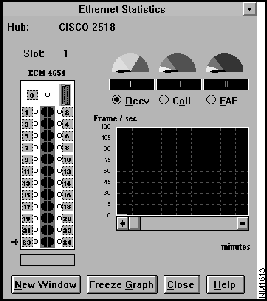
On a Cisco 2518, the Control Panel popup menu includes a choice for Eth Statistics. The Ethernet Statistics window, shown in Figure 2-12, displays real-time, port-level statistical information.
Figure 2-12 : Ethernet Statistics Window
A graphical display of the module indicates LED status for all ports. The Ethernet module is shown as ECM (Ethernet connectivity module). An arrow indicates the port currently being monitored. To monitor a different port on the same module, double-click on the dotted box next to the port number in the Ethernet Statistics window. The arrow moves to the selected port.
Gauges near the top of the window display the current value, in events per second, of three types of events:
Each gauge is divided into a low, normal, and high range according to a low threshold and a high threshold, which you can set in Ethernet Manager. (See the section "Ethernet Manager," later in this chapter.) The upper end of the gauge is 150 percent of the high threshold value. Each time the number of events per second crosses a threshold in either direction, an alert is sent to the network management station.
The boxes below the gauges are counters that indicate the total number of events that have occurred since the window was opened.
A graph below the boxes displays the rate at which events have occurred over a period of time. To select the type of event shown, click one of the option buttons above the graph. The scale for the vertical axis is set by Set Statistics Graph Scale in Ethernet Manager. (See the section "Ethernet Manager," later in this chapter.) The horizontal axis shows the time (in minutes) since the Ethernet Statistics window was opened.
As long as the Ethernet statistics window is open, all events for the selected port are recorded in a log file. Three files are created, one for each event type, for each port whose statistics have been monitored. To display a file, select a port and an event type.
The Ethernet Statistics window remains open even after the Control Panel has been closed, and continues adding events to the log file. You can minimize the window for more screen space.
You can have up to four Ethernet statistics windows open simultaneously. To simultaneously monitor another port on the same module, click on New Window and double-click on the desired port in the new window. To monitor another port either on the same module or in another hub, select the port in the Control Panel and click on Eth Statistics in the popup menu.
Monitoring and Managing the Network
After you create your network map and attach all objects and hubs to their ports, you can begin monitoring the network. You, or another person managing the network, can review the Alarm Log (bell icon) and the hub's Control Panel to search for any changes in network status. As the network manager, you may also want to perform certain operations on the objects.
This section summarizes some frequently used monitoring options. Detailed explanations of each of the following topics are included in the chapter "Using Cisco Hub/Ring Manager for Windows."
When you select certain objects in the map and click the right mouse button, a popup menu appears. The menu provides quick access to frequently used operations. (See Table 2-2.)
You must configure your Cisco Hub/Ring Manager station in order for it to receive traps from SNMP agents in the router/hub. All traps are displayed, along with alarms, in the HP OpenView Alarm dialog box.
To configure your Cisco Hub/Ring Manager station, perform the following steps:
The Cisco Hub/Ring Manager SNMP agent issues three kinds of traps:
Each trap is defined in a separate file in the \OV\TRAPCONF directory. These files are named TRPgssss.CNF, where g is the generic trap (0--6) and ssss is the specific trap ID. The default file TRP99999.CNF captures incoming traps that are not specifically configured.
You can edit the text for each trap to customize the messages sent to the network management station and the log file. For further information, refer to Cisco Hub/Ring Mananger Alarm Help.
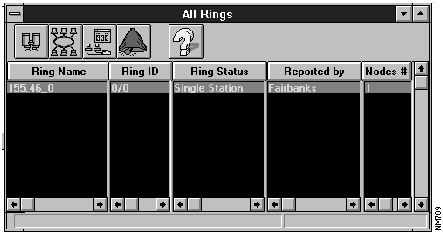
The All Rings window, shown in Figure 2-13, opens automatically when you start Cisco Hub/Ring Manager. You can close it if you do not have any Token Ring networks.
If the All Rings window is minimized, double-click on the icon to maximize it. If it is closed, open it by selecting All Rings under Ring Manager in the Control menu. To access a Ring Manager function, select a ring under Ring Name and click on one of the management function icons above it: Ring Monitor, Ring Configuration, Event Filter, or Ring Events.
Figure 2-13 : All Rings Window
Ethernet Manager, found in the Control menu, maintains event and alert logs of network activity and errors at the port level. You can view graphical displays of this activity in the Ethernet Statistics window, described in the section "Control Panel," earlier in this chapter.
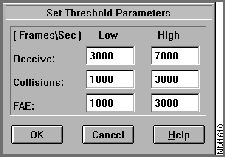
The Set Threshold Parameters dialog box, shown in Figure 2-14, defines alert thresholds at the network level for three types of events: receive events, collisions, and frequency alignment errors (FAE). You can set low and high thresholds in frames per second.
Figure 2-14 : Set Threshold Parameters Dialog Box
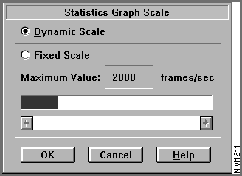
The Set Statistics Graph Scale dialog box, shown in Figure 2-14, sets the vertical scale for the Ethernet Statistics window in frames/sec. The default is Dynamic Scale, which sets the scale automatically depending on the magnitude of the data. If you choose Fixed Scale, you can set the maximum value in the scale yourself using the horizontal scroll bar.
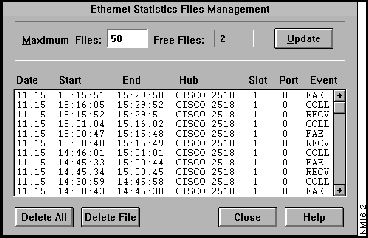
The Ethernet Statistics File Management dialog box, shown in Figure 2-16, is designed for advanced management of statistical files. You do not normally need to change any of the default settings in this dialog box. Ethernet Manager automatically manages the files and deletes the oldest ones as required.
Figure 2-15 : Set Statistics Graph Scale Dialog Box
Figure 2-16 : Ethernet Statistics File Management Dialog Box
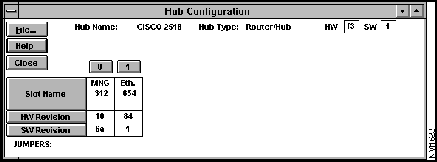
The Hub Configuration window shows a hub's hardware revision, software revision, jumper settings for modules, and jumper settings that have been overridden by software commands.
To access the Hub Configuration window, perform the following steps:
Figure 2-17 : Hub Configuration Window
Objects in the network map are color-coded to indicate their network status. An object is green during normal operation, magenta if it has been disconnected by the user, yellow if it is operating but in a warning state, red if a major problem has been detected with it, blue if Cisco Hub/Ring Manager is unable to locate information on it, and wheat-colored (pale yellow) if it is unmanaged.
Alarms indicate status changes in any device on the network. Cisco Hub/Ring Manager tracks all network alarms (also called events). In addition, HP OpenView tracks certain critical and platform-specific alarms.
The Ring Events window displays all Token Ring events and identifies MAC frames that have been sent at the MAC layer. The HP OpenView Alarm Log, in contrast, displays only serious traps and alarms for devices in the network. For additional information, refer to the HP OpenView Windows User's Guide.
To view all ring events and alarms, perform the following steps:
To display alarms for a single object in the network, perform the following steps:
Selective management is the process of identifying and isolating network problems by enabling or disabling management of certain hubs or Hub/Ring Manager applications.
You can choose to manage or not manage any hub in the map or all hubs within a particular submap. Token Rings in an unmanaged submap appear as either unmanaged (pale yellow) or unknown (blue).
You can perform selective hub management from the Hub/Ring Object Manager dialog box (from the Options menu, select Hub/Ring Object Manager). In this dialog box, a diamond represents an object and an octagon represents a submap. Yellow means Unmanage and green means Manage.
You can also select an object, click on the right mouse button, and select Manage Object or Unmanage Object. The hub object turns pale yellow to indicate that it is unmanaged. Selective management becomes the new default for subsequent Cisco Hub/Ring Manager sessions.
To disable management of all hubs in a submap, select the submap symbol, click on the right mouse button and select Unmanage Submap. The submap symbol turns pale yellow to indicate that it is unmanaged. Selective management of submaps is not propagated to other submaps.
Each Cisco Hub/Ring Manager session starts with all applications (Ring Manager, Hub Manager, and Trap Manager) active---that is, polling hubs in the map. Active applications have a checkmark next to Enable Polling under the application's name in the Control menu. (Ethernet Manager does not appear in this list, because it polls only when the Ethernet Statistics window is open.)
To deactivate an application, select the application from the Control menu and then select Disable Polling.
On a Token Ring network, you must update the MAC database after using the layout function, assigning MAC addresses in the Describe dialog box, or changing MAC addresses in the Name Settings dialog box. To update this database, perform the following steps:
This function is also performed automatically when Ring Manager initializes.
Copyright 1988-1996 © Cisco Systems Inc.
a:\setup.exe
Object
Name
Interfaces
Type
IP Address
Net Mask
Default
Gateway
MAC Address
Router/hub
PCbus0
tok0 or eth0
PC
--
--
--
win

Item
Commands
Router/hub
Describe...
Alarms...
Control Panel...
Attachment...
Router
Describe...
Alarms...
Attachment...
Hub
Describe... (read-only)
Alarms...
Control Panel...
Attachment...
Manage Object
Unmanage Object
PC
Describe...
Alarms...
Identify...
Ring
Describe...
Alarms...
Ring Configuration...
Ring Monitor...
Manage Submap
Unmanage Submap
Submap
Describe...
Alarms...
Manage Submap
Unmanage Submap