


|
|

Starting and Navigating in AtmDirector
After AtmDirector is installed on your system, you can start and shut down the application by entering the correct commands from the UNIX command line. Command options allow you to perform special functions, such as running AtmDirector in debug mode or checking the version of AtmDirector. Refer to Appendix A, "Troubleshooting," for information about using these and other command options.
The AtmDirector application displays a window that provides useful information about your network and options for accomplishing most of the tasks you want to perform.
There are additional utilities that you can execute from the UNIX command line to back up, recover, and enlarge the database. Refer to Appendix B, "AtmDirector Database Management."
Starting the AtmDirector Application
To start the AtmDirector application, follow these steps:
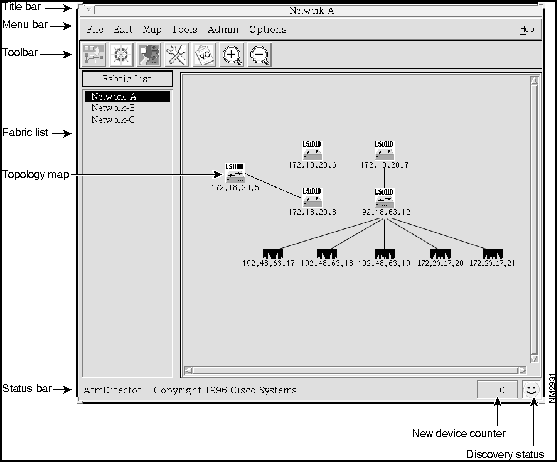
When you start AtmDirector, the AtmDirector window appears, as shown in Figure 2-1. The window contains the following elements:
Figure 2-1 : AtmDirector Window
Table 2-2 : Edit Menu Options
Table 2-3 : Map Menu Options
Table 2-4 : Tools Menu Options
Table 2-5 : Admin Menu Options
Table 2-6 : Options Menu Options
Copyright 1988-1996 © Cisco Systems Inc.
%
cd /opt/CSCOatmd/bin
%
atmdirector
Option
Description
Print
Brings up a window where you can select whether to print the entire map or only the part of the map that is visible. You can print the map to a printer or to a file.
Close
Closes the current topology map window.
Exit
Closes all windows and exits the application.
Option
Description
Delete
Lets you delete a device or a link.
Rename Fabric
Displays a window for changing the name of a network fabric.
Update
Adds new devices to the topology map. New devices are those that have been discovered since the map was opened or updated.
Option
Description
Navigator
Opens a navigation window for viewing a specific area of the network topology map.
Zoom In
Increases the size of the objects in the topology map and narrows the view area.
Zoom Out
Decreases the size of the objects in the topology map and widens the view area.
Object
Displays a cascaded menu that provides options for managing objects.
Option
Description
Describe
Shows detailed information about the selected device or link.
CiscoView
Invokes CiscoView for the selected device.
Hide endhosts
Conceals the end hosts and links connected to the selected switch from view on the topology map.
Show endhosts
Reveals all of the end hosts and links connected to the selected switch on the topology map.
Manage/Unmanage
Tells AtmDirector to poll the device for status information. Unmanage tells AtmDirector not to poll the device for status information.
Refresh
Redraws the AtmDirector windows.
Relayout
Redraws the topology layout in a default layout.
New Devices
Displays a list of devices discovered since the last update. After the topology map is updated, this list is cleared.
Options
Description
OAM Ping
Initiates an OAM ping to a selected device and link.
Soft PVC/PVP Setup
Displays a window that lets you set up a SPVC or SPVP between end hosts.
VC List
Displays a cascaded menu for choosing the VCs to list. You can select all connection or connections by SVC addresses.
Option
Description
Clear State
Resets the previously down status of the selected device.
Clear State All
Resets the previously down status of all devices in the fabric.
Option
Description
Global Options
Opens the Global Options window, where you can configure discovery SNMP polling parameters (polling interval, timeout, and retries) and miscellaneous parameters (default network fabric and zoom factor). You can also turn on and off topology and discovery debug options for logging messages.
