Step 4 Once an interface is configured, you can check its status by entering the EXEC show commands described after the task tables that follow.
The following sections show how to begin to configure each interface type as a separate task. Follow this command with the routing or bridging interface configuration commands for your particular protocol or application, as described in subsequent chapters.
See the section "Interface Configuration Examples" at the end of this chapter.
Configure an Asynchronous Serial Interface
To specify an asynchronous interface, perform the following task in global configuration mode.
| Specify an asynchronous interface.
|
interface async unit
|
For more information on asynchronous interfaces, refer to the chapter "Configuring SLIP and PPP" later in this publication. To use SLIP or PPP to make a connection, see the Cisco Access Connection Guide.
Configure a Dialer Interface
To specify a dialer rotary group leader, perform the following task in global configuration mode:
| Begin dialer rotary group interface configuration.
|
interface dialer interface-number
|
Configure an Ethernet Interface
To configure an Ethernet interface, perform the following task in global configuration mode
| Begin Ethernet interface configuration.
|
interface ethernet interface-number
|
Configure a Loopback Interface
You can specify a software-only interface called a loopback interface that emulates an interface that is always up. A loopback interface is a virtual interface that allows BGP and RSRB sessions to stay up even if the outbound interface is down, and is supported on all platforms.
You can use the loopback interface as the termination address for BGP sessions, for RSRB connections, or for establishing a Telnet session from the communication server's console to its auxiliary port when all other interfaces are down. In applications where other communication servers will attempt to reach this loopback interface, you should configure a routing protocol to distribute the subnet assigned to the loopback address.
Packets routed to the loopback interface are rerouted back to the box and processed locally. IP packets routed out the loopback interface but not destined to the loopback interface are dropped. This means the loopback interface also serves as the Null 0 interface.
To configure a loopback interface, perform the following task in global configuration mode:
| Begin loopback interface configuration.
|
interface loopback interface-number
|
See also the section "Run Interface Loopback Diagnostics" later in this chapter.
Configure a Null Interface
The communication server supports a "null" interface. This pseudo-interface functions similarly to the null devices available on most operating systems. This interface is always up and can never forward or receive traffic; encapsulation always fails. The only interface configuration command that you can specify for the null interface is no ip redirects.
The null interface provides an alternative method of filtering traffic. The overhead involved with using access lists can be avoided by directing undesired network traffic to the null interface.
To specify the null interface, perform the following task in global configuration mode:
| Begin null interface configuration.
|
interface null 0
|
Specify null 0 (or null0) as the interface name and unit. The null interface can be used in any command that has an interface type as an argument. The following example configures a null interface for IP route 127.0.0.0:
ip route 127.0.0.0 255.0.0.0 null 0
Configure a Synchronous Serial Interface
To configure a synchronous serial interface, perform the following task in global configuration mode:
| Begin synchronous serial interface configuration.
|
interface serial interface-number
|
For synchronous serial features, see the section "Configure Synchronous Serial Features" later in this chapter.
Configure a Token Ring Interface
To configure a Token Ring interface, perform the following task in global configuration mode:
| Begin Token Ring interface configuration.
|
interface tokenring interface-number
|
Add a Description for an Interface
You can add a description about an interface to help you remember what is attached to it. This entry is meant solely as a comment to help identify what the interface is being used for. The description will appear in the output of the following commands: show configuration, write terminal, and show interfaces.
To add the description, complete the following task in interface configuration mode:
| Add a description for an interface.
|
description string
|
For examples of adding a description, see the section "Interface Configuration Examples" at the end of this chapter.
Configure Subinterfaces
Configuring multiple virtual interfaces, or subinterfaces, on a single physical interface allows greater flexibility and connectivity on the network. With subinterfaces, you can provide full connectivity on partially meshed Frame Relay networks.
You can perform the tasks in the following sections to configure subinterfaces:
To configure an SMDS subinterface, refer to the chapter "Configuring SMDS" later in this publication.
Understand Supported Interfaces and Encapsulations
Subinterfaces can be used to support partially meshed multiprotocol Frame Relay networks over a serial interface.
Table 6-1 lists the commands that are supported on subinterfaces.
Table 6-1 : Subinterface Configuration Commands
| bandwidth
|
Serial, Ethernet, Token Ring
|
| delay
|
Serial, Ethernet, Token Ring
|
| description
|
Serial, Ethernet, Token Ring
|
| exit
|
Serial, Ethernet, Token Ring
|
| frame-relay
|
Serial only
|
| ip
|
Serial only
|
| ipx
|
Serial, Ethernet, Token Ring
|
| ntp
|
Serial only
|
| shutdown
|
Serial, Ethernet, Token Ring
|
The commands listed in Table 6-2 support subinterfaces as parameters.
Table 6-2 : Commands that Allow Subinterfaces as Parameters
| ip unnumbered
|
Interface configuration
|
| tunnel source
|
Interface configuration
|
| interface
|
Global configuration
|
| ip route
|
Global configuration
|
| routemap match interface
|
Route-map configuration
|
| distribute-list
|
Router configuration
|
| neighbor address update-source
|
Router configuration
|
| passive-interface
|
Router configuration
|
In the following example, the route to IP network 10.0.0.0 is configured to exit the communication server via subinterface serial 0.1:
ip route 10.0.0.0 255.0.0.0 serial 0.1
The show commands listed in Table 6-3 support subinterfaces as parameters.
Table 6-3 : Show Commands that Allow Subinterfaces as Parameters
| show buffers
|
EXEC
|
| show interfaces
|
EXEC
|
| show ip igrp2 neighbors
|
EXEC
|
| show ip ospf neighbor
|
EXEC
|
| show ip ospf interface
|
EXEC
|
| show ip irdp
|
EXEC
|
| show ip interface
|
EXEC
|
| show novell
|
EXEC
|
| show protocols
|
EXEC
|
Configure Subinterfaces on Serial Interfaces Running Frame Relay Encapsulation
Frame Relay networks provide multiple point-to-point links, or PVCs (permanent virtual circuits), through the same physical serial interface. Subinterfaces allow blocks of one or more Frame Relay PVCs to be treated as separate subnetworks. Protocols such as IP and IPX view each subinterface as a separate interface with its own address and protocol assignments.
A subinterface with a single Frame Relay PVC is modeled as a point-to-point link. A subinterface with multiple Frame Relay PVCs is modeled as a LAN.
Subinterfaces provide a mechanism for supporting partially meshed Frame Relay networks. In the past, a single network number (such as an IP subnet or an IPX network number) was assigned to an entire Frame Relay network. Most protocols assume transitivity on a logical network; that is, if station A can talk to station B, and station B can talk to station C, then station A should be able to talk to station C directly. This is true on LANs, but is not true on Frame Relay networks unless they are fully meshed.
Subinterfaces address these limitations by providing a way to subdivide a partially meshed Frame Relay network into a number of smaller, fully meshed (or point-to-point) subnetworks. Each subnetwork is assigned its own network number and appears to the protocols as if it is reachable through a separate interface. (Note that point-to-point subinterfaces may be unnumbered for use with IP, reducing the addressing burden that might otherwise result.)
For example, suppose you have a five-node Frame Relay network that is partially meshed (see Network A in Figure 6-1). If the entire network is viewed as a single subnetwork (with a single network number assigned), most protocols assume that node A can transmit a packet directly to node E, when in fact it must be relayed through nodes C and D. This can be made to work with certain protocols (for example, IP) but will not work at all with other protocols (for example, AppleTalk) because nodes C and D will not relay the packet out the same interface on which it was received. The only way to make this work fully is to create a fully meshed network (see Network B in
Figure 6-1), but that requires a large number of PVCs, which may not be economically feasible.
Using subinterfaces, the Frame Relay network can be subdivided into three smaller networks (see Network C in Figure 6-1) with separate network numbers. Nodes A, B, and C are connected to a fully meshed network, and nodes C and D, as well as nodes D and E are connected via point-to-point networks. In this configuration, nodes C and D would see two subinterfaces, allowing them to forward packets without violating split horizon rules.

Figure 6-1 : Using Subinterfaces to Provide Full Connectivity on a Partially Meshed Frame Relay Network
To configure a subinterface, perform the following tasks:
| Step 1 Configure a serial interface.
|
interface serial number
|
| Step 2 Configure Frame Relay encapsulation on the serial interface.
|
encapsulation frame-relay
|
| Step 3 Configure a subinterface.
|
interface serial numbe.subinterface-number [multipoint | point-to-point]
|
In the following example, subinterface 1 models a point-to-point subnet and subinterface 2 models a broadcast subnet:
interface serial 0
encapsulation frame-relay
interface serial 0.1 point-to-point
ip address 10.0.1.1 255.255.255.0
frame-relay interface-dlci 42

interface serial 0.2 multipoint
ip address 10.0.2.1 255.255.255.0
frame-relay map 10.0.2.1 255.255.255.0 17 broadcast
frame-relay map 10.0.2.2 255.255.255.0 18
Understand Tunneling
Tunneling provides a way to encapsulate arbitrary packets inside of a transport protocol. This feature is implemented as a virtual interface to provide a simple interface for configuration. The tunnel interface is not tied to specific "passenger" or "transport" protocols, but rather, it is an architecture that is designed to provide the services necessary to implement any standard point-to-point encapsulation scheme.
Tunneling has three primary components:
- Passenger protocol, which is the protocol you are encapsulating (IP, IPX, or AppleTalk)
- Carrier protocol, which is one of the following encapsulation protocols:
- Generic route encapsulation (GRE), Cisco's multiprotocol carrier protocol
- Cayman, a proprietary protocol for AppleTalk over IP
- NOS, IP over IP compatible with the popular KA9Q program
- Transport protocol, which is the protocol used to carry the encapsulated protocol (IP only)
Figure 6-2 illustrates IP tunneling terminology and concepts.
-
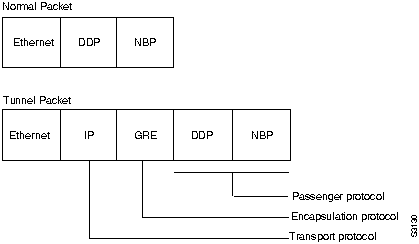
Figure 6-2 : IP Tunneling Terminology and Concepts
To understand the process of tunneling, consider connecting two AppleTalk networks with a non-AppleTalk backbone, such as IP. The relatively high bandwidth consumed by the broadcasting of Routing Table Maintenance Protocol (RTMP) data packets can severely hamper the backbone's network performance. This problem can be solved by tunneling AppleTalk through a foreign protocol, such as IP. Tunneling encapsulates an AppleTalk packet inside the foreign protocol packet, which is then sent across the backbone to a destination communication server. The destination communication server then de-encapsulates the AppleTalk packet and, if necessary, routes the packet to a normal AppleTalk network. Because the encapsulated AppleTalk packet is sent in a directed manner to a remote IP address, bandwidth usage is greatly reduced. Furthermore, the encapsulated packet benefits from any features normally enjoyed by IP packets, including default routes and load balancing.
Advantages of Tunneling
There are several situations where encapsulating traffic in another protocol is useful:
- To provide multiprotocol local networks over a single-protocol backbone
- To provide workarounds for networks containing protocols that have limited hop counts; for example, AppleTalk (see Figure 6-3)
- To connect discontinuous subnetworks
- To allow virtual private networks across wide-area networks (WANs)
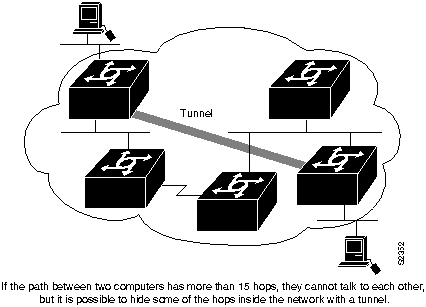
Figure 6-3 : Providing Workarounds for Networks with Limited Hop Counts
Special Considerations
The following are considerations and precautions to observe when configuring tunneling:
- Encapsulation and decapsulation at the tunnel endpoints are slow operations; currently only processor switching is supported.
- Be cautious in your configuration and take into account security and topology issues. Be careful not to violate access control lists. You can configure a tunnel with a source and destination that is not restricted by firewall access communication servers.
- Tunneling may create problems with transport protocols with limited timers (such as DECnet on the Cisco 2500) due to increased latency.
- Be aware of the environments across which you create tunnels. You might be tunneling across fast FDDI rings or through slow 9600-bps phone lines; some passenger protocols behave poorly in mixed media networks.
- Multiple point-to-point tunnels can saturate the physical link with routing information.
- Routing protocols that make their decisions based solely on hop count will often prefer a tunnel over a multipoint real link. A tunnel might appear to be a one-hop, point-to-point link and have the lowest-cost path, but may actually cost more. For example, in the topology shown in Figure 6-4, packets from Host 1 will travel across networks w, q, and z to get to Host 2 instead of taking the path w, x, y, z because the first path appears shorter.
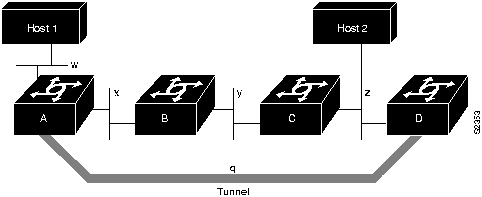
Figure 6-4 : Tunnel Precautions: Hop Counts
- When routing information from the tunneled network mixes with the transport networks' information, the best path to the "tunnel destination" is via the tunnel itself. This is called a recursive route and causes the tunnel interface to shut down temporarily. To avoid recursive routing problems, keep passenger and transport network routing information disjointed:
- Use a different AS number or tag
- Use a different routing protocol
- Use static routes to override the first hop (but watch for routing loops)
- If you see line protocol down, as in the following example, it might be because of a recursive route:
%TUN-RECURDOWN Interface Tunnel 0
temporarily disabled due to recursive routing
Configure IP Tunneling
If you want to configure IP tunneling, you must perform the tasks in the following sections:
The tasks in the following tunnel configuration sections are optional:
For examples using these commands, see the section "IP Tunneling Examples" at the end of this chapter.
Configure the Tunnel Interface
To configure tunneling, you must configure the tunnel interface by performing the following task in global configuration mode:
| Configure the tunnel interface.
|
interface tunnel interface-number
|
Configure the Tunnel Source
You must specify the tunnel interface's source address by performing the following task in interface configuration mode:
| Configure the tunnel source.
|
tunnel source {ip-address | interface-type interface-number}
|
Note You cannot have two tunnels using the same encapsulation mode with exactly the same source and destination address. The workaround is to create a loopback interface and source packets off of the loopback interface.
Configure the Tunnel Destination
You must specify the tunnel interface's destination by performing the following task in interface configuration mode:
| Configure the tunnel destination.
|
tunnel destination {hostname | ip-address}
|
Configure the Tunnel Mode
The encapsulation mode for the tunnel interface defaults to generic route encapsulation (GRE), so this task is considered optional. However, if you want a mode other than GRE, you must configure it by performing the following task in interface configuration mode:
| Configure the tunnel mode.
|
tunnel mode {aurp | cayman | dvmrp | eon | gre ip | nos}
|
If you are tunneling AppleTalk, you must use either AppleTalk Update Routing Protocol (AURP), Cayman or GRE tunneling mode. Cayman tunneling is designed by Cayman Systems, and enables communication servers to interoperate with Cayman GatorBoxes. You can have our communication servers at either end of the tunnel, or you can have a GatorBox at one end and our communication server at the other end. Use Distance Vector Multicast Routing Protocol (DVMRP) mode when a communication server connects to a mrouted communication server to run DVMRP over a tunnel. It is required to configure Protocol-Independent Multicast (PIM) and an IP address on a DVMRP tunnel.
 Caution Do not configure a Cayman tunnel with an AppleTalk network address.
If you use GRE, you must have only our communication servers at both ends of the tunnel connection. When using GRE to tunnel AppleTalk, you must configure an AppleTalk network address and a zone. Perform the following tasks to tunnel AppleTalk using GRE:
| Step 1 Enable tunneling on the interface.
|
interface tunneln
|
| Step 2 Assign a cable range to an interface.
|
appletalk cable-range start-end [network.node]1
|
| Step 3 Set a zone name for the connected AppleTalk network.
|
appletalk zone zone-name2
|
| Step 4 Specify the interface out which the encapsulated packets will be sent, or specify the communication server's IP address.
|
tunnel source [interface | ip-address]
|
| Step 5 Specify the IP address of the communication server at the far end of the tunnel.
|
tunnel destination ip-address
|
| Step 6 Enable GRE tunneling.
|
tunnel mode gre ip
|
1 This command is documented in the "AppleTalk Commands" chapter of the Router Products Command Reference publication.
2 This command is documented in the "AppleTalk Commands" chapter of the Router Products Command Reference publication.
Configure End-to-End Checksumming
Some passenger protocols rely on media checksums to provide data integrity. By default, the tunnel does not guarantee packet integrity. By enabling end-to-end checksums, the communication servers will drop corrupted packets. To enable such checksums on a tunnel interface, perform the following task in interface configuration mode:
| Configure end-to-end checksumming.
|
tunnel checksum
|
Configure a Tunnel Identification Key
You can optionally enable an ID key for a tunnel interface. This key must be set to the same value on the tunnel endpoints. Tunnel ID keys can be used as a form of weak security to prevent misconfiguration or injection of packets from a foreign source.
The tunnel ID key is available with GRE only.
Note When using GRE, the ID key is carried in each packet. We do not recommend relying on this key for security purposes.
To configure a tunnel ID key, perform the following task in interface configuration mode:
| Configure a tunnel identification key.
|
tunnel key key-number
|
Configure a Tunnel Interface to Drop Out-of-Order Datagrams
You can optionally configure a tunnel interface to drop datagrams that arrive out of order. This is useful when carrying passenger protocols that behave poorly when they receive packets out of order (for example, LLC2-based protocols). This option is available with GRE only.
To use this option, perform the following task in interface configuration mode:
| Configure a tunnel interface to drop out-of-order datagrams.
|
tunnel sequence-datagrams
|
Monitor IP Tunnels
Complete any of the following tasks in EXEC mode to monitor the IP tunnels you have configured:
| List tunnel interface information.
|
show interfaces tunnel unit [accounting]
|
| List the routes that go through the tunnel.
|
show protocol route1
|
| List the route to the tunnel destination.
|
show ip route2
|
1 This command is documented in the "System Management Commands" chapter in the Access and Communication Servers Command Reference publication.
2 This command is documented in the "IP Routing Protocols Commands" chapter in the Access and Communication Servers Command Reference publication.
Configure Synchronous Serial Features
The optional tasks in the following sections configure features on a synchronous serial interface:
Reenable HDLC Serial Encapsulation
The communication server provides HDLC encapsulation for serial lines by default. This encapsulation method provides the synchronous framing and error detection functions of HDLC without windowing or retransmission. Although it is the default, it can be reenabled as the encapsulation method, if necessary, by performing the following task in interface configuration mode:
| Reenable HDLC encapsulation.
|
encapsulation hdlc
|
Configure Compression of LAPB Data
You can configure point-to-point software compression on serial interfaces that use LAPB or multi-LAPB encapsulation. Compression reduces the size of a LAPB or multi-LAPB frame via lossless data compression. The compression algorithm used is a predictor algorithm (the RAND algorithm), which uses a compression dictionary to predict the next character in the frame.
Compression is performed in software and may significantly affect system performance. We recommend that you disable compression if CPU load exceeds 65%. To display the CPU load, use the show process cpu EXEC command.
If the majority of your traffic is already compressed files, we recommend that you do not use compression.
To configure compression over LAPB, perform the following tasks in interface configuration mode:
| Step 1 Enable encapsulation of a single protocol on the serial line.
|
encapsulation lapb
or
encapsulation lapb dce
|
| Step 2 Enable compression.
|
compress predictor
|
To configure compression over multi-LAPB, perform the following tasks in interface configuration mode:
| Step 1 Enable encapsulation of multiple protocols on the serial line.
|
encapsulation lapb multi
or
encapsulation lapb dce multi
|
| Step 2 Enable compression.
|
compress predictor
|
When using compression, be sure to adjust the MTU for the serial interface and the LAPB N1 parameter as in the following example to avoid informational diagnostics regarding excessive MTU or N1 sizes:
interface serial 0
encapsulation lapb
compress predictor
mtu 1509
lapb n1 12072
To adjust the MTU and LAPB N1 parameters, perform the following tasks in interface configuration mode:
| Step 1 Identify the interface.
|
interface serial number
|
| Step 2 Enable encapsulation of a single protocol on the serial line.
|
encapsulation lapb
or
encapsulation lapb dce
|
| Step 3 Enable compression.
|
compress predictor
|
| Step 4 Adjust the maximum packet size of MTU size.
|
mtu bytes
|
| Step 5 Set the maximum bits per frame (N1).
|
lapb n1 bits1
|
1 This command is documented in the "X.25 Configuration Commands" chapter of the Access and Communication Servers Command Reference.
Ignore DCD and Monitor DSR as Line Up/Down Indicator
This task applies to Quad Serial NIM interfaces on the Cisco 4000 series and Hitachi-based serial interfaces on the Cisco 2500 series and Cisco 3000 series.
By default, when the serial interface is operating in DTE mode, it monitors the Data Carrier Detect (DCD) signal as the line up/down indicator. By default, the attached DCE device sends the DCD signal. When the DTE interface detects the DCD signal, it changes the state of the interface to up.
In some configurations, such as an SDLC multidrop environment, the DCE device sends the Data Set Ready (DSR) signal instead of the DCD signal, which prevents the interface from coming up. To tell the interface to monitor the DSR signal instead of the DCD signal as the line up/down indicator, perform the following task in interface configuration mode:
| Configure the serial interface to monitor the DSR signal as the line up/down indicator.
|
ignore-dcd
|
Set Transmit Delay
It is possible to send back-to-back data packets over serial interfaces faster than some hosts can receive them. You can specify a minimum dead time after transmitting a packet to alleviate this condition. This setting is available for serial interfaces on the MCI and SCI interface cards. Perform one of the following tasks, as appropriate for your system, in interface configuration mode:
| Set the transmit delay on the MCI and SCI synchronous serial interfaces.
|
transmitter-delay microseconds
|
Configure DTR Signal Pulsing
You can configure pulsing DTR signals on all serial interfaces.When the serial line protocol goes down (for example, because of loss of synchronization) the interface hardware is reset and the DTR signal is held inactive for at least the specified interval. This function is useful for handling encrypting or other similar devices that use the toggling of the DTR signal to resynchronize.To configure DTR signal pulsing, perform the following task in interface configuration mode:
| Configure DTR signal pulsing.
|
pulse-time seconds
|
Configure the Clock Rate on DCE Appliques
You can configure the clock rate for appliques (connector hardware) on the serial interface of the MCI and SCI cards to an acceptable bit rate. To do so, perform the following task in interface configuration mode:
| Configure the clock rate on serial interfaces.
|
clock rate bps
|
Configure Snapshot Routing
Snapshot routing, which is available on serial lines, is a method of learning remote routes dynamically and then keeping the routes available for a period of time while regular routing updates are not being exchanged. This might be during periods when a remote site is not dialed into the local site or when a remote site has a dedicated connection to the local but wishes to avoid the overhead of exchanging routing updates. Snapshot routing allows you to avoid configuring static routes when using dial-on-demand routing. It also eliminates the overhead required for sending periodic updates over dedicated serial lines.
When configuring snapshot routing, you choose one router on the interface to be the client router and one or more other routers to be server routers. The client router determines the frequency at which routing information is exchanged between routers.
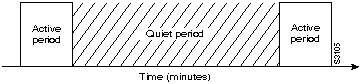
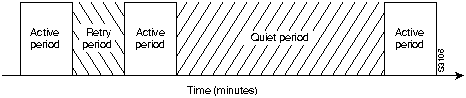
Routing information is exchanged during an active period. At the end of this period, the router takes a snapshot of the entries in the routing table. These entries remain frozen during a quiet period. At the end of the quiet period, another active period starts during which routing information is again exchanged. See Figure 6-5.
Figure 6-5 : Active and Quiet Periods in Snapshot Routing
When the router transitions from the quiet period to the active period, the line might not be available for a variety of reasons. For example, the line might be down or busy, or the PVC might be down. If this happens, the router has to wait through another entire quiet period before it can update its routing table entries. This might be a problem if the quiet period is very long, for example, around 12 hours. To avoid having to wait through the quiet period, you can configure a retry period. If the line is not available when the quiet period ends, the router waits for the amount of time specified by the retry period and then transitions to an active period. See Figure 6-6.
Figure 6-6 : Retry Period in Snapshot Routing
Snapshot routing is useful in two command situations:
- Configuring static routes for DDR interfaces
- Reducing the overhead of periodic updates sent by routing protocols to remote branch offices over a dedicated serial line
The following routing protocols support snapshot routing. Note that these are all distance-vector protocols.
- AppleTalk---RTMP
- Banyan VINES---RTP
- IP---RIP, IGRP
- Novell IPX---RIP, SAP
To configure snapshot routing, perform the tasks described in the following sections. The tasks in the first two sections are required; those in the remaining section are optional:
Configure the Client Router
To configure snapshot routing on the client router that is connected to a dedicated serial line, perform the following steps starting in global configuration mode:
| Step 1 Specify a serial interface.
|
interface serial number
|
| Step 2 Configure the client router.
|
snapshot client active-time quiet-time [suppressstatechange-updates] [dialer]
|
To configure snapshot routing on the client router connected to an interface configured for DDR, perform the following steps starting in global configuration mode:
| Step 1 Specify a serial interface.
|
interface serial number
|
| Step 2 Configure a dialer rotary group.
|
dialer rotary-group number
|
| Step 3 Specify a dialer interface.
|
interface dialer number
|
| Step 4 Configure the client router.
|
snapshot client active-time quiet-time [suppressstatechange-updates] [dialer]
|
| Step 5 Define a dialer map.
|
dialer map snapshot sequence-number dial-string
|
Repeat step 5 for each map you want to define.
Configure the Server Router
To configure snapshot routing on the server router that is connected to a dedicated serial line, perform the following steps starting in global configuration mode:
| Step 1 Specify a serial interface.
|
interface serial number
|
| Step 2 Configure the server router.
|
snapshot server active-time [dialer]
|
The active period for the client router and its associated server routers should be the same.
Monitor and Maintain Snapshot Routing
To monitor and maintain snapshot routing, perform one or both of the following tasks in EXEC mode:
| Terminate the quiet period on the client router within two minutes.
|
clear snapshot quiet-time interface
|
| Display information about snapshot routing parameters.
|
show snapshot interface
|
Select the Ethernet Encapsulation
Ethernet interfaces on the communication server support several encapsulation methods, depending upon the application type code and media type, as follows:
- Standard ARPA Ethernet Version 2.0 encapsulation (default)
- SAP IEEE 802.3 encapsulation
- The SNAP method, as specified in RFC 1042
Establish Ethernet encapsulation by selecting one of the Ethernet encapsulation methods, using the appropriate command in interface configuration mode, as follows:
| Select ARPA Ethernet encapsulation.
|
encapsulation arpa
|
| Select SAP Ethernet encapsulation.
|
encapsulation sap
|
| Select SNAP Ethernet encapsulation.
|
encapsulation snap
|
Configure MOP
Perform the tasks in this section to configure the Maintenance Operation Protocol (MOP).
Enable MOP
You can enable MOP on an interface by performing the following task in interface configuration mode:
Enable MOP Message Support
You can enable an interface to send out periodic MOP system identification messages on an interface by performing the following task in interface configuration mode:
| Enable MOP message support.
|
mop sysid
|
Configure Token Ring Features
Perform the tasks in this section to configure Token Ring features.
Select the Token Ring Speed
The Token Ring interface on the CSC-1R and CSC-2R can run at either 4 or 16 Mbps. Token Ring interfaces do not default to any particular ring speed; you must select the speed the first time you use them.
 Caution Configuring a ring speed that is wrong or incompatible with the connected Token Ring causes the ring to beacon, which effectively takes the ring down and makes it nonoperational.
Configure the ring speed on the CSC-1R or CSC-2R Token Ring interfaces by performing the following task in interface configuration mode:
| Select the ring speed.
|
ring-speed speed
|
You do not need to select the ring speed for the CSC-R16 Token Ring interface card.
Enable Early Token Release
Our Token Ring interfaces support early token release, a method whereby the interface releases the token back onto the ring immediately after transmitting rather than waiting for the frame to return. This feature can help to increase the total bandwidth of the Token Ring. To configure the interface for early token release, perform the following task in interface configuration mode:
| Enable early token release.
|
early-token-release
|
Configure the Point-to-Point Protocol
The Point-to-Point Protocol (PPP), described in RFCs 1331 and 1332, is a method of encapsulating network layer protocol information over point-to-point links.
The current implementation of PPP supports option 3, authentication using CHAP or PAP, option 4, Link Quality Monitoring, and option 5, Magic Number configuration options. The software always sends option 5 and will negotiate for options 3 and 4 if so configured. All other options are rejected.
IP and IPX upper-layer protocols are supported.
The software provides PPP as an encapsulation method. It also provides the Challenge Handshake Authentication Protocol (CHAP) and Password Authentication Protocol (PAP) on serial interfaces running PPP encapsulation. The following sections describe the tasks to configure these features.
Enable PPP Encapsulation
You can enable the Point-to-Point Protocol on serial lines to encapsulate IP and SLIP datagrams. To do so, perform the following task in interface configuration mode:
| Enable the PPP encapsulation.
|
encapsulation ppp
|
PPP echo requests are used as keepalives to minimize disruptions to the end users of your network. Use the no keepalive command to disable echo requests.
Enable CHAP or PAP Authentication
Access control using Challenge Handshake Authentication Protocol (CHAP) or Password Authentication Protocol (PAP) is available on all serial interfaces that use PPP encapsulation. The authentication feature reduces the risk of security violations on your communication server. You can configure either CHAP or PAP for the interface.
Note To use CHAP, you must be running PPP encapsulation.
When CHAP is enabled is enabled on an interface, the local communication server sends a CHAP packet and the remote device (a PC, workstation, router, or communication server) attempting to connect to the local communication server or router is requested, or "challenged," to respond.
The challenge consists of an ID, a random number, and either the host name of the local communication server or the name of the user on the remote device. This challenge is transmitted to the remote device.
The required response consists of two parts:
- An encrypted version of the ID, a secret password (or secret), and the random number
- Either the host name of the remote device or the name of the user on the remote device
When the local communication server receives the challenge response, it verifies the secret by looking up the name given in the response and performing the same encryption operation. The secret passwords must be identical on the remote device and the local communication server or router.
By transmitting this response, the secret is never transmitted, preventing other devices from stealing it and gaining illegal access to the system. Without the proper response, the remote device cannot connect to the local communication server.
CHAP transactions occur only at the time a link is established. The local communication server does not request a password during the rest of the call. (The local communication server can, however, respond to such requests from other devices during a call.)
To use CHAP, you must perform the following tasks:
- Enable CHAP on the interface.
- Once you have enabled CHAP, the local communication server requires a password from remote devices. If the remote device does not support CHAP, no traffic will be passed to that device.
- Configure server host name or username authentication.
- Configure the secret or password for each remote system with which authentication is required. As an alternative, you could also configure TACACS.
Perform the following tasks in interface configuration mode:
| Step 1 Enable CHAP or PAP.
|
ppp authentication {chap | pap} [if-needed]
|
Step 2 Configure host authentication
or
configure TACACS.
|
username name password secret1
ppp use-tacacs [single-line]1
|
1 These commands are documented in the "System Management Commands" chapter of the Access and Communication Servers Command Reference publication.
For an example of CHAP, see the section "CHAP with an Encrypted Password Example" at the end of this chapter. CHAP is specified in the IETF RFC 1334 "The PPP Authentication Protocols" by Brian Lloyd of Lloyd and Associates and William A. Simpson of Computer Systems Consulting Services. CHAP is specified as an additional authentication phase of the PPP Link Control Protocol.
Enable Link Quality Monitoring
Link Quality Monitor (LQM) is available on all serial interfaces running PPP. LQM monitors the link quality and takes the link down when the quality drops below a configured percentage. The percentages are calculated for both the incoming and outgoing directions. The outgoing quality is calculated by comparing the total number of packets and bytes sent with the total number of packets and bytes received by the peer. The incoming quality is calculated by comparing the total number of packets and bytes received with the total number of packets and bytes sent by the peer.
When LQM is enabled, Link Quality Reports (LQRs) are sent every keepalive period. LQRs are sent in place of keepalives. All incoming keepalives are responded to properly. If LQM is not configured, keepalives are sent every keepalive period and all incoming LQRs are responded to with an LQR.
LQR is specified in the IETF RFC-1333, "PPP Link Quality Monitoring" by William A. Simpson of Computer Systems Consulting Services. The latest version is dated May 1992.
To enable LQM on the interface, perform the following task in interface configuration mode:
| Enable LQM on the interface.
|
ppp quality percentage
|
The percentage argument specifies the link quality threshold. That percentage must be maintained, or the link is deemed to be of poor quality and taken down.
PPP Magic Number Support
Magic Number support is available on all serial interfaces. When using PPP, PPP will always attempt to negotiate for Magic Numbers, which are used to detect looped-back nets. The link might or might not be taken down upon looped-back detection, depending on the use of the down-when-looped command.
Configure Dial Backup Service
The dial backup service provides protection against WAN downtime by allowing you to configure a backup serial line via a circuit-switched connection.
To configure dial backup, associate a secondary serial interface as a backup to a primary serial interface. This feature requires that an external modem or CSU/DSU device attached to a circuit-switched service be connected on the secondary serial interface. The external device must be capable of responding to a DTR signal (DTR active) by automatically dialing a connection to a preconfigured remote site.
The dial backup software keeps the secondary line inactive (DTR inactive) until one of the following conditions is met:
- The primary line goes down.
- The transmitted traffic load on the primary line exceeds a defined limit.
These conditions are defined using the interface configuration commands described later in this section.
When the software detects a lost Carrier Detect signal from the primary line device or finds that the line protocol is down, it activates DTR on the secondary line. At that time, the modem or CSU/DSU device must be set to dial the remote site. When that connection is made, the routing protocol defined for the serial line will continue the job of transmitting traffic over the dialup line.
You also can configure the dial backup feature to activate the secondary line based upon traffic load on the primary line.
The software monitors the traffic load and computes a five-minute moving average. If this average exceeds the value you set for the line, the secondary line is activated, and depending upon how the line is configured, some or all of the traffic will flow onto the secondary dialup line.
Perform the following tasks in interface configuration mode:
| Step 1 Select a serial interface as a backup line.
|
backup interface interface-name
|
| Step 2 Enter the load as a percentage of the primary line's available bandwidth.
|
backup load {enable-threshold | never} {disable-load | never}
|
| Step 3 Set the line delay for the backup line.
|
backup delay {enable-delay | never} {disable-delay | never}
|
See the section "Dial Backup Service Examples" at the end of this chapter for examples of dial backup configuration.
For more information about dial backup, refer to the chapter "Configuring Dial-on-Demand Routing" later in this manual.
Ignore DCD and Monitor DSR as Line Up/Down Indicator
This task applies to Quad Serial NIM interfaces on the Cisco 2500 series access servers.
By default, when the serial interface is operating in DTE mode, it monitors the Data Carrier Detect (DCD) signal as the line up/down indicator. By default, the attached DCE device sends the DCD signal. When the DTE interface detects the DCD signal, it changes the state of the interface to up.
In some configurations, such as an SDLC multidrop environment, the DCE device sends the Data Set Ready (DSR) signal instead of the DCD signal, which prevents the interface from coming up. To tell the interface to monitor the DSR signal instead of the DCD signal as the line up/down indicator, perform the following task in interface configuration mode:
| Configure the serial interface to monitor the DSR signal as the line up/down indicator.
|
ignore-dcd
|
Configure Loopback Detection
When an interface has a backup interface configured, it is often desirable that the backup interface be enabled when the primary interface is either down or in loopback. By default, the backup is only enabled if the primary interface is down. By using the down-when-looped command, the backup interface will also be enabled if the primary interface is in loopback. To achieve this condition, perform the following task in interface configuration mode:
| Configure an interface to tell the system it is down when loopback is detected.
|
down-when-looped
|
If testing an interface with the loopback command, down-when-looped should not be configured, or packets will not be transmitted out the interface that is being tested.
Control Interface Hold-Queue Limits
Each interface has a hold-queue limit. This limit is the number of data packets that the interface can store in its hold queue before rejecting new packets. When the interface empties one or more packets from the hold queue, the interface can accept new packets again. You can specify the hold-queue limit of an interface in interface configuration mode as follows:
| Specify the maximum number of packets allowed in the hold queue.
|
hold-queue length {in | out}
|
Set Bandwidth
Higher-level protocols use bandwidth information to make operating decisions. For example, IGRP uses the minimum path bandwidth to determine a routing metric. The TCP protocol adjusts initial retransmission parameters based on the apparent bandwidth of the outgoing interface. Perform the following task in interface configuration mode to set a bandwidth value for an interface:
| Set a bandwidth value.
|
bandwidth kilobits
|
The bandwidth setting is a routing parameter only; it does not affect the physical interface.
Set Interface Delay
Higher-level protocols might use delay information to make operating decisions. For example, IGRP can use delay information to differentiate between a satellite link and a land link. To set a delay value for an interface, perform the following task in interface configuration mode:
| Set a delay value for interfaces.
|
delay tens-of-microseconds
|
Specifying the delay value sets an informational parameter only; you cannot adjust the actual delay of an interface with this configuration command.
Adjust Timers
To adjust the frequency of update messages, perform the following the following task in interface configuration mode:
| Adjust the frequency with which the communication server sends messages to itself (Ethernet and Token Ring) or to the other end (HDLC-serial and PPP-serial links) to ensure that a network interface is alive for a specified interface.
|
keepalive [seconds]
|
You also can configure the keepalive interval, the frequency at which the communication server sends messages to itself (Ethernet and Token Ring) or to the other end (HDLC-serial, PPP-serial) to ensure that a network interface is alive. The interval in some previous software versions was 10 seconds; it is now adjustable in one-second increments down to one second. An interface is declared down after three update intervals have passed without receiving a keepalive packet.
When adjusting the keepalive timer for a very low bandwidth serial interface, large packets can delay the smaller keepalive packets long enough to cause the line protocol to go down. You might need to experiment to determine the best value.
Limit Size of the Transmit Queue
You can control the size of the transmit queue available to a specified interface on the MCI and SCI cards. To limit the size, perform the following task in interface configuration mode:
| Limit the size of the transmit queue.
|
tx-queue-limit number
|
Adjust Maximum Packet Size or MTU Size
Each interface has a default maximum packet size or maximum transmission unit (MTU) size. This number generally defaults to 1500 bytes. On serial interfaces, the MTU size varies, but cannot be set smaller than 64 bytes. To adjust the maximum packet size, perform the following task in interface configuration mode:
| Adjust the maximum packet size or MTU size.
|
mtu bytes
|
Monitor and Maintain the Interface
You can perform the tasks in the following sections to monitor and maintain the interfaces:
Monitor Interface Status
The software contains commands that you can enter at the EXEC prompt to display information about the interface, including the version of the software and the hardware, the controller status, and statistics about the interfaces. The following table lists some of the interface monitoring tasks. (The full list of show commands can be displayed by entering the show ? command at the EXEC prompt.) These commands are fully described in the Access and Communication Servers Command Reference publication.
Perform the following commands in EXEC mode:
| Display the status of an asynchronous interface.
|
show async status
|
| Display compression statistics on a serial interface.
|
show compress
|
| Display current internal status information for the interface controller cards.
|
show controllers {mci | serial | token}
|
| Display the number of packets of each protocol type that have been sent through the interface.
|
show interfaces [type {unit}] [accounting]
|
| Display the number of packets of each protocol type that have been sent through the asynchronous serial line.
|
show interfaces async [unit] [accounting]
|
| Display the current contents of the Token Ring routing information field (RIF) cache.
|
show rif
|
| Display the hardware configuration, software version, the names and sources of configuration files, and the boot images.
|
show version1
|
1 This command is documented in the "System Image, Microcode Image, and Configuration File Load Commands" chapter of the Access and Communication Servers Command Reference publication.
Clear and Reset the Interface
To clear the interface counters shown with the show interfaces command, enter the following command at the EXEC prompt:
| Clear the interface counters.
|
clear counters [type number]
|
Note This command will not clear counters retrieved using SNMP, but only those seen with the EXEC show interfaces command.
Complete the following tasks in EXEC mode to clear and reset interfaces. Under normal circumstances, you do not need to clear the hardware logic on interfaces.
| Reset the hardware logic on an interface.
|
clear interface type number
|
| Reset the hardware logic on an asynchronous serial line.
|
clear line [number]
|
| Clear the entire Token Ring RIF cache.
|
clear rif-cache
|
Shut Down and Restart an Interface
You can disable an interface. Doing so disables all functions on the specified interface and marks the interface as unavailable on all monitoring command displays. This information is communicated to other network servers through all dynamic routing protocols. The interface will not be mentioned in any routing updates. On serial interfaces, this command causes the DTR signal to be dropped. On Token Ring interfaces, this command causes the interface to deinsert from the ring.
To shut down an interface and then restart the disabled interface, perform the following tasks in interface configuration mode:
| Shut down an interface.
|
shutdown
|
| Reenable an interface.
|
no shutdown
|
To check whether an interface is disabled, use the EXEC command show interfaces. An interface that has been shut down is shown as administratively down in the show interfaces command display. See examples in the section "Interface Shutdown Examples" at the end of this chapter.
Run Interface Loopback Diagnostics
You can use a loopback test on lines to detect and distinguish equipment malfunctions between line and modem or Channel Service Unit/Digital Service Unit (CSU/DSU) problems on the network server. If correct data transmission is not possible when an interface is in loopback mode, the interface is the source of the problem. The DSU might have similar loopback functions you can use to isolate the problem if the interface loopback test passes. If the device does not support local loopback, this function will have no effect.
You can specify hardware loopback tests on the Ethernet and synchronous serial interfaces, and all Token Ring interfaces (except the CSC-R 4-megabit card) that are attached to CSU/DSUs, and that support the local loopback signal. The CSU/DSU acts as a data communications equipment (DCE) device; the communication server acts as a data terminal equipment (DTE) device. The local loopback test generates a CSU loop---a signal that goes through the CSU/DSU to the line, then back through the CSU/DSU to the communication server. The ping command can also be useful during loopback operation.
The loopback tests are available on the following interfaces:
- Cisco Multiport Communications Interface (MCI) and Cisco Serial Communication Interface (SCI) synchronous serial interfaces
- MCI and Cisco Multiport Ethernet Controller (MEC) Ethernet interfaces; an Ethernet loopback server is also provided on the Ethernet interfaces
- Token Ring interfaces
The following sections describe each test.
Note Loopback does not work on an X.21 DTE because the X.21 interface definition does not include a loopback definition.
Enable Loopback on MCI and SCI Serial Cards
The MCI and SCI serial interface cards support the loopback function when a CSU/DSU or equivalent device is attached to the communication server. Perform the following task in interface configuration mode:
| Enable loopback through a CSU/DSU to configure a CSU loop on the MCI and SCI synchronous serial interfaces.
|
loopback
|
Enable Loopback on MCI and MEC Ethernet Cards
The Ethernet interfaces on the MCI and MEC cards support loopback mode. To enable loopback mode on them, perform the following task in interface configuration mode:
| Enable loopback to verify that the interface receives back every packet it sends.
|
loopback
|
Configure the Ethernet Loopback Server
The communication server software provides an Ethernet loopback server that supports Digital, Intel, and Xerox systems specified by the "blue book," a joint specification written by Digital, Intel, and Xerox that defines the Ethernet protocol. The loopback server responds to forward data loopback messages sent either to the server's MAC address or to the broadcast address. Currently, the Ethernet loopback server does not respond to the loopback assistance multicast address.
Use the Ethernet loopback server to test communications between your internetworking products and Digital systems that do not support the IP ping command, such as DECnet-only VMS systems.
To originate a loop test on your VMS system with a Cisco server, use the Digital Network Control Program (NCP) command Loop Circuit. For more information about the Loop Circuit command, consult the DECnet VAX documentation. Cisco network servers support all options that can be specified by the VMS hosts.
Enable Loopback on Token Ring Cards
You can place all of the Token Ring interface cards except the 4-MB CSC-R card into loopback mode by performing the following task in interface configuration mode:
| Enable loopback to verify that the Token Ring interface receives back every packet it sends.
|
loopback
|
Interface Configuration Examples
Use the configuration examples in the following sections to understand some aspects of interface configuration:
Enabling Interface Configuration Example
The following example illustrates how to begin interface configuration. It assigns Point-to-Point (PPP) encapsulation to serial interface 0.
interface serial 0
encapsulation ppp
Restricted Access on the Asynchronous Interface Example
The following example assumes that users are restricted to certain servers designated as asynchronous servers, but that normal terminal users can access anything on the local network:
! access list for normal connections
access-list 1 permit 131.108.0.0 0.0.255.255
!
access-list 2 permit 131.108.42.55
access-list 2 permit 131.108.111.1
access-list 2 permit 131.108.55.99
!
interface async 1
async dynamic address
ip access-group 1 out
ip access-group 2 in
PPP Connection Example
In the following example, a line that is in asynchronous mode is using PPP encapsulation (see
Figure 6-7). The IP address of the PC is ntpc (assuming that the name ntpc is in the DNS so that it can be resolved to a real IP address). The person typing this command is on a PC running a terminal emulator program.
Router> ppp ntpc@server1 /routing /compressed
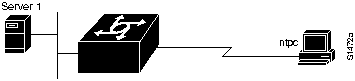
Figure 6-7 : Using the PPP EXEC Command
SLIP Connection Examples
The following example shows how to make a connection when a permanent address has been assigned and dynamic addressing is not allowed. An authentication request is sent to the TACACS server, and if it is approved, the line is placed in SLIP mode and the IP address is displayed.
Router> slip

Entering SLIP mode.
Your IP address is 192.31.7.28, MTU is 1500 bytes
The following example illustrates the prompts displayed and the response required when dynamic addressing is used to assign the SLIP address:
Router> slip

IP address or hostname? 192.31.6.15
Password:
Entering SLIP mode
Your IP address is 192.31.6.15, MTU is 1500 bytes
The following example illustrates the implementation of header compression on the interface with the IP address 128.66.2.1:
Router> slip /compressed 128.66.2.1
Password:
Entering SLIP mode.
Interface IP address is 128.66.2.1, MTU is 1500 bytes.
Header compression is On.
In the following example, header compression is configured as passive, so the status of header compression will be assigned by the user-level slip or ppp command:
Router> slip 1.0.0.1@check
Password:
Entering SLIP mode.
Interface IP address is 1.0.0.1, MTU is 1500 bytes
Header compression will match your system.
Interface Description Examples
The following example illustrates how to add a description about an interface that will appear in configuration files and monitoring command displays:
interface ethernet 0
description First Ethernet in network 1
ip address 101.13.15.78 255.255.255.0
Interface Shutdown Examples
The following example turns off Ethernet interface 0:
interface ethernet 0
shutdown
The following example turns the interface back on:
interface ethernet 0
no shutdown
The following example illustrates how to shut down a Token Ring interface:
interface tokenring 0
shutdown
IP Tunneling Examples
Figure 6-8 shows a configuration that will route a private IP network and a Novell network across a Public Service Provider. The configurations for communication servers A and B follow Figure 6-8.
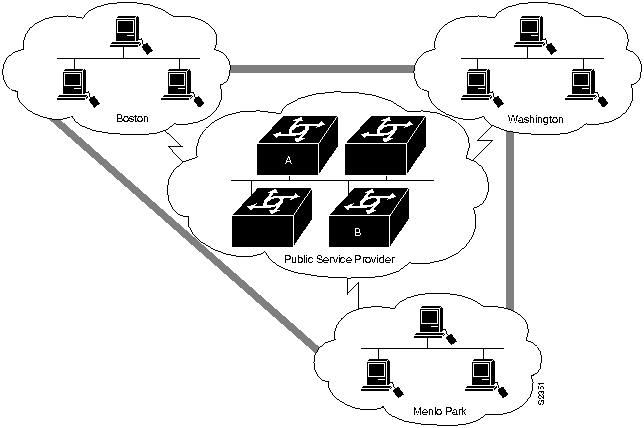
Figure 6-8 : Creating Virtual Private Networks across WANs
Communication Server A
interface ethernet 0
description boston office
ip address 10.1.1.1 255.255.255.0
novell network 1e

interface serial 0
description connection to NEARnet
ip address 192.13.2.1 255.255.255.0

interface tunnel 0
tunnel source serial 0
tunnel destination 131.108.5.2
ip address 10.1.2.1 255.255.255.0
novell network 1f
Communication Server B
interface ethernet 0
description menlo park office
ip address 10.1.3.1 255.255.255.0
novell network 31

interface serial 4
description connection to BARRnet
ip address 131.108.5.2 255.255.255.0

interface tunnel 0
tunnel source serial 4
tunnel destination 192.13.2.1
ip address 10.1.2.2 255.255.255.0
novell network 1f
CHAP with an Encrypted Password Example
The following configuration examples enable CHAP on serial interface 0 of three communication servers.
Communication Server yyy
hostname yyy
interface serial 0
encapsulation ppp
ppp authentication chap
username xxx password secretxy
username zzz password secretzy
Communication Server xxx
hostname xxx
interface serial 0
encapsulation ppp
ppp authentication chap
username yyy password secretxy
username zzz password secretxz
Communication Server zzz
hostname zzz
interface serial 0
encapsulation ppp
ppp authentication chap
username xxx password secretxz
username yyy password secretzy
When you look at the configuration file, the passwords will be encrypted and the display will look similar to the following:
hostname xxx
interface serial 0
encapsulation ppp
ppp authentication chap
username yyy password 7 121F0A18
username zzz password 7 1329A055
Dial Backup Service Examples
The dial backup service examples show configurations for the following conditions:
When the Primary Line Goes Down
The following example configures serial 1 as a secondary line that activates only when the primary line (serial 0) goes down. The secondary line will not be activated due to load of the primary.
interface serial 0
backup interface serial 1
backup delay 30 60
The secondary line is configured to activate 30 seconds after the primary line goes down and to remain on for 60 seconds after the primary line is reactivated.
When the Primary Line Reaches Threshold
The following example configures the secondary line (serial 1) to be activated only when the load of the primary line reaches a certain threshold:
interface serial 0
backup interface serial 1
backup load 75 5
In this case, the secondary line will not be activated when the primary goes down. The secondary line will be activated when the load on the primary line is greater than 75 percent of the primary's bandwidth. The secondary line will then be brought down when the aggregate load between the primary and secondary lines fits within 5 percent of the primary bandwidth.
When the Primary Line Exceeds Threshold
This example configures the secondary line to activate once the traffic threshold on the primary line exceeds 25 percent:
interface serial 0
backup interface serial 1
backup load 25 5
backup delay 10 60
Once the aggregate load of the primary and the secondary lines return to within 5 percent of the primary bandwidth, the secondary line is deactivated. The secondary line waits 10 seconds after the primary goes down before activating, and remains active for 60 seconds after the primary returns and becomes active again.
Snapshot Routing Examples
The following example configures snapshot routing on a DDR interface on the client router. In this configuration, a single client router can call multiple server routers. The absence of the suppressstatechange-updates keyword means that routing updates will be exchanged each time the line protocol goes from "down" to "up" or from "dialer spoofing" to "fully up." The dialer keyword allows the client router to dial the server router in the absence of regular traffic if the active period time expires.
interface serial 0
dialer rotary-group 3
!
interface dialer 3
dialer in-band
snapshot client 5 360 dialer
snapshot retry-interval 5
dialer map snapshot 2 4155556734
dialer map snapshot 3 7075558990
The following commands configure the server router:
interface serial 2
snapsnot server 5 dialer
Copyright 1988-1996 © Cisco Systems Inc.



