|
|
Using BeyondMail with CiscoRemote Plus
You can use BeyondMail to create, send, and receive electronic mail over your company's network and over the Internet.
To use BeyondMail, you must have an e-mail account (username, address, and password) with your company's network (which also provides access to the Internet) or an e-mail account with an Internet service provider that has a server using Post Office Protocol version 3 (POP3) or the Simple Mail Transport Protocol (SMTP). The server accepts and stores the mail you send and receive and manages the transmission of your mail.
Getting Started with BeyondMail
BeyondMail has many features for creating, addressing, sending, receiving, and storing e-mail messages and files. If you need more information about BeyondMail, use the online help or refer to the document CiscoRemote Plus Administrator Guide, which is available on the CiscoRemote Plus CD.
If you don't have an address or password, see your company's network administrator or your Internet service provider. You must also have the e-mail addresses of the persons to whom you are sending messages.
An e-mail address typically consists of an e-mail name and a service name. Your e-mail name is usually a variant of your name, such as jane_doe, or jdoe. The service name is the Internet address of your service provider, such as cisco.com. A complete e-mail name might be jane_doe@cisco.com.
If you have questions about specifying your e-mail address, contact your network administrator or your internet service provider.
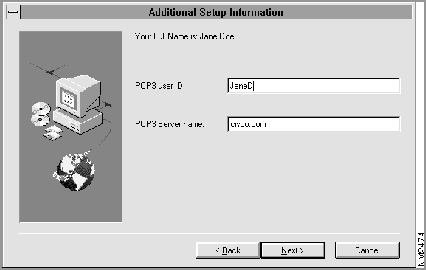
Take the following steps to set up BeyondMail:
Figure 6-1 : Additional Setup Information Window
Review the Read Me file to read the latest information about BeyondMail.
You are now ready to use BeyondMail.
The BeyondMail for Windows Window
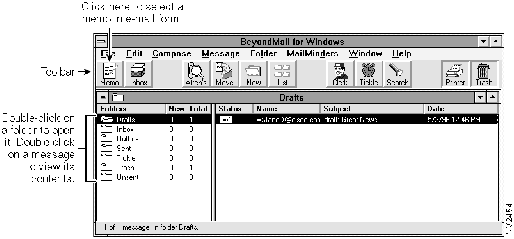
You use the BeyondMail for Windows window, to view, compose, and send your e-mail. (See Figure 6-2.)
Figure 6-2 : BeyondMail for Windows Window
The BeyondMail for Windows window includes a toolbar that you can use to select the e-mail tasks you want to perform. The window displays your mail organized in folders. You open folders to see the e-mail messages in them and double-click on messages to see their contents. You can also drag and drop messages from one folder to another. You use commands from the Message menu to open, forward, move, copy, delete, and reply to mail.
When displaying folders, the BeyondMail for Windows window shows several folders that hold your mail, and different types of mail you've received from other BeyondMail users.
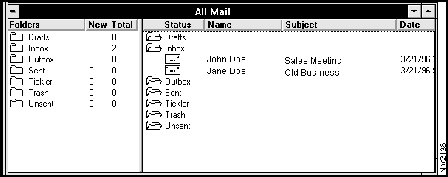
For example, you can open the New Mail window which shows all the new mail you've received in your different folders. You can also open the All Mail window, which displays all your mail. (See Figure 6-3.)
BeyondMail provides seven types of message forms to help you create and organize your mail. The seven message forms are as follows:
You can open these different forms to see the types of information they hold. When you receive mail from other BeyondMail users, you see an icon for the message that tells you the type of message it is, for example, a memo or meeting announcement.
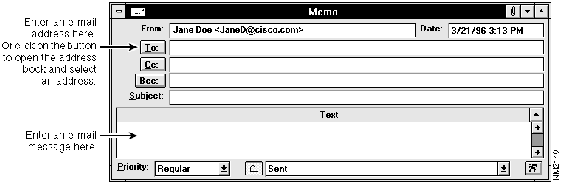
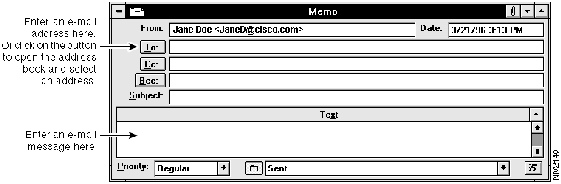
To send a simple memo to another person, you open the Memo form. (See Figure 6-4.)
Fill in the information on the form and then select Send from the Message menu. The message is placed in your Outbox folder, and the next time BeyondMail transmits mail, it sends your message.
As you read, compose, and send messages, you can have BeyondMail place the messages in the appropriate folder automatically. See the BeyondMail Help menu for more information about having BeyondMail organize and even respond to your e-mail. For more information, refer to the document CiscoRemote Plus Administrator Guide, which is available on the CiscoRemote Plus CD.
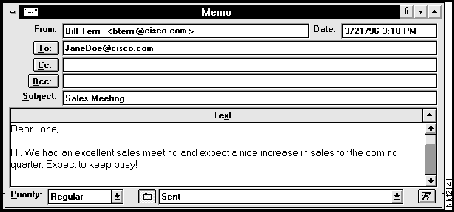
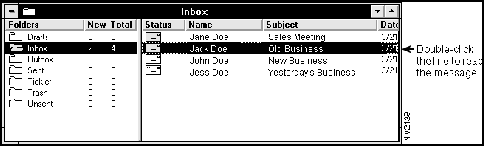
When you double-click on a message, or select a message and then select Open from the Message menu, you see the contents of the message displayed. (See Figure 6-5.)
Figure 6-5 : Memo Form--Sample Message
When you have read a message, you can reply automatically to the sender, forward the message to another e-mail recipient, print the message, or place the message in the trash.
You can record the e-mail addresses of people to whom you send mail in an address book. BeyondMail offers two types of address books, a public and a private address book.
The public address book is maintained by your network administrator and provides a public listing of addresses, such as e-mail addresses of employees in your company. All BeyondMail users on your network have access to this address book.
When you have recorded entries in your private address book, you can quickly address your e-mail by entering a name or selecting it from the address book.
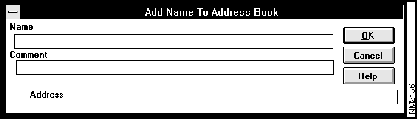
Take the following steps to add an address to your private address book:
Figure 6-6 : Add Name To Address Book Window
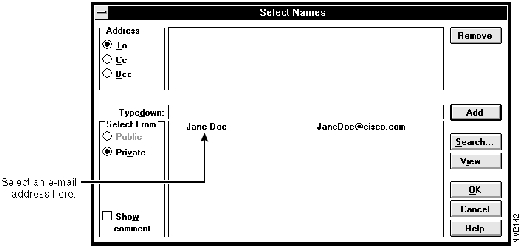
Take the following steps to create a mail message:
Figure 6-8 : Select Names Window
When you start BeyondMail and while you are using it, the status line tells you when new messages arrive. You can also set BeyondMail to display an alert message or sound a tone to notify you of new mail.
BeyondMail checks for new mail at regular intervals. You can also check your mail whenever you want. (You must be connected to your Internet service, if you use one for e-mail.)
Take the following steps to check for mail:
For more information about the many other features of BeyondMail, refer to the document CiscoRemote Plus Administrator Guide, which is available on the CiscoRemote Plus CD. BeyondMail's additional features allow you to do the following:
Copyright 1988-1996 © Cisco Systems Inc.