
Banner
HomeTOCPrevNextGlossSearchHelp

PDF

Table of Contents

Initial (First Time) Installation

Initial (First Time) Installation

Initial (First Time) Installation

This chapter is a guide to performing an initial (first time) installation of StrataView Plus and associated software programs. There are two methods for installing StrataView Plus:

Most initial installations of StrataView Plus will be preformed using the instructions in Installing StrataView Plus Automatically. The main reason for doing a manual installation is if you need to set up a different raw partition size for Informix. If you need to install StrataView Plus manually, refer to Installing StrataView Plus Manually.


Note HP OpenView should be installed on your workstation before installing StrataView Plus 8.2. For instructions on installing HP OpenView, refer to the HP OpenView Installation Guide.


Installing StrataView Plus Automatically

An initial installation of StrataView Plus includes the partitioning of the second disk, setting up Informix and StrataView Plus user and group accounts on the operating system disk, and the installation of Motif, Informix, WingZ, and the StrataView Plus application that includes FrameViewer. These activities are performed by using the automatic StrataView Plus Installer program (SPI). Following that, the On-Line Help files are loaded, and the StrataView Plus workstation to BPX/IPX interface is configured for either an RS-232 or LAN connection.


Prerequisites

You will need the following items to complete the automatic installation using the SPI:


Note HP OpenView should be installed on your workstation before installing StrataView Plus 8.2. For instructions on installing HP OpenView, refer to the HP OpenView Installation Guide.


Procedure

Proceed as follows to perform an automatic initial (first time) installation of StrataView Plus:


Note In the procedures that follow, jaguar is used as the hostname. Where jaguar is shown, the hostname of the applicable workstation would be displayed.

  1. Login as user "root" by entering the following:
    su
    password: <superuser password>

  2. Enter the following command to change to the root directory:
    cd /

  3. Insert the StrataView Plus Rel. 8.2 tape in the tape drive.

  4. Slide the latch to the right.

  5. Enter the command:
    /usr/etc/extract_unbundled


Note The following is an partial script.

This command results in the following message:
Enter media drive location [local | remote]: l
Enter Device Name (e.g. rst0, rmt0, rfd0c) : /dev/rst0   {you type st0 for /dev/rst0}    
**Please mount the release media if you haven't done so already.**
Press return when ready:

  1. The following is then displayed:
The following product will be installed:
2+0 records in
2+0 records out


                    StrataView Plus 8.2


    Copyright (c) 1995 StrataCom, Inc. All rights reserved.

This software product is copyrighted and all rights are reserved by
StrataCom, Inc. StrataCom, Inc. reserves the right to make periodic
modifications to this product without obligation to notify any person
or entity of such revision. Copying, duplicating, selling, or otherwise
distributing any part of this product without the prior written consent
of an authorized representative of StrataCom, Inc. are prohibited.
 
StrataCom, IPX, and FastPacket are registered trademarks and
StrataView Plus is a trademark of StrataCom, Inc.


Do you want to continue [y|n]? y


*** Starting main driver script at Wed Dec 28 13:45:15 PDT 1994. ***
*******************************************************************************
*                Welcome to the StrataView Plus Installer!                    *
*           This program will install StrataView Plus software                *
*                             on your workstation.                            *
*                                                                             *
*              Copyright (c) 1994 StrataCom, Inc. All rights reserved.        *
*                                                                             *
*******************************************************************************


*************************************************
****** Running pre-checks for main driver. ******
*************************************************
*** Checking basic setup. ***
Checking that user is root.
Checking core script files
*** Determining type of installation. ***
>> This installer will automatically perform the configuration necessary
>> for StrataView Plus. If you have special configuration needs, you can
>> just load the StrataView Plus files from tape and perform the rest of
>> the configuration manually.
>>

>> What type of installation do you want? [auto|manual] a

The rest of the script is not shown here as the messages and choices are spelled out in detail on the screen by the SPI. For a sample script of an actual installation, refer to Appendix A.

  1. The SPI script checks for a second (external) disk. This disk will be partitioned. The SPI script asks if you want to accept the default settings for swap and database disk space allocation, or if you want to choose custom values. If you choose custom values, SPI makes recommendations. Before the disk is partitioned, SPI informs you that this will destroy your current data and allows you to cancel.

  2. The SPI Script checks the availability of user and group accounts for Informix and StrataView Plus, creates home directories for these applications, adds any necessary configuration commands.

  3. The SPI Script requests that you load the Informix tape.

  4. The SPI script asks for the serial number and key for Informix.

  5. The SPI Script requests that you load the WingZ tape or diskette.

  6. The SPI script asks for the serial number and key for WingZ.

  7. The SPI Script requests that you load the StrataView Plus tape.

  8. A message notifying you that the installation was successful displays and you are prompted to reboot the system as follows:
*** Running post-checks. ***
*** Finished installing StrataView Plus software package. ***

**************************************************
****** Running post-checks for main driver. ******
**************************************************
Installation was successful!
>> For the installation to take effect, your system must be rebooted.
>> The installer can do this for you now, or you can do it yourself later.

>> 
>> Do you want to reboot now? [yes|no] y

*** Exiting main driver at Wed Sep 28 15:03:46 PDT 1994. ***
Rebooting system.
jaguar# 

  1. Enter exit to exit root and return to the user "svplus".

  2. Proceed to Installing BPX/IPX On-Line Help to perform the installation of the On-Line Help files.


Installing StrataView Plus Manually

The automatic installation procedure may not be appropriate if your raw partitioning is different from what SPI uses for the default (partition rsd0h ). Follow the procedures in Sections , , and install StrataView Plus manually.


Prerequisites

You will need the following items to complete the manual installation:

  • DEC Motif for Sun, version 1.1 software.

  • A tape containing Wingz 1.1a or later for OSF/Motif (including the serial number and key).

  • A tape containing Informix, Version 5.0. (including the serial number and key)

  • A tape containing StrataView Plus Rel. 8.2 with the SPI.

  • A tape containing IPX/BPX On-Line Help files.


Note HP OpenView should be installed on your workstation before installing StrataView Plus 8.2. For instructions on installing HP OpenView, refer to the HP OpenView Installation Guide.


Motif Installation

Prior to the installation of StrataView Plus, Motif must be installed. Most of the information in this section is referred to in the DECwindows Motif for the Sun SPARCstation Installation Guide.

  1. Insert the one-quarter-inch Motif tape cartridge and close the door.

  2. If you're not already logged in as root, do so now.

  3. Type mkdir /usr/users/motif <RETURN>

  4. Type cd /usr/users/motif <RETURN>

  5. Type tar xvpf /dev/nrst0 <RETURN>
    (The "n" in "nrst0" specifies a non-rewinding tape device.)


Note If you a get a message like error I/O drive, check for bad tape or try tar xvpf /dev/rst0 <RETURN> if you have a rewinding tape drive

  1. Start the installation script by typing DECW_MOTIF_INSTALL <RETURN>

  2. Answer the following questions as indicated:
    Press Return to continue: <RETURN>
    Press Return to continue: <RETURN>
    Do you want to continue (y|n)? y <RETURN>
    A list of subset(s) is displayed.
    The choices are:

    Subset Size Description
    1 8225 Base Product (Libraries, Mwm, and UIL compiler)
    2 3600 Examples, (WML and Motif demo programs)
    3 5910 DEC windows 75 dpi Fonts
    4 7370 DEC windows 100 dpi Fonts
    5 1543 Man Pages
    6 26648 All of the above
    7 None of the above
    Which subsets do you wish to install? [6] <RETURN>
    These subsets require approximately 26648 kilobytes of disk space. Is this what you want (y|n)? y <RETURN>
    Under which directory do you want to install the kit [/usr/users/motif] <RETURN>
    Create symbolic links to /usr/users/motif from /usr (y|n)? [y] <RETURN>
    Where are the X11 files located? [/usr/openwin] <RETURN>
    Would you like to see what files might be replaced (y|n)? [n] <RETURN>
    Are you using a local or remote tape drive (local|remote)? [local] <RETURN>
    In what drive is the media installed? [/dev/nrst0] <RETURN>
    Press Return when you are ready. <RETURN>
    (In about fifteen minutes, the software will be loaded onto your system.)

  3. Open the door and remove the tape cartridge.


Creating the Informix and SV+ Group Accounts

You must create a group name and account number for the Informix database. The group account number [79] must be used, as it is already incorporated into the files on the software installation tape. You will also create a group for the svplus user account.

  1. You should be logged in as root , if not do so now.

  2. Edit the /etc/group file by adding the following two lines:


Note If the 21 account number is already in use by other than /usr/users and/or the 79 account number is already in use, contact StrataCom ISC.

users:*:21:svplus

informix:*:79:informix

  1. Save the file and exit the editor.


Creating the Informix and SV+ Login Accounts

  1. Type the following three commands to create two user login accounts:
cd /usr/etc/install <RETURN>

  1. Run the grpchk command to verify the login accounts in the /etc/group file,


Note There's a space before /usr/users/informix in the following entry

add_user  informix  270 79 'Informix Software' /usr/users/informix /bin/csh <RETURN>


Note There's a space before /usr/users/svplus in the following entry.

add_user  svplus  271  21  'StrataView Plus' /usr/users/svplus /bin/csh <RETURN>


Note If the 270 and 271 uids are being used, contact StrataCom ISC.

  1. You must then assign passwords to these user accounts.

    • Type passwd informix <RETURN> and follow on-screen directions

    • Type passwd svplus <RETURN> and follow on-screen directions.

  2. Edit the /usr/users/informix/.cshrc file and enter the following two lines:


Note There is a space after LD_LIBRARY_PATH in the following command which is entered all on one line:

setenv  LD_LIBRARY_PATH /usr/users/motif/lib:/usr/openwin/lib:/usr/lib  <RETURN>
setenv  INFORMIXDIR  /usr/users/informix  <RETURN>

Save the file and exit the editor.

  1. Enter the following to copy this file to the /usr/users/svplus directory:
cp  /usr/users/informix/.cshrc  /usr/users/svplus  <RETURN>

  1. Enter the following command to change the ownership of the .cshrc file to svplus.
chown  svplus  /usr/users/svplus/.cshrc  <RETURN>

  1. This completes the creation of the SV+ and Informix accounts.


Installing Informix OnLine

  1. Insert the one-quarter-inch Informix OnLine tape cartridge and close the door.

  2. If you're not already logged in as root , do so now.

  3. Type cd /usr/users/informix <RETURN>
    Type tar xvpf /dev/nrst0 <RETURN>
    (The "n" in "nrst0" specifies a non-rewinding tape device.)


Note If you a get a message like error I/O drive, check for bad tape or try tar xvpf /dev/rst0 <RETURN> if you have a rewinding tape drive

  1. Start the installation script by typing the following:
mercedes# installonline<RETURN>

  1. The Informix welcome screen displays. Press Return when prompted, as indicated below:
    INFORMIX-OnLine Version 5.00.UC4
    Copyright (C) 1986-1991 Informix Software, Inc.
    Installation Script
    This installation procedure must be run by root (super-user).
    It will change the owner, group, and mode of all files of this
    package in this directory. There must be a user "informix" and a
    group "informix" known to the system.
    Press RETURN to continue,
    or the interrupt key (usually CTRL-C or DEL) to abort.
    <RETURN>

  2. You will then be asked to provide the serial number and key for the software.
    Enter your serial number (e.g., INF#X999999) >
    INF#Xnnnnnn<RETURN>
    Enter your serial number KEY (uppercase letters only) >
    XXXXXX<RETURN>
    Once you have correctly entered the serial number and key, the system displays the following:
    WARNING: This INFORMIX SOFTWARE, INC. SOFTWARE is licensed
    for use by 8 SIMULTANEOUS USER(S) on this computer system.
    In the event you exceed 8 simultaneous user(s), the End User
    License Agreement, and the licenses granted to you thereunder,
    are subject to immediate termination by Informix.
    Press RETURN to continue,
    or the interrupt key (usually CTRL-C or DEL) to abort.
    <RETURN>

  3. Installation will proceed normally.
    Installing directory .
    Installing directory bin
    :
    :

  4. Open the door and remove the tape cartridge.


Installing WingZ


Note If multiple GUIs are to be opened, a multiple-user WingZ license is required.

The following was current at the time of printing, and is included for your reference only. Check the WingZ Installation Guide that came with your WingZ software for any changes.

  1. You should still be logged in as root from the previous procedure. If not, log in as root .

  2. Insert the first WingZ installation diskette (or WingZ tape).

  3. Opposite the # prompt, enter: /usr/etc/extract_unbundled <RETURN>

  4. Answer the following questions as indicated:
    Enter media drive location [local|remote] local <RETURN>


Note In the following step, type rfd0c for a floppy disk, or /dev/nrst0 for tape.

Enter Device Name (e.g., rst0, rmt0, rfd0c): /dev/rfd0c <RETURN>
Press Return when ready: <RETURN>
Do you want to continue [y|n]? y <RETURN>
Please type a letter and press RETURN [a,b,c,d,e,f,g]: d <RETURN>

(choice "d" chooses WingZ and DataLink)
Type the full path for the directory ...must have write permission for the directory==> /usr/users <RETURN>
The install directory is /usr/users/Wingz. OK? [y|n] y <RETURN>
Type the full path for the directory in which you want the Wingz shell script to be placed.
(The default is /usr/local/bin)==> /usr/bin <RETURN>
The shell script directory is /usr/bin. OK? [y|n] y <RETURN>

If using a floppy, the following message applies:
Locally installing Wingz and DataLink in /usr/users/Wingz from /dev/rfd0c. OK? [y|n]
y <RETURN>

Or, if using a tape, the following message applies:
Locally installing Wingz and DataLink in /usr/users/Wingz from /dev/nrst0. OK? [y|n]
y <RETURN>

  1. Installation will proceed normally. You will then be asked to provide the serial number and key for "branding" the software.
    Executing Wingz brander
    Enter serial number XXX#Xnnnnnn <RETURN>
    Enter key XXXXXX <RETURN>
    Enter the serial number and key exactly as they appear on the WingZ Identification Card in your package.
    Once you have correctly entered the serial number and key, the system displays the following:
    Branding /files/Wingz/Wingz ...
    Brand successful.
    Rewinding the tape, please wait...
    You will be returned to the software menu, at which point you type g <RETURN> to exit.
    Welcome to the Wingz installation script! When
    responding to questions, please type one of the
    available options exactly as shown.
    This release of Wingz is for a SPARCstation or SPARCserver.
    You have the choice of installing Wingz, DataLink,
    TestFlight, or any combination of these.
    Please select from the following:
    a) Wingz (3.5 MB
    b) DataLink (1 MB)
    c) TestFlight (1 MB)
    d) Wingz & DataLink (4.5 MB)
    e) Wingz & TestFlight (4.5 MB)
    f) Wingz, DataLink & TestFlight (5.5 MB)
    g) Exit Wingz Installation
    Please type a letter and press RETURN [a,b,c,d,e,f,g]: g <RETURN>
    The system responds with:
    Installation of Wingz complete.

  2. Open the door and remove the tape cartridge.


Running the extract_unbundled Program

An initial installation of StrataView Plus includes the partitioning of the second disk, setting up Informix and StrataView Plus user and group accounts on the operating system disk, and the installation of Motif, Informix, WingZ, and the StrataView Plus application that includes FrameViewer. These activities are performed by using the automatic StrataView Plus Installer program (SPI). Following that, the On-Line Help files are loaded, and the StrataView Plus workstation to BPX/IPX interface is configured for either an RS-232 or LAN connection.


Note In the procedures that follow, jaguar is used as the hostname. Where jaguar is shown, the hostname of the applicable workstation would be displayed.

Proceed as follows to perform an initial (first time) installation of StrataView Plus:

  1. Login as user "root" by entering the following:
    su <RETURN>
    password: <superuser password> <RETURN>

  2. Enter the following command to change to root directory:
    cd / <RETURN>

  3. Insert the StrataView Plus Rel. 8.2 tape in the floppy drive.

  4. Slide the latch to the right.

  5. Enter the command:
    /usr/etc/extract_unbundled <RETURN>


Note The following is a partial script.

This command results in the following message:
Enter media drive location [local | remote]: l
Enter Device Name (e.g. rst0, rmt0, rfd0c) : /dev/rst0   {you type st0 for /dev/rst0}    
**Please mount the release media if you haven't done so already.**
Press return when ready:

  1. The following is then displayed:
The following product will be installed:
2+0 records in
2+0 records out


                    StrataView Plus 8.2


    Copyright (c) 1995 StrataCom, Inc. All rights reserved.

This software product is copyrighted and all rights are reserved by
StrataCom, Inc. StrataCom, Inc. reserves the right to make periodic
modifications to this product without obligation to notify any person
or entity of such revision. Copying, duplicating, selling, or otherwise
distributing any part of this product without the prior written consent

of an authorized representative of StrataCom, Inc. are prohibited.
 
StrataCom, IPX, and FastPacket are registered trademarks and
StrataView Plus is a trademark of StrataCom, Inc.


Do you want to continue [y|n]? y

*** Starting main driver script at Wed Dec 28 13:45:15 PDT 1994. ***
*******************************************************************************
*                Welcome to the StrataView Plus Installer!                    *
*           This program will install StrataView Plus software                *
*                             on your workstation.                            *
*                                                                             *
*              Copyright (c) 1995 StrataCom, Inc. All rights reserved.        *
*                                                                             *
*******************************************************************************


*************************************************
****** Running pre-checks for main driver. ******
*************************************************
*** Checking basic setup. ***
Checking that user is root.
Checking core script files
*** Determining type of installation. ***
>> This installer will automatically perform the configuration necessary
>> for StrataView Plus. If you have special configuration needs, you can
>> just load the StrataView Plus files from tape and perform the rest of
>> the configuration manually.
>>

>> What type of installation do you want? [auto|manual] m

  1. After you enter "m"for a manual install, the program copies the 8.2 StrataView Plus files into the appropriate directory:
Performing manual installation.
**********************************************************
****** Installing StrataView Plus software package. ******
**********************************************************
*** Running pre-checks. ***
*** Running main installation script. ***
Loading the StrataView Plus tape.
Extracting the StrataView Plus files from tape.  
This will take a while. 

  1. A message notifying you that the installation was successful displays and you are prompted to reboot the system as follows:
*** Running post-checks. ***
*** Finished installing StrataView Plus software package. ***

**************************************************
****** Running post-checks for main driver. ******
**************************************************
Installation was successful!
>> For the installation to take effect, your system must be rebooted.
>> The installer can do this for you now, or you can do it yourself later.
>> 
>> Do you want to reboot now? [yes|no] y


*** Exiting main driver at Wed Sep 28 15:03:46 PDT 1994. ***
Rebooting system.
jaguar# 

  1. Enter exit to exit root and return to the user "svplus".

  2. You can verify that you are at /usr/users/svplus by entering:
    pwd<RETURN>


Running the StrataView Plus INSTALL Program

The INSTALL program checks that the second disk is partitioned correctly for StrataView Plus, that the correct user accounts are present, and that Motif, Informix, HP OpenView, and WingZ are configured correctly for StrataView Plus 8.2. It then proceeds to install StrataView Plus 8.2. At the completion of the INSTALL script, it is only necessary to perform the On-Line Help upgrade, configure the workstation to the BPX/ IPX interface, and start up StrataView Plus.

The SV+ INSTALL program performs the following functions:

  • Verifies the environment.

  • Verifies the presence of necessary files.

  • Sets file permissions.

  • Verifies Informix Database/WingZ.

  • Upgrades the database schema as necessary to include new statistics.

  • Restarts the database.

  • Installs the On-Line Help application (FrameViewer).

  • Configures HP OpenView


Prerequisites

All of the procedures in Sections and Running the extract_unbundled Program must be completed before running the INSTALL program. Additionally, HP OpenView must already be installed on your workstation. For instructions on installing HP OpenView, refer to the HP OpenView Installation Guide.


Procedure

  1. The first thing the INSTALL program does is patch the kernel. Type the following to begin this process:
    mercedes# INSTALL<RETURN>
    Welcome to the INSTALLATION of StrataView Plus Release 8.2.
    Checking UNIX Kernel for StrataView Plus patches......
    Small UNIX Kernel is installed on this WorkStation: MERCEDES
    Copying GENERIC Kernel to SVPLUS_KERNEL.................... Successful
    This will take a few minutes....
    Building UNIX Kernel with StrataView Plus patches.......... Successful
    Copying new kernel to root directory....................... Successful
    ====== WARNING: WORKSTATION MUST REBOOT ======
    ========== REMOVE ANY TAPE AND/OR CD ROM ==========
    After the system is rebooted, run INSTALL again...
    Reboot will display some messages for reboot...
    Reboot will take a few minutes. Please standby...
    Press <return> to reboot...

  2. After the reboot completes, the Please log in: prompt displays. Login as user "root" by entering the following at the Please log in: prompt:
    root
    password: <superuser password>

  3. Enter the following command to change to the svplus directory:
    cd /usr/users/svplus

  4. Type the following to complete the StrataView Plus upgrade:
    mercedes# INSTALL<RETURN>

  5. The following messages occur as the INSTALL program verifies the environment:
    Checking UNIX Kernel for StrataView Plus patches .......... Successful
    Checking existence of the motif window manager............. Successful
    Initializing Informix root file............................ Successful
    Initializing Informix mode................................. Successful

  6. The following part of the INSTALL program performs a checksum on the StrataView Plus and associated files:
    Performing check sum on all files.......................... Successful
    Filtering files............................................ Successful

  7. The following message displays after the INSTALL script verifies that the Informix database is properly installed:
    Checking for the existence of Informix..................... Successful
    Checking for the existence of Wingz........................ Successful

  8. The script prompts you to save any existing configuration files:
    Do you wish to Restore/Upgrade the saved files(Y/N) (Default is N): n <RETURN>
    Choose "n", because there is no old configuration information to save. The installation will continue.
    Checking for the existence of Informix.... OK

  9. The INSTALL script now sets up the raw partition for StrataView Plus database storage:
    Disk Configuration Migration to StrataView Plus Release 8.2
    1) Single Raw Database Disk
    2) Dual Raw Database Disk
    Enter number corresponding to disk configuration or x to exit : 1 <RETURN>
    You would answer "2" if you had a third SCSI disk installed that was dedicated for an Informix raw partition
    Your database will be created in the raw partition /dev/rsd0h
    Is this the correct raw partition name (y/n)? y <RETURN>
    If you answer "n" (no) to this question, the following displays:
    Modify your tbconfig file to include this new raw partition name - and rerun program
    If you answer "y", the script continues, prompting you to confirm the database size:
    The assumed size of the datadbs is 200000 Kilobytes.
    Is there sufficient disk space on this devices to accomodate this(y/n)? y <RETURN>
    If you answer "n" (no) to this question, the following displays:
    Modify your tbconfig file to include this new size - and rerun program
    If you answer "y", the script continues, displaying the database installation Welcome screen:

    DATABASE INSTALLATION
    You can create new database or upgrade existing one to 8.2x
    If you choose to create new database then you can specify new name
    for database
    If you wish to create new database , press 'y' to proceed;
    otherwise, press 'n' to proceed with upgrade
    New Database? y <RETURN>
    Enter new database name (default is StrataCom): <RETURN>
    Initialize the Informix database....
    Informix data file will be installed in /dev/rsd0h
    with the size of 200000 KBytes
    OK to proceed (y/n)? y <RETURN>
    Initializing the Informix database
    This will take a few minutes
    Shutting down Informix (if necessary)............. Successful
    Initializing the Informix database root file...... Successful
    Initializing the Informix database mode........... Successful
    Preparing the database for StrataView Plus........ Successful

    Checking for existence of INS....
    Found INS installed in /usr/users/svplus
    Creating INS related tables in the Database....... Successful

  10. The INSTALL script will now configure StrataView Plus to work with HP OpenView. Proceed to Configuring HP OpenView.


Configuring HP OpenView

Release 8.2 works within the HP OpenView graphical environment. This section of the INSTALL script configures StrataView Plus to work with HP OpenView.


Prerequisites

HP OpenView must already be installed on your workstation. For instructions on installing HP OpenView, refer to the HP OpenView Installation Guide.


Procedure

  1. The system displays the following:
    Checking for existence of HP OpenView....
    Found HP OpenView installed in /usr/OV
    Installing HP OpenView related files....
    Saving trapd configuration and merging SV+ trap formats
    Notifying HP OpenView background processes of config change
    Installing nls directory
    Proceed to Installing FrameViewer for On-Line Help to install FrameViewer.


Installing HP Openview after StrataView Plus is Installed

If HP OpenView is not installed, the section of the INSTALL script for configuringStrataView Plus to work with HP OpenView will not run.

After the entire INSTALL script completes, install HP OpenView by following the instructions in the HP OpenView Installation Guide.

After HP OpenView is installed, complete the following steps to configure StrataView Plus to work with HP OpenView:

  1. Login as user "root" by entering the following:
    su <RETURN>
    password: <superuser password> <RETURN>

  2. Enter the following command to change to the /usr/users/svplus directory:
    cd /usr/users/svplus <RETURN>

  3. You can verify that you are at /usr/users/svplus by entering:
    pwd<RETURN>

  4. Type the following to run the stand-alone StrataView Plus/HP OpenView configuration script:
    mercedes# SV+HPOV.install<RETURN>

  5. The system displays the following:
    Checking for existence of HP OpenView....
    Found HP OpenView installed in /usr/OV
    Installing HP OpenView related files....
    Saving trapd configuration and merging SV+ trap formats
    Notifying HP OpenView background processes of config change
    Installing nls directory
    Proceed to Installing BPX/IPX On-Line Help to install the BPX/IPX help file.


Installing FrameViewer for On-Line Help

StrataView Plus uses FrameViewer to display the IPX/BPX Online Help files. The INSTALL script adds FrameViewer to your system.


Procedure

  1. The INSTALL script displays the FrameViewer Installation Welcome Screen:
    Welcome to the On-Line Help INSTALLATION of StrataView Plus
    Checking for the existence of On-Line Help...
    Installing Frameviewer...
    Reconfiguring user setup files...
    Adding Frameviewer environment strings...
    ./fmusersetup: The FrameMaker user installation program.
    This script is used to reconfigure your path setting.
    When you are asked a yes or no question below, type the letter 'y' or 'n'
    and then press Return. Note that the default answer (shown in brackets next
    to the question) is usually correct. To use the default answer, press
    Return in response to the question.
    Would you like a description of what this script does? [y]: y <RETURN>
    Checking installation...
    FrameMaker is not already installed in your .cshrc file.
    OK to add these two lines:
    ----
    # FMHOME line added by the FrameMaker user's setup program
    setenv FMHOME /files/users/svplus/frame; set path=( $FMHOME/bin $path )
    ----
    to /usr/users/svplus/.cshrc? [y]: y <RETURN>
    ------------------------------------------------------------
    OK. Adding the lines to the end of your .cshrc file
    Original version of .cshrc saved in /usr/users/svplus/.cshrc.fmsave.
    FrameMaker installation in your .cshrc is now complete.
    Press Return to continue.
    (You may want to remove old or redundant copies of FrameMaker)
    IMPORTANT:
    -------------------------------------------
    In order for the changes in your login file to take effect, you MUST exit
    X windows and log out *completely* (until you see the UNIX 'login:' prompt).
    Then log in and start X windows. From then on, you can start FrameMaker
    from any X windows window by typing: maker
    -----------------------------------------------------
    Please exit X windows and log out and back in again.
    ------------------------
    Please be sure that each person who wishes to use FrameMaker
    runs this installation script (./fmusersetup).
    If any files were changed by this script there will a corresponding .fmsave
    file produced that contains the original version of the file. To be sure
    that this script changed things appropiately, you should diff the files.
    IMPORTANT: Don't forget to log out completely now so that
    the changes to your login file will take effect.

  2. The script licenses FrameViewer for your use:
    Licensing Frameviewer..
    Frameviewer has already been licensed ..

  3. The INSTALL script then asks you if you wish to verify the Frameviewer installation:
    Do you wish to verify the Frameviewer installation (y/n)? n<RETURN>
    Normally, "n" is chosen, as verification of FrameViewer takes considerable time, and successful installation of FrameViewer is verified by the satisfactory operation of the IPX/BPX On-Line Help.
    The following message is displayed:
    Bypassing On-Line Help Installation Verification
    INSTALLATION has completed !

  4. The installation is completed with the "INSTALLATION has completed !" message.

  5. Proceed to the next section to perform the installation of the On-Line Help files.


Installing BPX/IPX On-Line Help

The BPX/IPX On-Line Help files for StrataView Plus come on a separate tape that is installed after StrataView Plus has been installed.


Prerequisites

Make sure you have the tape labelled StrataView Plus BPX/IPX Help Files.


Procedure

Proceed as follows to install the IPX On-Line Help files:

  1. If you are not already logged in as svplus, login as svplus.

  2. Enter a pwd command to verify that you are at the /usr/users/svplus directory.

  3. If the /usr/users/svplus/onlinehelp directory does not already exist, enter:
    mkdir onlinehelp

  4. Enter the following command to change to the "onlinehelp" directory:
    cd /usr/users/svplus/onlinehelp

  5. Enter the following command to verify that you are at the /usr/users/svplus/onlinehelp directory:
    pwd

  6. Load the StrataView Plus Help cartridge and close the door.

  7. Enter the following:
    tar xvpf /dev/rst0
    For a Sun workstation; the "0" in /dev/rst0 is a zero.

  8. Enter the following command to change back to the svplus directory:
    cd ..

  9. Proceed to Configuring Statistics Collection Manager.


Configuring Statistics Collection Manager

The Statistics Collection Manager (SCM) files for StrataView Plus are installed by SPI as part of the StrataView Plus installation. If there are multiple NMS workstations used to control the network or if this is a structured network, you must upgrade each instance of StrataView Plus and configure SCM on each NMS workstation. Proceed as follows to configure the network for management by SCM:

  1. Change directory to /etc.

  2. If your workstation is not running NIS, edit the /etc/hosts file of the local StrataView Plus workstation. Make a list with a single line with the nodename and IP address for each node in the network to which this SCM is to connect to. For example, to add an IPX node named alpha enter:
    alpha 192.187.207.1

  3. If you have a workstation that is running NIS (yellow pages), do step 2 on the NIS server instead of the local StrataView Plus machine, and remake the NIS maps.

  4. Enter the following command to change back to the svplus directory:
    exit

  5. Proceed to Configuring the StrataView Plus System to BPX/IPX Interface.


Configuring the StrataView Plus System to BPX/IPX Interface

The config.sv file contains a single line (or lines for more than one network or domain) of parameters used by StrataView Plus to establish a connection to the BPX/IPX node at startup. After both an upgrade and an initial installation, this file will contain the default values (user configurable) of /dev/ttya and 9600.


Configuring config.sv Parameters

For an initial (first time) installation of StrataView Plus, the default parameters gateway and 9600 are not applicable. the config.sv file should be modified to set up the required links from StrataView Plus to the attached network(s) or domains.


Setting Up General StrataView Plus Parameters for a LAN Connection

Configure the workstation interface to the node LAN port as follows:

  1. You should be logged in as svplus. If your are at root level, exit from root by entering exit or login as svplus from the workstation window.

  2. Modify the config.sv file for the network configuration by changing the third field to the node's LAN port hostname, e.g., sanfran as follows:
    0|Network1|sanfran|19200|0|7|3|0|30|256|8.2|
    Leave the other fields as is. For example, the baud rate of 19200 does not apply to a LAN connection.

Follow the instructions in Section to configure your StrataView Plus system for a BPX/IPX LAN port


Setting Up General StrataView Plus Parameters for a Serial Connection

Configure the workstation interface to the node control port as follows:

  1. You should be logged in as svplus. If your are at root level, exit from root by entering exit or login as svplus from the workstation window.

  2. Modify the config.sv file for the network configuration for baud rate, port, and if necessary telephone number as follows:
    0|Network1|/dev/ttya|19200|0|7|3|0|30|256|8.2|
    where:
    The first field is the network id and must be unique.
    The second field is the network name and must be unique and less than or equal to 8 characters in length. The network name uniquely identifies a network. For consistency, if more than one StrataView Plus workstation is connected to the same network, that StrataView Plus workstation should use the same network name in this field. Similarly, if more than one StrataView Plus workstation is connected to the same domain in a structured network, that StrataView Plus workstation should use the same domain name in this field.
    The third field is the port and must be unique. This can be for example, /dev/ttya for RS-232 serial port, IP host name for LAN connection to a node (e.g., sanfran) or /dev/ttyDD (or similar designation not already assigned used by the workstation) for LAN connection to terminal server from which a serial port then connects to a node.
    The fourth field is the baud rate.
    The fifth field is the phone number (if not applicable, set at 0). In some cases, ",0" or something other than "0" may be required for a null if "0" has significance to the public network.
    The sixth through tenth fields should remain the same.


Note The above selection is for serial port ttya at a 19200 bps rate. If you were using the terminal server and had set up ttyDD as the port, then you would enter ttyDD, for example, at 19200.


Note The default baud rate in the config.sv file is 9600 bps. The default node baud rate is 9600. StrataCom recommends as fast a connection as possible, so you might want to setup a 19200 connection by changing both the IPX control port and config.sv file to 19200.


Setting Up config.sv for Multiple Networks

StrataView Plus uses one file for all network configurations; therefore, if more than one network is supported by StrataView Plus, just duplicate the first line and change the network id (first field, which must be unique), the network name and serial port (and perhaps the baud rate and telephone number). For example, for a second network, duplicate the first line and change the first field to 1, the second field to Network2 or any name you want for this field, and the port to ttyb. In this example, the other parameters are the same for the second network.

You would then have:

0|Network1|/dev/ttya|19200|0|7|3|0|30|256|8.2|

1|Network2|/dev/ttyb|19200|0|7|3|0|30|256|8.2|


Setting Up config.sv for Multiple Domains


Note When configuring domains, using the cnfdmn command, you must use unique domain ids for domains in all networks connected to the same StrataView Plus workstation.

StrataView Plus uses one file for all domain configurations; therefore, if more than one domain is supported by StrataView Plus, first change the network name in the first line from Network1 to Domain1. (You can use any name you want; Domain1 is just an example.) Then just duplicate the first line and change the domain id (first field, which must be unique), the domain name and serial port (and perhaps the baud rate and phone #). For example, for a second domain, duplicate the first line and change the first field to 1, the second field to Domain2, and the port to ttyb. For a third domain, duplicate the first line and change the first field to 2, the second field to Domain3, and the port to ttyDD (e.g., for a terminal server). In this example, the other parameters are the same for the second and third domains. You would then have:

0|Domain1|/dev/ttya|19200|0|7|3|0|30|256|8.2|

1|Domain2|/dev/ttyb|19200|0|7|3|0|30|256|8.2|

2|Domain3|/dev/ttyDD|19200|0|7|3|0|30|256|8.2|


Configuring the StrataView Plus System for a BPX/IPX RS-232 Port


Note Use these procedures if connecting to a BPX/IPX RS-232 Control Port. If connecting to a BPX/IPX LAN port using the DB-15 connector on the LM-BCC (BCC backcard on a BPX) or SCC-B (NPC backcard on an IPX), proceed to the next section.

  1. Make sure the IPX/BPX network(s) are up.

  2. When the serial RS-232 interface is used, the IPX/BPX acts as a DCE and expects DTE equipment to be connected to the IPX control port RS232 connection. Therefore, whether the IPX control port is connected to a terminal server or to a workstation, only a straight-through RS232 cable is required to the IPX control port. When a high-speed LAN connection is used to either a BCC or NPC backcard, a DB-15 connector is required.

  3. When using the serial RS-232 interface, connect the serial control port of the IPX node to StrataView Plus via port 2, for example, of the terminal server or to the serial port (ttya) of the workstation if no terminal server is used.

  4. To test that a serial port connection is okay, while logged in as svplus, enter the following command:

    IPXAdmin -p/dev/ttyXX -ebaud_rate
    For example, for a serial port of ttya at 9600 bps, or a terminal server port of ttyDD at 19,200 bps, you would enter the following, respectively:

    IPXAdmin -p/dev/ttya -e9600
    IPXAdmin -p/dev/ttyDD -e19200

    To test that a LAN connection to the IPX/BPX port is okay, for example, a hostname of "sanfran" entered in the config.sv file, you could enter the following:

    ping sanfran
    Press shift-backspace (or shift-delete, and return, also) a few times and the Node Administration Window should appear. The window should show an IPX/BPX response such as "Enter User ID". If it does not, the link is not working correctly. Click on the DISMISS button on this screen to dismiss it and exit. On a serial port, the IPX control port defaults to 9600 baud. If it is not at 9600, you will have to try a different rate, probably 19200, in the IPXAdmin -p/dev/ttyXX -ebaud_rate command in order to establish a link.

  5. You can log on to the IPX/BPX through this Node Administration window and use the IPX/BPX dsptermcnf command to view the IPX/BPX control port settings. You can use the cnfterm command to configure the IPX/BPX control port settings.

    • You need to set "Use DTR' to "NO", and to set the baud rate as desired. For a higher speed connection change it from the default of 9600 to a 19200 rate.


Note To cancel an IPX/BPX command entered in the IPX /BPX Node Administration Window, press shift-delete.

    • Be sure to dismiss the IPX Administration window brought up by the IPXAdmin -p/dev/ttyXX -ebaud_rate command to ensure that this process is not running when starting StrataView Plus because the serial port will not be available to both processes.


Note Alternatively, you can use a dumb terminal connected to another node, and use the IPX vt command to vt to the node that is connected to the StrataView Plus workstation. You can then use the cnfport command as just described to configure the IPX control port.


Configuring the StrataView Plus System for a BPX/IPX LAN Port


Note Configure the BPX/IPX node LAN parameters before connecting it to a LAN.

  1. Contact your System Administrator to obtain IP addresses for your workstation and for the BPX/IPX node you are going to configure.

  2. Normally, the System Administrator will update the NIS database, as applicable (if an NIS is used), and will add the IP addresses for the workstation and node to the NIS database.
    If the System Administrator takes care of the addressing for the workstation, including the /etc/services file, proceed to step 3. If not, and an NIS is not being used, do the following:

    • Edit the /etc/hosts file in your workstation, and add the following lines if they do not already appear there. The addresses shown are just examples. Use the addresses obtained from your System Administrator. (This example is for a workstation named "hedgehog" at address 192.187.207.200. It also assumes that the BPR/IPX node LAN port for node sanfran has been assigned an IP address of 192.187.210.30 and a hostname of sanfran. Your own host name and addresses will be different.)

    192.187.207.200 hedgehog
    192.187.210.30 sanfran

    • Edit the /etc/services file in your workstation and add the following:

    IPX_PORT 5120/tcp ipx_port


Note If an NIS is being used (e.g., corporate network), you will need to contact the System Administrator.


Note 5120 is used for the LAN ports on all BPX/IPX ports.

    • Reboot the workstation so that the changes to the /etc/services file to take effect.

  1. Modify the config.sv file for the network configuration by changing the third field to the node's LAN port hostname, e.g., sanfran as follows:

    0|Network1|sanfran|19200|0|7|3|0|30|256|8.2|
    Leave the other fields as is. For example, the baud rate of 19200 does not apply to a LAN connection.

  2. Next, configure the LAN port on the BPX/IPX node using a dumb terminal or an RS-232 connection via the workstation (using the vt command, as applicable) to enter the appropriate cnflan parameters.
    The cnflan command configures the node's communication parameters so that the node can communicate with a StrataView Plus terminal over an Ethernet LAN using the TCP/IP protocol. The parameters contain address information about the Ethernet TCP/IP network that is used to connect the StrataView Plus station to an IPX or BPX node. The values used must conform to those of the network and should be supplied by the Ethernet network administrator.
    The cnflan command has the following parameters:

    • IPAddr is the Internet Protocol address of the node used in the TCP/IP protocol.

    • IPSubnetMask is a 32-bit mask. The default for a Class C LAN network is 255.255.255.0.

    • TCPServicePort is the BPX/IPX LAN port number entered in the /etc/service file on the workstation. It is 5120 for all BPX/IPX nodes.

    • GatewayIPAddr is the Internet gateway address. This is the gateway that traffic is routed through if the BPX/IPX node and workstation are on different networks. If they are on the same network, the gateway is not used. The default "none" is displayed in this case. If a gateway IP is entered and later you want to remove it, enter 192.0.0.0 opposite the prompt and "none" will again be displayed.

    A cnflan screen is shown in Figure 2-1. The active IP address for the workstation has been entered as the IP address selected previously for the node, 192.187.207.21. The IP Subnet mask is entered as 255.255.255.0 for a Class C LAN network. The TCP service port is entered as 5120. Since the workstation and node are on different networks in this example, a gateway address of 192.187.207.1, which must be obtained from your System Administrator, has been entered. If the workstation and node are both on the same network, no gateway address is needed. The "Maximum LAN Transmit Unit" and "Ethernet Address" parameters are not configurable by the cnflan command. The "Ethernet Address" is different for every BPX/IPX control port.

  3. Verify that the IPX node contains an SCC-B backcard and an NPC card (required for LAN connection to IPX). Also, if the node is an IPX 8 or 16 single shelf unit, verify that the utility bus has been upgraded to a UBS-2, model 550058. Refer to the IPX Reference Manual for further information on upgrading these components.

Figure 2-1 : Configuring the Parameters on a Node's Control Port


D2.cb1         LAN   StrataCom       IPX 32    8.2.G     Feb. 27 1995 14:23 PST


Active IP Address:                     192.187.207.21
IP Subnet Mask:                        255.255.255.0
TCP Service Port:                      5130
Default Gateway IP Address:            192.187.207.1

Maximum LAN Transmit Unit:             1500
Ethernet Address:                      00.55.43.00.04.55

Control Socket - Ready
Base Socket Descriptor - 1

Socket Closed


Last Command: cnflan


Next Command:


  1. Set all eight switches on the switch module on the NPC to "ON". (switches toggled toward the edge of the card). The "OFF" setting is for a serial connection.

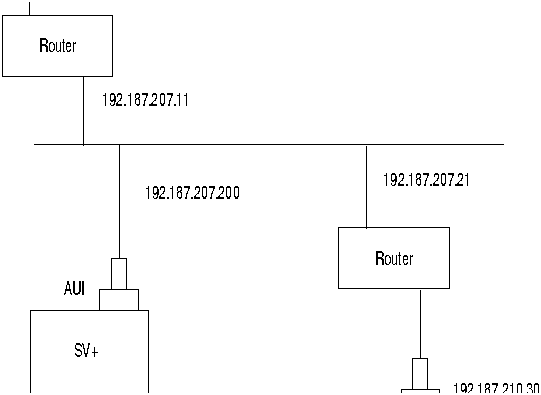
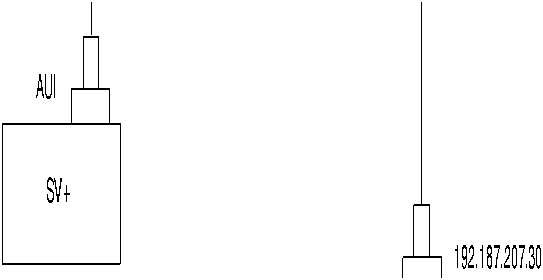
  2. Connect the StrataView Plus workstation and the BPX/IPX node to a LAN network. Examples are shown in Figure 2-2 and Figure 2-3. The LAN port on the BPX/IPX node provides a DB-15 connector for an AUI.

  3. To test that a LAN connection to the IPX/BPX port is okay, for example, for a hostname of "sanfran" entered in the config.sv file, you could enter the following:

    ping sanfran

  4. Once the workstation and BPX/IPX node interface has been set up, StrataView Plus can be started. Figure 2-4 shows the dsplan screen after StrataView Plus has been started and the communication sockets are active.


Note "Sockets" is the BSD Unix name for connections between processes, typically used in network communication.

Figure 2-2 : StrataView Plus LAN Connection via Router to a BPX Node
h8124.gif

Figure 2-3 : StrataView Plus LAN Connection to an IPX Node (no gateway)
h8125.gif

Figure 2-4 : dsplan after StrataView Plus Startup


D2.cb1         LAN   StrataCom       IPX 32    8.2.G     Feb. 27 1995 14:27 PST


Active IP Address:                     192.187.207.21
IP Subnet Mask:                        255.255.255.0
TCP Service Port:                      5130
Default Gateway IP Address:            192.187.207.1

Maximum LAN Transmit Unit:             1500
Ethernet Address:                      00.55.43.00.04.55

Control Socket - Ready
Base Socket Descriptor - 1

Open Socket Descriptor - 2


Last Command: dsplan


Next Command: 


Initial Startup of StrataView Plus

The first time that StrataView Plus is started, it obtains the current network topology information and enables default trunk and circuit line statistics that you selected using the SCM software.


Prerequisites

Before starting up StrataView Plus, you need to plan the statistics types that you want to enable automatically and enable these using the SCM program. Refer to Chapter 5 of the StrataView Plus Operations Guide for information on enabling statistics using SCM.


Procedure

Start up StrataView Plus as follows:

  1. Enter the following command to display the SV+ menu:

    SV+

  2. Select option 1 (Start Core) to start StrataView Plus.


Note Two messages that may appear during the initial part of the startup process are: "IPC: connect failed: Connection refused" and "svmain: L4 send to Application Layer failed." These indicate a temporary condition and may be ignored. If these messages continue, call StrataCom ISC.


Configuring a Terminal Server

See Appendix B.


Planning and Configuring the Database

If you have not done so yet, please refer to Appendix C, Informix Database, Backup and Changing Size, in the StrataView Plus Operations Manual.


StrataView Plus Connection to a Node Via Modem

The following paragraphs describe how to connect an StrataView Plus workstation to a BPX/ IPX node via a modem. These procedures are for a typical connection. Refer also to the applicable Sun SPARCstation System Administration User's Guide, and the Codex V.34 RSA Modem User's Guide.

Contact StrataCom ISC for further information.


Modem Connection Via a Terminal Server

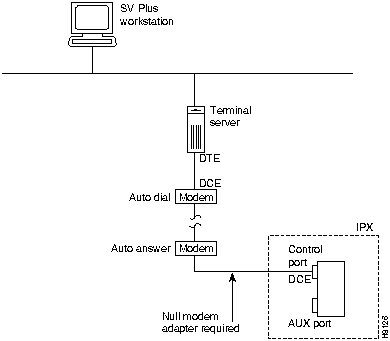
The connection of a StrataView Plus workstation to an IPX via a terminal server and modem is shown in Figure 2-5

Figure 2-5 : Modem Connection, StrataView Plus to IPX, with Server
h8126.gif


Modem Connection Without a Terminal Server

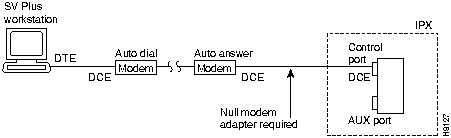
The connection of a StrataView Plus workstation to an IPX via modem (without using a terminal server) is shown in Figure 2-6.

Figure 2-6 : Modem Connection, StrataView Plus to IPX, No Server
h8127.gif


Modem Dial-In/Out Configuration

The following commands are provided for configuring the Codex V.34 RSA modem.


Auto-Answer (V.34 modem)

Using the cnfport command, set the IPX Control port (CONTROL TERMINAL port) to 9600 bps and disable the XON/XOFF flow control. Using the cnfportfunc command, set the terminal type to VT100/StrataView. To program the modem, temporarily attach a terminal to the modem using a 25-pin straight through cable. The modem EIA port will automatically match the 9600 bps setting of the terminal. Enter the following commands:

1. AT&F Reset to factory default and save.
2. ATSØ=1 Enables Auto-Answer Mode (answer on first ring).
3. ATL1 Modem speaker at low volume.
4. AT*SM3 Enables automatic MNP error correction.
5. AT*DCØ Disables data compression.
6. AT*FLØ Disables XON/XOFF flow control.
7. AT&S1 Sets DSR to "normal".
8. ATEØ Disables local character echo.
9. ATQ1 Disables result codes. (Modem will appear "dead".)
10. AT&W Saves current configuration settings in non-volatile memory.


Auto-Dial (V.34 modem)

Connect the workstation to the modem, with the serial port set to 9600 bps, using a 25-pin straight-through cable (uses RS-232 protocol) and enter the following commands:

1. AT&F Initializes factory defaults.
2. ATLØ Modem speaker at minimum volume.
3. AT*SM3 Enables automatic MNP error correction.
4. AT*DCØ Disables data compression.
5. AT*SC1 Enables DTE speed conversion
6. AT*FLØ Disables XON/XOFF flow control.
7. AT&C1 DCD controlled by modem.
8. AT&D2 Modem disconnects when IPX toggles DTR.
9. AT&V Verify entries.
10. AT&W Saves current settings to non-volatile memory.


Configuring the Sun Workstation

For information on configuring a Sun workstation for communication via modem, refer to the applicable Sun User's Guides. For specific information regarding StrataView Plus, contact StrataCom ISC.


StrataCom ISC Dial-In to StrataView Plus Via Modem

The StrataCom ISC (International Support Center) can provide support for the customer StrataView Plus workstation via a dial-up modem connection. This support is available when a Motorola Codex modem is provided at the customer site. There are two procedures to be performed before the ISC can dial into the workstation.

  • Configure the selected workstation serial port to emulate a VT100 terminal.

  • Configure the Codex modem EIA leads for the workstation.

The following paragraphs describe how to set up a dial-in connection. These procedures are for a typical connection. Refer also to the applicable Sun SPARCstation System Administration User's Guide, and the Codex V.34 RSA Modem User's Guide.

Contact StrataCom ISC for further information.


Modem Connection Via a Terminal Server

The connection from StrataCom ISC to a StrataView Plus workstation via a terminal server and modem is shown in Figure 2-7.

Figure 2-7 : ISC Support via Modem and Terminal Server for StrataView Plus Workstation
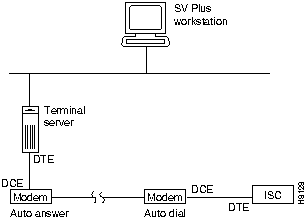
fig_1.gif


Modem Connection Without a Terminal Server

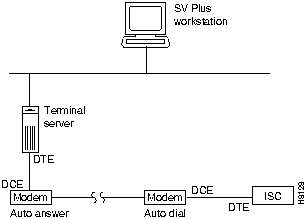
The connection from StrataCom ISC to a StrataView Plus workstation via a modem is shown in Figure 2-8.

Figure 2-8 : ISC Support via Modem for StrataView Plus Workstation
h8128.gif


Setting Up a Sun Workstation for Dial-In from ISC

Setup of a Sun Workstation for incoming modem calls:

  1. Login as superuser (i.e., root).

  2. Edit the /etc/ttytab file as follows:

    ttyb "/usr/etc/getty D9600" dialup on remote

  3. Check to see if getty is running for ttyb by entering:

    ps -aux | fgrep getty
    Note the process ID so you can kill it and restart the getty.

  4. If a getty is already running for the specified port, find its process id, then issue:

    kill -9 <process ID>

  5. Restart init by entering:

    kill -HUP 1
    This command restarts the new getty.

  6. Configure the modem for 7 bits odd parity. The modem will now send all incoming data toward the SUN in a VT100 manner. Therefore, a remote terminal user will have to login just as any other user on the system.


Configuring Modem for Dial-In from ISC (Auto-Answer)

Configure the modem connected to the workstation per the Auto Answer procedure.


Note Not all of the modem EIA leads are supported by the workstation. If a Hayes modem is used in place of the Codex V34RSA modem, configure the Hayes modem using the following AT commands.

DCD---On AT&CØ
DTR---On AT&DØ
DSR---Normal AT&S1
CTS---ON when connected AT&R1
ATSØ=1 (answer on first ring)

When the system is up, the ISC is capable of calling into the StrataView Plus via the serial port on the workstation.


Starting an StrataView Plus GUI from Another Workstation

This section describes how to start a copy of the GUI on another user's workstation.


Prerequisites

The workstation must have the following software installed:

  • DEC Motif for Sun, version 1.1 software.


Note Multiple WingZ licenses are required for multiple users.


Procedure

  1. Bring up a Motif window manager on the user's workstation.

  2. Open a terminal window.

  3. Enter:

    xhost <host-workstation-name>

  4. Do an rlogin to the host workstation.

  5. Set the DISPLAY variable to local display.
    For example, where the local workstation is maui:

    in csh: setenv DISPLAY maui:0.0
    in sh or ksh: export DISPLAY;DISPLAY=maui:0.0

  6. Enter:

    cd /usr/users/svplus

  7. Enter:

    SV+
    to display the StrataView Plus main menu, and select option 3 (Start DeskTop).


NCD X Terminal Support


Note Multiple WingZ licenses are required for multiple users.

Call ISC before proceeding. For NCD X terminal support (Sun in csh):


On the StrataView Plus Sun workstation:

  1. Edit the /etc/hosts file to include your NCD terminal. The line should read something like:

    192.9.200.8 xt008

  2. Make sure that the NCD fonts are loaded into a directory called

    /usr/lib/X11/ncd fonts


Note The following fonts need to be installed in order to run SCM:
-*-*-bold-r-*-*-*-*-75-75-*-*-iso8859-1
-*-*-bold-r-*-*-*-120-*-*-*-*-iso8859-1
-*-*-bold-r-*-*-*-170-*-*-*-*-iso8859-1
-*-*-bold-r-*-*-*-120-75-75-*-*-iso8859-1
-*-*-bold-r-normal--14-140-75-75-p-82-iso8859-1
-*-courier-bold-r-normal--12-120-75-75-p-70-iso8859-1
-*-courier-bold-r-*-*-*-120-75-75-*-*-iso8859-1
-*-courier-bold-r-*-*-*-140-75-75-*-*-iso8859-1
-*-courier-bold-r-*-*-*-160-75-75-*-*-iso8859-1
-*-courier-medium-r-*-*-*-120-*-*-*-*-iso8859-1
-*-courier-medium-r-*-*-*-100-75-75-*-*-iso8859-1


On your NCD terminal:

  1. If you are doing a remote login (rlogin), execute this command on your host system:

    /usr/openwin/bin/xhost +

  2. Do an rlogin to the Sun workstation svplus account (if remotely logged in)

  3. The DISPLAY environment logical should be set to your terminal, e.g., enter:

    setenv DISPLAY xtname:0.0


Note In this command, name stands for the name of your Xterminal. For example, if the Xterminal name is "dolphin", the command would be entered as:

setenv DISPLAY dolphin:0.0

  1. Enter this command:

    source setncd.csh

  2. You can now execute StrataView Plus. If another system has already started StrataView Plus, choose option 3 (Start Desktop). The Desktop GUI will open. Otherwise, choose option 1 (Start Core) to start the StrataView Plus core processes.

HomeTOCPrevNextGlossSearchHelp
-

Copyright 1988-1996 © Cisco Systems Inc.
