
Table of Contents
Attaching Peripherals
The BPX has two RS-232 serial data ports (labeled CONTROL port and AUXILIARY port) and an Ethernet port (labeled LAN) on the LM-BCC back card for attaching peripherals.
A network (or each domain in a structured network) must have at least one connection to a control terminal or StrataView Plus network management workstation. The StrataView Plus NMS workstation is used to configure and maintain all nodes in a network and report network statistical data. In addition, a network printer must be connected to the AUXILIARY port if you wish to print.
If it is desired to have StrataCom ISC perform remote troubleshooting, a dial-in modem must be attached to the network. (This is a requirement for all StrataCom service plans.) Procedures for attaching peripherals to the BPX are contained in the following paragraphs. Be sure to read the manufacturers literature to ensure that you have made the equipment ready for attachment, before attempting to attach it to the BPX.
Refer to the following documents for additional information on the following related subjects:
- For instructions on using the BPX/IPX commands, see the Command Reference Manual.
- For instructions on using the StrataView Plus workstation, see the StrataView Plus Reference Manual.
- Appendix B, "Peripherals Specifications" in the BPX Reference Manual, lists the control terminals supported and their required configuration settings.
- Appendix C, "BPX Cabling Summary" in the BPX Reference Manual, lists the pin assignments for the BPX control terminal port.
Connecting a terminal or NMS to the Control Port
A basic VT-100 type terminal may be connected to this port for use in entering commands to bring up a new node. (Note: Since the StrataView Plus NMS workstation requires a LAN connection to a node in the network in order to perform its management functions, it is not connected to the Control Port during normal operation.) In these procedures, the term BCC is used to refer to either the BCC-3 or BCC-32 which are functionally identical, though each requires its own type of backcard, BCC-3-bc or BCC-bc (also known as BCC backcard), respectively.
Attach a terminal to the BPX as follows:
Step 1 From the back of the cabinet, run the control terminal RS-232/V.24 cable through the opening at the bottom and up to the LM-BCC card in back slot 7.
Step 2 For nodes with single BCC: Locate the CONTROL port connector on the LM-BCC in slot 7. Attach the RS-232/V.24 cable as shown in Figure 2-29. Go to Step 5.
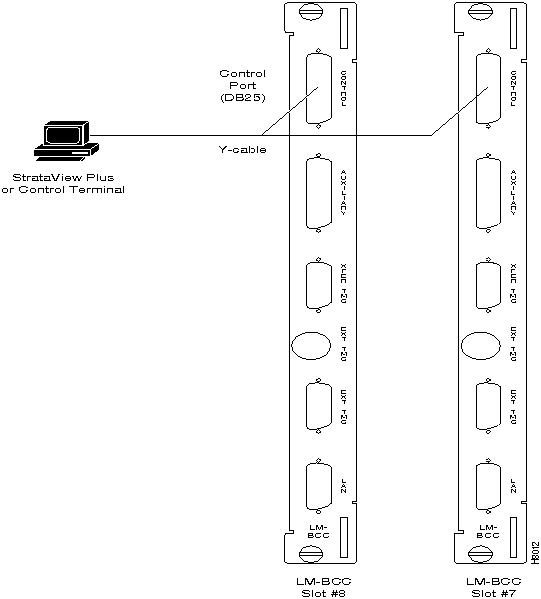
Step 3 For nodes with redundant BCCs: A Y-cable is required for this application. Connect one leg of the Y-cable to the CONTROL port connector on the backcard in slot 7 and the other leg to the slot 8 CONTROL port connector.
Step 4 Attach a RS-232/V.24 cable to the remaining leg of the Y-cable as shown in
Figure 2-30.
Step 5 Fasten the cable connector to the CONTROL port connector with the captive screws on the connector hood.
Step 6 Plug the control terminal (or StrataView Plus) power cord into the appropriate wall receptacle (115 VAC or 240 VAC) and switch it on.
Step 7 Set the port function for VT100/StrataView using the cnftermfunc command if connecting to a StrataView Plus workstation. If using a "dumb" terminal, select VT100 only (# 5).
Step 8 Make sure the AUXILIARY port and the terminal or workstation are set to the same baud rate and check the other communication parameters using the cnfport command.
Note When a node is powered up, it enters "boot mode" which has a default speed of 9600 bps. If the node's control port has been previously configured to 19,200, the first messages will appear garbled because the terminal is at 19,200 bps, but the control port (in "boot mode") is temporarily at 9,600 bps. When the "transition to on-line" occurs, then the speeds will match and the terminal display will be readable.
Figure 2-29 : Connections to NMS (Single BCC), LM-BCC Backcard Shown
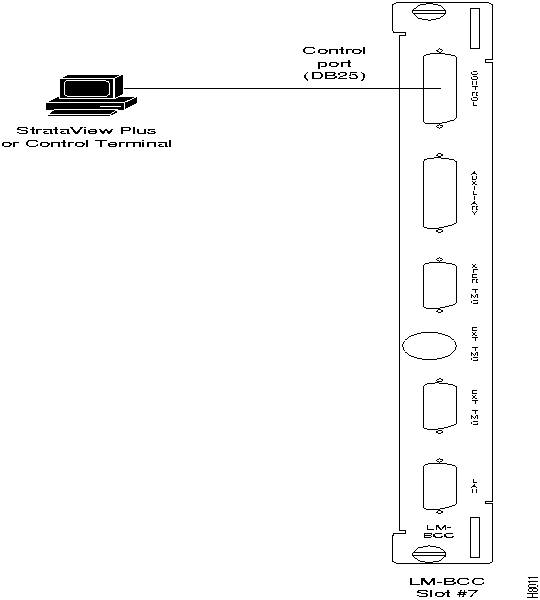
Figure 2-30 : NMS Connections via Control Port (Redundant BCCs), LM-BCCs Shown
Refer to the following documents for additional information on the following related subjects:
- For instructions on using the BPX/IPX commands, see the Command Reference Manual.
- For instructions on using the StrataView Plus workstation, see the StrataView Plus Reference Manual.
- Appendix B, "Peripherals Specifications" in the BPX Reference Manual, lists the control terminals supported and their required configuration settings.
- Appendix C, "BPX Cabling Summary" in the BPX Reference Manual, lists the pin assignments for the BPX control terminal port.
LAN Connection for the Network Management Station
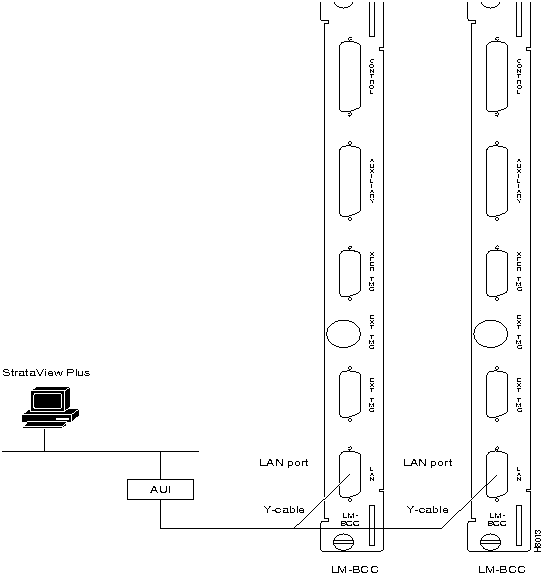
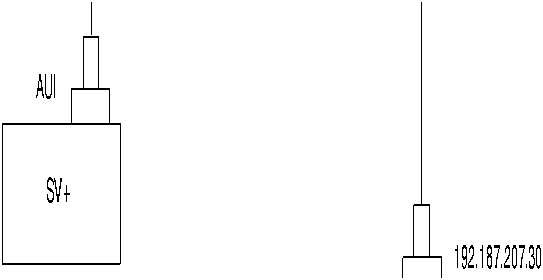
The StrataView Plus NMS is connected to an Ethernet port (LAN port) on a node in the network for the purpose of network management. The LAN port provides the capacity necessary for the network management traffic and network statistics collection. See Figure 2-31 illustrating this connection.
For access to the node using an Internet connection, the Internet Protocol (IP) address, IP subnet mask, TCP service port, and gateway IP address must be entered by the user with the cnflan command.
Figure 2-31 : LAN Connections to BCC Backcards, LM-BCCs Shown
Configuring the LAN Port
Note Configure the LAN parameters before connecting it to a LAN.
Note Refer to the StrataView Plus Operations Manual and the Commands Reference for additional information
Step 1 Contact your System Administrator to obtain IP addresses for your workstation and for the BPX/IPX node you are going to configure.
Step 2 Normally, the System Administrator will provide the IP addresses for the workstation and node. Refer to the SV+ Operations manual for instructions on configuring the SV+ workstation.
- The addresses shown are just examples. Use the addresses obtained from your System Administrator. (This example is for a workstation named "hedgehog" at address 192.187.207.200. It also assumes that the BPX, IGX, or IPX node LAN port for node sanfran has been assigned an IP address of 192.187.210.30 and a hostname of sanfran. Your own host name and addresses will be different.)
192.187.207.200 hedgehog
192.187.210.30 sanfran
Note If an NIS is being used (e.g., corporate network), you will need to contact the System Administrator.
Note 5120 is used for the LAN ports on all BPX/IPX ports.
Step 3 Configure the LAN port on the BPX/IPX node using a dumb terminal or an RS-232 connection via the workstation (using the vt command, as applicable) to enter the appropriate cnflan parameters.
- The cnflan command configures the node's communication parameters so that the node can communicate with a StrataView Plus terminal over an Ethernet LAN using the TCP/IP protocol. The parameters contain address information about the Ethernet TCP/IP network that is used to connect the StrataView Plus station to an IPX or BPX node. The values used must conform to those of the network and should be supplied by the Ethernet network administrator.
- The cnflan command has the following parameters:
- IPAddr is the Internet Protocol address of the node used in the TCP/IP protocol.
- IPSubnetMask is a 32-bit mask. The default for a Class C LAN network is 255.255.255.0. (Other than C Class masks may be used.)
- TCPServicePort is the BPX/IPX LAN port number entered in the /etc/service file on the workstation. It is 5120 for all BPX/IPX nodes.
- GatewayIPAddr is the Internet gateway address. This is the gateway that traffic is routed through if the BPX, IGX, or IPX node and workstation are on different networks. If they are on the same network, the gateway is not used. The default "none" is displayed in this case. (Note: If a gateway IP is entered and later you want to remove it, enter 255.255.255.255 opposite the "IP Subnet Mask" prompt and 192.0.0.0 opposite the "Default Gateway IP Address" prompt and "none" will again be displayed. The node will reset itself if you do this.)
- A cnflan screen is shown in Figure 2-32 for the LAN setup shown in Figure 2-33. An IP address of 192.187.210.30 has been entered as the active IP address for the node. The IP Subnet mask is entered as 255.255.255.0 for a Class C LAN network. The TCP service port is entered as 5120. Since the workstation and node are on different networks in this example, a gateway address of 192.187.207.1, which must be obtained from your System Administrator, has been entered. If the workstation and node are both on the same network, no gateway address is needed. The "Maximum LAN Transmit Unit" and "Ethernet Address" parameters are not configurable by the cnflan command. The "Ethernet Address" is a hardware address that is different for every node controller card, e.g., BCC.
Figure 2-32 : Configuring a Node's Control Port (Gateway Router Example)

Step 4 Connect the StrataView Plus workstation and the BPX node to a LAN network. The LAN port on the BPX/IPX node provides a DB-15 connector that can be connected to a Y-cable which in turn is connected to an AUI as shown in Figure 2-31.
Step 5 To test that a LAN connection to the BPX LAN port is okay, for example, for a hostname of "sanfran" entered in the config.sv file, you could enter the following at the SV+ workstation:
ping sanfran
Step 6 An IP Relay address needs to be configured for each node. Figure 2-34 shows an example of using the cnfnwip command to configure the IP Relay address for a node. Also, at the workstation, the /etc/hosts table and routing need to be set up for each node in the network. This is so that that network management using SNMP and statistics collection using TFTP via inband ILMI may be carried out. Also, assuming an isolated network for the nodes, the workstation must be isolated from the NIS reference pages in order that the SV+ workstation consults the /etc/hosts table. Refer to the StrataView Plus Installation and Operation manuals for further information.
Step 7 Once the workstation and BPX node interface has been set up, SV+ can be started. Figure 2-35 shows the dsplan screen after SV+ has been started and the communication sockets are active.
Note "Sockets" is the BSD Unix name for connections between processes, typically used in network communication
Figure 2-33 : SV+ LAN Connection via Gateway Router to a BPX Node
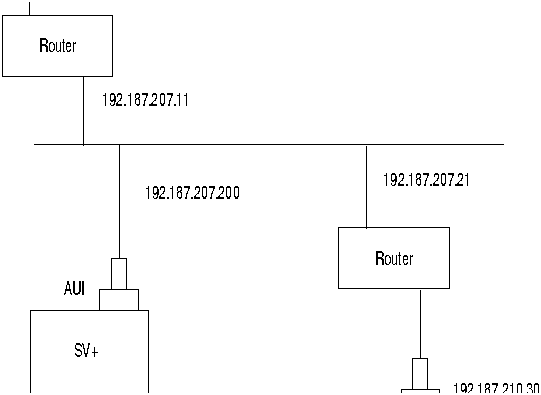
Figure 2-34 : Configuring the IP Relay Parameters (Required for each node)

Figure 2-35 : dsplan after SV+ Startup (Gateway Router Example)

Figure 2-36 shows an example of a StrataView Plus workstation LAN connection to a BPX on a network with no gateway node, nor connection to another LAN. This type of LAN connection could also be connected through a "Hub" which is essentially a signal splitter (passive or active).
Figure 2-36 : SV+ LAN Connection to an IPX Node (no gateway)
Connecting a Network Printer to the BPX
In most systems, the network printer will be connected to a serial port on the StrataView Plus NMS terminal server. The maintenance log and all statistics data will reside on the StrataView Plus. However, it is possible to connect a printer to a node and use various BPX system software print commands to print locally. This may be helpful during the initial network installation phase.
Appendix B, in the BPX Reference Manual, lists the types of printers supported by the BPX along with configuration settings. Appendix C, in the BPX Reference Manual, lists the pin assignments for the AUXILIARY port on the BPX. Attach the printer to the BPX as follows:
Step 1 Check the printer RS-232/V.24 cabling pinout, and if required adjust the DIP switches to the settings indicated for the type of printer to be connected to the BPX, see Appendix B for recommended RS-232/V.24 cable pinout and printer DIP switch settings.
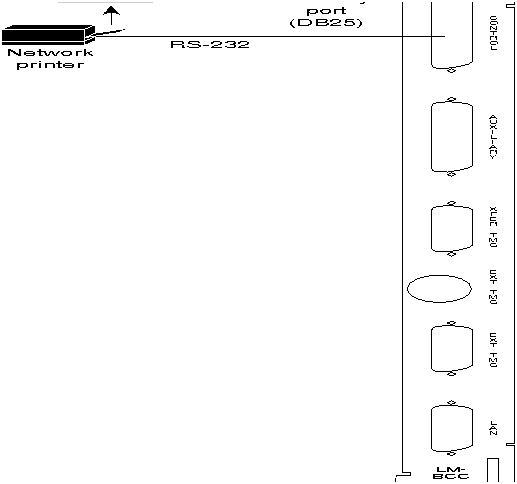
Step 2 For nodes with single BCC: Connect the RS-232/V.24 printer cable to the AUXILIARY port on the LM-BCC back card (Figure 2-37). Go to Step 5.
Step 3 For nodes with redundant BCCs: A Y-cable is required for this application. Connect one leg of the Y-cable to the AUXILIARY port connector on the LM-BCC in slot 7 and the other leg to the AUXILIARY port connector on the LM-BCC in slot 8.
Step 4 Plug the printer power cord into the appropriate AC outlet (115 VAC or 240 VAC).
Step 5 Set the port function for printer using the cnfportfunc command.
Step 6 Make sure the control port and the printer are set to the same baud rate and check the other communication parameters using the cnfport command.
Figure 2-37 : Connections to a Network Printer, LM-BCC Shown
Connecting Modems
One or two modems may be connected to each BPX node to provide access for remote access by StrataCom International Support Center (ISC) or customer network maintenance and for remote alarm reporting (Figure 2-38).
Figure 2-38 : Connecting Modems to the BPX, LM-BCC Shown
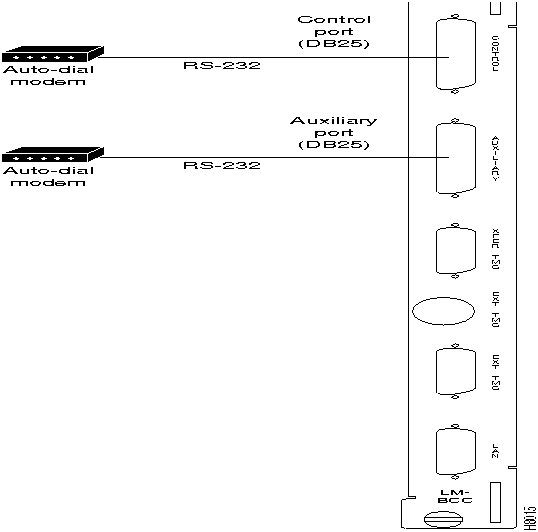
- An auto-answer modem is used to provide access for remote access. It is connected to the CONTROL port connector. This port is bi-directional transmit and receive.
These modems connect to a standard telephone line wall jack. The modem connections require special cables and setup procedures. Refer to the "Peripherals Specifications" appendix in the BPX Reference Manual, for instructions on connecting and setting up the modems. If the BPX is equipped with redundant BCCs, an RS-232 Y-cable must be used for these connections.
Making External Clock Connections
The BPX provides connections for supplying a timing signal to synchronize the operation of an adjacent IPX node. A connector on the BPX LM-BCC back card, labeled EXT CLK OUT supplies a clock signal at either a T1 or E1 rate which can be connected to the IPX EXTERNAL CLOCKS connector on the IPX SCC back card (Figure 2-39). This uses a straight-through DB15 to DB15 cable, male to male. See Appendix C, in the BPX Reference Manual, for pin-outs.
If the BPX node is to be synchronized to some other external equipment or a local digital central office, one of two other connectors on the LM-BCC can be used to provide a clock input. A DB15 connector labeled EXT CLK IN can be used to connect a balanced T1 or E1 signal, synchronized from some higher-level source, to the BPX. If an unbalanced 75-ohm E1 signal is available as the timing source, a BNC EXT CLK IN connector is also provided. The BPX senses an active signal at any of these inputs and automatically synchronizes to this source rather than the internal Stratum 3 clock source.
Note Contact StrataCom ISC for information on setting up either a 75-ohm or 120 ohm clock interface on the BCC backcard.
Figure 2-39 : Synchronizing a Local IPX to BPX Node, LM-BCCs Shown

Initial Startup of the BPX
Before operating the BPX, check that the following procedures have been performed:
Step 1 The BPX is connected to an appropriate power source with an isolated ground connection, per the procedures in "Making Power Connections" section.
Step 2 The BPX power cord is plugged into an appropriate power outlet.
Step 3 The full complement of cards for the specific node are mounted in the correct slots, correctly seated, and locked in place.
Step 4 The T3 or E3 connections are attached to the appropriate LM-3T3/3E3 faceplate.
Step 5 A control terminal (or StrataView Plus Work Station) is connected to the CONTROL port on the LM-BCC in back slot 7/8, and the terminal's power cord plugged into the appropriate voltage wall outlet.
Step 6 If needed, a printer may be connected to the AUXILIARY port on the LM-BCC in back slot 7/8 and the printer power cord plugged into the appropriate power outlet.
Step 7 If needed, a modem(s) may be connected to the CONTROL port or AUXILIARY port, as applicable, on the LM-BCC in back slot 7/8, and the modem(s) power cord(s) plugged into the appropriate power wall outlet.
Step 8 From the back of the BPX cabinet, turn the power switches to the ON position.
Step 9 From the front of the BPX, observe the cards go through initial diagnostic self-tests.
- The AC power supply(ies) --48V indicator will be on.
- The standby BCCs red "FAIL" light flashes until self-testing and configuration updates are completed. The other BCC becomes active immediately, but also performs self-testing and configuration updating. The entire process may take several minutes to complete.
- The remaining cards will show "FAIL" for a few seconds, then become active or standby.
- There may or may not be alarms showing on the BNIs and ASIs. Alarms may be present on ATM trunk connectors that have not been physically connected to T3 lines.
BPX Startup Diagnostic
The BPX software provides a group of diagnostic tests to be run on the system's hardware at power-up. The startup diagnostic either passes or fails the BCC(s) tests. The test result is displayed on the control terminal screen as pass or fail. Figure 2-40 illustrates a successful power-up diagnostics sequence.
Figure 2-40 : Successful Power-Up Diagnostic Screen

If a BCC fails the power-up diagnostic, it will not boot. When that happens, do the following:
Note On power-up, the BCC in slot 7 is always the active BCC.
Step 1 Remove the failed BCC from its slot.
Step 2 Reseat the BCC in the same slot.
Step 3 Wait for the power-up diagnostic to run.
Step 4 If the BCC fails the power-up diagnostics a second time, replace it with another BCC that is known to have passed the test.
Once the software has successfully booted up, the NMS terminal will display the software on-line screen (Figure 2-41). At this point, you may login as a user to the node.
Figure 2-41 : On-Line Screen

Copyright 1988-1996 © Cisco Systems Inc.



