


|
|

Before proceeding with the installation, go through this parts checklist and verify that all ordered parts are present and in good condition. If anything is missing or damaged, report it to a StrataCom Order Administration representative.
Check the cabinet for the following inventory:
| _____ | For rack-mount systems, four permanent mounting brackets are present. Also, a pair of temporary mounting brackets and a temporary spacer bracket is present for installation only. |
|---|---|
| _____ | The unit has the correct power type (AC or DC) and the factory-installed Power Entry Back Card (PE-BC). For DC-powered systems, DC PEMs are installed in the PE-BC. For AC systems, check for the power supply tray, correct power cord, and correct number of supplies. |
Make sure all purchased cards are present. Check the number and type of cards shipped against the number and type of card purchased.
| _____ | Correct number of NPMs | _____ | Correct number of AIT-T3s |
| _____ | Correct number of NTM8s | _____ | Correct number of AIT-E3s |
| _____ | Correct number of BTMs | _____ | Correct number of BC-T1s |
| _____ | Correct number and types of CVM8s | _____ | Correct number of BC-E1s |
| _____ | Correct number and types of FRM8s | _____ | Correct number of BC-J1s |
| _____ | Correct number of FTMs | _____ | Correct number of BC-Y1s |
| _____ | Correct number of HDMs | _____ | Correct number of BC-SRs |
| _____ | Correct number of LDMs | _____ | Correct number of FRIs |
| _____ | Correct number of LDIs | _____ | Correct number of FPCs |
| _____ | Blank faceplates for unused back card slots | _____ | Correct number of SDIs |
| _____ | Correct number of ARMs | _____ | Correct number of ARIs |
An inventory list of the installed cards is shipped with the unit. The list includes each card's serial number, revision number, and slot number (serial and revision numbers are also found on the solder side of each card). After verifying that the correct cards are present, tape a copy of the inventory list to the back of this manual.
The IGX 8 site must satisfy the following requirements:
The only available anchoring for an IGX 8 is in a rack that can be anchored to the floor (or ceiling). In a STRATM cabinet, provisions are available for seismic anchoring. Holes exist in the upper and lower corners for 3/8" or 1/2" bolts. Also, an optional stability plate can be purchased with the STRATM cabinet. The stability plate is bolted to the floor, then the STRATM cabinet is bolted to the stability plate. The "STRATM Seismic Anchoring" section contains instructions for installing the seismic stability plate.
The following paragraphs contain general safety information and information on T1 and CEPT (E1) safety requirements.
The following safety requirements must be observed:
This section lists the requirements that relate to electrical power and grounding. These requirements cover installations at Central Office (CO) and Private Enterprise locations.
An AC power source must be available within 6 feet (1.8 m) of the system and easily accessible. Before turning on the power, verify that the power supplied to the node comes from a dedicated branch circuit.
The receptacles into which the IGX plugs must be of the grounding type. The grounding conductors that connect to the receptacles should connect to protective earth at the service equipment.
Only a --48 VDC supply that complies with the Safety Extra Low Voltage (SELV) requirements of EN 60950 can connect to the IGX DC input.
For DC supply connections, consult local and/or national codes for proper conductor sizing. The conductors must be suitable for 20 Amps. Wiring that is 10 to 12 AWG (4 sq. mm) is adequate.
To maintain the full EMI and EMC integrity of this equipment, it must be bonded to an Integrated Ground Plane or an Isolated Ground Plane network. The purpose of this is to mitigate the damaging effects to equipment from Electrostatic Discharge and Lightning. Refer to the latest edition of ITU Recommendation K.27 or Bellcore GR-1089-CORE requirements to ensure that the correct Bonding and Grounding procedures are followed. As recommended in these documents, a frame bonding connection is provided on the StrataCom STRATM cabinet for rack-mounted systems and on the stand-alone cabinets.
Refer to "Making the Frame Bonding (Ground) Connection" later in this chapter for information on the locations of the frame bonding connections and how to make a connection.
Except for the AC power supply module, every module in a rack-mount system relies on the rack itself for grounding. Therefore, the rack must be properly connected to protective earth before operating the system.
A DC powered IGX system must have grounding conductors connected at two separate locations, as follows:
These requirements may be relevant to a private network connected to the public switched networks in some international service areas.
This section describes installing the STRATM cabinet with the optional stability plate for seismic anchoring. If the stability plate is not present, go to the next section. To set up the STRATM cabinet with the stability plate:
Figure 2-1 : Stability Plate Dimensions Figure 2-2 : STRATM Installation Over Stability Plate Installing an IGX 8 requires the following tools and equipment:
Stand-Alone System Installation
The installation steps consist of placing the stand-alone IGX 8 at its operational location, unpacking it, and verifying the structural and power connection integrity. Note that a stand-alone cabinet is 19.9" wide.
After the system resides at its operational location, follow the steps for connecting power. If the system has an AC power source, go to "AC Power Connections" section. If the system has a DC power source, go to "DC Power Connections" section.
The rack-mount IGX 8 fits in a 19 inch (48.25 cm.) rack with a minimum of 17.75 inches between rails. For mounting the chassis in a rack, brackets are attached to the front of the chassis. A pair of mounting brackets are attached at the back of the chassis after it is placed in the rack. Brackets for a mid-rack mounting also come with the kit.
Because of the weight of the IGX 8, StrataCom includes two temporary spacer brackets and a temporary mounting bracket to help with the installation. These pieces are removed after installation. The temporary spacer brackets stabilizes the rack, and the temporary mounting bracket together with the spacer brackets creates a partial shelf onto which the installers can slide the node. These pieces support the system while installers secure the permanent front and back mounting brackets to the rack.
To install the IGX in a rack:
Figure 2-3 : IGX 8 Rack Mounting Dimensions Figure 2-4 : Temporary Spacer Bracket and Mounting Bracket Figure 2-5 : Rack-Mount Cabinet This section introduces card placement in the IGX 8. The locations of the system cards depend on the hardware configuration. Except for the reserved slots, cards can reside in any slot on the appropriate side of the node (but StrataCom recommends that the optional ARM/ARI card set reside in slot 8). Reserved slots are for the NPMs and SCM. An NPM resides in front slot 1 and 2. The SCM must reside in back slot 1. Refer to Figure 2-6 for a front view of a shelf with 2 NPMs.
The NPM B versions require a minimum level of system software. Refer to the Release Note that comes with this manual to see if the software supports the NPM B version.
Most card sets support Y-cable redundancy, which requires an extra set of cards and a Y-cable. For instructions on adding redundancy, see the section for the specific card set.
The locations for the NPMs and SCMs in an IGX 8:
Figure 2-6 : IGX 8 Cards, Front View No utility buses are used because local bus communication occurs over the ACMs, so service cards can go in any unused slot. Figure 2-7 shows back card shelves in an IGX 8.
Figure 2-7 : IGX 8 Cards, Back View Making Power and Ground Connections
This section contains information on making connections to both the AC and DC powered systems.
Making the Frame Bonding (Ground) Connection
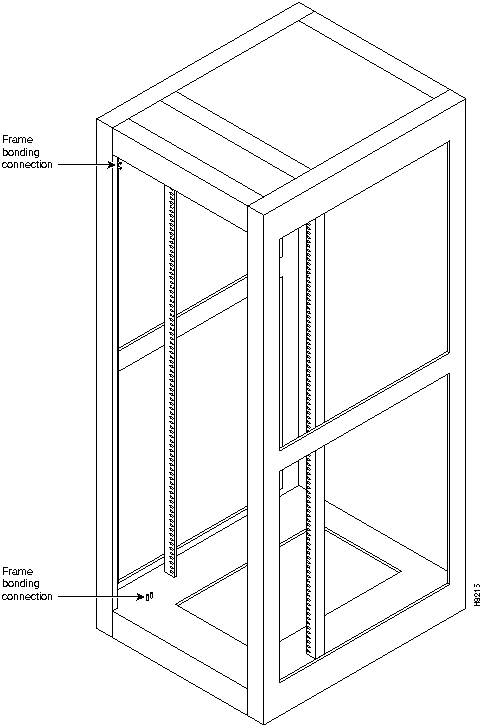
The STRATM cabinet designed by StrataCom comes with attached studs (with hardware for securing a ground conductor to the studs) at the top and bottom of the cabinet for securing the grounding conductors. The IGX 8 housing has provisions for mounting grounding conductors on the chassis by screws. This provision is a pair of captive nuts (threaded holes) for the screws that attach the user-provided ground cable. The attachment points in the STRATM and IGX 8 cabinets are indicated by a ground symbol on the cabinet near the point of attachment. Figure 2-8 shows the STRATM cabinet with the ground attachment studs in the upper and lower parts of the cabinet. Figure 2-9 shows the location of the captive nuts and screws in an IGX 8 cabinet for securing in the ground attachments.
StrataCom recommends that the stacking order for attaching a ground conductor to the frame is for "an external tooth starwasher" to be placed first onto the stud, followed by the connector terminating the grounding conductor closed-loop ring or two-hole compression fitting, followed by "another external toothed starwasher or lockwasher," and finally a nut.
Figure 2-8 : Frame Bonding Connections in STRATM Cabinet Figure 2-9 : Frame Bonding Connections An 8 ft. (3 m.) power cord is supplied with each AC Power Supply Assembly. To make AC power connections to the IGX:
Figure 2-10 : AC Connection Wiring Figure 2-11 : Circuit Breakers Systems that use a DC power source have one or two configurations, as follows:
Wiring is connected from one or two --48 VDC power sources to one or two DC PEMs. StrataCom does not provide this wiring. Instead, the installer or customer must supply it. These wires should be capable of carrying 20 Amps. Figure 2-12 is a wiring diagram for a redundant DC power source.
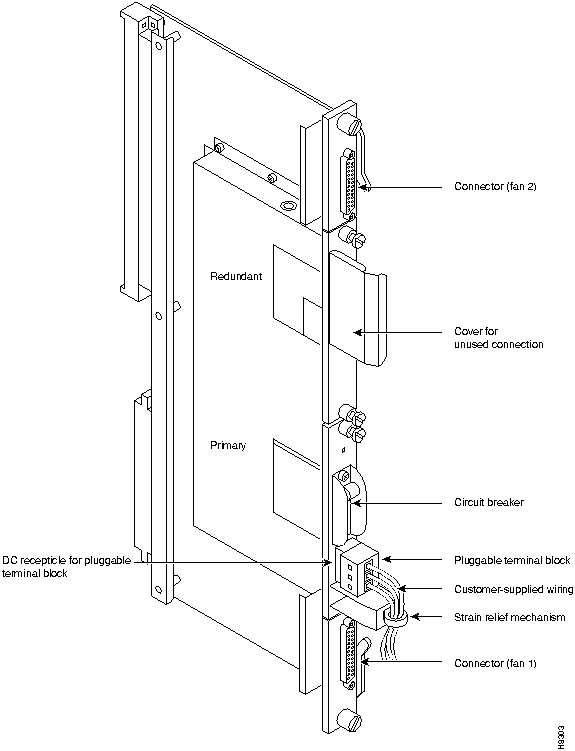
Figure 2-12 : Wiring Diagram for Redundant DC Power Source As the detailed steps on the following pages explain, installing DC power consists of attaching the three wires of the DC power source to a removable wiring block, then plugging that block into the connector on the PEM. The PEM is plugged into the PE-BC. Figure 2-13 is a view of a PE-BC out of the card cage with the PEM wired up and plugged into the PE-BC. Figure 2-13 shows a non-redundant DC power configuration. Note the blank plate that covers the unused connection.
Figure 2-13 : PE-BC and DC PEM With Plug To make a DC power connection:
Figure 2-14 : Polarities at Pluggable Terminal Block Figure 2-15 : Pluggable Terminal Block The following sections describe how to make various IGX signal connections. The following trunk connections are supported:
The following service module connections are supported:
Making T1 or Y1 Trunk Connections
T1 trunk connections use the NTM8 front card and the BC-T1 back card. Japanese Y1 connections use the NTM8 front card and the BC-Y1 back card. The procedure for making Y1 connections is the same as for T1 connections described below.
Make the T1 connections as follows:
The T1 lines are attached to DB-15, Sub miniature, 15-pin connectors on the BC-T1 cards.
The back slot line numbers correspond to the back slot number in which the BC-T1 card resides. Record the back slot number of each line. These number are necessary for configuring the system after installation is complete.
Making E1 or Subrate Trunk Connections
E1 trunk connections use the NTM8 front card and the BC-E1 back card. Subrate E1 connections use the NTM8 front card and the BC-SR back card. The E1 Trunk Interface Card BC-E1 (Figure 2-17) contains the E1 trunk connector (G.703 Input/Output) that is located at the top of the back card. There are four 75 Ohm BNCs on the BC-E1 faceplate.
Figure 2-17 : BC-E1 Faceplate Detail (Typical) Make the E1 connections as follows:
The back slot line numbers correspond to the back slot number in which the BC-E1 card resides. Record the back slot number of each line. These number are necessary for configuring the system after installation is complete.
Making T3/E3 Trunk Connections
AIT cables connect the BTM front card to a node at the back card.
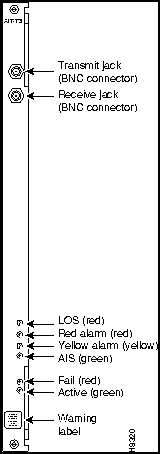
The AIT back card has female BNC connectors for transmit and receive trunk connections. Use 75-ohm coax cable RG-59 B/U for short runs, AT&T 734A for longer runs. There are two per T3/E3 trunk (XMT and RCV). Cabling requirements appear in Appendix C. Figure 2-18 shows an AIT-T3 faceplate with connections and LED indicators.
Figure 2-18 : AIT-T3 Backcard Faceplate Making ATM Connections on a Circuit Line
The ALM (ATM Line Module) and UAI-1T3-BC (Universal ATM Interface T3 Back Card) set provide an interface for ATM traffic between user equipment and the node. This section reviews the characteristics and describes how to set up this feature. For a description of this circuit line card set, refer to the ALM description in the chapter titled "Hardware Description." The following characteristics apply to ALM:
After the ALM card has been activated, take the following steps:
After configuring the line with cnfpln, use dspplns to check configuration. The system prepends the letter "u" to the connection type to show that the connection is on an ALM. For example, "ucbr" is an ATM CBR connection on an ALM. During network operation, the dspplnutl command shows the amount of traffic and percent of utilization on the line.
Making Channelized Voice Data Connections
The CVM8 front card works in conjunction either a BC-T1, BC-E1, or BC-J1 back card to provide channelized voice and data connections. Back card cabling is identical to that for trunk T1, E1 and J1 connections. Refer to "Making T1 or Y1 Trunk Connections" and "Making E1 or Subrate Trunk Connections" sections later in this chapter for details.
The next section describes a specialized version of data transmission service called TDM Transport. It applies to older, non-StrataCom WANs.
This section describes how to plan for use of the Time Division Multiplexing Transport (TDM Transport) feature. Note that TDM Transport requires Rev. C firmware on all connected CVMs or CDPs that use this feature. Refer to the TDM Transport description in the IGX 8 Reference Manual for details on Rev. C firmware features and limitations. Refer to the Command Reference for a description of the command parameters in related commands.
Before adding a bundled connection under TDM Transport, consider the following:
The Low-Speed Data Module (LDM) and High-Speed Data Module (HDM) front cards operate with a variety of data interface back cards to provide data connections. The LDM works with one of the LDI cards. The HDM works with one of the SDI cards.
The LDM front card works with the 4-port or 8-port version of the LDI back card for RS-232C/D (V.24) connections and with the LDI4/DDS back card for DDS (Digital Data Service) connections. The data connection ports are labeled PORT 1 through PORT 4 or PORT 1 through PORT 8. See Figure 2-19 for illustrations these back cards. For instructions on configuring an LDI port for DTE or DCE mode, refer to the forthcoming section titled Configuring the Mode of an LDI Port.
The HDM front card works with an SDI back card. Four types of SDIs are available. These are V.35, RS-449/422, RS-232D, and RS-232C (V.24)---X.21 requires RS-449 plus an adapter cable. Each type of SDI has four connection ports, which are labelled PORT 1 through PORT 4. An example SDI card appears in Figure 2-19.
Figure 2-19 : SDI, LDI and DDS Faceplates When attaching data lines to the SDI, LDI, and DDS ports, use the shortest reasonable length of cable to reach each port.
The factory-set, default mode of an SDI port is DCE. (Although this is the default, verify it before starting up the system. See step 1, below.) For the two modes, the rows on the back card jumper connector that are occupied when the jumper card is in place are as follows:
To change the mode on a port to DTE, position the jumper board for that port as follows:
Figure 2-20 : Changing the Mode on an SDI Card Figure 2-21 : Positioning a DTE/DCE Block on an SDI Optional redundancy for HDM and LDM cards can be provided with a second front and back card set and a Y-cable connection on each port to the customer data equipment, as Figure 2-22 shows. (The arrangement for HDM and LDM card groups is the same.)
Figure 2-22 : HDM Data Port Redundancy Configuring the Mode of an LDI Port
Each port on an LDI card uses an adapter cable. For a list of LDI adapter cables, refer to Appendix C, "Standard IGX Cables." Each cable does the following:
See Figure 2-23 for an example. In Figure 2-23, the adapter cable makes the port a DCE port. Circuits on the card check identifying pins on the cables and configure the ports as DTE or DCE.
Figure 2-23 : Connecting a DTE or DCE Adapter Cable to an LDI Making Frame Relay Connections
Four types of frame relay interfaces are available:
The T1 line terminates on the FRI-T1 card to a DB15 sub miniature connector. The FRI card has a female connector. A BNC type connector is used for the unbalanced connection.
The FRI-E1 card provides for a 75-ohm unbalanced coax line termination or a balanced 120-ohm twisted pair termination. A DB15 connector is used for the balanced connection. The FRI card has a female connector.
The V.35 connection uses a standard 34-pin female MRAC type connector with a standard V.35 cable.
The FRI-X.21 has female DB15 sub-miniature connectors.
The cabling requirements for the different frame relay interfaces appear in Appendix C.
Optional redundancy on a frame relay port can be provided with a second FRM/FRI card set and a Y-cable connection on each port to the customer data equipment. The instructions in the forthcoming "Setting Up a Frame Relay Port" section include setup information on redundancy. The card redundancy kit for this purpose contains a second FRM/FRI card set, four Y-cables to interconnect the two card sets to the customer connection, and a 200-Ohm DCE/DTE jumper board for the installed FRI. In the case of either a V.35 or X.21 interface, the DCE/DTE daughterboard on the FRI must be changed when a non-redundant card set is changed to a redundant card set. Only the model D of the V.35 or X.21 back cards use the daughterboard.
Y-cable redundancy is not possible between inconsistent back card types, such as FRI T1/E1 to FRI V.35. The screen display for the dspyred command shows a back card conflict with a configured interface in reverse video. (Refer also to the descriptions of the upcln and upfrport commands in the Command Reference.) Inserting a front card that does not support the number of upped ports is flagged by displaying the front card in reverse video on the Y-Cable Redundancy Screen.
After the hardware is installed, the node must be reconfigured to indicate that the slot is equipped with redundancy. Use the Add Y Redundancy (addyred) command to do this. Refer to the Command Reference for more information on the commands addyred, delyred, dspyred, and ptyred.
Installation of the FRI-X.21 or FRI-V.35 follows the same steps as other IGX back cards. It can be installed in any back slot except slot 1 (reserved for the SCM).
The four ports on the FRI-X.25 are equipped with female DB15 sub miniature connectors. The four ports on the FRI-V.35 are equipped with female, 34-pin MRAC connectors. Each port may be configured as a DCE or as a DTE by selecting the position of a jumper board mounted on the FRI.
The factory-set, default mode of an FRI port is DCE. (Although this is the default, verify it before starting up the system. See Step 1, below.) For the two modes, the rows on the back card jumper connector that are occupied when the jumper card is in place are as follows:
If an interface mode need changing, reposition the jumper board for the port as follows:
Figure 2-24 : Positioning a DTE/DCE Block on a FRI-X.21 This section describes the steps for setting up a frame relay port after hardware installation and system startup. Setting up a frame relay port is done at the IGX control terminal or StrataView Plus workstation. For details on each command in the steps that follow, refer to the Command Reference.
When a port has multiple PVCs, the option of bundling or grouping the connections is available. Bundling facilitates meshing. Grouping helps conserve system resources such as device codes and logical connections in networks that need a high level of standardization.
Figure 2-25 : Frame Relay Port Redundancy The types of FastPAD interfaces are T1, E1, V.35, and X.21.
FastPAD connections use the FTM front card and an FPC backcard. The back card versions are FPC T1, FPC E1, FPC V.35, and FPC X.21.
The T1 card has a DB15 for RX/TX. The E1 connections are the same except for additional BNC connectors for unbalanced connections and BNC connectors for RX/TX MONITOR.
A V.35 connection uses a standard 34-pin female MRAC-type connector with a standard V.35 cable. The FPC-X.21 has female DB15 sub miniature connectors.
The cabling requirements are the same as for the corresponding frame relay interface and are detailed in Appendix C.
Installation of the FTM/FPC card set follows the same steps as other card sets. The FPC plugs directly into the FTM card. The FTM and FPC can reside in any slot not reserved for the NPM and SCM, respectively.
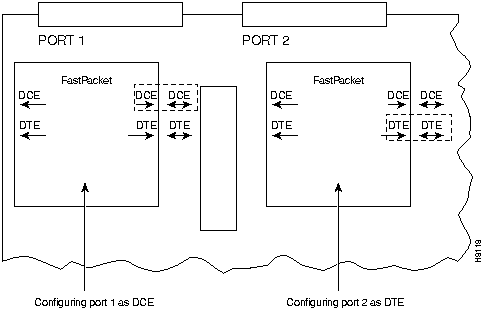
Each of the four ports on the FPC V.35 and X.21 versions can be configured as a DCE or as a DTE by selecting the position of a jumper board on the FPC. These ports are factory-configured as DCE interfaces. (Although the default is for DCE, check the boards before starting up the system.)
To change a port's interface configuration on the FPC V.35 or FPC X.21, reposition the jumper board for the port as follows:
Figure 2-26 : Positioning a DTE/DCE Block on a FPC-X.21 Making Alarm Relay Output Connections
To install an ARM card set, proceed as follows:
See also "Initial Startup of the IGX," when the system is ready for power.
The steps that follow show how to set up an ARM card set after the physical installation is complete. This is done from the IGX control terminal or StrataView Plus workstation. For details on each command used, refer to the Command Reference.
Alarm output connections are made to the DB37 connector on the ARI card. The connector pin assignments with the alarm signal names are called in the table that follows (see also Appendix C).
Table 2-1 : ARI Alarm Connector Pin-Outs
Table 2-2 shows the unassigned connector pins.
Table 2-2 : Unassigned Connector Pins
Making External Clock Connections
The DB15 connector labeled Ext Clocks on the faceplate of the SCM connects two external sources for a high-stability clock (primary and redundant). These inputs are 1.544 MHz for T1 systems and 2.048 MHz for CEPT systems. In addition, one of the trunk or circuit line inputs may also serve as a source of timing for the node. If no clock source is selected, the clock source is the internal IGX clock.
Two separate clock inputs exist. The primary clock source is A, and the secondary clock source is B. One or both of these can be either 1.544 Mbps or 2.048 Mbps. The connector pinouts are described in Appendix C.
A network must have at least one control terminal (or StrataView Plus workstation if you wish to collect statistics) attached, along with a network printer for printing out the status of the system. The SCM has three ports for attaching peripherals to an IGX. These ports are CONTROL TERMINAL, LAN AUI, and AUX PORT.
For StrataCom ISC to perform remote troubleshooting, a modem must connect to the network. This is a requirement for all StrataCom service plans. The following sections provide procedures for attaching peripherals to the IGX. Be sure to read the manufacturers' literature to ensure that the equipment is ready before attempting to connect it to the IGX.
Connecting a Single Network Management Station
To use network management, at least one node in a StrataCom network running Release 7.2 software must have a StrataView Plus workstation connected. The workstation connects to the AUI Ethernet LAN port on the SCM.
The StrataView Plus workstation may be used to configure and maintain all nodes in a network. For instructions on using the StrataView Plus workstation, see the StrataView Plus Operations Manual.
If only a single NMS station is to be connected and the network is relatively small, a serial RS232 port, the CONTROL TERMINAL port, may be used.
Appendix B lists the control terminals supported by the IGX 8 and the configuration settings. Appendix C lists the pin assignments for the IGX 8 control terminal port.
Attach the control terminal to the SCM as follows (see Figure 2-27).
Figure 2-27 : Connecting the Control Terminal LAN Connection for the Network Management Station
If the network is large or extensive network statistics are needed, an Ethernet port (LAN port) should be used. Larger networks produce a greater flow of statistics data between the node and the StrataView Plus workstation, so a higher speed Ethernet port is suitable. Figure 2-28 illustrates this connection. Accessing a node over an Internet connection requires the operator to use cnflan to enter the Internet Protocol (IP) address, IP subnet mask, TCP service port, and gateway IP address.
Figure 2-28 : LAN Connection to SCM A cnflan screen is shown in Figure 2-29. The active IP address for the workstation has been entered as the IP address selected previously for the node, 192.187.207.21. The IP Subnet mask is entered as 255.255.255.0 for a Class C LAN network. The TCP service port is entered as 5120. Since the workstation and node are on different networks in this example, a gateway address of 192.187.207.1 has been entered. If the workstation and node are both on the same network, no gateway address is needed. The "Maximum LAN Transmit Unit" and "Ethernet Address" parameters are not configurable by the cnflan command. The "Ethernet Address" is a hardware address ("burned into the NPM card") that is unique to each NPM card.
Figure 2-29 : Configuring Parameters on an IGX LAN Port
Figure 2-30 : SV+ LAN Connection via Router to an IGX Node Figure 2-31 : SV+ LAN Connection to an IGX Node (no gateway) Figure 2-32 : dsplan after SV+ Startup
Connecting a Network Management Station to Multiple Networks
When a network management station has more than one serial port, ports may connect to different networks. When the number of workstation serial ports is less than the number of networks to be managed, a terminal server is necessary to obtain a communications link to the separate networks. This subject is covered in the StrataView Plus Installation Guide.
At least one node in the network should have a printer connected. The printer connects to the AUX PORT on the SCM.
The printer is used to display information about network operation. It can be configured to print maintenance information on a regular basis, and it can print specific diagnostic information when necessary. Instructions on using the printer for this purpose are in the Command Reference (see Appendix A in the Command Reference for a list of printer-related commands).
Attach the printer to the IGX as follows:
Figure 2-33 : Connecting a Network Printer Two modems may be connected to the IGX in order to provide access for remote troubleshooting and for remote alarm logging (see Figure 2-34). Each connection between the SCM and a modem requires a special cable and setup procedure. Refer to Appendix B for instructions on connecting and setting up the modems.
The modem that is used to provide access for remote troubleshooting from the StrataCom International Support Center (ISC) office (ISC-to-IGX modem) is connected to CONTROL TERMINAL port on the SCM. Typically, the modem connects to the telephone wall jack with a direct-dial line.
The modem that is used to provide remote alarm logging (IGX-to-ISC modem) is connected to the AUX PORT on the SCM. This modem connects to a wall jack using a standard telephone line.
Figure 2-34 : Connecting Modems to the IGX This section describes checkout procedures to follow after the hardware is in place and ready to receive power. "IGX Configuration Summary," summarizes the steps and lists the commands for brining up the system.
Before using the IGX, check that the following procedures have been performed:




Make sure the circuit breaker is in the OFF position.



This step is not required when using the DB15 connector or for back cards that use the plastic BNC connectors.




Pin #
Alarm Type
Alarm Name
Alarm Description
1
both
CHASSIS
Protective ground
3
Network
NWMAJA
Major---normally open contact
22
Network
Major---normally closed contact
4
Network
NWMAJC
Major---common contact
10
Node
MNVISA
Minor Visual---normally open contact
11
Node
Minor Visual---normally closed contact
12
Node
MNVISC
Minor Visual---common contact
16
Node
MJAUDC
Major Audible---common contact
17
Node
MJAUDA
Major Audible---normally open contact
23
Network
NWMINA
Minor---normally open contact
24
Network
Minor---normally closed contact
25
Network
NWMINC
Minor---common contact
29
Node
NWAUDA
Minor Audible---normally open contact
30
Node
Minor Audible---normally closed contact
31
Node
NWAUDC
Minor Audible---common contact
35
Node
MJVISC
Major Visual---common contact
36
Node
MJVISA
Major Visual---normally open contact
Pin #
Alarm Type
Alarm Description
7
Relay 2
common contact
8
Relay 2
normally closed contact
9
Relay 2
normally open contact
26
Relay 4
common contact
27
Relay 4
normally closed contact
28
Relay 4
normally open contact


192.187.207.200 hedgehog
192.187.210.30 sanfran
D2.cb1         LAN   StrataCom       IGX 8    8.2     Feb. 27 1996 14:23 PST


Active IP Address:                     192.187.207.21
IP Subnet Mask:                        255.255.255.0
TCP Service Port:                      5130
Default Gateway IP Address:            192.187.207.1

Maximum LAN Transmit Unit:             1500
Ethernet Address:                      00.55.43.00.04.55

Control Socket - Ready
Base Socket Descriptor - 1

Socket Closed


Last Command: cnflan


Next Command:
ping sanfran


D2.cb1         LAN   StrataCom       IGX 8    8.2     Feb. 27 1996 14:27 PST


Active IP Address:                     192.187.207.21
IP Subnet Mask:                        255.255.255.0
TCP Service Port:                      5130
Default Gateway IP Address:            192.187.207.1

Maximum LAN Transmit Unit:             1500
Ethernet Address:                      00.55.43.00.04.55

Control Socket - Ready
Base Socket Descriptor - 1

Open Socket Descriptor - 2


Last Command: dsplan


Next Command:


