


|
|

IPX, IGX, and BPX Fundamentals
A workstation or a PC can function as a control terminal for an IPX, IGX, or BPX through an RS-232 link or over an Ethernet TCP/IP LAN. All command input takes place at the terminal, and all displays appear on the terminal screen. Through displays that show status, alarm, or statistics, the terminal constantly provides a view of an individual node, a trunk, a connection, or the whole network.
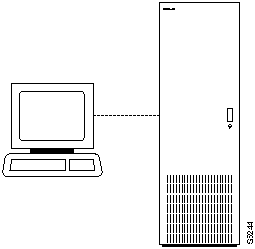
The control terminal provides control of the network from any routing node. A remote access command is available for controlling the network from a node other than the node physically connected to the terminal. This command is the Virtual Terminal (vt) command. The vt command creates a communication channel for the operator to a remote node. Once a node is accessed by vt, command execution at the accessed node can begin. Most commands and tasks that are executable at the local node are also executable at a remote node.
The StrataView Plus Network Management Station provides network management capabilities for multi-node networks. StrataView Plus also collects and displays statistics. For access, StrataView Plus operates in LAN mode or telnet mode. (As of Release 8.0, access through the serial port is no longer possible.) Refer to the StrataView Plus Operations Manual for more information.
Powering Up the Control Terminal
After the node receives power and correctly starts up, the terminal screen appears as shown below. If the screen is blank or does not display the initial screen, check all connections to the node, and make sure the terminal and node are receiving power. If the connections are correct, press the Delete key a few times or cycle the terminal power.
Figure 2-1 :
gamma          TRM   YourID:1        IPX 16    8.2    Mar. 15 1996  13:47 CST


Enter User ID:
To collect statistics, the StrataView Plus workstation must operate in StrataView mode, not terminal mode. A PC-type terminal always operates in terminal mode.
The User-Command Screen Layout
The screen has three areas. The top line of the screen (status line) displays the node name, current user name, software revision level, date, time and time zone. If the date and time have not been configured on the node, the screen states this.
The middle part of the screen shows the information returned by command execution. This could be, for example, configuration information or statistical information.
The bottom area of the screen displays prompts for the next command or the current command parameters. As the system receives the entered parameters, it duplicated them above the command entry line to serve as a record of the entries. The bottom area also shows the last entered command.
All command screens eventually time out. This includes dynamically updated screens such as the display for the dspbob command. Furthermore, if sufficient time passes, the user is logged out.
This section describes command entry for those who are unfamiliar with StrataCom equipment. It also describes the online help for the commands.
Each user command can have one or more privilege levels. Entry of a particular command is possible for a user at the same or higher privilege of the command. Each definition in this manual shows the privilege or range of privileges for the command.
When the Next Command prompt is at the bottom of the screen, the system is ready for a new command. Some commands do not require parameters. These usually are commands for displaying information. Display commands often have no required parameters but have one or more optional parameters for changing the scope of displayed information. Commands that require parameters usually prompt for each parameter. To abort a command for any reason, press the Delete key. More information for altering command line entries appears in the forthcoming section called "In case of a mistake."
The general syntax is command <parameter(s)> [optional parameter(s)]. When a command definition displays actual parameters, the required parameters appear within the arrow heads (<>). If the list of command parameters is too long, the command definition's "Syntax" field just shows "parameters," which means the parameters are available only in the parameters table for the definition. For information on the format of system resource numbering, see the forthcoming section titled "How network trunks, lines, and channels are numbered."
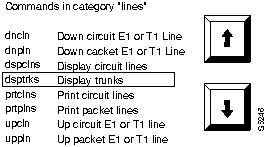
Users who are not familiar with the system can use the online help feature to become familiar with the categories of commands and obtain syntax information on a command. Seven categories of commands exist. The figure below lists them. To enter a command from the menu, do the following:
Figure 2-2 :
Figure 2-3 : Entering a Command A faster way to enter a command, using fewer keystrokes, is to enter the command on the command line, then press the RETURN key. The system prompts you for any additional parameters required to complete the command. The fastest way to enter a command, using the fewest keystrokes, requires that you know the command along with the necessary parameters. Enter the command name and all of the required parameters in the correct format, then press the RETURN key.
The command category menu is listed when you press the ESCAPE key. The commands are organized into seven categories. These categories are not the categories used to organize this manual. The following lists and describes the command categories.
Table 2-1 :
You can abort any command by pressing the DELETE key [on terminals without a DELETE key, you may need to type SHIFT-BACKSPACE or some other key(s) to perform the DELETE function]. The Next Command: prompt appears at the bottom of the screen indicating that you can enter another command. The command you aborted appears in low intensity letters on the screen after the Last Command: prompt.
Most of the command names follow a descriptive verb and noun format. For example, the addcon command adds a connection, the delcon command deletes a connection, and the dspcon command displays information about a connection. The following lists and describes the command verbs.
Table 2-2 :
When you enter a command, it displays next to the Last Command: prompt at the bottom of the screen. Press the Ctrl and A keys simultaneously to copy the command to the new command line. You can edit the command line and then press the RETURN key, to execute the previous command. You can also enter an exclamation mark (!) followed by the first letter or letters of a previous command and press the RETURN key. For example, to repeat the dspcons command:
Press the RETURN key. You can use the Display Command History (.) command to display the 12 most recently executed commands:
Before you press the Return key, you can use control keys to edit a typed command. The following lists the control key you can use to edit information on the command line. Not all terminals have the same key characters. If the exact key is not available on your terminal, check to see which key performs the function.
Table 2-3 :
Access to the commands is password protected. To access the commands, type your user ID and user password at the log-in prompts. Each user is assigned a privilege level for command usage by the System Manager. There are six user privilege levels, ranging from 1 to 6. Level 1 has access to all the commands and level 6 has access to the fewest commands. A given privilege level has access to all levels below it. For example, level 3 has access to levels 3 through 6. The privilege level for each command is part of the command summary.
Commands supported by release 8.2
The screens and examples in this manual come network equipped with BPX, IPX, and IGX nodes with both narrowband (T1 and E1) trunks and broadband (DS3 and OC3) ATM trunks. IPX and IGX nodes run T3, E3, T1, and E1 services.
Commands associated with optional software features function only if the option has been purchased and activated for each node in the network. Optional features are activated from the StrataCom ISC. The features that fall into this category are:
The system software itself provides a command help function. This function resides in system software and consists of a list of all commands and a display of the command syntax. Entering "help" or "?" with no parameters displays a list of the seven command categories. These categories are listed below. Entering "help" and a command name displays the command syntax. Entering "help" and the few letters of a command lists all commands containing these characters. For example, "help fr" will list all commands containing the letters "fr". A particular command can then be selected from this list for help information.
The On-Line Help feature of StrataView Plus provides more detailed command information. Hypertext links allow you to navigate through command category lists, alphabetical indexes, and the command descriptions. Refer to the StrataView Plus Operations Manual for more information.
The Numbering of Trunks, Lines, and Channels
The information contained in this manual allow you to setup, configure, and maintain data traffic running across trunks, lines, and channels. The following information specifies numbering conventions for trunks, lines, and channels.
Table 2-4 :
Copyright 1988-1996 © Cisco Systems Inc.
gamma          TRM   YourID:1        IPX 16    8.2     Mar. 15 1996 13:47 CST

All commands fall into one (or more) of the following categories:

Control Terminal
Configuration
Lines
Network
Connections
Cards
Alarms and Failures


This Command: ?


Use cursor keys to select category and then hit <RETURN> key:
Category
Description
Control Terminal
These commands let you configure your password, serial port and printer functions, use the help facility, establish virtual terminal connections, and create and edit jobs.
Configuration network and line timing.
These commands configure voice and data channels, and display network configuration.
Lines
These commands activate and deactivate circuit lines display the status of lines.
Network
These commands add and delete trunks, configure a node name, and display and print network status.
Connections
These commands add, delete, and display circuit (voice and data) and FastPacket data channel connections, configure network routing and connection characteristics (Frame Relay and ATM), and perform connection.
Cards
These commands activate, deactivate, and reset printed circuit cards, and display power supply status.
Alarms and Failures
These commands display, print, and clear alarms, errors, and network history. They also configure alarm thresholds.
Format
Mnemonic
Descriptor
Verb
add
Add
bye
Bye
clr
Clear
cnf
Configure
cpy
Copy
del
Delete
dn
Down
dsp
Display
edit
Edit
grp
Group
help
Help
prt
Print
red
Redraw
reset
Reset
run
Run
stop
Stop
switch
Switch
tst
Test
Noun
adv
Adaptive voice
ait
AIT
alm(s)
Alarms
bob
Breakout box
bus(es)
Bus(es)
cd(s)
Card(s)
ch
Channel
clk
Clock
cln(s)
Circuit line(s)
cls
Class
cnf
Configuration
con(s)
Connection(s)
congrp
Connection group
cond
Conditioning
cos
Class of service (COS)
d
Data
date
Date
dfm
DFM
dial
Dial
dl
Dial type
Nouns (continued)
dsc
Descriptor
eia
EIA
errs
Errors
extlp
External loop
fp
FastPAD
fr
Frame relay
ftc
FTC
func
Function
gn
Gain insertion
grp(s)
Group(s)
ict
Interface control template
ip
IP
job(s)
Job(s)
lcn
Logical connection
ln(s)
Line(s)
load
Load
loclp
Local loop
log
Log
mc
multicast
msg
Message
name
Name
nw
Network
ospace
Open space
parm(s)
Parameter(s)
port
Port
pref
Preference
prt
Printer
pwr
Power
rcv
Receiver
red
Redundant
rmtlp
Remote loop
rts
Routes
scr
Screen
seg
Segment
sig
Signal
slot
Slot
snmp
SNMP
src(s)
Source(s)
st
Status
Nouns (continued)
stats
Statistics
stby
Standby
sys
System
term
Terminal
tmzn
Time zone
tp
Type
trig
Trigger
trk(s)
Trunk(s)
user
User
utl
Utilization
xmt
Transmit
yred
Y-cable redundancy
  12:

  11:

  10:

    9:

    8:

    7:  prtscrn

    6:  addcon 12.1 alpha 12.1 v

    5:  delcon 12.1

    4:  cnfport a 1200 n 8 1 x x n

    3:  cnftime 17 19 34

    2:  redscrn

    1:  help
Function
Keys
Cursor Movement
Move the cursor
Ctrl-B
Moves the cursor left one word.
Ctrl-F
Moves the cursor right one word.
Ctrl-L
Moves the cursor right one character.
Ctrl-G
Moves the cursor left one character.
Arrows
Moves the cursor in the direction of the arrow.
Delete
Ctrl-W
Deletes a character.
CHAR DEL
Deletes a character.
Ctrl-H
Moves the cursor left one character and deletes that character.
Ctrl-D
Deletes all characters from the cursor position to the end of the line.
Ctrl-X
Deletes a line.
BACKSPACE
Moves the cursor left one character and deletes that character.
Insert
Ctrl-I
Toggles insert mode.
TAB
Toggles insert mode.
CHAR INSERT
Toggles insert mode.
Ctrl-^
Inserts line.
Miscellaneous
*
Leave the data in this field as it is displayed and go to the next field.
DELETE
Aborts command.
Ctrl-M
Carriage Return.
RETURN
Carriage Return.
Ctrl-S
Stops the flow of data from the IPX to the terminal screen.
Ctrl-Q
Restarts the flow of data from the IPX.
Miscellaneous (continued)
Ctrl-A
Copies the last command line.
! (..)
(The exclamation mark followed by the first characters or character of a command, brings that command back to the command line.)
Trunk, line, or channel
Description
CDP/CVM Circuit Line and
NTC/NTM Trunk
The number assigned to a CDP or CVM circuit line (CLN) or an NTC or NTM trunk (TRK) is the backslot number of the BC-T1 or BC-E1 back card in the physical slot where the CLN or TRK is connected to the IPX or IGX. In the case of redundant pairs, it is the slot associated with the primary back card.
AIT Trunk
The number assigned to the backslot of the BC-T3 or BC-E3 backcard.
BPX Trunk Numbers
The number assigned to a BPX trunk (TRK) is the backslot number and port (1 - 3) of the BNI (slot.port; example, 2.1) card to which the T3 trunk cable is attached.
Voice Channel Numbers
A voice channel is specified by "SLOT.CH". Sets of voice channels are specified by "SLOT.CH-CH". The notation "SLOT" refers to the back slot number of a circuit line and "CH" refers to a channel (1-24 for T1 or 1-31 for E1). For example, "12.1" indicates channel 1 on circuit line 12, and "12.1-9" indicates channels 1-9 on circuit line 12.
Data Channel Numbers
Data channels are specified by "SLOT.PORT", where "SLOT" refers to the slot number of a data card, and "PORT" refers to a port on that data card. For example, "9.3" specifies port 3 on the data card in slot 9. The notation "9.1-4" refers to ports 1-4 on that card. The range of port numbers is from 1 to 4 for SDI and DDS data cards. An appended "a", for example; 11.1-5a, indicates the channels are configured to use the super-rate alternating channel feature.
Frame relay channel
numbers (local addressing)
In the local addressing convention, frame relay channels are specified by "SLOT.PORT.DLCI", where "SLOT" refers to the slot number of an FRP, "PORT" refers to a port on the FRP card, and "DLCI" is the local data link connection identifier. The range of port numbers is from 1 to 4. For example, the following addcon command at alpha:
The command adds a connection between alpha and beta. The user device at alpha refers to this connection using the local DLCI of 101. The user device at beta refers to this connection using the local DLCI of 102. The DLCIs have local significance only. With local addressing, the same DLCI can be used again, but not for more than one destination from the same port. For example, the following adds another connection from alpha port 6.1:
In this case, a DLCI of 100 is used at alpha. A DLCI of 102 can be used at gamma as well as at beta, because the DLCIs have only local significance.
Frame relay channel numbers (Global Addressing)
In the global addressing, the format for frame relay channel specification is "SLOT.PORT.DLCI." However, each FRP or FRM port (and associated user device) is identified by a unique DLCI. No two ports in the network can have the same DLCI. For example, alpha port 6.1, gamma port 6.2, and beta port 4.1 could be assigned unique DLCIs of 79, 80, and 81, when adding connections, as in the following example:
The user device at alpha refers to the connection between alpha and gamma, using the DLCI of 80 assigned to gamma. The user device at gamma refers to this connection using the DLCI of 79 assigned to alpha. The user device at alpha refers to the connection between alpha and beta using the DLCI of 81 assigned to beta. The user device at beta refers to this connection using the DLCI of 79 assigned to alpha. The user device at beta refers to the connection between beta and gamma using the DLCI of 80 assigned to gamma. The user device at gamma refers to this connection using the DLCI of 81 assigned to beta.
addcon 6.1.81 beta 4.1.79 1 (at alpha)
addcon 4.1.80 gamma 6.2.81 5 (at beta)
For information on adding frame relay connections through a FastPAD, refer to the command descriptions in the FastPAD Users's Guide.
