


|
|

To continue your ATM port adapter installation, you must install the port adapter cables and configure the ATM interfaces. The instructions that follow apply to all supported platforms. Minor differences between the platforms are noted.
For information on ATM port adapter interface cables, see the section "ATM Port Adapter Interface Cables," in the chapter "Product Overview," earlier in this document.
If you installed a new ATM port adapter or if you want to change the configuration of an existing interface, you must enter configuration mode using the configure command. If you replaced an ATM port adapter that was previously configured, the system will recognize each new ATM port adapter and bring it up in its existing configuration.
After you verify that the new ATM port adapter is installed correctly (the enabled LED goes on), use the privileged-level configure command to configure the new interfaces. Be prepared with the information you will need, such as the following:
The configure command requires privileged-level access to the EXEC command interpreter, which usually requires a password. Contact your system administrator if necessary to obtain EXEC-level access. For a summary of the configuration options available and instructions for configuring the ATMs on a Cisco 7200 series routers, Cisco uBR7246 universal broadband router, or the VIP2, refer to the appropriate configuration publications listed in the section
In order to configure the ATM port adapter and LAN emulation clients (LECs) for LAN emulation (LANE), refer to the Wide-Area Networking Configuration Guide.
The following section describes how to identify chassis slot, port adapter slot, and ATM notifies port numbers for the Cisco 7200 series routers, Cisco uBR7246 universal broadband router, and the VIP2.
Physical port addresses specify the actual physical location of each interface port on the router. In the Cisco 7200 series routers and Cisco uBR7246 universal broadband router, this address is composed of a two-part number in the format port adapter slot number/interface port number, as follows:
Interface ports maintain the same address regardless of whether other port adapters are installed or removed from the slot. However, when you move a port adapter to a different slot, the first number in the address changes to reflect the new port adapter slot number.
Figure 6-1 shows the port adapter slots and interface ports of a Cisco 7206. The port adapter slot numbers start with 1 and continue through 6 (slot 0 is always reserved for the Fast Ethernet port on the I/O controller--if present). The first interface port number is always 0. The number of additional ports depends on the number of ports on a port adapter.
For example, an ATM port adapter in port adapter slot 3 would have the following address: 3/0. (See Figure 6-1.) If the ATM port adapter was in port adapter slot 1, these same interface port would be numbered 1/0.
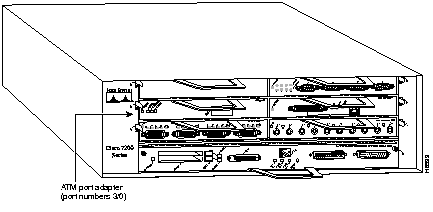
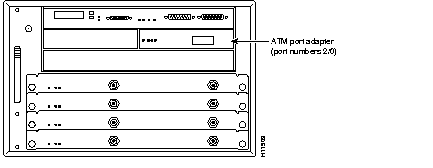
Figure 6-2 shows the port adapter slots and interface ports of a Cisco uBR7246. The port adapter slots are numbered slot 1 and slot 2 (slot 0 is always reserved for the Fast Ethernet port on the I/O controller--if present). The individual interface port numbers always begin with 0. The number of additional ports depends on the number of ports on a port adapter.
For example, an ATM port adapter in port adapter slot 3 would have the following address: 3/0. (See Figure 6-2.) If the ATM port adapter was in port adapter slot 1, these same interface port would be numbered 1/0. Port adapters can occupy either port adapter slot. There are no restrictions.
You can also identify interface ports by physically checking the slot/interface port location on the front of the router or by using show commands to display information about a specific interface or all interfaces in the router.
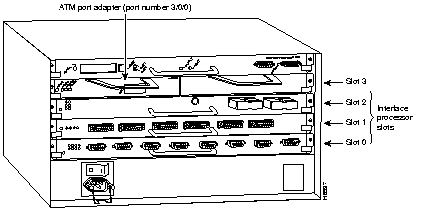
On the VIP2 installed in Cisco 7500 series routers, physical port addresses specify the actual physical location of each interface port on the router interface processor end. (See Figure 6-3.) This address is composed of a three-part number in the format chassis slot number/port adapter number/interface port number, as follows:
Interface ports on the VIP2 maintain the same address regardless of whether other interface processors are installed or removed. However, when you move a VIP2 to a different slot, the first number in the address changes to reflect the new interface processor slot number. Figure 6-3 shows the port adapter slots and interface ports of a typical Cisco 7505 system. On the VIP2, the first port adapter slot number is always 0. The second port adapter slot number is always 1. The first interface port number is always 0. The number of additional ports depends on the number of ports on a port adapter.
For example, the ATM port on an ATM port adapter in the first port adapter slot in interface processor slot 3, is numbered 3/0/0. (See Figure 6-3.) If the ATM port adapter was in port adapter slot 1, this same port would be numbered 3/1/0. Port adapters can occupy either port adapter slot; there are no restrictions. If you removed the ATM-equipped VIP2 from interface processor slot 3 (shown in Figure 6-3) and installed it in interface processor slot 2, the address of the same ATM port becomes 2/0/0.
You can identify interface ports by physically checking the slot/port adapter/interface port location on the back of the router or by using show commands to display information about a specific interface or all interfaces in the router.
This section provides the procedure for a basic interface configuration.
Press the Return key after each step unless otherwise noted. At any time you can exit the privileged level and return to the user level by entering disable at the prompt as follows:
Router# disable
Router>
Use the following procedure to perform a basic configuration:
Step 1 At the privileged-level prompt, enter configuration mode and specify that the console terminal will be the source of the configuration subcommands, as follows:
configure terminal
Step 2 For the Cisco 7200 series and Cisco uBR7246, at the prompt specify the interface to configure by entering the subcommand interface, followed by the type (atm) and slot/port (port adapter slot number and interface port number). The example that follows is for the interface of the port adapter in slot 2:
interface atm 2/0
For the VIP2, at the prompt specify the first interface to configure by entering the subcommand interface, followed by the type (atm) and slot/port-adapter/port (interface processor slot number, port adapter slot number, and interface port number). The example that follows is for the first interface of the first port adapter on a VIP2 in interface processor slot 1:
interface atm 1/0/0
Step 3 If IP routing is enabled on the system, you can assign an IP address and subnet mask to the interface with the ip address configuration subcommand, as in the following example:
ip address 192.168.1.10 255.255.255.0
Step 4 Add any additional configuration subcommands required to enable routing protocols and set the interface characteristics.
Step 5 Change the shutdown state to up and enable the interface as follows:
no shutdown
Step 6 Repeat Step 2 through Step 5 to configure additional interfaces as required.
Step 7 When you have completed the configuration, press Ctrl-Z to exit configuration mode.
Step 8 Write the new configuration to nonvolatile memory as follows:
copy running-config startup-config
To check the interface configuration using show commands, proceed to the section "Checking the Configuration."
After configuring the new interface, use show commands to display the status of the new interface or all interfaces and use the ping command to check connectivity.
Use show commands to verify that the new interfaces are configured and operating correctly, as follows:
Step 1 Display the system hardware configuration with the show version command. Ensure that the list includes the new interfaces.
Step 2 For the Cisco 7200 series and the Cisco uBR7246, display all the current port adapters and their interfaces with the show controllers command. Verify that the new ATM port adapter appears in the correct slot.
For the VIP2, display all the current interface processors and their interfaces with the show controllers cbus command. Verify that the new VIP2 appears in the correct slot.
Step 3 For the Cisco 7200 series and the Cisco uBR7246, specify one of the new interfaces with the show interfaces port adapter type slot/interface command and verify that the first line of the display specifies the interface with the correct slot number. Also verify that the interface and line protocol are in the correct state: up or down.
For the VIP2, specify one of the new interfaces with the show interfaces type slot/port adapter/interface command and verify that the first line of the display specifies the interface with the correct slot number. Also verify that the interface and line protocol are in the correct state: up or down.
Step 4 Display the protocols configured for the entire system and specific interfaces with the show protocols command. If necessary, return to configuration mode to add or remove protocol routing on the system or on specific interfaces.
Step 5 Display the running configuration file with the show running-config command. Display the configuration stored in NVRAM using the show startup-config command. Verify that the configuration is accurate for the system and for each interface.
If the interface is down and you configured it as up, or if the displays indicate that the hardware is not functioning properly, ensure that the network interface is properly connected and terminated. If you still have problems bringing the interface up, contact a service representative for assistance.
To display information about a specific interface, use the show interfaces command with the interface type and port address in the format show interfaces [type slot/port] for the Cisco 7200 series and the Cisco uBR7246, and in the format show interfaces [type slot/port adapter/port] for the VIP2.
Use the show interfaces command, with the interface type and port address in the format show interfaces type slot/port, to display information about a specific interface.
Following is an example of how the show interfaces atm type slot/port command displays status information (including the physical slot and port address) for the interfaces you specify. In this example, the ATM-configured port adapter is in port adapter slot 3:
Router# show int atm 3/0
ATM3/0 is up, line protocol is up
  Hardware is TI1570 ATM
  Internet address is 1.1.1.2/24
  MTU 4484 bytes, sub MTU 4470, BW 156250 Kbit, DLY 80 usec, rely 20/255, load 1/255
  Encapsulation ATM, loopback not set, keepalive set (10 sec)
  Encapsulation(s): AAL5, PVC mode
  2048 maximum active VCs, 1024 VCs per VP, 1 current VCCs
  VC idle disconnect time: 300 seconds
  Last input never, output 00:00:21, output hang never
  Last clearing of "show interface" counters 00:00:23
  Queueing strategy: fifo
  Output queue 0/40, 0 drops; input queue 0/75, 0 drops
  5 minute input rate 0 bits/sec, 0 packets/sec
  5 minute output rate 0 bits/sec, 0 packets/sec
     5 packets input, 560 bytes, 0 no buffer
     Received 0 broadcasts, 0 runts, 0 giants
     0 input errors, 0 CRC, 0 frame, 0 overrun, 0 ignored, 0 abort
     5 packets output, 560 bytes, 0 underruns
     0 output errors, 0 collisions, 0 interface resets
     0 output buffer failures, 0 output buffers swapped out
With the show interfaces type slot/port command, use arguments such as the interface type (atm, and so forth), and the port adapter slot and port number (slot/port) to display information about a specific interface only.
Display all the current interfaces with the show controllers command.
Use the show version (or show hardware) command to display the configuration of the system hardware (the number of each port adapter type installed), the software version, the names and sources of configuration files, and the boot images.
Following is an example of the output from the show version command:
Router# show version
Cisco Internetwork Operating System Software
IOS (tm) 7200 Software (C7200-J-M), Version 11.1(10)CA [biff 220]
Synced to mainline version: 11.1(10)CA
Copyright (c) 1986-1997 by cisco Systems, Inc.
Compiled Tue 07-Jan-97 21:02 by biff
Image text-base: 0x600088F0, data-base: 0x606B2000

ROM: System Bootstrap, Version 11.1(6), RELEASE SOFTWARE
ROM: 7200 Software (C7200-BOOT-M), Version 11.1(6), RELEASE SOFTWARE (fc1)

Router uptime is 1 minute
System restarted by reload
System image file is "biff/c7200-j-mz.970107", booted via tftp from 223.255.254.254

cisco 7206 (NPE150) processor with 26624K/6144K bytes of memory.
R4700 processor, Implementation 33, Revision 1.0 (512KB Level 2 Cache)
Last reset from power-on
Bridging software.
SuperLAT software copyright 1990 by Meridian Technology Corp).
X.25 software, Version 2.0, NET2, BFE and GOSIP compliant.
TN3270 Emulation software (copyright 1994 by TGV Inc).
4 Ethernet/IEEE 802.3 interfaces.
1 ATM network interface.
125K bytes of non-volatile configuration memory.
1024K bytes of packet SRAM memory.

20480K bytes of Flash PCMCIA card at slot 0 (Sector size 128K).
4096K bytes of Flash internal SIMM (Sector size 256K).
Configuration register is 0x0
Use the show diag slot command to determine which type of port adapter is installed in your system. Specific port adapter information is displayed, as shown in the following example of an ATM port adapter in port adapter slot 3:
Router# show diag 3
Slot 3:
        ATM OC3 (MM) port adapter, 1 port
        Port adapter is analyzed
        Port adapter insertion time 00:02:05 ago
        Hardware revision 1.0           Board revision UNKNOWN
        Serial number     2827483       Part number    73-1843-02
        Test history      0xFF          RMA number     255-255-255
        EEPROM format version 1
        EEPROM contents (hex):
          0x20: 01 17 01 00 00 2B 24 DB 49 07 33 02 FF FF FF FF
          0x30: 04 00 FF FF FF FF FF FF FF FF FF FF FF FF FF FF
Proceed to the section "Using the ping Command to Verify Network Connection" to verify that each interface port is functioning properly.
Following is an example of how the show interfaces [type slot/port-adapter/port] command displays status information (including the physical slot and port address) for the interfaces you specify. In this example, the ATM-configured VIP2 is in interface processor slot 5, in port adapter slot 0.
Router# sh int a0/0/0
ATM0/0/0 is up, line protocol is up
  Hardware is cyBus ATM
  Internet address is 1.1.1.1/24
  MTU 4470 bytes, sub MTU 4470, BW 156250 Kbit, DLY 80 usec, rely 255/255, load 1/255
  Encapsulation ATM, loopback not set, keepalive set (10 sec)
  Encapsulation(s): AAL5, PVC mode
  256 TX buffers, 256 RX buffers,
  2048 maximum active VCs, 1024 VCs per VP, 1 current VCCs
  VC idle disconnect time: 300 seconds
  Last input never, output 00:00:05, output hang never
  Last clearing of "show interface" counters never
  Queueing strategy: fifo
  Output queue 0/40, 0 drops; input queue 0/75, 0 drops
  5 minute input rate 0 bits/sec, 1 packets/sec
  5 minute output rate 0 bits/sec, 1 packets/sec
     5 packets input, 560 bytes, 0 no buffer
     Received 0 broadcasts, 0 runts, 0 giants
     0 input errors, 0 CRC, 0 frame, 0 overrun, 0 ignored, 0 abort
     5 packets output, 560 bytes, 0 underruns
     0 output errors, 0 collisions, 0 interface resets
     0 output buffer failures, 0 output buffers swapped out
With the show interfaces type slot/port-adapter/port command, use arguments such as the interface type (atm, and so forth) and the slot, port adapter, and port numbers (slot/port-adapter/port) to display information about a specific interface only.
The show version (or show hardware) command displays the configuration of the system hardware (the number of each interface processor type installed), the software version, the names and sources of configuration files, and the boot images. Following is an example of the show version command used with a Cisco 7500 series system with an RSP7000 processor:
Router# show version
Cisco Internetwork Operating System Software
IOS (tm) GS Software (RSP-PV-M), Version 11.1(9)CA1 [biff 269]
Synced to mainline version: 11.1(9)CA1
Copyright (c) 1986-1997 by cisco Systems, Inc.
Compiled Wed 08-Jan-97 04:17 by biff
Image text-base: 0x60010900, data-base: 0x60746000

ROM: System Bootstrap, Version 5.3(16645) [biff 571], INTERIM SOFTWARE
ROM: GS Bootstrap Software (RSP-BOOT-M), Version 10.3(8), RELEASE SOFTWARE (fc2)

Router uptime is 1 minute
System restarted by reload
System image file is "biff/rsp-pv-mz.970107", booted via tftp from 223.255.254.254

cisco RSP2 (R4600) processor with 16384K bytes of memory.
R4600 processor, Implementation 32, Revision 2.0
Last reset from power-on
G.703/E1 software, Version 1.0.
X.25 software, Version 2.0, NET2, BFE and GOSIP compliant.
Chassis Interface.
1 EIP controller (2 Ethernet).
1 VIP2 controller (1 ATM).
2 Ethernet/IEEE 802.3 interfaces.
1 ATM network interface.
125K bytes of non-volatile configuration memory.

8192K bytes of Flash internal SIMM (Sector size 256K).
No slave installed in slot 7.
Configuration register is 0x100
Use the show diag slot command to determine which type of port adapter is installed on a VIP2 in your system. Specific port adapter information is displayed, as shown in the following example of an ATM port adapter in interface processor slot 0:
Router# show diag 0
Slot 0:
        Physical slot 0, ~physical slot 0xF, logical slot 0, CBus 0
        Microcode Status 0x4
        Master Enable, LED, WCS Loaded
        Board is analyzed
        Pending I/O Status: None
        EEPROM format version 1
        VIP2 controller, HW rev 2.3, board revision A0
        Serial number: 03515951 Part number: 73-1684-03
        Test history: 0x00        RMA number: 00-00-00
        Flags: cisco 7000 board; 7500 compatible

        EEPROM contents (hex):
          0x20: 01 15 02 03 00 35 A6 2F 49 06 94 03 00 00 00 00
          0x30: 50 00 00 00 00 00 00 00 00 00 00 00 00 00 00 00

        Slot database information:
        Flags: 0x4      Insertion time: 0x10CC (00:01:19 ago)

        Controller Memory Size: 16 MBytes DRAM, 1024 KBytes SRAM

        PA Bay 0 Information:
                ATM PA, 1 ports
                EEPROM format version 1
                HW rev 1.0, Board revision UNKNOWN
                Serial number: 02025546 Part number: 73-1843-02
Use the show controllers cbus command to display all the current interface processors and their interfaces. Following is an example of the show controller cbus command that shows ATM port 0/0/0 on an ATM port adapter installed on a VIP2 in interface processor slot 0:
Router# sh cont cbus
MEMD at 40000000, 2097152 bytes (unused 2080, recarves 1, lost 0)
  RawQ 48000100, ReturnQ 48000108, EventQ 48000110
  BufhdrQ 48000128 (2969 items), LovltrQ 48000140 (5 items, 2016 bytes)
  IpcbufQ 48000150 (16 items, 4096 bytes)
  IpcbufQ_classic 48000148 (8 items, 4096 bytes)
  3570 buffer headers (48002000 - 4800FF10)
  pool0: 10 buffers, 256 bytes, queue 48000130
  pool1: 229 buffers, 1536 bytes, queue 48000138
  pool2: 329 buffers, 4544 bytes, queue 48000158
  pool3: 4 buffers, 4576 bytes, queue 48000160
  slot0: VIP2, hw 2.3, sw 21.40, ccb 5800FF20, cmdq 48000080, vps 8192
    software loaded from system
    IOS (tm) VIP Software (SVIP-DW-M), Version 11.1(9) [biff 272]
    ROM Monitor version 17.0
    ATM0/0/0, applique is SONET (155Mbps)
      gfreeq 48000158, lfreeq 48000168 (4544 bytes), throttled 0
      rxlo 4, rxhi 329, rxcurr 1, maxrxcurr 2
      txq 48001A00, txacc 48001A02 (value 329), txlimit 329
(additional displayed text omitted from this example)
Proceed to the section "Using the ping Command to Verify Network Connection" to verify that each interface port is functioning properly.
The packet internet groper (ping) command allows you to verify that an interface port is functioning properly and to check the path between a specific port and connected devices at various locations on the network. This section provides brief descriptions of the ping command. After you verify that the system has booted successfully and is operational, you can use this command to verify the status of interface ports. For complete command descriptions and examples, refer to the publications listed in the section"If You Need More Information," in the chapter "About This Document," earlier in this document.
The ping command sends an echo request to a remote device at an IP address that you specify. After sending a series of signals, the command waits a specified time for the remote device to echo the signals. Each returned signal is displayed as an exclamation point (!) on the console terminal; each signal that is not returned before the specified time-out is displayed as a period (.). A series of exclamation points (!!!!!) indicates a good connection; a series of periods (.....) or the messages [timed out] or [failed] indicate that the connection failed.
Following is an example of a successful ping command to a remote server with the address 1.1.1.10:
Router# ping 192.168.1.10
Type escape sequence to abort.
Sending 5, 100-byte ICMP Echoes to 192.168.1.10, timeout is 2 seconds:
!!!!!
Success rate is 100 percent (5/5), round-trip min/avg/max = 1/1/1 ms
Router#
If the connection fails, verify that you have the correct IP address for the remote device and that the remote device is active (powered on), and repeat the ping command. For complete command descriptions and examples for the Cisco 7200 series routers, Cisco uBR7246 universal broadband routers, and the VIP2, refer to the publications listed in the section "If You Need More Information," in the chapter "About This Document" earlier in this document.
The ATM port adapter interface is referred to as atm in the Route Processor (RP) configuration commands. An interface is created for each ATM port adapter found in the system at reset time. To select a specific ATM port adapter interface, use the interface command, followed by the type (atm) and slot/port-adapter/port (interface processor slot number, port adapter slot number for VIP2 only, and interface port number) as follows:
VIP2 usage:
VIP2#interface atm1/0/0
Cisco 7200 series and Cisco uBR7246 usage:
7200#interface atm1/0
To set the maximum transmission unit (MTU) size, use the following command:
mtubytesorno mtu
where bytes is in the range of 64 through 9188 bytes and the default is 4470 bytes. (4470 bytes exactly matches FDDI and HSSI interfaces for autonomous switching.) The no form of the command restores the default.
In STM-1 mode, the ATM port adapter sends idle cells for cell-rate decoupling. In STS-3C mode, the ATM port adapter sends unassigned cells for cell-rate decoupling. The default SONET setting is STS-3C. To configure for STM-1, use the following command:
atm sonet stm-1
To change back to STS-3C, use the no atm sonet stm-1 command.
To configure an ATM interface for local loopback (useful for checking that the ATM port adapter is working), use the following command:
loopback diagnosticno loopback diagnostic
The no form of the command turns off local loopback.
To configure an ATM interface for external loopback, use the following command:
loopback lineno loopback line
The no form of the command turns off external loopback at the line.
By default, the ATM port adapter uses the recovered receive clock to provide transmit clocking. To specify that the ATM port adapter generates the transmit clock internally for SONET, use the following command:
atm clock internal
A VC is a point-to-point connection between remote hosts and routers. A VC is established for each ATM end node with which the router communicates. The characteristics of the VC are established when the VC is created and include the following:
Each VC supports the following router functions:
By default, fast switching is enabled on all ATM port adapter interfaces. These switching features can be turned off with interface configuration commands. Autonomous switching must be explicitly enabled per interface.
All permanent virtual circuits (PVCs) configured into the router remain active until the circuit is removed from the configuration. The PVCs also require a permanent connection to the ATM switch. All virtual circuit characteristics apply to PVCs. When a PVC is configured, all the configuration options are passed on to the ATM port adapter. These PVCs are writable into the nonvolatile RAM (NVRAM) as part of the Route Processor (RP) configuration (Cisco 7200 series) and are used when the RP image is reloaded.
Some ATM switches have point-to-multipoint PVCs that do the equivalent of broadcasting. If a point-to-multipoint PVC exists, then that PVC can be used as the sole broadcast PVC for all multicast requests.
To configure a PVC, you must perform the following tasks:
See the Wide-Area Networking Configuration Guide for more information on creating PVCs on the Cisco 7000 family of routers. Also see the section "ATM Configuration Examples," later in this chapter.
When you create a PVC, you create a virtual circuit descriptor (VCD) and attach it to the virtual path identifier (VPI) and virtual channel identifier (VCI). A VCD is an ATM port adapter-specific mechanism that identifies to the ATM port adapter which VPI/VCI to use for a particular packet. The ATM port adapter requires this feature to manage packets for transmission. The number chosen for the VCD is independent of the VPI/VCI used. When you create a PVC, you also specify the AAL and encapsulation. A rate queue is used that matches the default peak and average rate, which are equal, and are specified in kilobits per second. To create a PVC on the ATM port adapter interface, use the atm pvc command. To remove a PVC, use the no form of this command.
atm pvcvcd vpi vci aal-encapno atm pvc vcd
For example:
Router(config)#interface atm 2/0Router(config-if)#atm pvc 2048 255 128 aal5snap
vcd--A per-ATM port adapter unique index value describing this VC in the range of 1 to MAXVC. (For Cisco 7200 series systems with PA-A1 installed, MAXVC is fixed at 2047; the VCD value is not configurable. For Cisco 7000 series and Cisco 7500 series systems with a VIP2-based PA-A1 installed, the value of MAXVC is 2047 and the VCD value is configurable from 1 to MAXVC.)
vpi--The ATM network VPI to use for this VC in the range of 0 through 255.
vci--The ATM network VCI to use for this VC in the range of 0 through 2,048.
aal-encap--The encapsulation type to use on this VC from the following:
The atm pvc command creates PVC n and attaches the PVC to VPI and VCI. The AAL used is specified by aal and encapsulation by encap.
The default for peak rate and average rate is that peak = average, and the PVC is automatically connected to the highest bandwidth rate queue available.
Cisco IOS software supports a mapping scheme that identifies the ATM address of remote hosts/routers. This address can be specified either as a VCD for a PVC or a network service access point (NSAP) address for SVC operation.
Enter mapping commands as groups; multiple map entries can exist in one map list. First create a map list, then associate the list with an interface.
Enter the map-list name command; then enter the protocol, protocol address, and other variables, as follows:
map-listnameprotocol [protocol] addressatm-vcvcd|atm-nsapnsap[broadcast]
The broadcast keyword specifies that this map entry receives the corresponding protocol broadcast requests to the interface (for example, any network routing protocol updates). If you do not specify broadcast, the ATM software is prevented from sending routing protocol updates to the remote hosts.
After you create the map list, specify the ATM interface to which it applies with the interface command, as follows:
VIP2 usage:
VIP2#interface atm1/0/0
7200 series and Cisco uBR7246 usage:
7200#interface atm1/0
Associate the map list to an interface with the following command:
map-groupname
You can create multiple map lists, but only one map list can be associated with an interface. Different map lists can be associated with different interfaces. The following is an example of the commands to map a list to an interface on a Cisco 7200 series router:
interface ATM3/0
 ip address 1.1.1.2 255.255.255.0
 map-group atm1
 atm clock INTERNAL
 atm pvc 1 0 1 aal5snap
!
no ip classless
!
map-list atm1
 ip 1.1.1.1 atm-vc 1 broadcast
ATM switched virtual circuit (SVC) service operates much like X.25 SVC service, although ATM allows much higher throughput. Virtual circuits are created and released dynamically, providing user bandwidth on demand. This service requires a signaling protocol between the router and the switch.
The ATM signaling software provides a method of dynamically establishing, maintaining, and clearing ATM connections at the User-Network Interface (UNI). The ATM signaling software conforms to ATM Forum UNI 3.0.
In UNI mode, the user is the router, and the network is an ATM switch. This is an important distinction. The Cisco router does not perform ATM-level call routing. Instead, the ATM switch does the ATM call routing, and the router routes packets through the resulting circuit. The router is viewed as the user and the LAN interconnection device at the end of the circuit, and the ATM switch is viewed as the network.
The Cisco router is used primarily to interconnect LANs via an ATM network. You can connect not only routers to ATM switches, but also any computer with an ATM interface that conforms to the ATM Forum UNI specification. See the Wide-Area Networking Configuration Guide for more information on configuring SVCs for the Cisco 7500 series, Cisco 7000 series, and Cisco 7200 series of routers, and the Cisco uBR7246 universal broadband routers. Also see the section "ATM Configuration Examples," later in this chapter.
The ATM port adapter maintains a count of certain errors. In addition to keeping a count of these errors, the ATM port adapter also snapshots the last VCI/VPI that caused the error. Each ATM port adapter error counter is 16 bits. Errors counted include the following:
The following debug commands are available to aid in solving ATM network problems:
After using a debug command, turn off debugging with the no debug command.
ATM show commands are available to display the current state of the ATM network and the connected VCs.
The show atm-vc [vcd] command, specifying a VCD, displays current VCs and traffic information. for the specific VCD. The show atm interface command displays ATM-specific information about an interface. The show atm traffic command displays global information about ATM traffic to and from all ATM networks connected to the router. The show atm map command displays the active list of ATM static maps to remote hosts on an ATM network.
The show controllers cbus command (VIP2 only) displays the internal status of each CxBus or CyBus interface processor, including the interface processor slot location, the card hardware version, and the currently-running microcode version. The show controllers cbus command also lists each interface (port) on each interface processor, including the logical interface number, interface type, physical (slot/port) address, and hardware (station address) of each interface.
The following example shows an ATM port adapter installed in interface processor slot 0:
router# show cont cbus
slot0: VIP2, hw 2.3, sw 21.40, ccb 5800FF20, cmdq 48000080, vps 8192
    software loaded from system
    IOS (tm) VIP Software (SVIP-DW-M), Experimental Version 11.1(10) [biff 272]
    ROM Monitor version 17.0
    ATM0/0/0, applique is SONET (155Mbps)
      gfreeq 48000158, lfreeq 48000168 (4544 bytes), throttled 0
      rxlo 4, rxhi 329, rxcurr 1, maxrxcurr 2
      txq 48001A00, txacc 48001A02 (value 329), txlimit 329
The show atm vc command displays the following types of statistics for all PVCs:
router# show atm vc
Intfc.   VCD   VPI   VCI   Input   Output  AAL/Encaps    Peak  Avg.  Burst
ATM4/0   2     2     2     951     0       AAL5-SNAP     0     0     0
ATM4/0   3     3     3     0       0       AAL5-SNAP     0     0     0
ATM4/0   4     4     4     162     0       AAL5-MUX      0     0     0
ATM4/0   6     6     6     2722    0       AAL5-SNAP     0     0     0
ATM4/0   7     7     7     733     0       AAL5-SNAP     0     0     0
Use the show atm-vc n command, where n is the VCD unique index value, to display statistics for a given PVC, as follows:
router# show atm-vc 4
ATM4/0: VCD: 4, VPI: 4, VCI: 4, etype:0xBAD, AAL5 - MUX, Flags: 0x34
PeakRate: 0, Average Rate: 0, Burst: 0 *32cells, Vcmode: 0xE200
InPkts: 164, OutPkts: 0, InFast: 0, OutFast: 0, Broadcasts: 0
Use the show interfaces command without arguments to display statistics for all interfaces in the system. Use the show interfaces atm slot/port command (Cisco 7200 series routers) to display statistics for the ATM interface you specify by its slot/port address as follows:
router# show int atm 3/0
ATM3/0 is up, line protocol is up
  Hardware is TI1570 ATM
  Internet address is 1.1.1.2/24
  MTU 4484 bytes, sub MTU 4470, BW 156250 Kbit, DLY 80 usec, rely 20/255, load 1/255
  Encapsulation ATM, loopback not set, keepalive set (10 sec)
  Encapsulation(s): AAL5, PVC mode
  2048 maximum active VCs, 1024 VCs per VP, 1 current VCCs
  VC idle disconnect time: 300 seconds
  Last input never, output 00:00:21, output hang never
  Last clearing of "show interface" counters 00:00:23
  Queueing strategy: fifo
  Output queue 0/40, 0 drops; input queue 0/75, 0 drops
  5 minute input rate 0 bits/sec, 0 packets/sec
  5 minute output rate 0 bits/sec, 0 packets/sec
     5 packets input, 560 bytes, 0 no buffer
     Received 0 broadcasts, 0 runts, 0 giants
     0 input errors, 0 CRC, 0 frame, 0 overrun, 0 ignored, 0 abort
     5 packets output, 560 bytes, 0 underruns
     0 output errors, 0 collisions, 0 interface resets
     0 output buffer failures, 0 output buffers swapped out
Use the show atm map command to display the PVC map as follows:
router# show atm map
Map list atm1 : PERMANENT
ip 1.1.1.1 maps to VC 1, broadcast
Use the show atm traffic command to display the interface traffic as follows:
router# show atm traffic
5 Input packets
5 Output packets
0 Broadcast packets
0 Packets received on non-existent VC
0 Packets attempted to send on non-existent VC
0 OAM cells received
0 OAM cells sent
Use the show sscop command to display SSCOP details for the ATM interface.
The show version command displays the configuration of the system hardware (the number of each interface processor type installed), the software version, the names and sources of configuration files, and the boot images.
Router> show version
Cisco Internetwork Operating System Software
IOS (tm) GS Software (RSP-PV-M), Version 11.1(9)CA1 [biff 269]
Synced to mainline version: 11.1(9)CA1
Copyright (c) 1986-1997 by cisco Systems, Inc.
Compiled Wed 08-Jan-97 04:17 by biff
Image text-base: 0x60010900, data-base: 0x60746000

ROM: System Bootstrap, Version 5.3(16645) [biff 571], INTERIM SOFTWARE
ROM: GS Bootstrap Software (RSP-BOOT-M), Version 10.3(8), RELEASE SOFTWARE (fc2)

Router uptime is 1 minute
System restarted by reload
System image file is "biff/rsp-pv-mz.970107", booted via tftp from 223.255.254.254

cisco RSP2 (R4600) processor with 16384K bytes of memory.
R4600 processor, Implementation 32, Revision 2.0
Last reset from power-on
G.703/E1 software, Version 1.0.
X.25 software, Version 2.0, NET2, BFE and GOSIP compliant.
Chassis Interface.
1 EIP controller (2 Ethernet).
1 VIP2 controller (1 ATM).
2 Ethernet/IEEE 802.3 interfaces.
1 ATM network interface.
125K bytes of non-volatile configuration memory.

8192K bytes of Flash internal SIMM (Sector size 256K).
No slave installed in slot 7.
Configuration register is 0x100
The show protocols command displays the global (system-wide) and interface-specific status of any configured Layer 3 protocol.
The show running-config command displays the currently running ATM port adapter configuration in RAM, as follows:
Router# show running-config
interface ATM3/0
 ip address 1.1.1.2 255.255.255.0
 map-group atm1
 atm clock INTERNAL
 atm pvc 1 0 1 aal5snap
For detailed configuration examples, refer to the router software publications listed in the section "If You Need More Information," in the chapter "About This Document" earlier in this document. The following sections contain examples of ATM interface configurations:
For examples of emulated LAN configurations, see the Wide-Area Networking Configuration Guide.
The following example creates PVC 5 on ATM interface 3/0 using LLC/SNAP encapsulation over AAL5. ATM interface 3/0 (IP address 1.1.1.2 255.255.255.0) connects with the ATM interface (IP address 1.1.1.1 255.255.255.0) at the other end of the connection. The static map list named atm declares that the next node is a broadcast point for multicast packets from IP.
interface ATM3/0
ip address 1.1.1.2 255.255.255.0
 map-group atm1
 atm clock INTERNAL
 atm pvc 1 0 1 aal5snap
!
no ip classless
!
map-list atm1
 ip 1.1.1.1 atm-vc 1 broadcast
The following example is of a typical ATM configuration for a PVC:
interface ATM4/0
ip address 131.108.168.112 255.255.255.0
map-group atm
atm pvc 1 1 1 aal5snap
atm pvc 2 2 2 aal5snap
atm pvc 6 6 6 aal5snap
atm pvc 7 7 7 aal5snap
clns router iso-igrp comet
!
router iso-igrp comet
net 47.0004.0001.0000.0c00.6666.00
!
router igrp 109
network 131.108.0.0
!
ip domain-name CISCO.COM
!
map-list atm
ip 131.108.168.110 atm-vc 1 broadcast
clns 47.0004.0001.0000.0c00.6e26.00 atm-vc 6 broadcast
atm-vc 2 broadcast
Figure 6-4 illustrates a fully meshed network. The configurations for Routers A, B, and C follow. In this example, the routers are configured to use PVCs. Fully meshed indicates that each network node has either a physical circuit or a virtual circuit connecting it to every other network node. Note that the two map-list statements configured in Router A identify the ATM addresses of Routers B and C. The two map-list statements in Router B identify the ATM addresses of Routers A and C. The two map list statements in Router C identify the ATM addresses of Routers A and B.

Router A
ip routing
!
interface atm 4/0
ip address 131.108.168.1 255.255.255.0
atm pvc 1 0 10 aal5snap
atm pvc 2 0 20 aal5snap
map-group test-a
!
map-list test-a
ip 131.108.168.2 atm-vc 1 broadcast
ip 131.108.168.3 atm-vc 2 broadcast
Router B
ip routing
!
interface atm 2/0
ip address 131.108.168.2 255.255.255.0
atm pvc 1 0 20 aal5snap
atm pvc 2 0 21 aal5snap
map-group test-b
!
map-list test-b
ip 131.108.168.1 atm-vc 1 broadcast
ip 131.108.168.3 atm-vc 2 broadcast
Router C
ip routing
!
interface atm 4/0
ip address 131.108.168.3 255.255.255.0
atm pvc 2 0 21 aal5snap
atm pvc 4 0 22 aal5snap
map-group test-c
!
map-list test-c
ip 131.108.168.1 atm-vc 2 broadcast
ip 131.108.168.2 atm-vc 4 broadcast
The following example is also a configuration for the fully meshed network shown in Figure 6-4, but using SVCs. PVC 1 is the signaling PVC.
Router A
interface atm 4/0
ip address 131.108.168.1 255.255.255.0
map-group atm
atm nsap-address AB.CDEF.01.234567.890A.BCDE.F012.3456.7890.1234.12
atm pvc 1 0 5 qsaal
!
map-list atm
ip 131.108.168.2 atm-nsap BC.CDEF.01.234567.890A.BCDE.F012.3456.7890.1334.13
ip 131.108.168.3 atm-nsap BC.CDEF.01.234567.890A.BCDE.F012.3456.7890.1224.12
Router B
interface atm 2/0
ip address 131.108.168.2 255.255.255.0
map-group atm
atm nsap-address BC.CDEF.01.234567.890A.BCDE.F012.3456.7890.1334.13
atm pvc 1 0 5 qsaal
!
map-list atm
ip 131.108.168.1 atm-nsap AB.CDEF.01.234567.890A.BCDE.F012.3456.7890.1234.12
ip 131.108.168.3 atm-nsap BC.CDEF.01.234567.890A.BCDE.F012.3456.7890.1224.12
Router C
interface atm 4/0
ip address 131.108.168.3 255.255.255.0
map-group atm
atm nsap-address BC.CDEF.01.234567.890A.BCDE.F012.3456.7890.1224.12
atm pvc 1 0 5 qsaal
!
map-list atm
ip 131.108.168.1 atm-nsap AB.CDEF.01.234567.890A.BCDE.F012.3456.7890.1234.12
ip 131.108.168.2 atm-nsap BC.CDEF.01.234567.890A.BCDE.F012.3456.7890.1334.13
Two routers, each containing an ATM port adapter, can be connected directly with a standard cable, which allows you to verify the operation of the ATM port or to directly link the routers in order to build a larger node.
Define Cisco 7500 series interfaces by interface type and physical slot/port location. The output of the show interfaces command displays the logical unit number in the router and the physical slot/port location in the Cisco 7500 series router. For complete configuration descriptions and examples, refer to the router software publications appropriate for your Cisco IOS software release.
To connect two routers, attach the cable between the ATM port on each.
By default, the ATM port adapter expects a connected ATM switch to provide transmit clocking. To specify that the ATM port adapter generates the transmit clock internally for SONET PLIM operation, add the atm clock internal command to your configuration.
Following is an example of configuration file commands for two routers connected through their SONET interface:
First router:
interface ATM3/0
ip address 192.168.1.10 255.0.0.0
no keepalive
map-group atm-in
atm clock internal
atm pvc 1 1 5 aal5snap
!
map-list atm-in
ip 192.168.1.20 atm-vc 1 broadcast
Second router
interface ATM3/0
ip address 192.168.1.20 255.0.0.0
no keepalive
map-group atm-in
atm clock internal
atm pvc 1 1 5 aal5snap
!
map-list atm-in
ip 192.168.1.10 atm-vc 1 broadcast
This completes the ATM port adapter interface installation and configuration.
|
|