


|
|

Product Number: PA-4B-U(=)
This configuration note describes how to install and configure the 4-port Basic Rate Interface (BRI) Integrated Services Digital Network (ISDN) port adapter (PA-4B-U), which is used in the Cisco 7200 series routers.
For complete descriptions of interface subcommands and the configuration options available for Cisco 7200 series-related interfaces, and which support the 4B-U port adapter functionality, refer to the appropriate software configuration publication listed in the section "If You Need More Information."
This configuration note is organized into three parts:
The section "Cisco Connection Online," on page 22, includes general reference information.
The Cisco Internetwork Operating System (Cisco IOS) software running your router contains extensive features and functionality. For additional information on configuring the Cisco 7200 series routers, the following documentation resources are available:
This section provides software and hardware requirements, a list of parts and tools you will need to perform the port adapter installation, and safety and ESD-prevention guidelines to help you avoid injury and damage to the equipment during installation. Also included is information on the systems in which port adapters can be installed and overview information on interface specifications.
The following sections discuss general information and information about port adapter installation requirements:
Following are specific hardware and software prerequisites to ensure proper operation of the 4B-U port adapter:
You need the following parts and tools to install a port adapter. If you need additional equipment, contact a service representative for ordering information.
Following are safety guidelines that you should observe when working with any equipment that connects to electrical power or telephone wiring.
Follow these basic guidelines when working with any electrical equipment:
Use the following guidelines when working with any equipment that is connected to telephone wiring or to other network cabling:
Electrostatic discharge (ESD) damage, which can occur when electronic cards or components are improperly handled, results in complete or intermittent failures. Port adapters and processor modules comprise printed circuit boards that are fixed in metal carriers. Electromagnetic interference (EMI) shielding and connectors are integral components of the carrier. Although the metal carrier helps to protect the board from ESD, use a preventive antistatic strap during handling.
Following are guidelines for preventing ESD damage:
 | Caution For safety, periodically check the resistance value of the antistatic strap. The measurement should be between 1 and 10 megohms. |
The 4B-U port adapter, shown in Figure 1, provides up to four U-type BRI interfaces for connecting Cisco 7200 series routers to an ISDN wide-area network through its internal network terminator (NT1) device. Each 4B-U interface consists of two bearer (B) channels that can transmit and receive data at the rate of 64-kilobits per second (kbps) or 56 kbps, full-duplex, and one data (D) channel that can transmit and receive data at the rate of 16 kbps, full-duplex. The B channels are used for transmitting user data. The D channel is used for call setup control and network connection teardown, and provides the communication from the router to the ISDN switch. The 4B-U port adapter supports dial-on-demand routing (DDR).
Each 4B-U interface is an RJ-45 receptacle. A standard straight-through twisted pair cable is available from Cisco Systems and other vendors for use with the 4B-U port adapter.

The following sections discuss information specific to the 4B-U port adapter locations, LEDs, and cable:
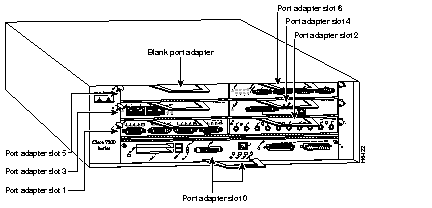
In the Cisco 7200 series routers, which consist of the Cisco 7204 and the Cisco 7206, port adapter slots are numbered from the lower left to the upper right, beginning with port adapter slot 1 and continuing through port adapter slot 4 for the Cisco 7204, and slot 6 for the Cisco 7206. Port adapter slot 0 is reserved for the optional Fast Ethernet port on the I/O controller. Figure 2 shows a Cisco 7206 with port adapters installed.
The 4B-U port adapter has an enabled LED, standard on all port adapters, and three status LEDs for each port. (Refer to Figure 3.)
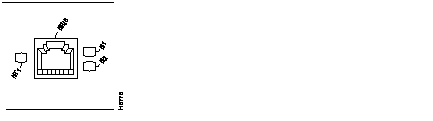
After system initialization, the enabled LED goes on to indicate that the port adapter has been enabled for operation.
The following conditions must be met before the 4B-U port adapter is enabled:
If any of the above conditions are not met, or if the initialization fails for other reasons, the enabled LED will not go on. Table 1 lists port LED status indications.
| Port LED | Status |
| NT1 | This green LED comes on and remains on when the integrated NT1 device is connected to an ISDN switch. |
| B1 | This green LED comes on when there is data traffic on channel B1. |
| B2 | This green LED comes on when there is data traffic on channel B2. |
The four U-type BRI interfaces on the 4B-U port adapter support a standard, straight-through twisted pair cable with an RJ-45 connector at the router (Cisco 7200 series) end and at the network end. Cisco Systems does not provide the cable; it is widely available from other vendors. Figure 4 shows the 4B-U interface cable.
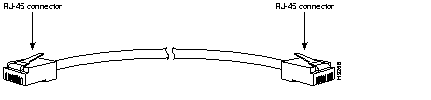
Table 2 lists the pinouts for the 4B-U interface cable.
| NT 1RJ-45 8-Pin2 Connector | Wire | LT1 RJ-45 8-Pin2 Connector |
|---|---|---|
| 4 | Signal2 | 4 |
| 5 | Signal | 5 |
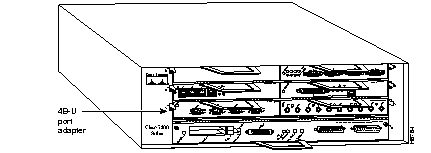
The 4B-U port adapter is used in the Cisco 7200 series and can be installed in any of the available port adapter slots. Figure 5 shows a 4B-U port adapter installed in port adapter slot 1 of a Cisco 7206.
The following sections include information that is specific to the 4B-U port adapter and its use in the Cisco 7200 series routers:
Depending on your circumstances, you might need to install a new port adapter in a Cisco 7200 series router or replace a failed port adapter in the field. In either case no tools are necessary; all port adapters available for the Cisco 7200 series connect directly to the router midplane and are locked into position by a port adapter lever. When removing and replacing a port adapter, you will need an antistatic mat onto which you can place a removed port adapter and an antistatic container into which you can place a failed port adapter for shipment back to the factory.
When a port adapter slot is not in use, a blank port adapter must fill the empty slot to allow the router to conform to EMI emissions requirements and to allow proper air flow across the port adapters. If you plan to install a new port adapter in a slot that is not in use, you must first remove a blank port adapter.
Following is the procedure for removing a port adapter from a Cisco 7200 series router:
Step 1 Attach an ESD-preventative wrist strap between you and an unfinished chassis surface.
Step 2 Disconnect all cables from the port adapter.
Step 3 Place the port adapter lever for the desired port adapter slot in the unlocked position. The port adapter lever remains in the unlocked position. (Refer to Figure 6.)
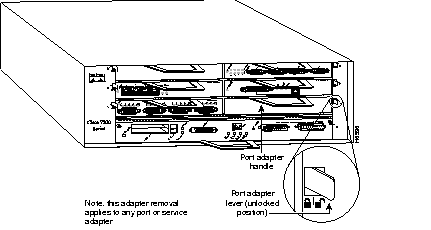
Step 4 Grasp the handle on the port adapter and pull the port adapter from the midplane and out of the chassis slot.
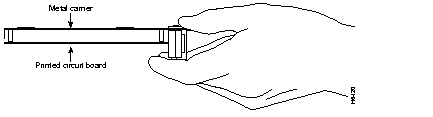
| Caution Always handle the port adapter by the carrier edges and handle; never touch the port adapter's components or connector pins. (Refer to Figure 7.) |
Step 5 Place the port adapter on an antistatic surface with its components facing upward, or in a static shielding bag. If the port adapter will be returned to the factory, immediately place it in a static shielding bag.
This completes the procedure for removing a port adapter from a Cisco 7200 series router.
Following is the procedure for installing a new port adapter in a Cisco 7200 series router:
Step 1 Attach an ESD-preventative wrist strap between you and an unfinished chassis surface.
Step 2 Use both hands to grasp the port adapter by its metal carrier edges and position the port adapter so that its components are downward. (Refer to Figure 7.)
Step 3 Align the left and right edge of the port adapter metal carrier between the guides in the port adapter slot. (Refer to Figure 8.)
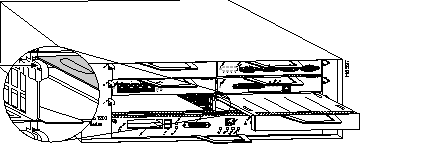
Step 4 With the metal carrier aligned in the slot guides, gently slide the port adapter half way into the slot.
| Caution Do not slide the port adapter all the way into the slot until you have connected all required cables. Trying to do so will disrupt normal operation of the router. |
Step 5 With the port adapter half way in the slot, connect all required cables to the port adapter.
Step 6 After connecting all required cables, carefully slide the port adapter all the way into the slot until you feel the port adapter's connectors mate with the midplane.
Step 7 After feeling the connectors mate, move the port adapter lever to the locked position. Figure 9 shows the port adapter lever in the locked position.
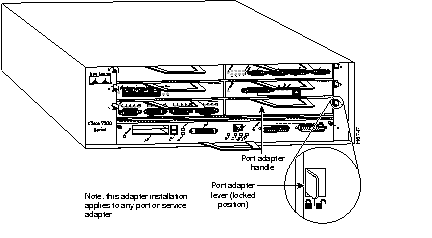
This completes the procedure for installing a new port adapter in a Cisco 7200 series router.
On a single 4B-U port adapter, you can use up to four BRI connections.
Connect a 4B-U interface cable as follows:
Step 1 Attach the cable directly to the receptacle on the 4B-U port adapter. (Refer to Figure 10.)
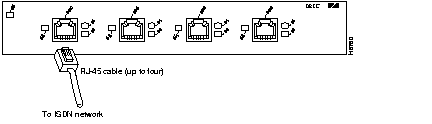
Step 2 Attach the network end of the cable to your RJ-45 wall jack.
This completes the procedure for attaching a 4B-U interface cable.
You can modify the configuration of your router through the software command interpreter called the EXEC. You must enter the privileged level of the EXEC command interpreter with the enable command before you can use the configure command to configure a new interface or to change the existing configuration of an interface. The system prompts you for a password if one has been set.
The system prompt for the privileged level ends with a pound sign (#) instead of an angle bracket (>). At the console terminal, use the following procedure to enter the privileged level:
Step 1 At the user-level EXEC prompt, enter the enable command. The EXEC prompts you for a privileged-level passwords:
enable
Step 2 Enter the password (the password is case-sensitive). For security purposes, the password is not displayed.
Step 3 When you enter the correct password, the system displays the privileged-mode system prompt (#):
Proceed to the following section to configure the new interfaces.
If you installed a new 4B-U port adapter or if you want to change the configuration of an existing interface, you must use the privileged-level configure command. If you replaced a 4B-U port adapter that was previously configured, the system will recognize the new 4B-U port adapter interfaces and bring each of them up in their existing configuration.
After you verify that the new 4B-U port adapter is installed correctly (the enabled LED goes on), use the configure command to configure the new interfaces. Be prepared with the information you will need, such as the following:
| Keywords by Area | Switch Type |
|---|---|
Australia
|
Australian TS013 switches |
Europe
|
German 1TR6 ISDN switches |
Japan
|
Japanese NTT ISDN switches |
North America
|
AT&T basic rate switches |
New Zealand
|
New Zealand NET3 switches |
For complete descriptions of interface subcommands and the configuration options available for Cisco 7200 series-related interfaces, refer to the publications listed in the section "If You Need More Information" on page 2.
This section describes how to identify port adapter slot and port adapter port numbers.
Physical port addresses specify the actual physical location of each interface port on the router. (Refer to Figure 11.) This address is composed of a two-part number in the format port adapter slot number/interface port number, as follows:
Interface ports on the 4B-U port adapter maintain the same address regardless of whether other port adapters are installed or removed. However, when you move a port adapter to a different slot, the first number in the address changes to reflect the new slot number.
Figure 11 shows the interface ports of a 4B-U port adapter in slot 1 of a Cisco 7206 router. The port adapter slot numbers start with 1 and continue through 6 for the Cisco 7206 and continue through 4 for the Cisco 7204 (slot 0 is always reserved for the optional Fast Ethernet port on the I/O controller). The individual interface port numbers always begin with 0. The number of additional ports depends on the number of ports on a port adapter. Port adapters can occupy any port adapter slot; there are no restrictions.
For example, the addresses of the interface ports on the 4B-U port adapter in chassis slot 1 are 1/0 through 1/3 (chassis slot 1 and interface ports 0 through 3). If the 4B-U port adapter was in port adapter slot 4, these same interface ports would be numbered 4/0 through 4/3.
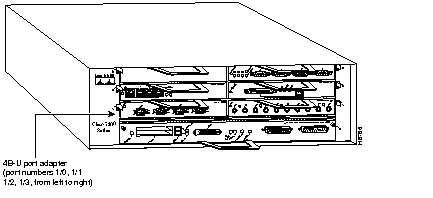
You can identify interface ports by physically checking the port adapter slot/interface port location on the front of the router or by using show commands to display information about a specific interface or all interfaces in the router.
Before you replace an interface cable, replace port adapters, or remove an interface that you will not replace, use the shutdown command to shut down (disable) the interfaces. Doing so prevents anomalies from occurring when you reinstall the new or reconfigured port adapters. When you shut down an interface, it is designated administratively down in the show command displays.
Follow these steps to shut down an interface:
Step 1 Enter the privileged level of the EXEC command interpreter. (Refer to an earlier section "Using the EXEC Command Interpreter" for instructions.)
Step 2 At the privileged-level prompt, enter Configuration mode and specify that the console terminal will be the source of the configuration subcommands as follows:
configure terminal
Step 3 Specify the slot/port address of the controller that you want shut down by entering the subcommand interface, followed by the type (bri) and port adapter slot number/interface port number. The example that follows is for a 4B-U in port adapter slot 1:
interface bri 1/0
Step 4 Enter the shutdown command as follows:
shutdown
Step 5 To shut down additional existing interfaces, enter the port adapter slot number/interface port number of each interface followed by the shutdown command. When you have entered all the interfaces to be shut down, press Ctrl-Z (hold down the Control key while you press Z) or enter end to exit Configuration mode and return to the EXEC command interpreter prompt as follows:
int bri 1/0
shutdown
Ctrl-Z
Step 6 Write the new configuration to memory as follows:
copy running-config startup-config
The system displays an OK message when the configuration has been stored.
Step 7 To verify that new interfaces are now in the correct state (shutdown), use the show interface bri port adapter slot number/interface port number command to display the specific interface, or use the show interfaces command, without variables, to display the status of all interfaces in the system.
show int bri 1/0
Step 8 To reenable the interfaces, repeat the previous steps, but use the no shutdown command; then write the new configuration to memory as follows:
int bri 1/0
no shutdown
Ctrl-Z
copy running-config startup-config
show int bri 1/0
For complete descriptions of software configuration commands, refer to the publications listed in the section "If You Need More Information" on page 2.
Following are instructions for a basic configuration: enabling a controller and specifying IP routing. You might also need to enter other configuration subcommands depending on the requirements for your system configuration and the protocols you plan to route on the interface. For complete descriptions of configuration subcommands and the configuration options available, refer to the publications listed in the section "If You Need More Information" on page 2.
In the following procedure, press the Return key after each step unless otherwise noted. At any time you can exit the privileged level and return to the user level by entering disable at the prompt as follows:
Router#disableRouter>
Step 1 At the privileged-mode prompt, enter Configuration mode and specify that the console terminal will be the source of the configuration subcommands as follows:
conf t
Enter configuration commands, one per line. End with CNTL/Z.Step 2 Identify the ISDN switch type. In the following example, the switch basic-net3 (a switch for the European Community) is identified as the switch type:
Step 3 At the prompt, specify the first interface to configure by entering the subcommand interface, followed by the type (bri), and port adapter slot number/interface port number. The example that follows is for the 4B-U in port adapter slot 1, interface port 1:
interface bri 1/1
Step 4 At the prompt, assign an IP address and subnet mask to the interface with the ip address configuration subcommand as in the following example:
ip address 1.1.15.1 255.255.255.0
Step 5 Add any additional configuration subcommands required to enable routing protocols and adjust the interface characteristics.
Step 6 Use the no shutdown command to reenable the interfaces. Refer to the previous section "Shutting Down an Interface" for no shutdown command examples.
Step 7 After including all of the configuration subcommands, to complete the configuration, enter Ctrl-Z (hold down the Control key while you press Z) or enter end to exit Configuration mode.
Step 8 Write the new configuration to memory as follows:
copy running-config startup-config
The system displays an OK message when the configuration is stored.
Step 9 Exit the privileged level and return to the user level by entering disable at the prompt as follows:
disable
This completes the procedure for creating a basic configuration. Proceed to the following section to check the interface configuration using show commands. For additional information about configuring ISDN BRI interfaces, refer to the publications Wide-Area Networking Configuration Guide and Wide-Area Networking Command Reference.
After configuring the new interface, use the show commands to display the status of the new interface or all interfaces, and use the ping command to check connectivity.
The following steps use show commands to verify that the new interfaces are configured and operating correctly.
Step 1 Display the system hardware configuration with the show version command. Ensure that the list includes the new BRI interfaces.
Step 2 Specify one of the new BRI interfaces with the show interfaces type port adapter slot/interface port number command and verify that the first line of the display specifies the interface with the correct slot number. Also verify that the interface and line protocol are in the correct state: up or down.
Step 3 Display all ISDN interfaces installed in the router and the ISDN switch type for the interfaces with the show isdn status command. Ensure that the correct ISDN switch type is displayed for the installed ISDN interfaces.
Step 4 Display the protocols configured for the entire system and specific interfaces with the show protocols command. If necessary, return to Configuration mode to add or remove protocol routing on the system or specific interfaces.
Step 5 Display the running configuration file with the show running-config command. Display the configuration stored in NVRAM using the show startup-config command. Verify that the configuration is accurate for the system and each interface.
If the interface is down and you configured it as up, or if the displays indicate that the hardware is not functioning properly, ensure that the network interface is properly connected and terminated. If you still have problems bringing up the interface, contact a customer service representative for assistance.
To display information about a specific interface, use the show interfaces command with the interface type, port adapter slot and interface port in the format show interfaces [type port adapter slot/interface port].
The following example of the show interfaces bri port adapter slot number/interface port number command shows all of the information specific to the first 4B-U interface port (interface port 0) in port adapter slot 1:
Router# sh int bri 1/0
BRI1/0 is administratively down, line protocol is down
Hardware is BRI
  MTU 1500 bytes, BW 64 Kbit, DLY 20000 usec, rely 255/255, load 1/255
  Encapsulation HDLC, loopback not set
  Last input never, output never, output hang never
  Last clearing of "show interface" counters never
  Input queue: 0/75/0 (size/max/drops); Total output drops: 0
  Queueing strategy: weighted fair
  Output queue: 0/64/0 (size/threshold/drops)
     Conversations  0/0 (active/max active)
     Reserved Conversations 0/0 (allocated/max allocated)
  5 minute input rate 0 bits/sec, 0 packets/sec
  5 minute output rate 0 bits/sec, 0 packets/sec
     0 packets input, 0 bytes, 0 no buffer
     Received 0 broadcasts, 0 runts, 0 giants
     0 input errors, 0 CRC, 0 frame, 0 overrun, 0 ignored, 0 abort
     0 packets output, 0 bytes, 0 underruns
     0 output errors, 0 collisions, 0 interface resets
     0 output buffer failures, 0 output buffers swapped out
     0 carrier transitions
The show version (or show hardware) command displays the configuration of the system hardware (the number of each interface type installed), the software version, the names and sources of configuration files, and the running images. Following is an example of the show version command:
Router# show version
Cisco Internetwork Operating System Software
IOS (tm) 7200 Software (C7200-J-M), Version 11.1(9)CA1
Copyright (c) 1986-1996 by cisco Systems, Inc.
Compiled Sun 04-Aug-96 06:00 by rmontino
Image text-base: 0x600088A0, data-base: 0x605A4000
ROM: System Bootstrap, Version 11.1(5) RELEASED SOFTWARE
ROM: 7200 Software (C7200-BOOT-M), RELEASED SOFTWARE 11.1(9)CA1
Router uptime is 4 hours, 22 minutes
System restarted by reload
System image file is "c7200-j-mz", booted via slot0
cisco 7206 (NPE150) processor with 12288K/4096K bytes of memory.
R4700 processor, Implementation 33, Revision 1.0 (Level 2 Cache)
Last reset from power-on
Bridging software.
X.25 software, Version 2.0, NET2, BFE and GOSIP compliant.
Basic Rate ISDN software, version 1.0.
Chassis Interface.
12 Ethernet/IEEE 802.3 interfaces.
1 FastEthernet/IEEE 802.3 interface.
4 ISDN Basic Rate interfaces.
1 Compression port adapter.
Integrated NT1s for 4 ISDN Basic Rate interfaces
125K bytes of non-volatile configuration memory.
1024K bytes of packet SRAM memory.
20480K bytes of Flash PCMCIA card at slot 0 (Sector size 128K).
8192K bytes of Flash internal SIMM (Sector size 256K).
Configuration register is 0x2
To display all the ISDN interfaces installed in the router and the ISDN switch type for the interfaces, use the show isdn status command. The following example is for a 4B-U port adapter in port adapter slot 1, with the ISDN switch type basic-5ess:
Router# show isdn status
The current ISDN Switchtype = basic-5ess
ISDN BRI1/0 interface
    Layer 1 Status:
        ACTIVE
    Layer 2 Status:
        TEI = 94, State = MULTIPLE_FRAME_ESTABLISHED
    Layer 3 Status:
        1 Active Layer 3 Call(s)
    Activated dsl 0 CCBs = 1
        CCB:callid=8001, sapi=0, ces=1, B-chan=1
ISDN BRI1/1 interface
    Layer 1 Status:
        DEACTIVATED
    Layer 2 Status:
        Layer 2 NOT Activated
    Layer 3 Status:
        No Active Layer 3 Call(s)
    Activated dsl 1 CCBs = 0
(Display text omitted.)
To determine which type of port adapter is installed in your system, use the show diag [slot] command. Specific port adapter information is displayed, as shown in the following example of a 4B-U port adapter in chassis slot 1:
Router# show diag 1
Slot 1:
        BRI (U) port adapter, 4 ports
        Port adapter is analyzed
        Port adapter insertion time 02:42:18 ago
        Hardware revision 1.0           Board revision UNKNOWN
        Serial number     4294967295    Part number    255-65535-255
        Test history      0xFF          RMA number     255-255-255
        EEPROM format version 1
        EEPROM contents (hex):
          0x20: 01 22 01 00 FF FF FF FF FF FF FF FF FF FF FF FF
          0x30: FF FF FF FF FF FF FF FF FF FF FF FF FF FF FF FF
For command descriptions and examples for the Cisco 7200 series routers, refer to the publications listed in the section "If You Need More Information" on page 2.
The packet internet groper (ping) command allow you to verify that an interface port is functioning properly after the system has booted successfully and is operational.
The ping command sends echo request packets out to a remote device at an IP address that you specify. After sending an echo request, the command waits a specified time for the remote device to reply. Each echo reply is displayed as an exclamation point (!) on the console terminal; each request that is not returned before the specified timeout is displayed as a period (.). A series of exclamation points (!!!!!) indicates a good connection; a series of periods (.....) or the messages [timed out] or [failed] indicate that the connection failed.
Following is an example of a successful ping command to a remote server with the address 1.1.1.10:
Router# ping 1.1.1.10 <Return>
Type escape sequence to abort.
Sending 5, 100-byte ICMP Echoes to 1.1.1.10, timeout is 2 seconds:
!!!!!
Success rate is 100 percent (5/5), round-trip min/avg/max = 1/15/64 ms
Router#
If the connection fails, verify that you have the correct IP address for the destination and that the device is active (powered on), and repeat the ping command.
For complete descriptions of interface subcommands and the configuration options available for Cisco 7200 series-related interfaces, refer to the publications listed in the section "If You Need More Information" on page 2.


|
|