This chapter describes procedures for configuring the Cisco Micro Hub, and contains the following sections:
To configure any Cisco Micro Hubs in a stack, the stack must include at least one Micro Hub 1503. You can connect to the Micro Hub 1503 to configure it in one of two ways:
You can configure the Micro Hub 1503, by connecting a terminal or a PC directly to the hub's CONSOLE port as described in the section "Connecting the CONSOLE Port" in the chapter "Installing Your Hub."
If the hub is correctly connected to a network, you can access the hub using Telnet from anywhere on that network, and use the configuration program to communicate with the hub. Before making a Telnet connection to the hub, you must configure the hub with a valid IP address, subnet mask, and default gateway using the configuration program.
If you are configuring the hub with a PC (not a dumb terminal), you need a type of communication software called terminal emulation software to send commands to the hub.
Table 3-1: Common Terminal Emulation Software Programs
| PC Operating System
| Software
|
|---|
Windows 3.x or
Windows NT 3.5x
| Terminal (included with the Windows software)
|
Windows 95 or
Windows NT 4.x
| HyperTerm (included with the Windows software)
|
| Macintosh
| ProComm, VersaTerm, ZTerm (supplied separately)
|
Terminal emulation software has changeable settings. To enable your PC to communicate to the hub, specify the port used by your PC (for example, COM 1), and then configure the software settings to the following:
- Terminal emulation type: ANSI
- Baud: 9600
- Data bit: 8
- Parity: None
- Stop bits: 1
- Flow control: None
This section describes some things you might need to know before using the command to configure the hub. If you are familiar with these conventions, you can skip this section.
- Enter commands by typing the text of the command at the configuration prompt and then pressing the Return key.
- There are two configuration prompt levels:
- The guest-level prompt is represented by the device name followed by an angle bracket (>):
Hub>
- The administrator-level prompt is the device name followed by a pound sign (#). To reach this prompt, the user (usually the system administrator) must enter a password with the enable command:
Hub>
Hub> enable
Password: ******
Hub#
- There are two editing modes provided by the configuration program--normal and enhanced. For more information about the enhanced editing mode, refer to the terminal editing command in the section "Editing Commands" later in this chapter. The following editing commands can be used on the command line, in either editing mode:
- Backspace erases characters to the left of the cursor
- Delete erases characters to the right of the cursor (this may be different, depending on the terminal emulation software that you are using)
- Ctrl-C cancels a command prior to pressing the Return key
- Tab or Ctrl-I completes a command name based on partial input
- You can abbreviate commands to the fewest letters that make them unique. For example, for the show history command, you can enter:
Hub>
show his
- Certain commands display multiple screens with this prompt between screens:
--More--
- Press the space bar to continue the output or press Return to display the next line. Press any other key to return to the prompt.
You configure the Micro Hub 1503 (or the attached stack) with the configuration program that is a part of the hub's firmware. The configuration program has two levels of access to commands: guest mode and administrator mode (also called privileged mode). The commands available in guest mode are a subset of those available in administrator mode.
When you first connect to the hub, the configuration program is set to guest mode. If you are connecting to the hub using Telnet, you must also enter a Telnet session password. To enter administrator mode, use the enable command and enter the administrator password. You will then be prompted to enter the enable password, as shown below:
Hub> enable
Password: <enable_password>
Some commands require the user to enter a password before they can be entered. This is an important feature, because it prevents accidental or unauthorized changes to your hub settings, and to your network.
Set the password using the password command, as shown below:
Hub# password
Old Password: <old_password>
New Password: <new_password>
Hub#
The <password> field can contain from 0 to 80 uppercase and lowercase alphanumeric characters. Spaces are not allowed. The first character cannot be a number. Passwords are case sensitive.
An example of a valid password is mypassword1.
If you forget the password that enables you to access administrator-level commands or if you forget the password required for Telnet sessions, the Cisco Micro Hub enables you to bypass the password requirement and set a new password. You must be connected to the hub through the CONSOLE port to perform these steps.
Take the following steps:
Step 1 Turn the hub OFF and wait 60 seconds before going to Step 2.
Step 2 Turn the hub ON
Wait while the following messages are displayed on the terminal:
Starting the system...
Boot option : bootp get ip
Enter BOOTP phase, wait or press Ctrl-C to break...
.....
Bootup Error: Timeout, no response from BOOTP server.
Press RETURN to start a new session
Step 3 Press Ctrl-C to set new passwords.
Step 4 When following prompt appears, enter a new administrator password:
New administrator password: <new_password>
Step 5 When the following prompt appears, re-enter the new password:
Confirm administrator password: <new_password>
Step 6 You will then be prompted to enter and confirm a new Telnet session password, as follows:
New telnet-session password: <new_telnet-session_password>
Confirm telnet-session password: <new_telnet-session_password>
Step 7 The following message will appear, confirming that your new passwords have been accepted:
Administrator and telnet passwords are modified.
Welcome to Cisco hub model 150x
This section describes basic hub configuration.
Before you configure a Micro Hub 1503, have the following information available:
- IP address and IP subnet mask that you will assign to the hub if you are accessing the configuration program using Telnet or SNMP.
- IP address for the TFTP server, if you want to use TFTP bootup feature.
- IP address for the BOOTP server, if you want to use the BOOTP feature.
- IP address of the hub's gateway, if you want to use Telnet or SNMP.
- IP addresses for authorized Trap Managers, if you want management stations to receive trap messages generated by the hub.
Note If you do not have this information, you may need to get it from your system administrator or from your network plan before you can complete your hub configuration.
Configuring the hub takes place in three major steps:
- Entering Administrator Mode
- Configuring IP and SNMP Parameters
- Configuring the SNMP Management Station
All of the commands used in the configuration steps are fully explained in the section "Command Summary" later in this chapter.
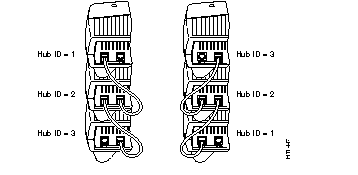
This section describes how to determine the hub ID number of a particular Micro Hub in a stack of Micro Hubs. The hub ID number is used to identify individual hubs in a stack of hubs.
You cannot manually assign a hub ID number to a hub in a stack. The hub ID number is assigned based on how the hubs are cabled together.
Note The physical location of a hub in a stack of hubs does not determine a hub's ID number.
Here are two rules that determine hub ID numbers in a stack of hubs:
- The lowest hub ID number in a stack (1) is always assigned to the hub with another hub connected to its OUT port and with no device connected to its IN port.
- The highest hub ID number in a stack (any number from 2 to 5) is always assigned to the hub with no device connected to its OUT port and with another hub connected to its IN port.
Figure 3-1 illustrates these rules.
Figure 3-1: Hub ID Numbers for Stacked Hubs
Step 1 Connect a console by following the instructions in the section "Connecting the CONSOLE Port" in the chapter "Installing Your Hub," or start a Telnet session with the hub.
Step 2 Turn the hub ON by setting the power switch to the ON ( | ) position.
Step 3 After a few seconds, you will see the user prompt. Type enable to enter administrator mode:
Step 4 After entering the command, you will be prompted to enter the administrator password. If the administrator password has not been set, you can enter administrator mode by pressing the Return key, as shown below:
Hub> enable
Password: <Return>
Hub#
Note If the administrator password has not been set, you should set it following the steps in the section "Setting the Administrator Password" earlier in this chapter. Record the password in a secure location.
The pound sign (#) after the prompt indicates that you are in administrator mode and can enter the commands to configure the hub for IP and SNMP parameters.
The illustration below shows the network that is being configured in this section:
Figure 3-2: Example Network

Note The network addresses used in the steps below are examples only; they will not work for your network. You should substitute them with the IP addresses that apply to your network devices.
Step 1 Use the ip address command to configure the hub's IP address, subnet mask, and gateway address:
Hub# ip address 172.16.10.2 255.255.255.0 172.16.10.1
Step 2 Use the snmp community command to configure the SNMP communities and their options:
Hub# snmp community 1 private rw
Step 3 Use the ip trap-manager command to configure the IP address of the SNMP management station:
Hub# ip trap-manager 1 172.16.20.2
Basic IP and SNMP configuration is now complete. To return to guest mode, enter exit. Enter exit a second time to close the current terminal session:
Hub# exit
Hub> exit
>
Make sure that the SNMP management station receives traps from the Micro Hub 1503 (and any Micro Hubs connected to it in a stack) by configuring the management station as follows:
- Make sure the management station has entries for all the Micro Hubs in the stack.
- The entries for the Micro Hubs should have Get Community and Set Community configured as private.
- The management station should be able to read SNMP information from the Micro Hubs, such as port status and traffic counts.
- The management station should be able to control and manage the Micro Hubs, including enabling and disabling ports and changing contact information.
This section provides a summary of the commands used to configure the Micro Hub 1503. The configuration commands are organized into the following categories:
Commands are defined and described in the format shown below:

System Help Commands
Use the commands in this section to obtain system help while configuring the hub.
help
| Syntax:
| help
|
| Mode:
| Guest
|
| Description:
| Lists a brief description of the context-sensitive help system.
|
?
| Syntax:
| ?
|
| Mode:
| Guest
|
| Description:
| Use this command in the following ways:
- At anytime to list all commands available in the current command mode (guest or administrator).
- After an abbreviated command to list commands that start with that particular character set.
- In a command, in place of a keyword or argument, to list the command's keywords or arguments.
|
This section describes the commands used to enter and exit the administrator-level access mode, lock the console, and set the administrator password. It also describes commands for using terminal history and setting the editing mode.
Use the commands in this section to change configuration mode for the hub:
disable
| Syntax:
| disable
|
| Mode:
| Guest
|
| Description:
| Exits administrator mode and returns the user to guest mode.
|
enable
| Syntax:
| enable
|
| Mode:
| Guest
|
| Description:
| Use this command to enter administrator mode. If you forgot your administrator password, follow the process described in the section "Forgot Your Password?" earlier in this chapter.
After entering enable, you will be prompted for the administrator password, as shown below:
Hub> enable
Password: <password>
Hub#
|
exit
| Syntax:
| exit
|
| Mode:
| Guest
|
| Description:
| Exits any command mode or closes an active terminal session.
|
help
| Syntax:
| help
|
| Mode:
| Guest
|
| Description:
| Refer to the previous section "System Help Commands" for more information on the help command.
|
Use the commands in this section to control console access to the hub configuration.
show console lockout info
| Syntax:
| show console-lockout info
|
| Mode:
| Guest
|
| Description:
| Displays information about the console lockout settings. The following information is displayed:
- Status--Whether console lockout is enabled or disabled.
- Delay time--Length of time of no keyboard activity until console access to the hub is locked.
|
console-lockout
| Syntax:
| console-lockout
|
| Mode:
| Administrator
|
| Description:
| Sets the console access to locked after a designated period of no keyboard activity.
|
no console lockout
| Syntax:
| no console-lockout
|
| Mode:
| Administrator
|
| Description:
| Disables the console lockout feature.
|
console-lockout time
| Syntax:
| console-lockout time <minutes>
|
| Mode:
| Administrator
|
| Description:
| Configures the amount of time of no keyboard activity before console access is locked.
minutes--Integer between 1 and 20.
|
To modify any of the hub's system software parameters, you must be in administrator mode. To enter administrator mode, you must enter the administrator password.
password
| Syntax:
| password
|
| Mode:
| Administrator
|
| Description:
| Configures the password used to enter administrator mode.
After entering the command, you will be prompted to enter the current password and then the new password. You will then be prompted to confirm the new password. Password characters are represented by asterisks on the screen when you enter them, as shown below:
Hub# password
Old password: ********
New password: *******
Re-type new password: *******
Passwords must meet the following characteristics:
- Can contain up to 14 characters.
- Can be any combination of alphanumeric characters, including uppercase and lowercase letters.
- Spaces are valid characters.
|
no password
| Syntax:
| no password
|
| Mode:
| Administrator
|
| Description:
| Deletes any password that has been set with the password command.
|
telnet-session password
| Syntax:
| telnet-session password
|
| Mode:
| Administrator
|
| Description:
| Configures the hub with the password that is required to start a Telnet session with the hub.
|
no telnet-session password
| Syntax:
| no telnet-session password
|
| Mode:
| Administrator
|
| Description:
| Clears any password that was entered with the telnet-session password command.
|
telnet-session
| Syntax:
| telnet-session {enable | disable}
|
| Mode:
| Administrator
|
| Description:
| Configures the hub for allowing Telnet sessions.
Command Keyword Definitions
- enable--Configures the hub to allow Telnet sessions.
- disable--Configures the hub to prevent Telnet sessions.
|
A history of command input can be stored and displayed using the commands in this section.
show history
| Syntax:
| show history
|
| Mode:
| Guest
|
| Description:
| Displays the commands that are stored in the history buffer.
|
terminal history
| Syntax:
| terminal history
|
| Mode:
| Guest
|
| Description:
| Enables the terminal history feature, which configures the hub to retain commands in working memory. The number of commands retained is configured with the terminal history size command. The commands are not saved after the hub is rebooted with the restart command.
|
terminal no history
| Syntax:
| terminal no history
|
| Mode:
| Guest
|
| Description:
| Disables the terminal history feature (the hub retains past commands in memory).
|
terminal history size
| Syntax:
| terminal history size <size>
|
| Mode:
| Guest
|
| Description:
| Sets the number of commands kept in the history buffer.
Command Keyword Definition
size--Integer value between 1 and 64.
|
There are two types of editing features for the hub. Command-line editing features are described in the appendix "Terminal Editing Command Reference."
| Syntax:
| terminal editing
|
| Mode:
| Guest
|
| Description:
| Configures the hub for enhanced editing. Enhanced editing enables you to use the key sequences listed in the appendix "Terminal Editing Command Reference." This is the default configuration.
|
terminal no editing
| Syntax:
| terminal no editing
|
| Mode:
| Guest
|
| Description:
| Disables enhanced editing.
|
Firmware Load and Restart Commands
This section describes the function and displays the syntax of each command used to load and copy firmware to the Cisco Micro Hub.
The commands in this section configure how the hub gets the firmware and IP address when it is first powered on.
bootup-option
| Syntax:
| bootup-option {normal | tftp-download | bootp-get-ip | bootp-download}
|
| Mode:
| Administrator
|
| Description:
| Configure how the hub will obtain an IP address when it is first turned on. This setting is stored in the hub Flash read-only memory.
Command Keyword Definitions
- normal--Uses the onboard firmware.
- tftp-download--Uses firmware from a TFTP server. The download process is repeated every time the hub is rebooted.
- bootp-get-ip--This is the hub's default setting. The hub obtains the its IP address from the local BOOTP server.
- bootp-download--Obtains the hub's IP address and firmware from the server. The firmware is then saved in Flash memory.
|
no bootup-option
| Syntax:
| no bootup-option
|
| Mode:
| Administrator
|
| Description:
| Resets the hub to the default bootup option, which is to use the onboard ROM code and the default IP address (normal).
|
The commands in this section are used to download firmware updates into the hub. You must use a server that has been configured to provide the firmware for your hub.
show tftp-download information
| Syntax:
| show tftp-download information
|
| Mode:
| Guest
|
| Description:
| Displays download information for TFTP, including the TFTP server address and firmware filename, for example:
Hub> show tftp-download info
ServerIP : 10.10.10.1
Filename : 1503R01.bin
|
tftp-download
| Syntax:
| tftp-download {server-ip-address} [filename]
|
| Mode:
| Administrator
|
| Description:
| Sets the IP address of the TFTP server that supports the hub.
Command Keyword Definitions
- server-ip-address--IP address of the server where the firmware file is stored. Should be in the format xxx.xxx.xxx.xxx, where xxx is a value between 0 and 255.
The default value for this field is 255.255.255.255. The default value will work only if the TFTP server is not on the same local network segment as the hub.
- filename--Filename of the firmware file. The filename is case sensitive and contains between 1 and 28 alphanumeric characters. The default file name is c1500.bin. The hub will only download a Cisco Micro Hub file that ends in .bin.
|
start tftp-download
| Syntax:
| start tftp-download
|
| Mode:
| Administrator
|
| Description:
| Starts the firmware download process. The hub must be connected by an Ethernet LAN to the TFTP server for this option to work. You can test this by having the TFTP server ping the hub's IP address. If the ping command is unsuccessful, check that you have configured the hub with an IP address using the ip-address command.
|
The command in this section is used to download firmware to the hub using the Xmodem protocol.
start xmodem-download
| Syntax:
| start xmodem-download
|
| Mode:
| Administrator
|
| Description:
| Downloads firmware updates to the hub with the Xmodem protocol.
Using Terminal Emulation Software
After entering this command, open the file transfer function in your terminal emulation software. The software must support the Xmodem protocol. Specify the firmware filename and start the file transfer, being sure to specify "Send" or "Upload" for the firmware file. The default filename is c1500.bin. The file must be a Cisco Micro Hub file that ends with .bin.
Download Status
The status of the firmware download is shown at the bottom of the terminal or PC screen. After downloading firmware, you will have to log into the configuration program again.
|
The command in this section is used to reset the hub.
restart
| Syntax:
| restart
|
| Mode:
| Administrator
|
| Description:
| Performs a firmware reset for the hub using the bootup option selected with the bootup-option command. (See the section "Bootup Option Commands" earlier in this chapter for a description.)
The hub, ports, and statistic configurations are saved during a firmware reset.
|
The commands in this section are used to display general information about the hub and the stack.
show system information
| Syntax:
| show system information
|
| Mode:
| Guest
|
| Description:
| Displays system information as shown below:
Hub> show system information
System description: Cisco Stackable Ethernet Hub
System up time: hour, 56 minutes
System name: Stack 1
System contact: Mike
System location: Software Group
Command Display Definitions
- System description--Hub model.
- System up time--Length of time that the management agent inside the hub has been running.
- System name--Name of the hub, configured with the system name command.
- System contact--Name of the person responsible for the hub, configured with the system contact command.
- System location--Where the hub is located, configured with the system location command.
|
system name
| Syntax:
| system name <string>
|
| Mode:
| Administrator
|
| Description:
| Configures the hub with a descriptive name.
Command Keyword Definition
string--String containing 1 to 255 alphanumeric characters, which can be any combination of uppercase and lowercase. Spaces are valid characters, but leading spaces are ignored. If nothing is entered for this option, the default ("hub") is used.
|
no system name
| Syntax:
| no system name
|
| Mode:
| Administrator
|
| Description:
| Resets the hub's system name to the default system name ("hub").
|
system contact
| Syntax:
| system contact <string>
|
| Mode:
| Administrator
|
| Description:
| Configures the hub with the name of the person responsible for the hub.
Command Keyword Definition
string--String containing 1 to 255 alphanumeric characters, which can be any combination of uppercase and lowercase. A number cannot be the first character. Spaces are valid characters, but leading spaces are ignored. If nothing is entered for this option, the default ("system administrator") is used.
|
no system contact
| Syntax:
| no system contact
|
| Mode:
| Administrator
|
| Description:
| Resets the hub's system contact to the default system contact ("system administrator").
|
system location
| Syntax:
| system location <string>
|
| Mode:
| Administrator
|
| Description:
| Configures the hub with the name of the hub location.
Command Keyword Definition
string--String containing 1 to 255 alphanumeric characters, which can be any combination of uppercase and lowercase. A number cannot be the first character. Spaces are valid characters, but leading spaces are ignored. If nothing is entered for this option, the default ("headquarters") is used.
|
no system location
| Syntax:
| no system location
|
| Mode:
| Administrator
|
| Description:
| Resets the hub's system location to the default system location ("headquarters").
|
show management information
| Syntax:
| show management information
|
| Mode:
| Guest
|
| Description:
| Displays information about the network management hub as follows:
Hub> show management information
Hub id : 1
H/W version : 1.
F/W version : 1.01
Bootup option : normal
Physical address : 00-00-12-34-56-78
Command Display Definitions
- Hub id--Number used to identify the hub in a stack. An integer between 1 and 5. Read the section "Hub ID Numbers" earlier in this chapter for information about how to determine hub ID numbers.
- H/W version--Hardware version of the hub.
- F/W version--Firmware version of the hub.
- Bootup option--Bootup option configured with the bootup-option command as described in the section "Bootup Option Commands" earlier in this chapter.
- Physical address--Hardware address (also called the MAC address or the Ethernet address) of the hub. This address is assigned by the device's manufacturer and usually appears somewhere on the device itself.
|
The commands in this section describes how to configure community strings and trap managers, which is required when using SNMP-based network management software.
The command in this section are used to configure the Micro Hub 1503 with IP parameters, which is required to use SNMP, Telnet, and TFTP functions with the hub.
show ip configuration
| Syntax:
| show ip configuration
|
| Mode:
| Guest
|
| Description:
| Shows the current configuration for IP, as shown below:
Hub> show ip configuration
IP address : 10.10.10.10
Subnet mask : 255.255.255.0
Gateway IP : 10.10.10.254
Command Display Definitions
- IP address--Hub's IP address.
- Subnet mask--Hub's subnet mask (the host address bits used for routing traffic to the subnet).
- Gateway IP--Gateway used to pass trap messages from the hub to the management stations, for example, the IP address of a router on the same LAN as the hub.
|
ip address
| Syntax:
| ip address {ip-address} [subnet mask] [gateway ip]
|
| Mode:
| Administrator
|
| Description:
| Configures the IP parameters for the hub.
Command Keyword Definitions
- ip-address--IP address of the hub. The default value is 0.0.0.0.
- subnet-mask--IP subnet mask of the hub. The default value is 255.255.255.0.
- gateway-ip--IP address of the gateway used by the hub. The default value is xxx.xxx.xxx.254, where xxx.xxx.xxx are the same fields as the first three fields of the ip-address field. This is usually the IP address of a router on the same LAN as the hub.
|
no ip address
| Syntax:
| no ip address
|
| Mode:
| Administrator
|
| Description:
| Resets the hub with the default IP address (0.0.0.0), the default subnet mask (255.255.255.0), and the default gateway address (0.0.0.0).
|
SNMP Communities Commands
The commands in this section are used to configure the SNMP community strings. These strings are used by the network management software to access the Micro Hub 1503.
show snmp communities
| Syntax:
| show snmp communities
|
| Mode:
| Administrator
|
| Description:
| Displays information about all of the configured community strings, as shown below:
Hub> show snmp communities
Index Community Name Access Right Status
--------------------------------------------
1 public read/write enabled
2 private read only enabled
3 read only disabled
4 read only disabled
Command Display Definitions
- Index--Index number of the community string.
- Community Name--Name used for management access. Can be up to 20 alphanumeric characters.
- Access Right--Displays whether management access is read/write or read only.
- Status--Displays whether a community is enabled or disabled.
|
snmp community
| Syntax:
| snmp community {index} {string} [ro | rw]
|
| Mode:
| Administrator
|
| Description:
| Creates or modifies community strings or associated access rights. All new entries are enabled by default. To disable an entry, use the snmp community disable command.
Command Keyword Definitions
- index--Index of one of the community table entries. An integer from 1 to 5.
- string--Community name. An alphanumeric string that contains from 1 to 20 characters. A number cannot be the first character. Spaces are not valid characters.
- ro--(Optional) Sets the community for read-only access. This is the default value.
- rw--(Optional) Sets the community for read-write access.
|
snmp community disable
| Syntax:
| snmp community disable [index]
|
| Mode:
| Administrator
|
| Description:
| Disables a community string.
Command Keyword Definition
index--(Optional) Index of an entry in the community table. An integer between 1 and 5. If no value is entered, all community strings are disabled.
|
snmp community enable
| Syntax:
| snmp community enable {index}
|
| Mode:
| Administrator
|
| Description:
| Enables a community string.
Command Keyword Definition
index--Index of an entry in the community table. An integer between 1 and 5.
|
snmp trap-authentication
| Syntax:
| snmp trap-authentication
|
| Mode:
| Administrator
|
| Description:
| Enables trap message authentication, in which trap messages can be authenticated with the SNMP community string.
|
no snmp trap-authentication
| Syntax:
| no snmp trap-authentication
|
| Mode:
| Administrator
|
| Description:
| Disables trap message authentication.
|
The commands in this section are used to configure the Micro Hub 1503 with the parameters required so that network stations will receive messages from the hub after an unusual network event, or after any event that is specified by the SNMP-based management software.
show ip trap-managers
| Syntax:
| show ip trap-managers
|
| Mode:
| Guest
|
| Description:
| Displays information about authorized trap managers as shown in the following example:
Hub> show ip trap-managers
Index IP Address Community Name Status
-----------------------------------------------
1 222.222.222.222 public enabled
2 11.11.11.11 public disabled
3 0.0.0.0 public disabled
4 0.0.0.0 public disabled
5 0.0.0.0 public disabled
Command Display Definitions
- IP Address--IP address of the network management station.
- Community Name--Community name used for trap management.
- Status--Whether or not the community is enabled or disabled.
|
ip trap-manager
| Syntax:
| ip trap-manager {index} {ip-address} [community name]
|
| Mode:
| Administrator
|
| Description:
| Configures trap manager information.
Command Keyword Definitions
- index--Index of an entry in the trap manager table. An integer from 1 to 5.
- ip-address--IP address of the trap receiver, in the following format: xxx.xxx.xxx.xxx
- community name--Community string that is required for trap access.
|
ip trap-manager enable
| Syntax:
| ip trap-manager enable {index}
|
| Mode:
| Administrator
|
| Description:
| Enables a trap manager entry.
Command Keyword Definition
index--Index of a trap manager table entry. An integer between 1 and 5.
|
ip trap-manager disable
| Syntax:
| ip trap-manager disable [index]
|
| Mode:
| Administrator
|
| Description:
| Disables a trap manager entry.
Command Keyword Definition
index--Index of a trap manger table entry. An integer between 1 and 5.
|
Hub Configuration Command
How to display information about the hubs in a stack.
show hub information
| Syntax:
| show hub information [hub id]
|
| Mode:
| Guest
|
| Description:
| Displays information about one or more hubs in a stack.
Command Keyword Definition
- hub id--(Optional) Number used to identify the hub in a stack. An integer between 1 and 5. Read the section "Hub ID Numbers" earlier in this chapter for information about how to determine hub ID numbers. If no number is entered, information about all hubs in the stack will be displayed.
The display appears as follows:
Hub> show hub information
Hub ID Type H/W ver F/W ver SNMP-Agent
-----------------------------------------
1 1503 1.0 1.01 Yes
2 1502 1.0 1.01 No
3 1503 1.0 1.01 No
Command Display Definitions
- Hub ID--Number used to identify the hub in a stack. An integer between 1 and 5. Read the section "Hub ID Numbers" earlier in this chapter for information about how to determine hub ID numbers.
- Type--Model number of the hub: 1502 or 1503.
- H/W ver--Hub's hardware version.
- F/W ver--Hub's firmware version.
- Agent--Whether or not the hub contains an active SNMP agent.
|
Port Configuration Commands
The commands in this section are used to display or edit information about any port in the stack.
show port information
| Syntax:
| show port information [hub id]
|
| Mode:
| Guest
|
| Description:
| Displays information about all the network ports on the selected hub.
Command Keyword Definition
- hub id--(Optional) Number used to identify the hub in a stack. An integer between 1 and 5. Read the section "Hub ID Numbers" earlier in this chapter for information about how to determine hub ID numbers.
Information is displayed as follows:
Hub> show port information 1
Hub id: 1
Port ID Admin Status Link Status Partition Status
------------------------------------------------------
1 enabled Not connected not partitioned
2 enabled Not connected not partitioned
3 enabled Connected not partitioned
4 enabled Not connected not partitioned
5 enabled Not connected not partitioned
6 enabled Connected not partitioned
7 enabled Not connected not partitioned
8 enabled Not connected not partitioned
|
|
| Command Display Definitions
- Hub ID--Number used to identify the hub in a stack. An integer between 1 and 5. Read the section "Hub ID Numbers" earlier in this chapter for information about how to determine hub ID numbers.
- Port ID--Number (1 through 8) of one of the yellow network station ports.
- Admin status--Whether or not the port has been manually disabled.
- Oper status--Whether or not the device connected to this port has a valid connection to the hub.
- Partition status--Whether or not the port has been partitioned by the hub, which usually happens as a result of a network loop.
|
port operation
| Syntax:
| port-operation {hub id} {port id} {enable | disable}
|
| Mode:
| Administrator
|
| Description:
| Enables or disables any port on any hub in the stack.
Command Keyword Definitions
- hub id--Number used to identify the hub in a stack. An integer between 1 and 5. Read the section "Hub ID Numbers" earlier in this chapter for information about how to determine hub ID numbers.
- port id--Number of the port on the hub, based on the yellow label on the rear panel of the hub. A number from 1 to 8.
- enable--Enables the port.
- disable--Disables the port.
|
The commands in this section display statistics for the overall stack, a specified hub, or a specified port since a restart or since the counter was last cleared.
show system statistics
| Syntax:
| show system statistics
|
| Mode:
| Guest
|
| Description:
| Displays statistics for the entire stack.
Statistics are displayed in the following format:
Hub> show system statistics
Frames : 9755
Bytes : 78040
Collisions : 671
Alignment errors : 45
CRC errors : 33
Total errors : 867
Command Display Definitions
- Frames--Number of frames (packets) passing through the hub.
- Bytes--Number of bytes passing through the hub.
- Collisions--Number of times that network devices attached to any one of the hubs in the stack have attempted to send data simultaneously.
- Alignment errors--Number of mis-synchronized data packets.
- CRC errors--Number of cyclic redundancy check (CRC) errors.
- Total errors--Total number of errors, including the following types: frame control sequence, alignment, frames-too-long, short events, late events, jabber, and data rate mismatches.
|
show hub statistics
| Syntax:
| show hub statistics [hub id]
|
| Mode:
| Guest
|
| Description:
| Displays statistics for the specified hub since the last time the clear-counter or restart command was entered.
Command Keyword Definition
- hub id--(Optional) Number used to identify the hub in a stack. An integer between 1 and 5. Read the section "Hub ID Numbers" earlier in this chapter for information about how to determine hub ID numbers.
Statistics are displayed in the following format:
Hub> show hub statistics 1
Alignment CRC Total
Hub ID Frames Bytes Collisions Errors Errors Errors
--------------------------------------------------------------
1 1039 29354 264 23 12 486
Command Display Definitions
- Hub ID--Position of the hub in the stack, from top to bottom.
- Frames--Number of frames (packets) passing through the hub.
- Bytes--Number of bytes passing through the hub.
- Collisions--Number of times that network devices attached to any one of the hubs in the stack have attempted to send data simultaneously.
- Alignment errors--Number of mis-synchronized data packets.
- CRC errors--Number of CRC errors.
- Total errors--Total number of errors, including the following types: frame control sequence, alignment, frames-too-long, short events, late events, jabber, and data rate mismatches.
|
show port statistics
| Syntax:
| show port statistics {hub id} {port id}
|
| Mode:
| Guest
|
| Description:
| Displays statistics for the specified port on the specified hub since the last time the clear-counters or restart command was entered.
Command Keyword Definitions
- hub id--(Optional) Number used to identify the hub in a stack. An integer between 1 and 5. Read the section "Hub ID Numbers" earlier in this chapter for information about how to determine hub ID numbers.
- port id--(Optional) Number of the network device port (yellow). This number is shown on the rear panel. A number from 1 to 8. If no value is entered, statistics for all ports are displayed.
Statistics are displayed in the following format:
Hub> show port statistics 1 5
Hub id:1 Port id:5
Readable frames:78040 Readable bytes:2360
CRC errors:671 Alignment errors:16
Frames too long:16 Short events:45
Runts:12 Collisions:33
Late events:32 Data rate mismatches:867
Auto partitions:0 Total errors:124
LSA changes:0 Last source address:0000000093AE
Command Display Definitions
- Hub id--Number used to identify the hub in a stack. An integer between 1 and 5. Read the section "Hub ID Numbers" earlier in this chapter for information about how to determine hub ID numbers.
- Port id--Port number, shown on the rear panel of the hub.
- Readable frames--Number of valid frames (packets) passing through the hub.
- Readable bytes--Number of valid bytes passing through the hub.
- CRC errors--Number of Ethernet CRC errors detected by this device.
- Alignment errors--Number of mis-synchronized data packets detected by this device.
|
|
|
- Frames too long--Number of times that the frame length has exceeded the maximum allowable size (1518 bytes).
- Short events--Number of short packet fragments.
- Runts--Number of fragments that were too long to qualify as short events.
- Collisions--Number of times network devices attached to the stack have attempted to transmit data simultaneously.
- Late events--Number of frames that experienced a collision late in transmission.
- Data rate mismatches--Number of frames for which the data rate does not match the local frequency.
- Auto partition--Number of times this port has been automatically partitioned due to a network loop.
- Total errors--Total number of errors, including the following types: frame control sequence, alignment, frames too long, short events, late events, jabber, and data rate mismatches.
- LSA changes--Number of times the source address has changed.
- Last source address--Last source address that passed through this port.
|
clear counters
| Syntax:
| clear counters {stack | hub [hub id] | port [hub id] [port id] }
|
| Mode:
| Administrator
|
| Description:
| Clears all accrued statistics for the specified stack, hub, or port, or a combination of these.
Command Keyword Definitions
- stack--Clears statistics for all ports on all hubs in the stack.
- hub--Clears statistic for the specified hub. If no hub is specified, statistics are cleared for all hubs in the stack.
- port--Clears statistics for the specified port on the specified hub. If no port is specified, statistic are cleared for all ports in the stack.
- hub id--(Optional) Number used to identify the hub in a stack. An integer between 1 and 5. Read the section "Hub ID Numbers" earlier in this chapter for information about how to determine hub ID numbers.
- port id--(Optional) Port number that is shown on the rear panel of the hub. A value from 1 to 8.
|
Chassis Information Commands
The commands in this section display chassis information for the Cisco Micro Hub.
show chassis information
| Syntax:
| show chassis information
|
| Mode:
| Guest
|
| Description:
| Displays general information about the hub's hardware and software.
Information is shown in the following format:
Hub> show chassis information
Chassis type : c1500(72)
Chassis version : 1.0
Chassis ID :
ROM system software version: : 1.0
Bytes of RAM available to CPU : 2048K Bytes
System up time at last chassis change : 2 days, 10 hours, 56 minutes
|
show card table
| Syntax:
| show card table
|
| Mode:
| Guest
|
| Description:
| Displays information about the hardware and firmware in the hub.
Information is shown in the following format:
Hub> show card table
Card index : 2
Function type of this card : cpu-1503(38)
Card serial number : 0
Hardware version : 1.0
Firmware version : 1.0
Slot number relative to the containing card : 2
Operational status of this card : up
Number of slots on this card : 0
|
show stack information
| Syntax:
| show stack information
|
| Mode:
| Guest
|
| Description:
| Displays a description of hubs in a stack.
Information is displayed as follows:
Hub> show stack information
Stack name: Marketing
Index IP address
---------------------------
1 123.34.18.5
2 123.34.18.17
3 123.34.18.32
4 123.34.18.25
Command Display Definitions
- Stack name--Name of the stack.
- Index--Location of hub in the stack, from top to bottom.
- IP address--IP address of the hub.
|
stack name
| Syntax:
| stack name {name}
|
| Mode:
| Administrator
|
| Description:
| Configures the Micro Hub 1503 with a name for the stack.
Command Keyword Definition
name--(Optional) String of 1 to 32 alphanumeric characters. Characters can be any combination of uppercase and lowercase. A number cannot be the first character. Spaces are valid characters, but leading spaces are ignored.
|
stack ip address
| Syntax:
| stack ip address {ip address}
|
| Mode:
| Administrator
|
| Description:
| Configures a Micro Hub 1503 that is a part of a stack with an IP address.
Command Keyword Definition
ip address--IP address of the stack. Must be in the format xxx.xxx.xxx.xxx.
|
clear stack table
| Syntax:
| clear stack table
|
| Mode:
| Administrator
|
| Description:
| Clears all general stack information from the stack table.
|



