


|
|

You can install additional dynamic random-access memory (DRAM) in Cisco 700 series routers. The instructions in this chapter describe the installation of an additional 0.5 MB of DRAM to a Cisco 700 series router with 1 MB of DRAM.
Cisco router models 761, 762, 765, and 766 (shipped after August 15, 1996) contain 1.5 MB of DRAM. Cisco router models 765-US, 765-CA, 765-CE, 765-NL, 765-UK, 766-US, and 766-CA (shipped before August 15, 1996) contain 1 MB of DRAM.
CiscoPro router models CPA0761, CPA0762, CPA0765, and CPA0766 (shipped after September, 1996) contain 1.5 MB of DRAM. CiscoPro router models CPA0765-US, CPA0765-CA, CPA0765-CE, CPA0765-NL, CPA0765-UK, CPA0766-US, and CPA0766-CA (shipped before September, 1996) contain 1 MB of DRAM.
Before you install additional DRAM in your router, please read the safety information in the chapter, "Preparing a Cisco 700 Series Router for Installation."
Following are the tools and parts required to install DRAM in your router:
You must disconnect the router from your network before you add DRAM. Schedule a convenient time to do this.
This section describes the process for installing 0.5 MB of DRAM. Save any hardware (for example, screws) you remove during this procedure; you will need them to reinstall your router cover.
Take the following steps to install 0.5 MB of DRAM in your router:
Step 1 Turn OFF the power to the router. The power switch is located on the rear panel of the router.
Step 2 Unplug the router from the AC outlet (by pulling out the plug, not by pulling on the power cord).
 | Warning Electrical equipment can be hazardous if it is misused. To prevent injury, never remove the cover from the router unless the router is switched OFF and unplugged. Electrostatic discharge can damage components in the router. Discharge any electrostatic buildup by touching an unpainted metal surface before you touch any internal component. |
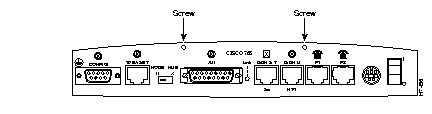
Step 3 Remove the two Phillips screws that secure the router cover to the rear panel of the router (see Figure 6-1).
Step 4 Hold the sides of the cover and remove it by lifting it vertically until it clears the chassis.
Figure 6-2 illustrates a Cisco 700 series router with 1-MB DRAM installed (two empty sockets).
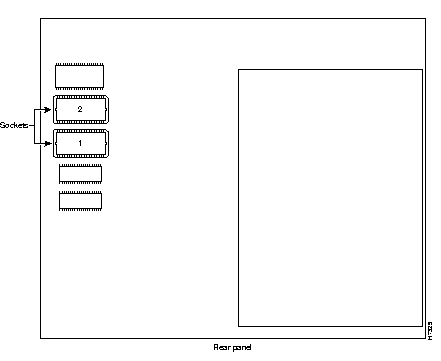
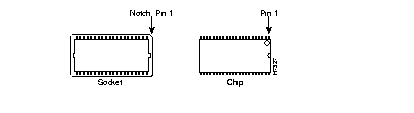
Step 5 Align the DRAM chip in the empty socket labeled 1, as shown in Figure 6-3.
The DRAM chip uses a notch or small circle to indicate the location of pin 1, as shown in Figure 6-3. The socket is also notched to show the location of pin 1.
If you are installing a NEC DRAM, pin 1 is designated by the small circle next to the beveled edge of the chip (see Figure 6-4).
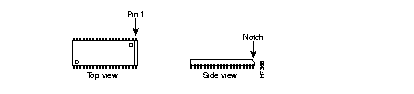
Step 6 Align the notch or circle (pin 1) on the DRAM with the notch on the chip socket.
 | Caution Do not use excessive force when you install the chip into its socket. Excessive force can bend or damage the DRAM chip or the socket. |
Step 7 Press the DRAM into the empty socket.
Step 8 To replace the router cover, slowly lower the cover onto the chassis.
Step 9 Replace and tighten the two Phillips screws that secure the cover to the rear panel of the chassis.
Step 10 Plug in the power cord and power ON the router.
When you have successfully installed the additional DRAM, the router should be ready for operation.
If you are running software Release 3.2(5) or higher, use the show memory command to find the total memory installed in your Cisco 700 series router. The following shows a typical show memory command output:
NVStore Used:796, Remaining 1230 (Deleted 18 + Unused 1212), Total 2026
RamStore Used: 0, Remaining 10000, Total 10000
RAM Size = 0xf80000
Table 6-1 lists the DRAM size values reported by the show memory command and their corresponding DRAM size in megabytes.
| RAM Size (hexadecimal) | Memory on Board |
|---|---|
| 0xf800 | 1 MB |
| 0x10000 | 1 MB |
| 0x18000 | 1.5 MB |
| 0x20000 | 2 MB |
If all the LEDs on the front panel are on when you power on your router, it is likely there is a problem with the installation of a DRAM chip. The most common DRAM installation problem is a bent or misaligned pin.
If all the LEDs on the front panel are on for three to four seconds and start flashing, immediately power off the router. Repeat Step 1 through Step 4 to remove the cover and carefully inspect the installation of each chip for a bent or misaligned pin.
| Warning DRAMs and other components might become hot during operation if installed incorrectly. Do not touch any component until the router has had time to cool. |
|
|