


|
|

This chapter, which describes the tasks you must perform before starting actual system installation, contains the following sections:
Follow these guidelines to ensure general safety:
Follow these guidelines when working on equipment powered by electricity.
 | Warning Before working on equipment that is connected to power lines, remove jewelry (including rings, necklaces, and watches). Metal objects will heat up when connected to power and ground and can cause you serious burns or weld the metal object to the terminals of power and ground. |
Electrostatic discharge (ESD) can damage equipment and impair electrical circuitry. It occurs when electronic printed circuit cards are improperly handled and can result in complete or intermittent failures.
Always follow ESD prevention procedures when removing and replacing cards. Ensure that the chassis is electrically connected to earth ground. Wear an ESD wrist strap, ensuring that it makes good skin contact. Connect the clip to an unpainted chassis frame surface to safely channel unwanted ESD voltages to ground. To properly guard against ESD damage and shocks, the wrist strap and cord must operate effectively.
If no wrist strap is available, ground yourself by touching the metal part of the chassis.
This section describes the requirements your site must meet for safe installation and operation of your router. Ensure that your site is properly prepared before beginning installation.
The router can be used as desktop or rack-mounted equipment in a data processing or lab environment. Optional rack-mount kits are available. Instructions come with the rack-mount kit.
The location of individual chassis and the layout of your equipment rack or wiring room are extremely important for proper router operation. Equipment placed too close together, inadequate ventilation, and inaccessible panels can cause router malfunctions, and shutdowns and can make router maintenance difficult.
When planning your site layout and equipment locations, use the following precautions to help avoid equipment failures and reduce the likelihood of environmentally caused shutdowns. If you are currently experiencing shutdowns or unusually high errors with your existing equipment, these precautions may help you isolate the cause of failures and prevent future problems.
The following precautions will help you plan an acceptable operating environment for your router and will help to avoid environmentally caused equipment failures:
The following tips will help you plan an acceptable equipment rack configuration:
Following are features of the router power supply:
Check the power at your site to ensure that you are receiving "clean" power (free of spikes and noise). Install a power conditioner if necessary.
Install proper grounding to avoid damage from lightning and power surges.
The Installation Checklist (see Figure 2-1) lists all the procedures for initial hardware installation of new routers. Make a copy of this checklist and mark your entries as each procedure is completed. Include a copy of the checklist for each router in your Site Log. (See the "Site Log" section.)

The Site Log provides a historical record of all actions relevant to the router. Keep it in a common place near the chassis where anyone who performs tasks has access to it. Use the Installation Checklist to verify steps in the installation and maintenance of your router. Site Log entries might include the following:
You need the following tools and equipment to install the router:
When viewed from the rear of the chassis, the power connector and switch appear on the right side. The ports for the router console, auxiliary (AUX), LAN (Token Ring or Ethernet), and serial line appear to the left of the power connector and switch. The configuration depends on which model you purchase. Refer to Figures 2-2 and 2-3 for rear views of the router.
The router console port is the top, left female 25-pin D connector on the back of the chassis. The auxiliary port is located directly below the console port.
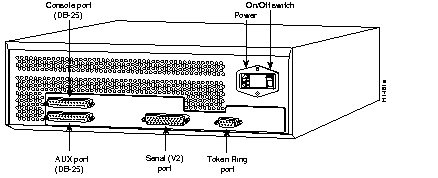
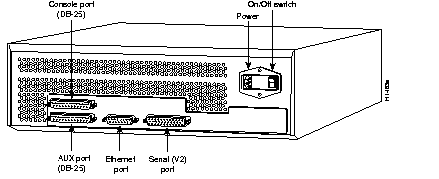
When setting up your router, consider distance limitations and potential electromagnetic interference (EMI) as defined in the Electronic Industries Association's (EIA) Recommended Standard 232-C.
As with all signaling systems, RS-232 signals can travel a limited distance at any given bit rate; generally, the slower the data rate, the greater the distance. Table 2-1 shows the standard relationship between bit rate and distance.
| Data Rate (Baud) | Distance (Feet) | Distance (Meters) |
|---|---|---|
| 2400 | 200 | 60 |
| 4800 | 100 | 30 |
| 9600 | 50 | 15 |
| 19200 | 25 | 7.6 |
| 38400 | 12 | 3.7 |
When you run cables for any significant distance in an electromagnetic field, interference can occur between the field and the signals on the cables. This fact has two implications for the construction of terminal plant cabling:
If you use twisted-pair cables in your plant cabling with a good distribution of grounding conductors, the plant cabling is unlikely to emit radio interference. When exceeding the distances listed in Table 2-1, ground the conductor for each data signal.
To predict and remedy strong electromagnetic interference, consult experts in radio frequency interference (RFI).
If you have cables exceeding the distances in Table 2-1, or if you have cables that pass between buildings, you must give special consideration to the effect of lightning strikes or ground loops. The electromagnetic pulse caused by lightning or other high-energy phenomena can easily couple enough energy into unshielded conductors to destroy electronic devices. If your site has experienced problems of this sort, consult experts in lightning suppression and shielding.
Most data centers cannot resolve the infrequent but potentially catastrophic problems just described without pulse meters and other special equipment. Take precautions to avoid these problems by providing a properly grounded and shielded environment, with special attention to issues of electrical surge suppression.
Before connecting the console and auxiliary ports, read the following sections.
Each router includes a female DB-25 connector asynchronous router console port wired as a data communications equipment (DCE) device. The default parameters for this port follow:
Table A-1 lists the pinouts for the console port.
A male DB-25 connector auxiliary port (labeled AUX on the chassis rear) is included on all router units. (See Figure 2-2 and Figure 2-3.) The AUX port is a data terminal equipment (DTE) port to which you can attach an RS-232 connector from a channel service unit/data service unit (CSU/DSU) or protocol analyzer for network access. Table A-2 lists the pinouts for this auxiliary console port.
Read this section in preparation to making network connections.
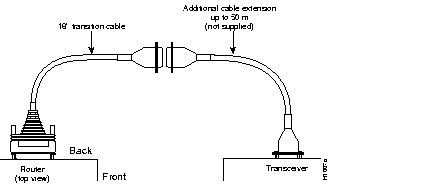
On systems with an Ethernet port, the Ethernet port is located to the right of the console and auxiliary ports. (See Figure 2-3.) Standard 15-pin Ethernet transceiver cables and IEEE 802.3 attachment unit interface (AUI) cables can be used to connect to your network. An 18-inch transition cable is provided for each Ethernet port. This cable provides flexibility for alternate connection configurations. Three configurations are possible:

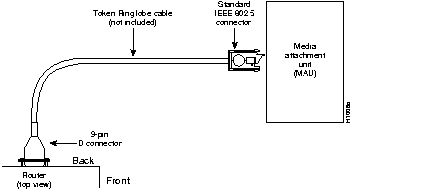
On systems with a Token Ring port, the Token Ring port is located to the right of the serial port. (See Figure 2-2.) Use a standard 9-pin Token Ring lobe cable (not supplied) to connect the router directly to a media attachment unit (MAU). (See Figure 2-6.)
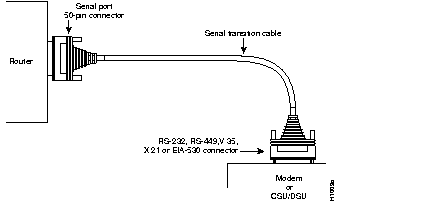
The serial interface port is located to the left of the Token Ring or to the right of the Ethernet port on the back of the router. (See Figure 2-2 and Figure 2-3 respectively.) The serial port is a 50-pin, D-type subconnector. This port is DTE and requires that clocking be provided by a CSU/DSU or modem.
You must use a special serial cable (available from your router supplier) to connect the router to a modem or CSU/DSU. (See Figure 2-7.) See Appendix A for cable specifications.
Do not unpack the router until you are prepared to install it. If its final installation site will not be ready for some time, keep the chassis in its shipping container to prevent accidental damage. When you have determined where you want the router installed, proceed with the unpacking.
The router, cables, publications, and any optional equipment you ordered might be shipped in more than one container. When you unpack each shipping container, check the packing list to ensure that you received all of the following items:
Inspect all items for shipping damage. If anything appears damaged, or if you encounter problems when installing or configuring your router, contact a customer service representative.
|
|