|
|

This chapter contains hardware installation procedures for Cisco 1600 series routers and includes the following sections:
Cisco 1600 series routers are shipped to you ready for desktop mounting. Before making the power and network connections, simply set the router on a desktop, shelf, or other flat surface. Be sure to read the safety information in the "Regulatory Compliance and Safety Information for Cisco 1600 Series Routers" that came with your router.
 | Warning Read the installation instructions before you connect the system to its power source. |
 | Caution Do not place anything on top of the router that weighs more than 10 pounds (4.5 kg). Excessive weight on top of the router could damage the chassis. |
| Warning Do not work on the system or connect or disconnect cables during periods of lightning activity. |
Turning the router on before making network connections enables you to verify your installation by checking that the appropriate LEDs light during the installation process.
| Warning The power supply is designed to work with TN power systems. |
| Warning This product relies on the building's installation for short-circuit (overcurrent) protection. Ensure that a fuse or circuit breaker no larger than 120 VAC, 15A U.S. (240 VAC, 10A international) is used on the phase conductors (all current-carrying conductors). |
| Warning This equipment is intended to be grounded. Ensure that the host is connected to earth ground during normal use. |
Follow these steps to connect the router to power and turn it on:
Step 1 Connect the DC power cable (included with the router) from the power supply to the DC power input on the rear panel of the router.
Step 2 Connect the male end of the power cable to the power outlet.
Step 3 Connect the female end of the cable to the male receptacle on the power supply.
Step 4 On the rear panel of the router, turn ON the power by setting the switch labeled | / O to the | position.
Step 5 Slip the wire clip over the power cord to ensure that the power cord remains attached to the router, as shown in Figure 2-1.
Step 6 Check the following LEDs:
The router can be connected to two types of Ethernet LANs:
| Warning Do not work on the system or connect or disconnect cables during periods of lightning activity. |
| Warning The ports labeled 10BASET, CONSOLE, and FLASH PC CARD are safety extra-low voltage (SELV) circuits. SELV circuits should only be connected to other SELV circuits. Because the BRI circuits are treated like telephone-network voltage, avoid connecting the SELV circuit to the telephone network voltage (TNV) circuits. |
You must supply an Ethernet transceiver for this step. Follow these steps to connect the router to an AUI Ethernet LAN:
Step 1 Connect the one end of the AUI adapter cable to the transceiver.
Step 2 Connect the other end of the AUI adapter cable to the AUI port on the router (Figure 2-2).
Step 3 Connect the transceiver to the Ethernet LAN using a BNC connector (Figure 2-2).
Step 4 Check the following LEDs:

You must supply an Ethernet hub and an RJ-45-to-RJ-45 cable for this connection. Follow these steps to connect the router to a 10BaseT Ethernet LAN:
Step 1 Connect one end of the Ethernet cable to the 10BASE T port.
Step 2 Connect the other end of the cable to one of the ports on the 10BaseT hub.
Step 3 Check the following LEDs:

Unlike the other Cisco 1600 models, the Cisco 1605-R can support two LAN connections (Figure 2-4).
The Cisco 1605-R has two Ethernet Ø ports. However, you can use only one of the Ethernet Ø ports at any one time. A second Ethernet connection must always be on the ETHERNET 1 10BASE T port. The Ethernet ports can be used in one of these two combinations:
ETHERNET Ø 10BASE T and ETHERNET 1 10BASE T
ETHERNET Ø AUI and ETHERNET 1 10BASE T
Make the LAN connections for the Cisco 1605-R as you would any of the other models.

Each Cisco 1600 series router supports a different type of WAN connection. This section describes how to make these WAN connections:
For this step, you must purchase a shielded serial transition cable from Cisco Systems. The router end of the shielded serial transition cable has a DB-60 connector. When you order the cable, specify the appropriate connector for your WAN interface.
Follow these steps to connect the Cisco 1601 to the WAN:
Step 1 Connect the cable DB-60 connector to the SERIAL Ø port on the Cisco 1601.
Step 2 Connect the other end of the cable to one of the following devices:
Step 3 Check the RDY LED on the rear panel. It lights when the router is correctly connected to the modem or CSU/DSU. If the RDY LED is not on, refer to the "Troubleshooting" appendix later in this guide.

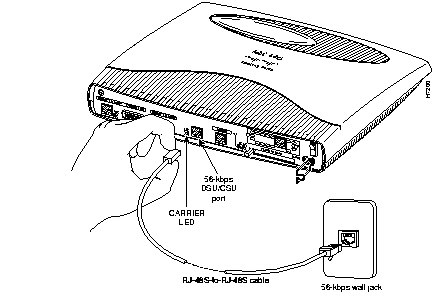
You must provide either an RJ-48S-to-RJ-48S or an RJ-45-to-RJ-45 cable for this step. Follow these steps to connect the Cisco 1602 to the WAN:
Step 1 Connect one end of the cable to the router SERIAL Ø 56K DSU/CSU port.
Step 2 Connect the other end of the cable to the 56-kbps wall jack (Figure 2-6).
Step 3 Check the CARRIER LED on the rear panel. It lights when the cable is correctly connected and the router has synchronized with the central office switch.
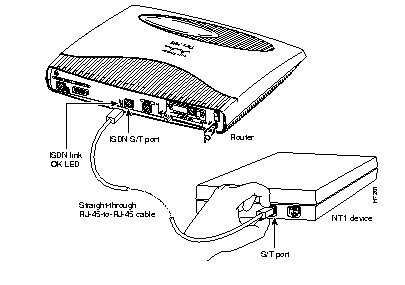
You must provide a Network Termination 1 (NT1) device and a straight-through RJ-45-to-RJ-45 cable for this connection.
| Warning Network hazardous voltages are present in the BRI cable. If you detach the BRI cable, detach the end away from the router first to avoid possible electric shock. Network hazardous voltages also are present on the system card in the area of the BRI port (RJ-45 connector), regardless of when power is turned off. |
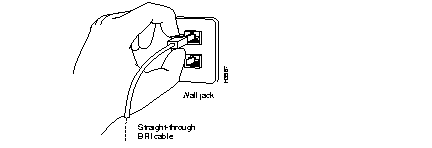
Depending on where the Cisco 1603 is being used, the ISDN BRI connection can be different. Follow these steps to connect the Cisco 1603 to the WAN:
Step 1 Use an RJ-45-to-RJ-45 cable to connect the cable to the ISDN Ø S/T port on the router
Step 2 Do one of these steps:
| Warning Network hazardous voltages are present in the BRI cable. If you detach the BRI cable, detach the end away from the router first to avoid possible electric shock. Network hazardous voltages also are present on the system card in the area of the BRI port (RJ-45 connector), regardless of when power is turned off. |
Step 3 Check the following LEDs:
You must provide a straight-through cable, either RJ-11-to-RJ-11 or RJ-45-to-RJ-45, for this connection. Follow these steps to connect the Cisco 1604 to the WAN:
Step 1 Connect one end of the cable to the ISDN Ø U port on the router.
Step 2 Connect the other end of the cable directly to the ISDN BRI wall jack (Figure 2-9).
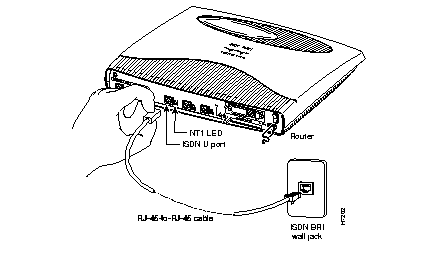
Step 3 The NT1 label on the rear panel lights when the router has synchronized with the central office switch.
The procedure for connecting the Cisco 1605-R to the WAN depends on the type of WAN interface card that is installed in the router. For instructions for the card that you are using, refer to the Installing WAN Interface Cards for Cisco 1600 Series Routers configuration note that came with your WAN interface card.
The cable and adapters required for this connection are included with the router. Follow these steps to connect the router to a terminal or PC:
Step 1 Connect the light-blue console cable to the light-blue CONSOLE port on the router (Figure 2-10).
Step 2 Use the correct adapter to connect the other end of the cable to your terminal or PC.

You have completed the router installation and are ready to configure the router. Refer to the Cisco 1600 Series Software Installation Guide for more information about configuring your router.
|
|