|
|

This chapter describes some procedures that you might not need for your router:
Cisco 1600 series routers can support an additional WAN port on a one-port WAN interface card that is installed in the router. This chapter describes the WAN interface cards supported by Cisco 1600 series routers and describes the general procedure for installing any WAN interface card in any Cisco 1600 series router.
For information about installing and connecting a specific card, refer to the WAN Interface Card Hardware Installation Guide document that came with the card.
This procedure describes how to install a WAN interface card in a Cisco 1600 series router. In this example, an ISDN BRI U card is installed in a Cisco 1601 router. The same procedure is used to install any of the Cisco 1600-compatible cards in any Cisco 1600 series router.
This section lists safety warnings that you should be aware of before installing a WAN interface card in the router.
 | Warning Only trained and qualified personnel should be allowed to install or replace this equipment. (To see translated versions of this warning, refer to the Regulatory Compliance and Safety Information for Cisco 1600 Series Routers document that accompanied the router.) |
| Warning Before working on equipment that is connected to power lines, remove jewelry (including rings, necklaces, and watches). Metal objects will heat up when connected to power and ground and can cause serious burns or weld the metal object to the terminals. (To see translated versions of this warning, refer to the Regulatory Compliance and Safety Information for Cisco 1600 Series Routers document that accompanied the router.) |
| Warning Before opening the chassis, disconnect the telephone-network cables (from the card) to avoid contact with telephone-network voltages. (To see translated versions of this warning, refer to the Regulatory Compliance and Safety Information for Cisco 1600 Series Routers document that accompanied the router.) |
| Warning Do not work on the system or connect or disconnect cables during periods of lightning activity. (To see translated versions of this warning, refer to the Regulatory Compliance and Safety Information for Cisco 1600 Series Routers document that accompanied the router.) |
Follow these steps to install the card in a Cisco 1600 series router:
Step 1 Turn the router OFF, and disconnect the cable from the 14 VDC socket on the rear panel of the router.
Step 2 Loosen the captive screws on the WAN interface card-slot cover on the rear panel of the router (Figure 3-1).

Step 3 Remove the metal plate that covers the WAN interface card slot.
Step 4 Hold the WAN interface card by the edges on either side the front panel, and line up the edges of the card with the guides (Figure 3-2).
 | Caution Do not connect a WAN cable to the card until you have completed the installation procedure. |
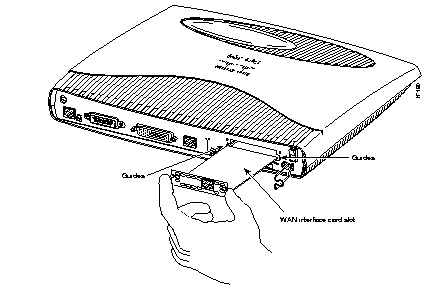
Step 5 Insert the card in the slot and gently push it in until the front panel of the card is flush with the rear panel of the router.
Step 6 Tighten the card captive screws.
For more information about the card that you are using, refer to the WAN Interface Card Hardware Installation Guide document that came with the card.
This section explains how to install the Flash PC card. The Flash PC card is a writable card used to download new software to the router over the WAN.
Follow these steps to install the Flash PC card:
Step 1 Turn the router OFF.
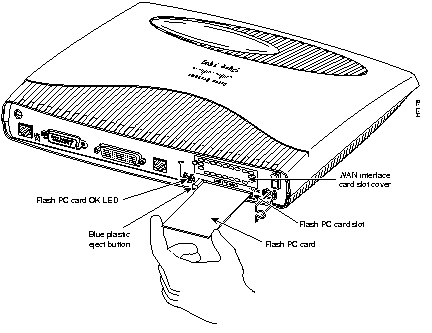
Step 2 Insert the connector end of the card in the router slot, aligning the card edges along the card-slot guides.
Step 3 Push the Flash PC card into the slot (Figure 3-3) until the card is seated.
When the card is completely seated in the connector, the blue button left of the Flash PC card slot (Figure 3-3) pops out. If the blue button does not pop out, the card is not seated. Press the blue button, remove the card, and reinsert it.
| Caution Do not remove the Flash PC card while the router is operating. The router cannot operate without the Flash PC card. |
This section describes how to connect an ISDN telephone (or another ISDN device) to the ISDN PHONE port on the rear panel of the Cisco 1604. The ISDN PHONE port is only for connecting a second ISDN device. Routing cannot be performed over this port.
When you are connecting a second ISDN device to the ISDN line through the router, you need to use subaddressing on the ISDN line.
For more information on configuring the ISDN line so that you can use subaddressing, refer to the "ISDN BRI Line Configuration Requirements" section in the "Configuring the ISDN Line" appendix later in this guide.
This procedure in this section assumes that you have already connected the router ISDN Ø U port to the ISDN wall-jack as described in the "Connecting the Cisco 1604 to the WAN"section in the "Installing the Router" chapter earlier in this guide.
This example procedure describes how to connect an AT&T ISDN telephone (model ISDN 8510T) and an AT&T external power supply (model MSP-1) that supplies power to this telephone. Depending on the model of telephone and power supply that you are installing, the procedure for connecting the telephone and power supply could differ slightly from the one shown in this section.
Follow these steps to connect an ISDN telephone to the router:
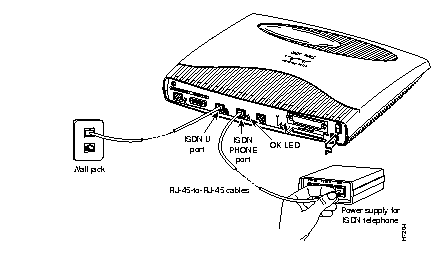
Step 1 Connect an RJ-45-to-RJ-45 cable (included) to the ISDN PHONE on the router.
Step 2 Connect the other end of the cable to the LINE port on the ISDN telephone power supply, as shown in Figure 3-4.
Step 3 Connect the ISDN telephone RJ-45 cable to the PHONE port on the ISDN telephone power supply, as shown in Figure 3-5.
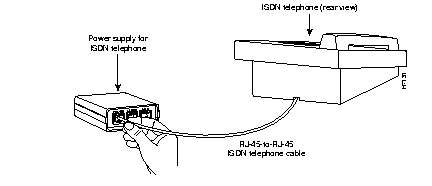
Step 4 Connect the power supply cable to the power outlet, as shown in Figure 3-6.
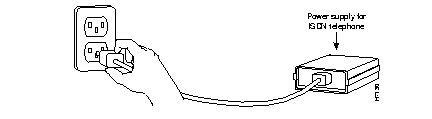
Step 5 The OK LED on the rear panel of the router (next to ISDN PHONE port) lights when the second ISDN device has synchronized with the central office switch.
Cisco 1600 series routers can be wall-mounted with two number-six, 3/4-inch screws (not included) and the molded mounting brackets on the bottom of the router (see Figure 3-7).
| Caution If you install the screws in drywall, use hollow wall-anchors (1/8 inch by 5/16 inch) to secure the screws. If the screws are not properly anchored in wallboard or drywall, the strain of the network cable connections could pull the router from the wall. |
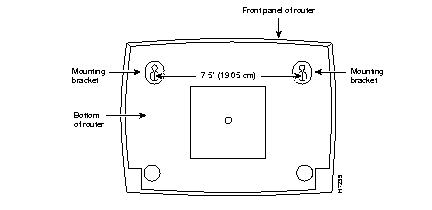
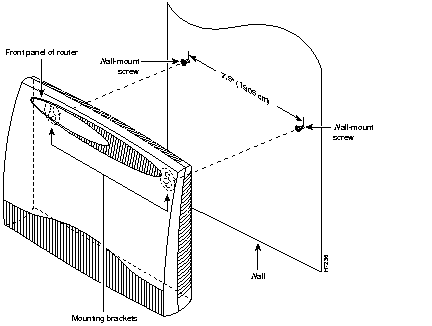
Follow these steps to mount the router on a wall or other vertical surface, as shown in Figure 3-8:
Step 1 Install the two screws 7.5 inches (19.05 centimeters) apart on a wall or other flat surface.
Step 2 Hang the router on the screws by the mounting brackets so that the following conditions are met:
|
|