


|
|
Your router goes through extensive testing and burn-in before leaving the factory. If you encounter problems, use the information in this appendix to help isolate problems or to eliminate the router as the source of the problem.
This appendix contains the following sections:
If you cannot locate the source of the problem, contact a customer service representative for information on how to proceed. For technical support information, refer to the information packet publication that shipped with your router. Before you call, have the following information ready:
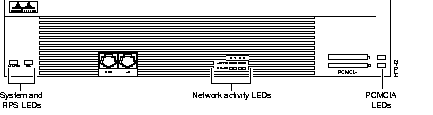
The LEDs on the front panel of the router enable you to determine router performance and operation. For a description of these LEDs, refer to the section "Reading Front Panel LEDs" later in this appendix.
When problem solving, consider the following subsystems of the router:
Both the System LED and the fans can help you troubleshoot a power problem. Check the following items to help isolate the problem:
If the router is operating at an abnormally high temperature, you see the following message on the console screen:
%SYS-1-OVERTEMP: System detected OVERTEMPERATURE condition. Please resolve cooling problem immediately!
Some causes of abnormally high router temperature are:
Take steps to correct the problem. See also the sections "Site Environment" and "Equipment Racks" in the chapter "Preparing to Install the Router."
Network problems can be caused by a module, cables or cable connections, or external devices such as a modem, transceiver, hub, wall jack, WAN interface, or terminal. Check for the following symptoms to help isolate the problem:
The LEDs on the front panel of the router enable you to determine router performance and operation. Figure B-1 illustrates the LEDs on the front panel of the router. Table B-1 describes the system LED, Table B-2 describes the redundant power supply (RPS) LED, and Table B-3 describes the active, ready, and PCMCIA LEDs.
| Color | Description |
|---|---|
| Off | The router is not receiving power. |
| Blinking green | The router is running the ROM monitor. No errors detected. |
| Solid green | The router is operating normally. No errors detected. |
| Amber | The router is receiving power but not functioning properly. Possible power-on self-test error or over-temperature condition detected. |
| Alternating amber and green | Power-on self-test detected. The router is attempting to reload the ROM monitor. |
| Color | RPS Status |
|---|---|
| Off | Not installed |
| Blinking green | The RPS and the model 3640 power supplies are both operational. Because the model 3640 can only accept power from one source, you can do either of the following:
|
|
Solid green | Operational |
| Amber | Installed but not operational |
| LED | Description |
|---|---|
| ACTIVE 0, 1, 2, 3 | Blinks to indicate network activity on the module installed in the indicated slot (0, 1, 2, 3). |
| READY 0, 1, 2, 3 | A functional module has been installed in the indicated slot (0, 1, 2, 3). If the LED is off, the slot is empty or the module is not functional. |
| PCMCIA 0, 1 | Data activity on the indicated PCMCIA slot. |
The module LEDs are all visible through cutouts in the rear of the chassis.
The following sections describe the module LEDs:
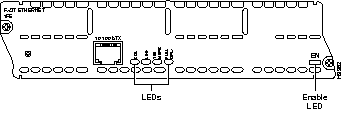
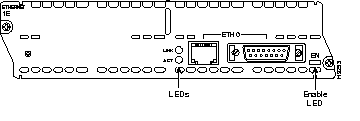
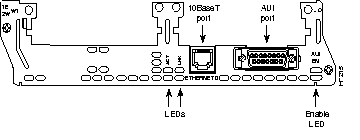
All modules have an Enable LED. When on, the Enable LED indicates the module has passed its self-tests and is available to the system.
The LEDs on the 1FE module are labeled as shown inFigure B-2.
The LEDs on the 1E module are labeled as shown in Figure B-3.
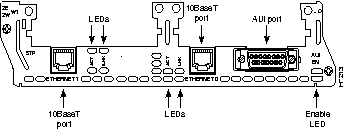
The LEDs on the 1E 2-slot module are labeled as shown in Figure B-4.
The LEDs on the 2E 2-slot module are labeled as shown in Figure B-5.
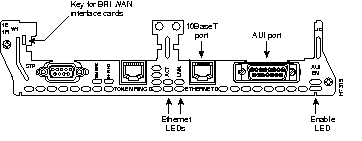
The LEDs on the 1E1R 2-slot module are labeled as shown in Figure B-6.
The LEDs on the 4-port Ethernet module are labeled as shown in Figure B-7.
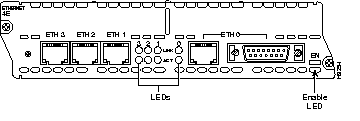
The LEDs the Ethernet modules are described in Table B-4.
| LEDs | Indication |
|---|---|
| ACT (activity) | System is transmitting or receiving data |
| LNK (link) | 10BaseT is selected and the link is available |
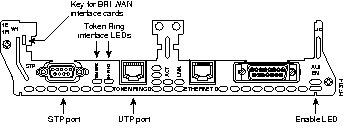
The two Token Ring LEDs in the 1E1R 2-slot module are labeled 16MBPS and IN-RING. (SeeTable B-5 and Figure B-8.)
| LEDs | Indication |
|---|---|
| 16MBPS | Ring speed of 16 Mbps |
| IN-RING | Token Ring interface is inserted into the ring |
 | Time Saver When the IN-RING LED is off, you can unplug the Token Ring cable without causing a problem on the ring. |
The LEDs on the 4-port serial module are described in Table B-6 and illustrated in Figure B-9.
| LED | Meaning |
|---|---|
| CN/LP | Connect when green, loopback when yellow |
| RXC | Receive clock |
| RXD | Receive activity |
| TXC | Transmit clock |
| TXD | Transmit activity |
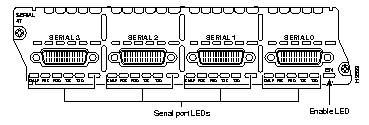
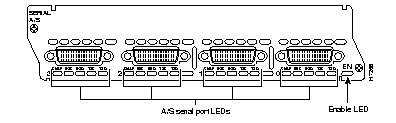
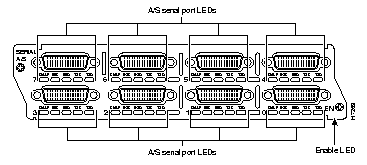
The LEDs in the A/S serial modules are described in Table B-7 and shown in Figure B-10 and Figure B-11.
| LEDs | Indication |
|---|---|
| CN/LP | Connect when green, loopback when yellow |
| RXC | Receive clock |
| RXD | Receive activity |
| TXC | Transmit clock |
| TXD | Transmit activity |
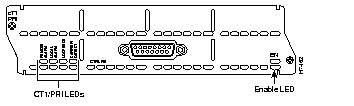
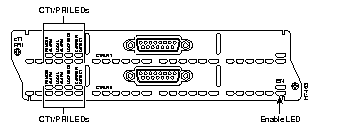
The LEDs in the CT1/PRI modules are described in Table B-8 and shown in Figure B-12 and Figure B-13.
| LEDs | Indication |
|---|---|
| REMOTE ALARM | Remote alarm condition |
| LOCAL ALARM | Local alarm condition |
| LOOPBACK | Loopback condition |
| CARRIER DETECT | Received carrier on the telco link |
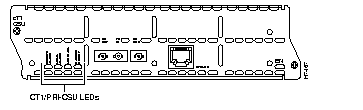
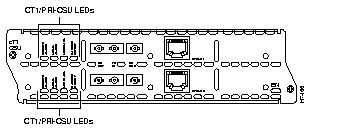
The LEDs in the CT1/PRI-CSU modules are described in Table B-9 and shown in Figure B-14 and Figure B-15.
| LEDs | Indication |
|---|---|
| REMOTE ALARM | Remote alarm condition |
| LOCAL ALARM | Local alarm condition |
| LOOPBACK | Loopback condition |
| CARRIER DETECT | Received carrier on the telco link |
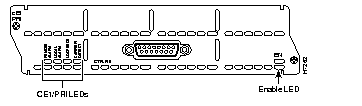
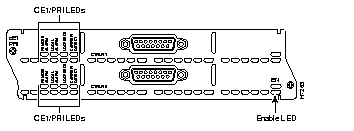
The LEDs in the CE1/PRI-B and CE1/PRI-U modules are described in Table B-10 and shown in Figure B-16 and Figure B-17. The same LEDs are used for balanced (120 ohm) and unbalanced (75 ohm) E1 interfaces.
| LEDs | Indication |
|---|---|
| REMOTE ALARM | Remote alarm condition |
| LOCAL ALARM | Local alarm condition |
| LOOPBACK | Loopback condition |
| CARRIER DETECT | Received carrier on the telco link |
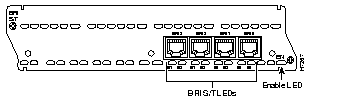
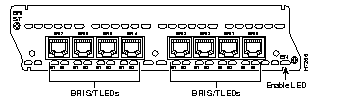
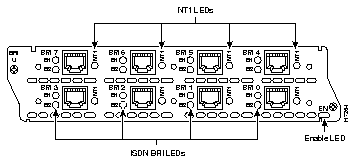
The LEDs in the BRI S/T modules are described in Table B-11 and shown in Figure B-18 and Figure B-19. BRI S/T modules connect to the network with an S/T interface.
| LEDs | Indication |
|---|---|
| B1 | Activity on the B1 channel |
| B2 | Activity on the B2 channel |
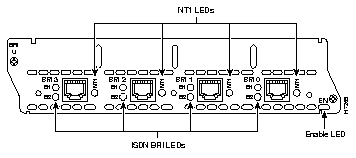
The LEDs in the BRI U modules are described in Table B-12 and shown in Figure B-20 and Figure B-21. The BRI U modules connect to the network with a U interface.
| LEDs | Indication |
|---|---|
| B1 | Activity on the B1 channel |
| B2 | Activity on the B2 channel |
| NT1 | Sync status of the NT1 device |
The WAN interface card LEDs are all visible on the faceplate of the card.
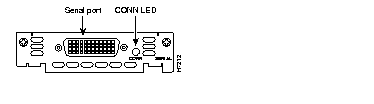
The serial WAN interface card has one LED that indicates data activity on the serial port. (See Figure B-22.)
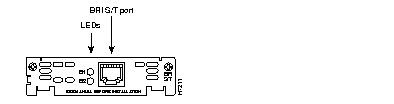
The older BRI S/T WAN interface card has two LEDs. (See Figure B-23.) The LEDs, labeled B1 and B2, indicate status (up/down) of the two ISDN BRI B channels.
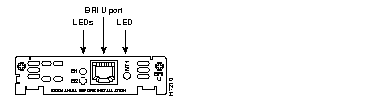
The older BRI U WAN interface card has three LEDs. (See Figure B-24.) Two of the LEDs, labeled B1 and B2, indicate the status (up/down) of the two ISDN BRI B channels. The third LED, labeled NT1, indicates the synchronous status of the NT1.
The newer BRI S/T WAN interface cards have three LEDs, shown in Figure B-25.

The B1 and B2 LEDs indicate call activity on the two ISDN-BRI B-channels, as listed in Table B-11.
| LED | Meaning |
|---|---|
| B1 | Call active on B1 channel |
| B2 | Call active on B2 channel |
| OK | ISDN port has synchronized with the central office switch (the D-channel is active) |
Newer BRI U WAN interface cards also have three LEDs, as shown in Figure B-26.

Two of these LEDs indicate call activity on the two ISDN-BRI B-channels, as listed in Table B-12. The third LED, labeled NT1, indicates synchronization status of the NT1.
| LED | Meaning |
|---|---|
| B1 | Call active on B1 channel |
| B2 | Call active on B2 channel |
| NT1 | Synchronous status of NT1 |
The switched 56 WAN interface card has five LEDs. These LEDs are shown in Figure B-27 and described in Table B-8.
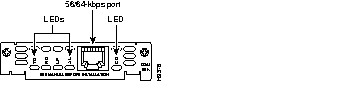
| LED | Meaning |
|---|---|
| TD | Data is transmitting to the DTE interface. |
| RD | Data is being received from the DTE interface. |
| LP | The internal DSU/CSU is in loopback mode. |
| AL | An alarm condition is present. |
| CD | The internal DSU/CSU in the WAN interface card in communicating with another DSU/CSU. |
This section describes how to recover a lost enable password.
Follow this procedure to recover a lost enable password:
Step 1 Connect an ASCII terminal or a PC running a terminal emulation program to the console port located on the front panel of the router. Refer to the section "Console Port" in the chapter "Installing the Router."
Step 2 Reboot the router. If asked whether you would like to enter the initial dialog, answer no:
no
You are now in the router's normal operating mode.
Step 3 After a few seconds you see the user EXEC prompt (Router>). Enter the show version command to display the existing configuration register value. Record the setting of the configuration register.
Step 4 If Break is enabled, send a Break by pressing the Break key. This action causes the terminal to display the ROM monitor prompt (rommon >). Proceed to Step 6.
Step 5 If Break is disabled, you do not know whether Break is enabled, or sending a Break fails, power OFF the router, wait five seconds, and power it ON again. Within five seconds of powering ON the router, press the Break key. This action causes the terminal to display the ROM monitor prompt (rommon >).
Step 6 Enter confreg at the ROM monitor prompt.
Step 7 Enter y at the following prompt:
Step 8 Enter n in response to all the prompts until you reach the following prompt, then enter y:
y
Step 9 Enter n in response to all the prompts until you reach the following prompt, then enter y:
Step 10 At the following prompt, enter 2 and press Return. A configuration summary is displayed.
Step 11 Enter n at the following prompt:
n
Step 12 Enter reset at the ROM monitor prompt. The router reboots.
Step 13 Enter n at the following prompt:
no
Step 14 Enter enable to enter privileged EXEC mode:
enable
Configuration changes can be made only in enable mode. The prompt changes to the privileged EXEC prompt (Router#):
Step 15 Enter the show startup-config command to display the enable password in the configuration file:
show startup-config
Step 16 Enter the configure terminal command to enter configuration mode:
configure terminal
Step 17 Enter the configure register command followed by a number to return the original value found in Step 3.
Step 18 Press Ctrl-Z to exit configuration mode.
Step 19 Reboot the router and enter the recovered password.
If both the boot and system images have been erased and only the ROM monitor is available, you can use the ROM monitor xmodem command to copy a Cisco IOS image to Flash memory from the console. The console can be connected directly to the router through the console port, or remotely through a modem connected to the auxiliary port.
The console must have the following files to use this procedure:
Perform the following steps to copy the Cisco IOS image to Flash memory:
Step 1 Connect the console following the instructions in the section "Connecting the Console Terminal and Modem" in the chapter "Installing the Router."
Step 2 Power ON the router. The power-on self-test diagnostics run and the boot ROM searches for a valid boot image and Cisco IOS image in Flash memory. If the boot image and Cisco IOS image are not found, the boot ROM monitor prompt is displayed:
Step 3 Enter the xmodem command and the name of the source file containing the Cisco IOS image:
filename
Step 4 The source file is searched for and found. Messages similar to the following display:
Step 5 Enter yes to copy the Cisco IOS image into Flash memory. Messages similar to the following display:
|
|