|
|

Cisco Product Numbers: ACS-NPRM, ACS-NPWM
This document contains instructions for mounting your Cisco 4000, Cisco 4000-M, Cisco 4500, Cisco 4500-M, Cisco 4700, or Cisco 4700-M router in a standard 19-inch rack, in a 19-inch telco rack, or on a wall.
This document contains the following sections:
 | Warning To ensure your safety and the safety of others, be sure the power is OFF and the power cord is unplugged before working on the router. |
Follow these guidelines to ensure general safety:
| Warning Before working on equipment that is connected to power lines, remove jewelry (including rings, necklaces, and watches). Metal objects will heat up when connected to power and ground and can cause serious burns or weld the metal objects to the terminals. |
Follow these guidelines when working on equipment powered by electricity:
The following tools and parts are required for rack-mount and wall-mount procedures:
For wall-mounting, the following additional equipment is required:
Table 1 lists the parts contained in the standard rack-mount kit.
| Quantity | Item |
|---|---|
| 2 | Rack-mount brackets |
| 2 | Short bracket extenders |
| 2 | Long bracket extenders |
| 6 | M3 machine screws |
| 8 | 10-32 machine screws |
| 8 | 8-32 flat-head machine screws |
| 1 | Installation diagram |
Table 2 lists the parts contained in the telco rack-mount and wall-mount kit.
| Quantity | Item |
|---|---|
| 2 | Telco rack-mount or wall-mount brackets |
| 2 | M3 machine screws |
| 4 | 10-32 machine screws |
| 8 | 8-32 flat-head machine screws |
| 4 | Hex-head wood screws (mounts chassis to plywood board) |
| 1 | Installation diagram |
The Cisco 4000 series routers can be mounted in a standard 19-inch rack, a telco 19-inch rack, or on a wall. The procedures for the different mounting options involve removing the front panel and component tray from the chassis shell and then installing the empty shell in position before reinserting the component tray.
| Warning Hazardous voltages may exist in or near the power supply, so use extreme caution when working near the power supply. Before starting any of these procedures, turn OFF power to the system, unplug the power cord, disconnect any cables at the ports, and connect your ESD-preventive wrist strap. |
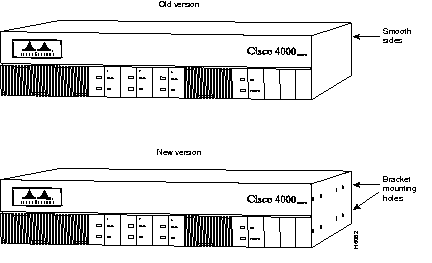
Cisco 4000 series routers have two chassis versions. (See Figure 1.) In the old version of the chassis, the rack-mount and wall-mount brackets are secured to the chassis with tabs located on the inside of the chassis shell. Newer versions of the chassis use screws to attach the brackets to the side of the chassis shell. The rack-mount and the wall-mount brackets supplied with this kit can be used with both types of chassis.
To rack-mount or wall-mount the chassis, you must first remove the front panel and component tray from the chassis shell.
Some Cisco 4000 series routers have a safety latch tab on the chassis that affects removing the component tray. (See Figure 2 and Figure 3.)
If you have a chassis with a safety latch tab, follow the procedure in the following section, "Removing the Component Tray from a Chassis with a Safety Latch."
If you have a chassis without a safety latch tab, follow the procedure in the section "Removing the Component Tray from a Chassis without a Safety Latch," later in this document.
| Warning Hazardous voltages may exist in or near the power supply, so use extreme caution when working near the power supply. Before starting any of these procedures, turn OFF power to the system, unplug the power cord, disconnect any cables at the ports, and attach your ESD-preventive wrist strap. |
Take the following steps to remove the component tray from a chassis with a safety latch:
Step 1 Turn OFF the system power.
Step 2 Attach your ESD-preventive wrist strap.
Step 3 Remove all network and power cables.
Step 4 Loosen the nonremovable screw in the back of the router chassis. The screw is labeled "Chassis release screw" in Figure 2.
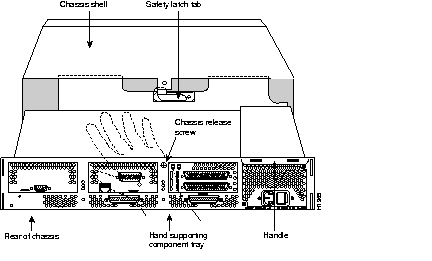
| Warning Before releasing the safety latch, support the component tray from underneath either on your work surface or with your hands to prevent it from falling (see Figure 2). |
Step 5 Slide the component tray out of the chassis shell while facing the rear panel of the chassis, pulling the handle on the right side of the chassis until the safety latch catches. (See Figure 2.)
Step 6 Supporting the component tray with one hand, push down on the safety latch tab while you pull out on the component tray.
Step 7 Set the component tray on your work surface.
Step 8 Remove the plastic front panel from the front of the chassis shell by pulling it straight out using both hands.
| Warning Hazardous voltages may exist in or near the power supply, so use extreme caution when working near the power supply. Before starting any of these procedures, turn OFF power to the system, unplug the power cord, disconnect any cables at the ports, and attach your ESD-preventive wrist strap. |
Take the following steps to remove the component tray from a chassis without a safety latch:
Step 1 Turn OFF the system power.
Step 2 Attach your ESD-preventive wrist strap.
Step 3 Remove all network and power cables.
Step 4 Loosen the nonremovable screw in the back of the router chassis. The screw is labeled "Chassis release screw" in Figure 3.
| Warning Support the component tray from underneath, either on your work surface or with your hands, to prevent it from falling. |
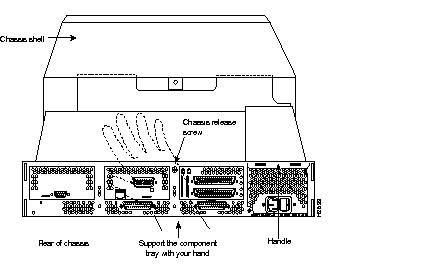
Step 5 While facing the rear panel of the chassis, pull the handle on the right side of the router while you support the component tray with one hand. Slide the component tray out of the chassis shell.
Step 6 Set the component tray on your work surface.
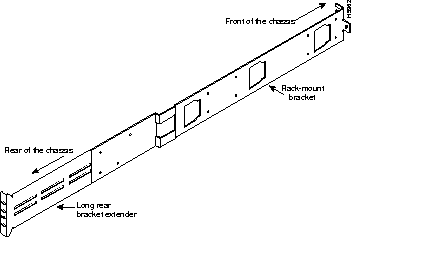
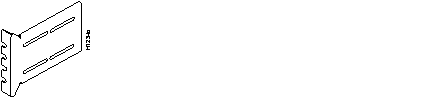
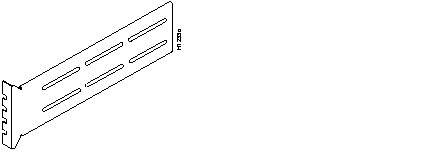
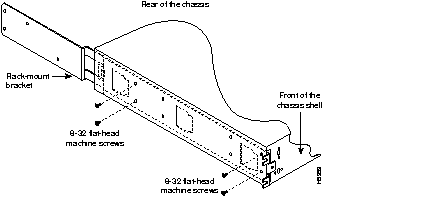
After removing the chassis shell and front panel, you can install the standard rack-mount brackets into the chassis shell. The standard 19-inch rack-mount kit (see Figure 4) consists of two sets of one bracket, one short extender (approximately five inches) (see Figure 5), and one long extender (approximately ten inches) (see Figure 6).
If you have an older version of the chassis, use the first of the following procedures to install the standard rack-mount brackets. If you have a new version of the chassis, use the second procedure to install the standard rack-mount brackets. After installing the brackets, use the third procedure to install the chassis shell into a standard 19-inch rack.
Take the following steps to install standard rack-mount brackets into an old version of the chassis shell:
Step 1 Insert one rack-mount bracket through the slot on each side of the front and rear of the chassis shell, sliding the rack-mount brackets straight into the shell's inner tabs (see Figure 7).
Step 2 Fasten the brackets to each side of the chassis shell with the M3 machine screws provided (see Figure 8).
Take the following steps to install standard rack-mount brackets into the new version of the chassis shell:
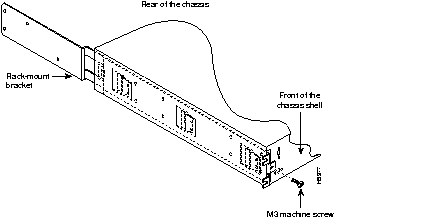
Step 1 Insert one rack-mount bracket through the slot on each side of the front and rear of the chassis shell (see Figure 9).
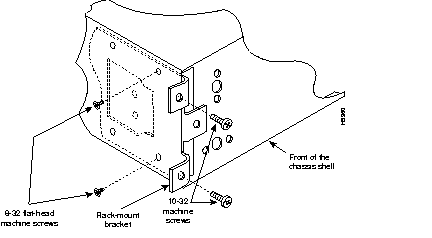
Step 2 Fasten the brackets to each side of the chassis shell with the 8-32 flat-head machine screws provided (see Figure 9 and Figure 10). Only four 8-32 flat-head machine screws are required for each bracket.
Take the following steps to install the chassis into a standard rack:
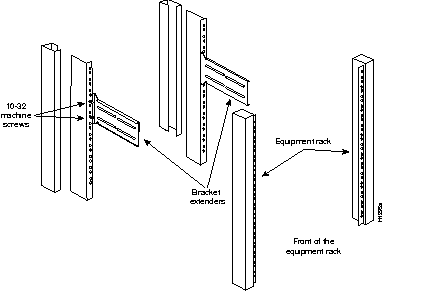
Step 1 On the rear of the rack, insert two 10-32 machine screws through the slots of the extenders and thread them into the rack-mount threaded holes (see Figure 11).
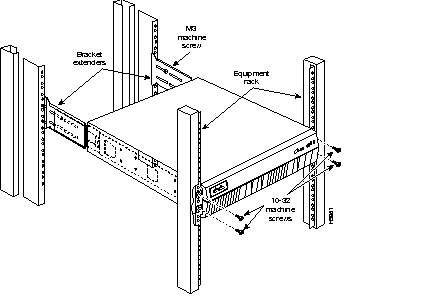
Step 2 While supporting the chassis shell, slide the rack-mount brackets into the installed rear extenders. The standard rack-mount bracket, extender, and screws fit together as shown in Figure 12.
Step 3 Mount the front of the chassis shell in the rack using two 10-32 machine screws on each side of the front brackets.
Step 4 In the rear of the chassis shell, insert two M3 machine screws on both sides to fasten the brackets and bracket extenders together.
Step 5 Replace the front panel by snapping it into the front of the chassis shell.
Step 6 Reinsert the component tray into the shell.
Step 7 Push on the back of the tray while at the same time pressing on the chassis release screw (shown in Figure 2 and Figure 3) with the thumb of your right hand.
Step 8 Retighten the chassis release screw.
This completes the standard rack-mount procedure.
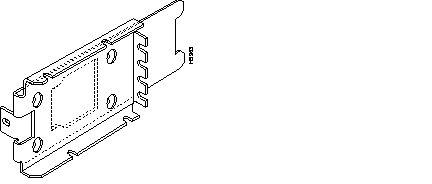
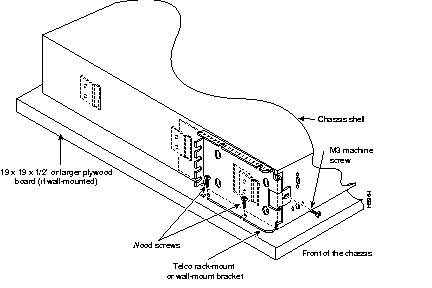
The same brackets are used for both telco rack-mounting and for wall-mounting. (See Figure 13.) After the brackets have been installed into either the old, tab-mount version of the chassis, or the new screw-mount version of the chassis, the chassis is then ready for mounting in either a telco rack or on a wall.
If you have an older version of the chassis, use the first of the following procedures to install the telco rack-mount or wall-mount brackets. If you have a new version of the chassis, use the second procedure to install the telco rack-mount or wall-mount brackets. After installing the brackets, use the appropriate procedure to install the chassis in a telco rack or on a wall.
Take the following steps to install telco rack-mount or wall-mount brackets into the old version of the chassis:
Step 1 Remove the component tray from the system. Refer to the procedure described in the section, "Preparing the Chassis for Rack-Mounting or Wall-Mounting."
Step 2 Insert one rack-mount bracket into the slot on each side of the shell, sliding the bracket straight into the shell's inner two-inch brackets.
Step 3 Fasten the bracket to the shell on each side of the chassis shell with one M3 machine screw (as shown in Figure 14).
Take the following steps to install telco rack-mount or wall-mount brackets into the new version of the chassis:
Step 1 Remove the component tray from the system. Refer to the procedure described in the section, "Preparing the Chassis for Rack-Mounting or Wall-Mounting."
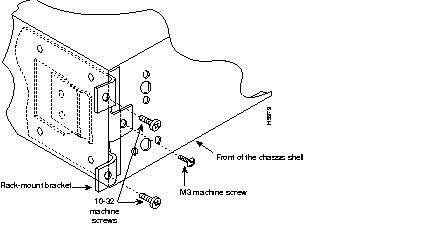
Step 2 Insert one rack-mount bracket into the slot on each side of the chassis shell, lining up the bracket with the screw holes located on the side of the chassis shell.
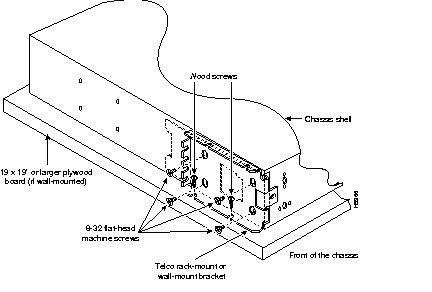
Step 3 Fasten each bracket to the side of the chassis shell using four 8-32 flat-head machine screws (as shown in Figure 15).
After you have installed the telco rack-mount or wall-mount brackets, take the following steps to mount your system in a telco rack:
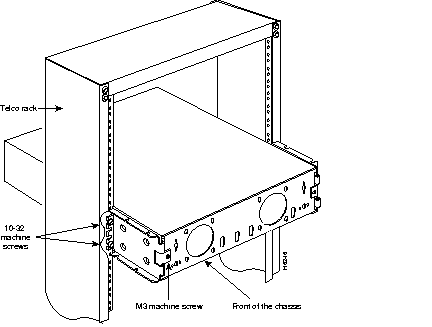
Step 1 Partially thread two 10-32 machine screws into one side of the telco rack with enough space to allow one side bracket to fit (see Figure 16).
Step 2 While supporting the chassis shell, slip one side bracket over the two screws in place and thread one screw in on the bracket on the opposite side to secure the shell to the telco rack.
Step 3 Thread the remaining machine screw and tighten all the screws in place.
Step 4 Replace the front panel by snapping it into the front of the chassis shell.
Step 5 Reinsert the component tray into the shell.
Step 6 Push on the back of the tray while at the same time pressing on the chassis release screw (shown in Figure 1) with the thumb of your right hand.
Step 7 Retighten the chassis release screw.
This completes the telco rack-mount procedure.
After you have installed the telco rack-mount or wall-mount brackets, take the following steps to mount your system on a wall:
Step 1 Install the wall-mount brackets following the procedures described in the section "Preparing the Chassis for Rack-Mounting or Wall-Mounting" and "Overview of Telco Rack-Mounting and Wall-Mounting."
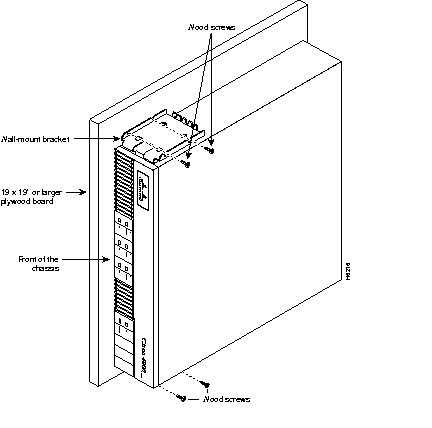
Step 2 Choose the wall on which you will mount the Cisco 4000 chassis. When choosing a location, consider cable lengths and limitations, and wall structure (see Figure 17).
Step 3 Lay the chassis on top of a plywood board (19 x 19 x 1/2 inch minimum, not supplied). Using the chassis as a pattern, mark or drill the wall-mount screw locations on the board. To make inserting the screws easier, drill the screw locations before you mount the chassis.
Step 4 To safely accommodate variations in interior wall construction, locate the wall studs (2 x 4" boards inside a building's walls, commonly spaced 16 inches apart) and attach the plywood board securely to the wall, nailing the board to the studs.
Step 5 Start the two screws that will be used to fasten the bottom bracket in their places on the bottom of the board, leaving at least 1/4 inch of each screw exposed.
Step 6 Insert the lower bracket into the two wood screws you just placed on the piece of plywood (see Figure 14 or Figure 15). While continuing to support the chassis shell, insert one wood screw through the top wall-mount bracket to hold the chassis in place. Follow this by inserting the second wood screw into the top wall-mount bracket.
Step 7 Tighten all wood screws.
Step 8 Reinsert the component tray into the shell.
Step 9 Push on the back of the tray while at the same time pressing on the chassis release screw (shown in Figure 2 and Figure 3) with the thumb of your right hand.
Step 10 Retighten the chassis release screw.
This completes the wall-mount procedure.
Cisco Connection Online (CCO), formerly Cisco Information Online (CIO), is Cisco Systems' primary, real-time support channel. Maintenance customers and partners can self-register on CCO to obtain additional content and services.
Available 24 hours a day, 7 days a week, CCO provides a wealth of standard and value-added services to Cisco's customers and business partners. CCO services include product information, software updates, release notes, technical tips, the Bug Navigator, configuration notes, brochures, descriptions of service offerings, and download access to public and authorized files.
CCO serves a wide variety of users through two interfaces that are updated and enhanced simultaneously--a character-based version and a multimedia version that resides on the World Wide Web (WWW). The character-based CCO supports Zmodem, Kermit, Xmodem, FTP, Internet e-mail, and fax download options, and is excellent for quick access to information over lower bandwidths. The WWW version of CCO provides richly formatted documents with photographs, figures, graphics, and video, as well as hyperlinks to related information.
You can access CCO in the following ways:
http://www.cisco.com.
cco.cisco.com.
For a copy of CCO's Frequently Asked Questions (FAQ), contact cco-help@cisco.com. For additional information, contact cco-team@cisco.com.
tac@cisco.com. To obtain general information about Cisco Systems, Cisco products, or upgrades, contact 800 553-6387, 408 526-7208, or cs-rep@cisco.com.
78-1009-03
|
|