


|
|

Product Number: NP-1HSSI
This document describes how to install and configure High Speed Serial Interface (HSSI) network processor modules in Cisco 4500, Cisco 4500-M, Cisco 4700, and Cisco 4700-M routers. The HSSI network processor module provides full-duplex connectivity at Synchronous Optical Network (SONET) OC-1 (51.840 MHz), T3 (44.736 MHz), and E3 (34.368 MHz) rates. The actual rate of the interface depends on the external data service unit (DSU) and the type of service it is connected to.
Use this document in conjunction with the Cisco 4000 Series Installation Guide publication (depending on your router model), the Cisco 4000 Series Regulatory Compliance and Safety Information document, and the Cisco IOS configuration guides and command references. If you have questions or need help, refer to the section "Cisco Connection Online" later in this document.
This document includes the following sections:
 | Caution Before performing procedures described in this document, review the section "Safety Recommendations." |
Before you install the HSSI network processor module, make sure your Cisco 4000 series router meets the following hardware and software requirements:
HSSI modules are subject to the following restrictions:
Follow these guidelines to ensure general safety:
Safety warnings appear throughout this publication in procedures that, if performed incorrectly, may harm you. A warning symbol precedes each warning statement.
Warning 
Means danger. You are in a situation that could cause bodily injury. Before you work on any equipment, be aware of the hazards involved with electrical circuitry and be familiar with standard practices for preventing accidents. To see translations of the warnings that appear in this publication, refer to the Regulatory Compliance and Safety Information document that accompanied this device.
Waarschuwing Dit waarschuwingssymbool betekent gevaar. U verkeert in een situatie die lichamelijk letsel kan veroorzaken. Voordat u aan enige apparatuur gaat werken, dient u zich bewust te zijn van de bij elektrische schakelingen betrokken risico's en dient u op de hoogte te zijn van standaard maatregelen om ongelukken te voorkomen. Voor vertalingen van de waarschuwingen die in deze publicatie verschijnen, kunt u het document Regulatory Compliance and Safety Information (Informatie over naleving van veiligheids- en andere voorschriften) raadplegen dat bij dit toestel is ingesloten.
Varoitus Tämä varoitusmerkki merkitsee vaaraa. Olet tilanteessa, joka voi johtaa ruumiinvammaan. Ennen kuin työskentelet minkään laitteiston parissa, ota selvää sähkökytkentöihin liittyvistä vaaroista ja tavanomaisista onnettomuuksien ehkäisykeinoista. Tässä julkaisussa esiintyvien varoitusten käännökset löydät laitteen mukana olevasta Regulatory Compliance and Safety Information -kirjasesta (määräysten noudattaminen ja tietoa turvallisuudesta).
Attention Ce symbole d'avertissement indique un danger. Vous vous trouvez dans une situation pouvant causer des blessures ou des dommages corporels. Avant de travailler sur un équipement, soyez conscient des dangers posés par les circuits électriques et familiarisez-vous avec les procédures couramment utilisées pour éviter les accidents. Pour prendre connaissance des traductions d'avertissements figurant dans cette publication, consultez le document Regulatory Compliance and Safety Information (Conformité aux règlements et consignes de sécurité) qui accompagne cet appareil.
Warnung Dieses Warnsymbol bedeutet Gefahr. Sie befinden sich in einer Situation, die zu einer Körperverletzung führen könnte. Bevor Sie mit der Arbeit an irgendeinem Gerät beginnen, seien Sie sich der mit elektrischen Stromkreisen verbundenen Gefahren und der Standardpraktiken zur Vermeidung von Unfällen bewußt. Übersetzungen der in dieser Veröffentlichung enthaltenen Warnhinweise finden Sie im Dokument Regulatory Compliance and Safety Information (Informationen zu behördlichen Vorschriften und Sicherheit), das zusammen mit diesem Gerät geliefert wurde.
Avvertenza Questo simbolo di avvertenza indica un pericolo. La situazione potrebbe causare infortuni alle persone. Prima di lavorare su qualsiasi apparecchiatura, occorre conoscere i pericoli relativi ai circuiti elettrici ed essere al corrente delle pratiche standard per la prevenzione di incidenti. La traduzione delle avvertenze riportate in questa pubblicazione si trova nel documento Regulatory Compliance and Safety Information (Conformità alle norme e informazioni sulla sicurezza) che accompagna questo dispositivo.
Advarsel Dette varselsymbolet betyr fare. Du befinner deg i en situasjon som kan føre til personskade. Før du utfører arbeid på utstyr, må du vare oppmerksom på de faremomentene som elektriske kretser innebærer, samt gjøre deg kjent med vanlig praksis når det gjelder å unngå ulykker. Hvis du vil se oversettelser av de advarslene som finnes i denne publikasjonen, kan du se i dokumentet Regulatory Compliance and Safety Information (Overholdelse av forskrifter og sikkerhetsinformasjon) som ble levert med denne enheten.
Aviso Este símbolo de aviso indica perigo. Encontra-se numa situação que lhe poderá causar danos físicos. Antes de começar a trabalhar com qualquer equipamento, familiarize-se com os perigos relacionados com circuitos eléctricos, e com quaisquer práticas comuns que possam prevenir possíveis acidentes. Para ver as traduções dos avisos que constam desta publicação, consulte o documento Regulatory Compliance and Safety Information (Informação de Segurança e Disposições Reguladoras) que acompanha este dispositivo.
¡Advertencia! Este símbolo de aviso significa peligro. Existe riesgo para su integridad física. Antes de manipular cualquier equipo, considerar los riesgos que entraña la corriente eléctrica y familiarizarse con los procedimientos estándar de prevención de accidentes. Para ver una traducción de las advertencias que aparecen en esta publicación, consultar el documento titulado Regulatory Compliance and Safety Information (Información sobre seguridad y conformidad con las disposiciones reglamentarias) que se acompaña con este dispositivo.
Varning! Denna varningssymbol signalerar fara. Du befinner dig i en situation som kan leda till personskada. Innan du utför arbete på någon utrustning måste du vara medveten om farorna med elkretsar och känna till vanligt förfarande för att förebygga skador. Se förklaringar av de varningar som förkommer i denna publikation i dokumentet Regulatory Compliance and Safety Information (Efterrättelse av föreskrifter och säkerhetsinformation), vilket medföljer denna anordning.
| Warning Read the installation instructions before you connect the system to its power source. |
| Warning Only trained and qualified personnel should be allowed to install or replace this equipment. |
| Warning Before working on a chassis or working near power supplies, unplug the power cord on AC units; disconnect the power at the circuit breaker on DC units. |
| Warning Ultimate disposal of this product should be handled according to all national laws and regulations. |
| Warning Before working on equipment that is connected to power lines, remove jewelry (including rings, necklaces, and watches). Metal objects will heat up when connected to power and ground and can cause serious burns or weld the metal object to the terminals. |
| Warning To avoid electric shock, do not connect safety extra-low voltage (SELV) circuits to telephone-network voltage (TNV) circuits. LAN ports contain SELV circuits, and WAN ports contain TNV circuits. Both LAN and WAN ports may use RJ-45 connectors. Use caution when connecting cables. |
| Warning Hazardous network voltages are present in WAN ports regardless of whether power to the router is OFF or ON. To avoid electric shock, use caution when working near WAN ports. When detaching cables, detach the end away from the router first. |
| Warning The ISDN connection is regarded as a source of voltage that should be inaccessible to user contact. Do not attempt to tamper with or open any public telephone operator (PTO)-provided equipment or connection hardware. Any hardwired connection (other than by a nonremovable, connect-one-time-only plug) must be made only by PTO staff or suitably trained engineers. |
Follow these guidelines when working on equipment powered by electricity:
| Warning Before opening the chassis, disconnect the telephone-network cables to avoid contact with telephone-network voltages. |
| Warning Do not work on the system or connect or disconnect cables during periods of lightning activity. |
| Warning Do not touch the power supply when the power cord is connected. For systems with a power switch, line voltages are present within the power supply even when the power switch is OFF and the power cord is connected. For systems without a power switch, line voltages are present within the power supply when the power cord is connected. |
Electrostatic discharge (ESD) can damage equipment and impair electrical circuitry. It occurs when electronic printed circuit cards are improperly handled and can result in complete or intermittent failures. Always follow ESD prevention procedures when removing and replacing cards. Ensure that the router chassis is electrically connected to earth ground. Wear an ESD-preventive wrist strap, ensuring that it makes good skin contact. Connect the clip to an unpainted surface of the chassis frame to safely channel unwanted ESD voltages to ground. To properly guard against ESD damage and shocks, the wrist strap and cord must operate effectively. If no wrist strap is available, ground yourself by touching the metal part of the chassis.
| Caution To avoid damaging ESD-sensitive components, ensure that you have discharged all static electricity from your body before opening the chassis. |
| Caution For safety, periodically check the resistance value of the antistatic strap, which should be between 1 and 10 megohms (Mohm). |
You need the following tools and equipment to install an HSSI network processor module in a Cisco 4000 series chassis slot:
To install a network processor module, you must first remove the component tray from the chassis.
| Warning Before working on a chassis or working near power supplies, unplug the power cord on AC units; disconnect the power at the circuit breaker on DC units. |
The following warning applies to routers with DC power supplies:
| Warning Before performing any of the following procedures, ensure that power is removed from the DC circuit. To ensure that all power is OFF, locate the circuit breaker on the panel board that services the DC circuit, switch the circuit breaker to the OFF position, and tape the switch handle of the circuit breaker in the OFF position. |
Some Cisco 4000 series routers have a safety latch tab on the chassis (see Figure 1) and others do not (see Figure 2).
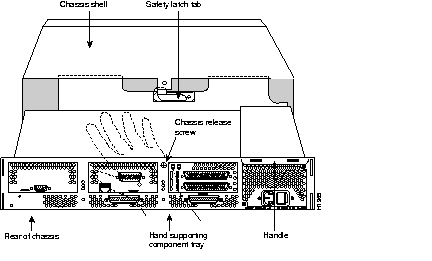
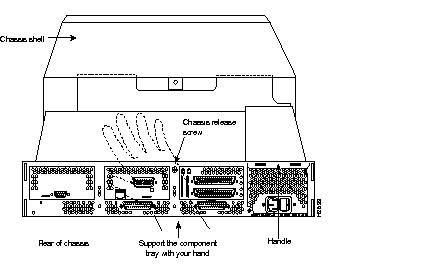
Follow these steps to remove the component tray from a chassis:
Step 1 Turn OFF the power.
Step 2 Attach your ESD-preventive wrist strap.
Step 3 Remove all network and power cables.
| Warning Before opening the chassis, disconnect the telephone-network cables to avoid contact with telephone-network voltages. |
| Warning Do not work on the system or connect or disconnect cables during periods of lightning activity. |
Step 4 If you have a DC-powered router, follow these steps to remove the power cables:
Step 5 Using a Number 2 Phillips screwdriver, loosen the nonremovable chassis release screw on the rear panel of the chassis.
| Caution When you remove the component tray from the chassis, support it from underneath, either on your work surface or with your hands. |
Step 6 To remove the component tray, pull on the handle at the upper right corner of the rear panel.
If your chassis has a safety latch (see Figure 1), slide the component tray out of the chassis shell just until the safety latch catches. Support the component tray with one hand, push down on the safety latch tab, and pull the component tray out the rest of the way.
If your chassis does not have a safety latch (see Figure 2), support the component tray with one hand while you slide it out of the chassis shell.
Step 7 Set the tray on your work surface.
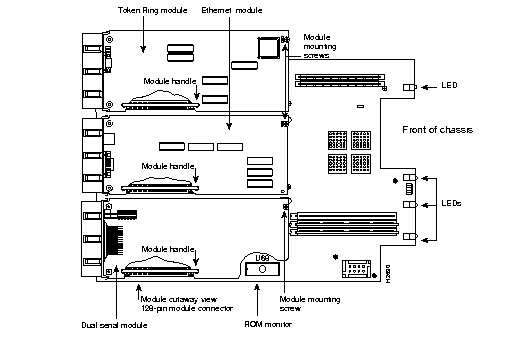
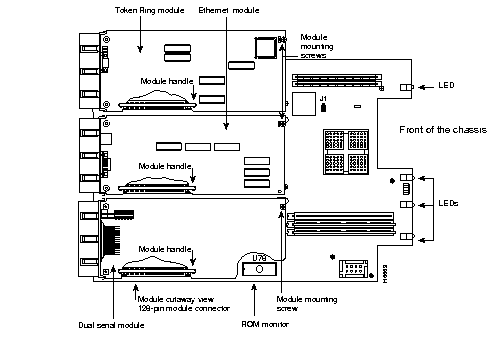
Figure 3 shows the component tray for the Cisco 4500 and Cisco 4700 routers and older versions of the Cisco 4500-M router. Figure 4 shows the component tray for the Cisco 4700-M router and newer versions of the Cisco 4500-M router.
If you need to remove any network processor modules, follow the procedure in this section.
| Caution Some network processor modules are fastened to the rear of the chassis with two external screws. You must remove these screws before you can lift the module out of the chassis. |
Step 1 Using a Number 1 Phillips screwdriver, remove the internal module mounting screw from the end of the module card. Remove the two external rear mounting screws, if present, from the rear panel and set them aside.
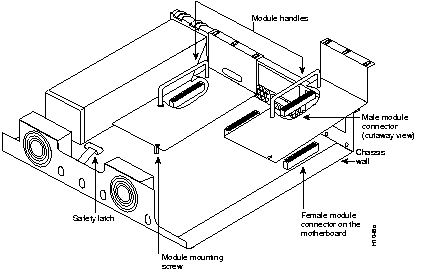
Step 2 Hold the module handle and pull it straight up to lift the module out of its connector. (See Figure 5.)
Step 3 Place the removed module on an ESD mat.
| Caution Do not wiggle the module's handle or exert any side-to-side pressure. The handle can work loose and damage the module. |
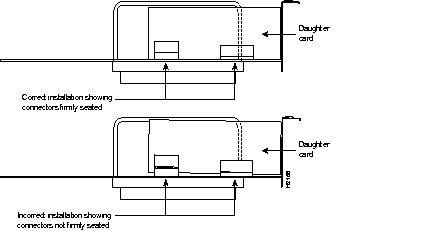
| Caution If any of the modules have daughter cards projecting at right angles to the module (see Figure 6), do not bend the module during installation, because the daughter cards could become disconnected. Carefully reseat any loosened cards, handling them by the edges without touching any components. |
Follow these steps to insert a new or replacement network processor module:
Step 1 Pick up the module by its handle, align it with the grooves on the component tray rear panel, and hold it gently against the chassis wall. (See Figure 5.)
Step 2 Push the module carefully into place, inserting its male connector into the female connector on the system board. Be careful not to bend any pins.
Step 3 Using a Number 1 Phillips screwdriver, replace the internal module mounting screw on the end of the module card. (See Figure 5.)
Step 4 Replace the external rear mounting screws, if any, in the rear panel.
| Caution Do not overtorque the screws, because this can damage the module or the underlying system board. The maximum torque is 7 inch-lb. |
Follow these steps to replace the component tray in the chassis shell:
Step 1 Insert the component tray into the shell, pushing on the back of the tray while pressing on the chassis release screw (shown in Figure 1 or Figure 2) with your thumb.
Step 2 Using a Number 2 Phillips screwdriver, tighten the chassis release screw.
Follow these steps to make final connections to the router:
Step 1 Replace all network connections.
Step 2 If you have an AC-powered router, plug the power cord into a 3-terminal, single-phase power source that provides power within the acceptable range (100 to 240 VAC, 50 to 60 Hz, 3.0 to 1.5 A).
If you have a DC-powered router, rewire the DC-input power supply (40 to 72 VDC) to the terminal block. The proper wiring sequence is ground to ground, positive to positive, and negative to negative. (See Figure 7.) After connecting the DC power cables, use a screwdriver to reinstall the terminal block cover.
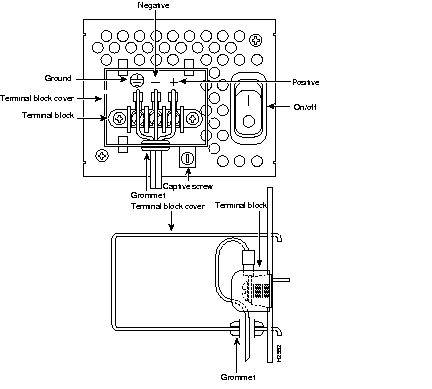
| Warning The illustration shows the DC power supply terminal block. Wire the DC power supply using the appropriate lugs at the wiring end, as illustrated. The proper wiring sequence is ground to ground, positive to positive (line to L), and negative to negative (neutral to N). Note that the ground wire should always be connected first and disconnected last. |
| Warning After wiring the DC power supply, remove the tape from the circuit breaker switch handle and reinstate power by moving the handle of the circuit breaker to the ON position. |
Step 3 Turn ON the power switch. The power LED on the front should go ON.
Step 4 Check the OK LED on the right side of the front panel to verify that it goes ON after a few seconds delay when booting.
| Warning This equipment is intended to be grounded. Ensure that the host is connected to earth ground during normal use. |
If you have questions or need help, refer to the section "Cisco Connection Online" later in this document.
You can connect the HSSI network processor module to a network in one of two ways:
| Caution Although the HSSI connector and cable resemble SCSI-II connectors and cables, they are not identical. Proper operation with a SCSI-II cable is not guaranteed. |
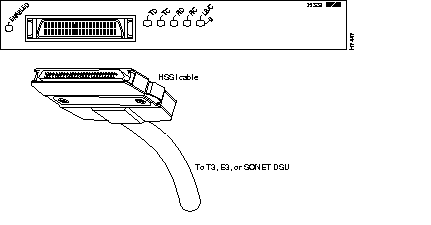

The section describes the following pinouts:
For signals that have polarity, pins in the range 1 to 25 are positive and pins in the range 26 to 50 are negative.
| Pin | Signal | Direction | Pin |
|---|---|---|---|
| 1 | Signal Ground | - | 26 |
| 2 | Rcv Timing (RT) ± | In | 27 |
| 3 | DCE Available (CA) ± | In | 28 |
| 4 | Rcv Data (RD) ± | In | 29 |
| 5 | Loopback C (LC) ± | In | 30 |
| 6 | Send Timing (ST) ± | In | 31 |
| 7 | Signal Ground | - | 32 |
| 8 | DTE Available (TA) ± | Out | 33 |
| 9 | Terminal Timing (TT) ± | Out | 34 |
| 10 | Loopback A (LA) ± | Out | 35 |
| 11 | Send Data (SD) ± | Out | 36 |
| 12 | Loopback B (LB) ± | Out | 37 |
| 13 | Signal Ground | - | 38 |
| 14 | Unassigned (to DCE) | Out | 39 |
| 15 | Unassigned (to DCE) | Out | 40 |
| 16 | Unassigned (to DCE) | Out | 41 |
| 17 | Unassigned (to DCE) | Out | 42 |
| 18 | Unassigned (to DCE) | Out | 43 |
| 19 | Signal Ground | - | 44 |
| 20 | Unassigned (from DCE) | In | 45 |
| 21 | Unassigned (from DCE) | In | 46 |
| 22 | Unassigned (from DCE) | In | 47 |
| 23 | Unassigned (from DCE) | In | 48 |
| 24 | Test Mode (TM) ± | In | 49 |
| 25 | Signal Ground | - | 50 |
| Signal | Router Pin | Direction | DSU Pin |
|---|---|---|---|
| SG (Signal Ground) | 1 | - | 26 |
| RT (Receive Timing) | 2 | <-- | 27 |
| CA (DCE Available) | 3 | <-- | 28 |
| RD (Receive Data reserved) | 4 | <-- | 29 |
| LC (Loopback circuit C) | 5 | <-- | 30 |
| ST (Send Timing) | 6 | <-- | 31 |
| SG (Signal Ground) | 7 | - | 32 |
| TA (DTE Available) | 8 | --> | 33 |
| TT (Terminal Timing) | 9 | --> | 34 |
| LA (Loopback circuit A) | 10 | --> | 35 |
| SD (Send Data) | 11 | --> | 36 |
| LB (Loopback circuit B) | 12 | --> | 37 |
| SG (Signal Ground) | 13 | - | 38 |
| 5 lines (unused to DCE) | 14-18 | --> | 39-43 |
| SG (Signal Ground) | 19 | - | 44 |
| 5 lines (unused from DCE) | 20-24 | <-- | 45-49 |
| SG (Signal Ground) | 25 | - | 50 |
| Signal Name | From Pins | Direction | To Pins | Signal Name |
|---|---|---|---|---|
| RT (Receive Timing) | 2, 27 | --> | 9, 34 | TT (Terminal Timing) |
| CA (DCE available) | 3, 28 | --> | 8, 33 | TA (DTE Available) |
| RD (Receive Data) | 4, 29 | --> | 11, 36 | SD (Send Data) |
| LC (Loopback C) | 5, 30 | --> | 10, 35 | LA (Loopback A) |
| ST (Send Timing) | 6, 31 | --> | 6, 31 | ST (Send Timing) |
| TA (DTE available) | 8, 33 | --> | 3, 28 | CA (DCE Available) |
| TT (Terminal Timing) | 9, 34 | --> | 2, 27 | RT (Receive Timing) |
| LA (Loopback A) | 10, 35 | --> | 5, 30 | LC (Loopback C) |
| SD (Send Data) | 11, 36 | --> | 4, 29 | RD (Receive Data) |
| GND (Ground) | 1, 26, 7, 32, 13, 38, 19, 44, 25, 50 | 1, 26, 7, 32, 13, 38, 19, 44, 25, 50 | GND (Ground) | |
| Loopback (not connected) | 12, 37 | |||
| 12, 37 | Loopback (not connected) | |||
| Not used | 14-18, 20-24, 39-43, 45-49 | 14-18, 20-24, 39-43, 45-49 | Not used |
Figure 10 shows HSSI network processor module LEDs, and Table 4 describes their function.
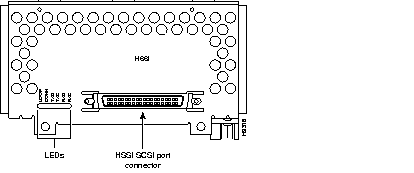
| LED | Meaning |
|---|---|
| LOOP (Loopback) | The module is in loopback mode. |
| CONN (Connect) | Normal operation. The module is connected to the external DSU, and the signals TA (DTE available) and CA (DCE available) are active. Off when the module is in loopback mode or not connected to the DSU. |
| TXD (Send Data) | The module is sending packets to the external DSU. |
| TXC (Send Timing) | The module is transmitting a transmit clock signal to the external DSU. During normal operation, this signal is derived from the RT signal from the external DSU. During loopback, this signal is generated internally. |
| RXD (Receive Data) | The module has detected the external DSU and is receiving packets from it. |
| RXC (Receive Timing) | The module has detected a receive clock signal. During normal operation, this signal is received from the external DSU. During loopback, this signal is generated internally. |
Whenever you install a new interface, or if you want to change the configuration of an existing interface, you must configure it. If you replace a module that was already configured, the router recognizes it and brings up the interface using the existing configuration.
Before you configure an interface, have the following information available:
 | Time Saver Obtain this information from your system administrator or network plan before you begin to configure the router. |
To configure an HSSI interface, you must use configuration mode (manual configuration). In this mode, you can enter Cisco IOS commands at the router prompt.
Before you begin to configure an interface, disconnect all WAN cables from the router to keep it from trying to run the AutoInstall process. The router tries to run AutoInstall whenever you power it ON if there is a WAN connection on both ends and the router does not have a valid configuration file stored in nonvolatile random-access memory (NVRAM) (for instance, when you add a new interface). It can take several minutes for the router to determine that AutoInstall is not connected to a remote Transmission Control Protocol/Internet Protocol (TCP/IP) host.
If you have questions or need help, refer to the section "Cisco Connection Online" later in this document for more information.
This section describes basic configuration, including enabling the interface and specifying IP routing. Depending on your own requirements and the protocols you plan to route, you might also need to enter other configuration commands.
To configure the HSSI interface for connection to a DSU using an HSSI DTE cable, follow this procedure:
Step 1 Connect a console to the router. If you need instructions for connecting a console, refer to the Cisco 4000 Series Installation Guide or the Cisco 4000 Hardware Installation and Maintenance publication. Power up the router.
Step 2 If the current configuration is no longer valid, after about a minute you see the following prompt:
Answer no. You now enter the normal operating mode of the router.
Step 3 After a few seconds you see the user EXEC prompt (Router>). Type enable and the password to enter enable mode:
enable
Configuration changes can be made only in enable mode. The prompt changes to the privileged EXEC (enable) prompt (Router#):
Step 4 Enter the config terminal command to enter configuration mode:
config terminal
The router enters global configuration mode, indicated by the Router(config)# prompt.
Step 5 If you have not configured the router before, or want to change the configuration, configure global parameters, passwords, network management, and routing protocols. In the following example, IP routing is enabled:
ip routing
For complete information about global configuration commands, refer to the Cisco IOS configuration guides and command references.
Step 6 Select the HSSI interface to configure by entering the interface command, followed by the interface type and unit number:
interface hssi 0
The prompt changes again to show that you are in interface configuration mode.
Step 7 Configure routing protocols on the interface. (You must have previously enabled these protocols as part of global configuration.) In this example, IP is configured on the HSSI interface:
ip address 145.22.4.67 255.255.255.0
Step 8 Enable the HSSI interface by changing the shutdown state to up:
no shutdown
Step 9 Enter any further configuration commands needed to enable routing protocols or modify the interface characteristics.
Step 10 To configure another interface, repeat Step 6 through Step 9 of this procedure.
Step 11 When you finish configuring interfaces, exit configuration mode and return to the enable prompt by pressing Ctrl-Z. To see the current operating configuration, including any changes you just made, enter the show running-config command:
show running-config
To see the configuration currently stored in NVRAM, enter the show startup-config command at the enable prompt.
show startup-config
Step 12 The results of the show running-config and show startup-config commands differ from each other if you have made changes to the configuration, but have not yet written them to NVRAM. To write your changes to NVRAM, making them permanent, enter the copy running-config startup-config command at the enable prompt:
copy running-config startup-config
Continue with the section "Checking the Configuration" later in this document to check the interface configuration using show commands.
This section describes how to configure the HSSI interface for back-to-back operation. Back-to-back operation allows you to verify operation of the HSSI port or link routers directly to build a larger node.
To configure the HSSI interface for back-to-back operation using an HSSI null modem cable, follow this procedure:
Step 1 Connect a console to the router. If you need instructions for connecting a console, refer to the Cisco 4000 Series Installation Guide or the Cisco 4000 Hardware Installation and Maintenance publication. Power up the router.
Step 2 If the current configuration is no longer valid, after about a minute you see the following prompt:
Answer no. You now enter the normal operating mode of the router.
Step 3 After a few seconds you see the user EXEC prompt (Router>). Type enable and the password to enter enable mode:
enable
Configuration changes can be made only in enable mode. The prompt changes to the privileged EXEC (enable) prompt (Router#):
Step 4 Enter the config terminal command to enter configuration mode:
config terminal
The router enters global configuration mode, indicated by the Router(config)# prompt.
Step 5 If you have not configured the router before, or want to change the configuration, configure global parameters, passwords, network management, and routing protocols. In the following example, IP routing is enabled:
ip routing
For complete information about global configuration commands, refer to the Cisco IOS configuration guides and command references.
Step 6 Select the HSSI interface to configure by entering the interface command, followed by the interface type and unit number:
interface hssi 0
The prompt changes again to show that you are in interface configuration mode.
Step 7 Select the internal 51.84-MHz master clock by entering the hssi internal-clock command:
hssi internal-clock
Step 8 When you finish configuring interfaces, exit configuration mode and return to the enable prompt by pressing Ctrl-Z. To see the current operating configuration, including any changes you just made, enter the show running-config command:
show running-config
To see the configuration currently stored in NVRAM, enter the show startup-config command at the enable prompt.
show startup-config
Step 9 The results of the show running-config and show startup-config commands differ from each other if you have made changes to the configuration, but have not yet written them to NVRAM. To write your changes to NVRAM, making them permanent, enter the copy running-config startup-config command at the enable prompt:
copy running-config startup-config
Step 10 Repeat this procedure on the other router. Both routers must be configured for back-to-back operation.
Continue with the next section to check the interface configuration using show commands.
After configuring the new interface, use the following show commands to display the status of the new interface or all interfaces.
If an interface is down and you configured it as up, or if the displays indicate that the hardware is not functioning properly, make sure that the network interface is properly connected and terminated. If you still have problems, refer to the section "Cisco Connection Online" later in this document.
If you are removing a network processor module permanently, or to replace it with a different or reconfigured module, shut down (disable) the interface first to prevent anomalies. When you shut down an interface, it is designated administratively down in show command displays.
Follow this procedure to shut down an interface:
Step 1 Connect a console to the router. If you need instructions for connecting a console, refer to the Cisco 4000 Series Installation Guide or the Cisco 4000 Hardware Installation and Maintenance publication. Power up the router.
Step 2 After a few seconds you see the user EXEC prompt (Router>). Type enable and the password to enter enable mode:
enable
Configuration changes can be made only in enable mode. The prompt changes to the privileged EXEC (enable) prompt (Router#):
Step 3 Enter the config terminal command to enter configuration mode:
config terminal
The router enters global configuration mode, indicated by the Router(config)# prompt.
Step 4 Select the interface that you want to shut down by entering the interface command, followed by the interface type and unit number:
interface hssi 0
The prompt changes again to show that you are in interface configuration mode.
Step 5 Enter the shutdown command:
shutdown
Step 6 When you finish shutting down interfaces, exit configuration mode and return to the enable prompt by pressing Ctrl-Z. To write your changes to NVRAM, making them permanent, enter the copy running-config startup-config command at the enable prompt:
copy running-config startup-config
Step 7 To verify that an interface is in the correct state (shut down), use the show interface hssi unit command to display an individual interface, or the show interfaces command, without variables, to display the status of all interfaces in the router:
show interface hssi 0
Step 8 To reenable an interface, repeat this procedure using the no shutdown command in Step 5. Then write the new configuration to NVRAM:
interface hssi 0
no shutdown
^z
copy running-config startup-config
show interface hssi 0
The equipment described in this document generates and may radiate radio-frequency energy. If it is not installed in accordance with Cisco's installation instructions, it may cause interference with radio and television reception. This equipment has been tested and found to comply with the limits for a Class B digital device in accordance with the specifications in part 15 of the FCC rules. These specifications are designed to provide reasonable protection against such interference in a residential installation. However, there is no guarantee that interference will not occur in a particular installation.
You can determine whether your equipment is causing interference by turning it off. If the interference stops, it was probably caused by the Cisco equipment or one of its peripheral devices. If the equipment causes interference to radio or television reception, try to correct the interference by using one or more of the following measures:
Modifications to this product not authorized by Cisco Systems, Inc. could void the FCC approval and negate your authority to operate the product.
Cisco Connection Online (CCO) is Cisco Systems' primary, real-time support channel. Maintenance customers and partners can self-register on CCO to obtain additional information and services.
Available 24 hours a day, 7 days a week, CCO provides a wealth of standard and value-added services to Cisco's customers and business partners. CCO services include product information, product documentation, software updates, release notes, technical tips, the Bug Navigator, configuration notes, brochures, descriptions of service offerings, and download access to public and authorized files.
CCO serves a wide variety of users through two interfaces that are updated and enhanced simultaneously: a character-based version and a multimedia version that resides on the World Wide Web (WWW). The character-based CCO supports Zmodem, Kermit, Xmodem, FTP, and Internet e-mail, and it is excellent for quick access to information over lower bandwidths. The WWW version of CCO provides richly formatted documents with photographs, figures, graphics, and video, as well as hyperlinks to related information.
You can access CCO in the following ways:
For a copy of CCO's Frequently Asked Questions (FAQ), contact cco-help@cisco.com. For additional information, contact cco-team@cisco.com.
|
|