


|
|

Product Numbers: AS5300-AC-PWR= , AS5300-DC-PWR=
This document describes how to replace the internal AC or DC power supply and includes the following sections:
Use this document with the Regulatory Compliance and Safety Information publication that shipped with the Cisco AS5300.
Follow these guidelines to ensure general safety:
Safety warnings appear throughout this publication in procedures that, if performed incorrectly, may harm you. A warning symbol precedes each safety warning.
Warning 
This warning symbol means danger. You are in a situation that could cause bodily injury. Before you work on any equipment, be aware of the hazards involved with electrical circuitry and be familiar with standard practices for preventing accidents. To see translations of the warnings that appear in this publication, refer to the Regulatory Compliance and Safety Information document that accompanied this device.
Waarschuwing Dit waarschuwingssymbool betekent gevaar. U verkeert in een situatie die lichamelijk letsel kan veroorzaken. Voordat u aan enige apparatuur gaat werken, dient u zich bewust te zijn van de bij elektrische schakelingen betrokken risico's en dient u op de hoogte te zijn van standaard maatregelen om ongelukken te voorkomen. Voor vertalingen van de waarschuwingen die in deze publicatie verschijnen, kunt u het document Regulatory Compliance and Safety Information (Informatie over naleving van veiligheids- en andere voorschriften) raadplegen dat bij dit toestel is ingesloten.
Varoitus Tämä varoitusmerkki merkitsee vaaraa. Olet tilanteessa, joka voi johtaa ruumiinvammaan. Ennen kuin työskentelet minkään laitteiston parissa, ota selvää sähkökytkentöihin liittyvistä vaaroista ja tavanomaisista onnettomuuksien ehkäisykeinoista. Tässä julkaisussa esiintyvien varoitusten käännökset löydät laitteen mukana olevasta Regulatory Compliance and Safety Information -kirjasesta (määräysten noudattaminen ja tietoa turvallisuudesta).
Attention Ce symbole d'avertissement indique un danger. Vous vous trouvez dans une situation pouvant causer des blessures ou des dommages corporels. Avant de travailler sur un équipement, soyez conscient des dangers posés par les circuits électriques et familiarisez-vous avec les procédures couramment utilisées pour éviter les accidents. Pour prendre connaissance des traductions d'avertissements figurant dans cette publication, consultez le document Regulatory Compliance and Safety Information (Conformité aux règlements et consignes de sécurité) qui accompagne cet appareil.
Warnung Dieses Warnsymbol bedeutet Gefahr. Sie befinden sich in einer Situation, die zu einer Körperverletzung führen könnte. Bevor Sie mit der Arbeit an irgendeinem Gerät beginnen, seien Sie sich der mit elektrischen Stromkreisen verbundenen Gefahren und der Standardpraktiken zur Vermeidung von Unfällen bewußt. Übersetzungen der in dieser Veröffentlichung enthaltenen Warnhinweise finden Sie im Dokument Regulatory Compliance and Safety Information (Informationen zu behördlichen Vorschriften und Sicherheit), das zusammen mit diesem Gerät geliefert wurde.
Avvertenza Questo simbolo di avvertenza indica un pericolo. La situazione potrebbe causare infortuni alle persone. Prima di lavorare su qualsiasi apparecchiatura, occorre conoscere i pericoli relativi ai circuiti elettrici ed essere al corrente delle pratiche standard per la prevenzione di incidenti. La traduzione delle avvertenze riportate in questa pubblicazione si trova nel documento Regulatory Compliance and Safety Information (Conformità alle norme e informazioni sulla sicurezza) che accompagna questo dispositivo.
Advarsel Dette varselsymbolet betyr fare. Du befinner deg i en situasjon som kan føre til personskade. Før du utfører arbeid på utstyr, må du vare oppmerksom på de faremomentene som elektriske kretser innebærer, samt gjøre deg kjent med vanlig praksis når det gjelder å unngå ulykker. Hvis du vil se oversettelser av de advarslene som finnes i denne publikasjonen, kan du se i dokumentet Regulatory Compliance and Safety Information (Overholdelse av forskrifter og sikkerhetsinformasjon) som ble levert med denne enheten.
Aviso Este símbolo de aviso indica perigo. Encontra-se numa situação que lhe poderá causar danos físicos. Antes de começar a trabalhar com qualquer equipamento, familiarize-se com os perigos relacionados com circuitos eléctricos, e com quaisquer práticas comuns que possam prevenir possíveis acidentes. Para ver as traduções dos avisos que constam desta publicação, consulte o documento Regulatory Compliance and Safety Information (Informação de Segurança e Disposições Reguladoras) que acompanha este dispositivo.
¡Advertencia! Este símbolo de aviso significa peligro. Existe riesgo para su integridad física. Antes de manipular cualquier equipo, considerar los riesgos que entraña la corriente eléctrica y familiarizarse con los procedimientos estándar de prevención de accidentes. Para ver una traducción de las advertencias que aparecen en esta publicación, consultar el documento titulado Regulatory Compliance and Safety Information (Información sobre seguridad y conformidad con las disposiciones reglamentarias) que se acompaña con este dispositivo.
Varning! Denna varningssymbol signalerar fara. Du befinner dig i en situation som kan leda till personskada. Innan du utför arbete på någon utrustning måste du vara medveten om farorna med elkretsar och känna till vanligt förfarande för att förebygga skador. Se förklaringar av de varningar som förkommer i denna publikation i dokumentet Regulatory Compliance and Safety Information (Efterrättelse av föreskrifter och säkerhetsinformation), vilket medföljer denna anordning.
| Warning Read the installation instructions before you connect the system to its power source. |
| Warning Ultimate disposal of this product should be handled according to all national laws and regulations. |
| Warning Only trained and qualified personnel should be allowed to install or replace this equipment. |
| Warning Before working on a chassis or working near power supplies, unplug the power cord on AC units; disconnect the power at the circuit breaker on DC units. |
| Warning Before working on equipment that is connected to power lines, remove jewelry (including rings, necklaces, and watches). Metal objects will heat up when connected to power and ground and can cause serious burns or weld the metal object to the terminals. |
Follow these guidelines when working on equipment powered by electricity:
Electrostatic discharge (ESD) can damage equipment and impair electrical circuitry. It occurs when electronic printed circuit cards are improperly handled and can result in complete or intermittent failures. Always follow ESD prevention procedures when removing and replacing cards. Ensure that the chassis is electrically connected to earth ground. Wear an ESD-preventive wrist strap, ensuring that it makes good skin contact. Connect the clip to an unpainted surface of the chassis frame to safely channel unwanted ESD voltages to ground. To properly guard against ESD damage and shocks, the wrist strap and cord must operate effectively. If no wrist strap is available, ground yourself by touching the metal part of the chassis.
 | Caution For safety, periodically check the resistance value of the antistatic strap, which should be between 1 and 10 megohms (Mohm). |
This kit includes the following items:
To remove or install the power supply, you will also need the following tools and equipment (which are not included):
This section describes how to access the internal components by removing the chassis cover.
| Warning Do not touch the power supply when the power cord is connected. For systems with a power switch, line voltages are present within the power supply even when the power switch is off and the power cord is connected. For systems without a power switch, line voltages are present within the power supply when the power cord is connected. |
| Warning Before working on a chassis or working near power supplies, unplug the power cord on AC units; disconnect the power at the circuit breaker on DC units. |
| Warning Before opening the chassis, disconnect the telephone-network cables to avoid contact with telephone-network voltages. |
| Warning Do not work on the system or connect or disconnect cables during periods of lightning activity. |
To remove the chassis cover:
Step 1 Turn the power switch on the access server OFF and disconnect site power. (Note that the power switch is part of the power supply.)
Step 2 Remove all interface cables from the rear panel of the access server.
Step 3 Place the access server so that the front panel is facing you.
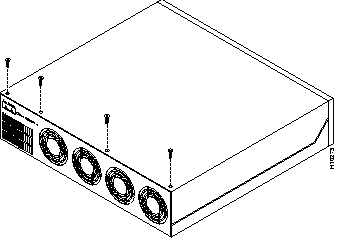
Step 4 Remove the four screws on the chassis cover as shown in Figure 1.
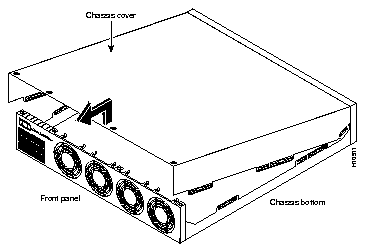
Step 5 Lift the chassis cover upward as shown in Figure 2, and pull it away from the tabs on the rear of the chassis.
This section describes how to remove the power supply. Note the following safety warnings before you remove the power supply:
| Warning Ultimate disposal of this product should be handled according to all national laws and regulations. |
| Warning Only trained and qualified personnel should be allowed to install or replace this equipment. |
| Warning Read the installation instructions before you connect the system to its power source. |
| Warning Before working on a chassis or working near power supplies, unplug the power cord on AC units; disconnect the power at the circuit breaker on DC units. |
| Warning Before working on equipment that is connected to power lines, remove jewelry (including rings, necklaces, and watches). Metal objects will heat up when connected to power and ground and can cause serious burns or weld the metal object to the terminals. |
To remove the power supply:
Step 1 Place the access server so that the rear panel is facing you.
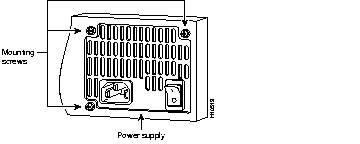
Step 2 Remove the three mounting screws that secure the power supply to the chassis and set them aside. (See Figure 3.)
Step 3 Turn the access server so that the front panel is facing you.
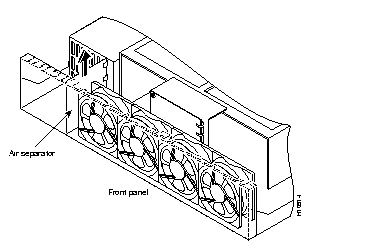
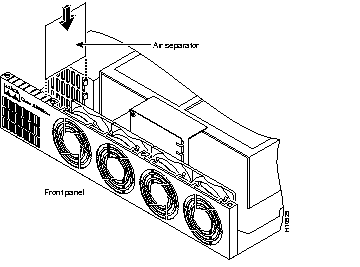
Step 4 Lift the air separator out of the chassis. (See Figure 4.)
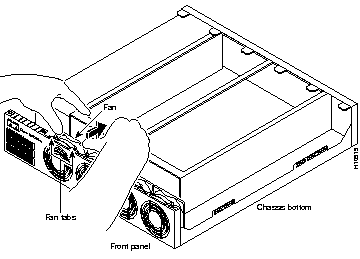
Step 5 Pull the fan closest to the power supply away from the sheet metal tabs as shown in Figure 5.
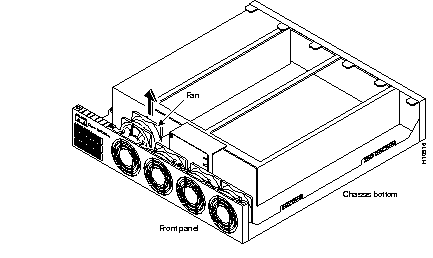
Step 6 Lift the fan out of the chassis as shown in Figure 6, and set the fan on top of the power supply.
Step 7 Disconnect the fan cable as shown in Figure 7.
| Caution Do not attempt to remove the fan cables without first depressing the tab as shown in Figure 7. You can damage the fan cables by applying stress if the connector is not removed properly. |
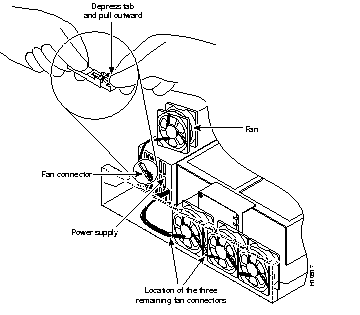
Step 8 Remove the next fan and disconnect its cable. The cables for the two remaining fans can be disconnected without removing the fans.
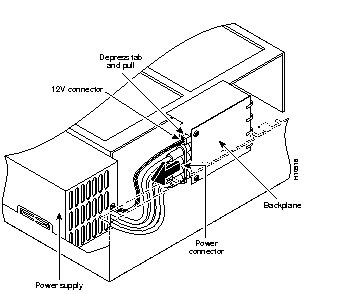
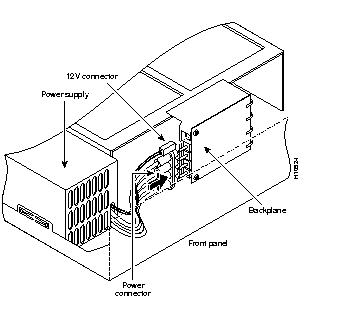
Step 9 Disconnect the power connectors from the backplane as shown in Figure 8. First disconnect the 2-pin 12V connector and then disconnect the 4-jack harness.
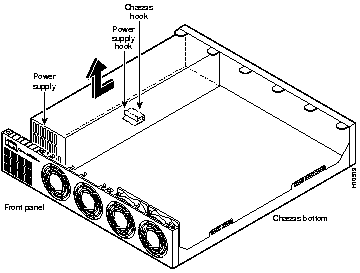
Step 10 Slide the power supply toward the front panel to disengage the power supply hook from the chassis hook as shown in Figure 9. Then remove the power supply from the chassis.
| Warning Ultimate disposal of this product should be handled according to all national laws and regulations. |
To install the new power supply:
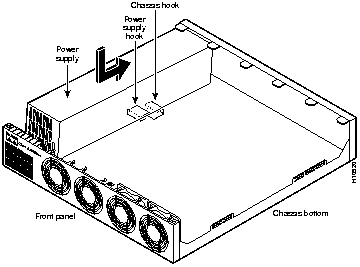
Step 1 Place the power supply as shown in Figure 10, and then slide it toward the rear panel. You will be able to feel the hooks engage.
Step 2 First reconnect the 4-jack harness and then reconnect the 2-pin 12V connector, as shown in Figure 11. Note that, for clarity, the illustration does not show the fans in place.
| Caution Observe the proper keying of the DC output connector to the back panel connector. Never force the connector or you could damage your Cisco AS5300. |
Step 3 Route the fan cables exactly as shown in Figure 12. Note that the two longest cables are connected to the two installed fans on the right. The connectors to these two fans will fit into the space between the second and third fans.
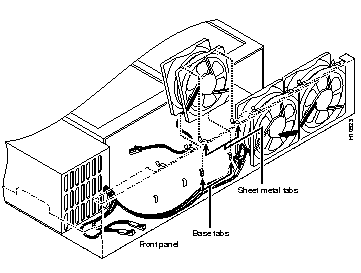
Step 4 Insert the second fan as shown in Figure 12, making sure that the fan cable feeds to your left. Position the cables to the two installed fans so that they will fit under the first and second fans. Press the fan into place between the four sheet metal tabs.
Step 5 Reconnect the two 2-pin fan cables as shown in Figure 13.
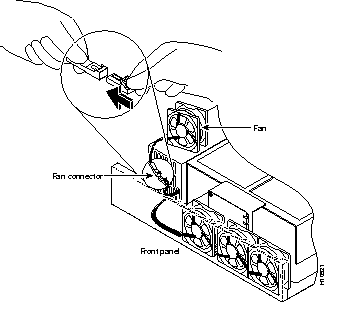
Step 6 Reinstall the remaining fan. Make sure you orient the fan so that the cables feed to the right (toward the second fan). Then route the cable completely under the fan before you reconnect it. This takes up the extra length of fan cable and keeps it out of the way.
When correctly assembled, the cables appear as shown in Figure 14.
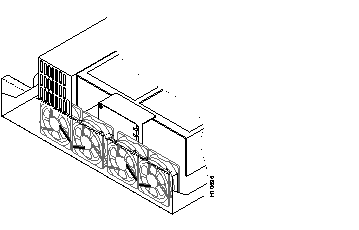
Step 7 Replace the air separator as shown in Figure 15, holding all cables to the right of the separator as you slip it into the chassis.
Step 8 Turn the access server so that you face the rear panel, and then reinstall the three mounting screws as shown in Figure 16.
Step 9 If you installed a different type of power supply (AC or DC) than was originally installed in the access server, place one of the power ratings labels that came in the plastic bag with the documentation directly over the power ratings information on the rear panel. For example, if the original chassis came with an AC power supply and you replaced it with a DC power supply, place the DC power ratings label over the ratings stamped on the rear panel of the chassis. This will ensure that the correct power ratings information appears on the rear panel.
| INPUT 48 - 60V === 9 - 7A 300W |
| INPUT 100 - 240V~ 50/60Hz 2 - 5A |
Step 10 Replace the chassis cover as described in the next section, "Replacing the Chassis Cover."
To replace the chassis cover:
Step 1 Place the chassis bottom so that the front panel is facing you.
Step 2 Hold the chassis cover over the chassis bottom, and align each of the cover tabs with the chassis tabs at the top rear of the chassis, as shown in Figure 19.
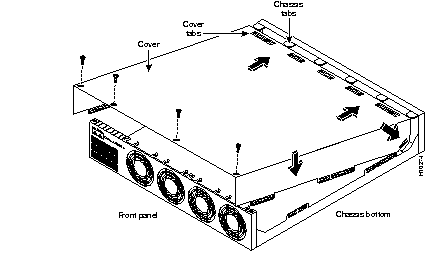
Step 3 Lower the front of the chassis cover to close the chassis, and ensure the following:
When the chassis cover is properly assembled, no tabs are visible, as shown in Figure 20.
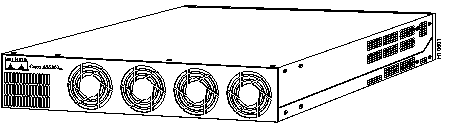
Step 4 Secure the chassis cover with four screws.
Step 5 Reinstall the chassis on a rack, desktop, or table.
Step 6 Reinstall all interface cables.
Step 7 Reconnect the AC power cord or rewire the DC power supply.
| Warning After wiring the DC power supply, remove the tape from the circuit breaker switch handle and reinstate power by moving the handle of the circuit breaker to the ON position. |
Step 8 Power ON the access server.
The internal power supply fan should power on.
Cisco Connection Online (CCO) is Cisco Systems' primary, real-time support channel. Maintenance customers and partners can self-register on CCO to obtain additional information and services.
Available 24 hours a day, 7 days a week, CCO provides a wealth of standard and value-added services to Cisco's customers and business partners. CCO services include product information, product documentation, software updates, release notes, technical tips, the Bug Navigator, configuration notes, brochures, descriptions of service offerings, and download access to public and authorized files.
CCO serves a wide variety of users through two interfaces that are updated and enhanced simultaneously: a character-based version and a multimedia version that resides on the World Wide Web (WWW). The character-based CCO supports Zmodem, Kermit, Xmodem, FTP, and Internet e-mail, and it is excellent for quick access to information over lower bandwidths. The WWW version of CCO provides richly formatted documents with photographs, figures, graphics, and video, as well as hyperlinks to related information.
You can access CCO in the following ways:
For a copy of CCO's Frequently Asked Questions (FAQ), contact cco-help@cisco.com. For additional information, contact cco-team@cisco.com.
|
|