


|
|

This chapter includes information on installing and preconfiguring the Cisco DialOut Utility software. Instructions are also provided to uninstall the software.
This section contains an overview of the general steps to install and configure the Cisco DialOut Utility.
Before you install the Cisco DialOut Utility, run the Windows Telnet utility to make sure you can connect to the NAS. Follow these steps:
Step 1 Make sure the NAS is connected and operating.
Step 2 From the Windows desktop or Program Manager, click Start (Windows 95 and Windows NT) or File (Windows 3.1x).
Step 3 Click Run.
Step 4 Click Telnet.
Step 5 Click Connect.
Step 6 Click Remote System.
Step 7 Select or enter the following information:
Step 8 Click Connect. The Telnet window opens.
Step 9 (Optional) If your NAS is configured for security, you are prompted to log in with your regular user ID and password.
Step 10 Enter at. The server should respond OK.
Step 11 Enter atz. The server should respond OK.
Step 12 Follow the escape commands on the display.
Step 13 From the Connect menu, select Disconnect.
To install the Cisco DialOut Utility, run the SETUP.EXE program:
Step 1 Close any other programs that are running.
Step 2 Insert the Cisco DialOut Utility disk for the version of Windows you are using into drive A:. You can also run SETUP.EXE from a network drive.
Step 3 If you are using Windows 95 or Windows NT, from the Start menu, select Run.
If you are using Windows 3.1x, from the Microsoft Windows Program Manager menu, select File then Run.
Step 4 Select or enter:
If you are installing Cisco DialOut Utility from a network drive, select the letter of the network drive and the name of the directory in which the SETUP.EXE program is located.
Step 5 Click OK. The Cisco DialOut Utility Setup window opens. See Figure 2-1.
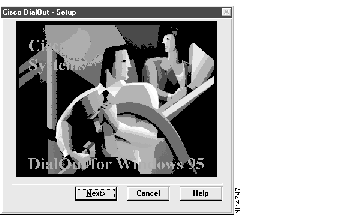
Step 6 Click Next to continue the setup process. Click Cancel to exit SETUP.EXE without installing the software. Click Help at any time for more information on the SETUP.EXE program. If you clicked Next, the Analyzing Environment window opens and SETUP.EXE analyzes the current Microsoft Windows environment and location of a number of needed resources. The display is updated as each action is performed. If a failure is detected, a message is displayed and the setup process stops. See the "Troubleshooting Information for the Cisco DialOut Utility" chapter for an explanation of common error messages and their resolutions.
If the Cisco DialOut Utility is already installed, the Update Options window opens. See Figure 2-2.
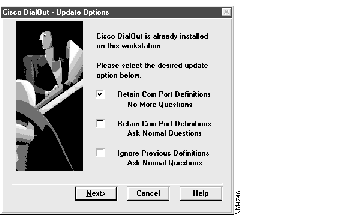
Step 7 Click the appropriate box to select one of the following options:
Step 8 To stop the setup process before any modifications are made to the workstation, click Cancel. To proceed with the setup process, click Next.
The Program Path window opens. See Figure 2-3.
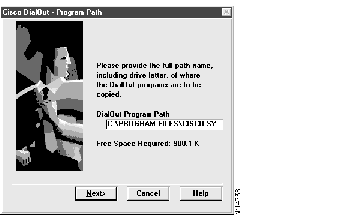
Step 9 Enter the full path for the directory in which to place the Cisco DialOut Utility files. The directory does not need to exist; SETUP.EXE creates one if necessary. You can select the default directory or enter one of your own. The default directory depends on which version of Windows you are using, and the drive on which you have Windows installed.
The default is one of the following:
If you use a directory name other than the default, you must specify the full path exactly, including the drive letter and any parent directories; for example:
c:\program files\cisco systems\dialout
Step 10 To stop the setup process before any modifications are made to the workstation, click Cancel. To proceed with the setup process, click Next. The Add Com Port window opens. See Figure 2-4.
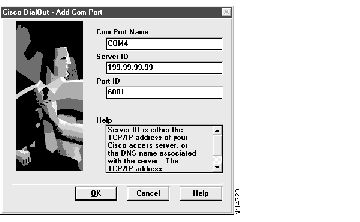
Step 11 Enter the information for three fields:
To stop the definition of this com port and start over, click Cancel.
Step 12 After all fields have been defined, click OK. The Cisco DialOut Utility tests the information you entered. See Figure 2-5.
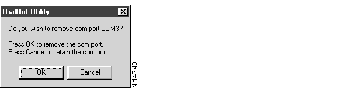
If a test is unsuccessful, Cisco DialOut Utility displays Error next to the item. Check the information in the Help window for information on resolving any problems.
Step 13 If the test was unsuccessful, you can either click Return to Previous Screen to enter the correct information or Go ahead and Copy Files to continue with the installation. If you click Go ahead and Copy Files, you will need to enter the correct information after the Cisco DialOut Utility is installed. See the section "Configure Ports" in the chapter "Using the Cisco DialOut Utility." If you have a previous installation of Cisco DialOut Utility, the Uninstall window opens and the previously installed files are deleted.
Step 14 When all tests are complete, click OK. SETUP.EXE copies the Cisco DialOut Utility software files from the distribution disk to the hard disk of the workstation. As each file is copied, the file name and destination are displayed in the Copying Files window. After all files have been copied to the hard disk, the Completed window opens. See Figure 2-6. See the appendix "Changes to Windows Files and Registry Entries" for a list of file names.
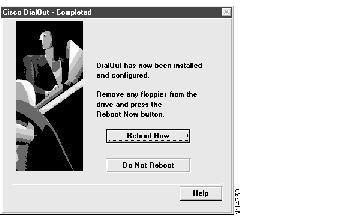
Step 15 To finish the setup process, click Reboot Now. To exit the setup program without restarting Microsoft Windows, click Do Not Reboot.
If you selected Reboot Now, the Setup window opens. See Figure 2-7.
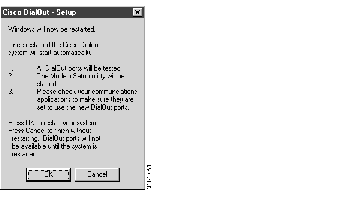
Step 16 Click OK to restart the system or Cancel to exit the Setup program without restarting.
If you are using Windows 95 or Windows NT, you must select a modem for the com port selected during installation. After the system has restarted, the Windows Modem Wizard opens so you can add a new modem definition. Follow these steps:
Step 1 Use the automatic detect facility to identify the type of modem on the port. See your Windows documentation for more information. If you are installing Cisco DialOut Utility on a laptop, the Install New Modem window opens. See Figure 2-8.
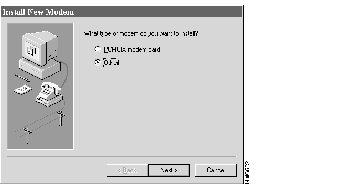
Step 2 Click Other.
Step 3 Click Next. The modem selection window opens. See Figure 2-9.
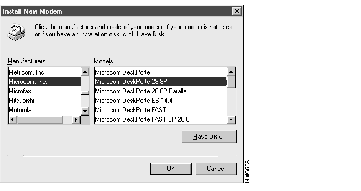
Step 4 If the automatic detect facility selects standard modem, change this to match the actual modem that is installed on your NAS. Contact your modem manufacturer to make sure you have the most current version of modem software installed. If you are using Windows 3.1x, you must install the modem software from your modem manufacturer.
If you are using a Cisco AS5200 access server, click Have Disk, insert the DialOut Utility disk, and click the applicable modem for your system. See the README.TXT file for additional information.
Step 5 After you have selected the modem, configure it with the following parameters:
Step 6 Click OK. Windows restarts automatically.
After you have finished installing the Cisco DialOut Utility software and selected and configured your modem, you must use the Add/Remove Control Panel to configure your fax or communication software to use the com port that SETUP.EXE selected during installation. See your software manufacturer's documentation and the README.TXT file for instructions on configuring selected applications.
When you have finished adding and configuring your application, restart Windows.
To add more com ports on which to use the Cisco DialOut Utility, follow the instructions in the section "Add Port" in the chapter "Using the Cisco DialOut Utility."
The uninstall process will remove files and Windows 95 and Windows NT Registry entries. To uninstall the Cisco DialOut Utility software, follow these steps:
Step 1 For Windows 95 or Windows NT--From the Start menu, select Add/Remove Software and select Cisco DialOut.
For Windows 3.1x--From the Program Manager select File, then Run, then UNINSTAL.EXE.
The Uninstall window opens and welcomes you to the removal process. It also provides you with an opportunity to exit UNINSTAL.EXE if it was started accidentally.
Step 2 If you do not want to remove the Cisco DialOut Utility, click Cancel. To continue the removal process, click Next. A dialog box opens asking for confirmation.
Step 3 Click Yes to proceed with the uninstall process or No to stop the process. The Uninstall window opens and the files are deleted from your workstation's hard drive. As each file is removed, the file name is displayed. After all of the files have been removed, all resource pointers that were added to the workstation are removed from the Windows Registry (Windows 95 and Windows NT) or the WIN.INI file (Windows 3.1x).
When removal is complete, the Completed window opens.
Step 4 Click Finish. A dialog box opens asking if you want to restart.
Step 5 Click Yes to restart or No to exit the removal process without restarting. If you restart, Cisco DialOut Utility is removed from the hard disk immediately. If you do not restart now, Cisco DialOut Utility is removed from the hard disk the next time you restart.
|
|