


|
|

The Cisco DialOut Utility starts up automatically when you start Windows. It normally runs a test and then minimizes itself.
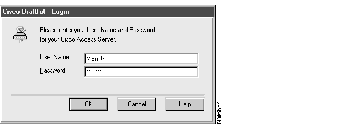
When Cisco DialOut Utility starts, if the optional user security is enabled, the Login dialog box opens. See Figure 3-1. If user security is not enabled, this window will not appear.
Follow these steps:
Step 1 Your workstation login name is provided in the username field. If the name you use to log in to your workstation differs from the name you use to log in to the NAS, enter your NAS login name.
Step 2 Enter your NAS password. Cisco DialOut Utility cannot gain access to your password, so you need to enter it yourself. As you enter your password, asterisks (*) display so that your password is protected, but the data is received by Cisco DialOut Utility correctly.
Step 3 Click OK when finished. The username and password are sent to the NAS. If the password is entered incorrectly, or if you click Cancel, the Cisco DialOut Utility displays an error message.
To cancel the login, click Cancel. If you cancel, the Cisco DialOut Utility marks the session as a failure.
The Cisco DialOut Utility Front Panel window is designed to look like a modem, with a few additions. Use the front panel to access the following menu items:
 | Caution To close the Cisco DialOut Utility under normal circumstances, from the front panel, click File then Exit. The Disconnect Current Session button is an emergency option that is equivalent to an abrupt End Task or pressing Ctrl+Alt+Del and might cause the com port to hang. Use this button for troubleshooting purposes only. |
To open the Cisco DialOut Utility Front Panel, follow these steps:
Step 1 Double-click the minimized icon. The Cisco DialOut Utility window opens.
Step 2 (Optional) To display the hidden File Help toolbar, click the right mouse button, then select DialOut Menu. This allows you to use Cisco DialOut Utility without a mouse. See Figure 3-2.

To access online help for the Cisco DialOut Utility, click Help.
The com port drop-down menu displays and allows you to change the com port that is being monitored by the lights and the status button. To select a different com port, click the down arrow to the right of the field and highlight the com port to monitor.
For instructions on adding or removing com ports, see the section "Add Port" or the section "Remove Port" in this chapter.
These LEDs are similar to those found on a modem. The front-panel LEDs show the status of four common communication parameters:
The colors of each of the four LEDs have the meanings listed below:
From the Front Panel window, click More > to open the More Functions window. See Figure 3-3.
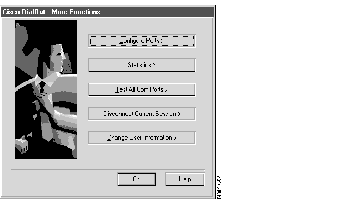
From the More Functions window, you can perform the following tasks:
 | Caution To close the Cisco DialOut Utility under normal circumstances, from the front panel, click File then Exit. The Disconnect Current Session button is an emergency option that is equivalent to an abrupt End Task or pressing Ctrl+Alt+Del and might cause the com port to hang. Use this button for troubleshooting purposes only. |
To add, remove, or change the parameters associated with the com port, follow these steps:
Step 1 Click Configure Ports. The Configure Ports window opens.
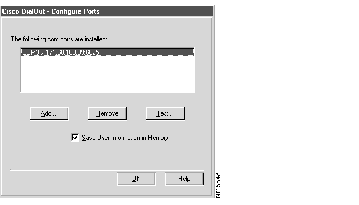
Step 2 To change the configuration for an existing port, select the name of the com port whose configuration you want to change. For Windows 95 and Windows NT, this can be any alphanumeric name, but the name must be acceptable to your fax or communications application. For Windows 3.1x, this must be either COM1, COM2, COM3, or COM4.
Step 3 Enter the new information for one or both of the following:
Step 4 If Save User Information in Memory is enabled, Cisco DialOut Utility asks for a username and password at startup. The initial value (enabled or disabled) is detected when the com port is added. Change this field only if there has been a change in the security configuration on the NAS.
Step 5 After all fields have been reconfigured, click OK.
To test an individual com port, follow these steps:
Step 1 With the port name highlighted, click Test. The Test Connection window opens and the com port is tested for the following items:
During the test, Cisco DialOut Utility displays Testing next to the item being tested. If the tests are successful, the Test Connection window will display Good next to each item. See Figure 3-5.
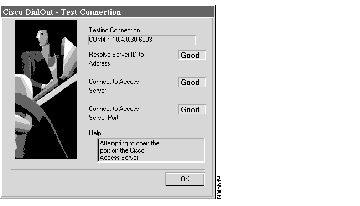
If a test is unsuccessful, Cisco DialOut Utility displays Error next to the item. Check the Help window for information on resolving any problems.
Step 2 When all tests are complete, click OK to return to the More Functions window.
To add a com port, follow these steps:
Step 1 Click Add Port. The Add Com Port window opens. See Figure 3-6.
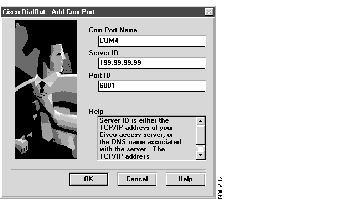
Step 2 Enter the Com Port Name. For Windows 95 and Windows NT, Either COM1, COM2, COM3, or COM4. SETUP.EXE has already automatically selected the name of the next available com port. If necessary, you can change this setting now or after the Cisco DialOut Utility is installed. With Windows 95 and Windows NT, you can use any name your application allows; however, we recommend you use COM1, COM2, COM3, or COM4.
Step 3 Enter the Server ID--The TCP/IP address of the Cisco NAS through which you will dial out, or a DNS name associated with the server.
Step 4 Enter the Port ID--Represents the modem on the NAS. Normally this number will be 6001, 6002, and so on; or 7001, 7002, and so on. See your system administrator for the number to use. To stop the definition of this com port and start again, click Cancel.
Step 5 After all fields have been defined, click OK.
Follow these steps to remove a com port from the Cisco DialOut Utility:
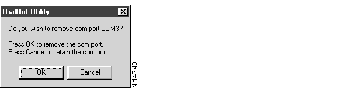
Step 1 Highlight the name of the com port you want to remove and click Remove. The Remove Com Port window opens and displays the name of the port you selected. See Figure 3-7.
Step 2 Click OK to confirm removal or click Cancel to keep the port.
Step 3 With Windows 95, to make the change effective, you will be prompted to reboot the PC at the appropriate time.
With Windows NT and Windows 3.1x, you do not need to reboot.
See the README.TXT file for additional information.
The Cisco DialOut Utility Statistics window displays the statistics of the selected com port. The data presented is a snapshot of information that can be used to monitor the connection with the NAS as well as provide information for troubleshooting.
Step 1 From the Cisco DialOut Front Panel, click More.
Step 2 Click Statistics. The Statistics window opens. See Figure 3-8.
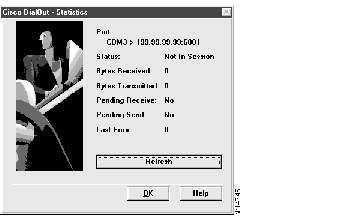
Click Refresh to refresh the values in the Status window. The window is updated to the current values. However, clicking Refresh does not reset the values. You can use the Refresh feature to indicate progress of transmission or download (receiving).
The Statistics window displays the following items:
Step 3 Click OK to return to the Front Panel.
To test operation of all com ports, follow these steps:
Step 1 Click Test All Com Ports. The Test Connection window opens and the com ports are tested for the following items:
During the test, Cisco DialOut Utility displays Testing next to the item being tested. If the tests are successful, the Test Connection window will display Good next to each item. See Figure 3-9.
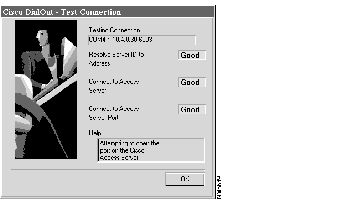
If a test is unsuccessful, Cisco DialOut Utility displays Error next to the item. Check the Help window for information on resolving any problems.
Step 2 When all tests are complete, click OK to return to the More Functions window.
In the unlikely event your application hangs, to terminate the session, from the More Functions window, click Disconnect Current Session.

| Caution To close the Cisco DialOut Utility under normal circumstances, from the front panel, click File then Exit. The Disconnect Current Session button is an emergency option that is equivalent to an abrupt End Task or pressing Ctrl+Alt+Del and might cause the com port to hang. Use this button for troubleshooting purposes only. |
|
|