


|
|

After you have installed Cisco Resource Manager, the first thing you need to do to use the product is to populate the network inventory with devices. This chapter describes different methods of using Resource Manager to populate your network inventory.
The following topics are presented in this chapter:
Resource Manager enables you to manage and track your network inventory. You can import multiple devices or add them individually.
If you only want to add a few devices, add them individually. If you want to add a large number of devices, use the appropriate import feature.
After you have established how you will add devices, you can begin using Resource Manager to populate your network inventory. Resource Manager features the following methods to add devices to your network:
Each method supplies basic device information to the Resource Manager software. Use the Add Devices feature to add individual devices. Use the File Import feature to add multiple devices based on parameters specified in a device integration file. Use the NMS database import methods to import device information from a CiscoWorks or HP OpenView NMS.
Scenario: You have just installed Resource Manager, and you want to add a small number of devices to your network inventory.
To get started with Resource Manager, you might want to install just a few devices. Performing this task will provide you with a basic understanding of the device integration process and the kind of information that is maintained for each device. When adding a small number of devices, use the Add a Single Device method. This method uses online forms in which you enter access information and optional user attributes for each device, including the following:
To add a single device, perform the following steps :
Step 1 
Log in with administrator privileges.
Step 2 Click Admin on the button bar, then select Inventory > Add Devices.
The Add a Single Device dialog box appears. (See Figure 2-1.)
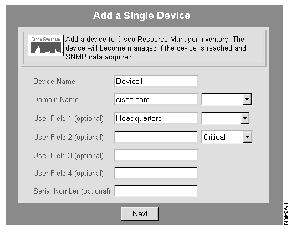
Step 3 Enter the access information in the Add a Single Device dialog box.
Step 4 Click Next.
The Add Passwords dialog box appears. (See Figure 2-2.)
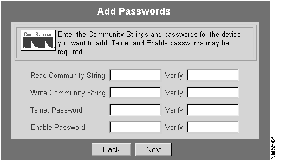
Step 5 Enter and verify the passwords in the Add Passwords dialog box, then click Next.
The Enter TACACS and RCP Information dialog box appears. (See Figure 2-3.)
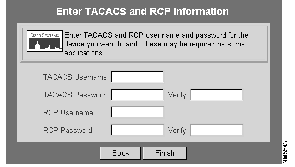
Step 6 Enter and verify the Terminal Access Controller Access Control System (TACACS) and remote file copy (RCP) names and passwords, then click Finish.
The Single Device Add dialog box appears. (See Figure 2-4.)
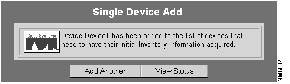
Step 7 To add another device, click Add Another and repeat steps Step 3 through Step 6. Otherwise, click View Status.
The Add/Import Status Summary dialog box appears. (See Figure 2-5.)
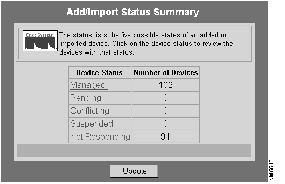
Step 8 To check the status of devices you have added, click the device status links in the Add/Import Status Summary.
Step 9 Click the Device Status links in the Add/Import Status Summary dialog box to check device status. Status is available for devices with the following conditions:
You have now added one or more devices to your network inventory. Now you can configure device views, schedule the inventory collection process, run reports, and perform other Resource Manager tasks. Before you do so, read the following sections to learn how to import devices from a device integration file or from a local or remote database.
Import multiple devices by extracting data from your existing data source into a device integration file that you can later specify as input to Resource Manager. The device integration file format is presented in Appendix A, "Device Integration File Format."
Create the device integration file using your own application, script, query language program, or other means. The file you create is identical in format, content, and use to the files automatically created by the local and remote database import applications when you import devices from a local or remote NMS database. The device integration file includes basic device information (required), device group specifications (optional), and user annotations (optional).
After you create your own device integration file, direct the device import operation to use your device integration file as input.
Use your existing data as the source to create a device integration file that specifies the devices you want to import. The device integration file contains the following information.
Scenario: You have used Resource Manager to add devices one by one with the Add a Single Device feature. Now you want to use Resource Manager to manage a larger number of network devices. You decide to import device information from a file.
After you create your device integration file, use Resource Manager to access the file and start the device import operation.
To specify a device integration file, perform the following steps:
Step 1
Log in with administrator privileges.
Step 2 Click Admin on the button bar, then select Inventory > Import from File.
The File Import dialog box appears.
Step 3 In the File Name field, enter the fully qualified pathname of the device integration file you want to import.
Step 4 Click Next.
The How to Resolve Conflicts dialog box appears. (See Figure 2-6.)
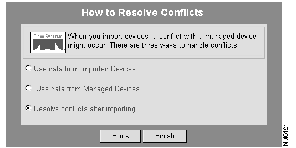
Step 5 Use the How to Resolve Conflicts dialog box to tell Resource Manager what to do if there is a conflict between the imported information and the managed information for a device.
The options are as follows:
Step 6 To run the device integration process, click Finish.
The device integration process is performed and the devices in the file are added to your network.
The Add/Import Status Summary dialog box appears. (See Figure 2-5.)
Step 7 Click the device status links in the Add/Import Status Summary dialog box to check device status. The device status links are the same as those discussed in Step 9 of the Adding Single Devices procedure.
Step 8 Repeat this procedure to import additional device integration files.
For additional information about importing devices from a file, refer to the online help.
Scenario: You have just installed Resource Manager and you want to import the basic device information contained in a CiscoWorks database residing on the local host.
The device import operation supports the following NMS databases:
To import devices from a local NMS database, perform the following steps:
Step 1
To perform this task, make sure the user bin is a member of the CiscoWorks group before you start the Resource Manager web server.
Step 2 Log in with administrator privileges.
Step 3 Click Admin on the button bar, then select Inventory > Import from Local NMS.
The Local Database Import dialog box appears. (See Figure 2-7.)
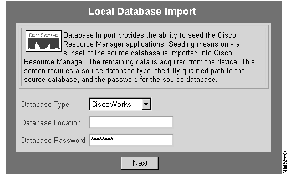
Step 4 In the Database Type field, select the type of the source database that contains the basic device information you want to use. You can select either CiscoWorks (the default selection) or HP OpenView.
Step 5 Use the Database Location field as follows:
Step 6 In the Database Password field, enter the Sybase administrator password for the source database. If you do not have this password, contact your CiscoWorks administrator to obtain it.
Step 7 Click Next.
The How to Resolve Conflicts dialog box appears. (See Figure 2-6.)
Step 8 Use the How to Resolve Conflicts dialog box to tell Resource Manager what to do if there is a conflict between the imported information and the managed information for a device.
The options are the same as those described in Step 5 of the procedure for Importing Devices from a File.
Step 9 Click Next to complete the device import from the local NMS database.
Resource Manager performs the local import and the Add/Import Status Summary dialog box appears. (See Figure 2-5.)
Step 10 Click the device status links in the Add/Import Status Summary dialog box to check device status. The device status links are the same as those discussed in Step 9 of the Adding Single Devices procedure.
For additional information about importing devices from a local NMS database, refer to the online help.
Scenario: You have just installed Resource Manager and you want to import the basic device information contained in the database of a supported network management system residing on a remote host.
The device import operation supports the following NMS databases:
To import devices from a remote NMS database, perform the following steps:
Step 1
Verify that the remote shell daemon is running on the remote host.
Step 2 Identify the appropriate remote user.
Step 3 Log in with administrator privileges.
Step 4 Click Admin on the button bar, then select Inventory > Import from Remote NMS.
The Remote Database Import dialog box appears. (See Figure 2-8.)
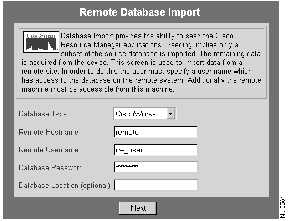
Step 5 In the Database Type field, select the type of the source database that contains the basic device information you want to use. You can select either CiscoWorks (the default) or HP OpenView.
Step 6 In the Remote Hostname field, enter the network name of the host on which the remote NMS resides.
Step 7 If you are importing from a CiscoWorks database, edit the .rhosts file in the home directory (of cw_user if importing from a CiscoWorks database) on the remote device hosting the NMS database. Add the following to the file:
+ cscworks
+ bin
Alternatively, you may enter the fully qualified path name. For example,
myhost.cisco.com
Step 8 In the Remote Username field, enter the appropriate user name.
Step 9 In the Database Password field, enter the Sybase administrator password for the source database.
Step 10 Use the Database Location field as follows:
Step 11 Click Next.
The How to Resolve Conflicts dialog box appears. (See Figure 2-6.)
Step 12 Use the How to Resolve Conflicts dialog box to tell Resource Manager what to do if there is a conflict between the imported information and the managed information for a device.
The options are the same as those described in Step 5 of the procedure for Importing Devices from a File.
Step 13 Click Next to complete the device import from the local NMS database.
Resource Manager performs the local import and the Add/Import Status Summary dialog box appears. (See Figure 2-5.)
Step 14 Click the device status links in the Add/Import Status Summary dialog box to check device status. The device status links are the same as those discussed in Step 9 of the Adding Single Devices procedure.
For additional information about importing devices from a remote NMS database, refer to the online help.
|
|