


|
|

You have now learned how to add and import devices using the Cisco Resource Manager inventory management features. Before you can run reports, however, you need to create views of your devices.
Cisco Resource Manager features two types of views:
There are many ways you can use these two types of views. This chapter provides some scenarios after which you would create static and dynamic views.
The following topics are presented in this chapter:
Scenario: You have several devices in your Resource Manager network inventory that are critical to the network. You decide to create a view of these devices so that you can configure reports to monitor their status. Because the devices you want to put into your view have no direct relationship, you create a static view.
To create a static view, perform the following steps:
Step 1 
Log in with administrator privileges.
Step 2 Click Admin on the button bar, then select Device Views > Add Static Views.
The Add Static Views dialog box appears. (See Figure 3-1.) The Views column displays the current list of dynamic views.
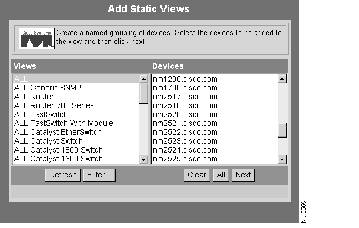
Step 3 Click ALL in the Views column, then in the Devices column, select the devices you want in your static view.
Step 4 When you are finished, click Next.
The Save Static View dialog box appears.
Step 5 Enter the View Name and View Description in the Save Static View dialog box.
Step 6 Click Finish.
The view has been added. The Add Static Views dialog box remains in your browser window so that you can add additional static views.
Scenario: You have multiple Cisco devices of the same type in your network inventory. You want to configure a view that monitors these devices so you decide to create a dynamic view.
To create a dynamic view, perform the following steps:
Step 1
Log in with administrator privileges.
Step 2 Click Admin on the button bar, then select Device Views > Add Dynamic Views.
The Add Dynamic Views dialog box appears. (See Figure 3-2.)
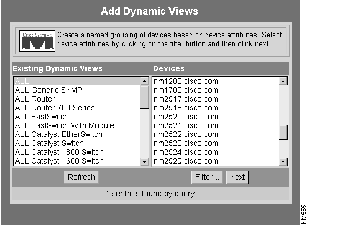
Click any of the dynamic views in the Existing Dynamic Views column to see their contents in the Devices column.
Step 3 Click Filter to select the device attributes for your dynamic view.
The Filter Select Devices dialog box appears. (See Figure 3-3.)
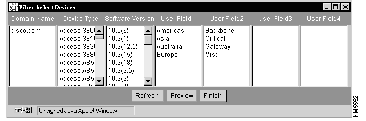
Step 4 Select your filtering options from the available fields.
For example, select domain.com as the domain name and Cisco 4000 series routers, Cisco 7000 series routers, and Cisco Catalyst 5000 switches as the device types. In this example, you choose not to specify any other fields.
Step 5 Click Finish.
The Save Dynamic View dialog box appears.
Step 6 Enter the View Name and View Description, then click Finish.
You have created your dynamic view. You can configure reports to include statistics for this view.
|
|