


|
|

Cisco Resource Manager provides you with methods for evaluating and troubleshooting problems should they arise.
The following topics are presented in this chapter:
Resource Manager displays two types of error messages:
Interface error messages are displayed in dialog boxes with a description of the probable cause for the error and recommended corrective action, if any. (See Figure 9-1.)

There are three types of interface error messages:
Some interface error messages include a Details button. (See Figure 9-2.)

Click Details to see additional information and recommended corrective action for the error. An informational dialog box appears. (See Figure 9-3.)
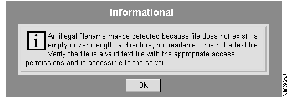
Back-end error messages result from problems that occur in processes that are running on the Resource Manager server. Back-end error messages are stored in the syslog.
Refer to the Cisco Resource Manager Installation Guide for the location of the error message logs.
Figure 9-4 shows the syslog error message format.
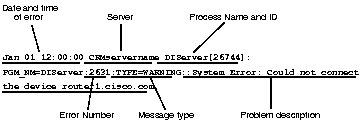
There are two interfaces for viewing and troubleshooting process problems:
Use the Process Status, Start Process, and Stop Process features in the Resource Manager interface to view process status and troubleshoot process problems. Use the command-line interface for processes that cannot be monitored with the Resource Manager interface (for example, syslogd).
Table 9-1 shows the process features available in the Resource Manager interface and the equivalent command-line process features.
| Resource Manager | Command-line |
|---|---|
| Process Status | pdshow |
| Start Process | pdexec |
| Stop Process | pdterm |
For a complete description of the processes accessible to the Resource Manager interface, refer to the online help.
Several events can cause a process to fail. For example, the database engine might fail for one of the following reasons:
When a process fails, examine your system to see if any of these conditions have occurred and attempt to correct them by making the necessary space or reinstalling Resource Manager.
Refer to the Cisco Resource Manager Installation Guide for the location of the error message logs.
If you are unable to solve a process problem with the available process features, you need to call Cisco Customer Service. Refer to the error log files to provide Customer Service with the information they need to help you solve the problem.
The following sections describe scenarios in which both the Resource Manager interface and command-line interface process features are used:
Scenario: You check process status and notice that the DbServer process in the Process Status table indicates a state of "Failed to run." You attempt to restart the process.
To attempt a process restart, perform the following steps:
Step 1 
Log in with administrator privileges.
Step 2 Click Admin on the button bar, then select System Admin > Process Status.
The Process Status report appears showing "Failed to start" as the status for the DbServer process.
Step 3 Select System Admin > Start Process.
The Start Process dialog box appears. (See Figure 9-5.)
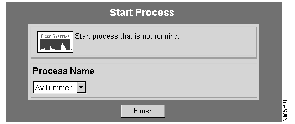
Step 4 Select DbServer, then click Finish.
The Process Status table appears.
Step 5 Check whether the process is now running properly.
If the process state now reads "Running normally," you have solved the problem.
Step 6 If the process is still not running normally, check the error log and call Cisco Customer Service for assistance. Customer Service will need to know the error log information to help you solve the problem.
To attempt a process restart, perform the following steps:
Step 1
Log in with administrator privileges.
Step 2 To check status, enter pdshow DbServer.
The following status appears:
Step 3 Enter pdexec DbServer to attempt to restart the process.
Step 4 Enter pdshow DbServer again to see if the process is operating properly.
If the process is operating properly, the following status appears:
Step 5 If the process is still not running normally, check the error log. If you cannot solve the problem, call Cisco Customer Service for assistance. Customer Service will need to know the error log information to help you solve the problem.
Scenario: You want to back up of all the data you have stored on your hard drive, so you shut down the DbServer process.
To stop the DbServer process, perform the following steps:
Step 1
Log in with administrator privileges.
Step 2 Click Admin on the button bar, then select System Admin > Stop Process.
The Stop Process dialog box appears. (See Figure 9-6.)
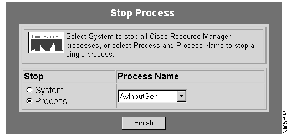
Step 3 Click the Process radio button.
Step 4 Select DbServer from the Process Name list, then click Finish.
The process stops and the Process Status table appears. The status for DbServer reads, "Administrator has shut down this server."
To stop the DbServer process, perform the following steps:
Step 1
Log in with administrator privileges.
Step 2 Enter pdterm DbServer.
Step 3 To check process status, enter pdshow DbServer.
The following status message appears, showing that the process has been stopped.
|
|