


|
|

The Cisco Resource Manager software management features help you save time and effort when upgrading the devices in your network inventory. This chapter describes a common software management workflow scenario.
The following topics are presented in this chapter:
The software management features
You can use the software management features to
The following sections describe a typical software management workflow scenario. In this scenario, the network administrator performs the necessary steps to identify, plan, and execute a software upgrade for a group of devices and then perform the necessary maintenance tasks. See Figure 8-1 for a diagram of the software management workflow.

The following sections provide scenarios that describe each of the software management workflow phases in detail.
Identification involves evaluating the change to be made and determinating which software images need to be changed, how this will affect your network, and how to implement the change.
To identify the required change, you must determine which new features or fixes are available. The resources available to you are
Consider the ramifications of the changes you are planning to implement. Some of the factors you should consider are presented in the following sections.
Depending on when and how you schedule your upgrade, you may experience a disruption in network operation. Schedule the reboot to accommodate minimum downtime for your users. Make the appropriate preparations and notify users of any possible disruption.
Scenario: You want to make sure the RAM and Flash sizes of the devices you want to upgrade are sufficient to operate the software image upgrade.
To determine RAM and Flash sizes of the devices you want to upgrade, perform the following steps:
Step 1 
Click Tasks on the button bar, then select Inventory > Hardware Report.
The Hardware Summary Report dialog box appears. (See Figure 8-2.)
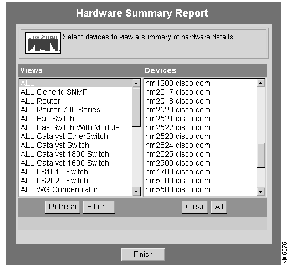
Step 2 Select the devices you want to upgrade, then click Finish.
The hardware summary report window appears, displaying information for the selected devices.
Step 3 Click RAM Available (MB) to sort by RAM size or Flash Size (MB) to sort by Flash size, then print the report.
Step 4 Search CCO (select either CCO IOS Software or CCO Switch Software) to determine what the memory requirements are for the images you want to upgrade.
If you do not have sufficient RAM or Flash size, you will need to upgrade your hardware memory before you perform the software image upgrade.
You have identified the devices you want to upgrade and which upgrades will cause memory or compatibility conflicts. You must resolve all conflicts before you prepare your final upgrade list.
Now you are ready to plan the software management workflow.
During the planning phase, you determine which software images to add to your software library, prepare for the upgrade procedure, and download the appropriate images into your software library.
Make sure you consider the following when preparing for your upgrades:
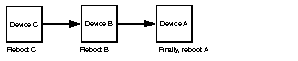
If you want the rollback option to be available, you must check out a backup copy of the current software image for each device you want to back up into the software library. See the Software Image Retrieval section of this chapter for more information.
You need to know the following before you schedule your upgrades:
Use the Resource Manager inventory features to determine the specifics of your devices.
Before you perform any software image downloads, you might want to examine your software library to see if there are any old software images stored there that you can delete. See the Maintenance section of this chapter for more information.
Scenario: You have determined which devices on your network require an upgrade and you are ready to retrieve the appropriate software images from CCO.
To add software images to your library, perform the following steps:
Step 1 
Log in with administrator privileges.
Step 2 Click Tasks on the button bar, then select Software Management > Add Image to Library.
The Select Image Source dialog box appears. (See Figure 8-4.)
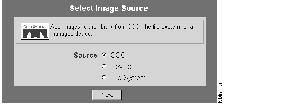
Step 3 Select the source, then click Next. In this scenario, you select CCO. The Select Devices dialog box appears. (See Figure 8-5.)
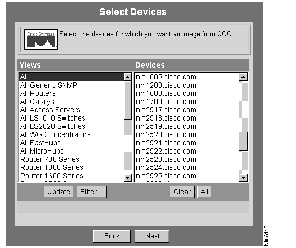
Step 4 From the View column select a view that contains devices you want to upgrade. Select the appropriate devices from the Devices column, then click Next.
Selecting one or more devices from the Devices column identifies a subset of device software images and helps you narrow down your options in subsequent dialog boxes.
The Login for CCO dialog box appears. (See Figure 8-6.)
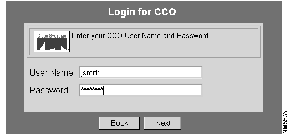
Step 5 Enter your CCO user name and password, then click Next.
The software image selection menus appear in your browser window.
Step 6 In the Select a Device/Platform frame, select the corresponding device link for the device you want to upgrade.
The available software release images for that device appear in the Software Versions frame.
Step 7 Select the software version upgrade for the device.
The subset images for that software image release appear in the Software Subset Images frame.
Step 8 Select the subset image for the software image release.
The Images to Download appear in the bottom frame.
Step 9 Verify that the release and subset image you have selected will operate on the device. Click Clear to restart the selection process if the release and subset image are not correct. Click Next if the release and subset image are correct.
If you click Clear, you may restart the selection process.
If you click Next, the Select Images to Download dialog box appears. (See Figure 8-7.)
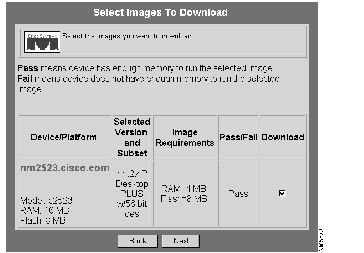
This dialog box verifies whether the device has enough memory for the selected image. If the device does not have enough memory, the word "Fail" appears in the Pass/Fail column. If the device does have enough memory to run the selected software image, the word "Pass" appears in the Pass/Fail column and you can proceed with the download. You can still download a failed image if you uncheck the Download check box first.
Step 10 Make sure the download box is checked, then click Next.
The Confirm Image Download dialog box appears. (See Figure 8-8.)
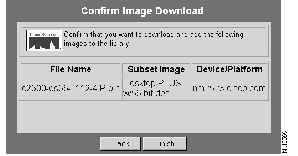
Step 11 Verify that the file name, subset image, and target device/platform are correct, then click Finish.
A Javascript Confirm message appears, notifying you that the download might take a while.
Step 12 Click OK.
The selected software image is downloaded from CCO to your software library and the Add-To-Library Summary appears, indicating whether the download was completed successfully. (See Figure 8-9.)
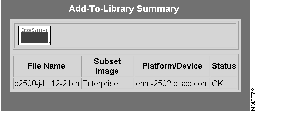
Step 13 Verify that the file name, subset image, target platform/device, and status are correct.
The procedures in this section describe the tasks involved in performing a software image upgrade.
Scenario: You have downloaded the needed software images to your software library and you are prepared to set up your upgrade job.
To set up an upgrade job, perform the following steps:
Step 1
Log in with administrator privileges.
Step 2 Click Tasks on the button bar, then select Software Management > Distribute Images.
The Select Device Type dialog box appears. (See Figure 8-10.)
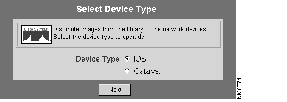
Step 3 Select the device class, then click Next. In this example, you select IOS.
The Select IOS Devices dialog box appears. (See Figure 8-11.)
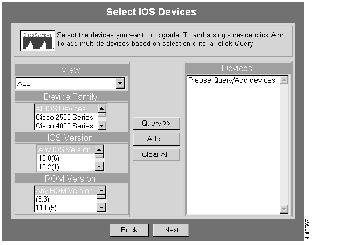
Step 4 Use the dialog box to select the devices you want to upgrade, then click Next.
The Recommended Image Upgrade dialog box appears.
Step 5 Select the Cisco IOS version, feature-size, and Flash device for each of the selected devices, then click Next.
The Verify Image Upgrade dialog box appears.
Step 6 Check the verification status, make any necessary changes, then click Next.
The Distribution Sequence dialog box appears. (See Figure 8-12.)
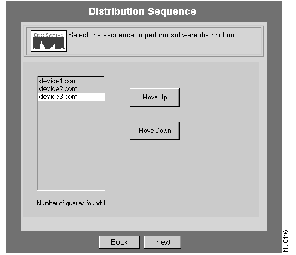
Step 7 Move the selected upgrades up or down the distribution sequence list as desired, then click Next.
The Job Control Information dialog box appears. (See Figure 8-13.)
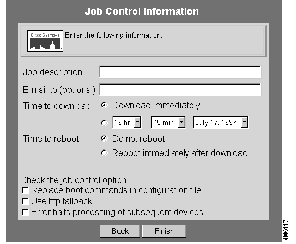
Step 8 Provide the job scheduling information, then click Finish.
If the job was scheduled successfully, a window showing the job ID number and description is displayed.
Scenario: One of your company's key product teams is in the crunch phase of an important project. You are informed that they will be working into the night and that this would be an inopportune time to interrupt network operation. You have scheduled your upgrades for tonight, but you need to reschedule them.
To change job control options, perform the following steps:
Step 1
Log in with administrator privileges.
Step 2 Click Tasks on the button bar, then select Software Management > Browse Job Status.
Step 3 A new browser window opens and a list of all of the upgrade jobs is displayed.
Step 4 Use the report to make changes to any scheduled software upgrade jobs and to review the results of completed jobs.
Step 5 To view detailed information and make changes, click on the job number link.
A new browser window opens, displaying the scheduled time for the job. In this scenario, you leave the date as it is, change the time of the upgrade, then click Change.
The job details, image information, and job results file are displayed.
Step 6 When you have finished reviewing the detailed information for a job, click Back to change another job or Close to close the report.
After you have upgraded device software images, you should check the status of your upgrades to ensure that the process has been completed successfully.
The verification features are:
Scenario: After an immediate or scheduled upgrade, you need to know the status of the upgrade to make sure that it was performed properly.
To verify upgrades, perform the following steps:
Step 1
Log in with administrator privileges.
Step 2 Click Tasks on the button bar, then select Software Management > Search History by Device.
The Select Devices dialog box appears. (See Figure 8-14.)
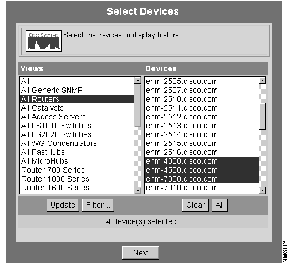
Step 3 Select the view and the devices in the view for which you set up an upgrade and click Next.
The Select Search Options dialog box appears. (See Figure 8-15.)
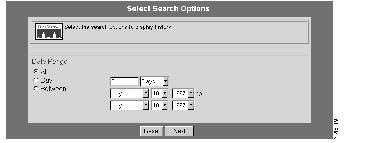
Step 4 Select the date range and time, then click Next.
The Software Modification History report appears for the selected devices. (See Figure 8-16.)
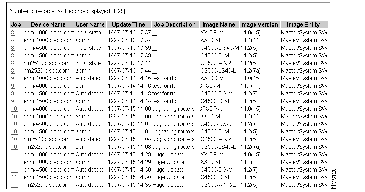
Step 5 Verify that the upgrades you scheduled were performed and take any corrective action, if necessary.
After completing the upgrade process, you must perform cleanup tasks and prepare for future upgrades.
The images in the software library and the history records take up space on your drives. Depending upon the capacity at your site, you need to determine the following:
 | Caution Once you delete distribution history data, you cannot restore it. |
Scenario: You have viewed the status of your most recent upgrade and you want to clear some space on your hard drive by deleting old software images.
To delete old software images in your library, perform the following steps:
Step 1
Log in with administrator privileges.
Step 2 Click Tasks on the button bar, then select Software Management > Browse Library.
The Image Summary Report window opens. You can use this report in the following ways:
| Caution Once you delete software images from the Resource Manager server, you cannot undo the delete operation. Therefore, exercise caution when deleting software images. |
Step 3 When you are finished using the report, click Close.
Scenario: After you delete old software images, you decide to clear some additional space by deleting old history records.
To delete history records, perform the following steps:
Step 1
Log in with administrator privileges.
Step 2 Click Admin on the button bar, then select Software Management > History Administration.
The Delete History dialog box appears. (See Figure 8-17.)
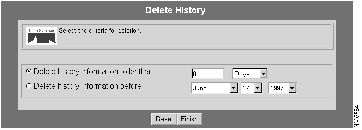
| Caution Once you delete history records from the Resource Manager server, you cannot restore them. Therefore, exercise caution when deleting history records. |
Step 3 Specify the criteria for the history records you want to delete, then click Finish.
The history records are deleted.
Over time, the Job Control report can become filled with data about old completed jobs. You need to decide which jobs you want to remove from this report.
It is recommended that you maintain history reports for at least a year. Keep at least one previous software image version for each upgrade you have performed. This will enable you to roll back to the previous version if necessary. You can optionally delete images that are two or more versions back.
|
|