


|
|

As your Cisco Resource Manager network inventory and user base grows, you need to perform certain system administration tasks to accommodate that growth. This chapter describes some of the features Resource Manager provides to help you with these tasks.
The following topics are presented in this chapter:
Perform storage management tasks to ensure that you have a set of database backups in case your current database becomes corrupted or otherwise unusable.
Use a directory naming scheme that lets you recognize when your backups were made in case you need to restore the database.
The backup process creates three files:
The px.db file is your database backup. The px.log file is a log of database transactions. Without the px.log file, you cannot restore your database. The CRM_filebackup.tar file contains a collection of back-up files created by Resource Manager applications.
Scenario: You have imported devices into your Resource Manager database and you need to back up the database.
You can perform your database backup immediately or you can schedule it for later.
Make several directories to store backups. For example, if you want to perform backups weekly, use a naming convention that indicates when you created the backups, such as
Store a single backup in each directory. Each time you perform a backup, Resource Manager stores the most current px.db and px.log file in that directory.
To back up the database, perform the following steps:
Step 1 
Log in with administrator privileges.
Step 2 Click Admin on the button bar, then select System Admin > Backup Data.
The Backup message appears. This message provides information about the backup procedure and any additional tasks you will need to perform to back up your database.
Step 3 Read the Backup message, then click Next.
The Backup dialog box appears. (See Figure 7-1.)
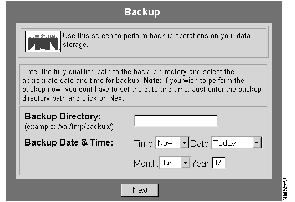
Step 4 Enter the fully qualified pathname name of a backup directory.
 | Caution Store backups in a partition other than the one hosting the run-time database. If your run-time database becomes corrupted, your backup could also become corrupted if it resides on the same server. |
Step 5 Enter the backup date and time, then click Next.
If you selected Now as the backup time, the backup is performed immediately and the procedure is complete.
If you scheduled a backup for a later time, and the Backup message provided instructions on how to execute a backup script, execute that backup script now.
Scenario: You discover that your run-time database is corrupted and you want to restore the database.
To restore the database, perform the following steps:
Step 1
Log in with administrator privileges.
Step 2 Click Admin on the button bar, then select System Admin > Restore Data.
The Restore message appears.
Step 3 Read the message, then click Next.
The Restore dialog box appears. (See Figure 7-2.)
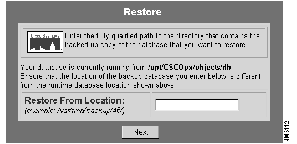
Step 4 Enter the fully qualified pathname of the directory containing the backed up database that you want to use.
The database in that directory will be copied over your current database.
Scenario: You notice that the file system is filling up and you need to move the current run-time database to a new location.
To move the database, perform the following procedure:
Step 1
Log in with administrator privileges.
Step 2 Click Admin on the button bar, then select System Admin > Move Data.
The Move message appears.
Step 3 Read the message, then click Next.
The Move dialog box appears. (See Figure 7-3.)
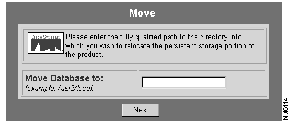
Step 4 Enter the fully qualified pathname of the directory to which you want to move the current run-time database.
| Caution The entire application except for the web server will be shut down as part of this process. Be sure that you are not running any critical tasks when you move the Resource Manager database. |
Step 5 Click Next.
The database is moved to the specified location.
You can add, delete, and change passwords of users on the network with the features described in this section.
Scenario: Your company has just hired a new employee to help manage the network and you want to give the employee administrator-level privileges.
To add users, perform the following steps:
Step 1
Log in with administrator privileges.
Step 2 Click Admin on the button bar, then select User Accounts > Add Users.
The Add Users dialog box appears. (See Figure 7-4.)
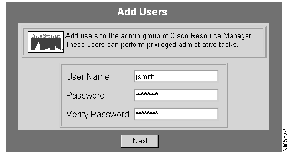
Step 3 Enter the user name, password, and password verification, then click Next.
A confirmation message is displayed. Click Add Another to add another user.
Scenario: An employee in the Resource Manager administration group has left your company. You need to delete the employee from the administrator-level user list.
To delete users, perform the following steps:
Step 1
Log in with administrator privileges.
Step 2 Click Admin on the button bar, then select User Accounts > Delete Users.
The Delete Users dialog box appears. (See Figure 7-5.)
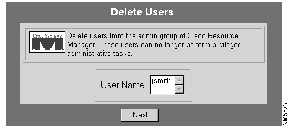
Step 3 Select the name of the user you want to delete from the list, then click Next.
A confirmation message is displayed. Click Delete Another to delete another user.
Scenario: To ensure the security of your Resource Manager network, you decide to change administrator-level passwords.
To change a user's password, perform the following steps:
Step 1
Log in with administrator privileges.
Step 2 Click Admin on the button bar, then select User Accounts > Change Passwords.
The Change Passwords dialog box appears. (See Figure 7-6.)
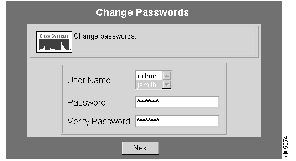
Step 3 Enter the user name, new password, and password verification, then click Next.
The password is changed for the specified user. Click Change Another to change another password.
|
|